> ## Documentation Index
> Fetch the complete documentation index at: https://docs.stackone.com/llms.txt
> Use this file to discover all available pages before exploring further.

# Microsoft Intune OAuth 2.0 connector profile – StackOne setup guide

> Set up the OAuth 2.0 connector profile for Microsoft Intune in StackOne. One-time admin setup required before your users can link Microsoft Intune accounts via Hub.

<Warning>You must have at least Application Developer permissions in your Azure account to register applications in Microsoft Entra ID. A Global Administrator must grant admin consent for the required delegated permissions. The tenant must have an active Microsoft Intune license (Plan 1 or Plan 2).</Warning>

<Panel>
  <div className="not-prose guides-scope-selector" data-guides-scope-selector data-guide-actions-json="[{&#x22;id&#x22;:&#x22;microsoftintune_list_managed_devices&#x22;,&#x22;label&#x22;:&#x22;List Managed Devices&#x22;,&#x22;scopes&#x22;:[&#x22;DeviceManagementManagedDevices.Read.All&#x22;]},{&#x22;id&#x22;:&#x22;microsoftintune_get_managed_device&#x22;,&#x22;label&#x22;:&#x22;Get Managed Device&#x22;,&#x22;scopes&#x22;:[&#x22;DeviceManagementManagedDevices.Read.All&#x22;]},{&#x22;id&#x22;:&#x22;microsoftintune_delete_managed_device&#x22;,&#x22;label&#x22;:&#x22;Delete Managed Device&#x22;,&#x22;scopes&#x22;:[&#x22;DeviceManagementManagedDevices.ReadWrite.All&#x22;]},{&#x22;id&#x22;:&#x22;microsoftintune_retire_managed_device&#x22;,&#x22;label&#x22;:&#x22;Retire Managed Device&#x22;,&#x22;scopes&#x22;:[&#x22;DeviceManagementManagedDevices.PrivilegedOperations.All&#x22;]},{&#x22;id&#x22;:&#x22;microsoftintune_wipe_managed_device&#x22;,&#x22;label&#x22;:&#x22;Wipe Managed Device&#x22;,&#x22;scopes&#x22;:[&#x22;DeviceManagementManagedDevices.PrivilegedOperations.All&#x22;]},{&#x22;id&#x22;:&#x22;microsoftintune_remote_lock&#x22;,&#x22;label&#x22;:&#x22;Remote Lock&#x22;,&#x22;scopes&#x22;:[&#x22;DeviceManagementManagedDevices.PrivilegedOperations.All&#x22;]},{&#x22;id&#x22;:&#x22;microsoftintune_reset_passcode&#x22;,&#x22;label&#x22;:&#x22;Reset Passcode&#x22;,&#x22;scopes&#x22;:[&#x22;DeviceManagementManagedDevices.PrivilegedOperations.All&#x22;]},{&#x22;id&#x22;:&#x22;microsoftintune_reboot_device&#x22;,&#x22;label&#x22;:&#x22;Reboot Device&#x22;,&#x22;scopes&#x22;:[&#x22;DeviceManagementManagedDevices.PrivilegedOperations.All&#x22;]},{&#x22;id&#x22;:&#x22;microsoftintune_shut_down_device&#x22;,&#x22;label&#x22;:&#x22;Shut Down Device&#x22;,&#x22;scopes&#x22;:[&#x22;DeviceManagementManagedDevices.PrivilegedOperations.All&#x22;]},{&#x22;id&#x22;:&#x22;microsoftintune_sync_device&#x22;,&#x22;label&#x22;:&#x22;Sync Device&#x22;,&#x22;scopes&#x22;:[&#x22;DeviceManagementManagedDevices.ReadWrite.All&#x22;]},{&#x22;id&#x22;:&#x22;microsoftintune_locate_device&#x22;,&#x22;label&#x22;:&#x22;Locate Device&#x22;,&#x22;scopes&#x22;:[&#x22;DeviceManagementManagedDevices.ReadWrite.All&#x22;]},{&#x22;id&#x22;:&#x22;microsoftintune_bypass_activation_lock&#x22;,&#x22;label&#x22;:&#x22;Bypass Activation Lock&#x22;,&#x22;scopes&#x22;:[&#x22;DeviceManagementManagedDevices.PrivilegedOperations.All&#x22;]},{&#x22;id&#x22;:&#x22;microsoftintune_disable_lost_mode&#x22;,&#x22;label&#x22;:&#x22;Disable Lost Mode&#x22;,&#x22;scopes&#x22;:[&#x22;DeviceManagementManagedDevices.PrivilegedOperations.All&#x22;]},{&#x22;id&#x22;:&#x22;microsoftintune_clean_windows_device&#x22;,&#x22;label&#x22;:&#x22;Clean Windows Device&#x22;,&#x22;scopes&#x22;:[&#x22;DeviceManagementManagedDevices.PrivilegedOperations.All&#x22;]},{&#x22;id&#x22;:&#x22;microsoftintune_windows_defender_scan&#x22;,&#x22;label&#x22;:&#x22;Windows Defender Scan&#x22;,&#x22;scopes&#x22;:[&#x22;DeviceManagementManagedDevices.ReadWrite.All&#x22;]},{&#x22;id&#x22;:&#x22;microsoftintune_windows_defender_update_signatures&#x22;,&#x22;label&#x22;:&#x22;Windows Defender Update Signatures&#x22;,&#x22;scopes&#x22;:[&#x22;DeviceManagementManagedDevices.ReadWrite.All&#x22;]},{&#x22;id&#x22;:&#x22;microsoftintune_get_device_category&#x22;,&#x22;label&#x22;:&#x22;Get Device Category&#x22;,&#x22;scopes&#x22;:[&#x22;DeviceManagementManagedDevices.Read.All&#x22;]},{&#x22;id&#x22;:&#x22;microsoftintune_list_device_compliance_policies&#x22;,&#x22;label&#x22;:&#x22;List Device Compliance Policies&#x22;,&#x22;scopes&#x22;:[&#x22;DeviceManagementConfiguration.Read.All&#x22;]},{&#x22;id&#x22;:&#x22;microsoftintune_get_device_compliance_policy&#x22;,&#x22;label&#x22;:&#x22;Get Device Compliance Policy&#x22;,&#x22;scopes&#x22;:[&#x22;DeviceManagementConfiguration.Read.All&#x22;]},{&#x22;id&#x22;:&#x22;microsoftintune_assign_device_compliance_policy&#x22;,&#x22;label&#x22;:&#x22;Assign Device Compliance Policy&#x22;,&#x22;scopes&#x22;:[&#x22;DeviceManagementConfiguration.ReadWrite.All&#x22;]},{&#x22;id&#x22;:&#x22;microsoftintune_delete_device_compliance_policy&#x22;,&#x22;label&#x22;:&#x22;Delete Device Compliance Policy&#x22;,&#x22;scopes&#x22;:[&#x22;DeviceManagementConfiguration.ReadWrite.All&#x22;]},{&#x22;id&#x22;:&#x22;microsoftintune_list_device_configurations&#x22;,&#x22;label&#x22;:&#x22;List Device Configurations&#x22;,&#x22;scopes&#x22;:[&#x22;DeviceManagementConfiguration.Read.All&#x22;]},{&#x22;id&#x22;:&#x22;microsoftintune_get_device_configuration&#x22;,&#x22;label&#x22;:&#x22;Get Device Configuration&#x22;,&#x22;scopes&#x22;:[&#x22;DeviceManagementConfiguration.Read.All&#x22;]},{&#x22;id&#x22;:&#x22;microsoftintune_assign_device_configuration&#x22;,&#x22;label&#x22;:&#x22;Assign Device Configuration&#x22;,&#x22;scopes&#x22;:[&#x22;DeviceManagementConfiguration.ReadWrite.All&#x22;]},{&#x22;id&#x22;:&#x22;microsoftintune_delete_device_configuration&#x22;,&#x22;label&#x22;:&#x22;Delete Device Configuration&#x22;,&#x22;scopes&#x22;:[&#x22;DeviceManagementConfiguration.ReadWrite.All&#x22;]},{&#x22;id&#x22;:&#x22;microsoftintune_list_mobile_apps&#x22;,&#x22;label&#x22;:&#x22;List Mobile Apps&#x22;,&#x22;scopes&#x22;:[&#x22;DeviceManagementApps.Read.All&#x22;]},{&#x22;id&#x22;:&#x22;microsoftintune_get_mobile_app&#x22;,&#x22;label&#x22;:&#x22;Get Mobile App&#x22;,&#x22;scopes&#x22;:[&#x22;DeviceManagementApps.Read.All&#x22;]},{&#x22;id&#x22;:&#x22;microsoftintune_assign_mobile_app&#x22;,&#x22;label&#x22;:&#x22;Assign Mobile App&#x22;,&#x22;scopes&#x22;:[&#x22;DeviceManagementApps.ReadWrite.All&#x22;]},{&#x22;id&#x22;:&#x22;microsoftintune_list_mobile_app_categories&#x22;,&#x22;label&#x22;:&#x22;List Mobile App Categories&#x22;,&#x22;scopes&#x22;:[&#x22;DeviceManagementApps.Read.All&#x22;]},{&#x22;id&#x22;:&#x22;microsoftintune_get_mobile_app_category&#x22;,&#x22;label&#x22;:&#x22;Get Mobile App Category&#x22;,&#x22;scopes&#x22;:[&#x22;DeviceManagementApps.Read.All&#x22;]},{&#x22;id&#x22;:&#x22;microsoftintune_list_role_definitions&#x22;,&#x22;label&#x22;:&#x22;List Role Definitions&#x22;,&#x22;scopes&#x22;:[&#x22;DeviceManagementRBAC.Read.All&#x22;]},{&#x22;id&#x22;:&#x22;microsoftintune_get_role_definition&#x22;,&#x22;label&#x22;:&#x22;Get Role Definition&#x22;,&#x22;scopes&#x22;:[&#x22;DeviceManagementRBAC.Read.All&#x22;]},{&#x22;id&#x22;:&#x22;microsoftintune_create_role_definition&#x22;,&#x22;label&#x22;:&#x22;Create Role Definition&#x22;,&#x22;scopes&#x22;:[&#x22;DeviceManagementRBAC.ReadWrite.All&#x22;]},{&#x22;id&#x22;:&#x22;microsoftintune_update_role_definition&#x22;,&#x22;label&#x22;:&#x22;Update Role Definition&#x22;,&#x22;scopes&#x22;:[&#x22;DeviceManagementRBAC.ReadWrite.All&#x22;]},{&#x22;id&#x22;:&#x22;microsoftintune_list_role_assignments&#x22;,&#x22;label&#x22;:&#x22;List Role Assignments&#x22;,&#x22;scopes&#x22;:[&#x22;DeviceManagementRBAC.Read.All&#x22;]},{&#x22;id&#x22;:&#x22;microsoftintune_delete_role_definition&#x22;,&#x22;label&#x22;:&#x22;Delete Role Definition&#x22;,&#x22;scopes&#x22;:[&#x22;DeviceManagementRBAC.ReadWrite.All&#x22;]},{&#x22;id&#x22;:&#x22;microsoftintune_list_device_enrollment_configurations&#x22;,&#x22;label&#x22;:&#x22;List Device Enrollment Configurations&#x22;,&#x22;scopes&#x22;:[&#x22;DeviceManagementServiceConfig.Read.All&#x22;]},{&#x22;id&#x22;:&#x22;microsoftintune_get_device_enrollment_configuration&#x22;,&#x22;label&#x22;:&#x22;Get Device Enrollment Configuration&#x22;,&#x22;scopes&#x22;:[&#x22;DeviceManagementServiceConfig.Read.All&#x22;]},{&#x22;id&#x22;:&#x22;microsoftintune_assign_device_enrollment_configuration&#x22;,&#x22;label&#x22;:&#x22;Assign Device Enrollment Configuration&#x22;,&#x22;scopes&#x22;:[&#x22;DeviceManagementServiceConfig.ReadWrite.All&#x22;]},{&#x22;id&#x22;:&#x22;microsoftintune_set_enrollment_priority&#x22;,&#x22;label&#x22;:&#x22;Set Enrollment Priority&#x22;,&#x22;scopes&#x22;:[&#x22;DeviceManagementServiceConfig.ReadWrite.All&#x22;]},{&#x22;id&#x22;:&#x22;microsoftintune_list_detected_apps&#x22;,&#x22;label&#x22;:&#x22;List Detected Apps&#x22;,&#x22;scopes&#x22;:[&#x22;DeviceManagementManagedDevices.Read.All&#x22;]},{&#x22;id&#x22;:&#x22;microsoftintune_get_detected_app&#x22;,&#x22;label&#x22;:&#x22;Get Detected App&#x22;,&#x22;scopes&#x22;:[&#x22;DeviceManagementManagedDevices.Read.All&#x22;]},{&#x22;id&#x22;:&#x22;microsoftintune_list_detected_app_managed_devices&#x22;,&#x22;label&#x22;:&#x22;List Detected App Managed Devices&#x22;,&#x22;scopes&#x22;:[&#x22;DeviceManagementManagedDevices.Read.All&#x22;]}]" style={{ borderRadius: '8px', padding: '16px', marginBottom: '24px' }}>
    <div className="guides-scope-selector__title" style={{ fontSize: '16px', fontWeight: '600', marginBottom: '12px' }}>Select Actions to adjust the guide</div>
    <div className="guides-scope-selector__muted" style={{ fontSize: '13px', marginBottom: '12px' }}>Some actions may require additional configuration in the provider to be accessible. Choose the actions you need and the guide will be updated.</div>

    <div style={{ display: 'flex', gap: '8px', marginBottom: '12px', flexWrap: 'wrap' }}>
      <input type="text" placeholder="Search actions..." className="guides-scope-selector__input" data-guide-action-search style={{ padding: '8px 12px', borderRadius: '6px', fontSize: '13px', flex: 1, minWidth: '160px' }} />

      <button type="button" className="guides-scope-selector__quick-btn" data-guide-select-all style={{ padding: '6px 10px', borderRadius: '6px', fontSize: '12px', cursor: 'pointer' }}>Select all</button>
      <button type="button" className="guides-scope-selector__quick-btn" data-guide-clear style={{ padding: '6px 10px', borderRadius: '6px', fontSize: '12px', cursor: 'pointer' }}>Clear</button>
    </div>

    <div className="guides-scope-selector__list" style={{ maxHeight: '240px', overflowY: 'auto', borderRadius: '6px', marginBottom: '12px' }}>
      <div className="guides-scope-selector__list-header" style={{ display: 'flex', alignItems: 'center', gap: '10px', padding: '8px 12px', fontSize: '12px', fontWeight: '600', position: 'sticky', top: 0, zIndex: 1 }}>
        <div style={{ width: '16px', flexShrink: 0 }} />

        <div style={{ flex: 1, textAlign: 'left' }}>Action</div>
        <div style={{ minWidth: '120px', marginLeft: 'auto', textAlign: 'right' }}>Scope(s)</div>
      </div>

      <div className="guides-scope-selector__muted" data-guide-loading style={{ padding: '16px', textAlign: 'center', fontSize: '13px' }}>Loading actions...</div>
      <div className="guides-scope-selector__muted" data-guide-no-results hidden style={{ padding: '16px', textAlign: 'center', fontSize: '13px' }}>No actions match your search.</div>
    </div>

    <div className="guides-scope-selector__url-section" style={{ marginTop: '12px', paddingTop: '12px' }}>
      <div className="guides-scope-selector__muted" style={{ fontSize: '12px', fontWeight: '500', marginBottom: '6px' }}>Dynamic Guide URL</div>

      <div style={{ display: 'flex', alignItems: 'center', gap: '8px', flexWrap: 'wrap' }}>
        <input type="text" readOnly className="guides-scope-selector__input" data-guide-url style={{ flex: 1, minWidth: '200px', padding: '8px 10px', borderRadius: '6px', fontSize: '12px', fontFamily: 'monospace' }} />

        <button type="button" className="guides-scope-selector__copy-btn" data-guide-copy-url style={{ width: '120px', padding: '8px 14px', borderRadius: '6px', fontSize: '13px', fontWeight: '500', cursor: 'pointer', whiteSpace: 'nowrap', marginLeft: 'auto' }}>Copy URL</button>
      </div>

      <div style={{ marginTop: '12px' }}>
        <div className="guides-scope-selector__muted" style={{ fontSize: '12px', fontWeight: '500', marginBottom: '6px' }}>Scopes Selected</div>

        <div style={{ display: 'flex', alignItems: 'stretch', gap: '8px', flexWrap: 'wrap' }}>
          <pre className="guides-scope-selector__input" role="textbox" aria-readonly="true" tabIndex={0} data-guide-scopes-output style={{ flex: 1, minWidth: '200px', minHeight: '88px', maxHeight: '120px', overflowY: 'auto', margin: 0, padding: '8px 10px', borderRadius: '6px', fontSize: '12px', fontFamily: 'monospace', whiteSpace: 'pre-wrap' }} />

          <div className="guides-scope-selector__muted" style={{ display: 'flex', flexDirection: 'column', gap: '8px', fontSize: '12px', fontWeight: '500', flexShrink: 0, alignItems: 'flex-start' }}>
            <div style={{ whiteSpace: 'nowrap' }}>Separator</div>

            <select className="guides-scope-selector__input" data-guide-scope-delimiter style={{ width: '100%', padding: '6px 10px', borderRadius: '6px', fontSize: '12px' }}>
              <option value="space">Space</option>
              <option value="comma">Comma</option>
              <option value="semicolon">Semicolon</option>
              <option value="pipe">Pipe</option>
              <option value="newline">Newline</option>
            </select>

            <button type="button" className="guides-scope-selector__copy-btn" data-guide-copy-scopes style={{ width: '120px', padding: '8px 14px', borderRadius: '6px', fontSize: '13px', fontWeight: '500', cursor: 'pointer', whiteSpace: 'nowrap' }}>Copy scopes</button>
          </div>
        </div>
      </div>
    </div>
  </div>
</Panel>

<section data-guide-section data-guide-scopes="">
  <h2>Register Your Application in Microsoft Entra ID</h2>

  <p>Register an application in Microsoft Entra ID to obtain the OAuth 2.0 client credentials StackOne uses to run the authorization code flow.</p>

  <Steps>
    <Step title="Sign in to Microsoft Entra Admin Center">
      <div data-guide-step data-guide-scopes="" data-guide-display-scopes-list="">
        <p>Sign in to the <a href="https://entra.microsoft.com" target="_blank" rel="noopener noreferrer">Microsoft Entra admin center</a> as at least an Application Developer. If you have access to multiple tenants, click the <strong>Settings</strong> (gear) icon in the top-right corner, then select the desired tenant from the list under <strong>Directory + subscription</strong>.</p>
      </div>
    </Step>

    <Step title="Navigate to App Registrations">
      <div data-guide-step data-guide-scopes="" data-guide-display-scopes-list="">
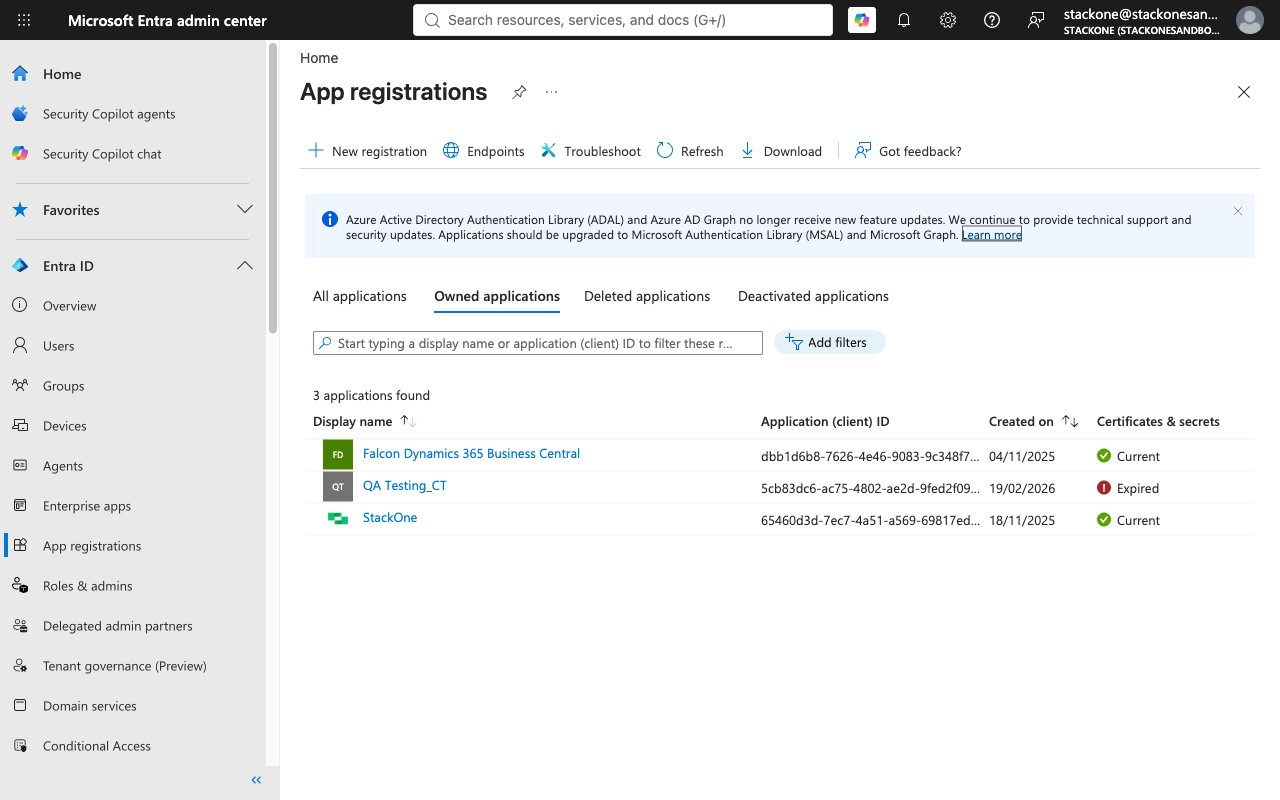
        <p>In the left navigation under <strong>Entra ID</strong>, click <strong>App registrations</strong>. You will see a list of your existing registered applications.</p>

        <img src="https://mintcdn.com/stackone-60/Y33s3xCc-jVoeMPa/connectors/microsoftintune/images/config-app-registrations.png?fit=max&auto=format&n=Y33s3xCc-jVoeMPa&q=85&s=d019f3aee282636e77879b6e93070b0c" alt="Microsoft Entra admin center App registrations page showing the New registration button in the toolbar and a list of existing registered applications." width="1280" height="800" data-path="connectors/microsoftintune/images/config-app-registrations.png" />
      </div>
    </Step>

    <Step title="Create a New App Registration">
      <div data-guide-step data-guide-scopes="" data-guide-display-scopes-list="">
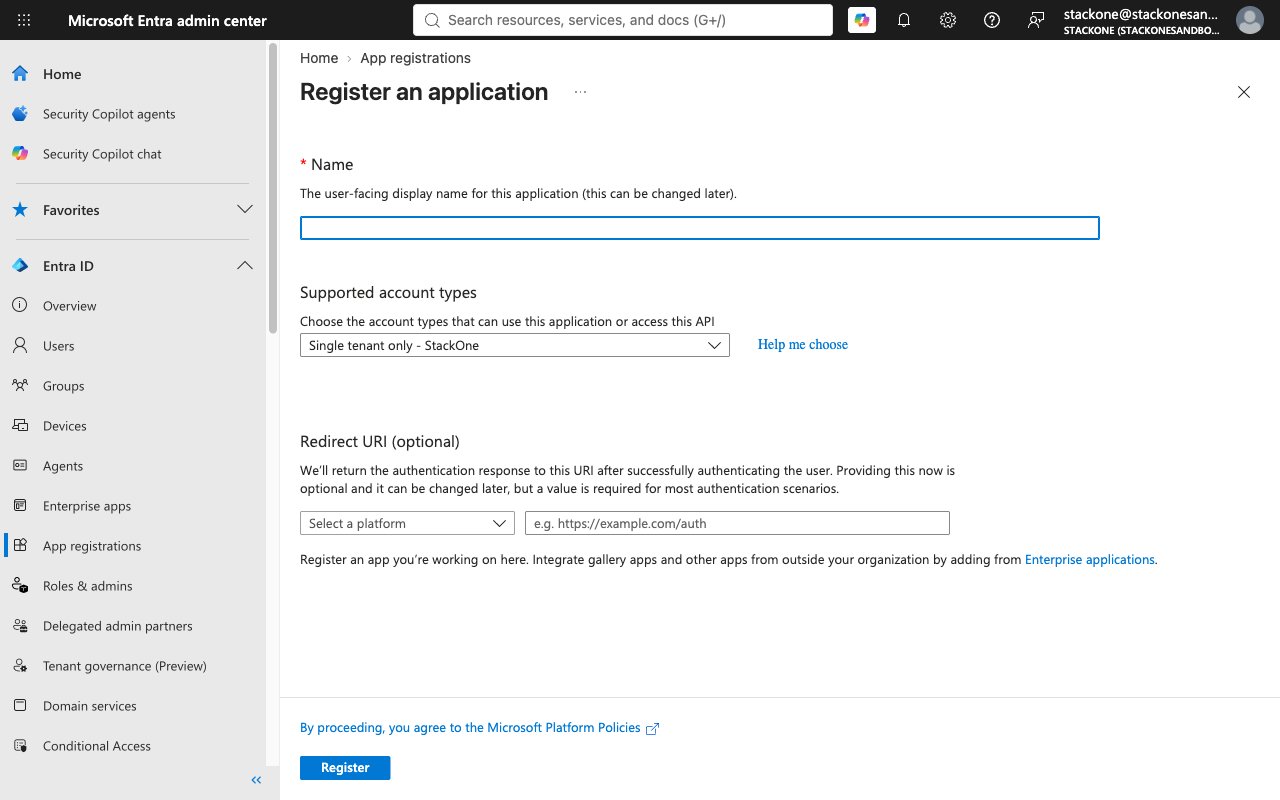
        <p>Click <strong>New registration</strong> in the toolbar at the top of the page.</p>

        <ul>
          <li>Enter a meaningful <strong>Name</strong> for your app (e.g., StackOne Intune Integration).</li>
          <li>Under <strong>Supported account types</strong>, select <strong>Accounts in this organizational directory only</strong> for single-tenant access.</li>
          <li>Leave the <strong>Redirect URI (optional)</strong> section blank for now — you will configure it in the next section.</li>
          <li>Click <strong>Register</strong> to create the app registration.</li>
        </ul>

        <img src="https://mintcdn.com/stackone-60/Y33s3xCc-jVoeMPa/connectors/microsoftintune/images/config-new-registration.png?fit=max&auto=format&n=Y33s3xCc-jVoeMPa&q=85&s=07d59b51a1f5ca1d477257e4be3ca9a4" alt="Register an application form with Name field, Supported account types dropdown, optional Redirect URI section, and Register button." width="1280" height="800" data-path="connectors/microsoftintune/images/config-new-registration.png" />
      </div>
    </Step>

    <Step title="Copy the Application (Client) ID">
      <div data-guide-step data-guide-scopes="" data-guide-display-scopes-list="">
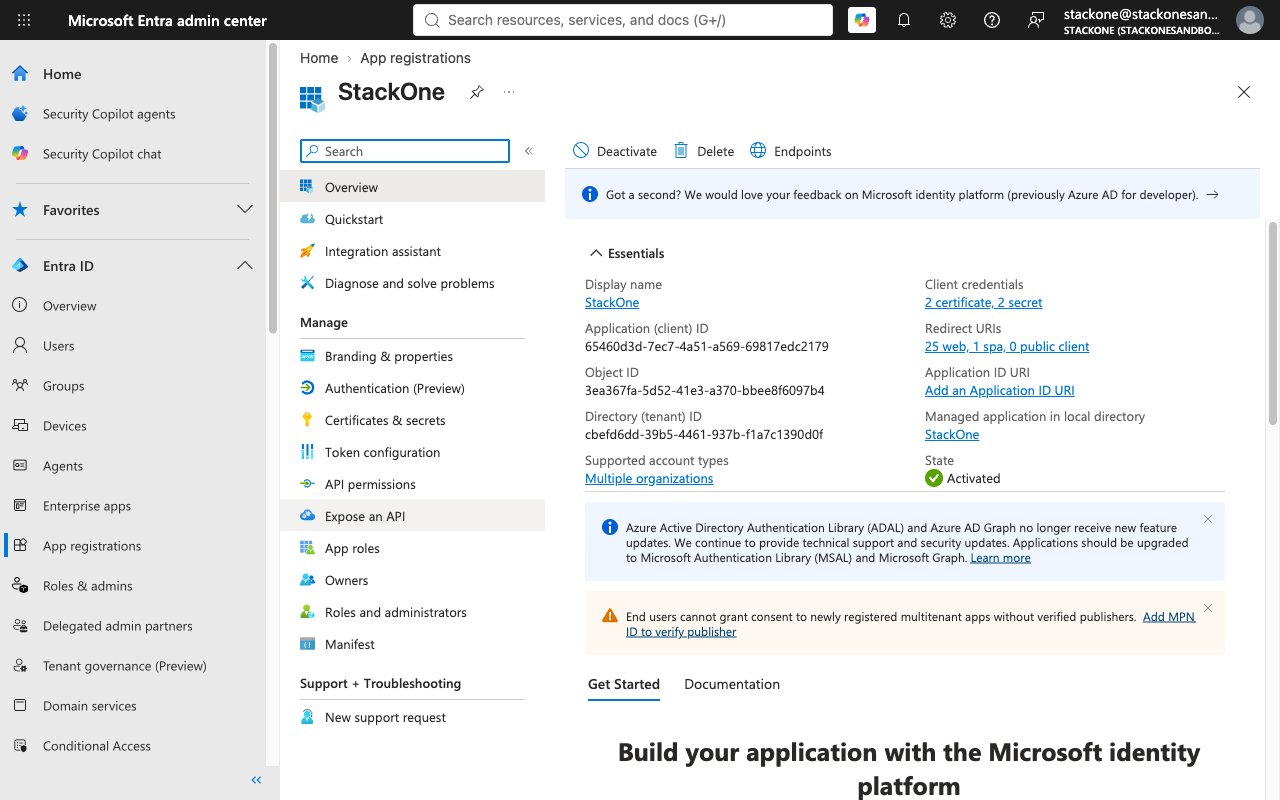
        <p>After registration, you will be directed to the application's <strong>Overview</strong> page. In the <strong>Essentials</strong> section, locate <strong>Application (client) ID</strong> and copy its value. Paste it into the <strong>Client ID</strong> field when setting up the integration.</p>

        <img src="https://mintcdn.com/stackone-60/Y33s3xCc-jVoeMPa/connectors/microsoftintune/images/config-app-overview.png?fit=max&auto=format&n=Y33s3xCc-jVoeMPa&q=85&s=8fd26dfe91b750bc1a4040eac191a9e6" alt="App registration Overview page showing Essentials section with Application (client) ID and Directory (tenant) ID values." width="1280" height="800" data-path="connectors/microsoftintune/images/config-app-overview.png" />
      </div>
    </Step>
  </Steps>
</section>

<section data-guide-section data-guide-scopes="">
  <h2>Configure Redirect URI</h2>

  <p>Set up the OAuth 2.0 callback URL to enable the authentication flow between StackOne and Microsoft Intune.</p>

  <Steps>
    <Step title="Navigate to Authentication Settings">
      <div data-guide-step data-guide-scopes="" data-guide-display-scopes-list="">
        <p>From your app's left menu under <strong>Manage</strong>, select <strong>Authentication (Preview)</strong>.</p>
      </div>
    </Step>

    <Step title="Add a Redirect URI">
      <div data-guide-step data-guide-scopes="" data-guide-display-scopes-list="">
        <p>Under <strong>Redirect URI configuration</strong>, click <strong>+ Add Redirect URI</strong>. On the <strong>Select a platform to add redirect URI</strong> panel that opens, select <strong>Web</strong> under <strong>Web applications</strong>.</p>
      </div>
    </Step>

    <Step title="Set the Redirect URI">
      <div data-guide-step data-guide-scopes="" data-guide-display-scopes-list="">
        <p>In the <strong>Redirect URI</strong> field that appears, enter the StackOne OAuth callback URL and click <strong>Configure</strong>.</p>

        <ul>
          <li>Redirect URI — `https://api.stackone.com/connect/oauth2/microsoftintune/callback`</li>
        </ul>
      </div>
    </Step>
  </Steps>
</section>

<section data-guide-section data-guide-scopes="">
  <h2>Configure API Permissions</h2>

  <p>Grant your application the Microsoft Graph delegated permissions required for Intune device management. API access is controlled by the permissions granted here and by the Intune role assigned to the signing-in user.</p>

  <Steps>
    <Step title="Open API Permissions">
      <div data-guide-step data-guide-scopes="" data-guide-display-scopes-list="">
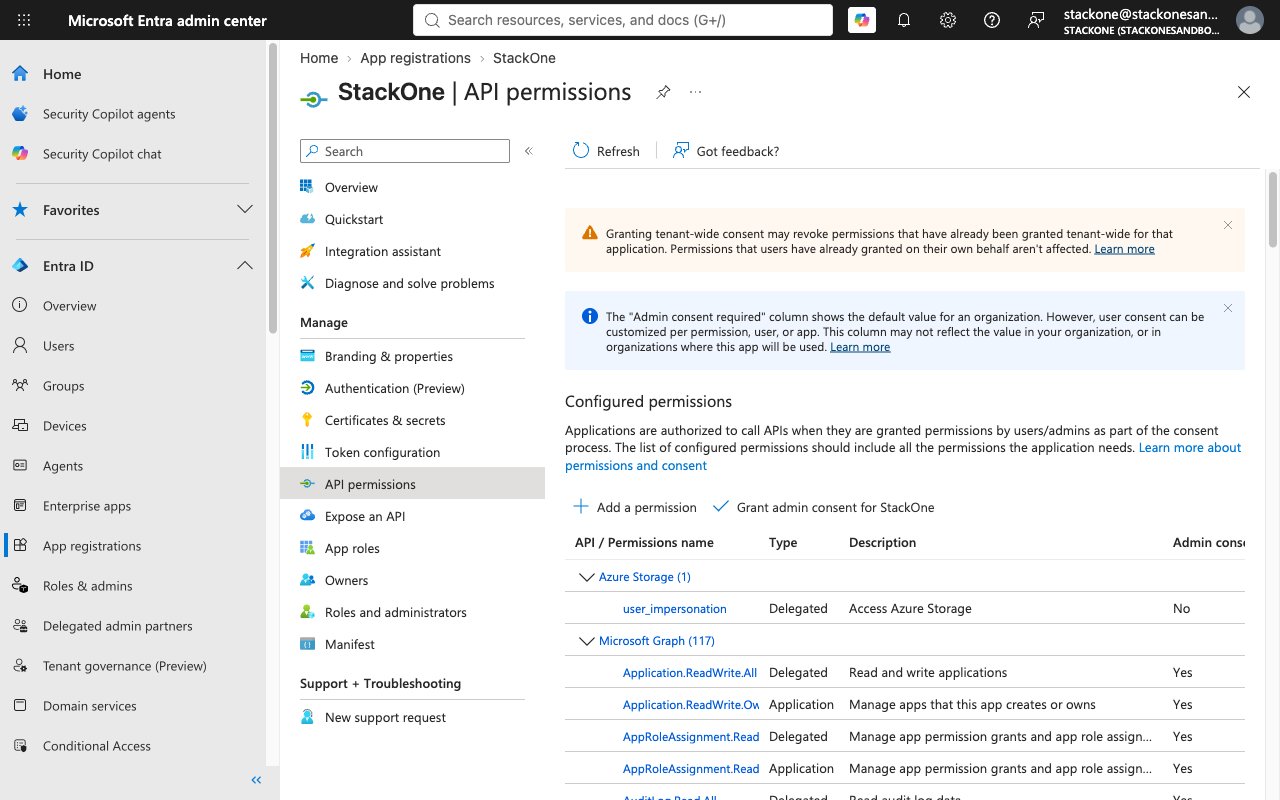
        <p>From the left menu under <strong>Manage</strong>, select <strong>API permissions</strong>.</p>

        <img src="https://mintcdn.com/stackone-60/Y33s3xCc-jVoeMPa/connectors/microsoftintune/images/config-api-permissions.png?fit=max&auto=format&n=Y33s3xCc-jVoeMPa&q=85&s=7f07e67d13dd86761e2067f67b88ecde" alt="API permissions page showing Configured permissions with Add a permission and Grant admin consent buttons." width="1280" height="800" data-path="connectors/microsoftintune/images/config-api-permissions.png" />
      </div>
    </Step>

    <Step title="Select Microsoft Graph">
      <div data-guide-step data-guide-scopes="" data-guide-display-scopes-list="">
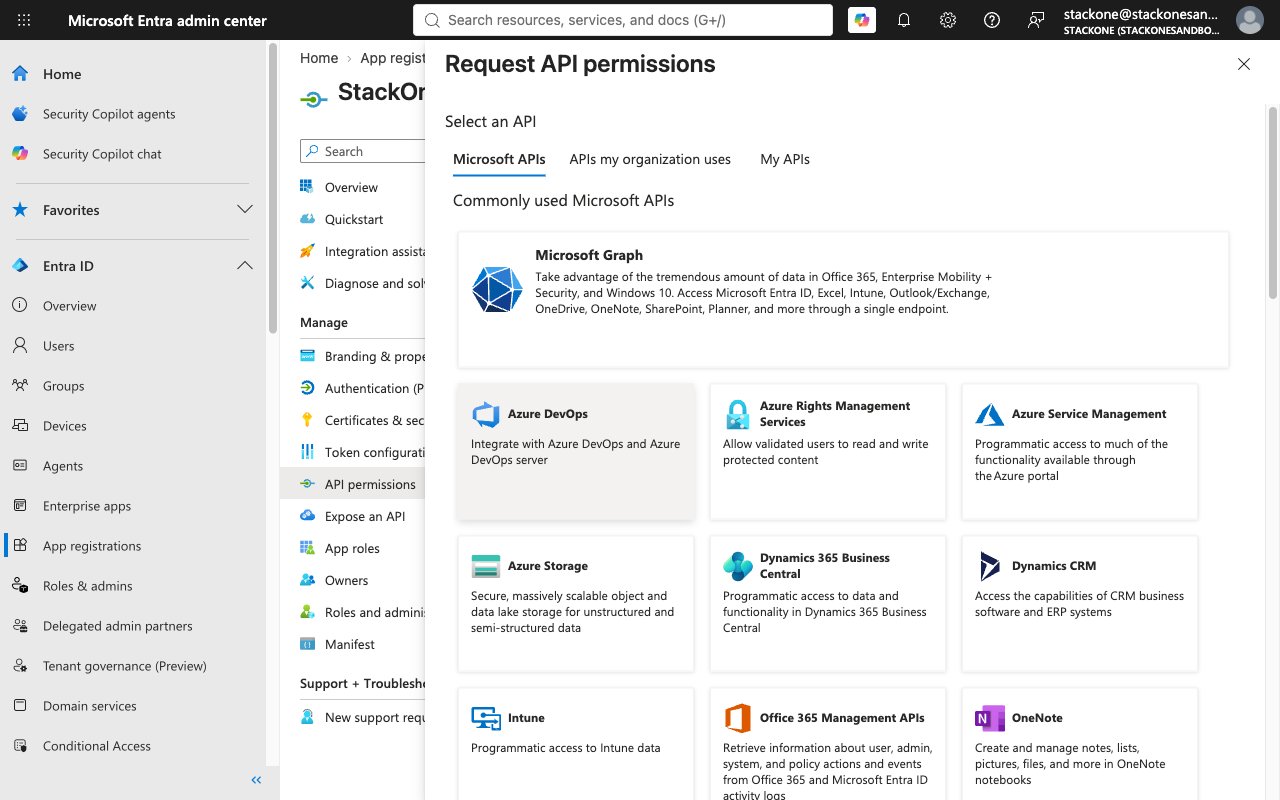
        <p>Click <strong>Add a permission</strong>, then select <strong>Microsoft Graph</strong> from the commonly used Microsoft APIs.</p>

        <img src="https://mintcdn.com/stackone-60/Y33s3xCc-jVoeMPa/connectors/microsoftintune/images/config-select-api.png?fit=max&auto=format&n=Y33s3xCc-jVoeMPa&q=85&s=af14b47db6831f05e19f9fe48cf5992a" alt="Request API permissions panel showing the Select an API step with Microsoft Graph listed under Commonly used Microsoft APIs." width="1280" height="800" data-path="connectors/microsoftintune/images/config-select-api.png" />
      </div>
    </Step>

    <Step title="Choose Delegated Permissions">
      <div data-guide-step data-guide-scopes="" data-guide-display-scopes-list="">
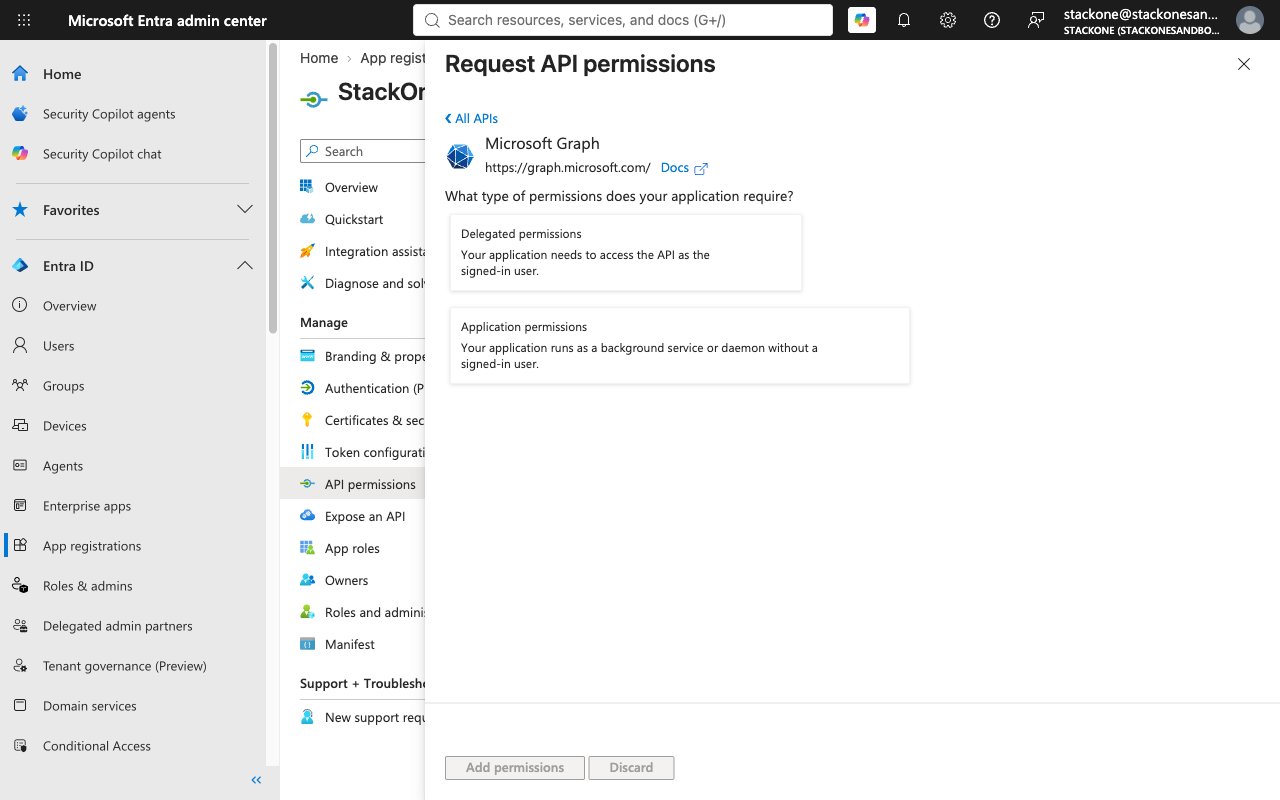
        <p>Select <strong>Delegated permissions</strong> — the application accesses the API as the signed-in user.</p>

        <img src="https://mintcdn.com/stackone-60/Y33s3xCc-jVoeMPa/connectors/microsoftintune/images/config-permission-type.png?fit=max&auto=format&n=Y33s3xCc-jVoeMPa&q=85&s=5a4001234dde72bbdef3f6cb29007d4c" alt="Request API permissions panel asking what type of permissions the application requires, with Delegated permissions and Application permissions options." width="1280" height="800" data-path="connectors/microsoftintune/images/config-permission-type.png" />
      </div>
    </Step>

    <Step title="Add the DeviceManagement Permissions">
      <div data-guide-step data-guide-scopes="DeviceManagementManagedDevices.Read.All,DeviceManagementManagedDevices.ReadWrite.All,DeviceManagementManagedDevices.PrivilegedOperations.All,DeviceManagementConfiguration.Read.All,DeviceManagementConfiguration.ReadWrite.All,DeviceManagementApps.Read.All,DeviceManagementApps.ReadWrite.All,DeviceManagementRBAC.Read.All,DeviceManagementRBAC.ReadWrite.All,DeviceManagementServiceConfig.Read.All,DeviceManagementServiceConfig.ReadWrite.All" data-guide-display-scopes-list="DeviceManagementManagedDevices.Read.All,DeviceManagementManagedDevices.ReadWrite.All,DeviceManagementManagedDevices.PrivilegedOperations.All,DeviceManagementConfiguration.Read.All,DeviceManagementConfiguration.ReadWrite.All,DeviceManagementApps.Read.All,DeviceManagementApps.ReadWrite.All,DeviceManagementRBAC.Read.All,DeviceManagementRBAC.ReadWrite.All,DeviceManagementServiceConfig.Read.All,DeviceManagementServiceConfig.ReadWrite.All">
        <div className="connector-guide-actions-badge" data-guide-actions-badge data-guide-actions-badge-scopes="DeviceManagementManagedDevices.Read.All,DeviceManagementManagedDevices.ReadWrite.All,DeviceManagementManagedDevices.PrivilegedOperations.All,DeviceManagementConfiguration.Read.All,DeviceManagementConfiguration.ReadWrite.All,DeviceManagementApps.Read.All,DeviceManagementApps.ReadWrite.All,DeviceManagementRBAC.Read.All,DeviceManagementRBAC.ReadWrite.All,DeviceManagementServiceConfig.Read.All,DeviceManagementServiceConfig.ReadWrite.All" style={{ display: 'block', width: 'fit-content', maxWidth: '100%', padding: '2px 8px', borderRadius: '8px', fontSize: '12px', marginBottom: '8px', marginTop: '-10px', whiteSpace: 'nowrap', overflowX: 'auto', overflowY: 'hidden', msOverflowStyle: 'none', scrollbarWidth: 'none' }}>
          <span>Enables actions: </span><span data-guide-actions-badge-labels>Assign Device Compliance Policy, Assign Device Configuration, Assign Device Enrollment Configuration, Assign Mobile App, Bypass Activation Lock, Clean Windows Device, Create Role Definition, Delete Device Compliance Policy, Delete Device Configuration, Delete Managed Device, Delete Role Definition, Disable Lost Mode, Get Detected App, Get Device Category, Get Device Compliance Policy, Get Device Configuration, Get Device Enrollment Configuration, Get Managed Device, Get Mobile App, Get Mobile App Category, Get Role Definition, List Detected App Managed Devices, List Detected Apps, List Device Compliance Policies, List Device Configurations, List Device Enrollment Configurations, List Managed Devices, List Mobile App Categories, List Mobile Apps, List Role Assignments, List Role Definitions, Locate Device, Reboot Device, Remote Lock, Reset Passcode, Retire Managed Device, Set Enrollment Priority, Shut Down Device, Sync Device, Update Role Definition, Windows Defender Scan, Windows Defender Update Signatures, Wipe Managed Device</span>
        </div>

        <p>Expand each DeviceManagement category (e.g., DeviceManagementManagedDevices, DeviceManagementConfiguration, DeviceManagementApps, DeviceManagementRBAC, DeviceManagementServiceConfig) to find and select the individual permissions. Click <strong>Add permissions</strong> to save.<br /><br />For read-only access, select all `.Read.All` scopes. For full read-write access, select all listed scopes. Remote device actions (wipe, lock, reboot) additionally require `DeviceManagementManagedDevices.PrivilegedOperations.All`.</p>

        <div style={{ marginTop: '8px' }} data-guide-display-scopes>
          <div className="connector-guide-scopes-container connector-guide-scopes-container--scrollable">
            <ul className="not-prose" style={{ listStyleType: "'- '", paddingLeft: '1em', margin: 0 }}>
              <li style={{ overflowWrap: 'anywhere', wordBreak: 'break-word' }} data-guide-display-scope="DeviceManagementManagedDevices.Read.All">
                <button type="button" className="connector-guide-scope-copy" aria-label="Copy DeviceManagementManagedDevices.Read.All" title="Copy scope" data-copy="DeviceManagementManagedDevices.Read.All">
                  <span className="connector-guide-scope-copy__label">DeviceManagementManagedDevices.Read.All</span>
                  <span className="connector-guide-scope-copy__icon" aria-hidden="true">⧉</span>
                </button>
              </li>

              <li style={{ overflowWrap: 'anywhere', wordBreak: 'break-word' }} data-guide-display-scope="DeviceManagementManagedDevices.ReadWrite.All">
                <button type="button" className="connector-guide-scope-copy" aria-label="Copy DeviceManagementManagedDevices.ReadWrite.All" title="Copy scope" data-copy="DeviceManagementManagedDevices.ReadWrite.All">
                  <span className="connector-guide-scope-copy__label">DeviceManagementManagedDevices.ReadWrite.All</span>
                  <span className="connector-guide-scope-copy__icon" aria-hidden="true">⧉</span>
                </button>
              </li>

              <li style={{ overflowWrap: 'anywhere', wordBreak: 'break-word' }} data-guide-display-scope="DeviceManagementManagedDevices.PrivilegedOperations.All">
                <button type="button" className="connector-guide-scope-copy" aria-label="Copy DeviceManagementManagedDevices.PrivilegedOperations.All" title="Copy scope" data-copy="DeviceManagementManagedDevices.PrivilegedOperations.All">
                  <span className="connector-guide-scope-copy__label">DeviceManagementManagedDevices.PrivilegedOperations.All</span>
                  <span className="connector-guide-scope-copy__icon" aria-hidden="true">⧉</span>
                </button>
              </li>

              <li style={{ overflowWrap: 'anywhere', wordBreak: 'break-word' }} data-guide-display-scope="DeviceManagementConfiguration.Read.All">
                <button type="button" className="connector-guide-scope-copy" aria-label="Copy DeviceManagementConfiguration.Read.All" title="Copy scope" data-copy="DeviceManagementConfiguration.Read.All">
                  <span className="connector-guide-scope-copy__label">DeviceManagementConfiguration.Read.All</span>
                  <span className="connector-guide-scope-copy__icon" aria-hidden="true">⧉</span>
                </button>
              </li>

              <li style={{ overflowWrap: 'anywhere', wordBreak: 'break-word' }} data-guide-display-scope="DeviceManagementConfiguration.ReadWrite.All">
                <button type="button" className="connector-guide-scope-copy" aria-label="Copy DeviceManagementConfiguration.ReadWrite.All" title="Copy scope" data-copy="DeviceManagementConfiguration.ReadWrite.All">
                  <span className="connector-guide-scope-copy__label">DeviceManagementConfiguration.ReadWrite.All</span>
                  <span className="connector-guide-scope-copy__icon" aria-hidden="true">⧉</span>
                </button>
              </li>

              <li style={{ overflowWrap: 'anywhere', wordBreak: 'break-word' }} data-guide-display-scope="DeviceManagementApps.Read.All">
                <button type="button" className="connector-guide-scope-copy" aria-label="Copy DeviceManagementApps.Read.All" title="Copy scope" data-copy="DeviceManagementApps.Read.All">
                  <span className="connector-guide-scope-copy__label">DeviceManagementApps.Read.All</span>
                  <span className="connector-guide-scope-copy__icon" aria-hidden="true">⧉</span>
                </button>
              </li>

              <li style={{ overflowWrap: 'anywhere', wordBreak: 'break-word' }} data-guide-display-scope="DeviceManagementApps.ReadWrite.All">
                <button type="button" className="connector-guide-scope-copy" aria-label="Copy DeviceManagementApps.ReadWrite.All" title="Copy scope" data-copy="DeviceManagementApps.ReadWrite.All">
                  <span className="connector-guide-scope-copy__label">DeviceManagementApps.ReadWrite.All</span>
                  <span className="connector-guide-scope-copy__icon" aria-hidden="true">⧉</span>
                </button>
              </li>

              <li style={{ overflowWrap: 'anywhere', wordBreak: 'break-word' }} data-guide-display-scope="DeviceManagementRBAC.Read.All">
                <button type="button" className="connector-guide-scope-copy" aria-label="Copy DeviceManagementRBAC.Read.All" title="Copy scope" data-copy="DeviceManagementRBAC.Read.All">
                  <span className="connector-guide-scope-copy__label">DeviceManagementRBAC.Read.All</span>
                  <span className="connector-guide-scope-copy__icon" aria-hidden="true">⧉</span>
                </button>
              </li>

              <li style={{ overflowWrap: 'anywhere', wordBreak: 'break-word' }} data-guide-display-scope="DeviceManagementRBAC.ReadWrite.All">
                <button type="button" className="connector-guide-scope-copy" aria-label="Copy DeviceManagementRBAC.ReadWrite.All" title="Copy scope" data-copy="DeviceManagementRBAC.ReadWrite.All">
                  <span className="connector-guide-scope-copy__label">DeviceManagementRBAC.ReadWrite.All</span>
                  <span className="connector-guide-scope-copy__icon" aria-hidden="true">⧉</span>
                </button>
              </li>

              <li style={{ overflowWrap: 'anywhere', wordBreak: 'break-word' }} data-guide-display-scope="DeviceManagementServiceConfig.Read.All">
                <button type="button" className="connector-guide-scope-copy" aria-label="Copy DeviceManagementServiceConfig.Read.All" title="Copy scope" data-copy="DeviceManagementServiceConfig.Read.All">
                  <span className="connector-guide-scope-copy__label">DeviceManagementServiceConfig.Read.All</span>
                  <span className="connector-guide-scope-copy__icon" aria-hidden="true">⧉</span>
                </button>
              </li>

              <li style={{ overflowWrap: 'anywhere', wordBreak: 'break-word' }} data-guide-display-scope="DeviceManagementServiceConfig.ReadWrite.All">
                <button type="button" className="connector-guide-scope-copy" aria-label="Copy DeviceManagementServiceConfig.ReadWrite.All" title="Copy scope" data-copy="DeviceManagementServiceConfig.ReadWrite.All">
                  <span className="connector-guide-scope-copy__label">DeviceManagementServiceConfig.ReadWrite.All</span>
                  <span className="connector-guide-scope-copy__icon" aria-hidden="true">⧉</span>
                </button>
              </li>
            </ul>
          </div>
        </div>
      </div>
    </Step>

    <Step title="Grant Admin Consent">
      <div data-guide-step data-guide-scopes="" data-guide-display-scopes-list="">
        <p>Click <strong>Grant admin consent for \[tenant name]</strong> and select <strong>Yes</strong> to consent on behalf of the organization. After granting, verify that the <strong>Status</strong> column shows a green checkmark for each permission. Without admin consent, API calls return 403 Forbidden errors.</p>
      </div>
    </Step>
  </Steps>
</section>

<section data-guide-section data-guide-scopes="">
  <h2>Generate Client Secret</h2>

  <p>Create a client secret that StackOne uses to exchange the authorization code for tokens.</p>

  <Steps>
    <Step title="Navigate to Certificates & Secrets">
      <div data-guide-step data-guide-scopes="" data-guide-display-scopes-list="">
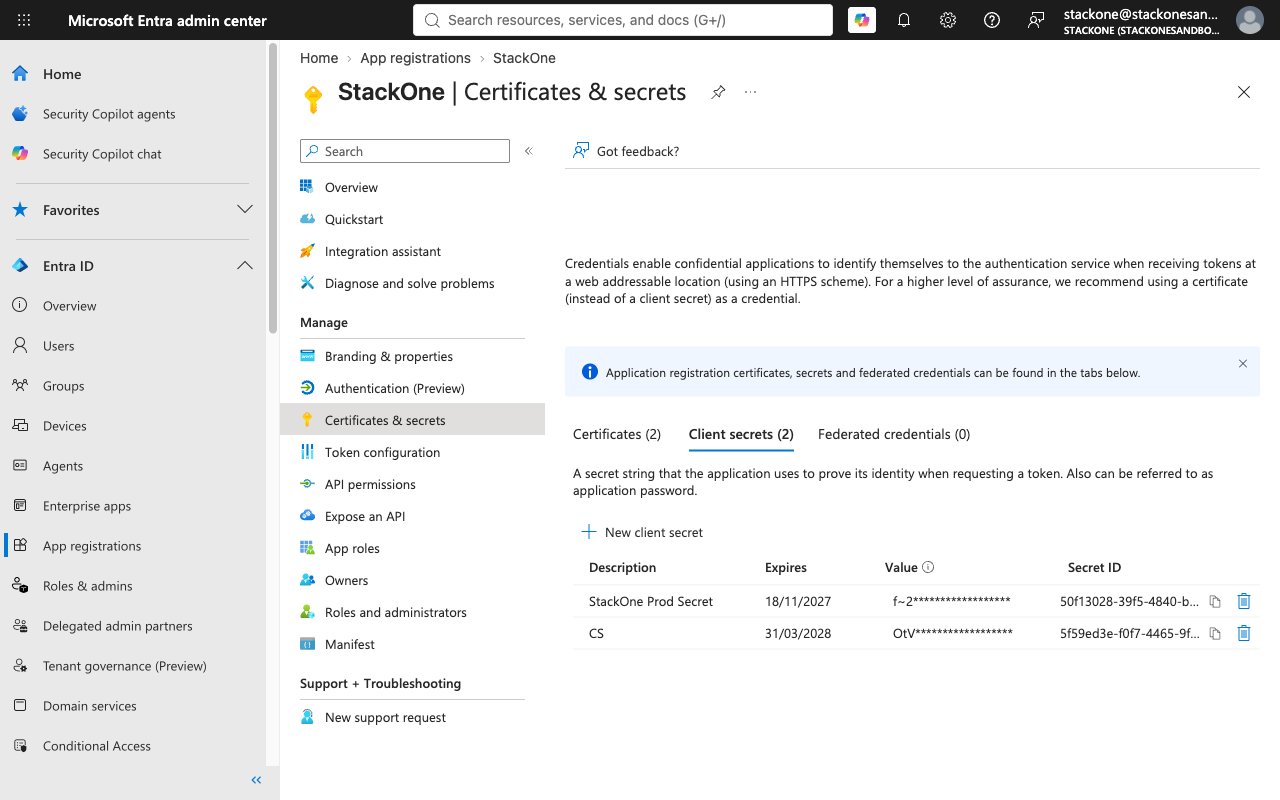
        <p>From the left menu under <strong>Manage</strong>, select <strong>Certificates & secrets</strong>.</p>

        <img src="https://mintcdn.com/stackone-60/Y33s3xCc-jVoeMPa/connectors/microsoftintune/images/config-certificates-secrets.png?fit=max&auto=format&n=Y33s3xCc-jVoeMPa&q=85&s=bd350e08c92bfdf1a01416904cd1fe6d" alt="Certificates & secrets page showing Client secrets tab with New client secret button and existing secrets listed with Description, Expires, Value, and Secret ID columns." width="1280" height="800" data-path="connectors/microsoftintune/images/config-certificates-secrets.png" />
      </div>
    </Step>

    <Step title="Create a New Client Secret">
      <div data-guide-step data-guide-scopes="" data-guide-display-scopes-list="">
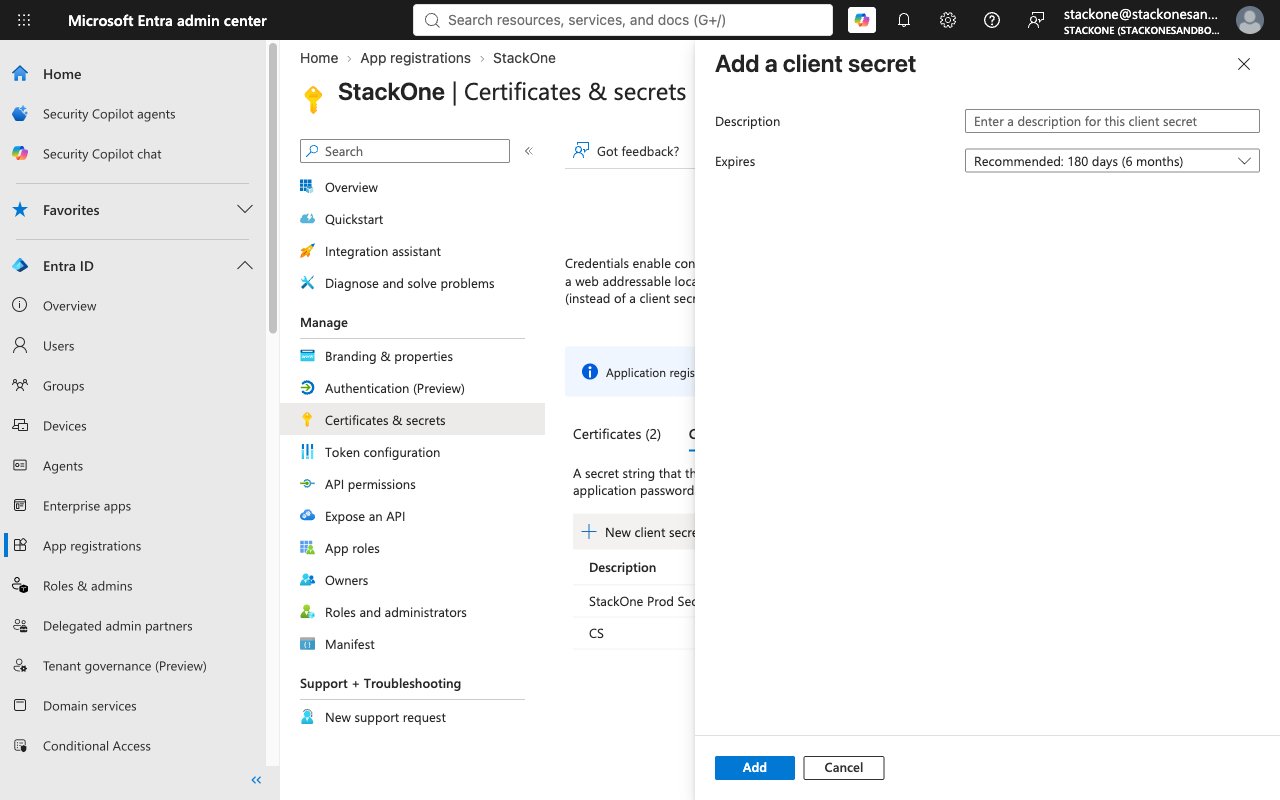
        <p>Under the <strong>Client secrets</strong> tab, click <strong>New client secret</strong>.</p>

        <ul>
          <li>Add a <strong>Description</strong> (e.g., StackOne Intune Integration Secret).</li>
          <li>Select an appropriate expiration period from the <strong>Expires</strong> dropdown.</li>
          <li>Click <strong>Add</strong>.</li>
        </ul>

        <img src="https://mintcdn.com/stackone-60/Y33s3xCc-jVoeMPa/connectors/microsoftintune/images/config-new-client-secret.png?fit=max&auto=format&n=Y33s3xCc-jVoeMPa&q=85&s=3f4deb8b8d00dd3e6882ca62ece40766" alt="Add a client secret dialog with Description text field and Expires dropdown defaulting to Recommended 180 days (6 months), plus Add and Cancel buttons." width="1280" height="800" data-path="connectors/microsoftintune/images/config-new-client-secret.png" />
      </div>
    </Step>

    <Step title="Copy the Client Secret Value">
      <div data-guide-step data-guide-scopes="" data-guide-display-scopes-list="">
        <p>Immediately copy the <strong>Value</strong> of the newly created client secret and paste it into the <strong>Client Secret</strong> field. This value is only shown once and cannot be retrieved again.</p>
      </div>
    </Step>

    <Step title="Configure Scopes (Optional)">
      <div data-guide-step data-guide-scopes="" data-guide-display-scopes-list="">
        <p>The <strong>Scopes</strong> field is optional. If left blank, it defaults to `https://graph.microsoft.com/.default offline_access`, which requests every permission granted to the app registration. When supplying custom scopes, separate them with spaces and always include `offline_access` (required for refresh tokens) — for example `DeviceManagementManagedDevices.Read.All DeviceManagementConfiguration.Read.All offline_access` for read-only access.</p>
      </div>
    </Step>
  </Steps>
</section>

## Creating the StackOne Connector Profile

To create the Connector Profile in StackOne for <strong>Microsoft Intune</strong>:

<Steps>
  <Step title="Navigate to Connector Profiles">
    Login to StackOne and navigate to [Connector Profiles](https://app.stackone.com/connector_profiles)
  </Step>

  <Step title="Create New Connector Profile">
    <ul>
      <li>Click <strong>+ Connector Profile</strong></li>
      <li>Search for and select <strong>Microsoft Intune</strong></li>
      <li>Select <strong>Type</strong> as <strong>OAuth 2.0</strong></li>

      <li>
        Fill out the fields using details retrieved from your provider:

        <ul style={{ marginLeft: '20px' }}>
          <li><strong>Client ID</strong></li>
          <li><strong>Client Secret</strong></li>
          <li><strong>Scopes</strong> (Optional)</li>
        </ul>
      </li>

      <li>(Optional) Select <strong>Actions</strong> to be enabled for this Connector Profile</li>
      <li>Click <strong>Create profile</strong></li>
    </ul>
  </Step>
</Steps>

Congratulations! The new Connector Profile will now show up in your project ready to be used. You can now continue to <a href="/connect/managing-connectors/linking-accounts">Link Accounts</a> for <strong>Microsoft Intune</strong>.