> ## Documentation Index
> Fetch the complete documentation index at: https://docs.stackone.com/llms.txt
> Use this file to discover all available pages before exploring further.

# Connect Mercury with API Key – StackOne Hub

> Link a Mercury account in the StackOne Hub using API Key. End-user guide to authorize the integration and start using Mercury actions.

<Warning>Mercury Public API credentials are provisioned by Mercury during customer onboarding — they are not self-service. If you don't have a Mercury Public API developer portal account or a tenant-id yet, contact your Mercury account manager before starting.</Warning>

<section data-guide-section data-guide-scopes="">
  <h2>Sign in to the Mercury Public API developer portal</h2>

  <p>The subscription-key lives inside your Mercury Public API developer portal profile (Azure API Management). Sign in with the account Mercury provisioned for your organisation.</p>

  <Steps>
    <Step title="Open the developer portal">
      <div data-guide-step data-guide-scopes="" data-guide-display-scopes-list="">
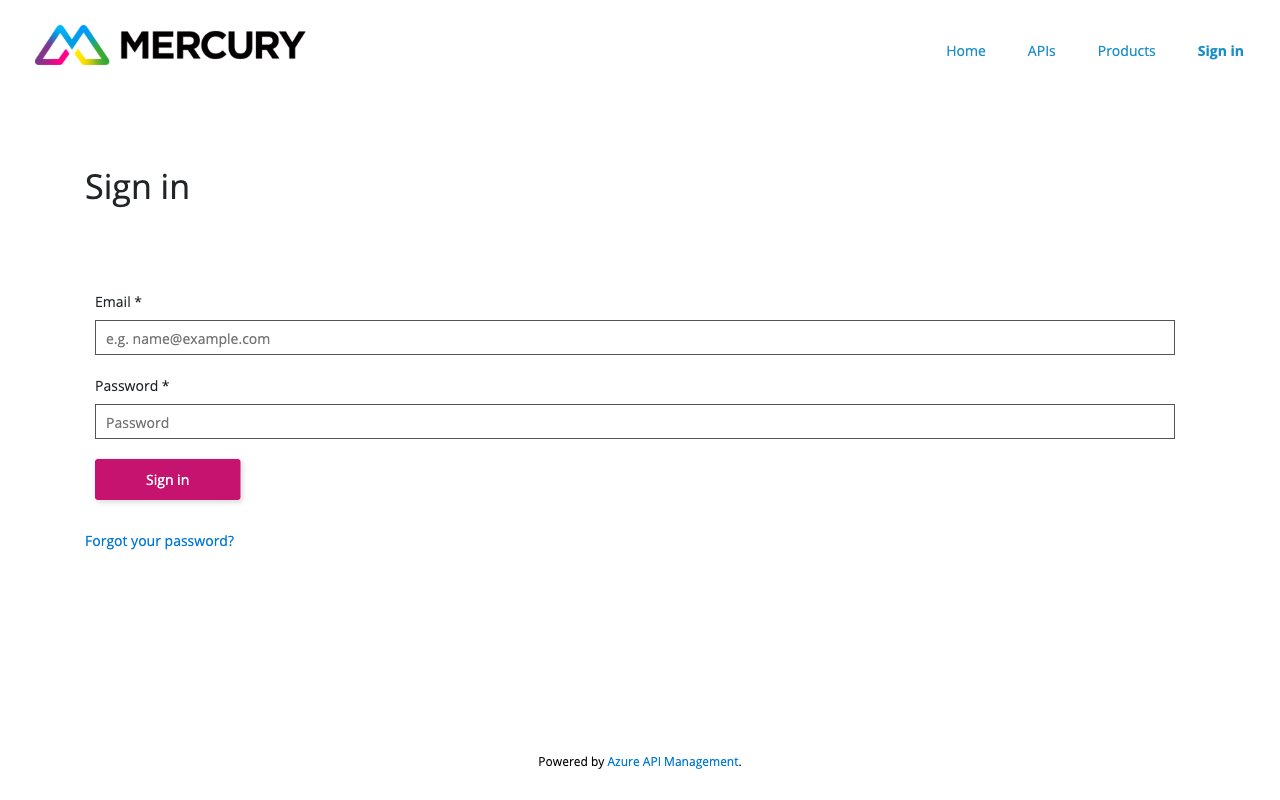
        <p>Navigate to `https://apim-uks-thirdpartyintegration-prod.developer.azure-api.net/` — you will be redirected to the <strong>Sign in</strong> page.</p>
      </div>
    </Step>

    <Step title="Enter your credentials">
      <div data-guide-step data-guide-scopes="" data-guide-display-scopes-list="">
        <p>Fill in the <strong>Email</strong> and <strong>Password</strong> fields with the credentials Mercury issued to you during onboarding, then click <strong>Sign in</strong>. If you don't have credentials, contact your Mercury account manager to have a portal account provisioned.</p>

        <img src="https://mintcdn.com/stackone-60/ZM-07FxgSVUpB-rN/connectors/mercury/images/mercury-config-signin.png?fit=max&auto=format&n=ZM-07FxgSVUpB-rN&q=85&s=b4191d6b3fa3048652e169bfebcb13d6" alt="Mercury Public API developer portal sign-in page with the Email and Password fields and the Sign in button" width="1280" height="800" data-path="connectors/mercury/images/mercury-config-signin.png" />
      </div>
    </Step>
  </Steps>
</section>

<section data-guide-section data-guide-scopes="">
  <h2>Retrieve your Subscription Key</h2>

  <p>Your Mercury Public API subscription key is issued by Mercury via Azure API Management. It is the value sent as the `subscription-key` header on every API request.</p>

  <Steps>
    <Step title="Open your user profile">
      <div data-guide-step data-guide-scopes="" data-guide-display-scopes-list="">
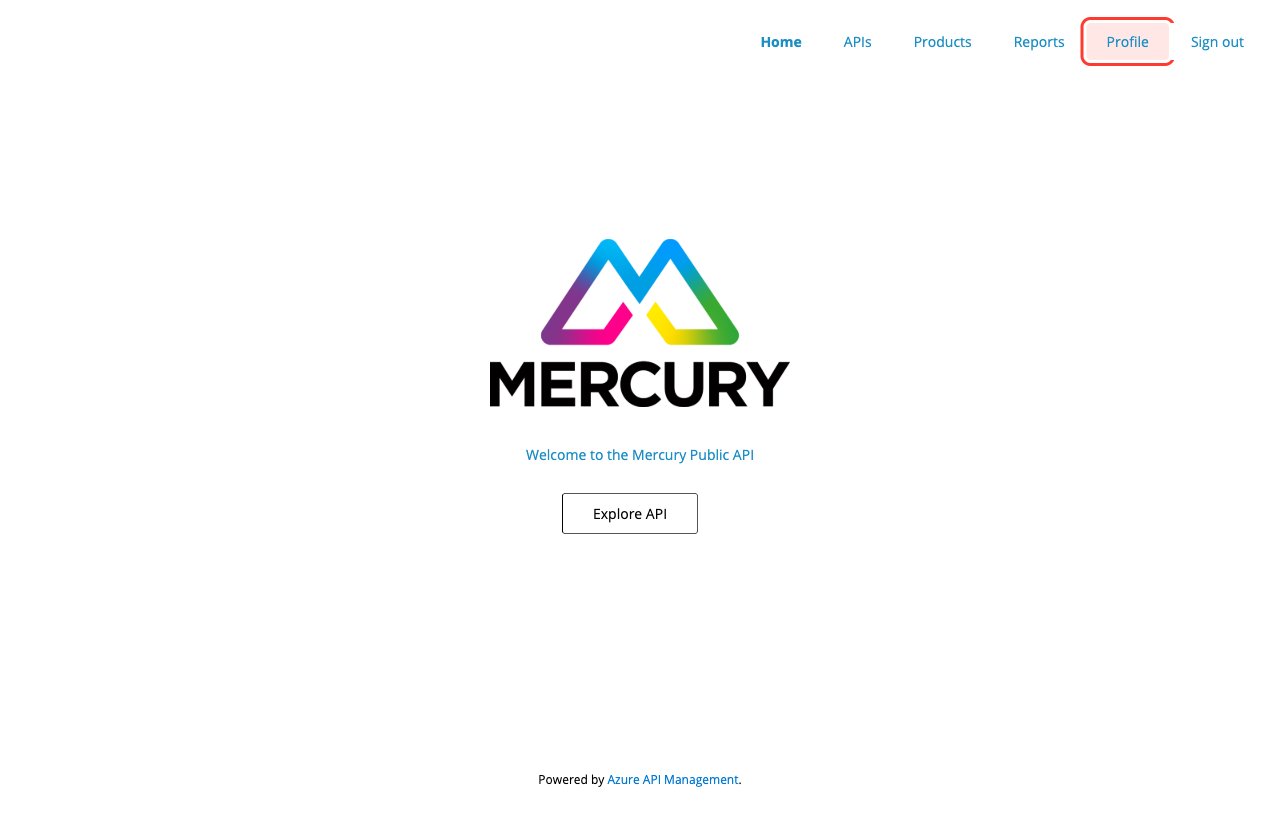
        <p>After signing in, click <strong>Profile</strong> in the top-right navigation to open the <strong>User profile</strong> page.</p>

        <img src="https://mintcdn.com/stackone-60/ZM-07FxgSVUpB-rN/connectors/mercury/images/mercury-config-profile-link.png?fit=max&auto=format&n=ZM-07FxgSVUpB-rN&q=85&s=9a7b67a771ca8a3eaa653dcc1b2b332a" alt="Mercury developer portal home page with the Profile link highlighted in the top-right navigation" width="1265" height="818" data-path="connectors/mercury/images/mercury-config-profile-link.png" />
      </div>
    </Step>

    <Step title="Locate the Subscriptions section">
      <div data-guide-step data-guide-scopes="" data-guide-display-scopes-list="">
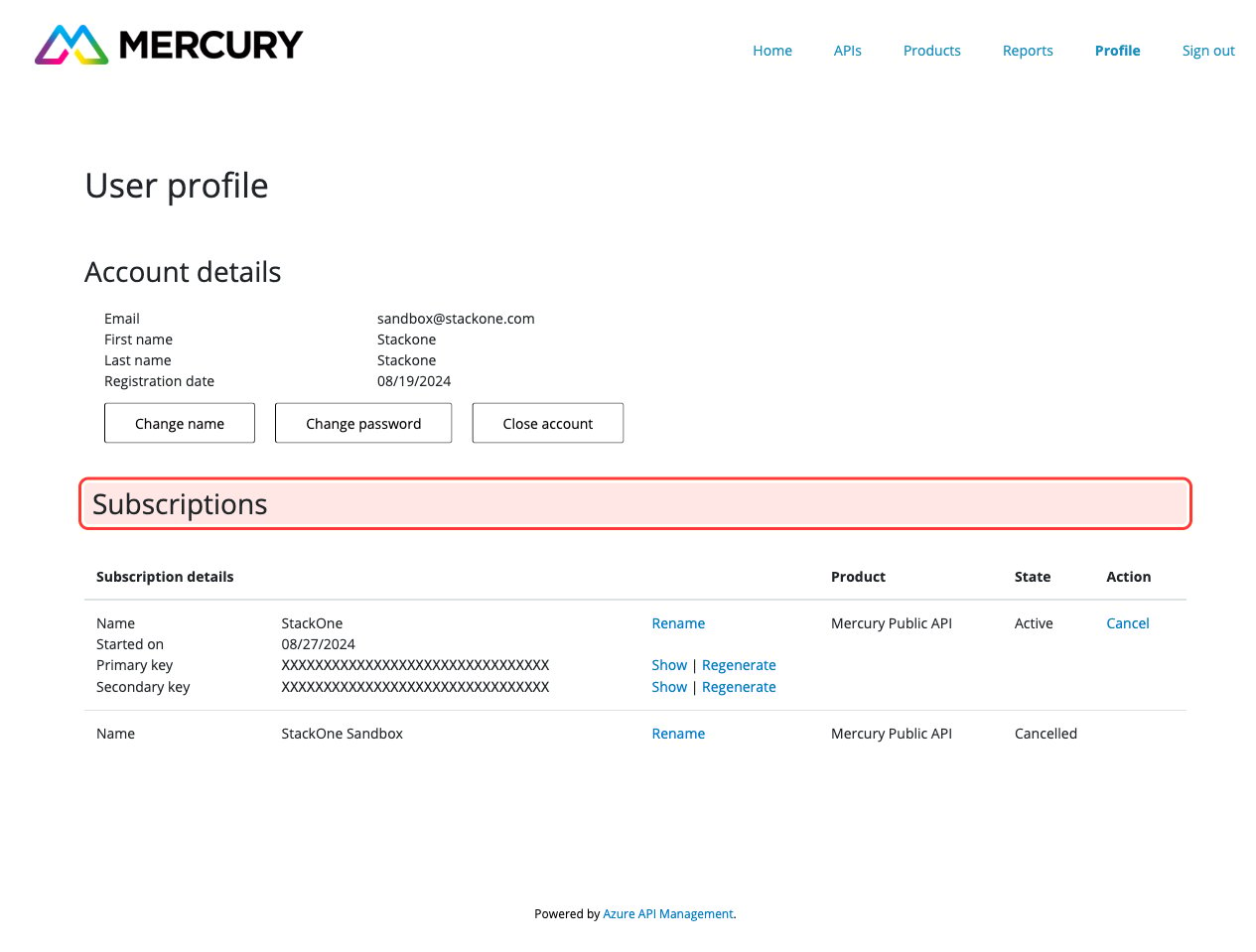
        <p>Scroll down past <strong>Account details</strong> to the <strong>Subscriptions</strong> table. Find the row whose <strong>Product</strong> column is <strong>Mercury Public API</strong> and whose <strong>State</strong> column is <strong>Active</strong>.</p>

        <img src="https://mintcdn.com/stackone-60/ZM-07FxgSVUpB-rN/connectors/mercury/images/mercury-config-subscriptions.png?fit=max&auto=format&n=ZM-07FxgSVUpB-rN&q=85&s=735eaadbd28716af3d70bf7c7accd22c" alt="User profile page with the Subscriptions section highlighted showing the Mercury Public API row" width="1265" height="959" data-path="connectors/mercury/images/mercury-config-subscriptions.png" />
      </div>
    </Step>

    <Step title="Click Show on the Primary key row">
      <div data-guide-step data-guide-scopes="" data-guide-display-scopes-list="">
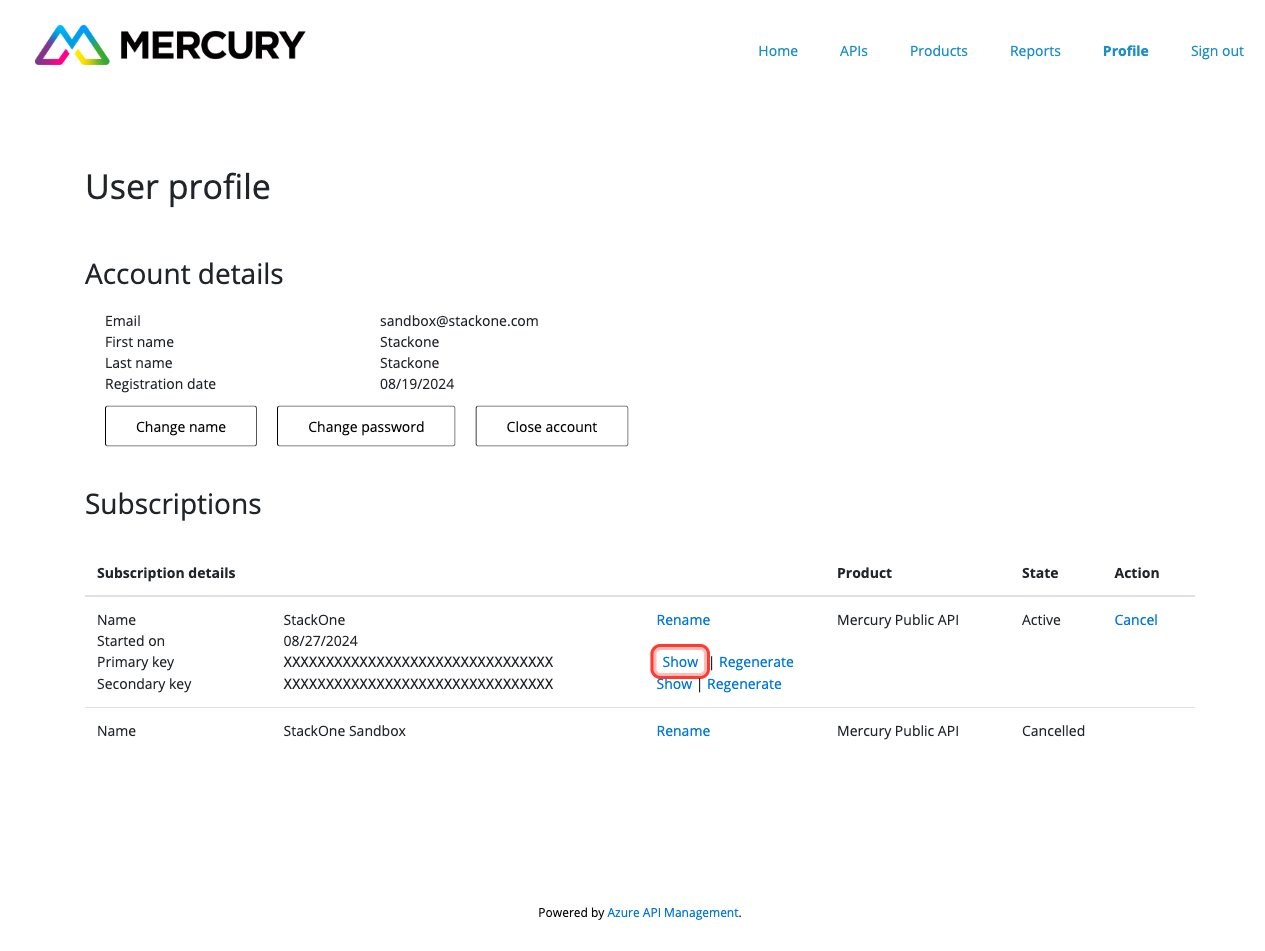
        <p>On the <strong>Primary key</strong> row, click <strong>Show</strong> to reveal the subscription-key value. Copy the full value.</p>

        <ul>
          <li>Either the <strong>Primary key</strong> or <strong>Secondary key</strong> can be used — both authenticate against the same Mercury API product.</li>
          <li>Do not click <strong>Regenerate</strong> unless you want to invalidate the current key and issue a new one — any downstream integration using the old key will stop working immediately.</li>
        </ul>

        <img src="https://mintcdn.com/stackone-60/ZM-07FxgSVUpB-rN/connectors/mercury/images/mercury-config-show-primary-key.png?fit=max&auto=format&n=ZM-07FxgSVUpB-rN&q=85&s=a1431afc0ad4730110493af6b3516356" alt="Subscriptions section with the Show button on the Primary key row highlighted" width="1265" height="951" data-path="connectors/mercury/images/mercury-config-show-primary-key.png" />
      </div>
    </Step>

    <Step title="Paste into StackOne">
      <div data-guide-step data-guide-scopes="" data-guide-display-scopes-list="">
        <p>Paste the copied value into the Subscription Key field in StackOne.</p>
      </div>
    </Step>
  </Steps>
</section>

<section data-guide-section data-guide-scopes="">
  <h2>Obtain your Tenant ID from Mercury</h2>

  <p>The `tenant-id` identifies which Mercury customer tenant your API calls operate against. It is a Mercury-specific value (not an Azure API Management concept) and is <strong>not</strong> visible in the developer portal.</p>

  <Steps>
    <Step title="Find the Tenant ID Mercury supplied">
      <div data-guide-step data-guide-scopes="" data-guide-display-scopes-list="">
        <p>Mercury issues your `tenant-id` during onboarding — typically in the same email that delivers your developer portal credentials, or via your Mercury account manager. The value is a 32-character alphanumeric string with an `unq` prefix (for example `unq0a4562b4117eee1181726045bdc15`) — it is not a standard GUID.</p>
      </div>
    </Step>

    <Step title="Request it from Mercury if missing">
      <div data-guide-step data-guide-scopes="" data-guide-display-scopes-list="">
        <p>Contact your Mercury account manager or Mercury support and request the tenant-id for the customer environment you are integrating with. A single subscription key can be used across multiple tenants, so make sure you are given the tenant-id that matches the data you intend to work with.</p>
      </div>
    </Step>

    <Step title="Paste into StackOne">
      <div data-guide-step data-guide-scopes="" data-guide-display-scopes-list="">
        <p>Paste the value Mercury supplied into the Tenant ID field in StackOne.</p>
      </div>
    </Step>
  </Steps>
</section>

<div data-whitelabel-hide>
  <h2>Linking the Account from the Hub</h2>

  <Steps>
    <Step title="Navigate to the Hub">
      Use one of the three <a href="/connect/managing-connectors/linking-accounts">Linking Account Methods</a> to access the Hub.
    </Step>

    <Step title="Fill out the fields">
      Fill out the following fields using details from your provider:

      <ul>
        <li><strong>Subscription Key</strong></li>
        <li><strong>Tenant ID</strong></li>
      </ul>
    </Step>

    <Step title="Connect">
      <ul>
        <li>Click <strong>Connect</strong></li>
        <li>If applicable, the provider will redirect you to a sign-in or authorization page. Complete the provider's authorization flow.</li>
        <li>Once authorization is successful, you will see a confirmation popup</li>
      </ul>
    </Step>
  </Steps>

  <p>If the account linking is successful, you will see the newly linked account in your <a href="/gateway/concepts/linked-accounts">Accounts</a> page.</p>
</div>