> ## Documentation Index
> Fetch the complete documentation index at: https://docs.stackone.com/llms.txt
> Use this file to discover all available pages before exploring further.

# Connect Manufact with API Key – StackOne Hub

> Link a Manufact account in the StackOne Hub using API Key. End-user guide to authorize the integration and start using Manufact actions.

<Warning>Your API key grants programmatic access to your Manufact organization, including creating and deleting servers and deployments. Keep it secret, never commit it to a repository, and prefer a key with an expiration that you rotate.</Warning>

<section data-guide-section data-guide-scopes="">
  <h2>Generating an API key</h2>

  <p>An API key authenticates requests to Manufact Cloud.</p>

  <Steps>
    <Step title="Sign in to Manufact">
      <div data-guide-step data-guide-scopes="" data-guide-display-scopes-list="">
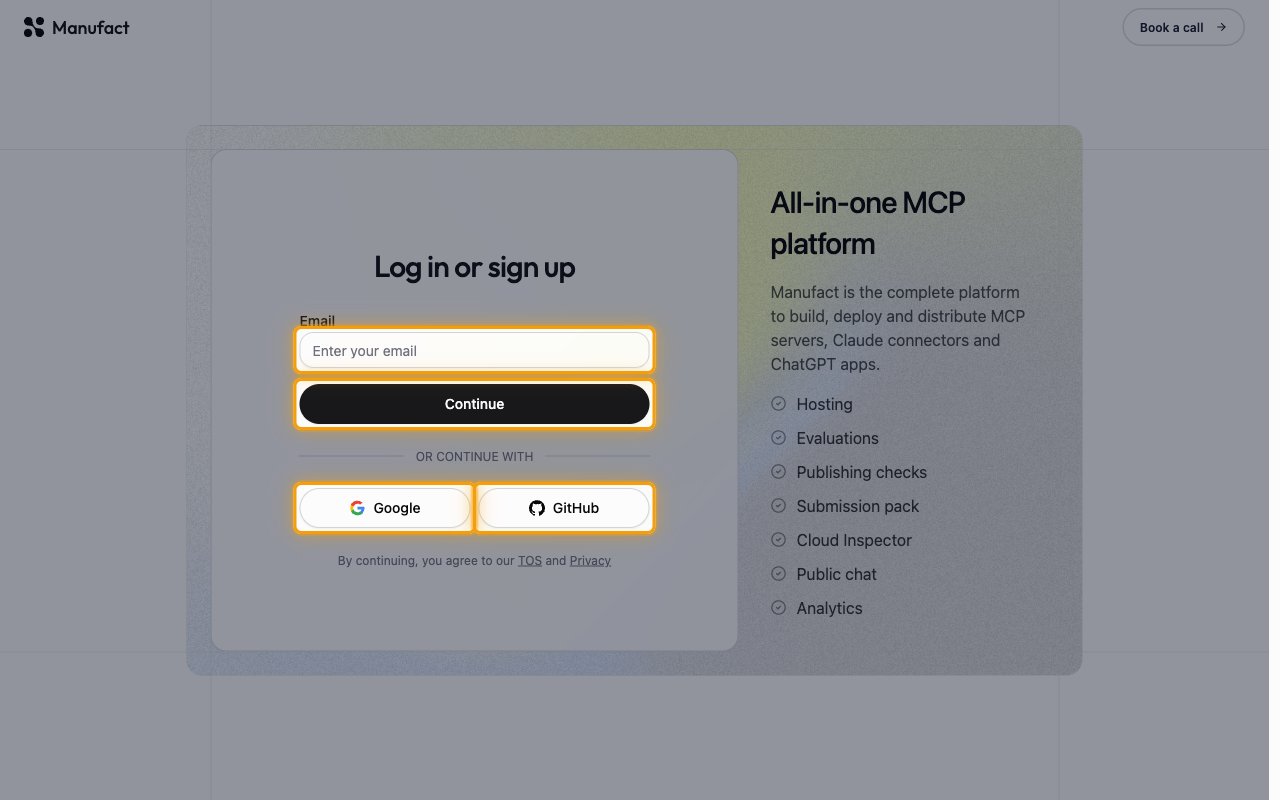
        <p>Sign in to your <a href="https://manufact.com/signup" target="_blank" rel="noopener noreferrer">Manufact Cloud account</a>.</p>

        <ul>
          <li>Enter your email address and click <strong>Continue</strong>, or use <strong>Google</strong> or <strong>GitHub</strong>.</li>
        </ul>

        <img src="https://mintcdn.com/stackone-60/2AwZy9mCK6_PVXjz/connectors/manufact/images/custom-config-sign-in.png?fit=max&auto=format&n=2AwZy9mCK6_PVXjz&q=85&s=3a3de275fea513758f5b85a0192d9690" alt="The Manufact log in or sign up screen with the Email field, Continue, Google and GitHub highlighted" width="1280" height="800" data-path="connectors/manufact/images/custom-config-sign-in.png" />
      </div>
    </Step>

    <Step title="Open the API Keys page">
      <div data-guide-step data-guide-scopes="" data-guide-display-scopes-list="">
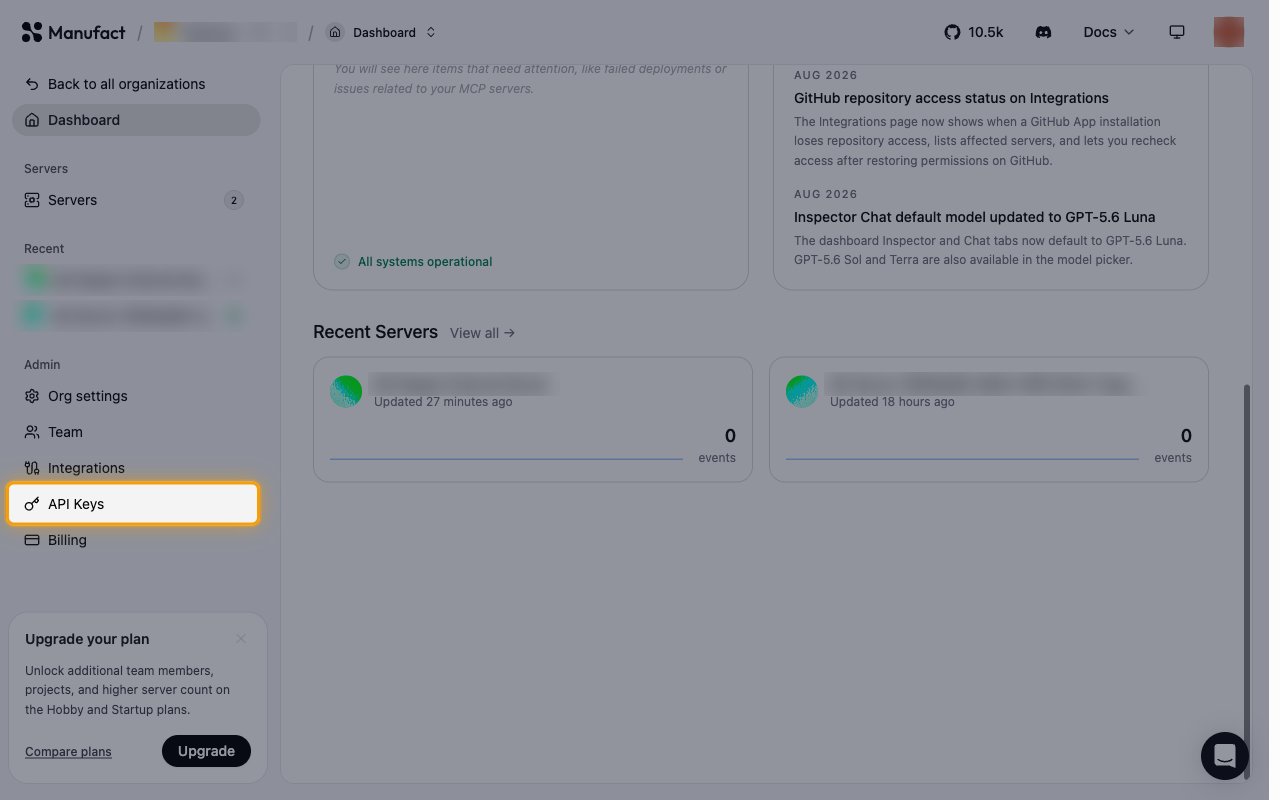
        <p>In the sidebar, under <strong>Admin</strong>, click <strong>API Keys</strong>.</p>

        <ul>
          <li>Keys belong to the organization shown in the breadcrumb at the top of the page.</li>
          <li>If you belong to more than one organization, click <strong>Back to all organizations</strong> and open the one you want the key to access before continuing.</li>
        </ul>

        <img src="https://mintcdn.com/stackone-60/2AwZy9mCK6_PVXjz/connectors/manufact/images/custom-config-open-api-keys.png?fit=max&auto=format&n=2AwZy9mCK6_PVXjz&q=85&s=71e1643a83ec50fa9f5329c487510945" alt="The Manufact dashboard with API Keys highlighted under Admin in the sidebar" width="1280" height="800" data-path="connectors/manufact/images/custom-config-open-api-keys.png" />
      </div>
    </Step>

    <Step title="Create a new key">
      <div data-guide-step data-guide-scopes="" data-guide-display-scopes-list="">
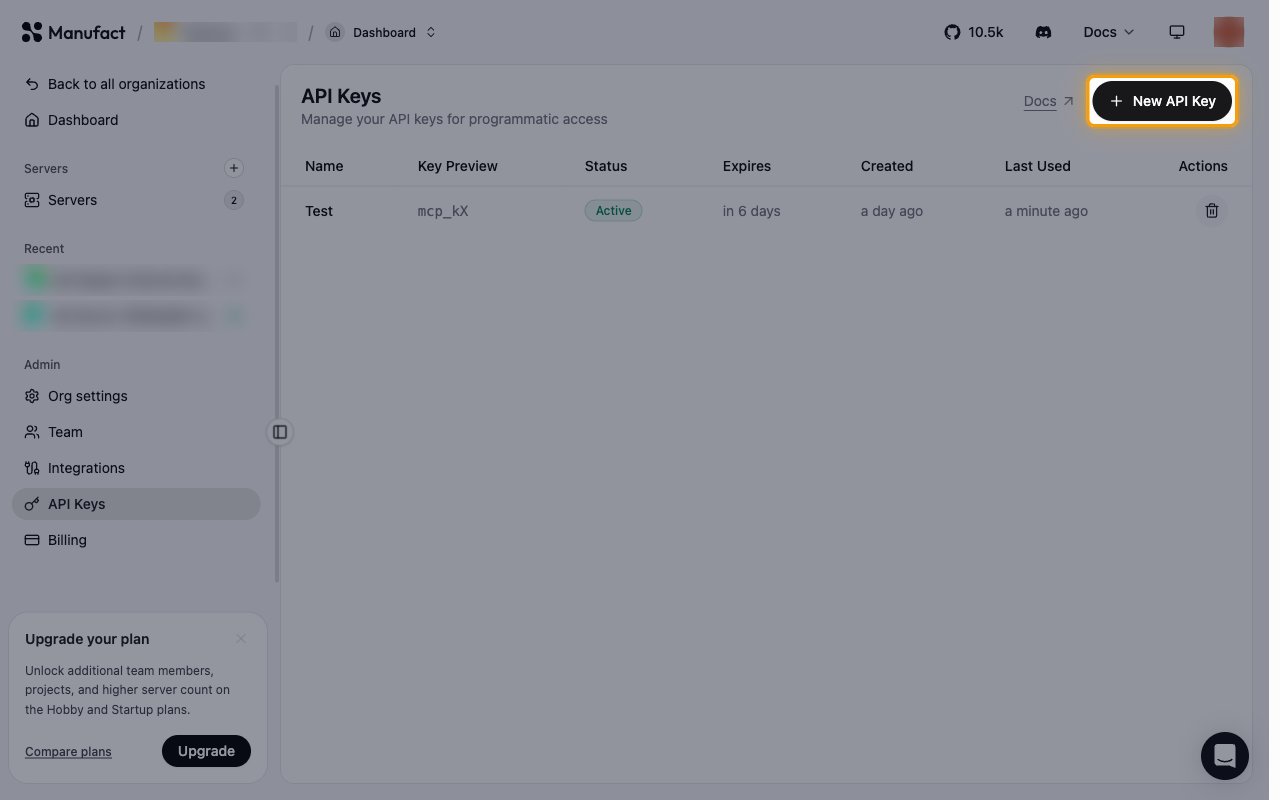
        <p>Click <strong>New API Key</strong> to open the <strong>Create API Key</strong> dialog.</p>

        <ul>
          <li>The table lists the keys that already exist, with <strong>Name</strong>, <strong>Key Preview</strong>, <strong>Status</strong>, <strong>Expires</strong>, <strong>Created</strong> and <strong>Last Used</strong> columns.</li>
        </ul>

        <img src="https://mintcdn.com/stackone-60/2AwZy9mCK6_PVXjz/connectors/manufact/images/custom-config-new-api-key.png?fit=max&auto=format&n=2AwZy9mCK6_PVXjz&q=85&s=2e1e8c7a0ceba4aae9ae752a914466f0" alt="The API Keys page with the New API Key button highlighted" width="1280" height="800" data-path="connectors/manufact/images/custom-config-new-api-key.png" />
      </div>
    </Step>

    <Step title="Name the key and set an expiration">
      <div data-guide-step data-guide-scopes="" data-guide-display-scopes-list="">
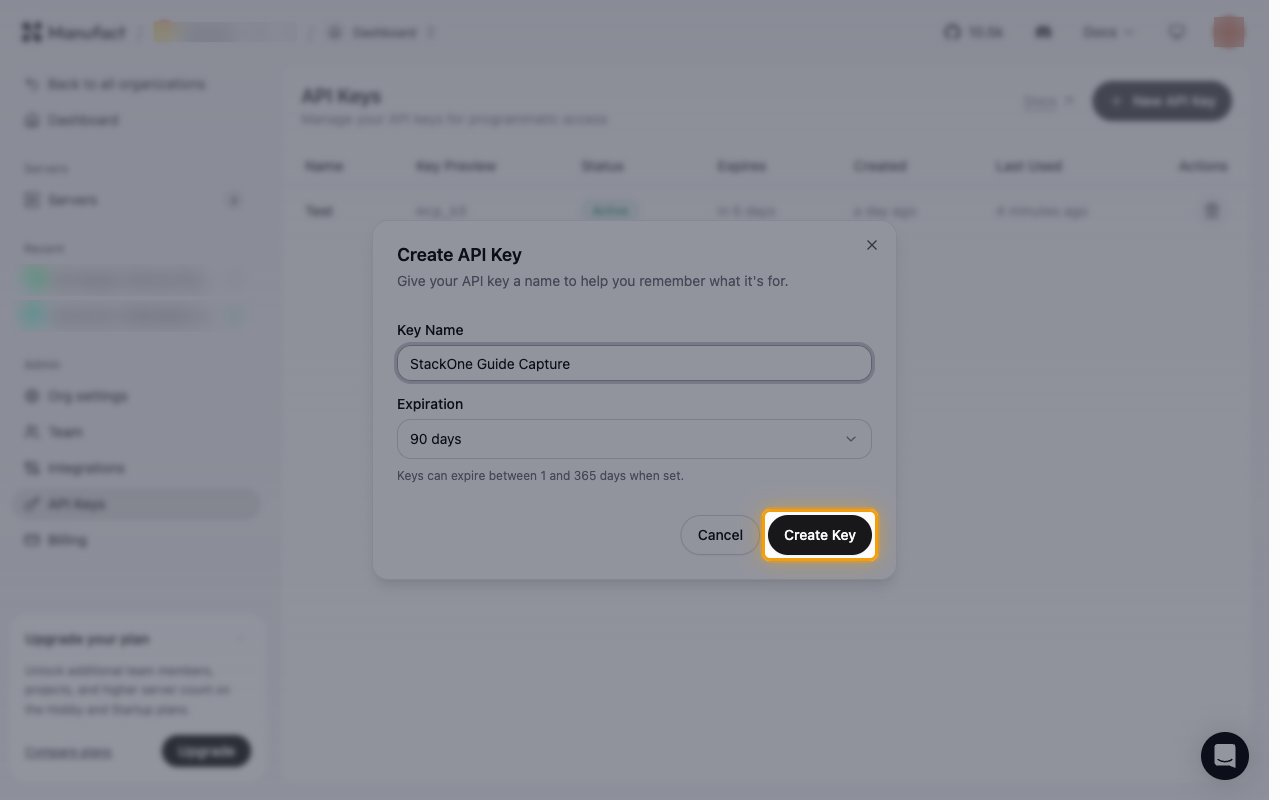
        <p>Fill in the dialog, then click <strong>Create Key</strong>.</p>

        <ul>
          <li><strong>Key Name</strong> — a descriptive name, so that revoking the key later is unambiguous.</li>
          <li><strong>Expiration</strong> — <strong>Never expires</strong>, <strong>7 days</strong>, <strong>30 days</strong>, <strong>90 days</strong> or <strong>365 days</strong>.</li>
          <li>Manufact notes that <strong>Keys can expire between 1 and 365 days when set.</strong></li>
          <li>Prefer an expiration you can rotate over <strong>Never expires</strong>.</li>
        </ul>

        <img src="https://mintcdn.com/stackone-60/2AwZy9mCK6_PVXjz/connectors/manufact/images/custom-config-create-key-dialog.png?fit=max&auto=format&n=2AwZy9mCK6_PVXjz&q=85&s=26d2fddef4461bc39ec1596f2cfed405" alt="The Create API Key dialog with a key name entered, an expiration selected, and the Create Key button highlighted" width="1280" height="800" data-path="connectors/manufact/images/custom-config-create-key-dialog.png" />
      </div>
    </Step>

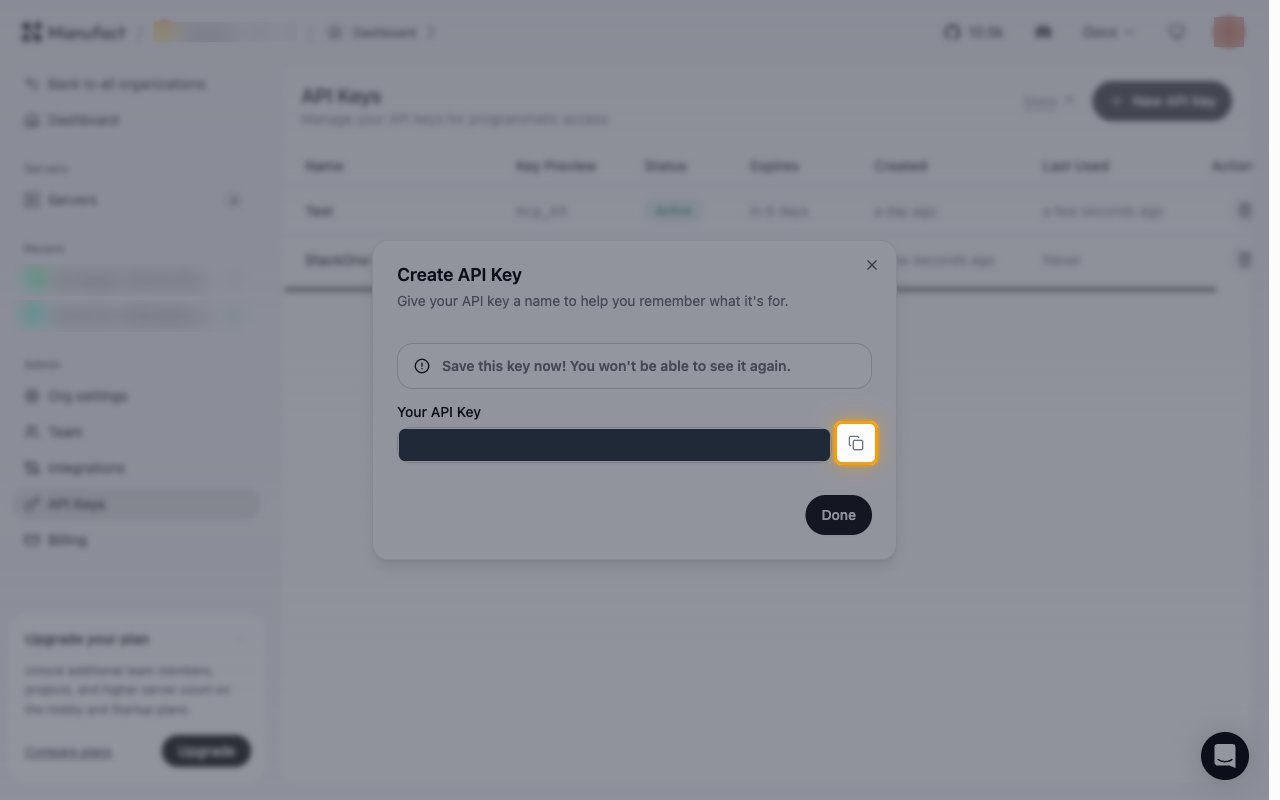
    <Step title="Copy the API key">
      <div data-guide-step data-guide-scopes="" data-guide-display-scopes-list="">
        <p>The new key is displayed only once, under <strong>Your API Key</strong>.</p>

        <ul>
          <li>Click <strong>Copy</strong>, then click <strong>Done</strong>.</li>
          <li>Manufact warns <strong>Save this key now! You won't be able to see it again.</strong></li>
          <li>The key starts with `mcp_`.</li>
          <li>Store a copy in your secret manager, then paste it into the <strong>API Key</strong> field in StackOne Hub.</li>
          <li>Afterwards only a shortened value appears in the <strong>Key Preview</strong> column, so the key cannot be retrieved from Manufact.</li>
        </ul>

        <img src="https://mintcdn.com/stackone-60/2AwZy9mCK6_PVXjz/connectors/manufact/images/custom-config-copy-key.png?fit=max&auto=format&n=2AwZy9mCK6_PVXjz&q=85&s=29cdb4b0d3ef68957c97fdf0e845769c" alt="The Create API Key dialog showing the generated key redacted, with the Copy button highlighted" width="1280" height="800" data-path="connectors/manufact/images/custom-config-copy-key.png" />
      </div>
    </Step>
  </Steps>
</section>

<div data-whitelabel-hide>
  <h2>Linking the Account from the Hub</h2>

  <Steps>
    <Step title="Navigate to the Hub">
      Use one of the three <a href="/connect/managing-connectors/linking-accounts">Linking Account Methods</a> to access the Hub.
    </Step>

    <Step title="Fill out the fields">
      Fill out the following fields using details from your provider:

      <ul>
        <li><strong>API Key</strong></li>
      </ul>
    </Step>

    <Step title="Connect">
      <ul>
        <li>Click <strong>Connect</strong></li>
        <li>If applicable, the provider will redirect you to a sign-in or authorization page. Complete the provider's authorization flow.</li>
        <li>Once authorization is successful, you will see a confirmation popup</li>
      </ul>
    </Step>
  </Steps>

  <p>If the account linking is successful, you will see the newly linked account in your <a href="/gateway/concepts/linked-accounts">Accounts</a> page.</p>
</div>