> ## Documentation Index
> Fetch the complete documentation index at: https://docs.stackone.com/llms.txt
> Use this file to discover all available pages before exploring further.

# Connect LunarCrush with API Key – StackOne Hub

> Link a LunarCrush account in the StackOne Hub using API Key. End-user guide to authorize the integration and start using LunarCrush actions.

<Warning>You need a LunarCrush account with an active paid subscription. Keys on the free plan receive HTTP 402 on every API endpoint; the Individual plan unlocks a limited set of endpoints, and Builder or Scale unlock all of them.</Warning>

<section data-guide-section data-guide-scopes="">
  <h2>Generating an API key</h2>

  <p>A LunarCrush API key authenticates StackOne's requests as a Bearer token. You may have up to 10 active access tokens at any time, and all usage across all tokens is associated with your account.</p>

  <Steps>
    <Step title="Sign in to LunarCrush">
      <div data-guide-step data-guide-scopes="" data-guide-display-scopes-list="">
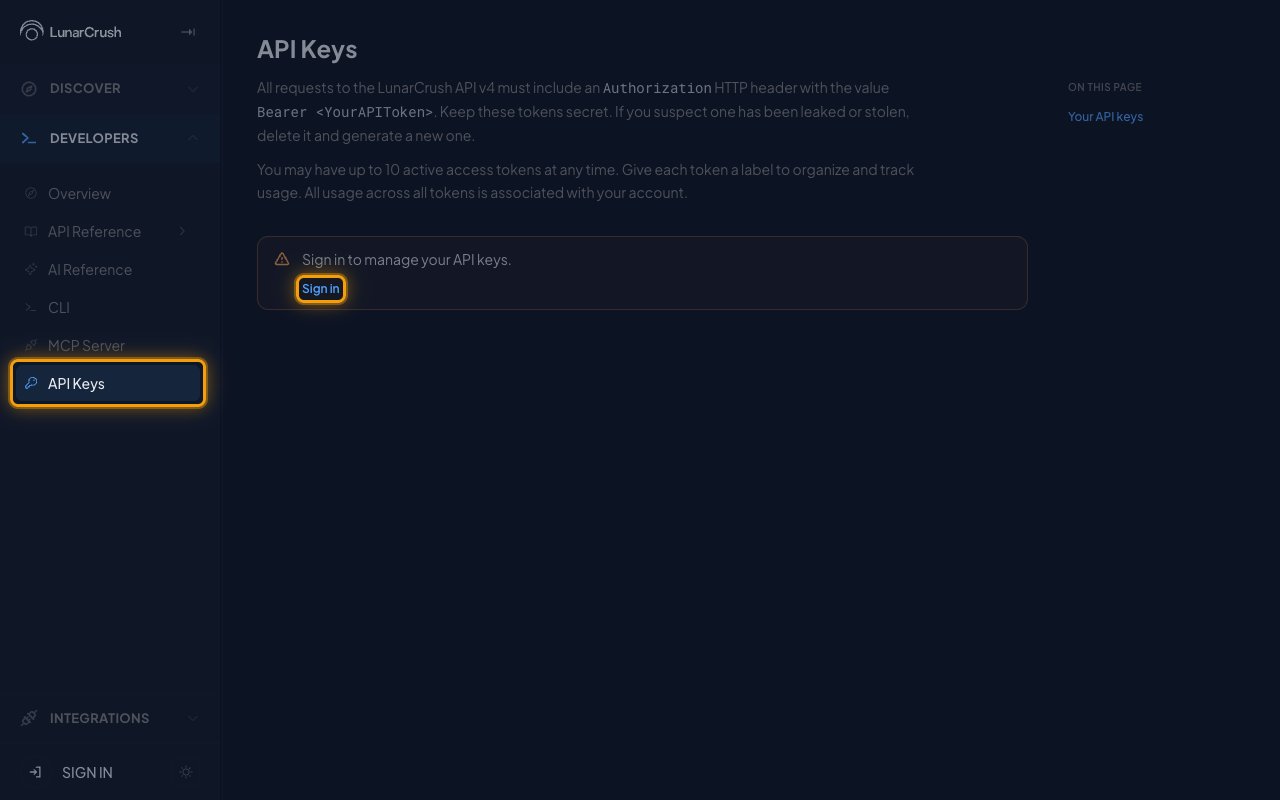
        <p>Sign in to your <a href="https://lunarcrush.com/en/developers/keys" target="_blank" rel="noopener noreferrer">LunarCrush account</a> from the API Keys page.</p>

        <ul>
          <li>Under <strong>DEVELOPERS</strong> in the sidebar, click <strong>API Keys</strong>.</li>
          <li>Click <strong>Sign in</strong> in the <strong>Sign in to manage your API keys.</strong> notice.</li>
        </ul>

        <img src="https://mintcdn.com/stackone-60/ezSw3L6wI44x0jfo/connectors/lunarcrush/images/custom-config-sign-in.png?fit=max&auto=format&n=ezSw3L6wI44x0jfo&q=85&s=b3b80dfbdaaa16bb05734098d02ea5d0" alt="The LunarCrush API Keys page with the API Keys sidebar item and the Sign in button highlighted" width="1280" height="800" data-path="connectors/lunarcrush/images/custom-config-sign-in.png" />
      </div>
    </Step>

    <Step title="Choose a sign-in method">
      <div data-guide-step data-guide-scopes="" data-guide-display-scopes-list="">
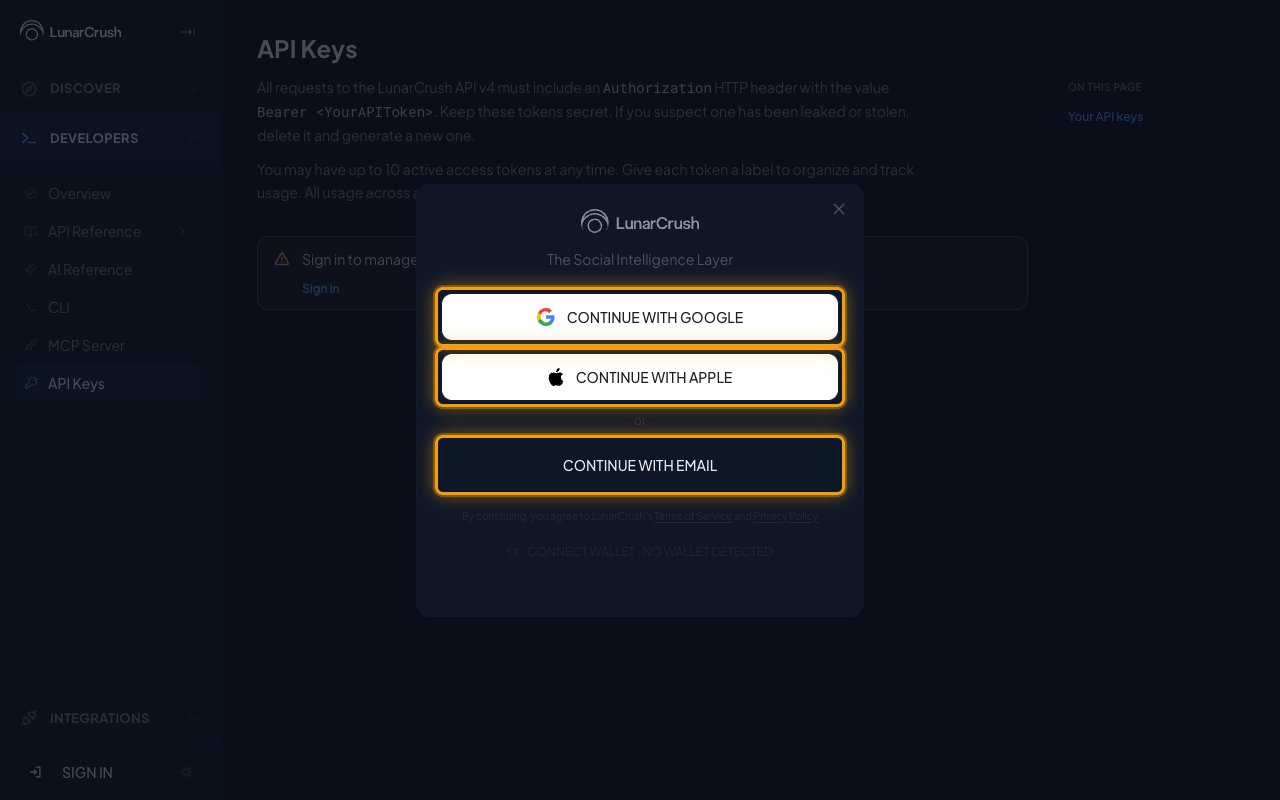
        <p>Choose <strong>Continue with Google</strong>, <strong>Continue with Apple</strong>, or <strong>Continue with Email</strong> and complete the sign-in.</p>

        <img src="https://mintcdn.com/stackone-60/ezSw3L6wI44x0jfo/connectors/lunarcrush/images/custom-config-sign-in-options.png?fit=max&auto=format&n=ezSw3L6wI44x0jfo&q=85&s=8ba9be38a46026072597b7d4d8a3e370" alt="The LunarCrush sign-in dialog with the Google, Apple, and Email options highlighted" width="1280" height="800" data-path="connectors/lunarcrush/images/custom-config-sign-in-options.png" />
      </div>
    </Step>

    <Step title="Generate an API key">
      <div data-guide-step data-guide-scopes="" data-guide-display-scopes-list="">
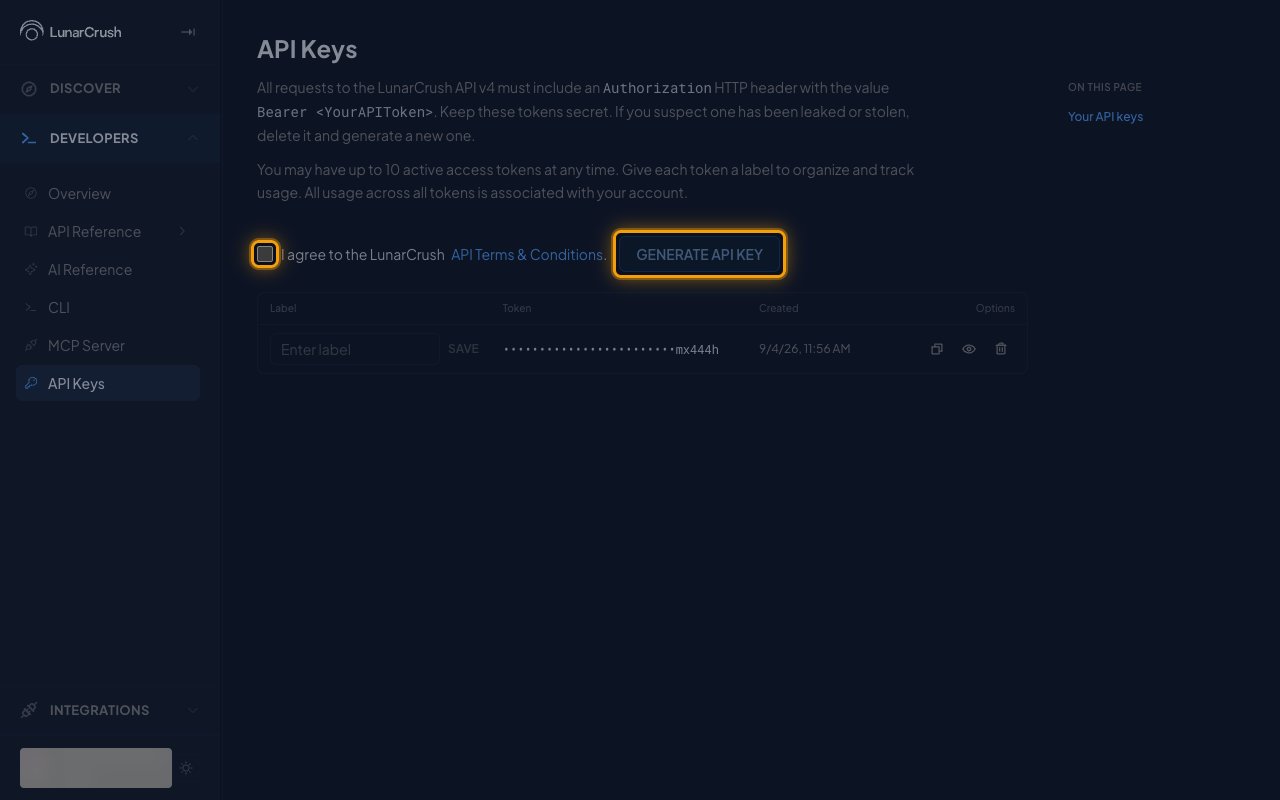
        <p>Back on the <strong>API Keys</strong> page, select <strong>I agree to the LunarCrush API Terms & Conditions.</strong> and click <strong>Generate API key</strong>.</p>

        <ul>
          <li>The new key is added as a row to the table below.</li>
          <li>You may have up to 10 active access tokens at any time.</li>
        </ul>

        <img src="https://mintcdn.com/stackone-60/ezSw3L6wI44x0jfo/connectors/lunarcrush/images/custom-config-generate-key.png?fit=max&auto=format&n=ezSw3L6wI44x0jfo&q=85&s=6edc19c5715dbec3cad57bdfacf00307" alt="The API Keys page with the terms checkbox and the Generate API key button highlighted" width="1280" height="800" data-path="connectors/lunarcrush/images/custom-config-generate-key.png" />
      </div>
    </Step>

    <Step title="Save the label and copy the key">
      <div data-guide-step data-guide-scopes="" data-guide-display-scopes-list="">
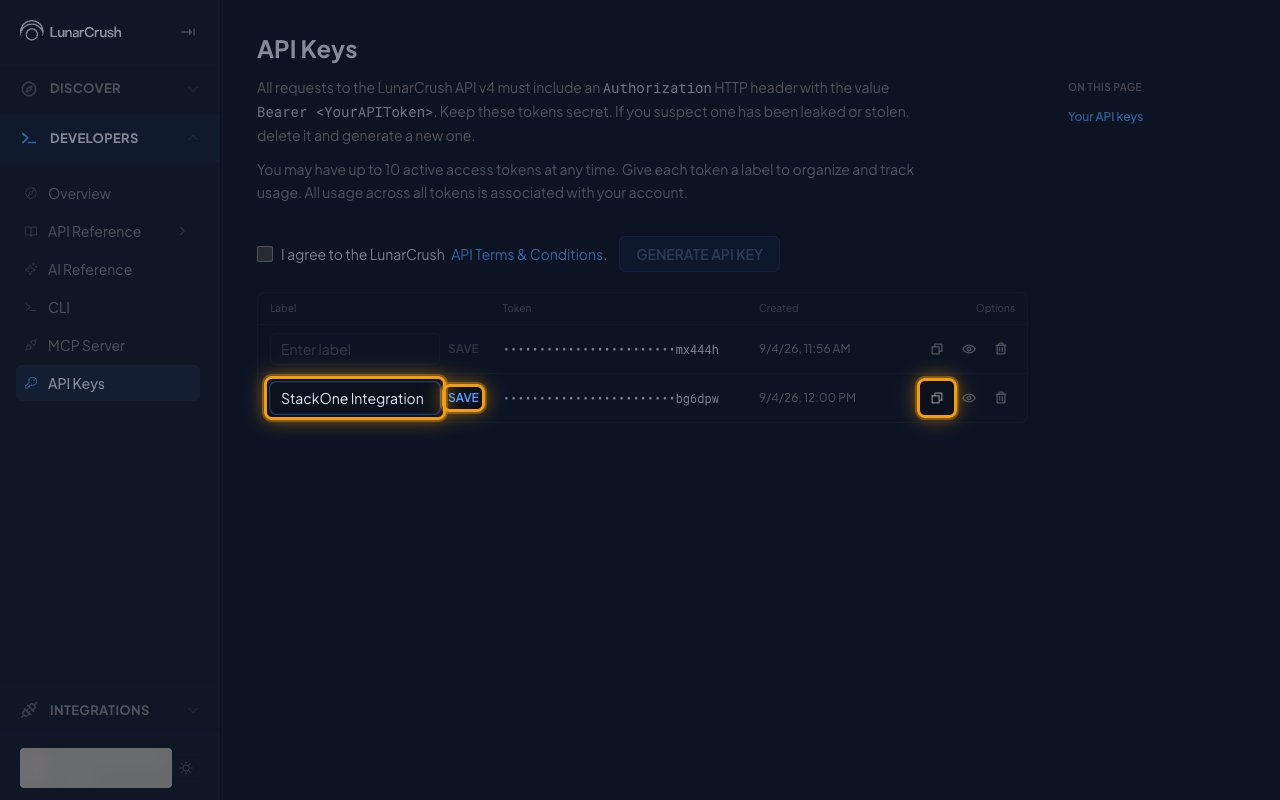
        <p>In the new row, type `StackOne Integration` in <strong>Enter label</strong> and click <strong>Save</strong>, then click <strong>Copy token</strong> to copy the key and store it securely for use later.</p>

        <ul>
          <li>The token is masked in the table. Use <strong>Reveal token</strong> to view it or <strong>Copy token</strong> to copy it.</li>
          <li>Keep these tokens secret. If you suspect one has been leaked or stolen, delete it and generate a new one.</li>
          <li>Paste it into the <strong>API Key</strong> field in StackOne Hub.</li>
        </ul>

        <img src="https://mintcdn.com/stackone-60/ezSw3L6wI44x0jfo/connectors/lunarcrush/images/custom-config-copy-key.png?fit=max&auto=format&n=ezSw3L6wI44x0jfo&q=85&s=66d9fae5fa7644c70d271b743ee56a29" alt="The new API key row with the label field, Save, and Copy token highlighted" width="1280" height="800" data-path="connectors/lunarcrush/images/custom-config-copy-key.png" />
      </div>
    </Step>
  </Steps>
</section>

<div data-whitelabel-hide>
  <h2>Linking the Account from the Hub</h2>

  <Steps>
    <Step title="Navigate to the Hub">
      Use one of the three <a href="/connect/managing-connectors/linking-accounts">Linking Account Methods</a> to access the Hub.
    </Step>

    <Step title="Fill out the fields">
      Fill out the following fields using details from your provider:

      <ul>
        <li><strong>API Key</strong></li>
      </ul>
    </Step>

    <Step title="Connect">
      <ul>
        <li>Click <strong>Connect</strong></li>
        <li>If applicable, the provider will redirect you to a sign-in or authorization page. Complete the provider's authorization flow.</li>
        <li>Once authorization is successful, you will see a confirmation popup</li>
      </ul>
    </Step>
  </Steps>

  <p>If the account linking is successful, you will see the newly linked account in your <a href="/gateway/concepts/linked-accounts">Accounts</a> page.</p>
</div>