> ## Documentation Index
> Fetch the complete documentation index at: https://docs.stackone.com/llms.txt
> Use this file to discover all available pages before exploring further.

# Jira Service Management Webhook Setup Guide

> Configure Jira Service Management to deliver events to StackOne.

## Prerequisites

The connector should already be set up, with a Connector Profile and a Linked Account. See [Getting Started](/connectors/jiraservicemanagement#getting-started) on the Jira Service Management connector page.

<section data-guide-section data-guide-scopes="">
  <h2>Retrieve the Native Webhook URL</h2>

  <p>Each linked account has its own <strong>Native Webhook URL</strong>. Jira sends events to this URL.</p>

  <Steps>
    <Step title="Copy the Native Webhook URL">
      <div data-guide-step data-guide-scopes="" data-guide-display-scopes-list="">
        <p>The <strong>Native Webhook URL</strong> is generated once an account has been linked.</p>

        <ul>
          <li>Open the linked account in StackOne.</li>
          <li>Copy the value from <strong>Native Webhook URL</strong>.</li>
          <li>Repeat these steps for each Jira site you connect, as every linked account has a different URL.</li>
        </ul>
      </div>
    </Step>
  </Steps>
</section>

<section data-guide-section data-guide-scopes="">
  <h2>Create the webhook in Jira</h2>

  <p>Register the Native Webhook URL as a webhook in your Jira site and select the events StackOne should receive.</p>

  <Steps>
    <Step title="Open System settings">
      <div data-guide-step data-guide-scopes="" data-guide-display-scopes-list="">
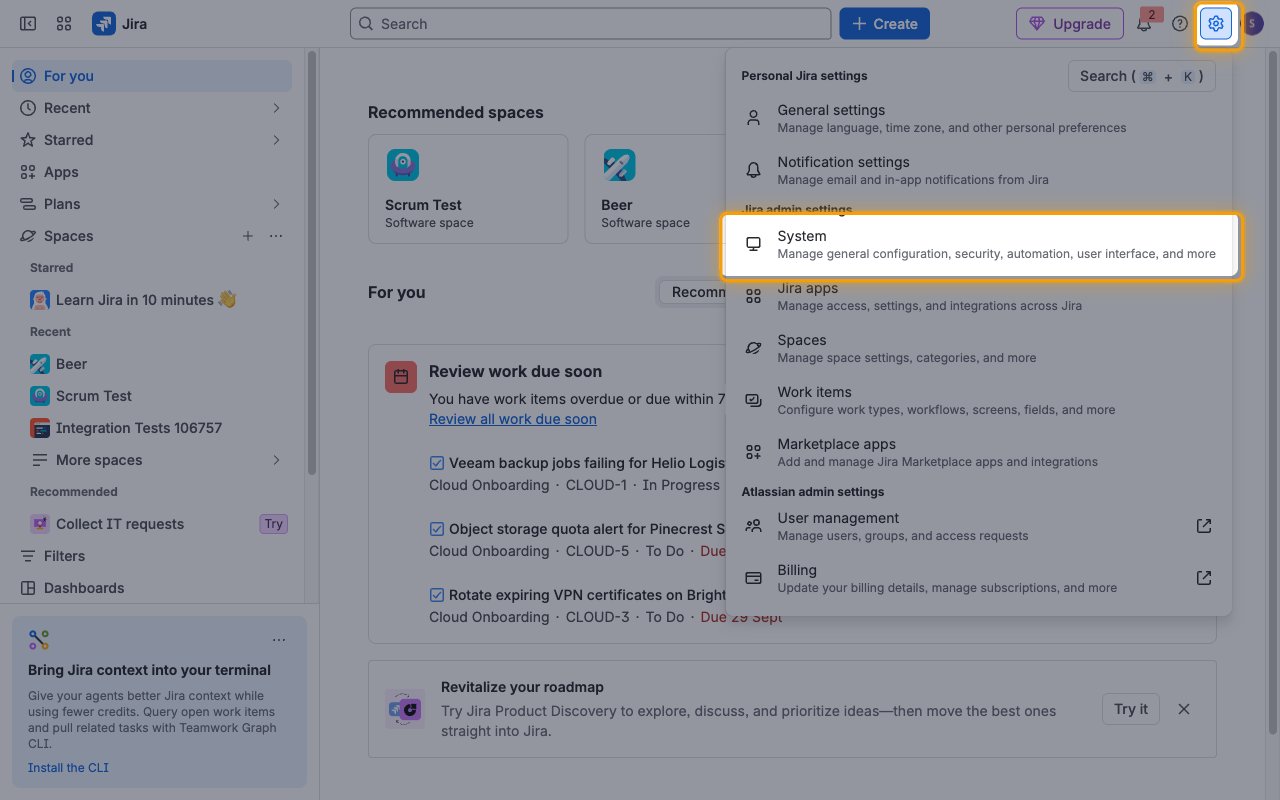
        <p>Sign in to your <a href="https://id.atlassian.com/login" target="_blank" rel="noopener noreferrer">Jira site</a> as a Jira administrator. Click the <strong>Settings</strong> icon in the top bar, then under <strong>Jira admin settings</strong> click <strong>System</strong>.</p>

        <img src="https://mintcdn.com/stackone-60/-m_Wkya09ptn4WD9/connectors/jiraservicemanagement/images/events-open-system-settings.png?fit=max&auto=format&n=-m_Wkya09ptn4WD9&q=85&s=4c0fb537bfcf66ef0754974b356fae37" alt="Jira Settings menu open with the Settings icon and the System item highlighted" width="1280" height="800" data-path="connectors/jiraservicemanagement/images/events-open-system-settings.png" />
      </div>
    </Step>

    <Step title="Open WebHooks">
      <div data-guide-step data-guide-scopes="" data-guide-display-scopes-list="">
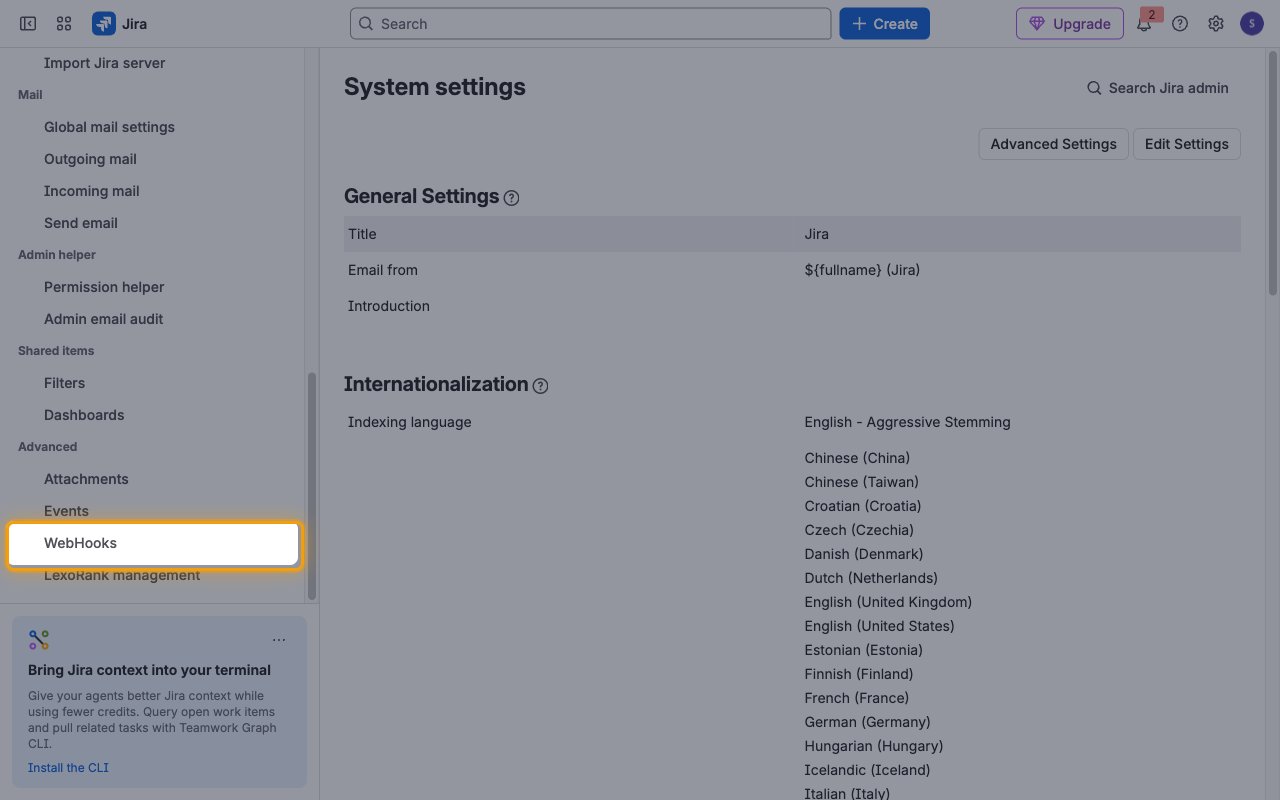
        <p>In the <strong>System settings</strong> sidebar, scroll to <strong>Advanced</strong> and click <strong>WebHooks</strong>.</p>

        <img src="https://mintcdn.com/stackone-60/-m_Wkya09ptn4WD9/connectors/jiraservicemanagement/images/events-open-webhooks.png?fit=max&auto=format&n=-m_Wkya09ptn4WD9&q=85&s=962ebd7b3d031a722741553cd83f3bc2" alt="Jira System settings sidebar with WebHooks under Advanced highlighted" width="1280" height="800" data-path="connectors/jiraservicemanagement/images/events-open-webhooks.png" />
      </div>
    </Step>

    <Step title="Create a webhook">
      <div data-guide-step data-guide-scopes="" data-guide-display-scopes-list="">
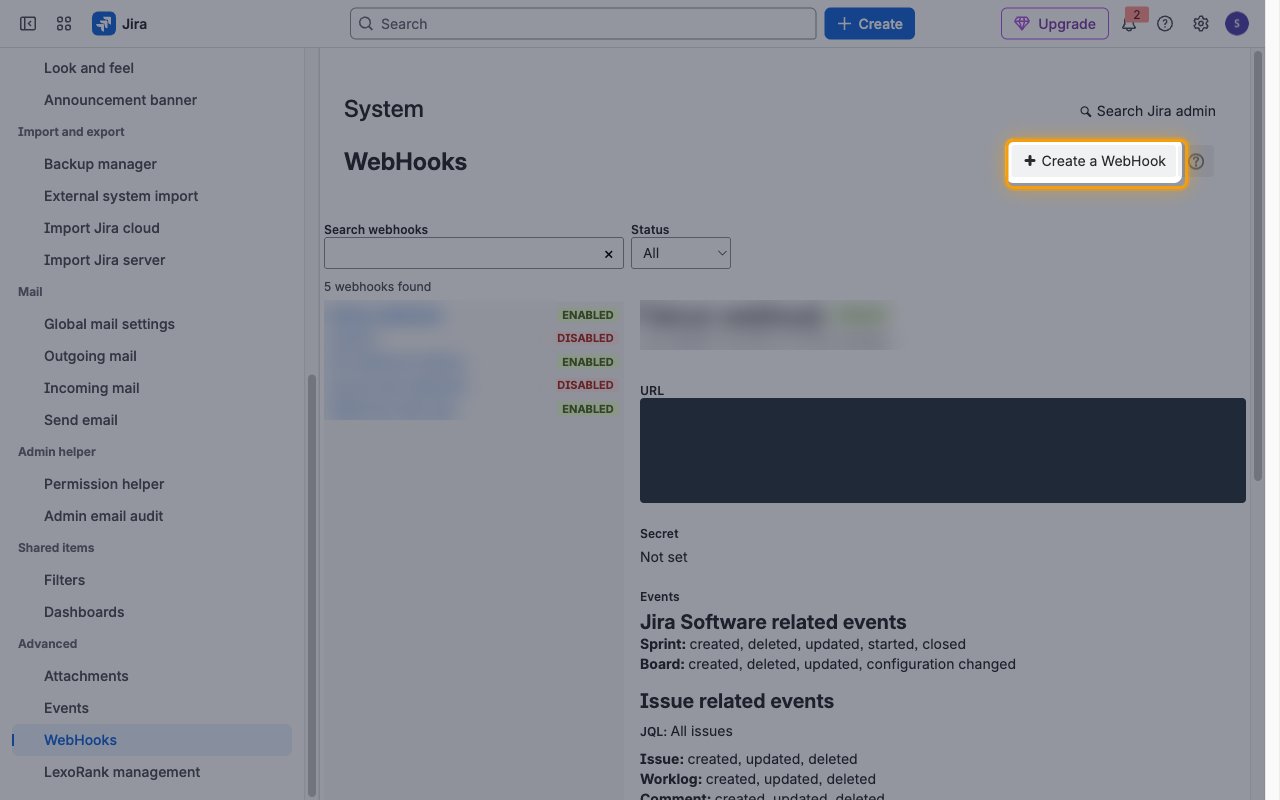
        <p>On the <strong>WebHooks</strong> page, click <strong>Create a WebHook</strong>.</p>

        <img src="https://mintcdn.com/stackone-60/-m_Wkya09ptn4WD9/connectors/jiraservicemanagement/images/events-create-webhook.png?fit=max&auto=format&n=-m_Wkya09ptn4WD9&q=85&s=9815909282d7b68e7434dc1bc1f27183" alt="Jira WebHooks page with the Create a WebHook button highlighted" width="1280" height="800" data-path="connectors/jiraservicemanagement/images/events-create-webhook.png" />
      </div>
    </Step>

    <Step title="Enter the name and URL">
      <div data-guide-step data-guide-scopes="" data-guide-display-scopes-list="">
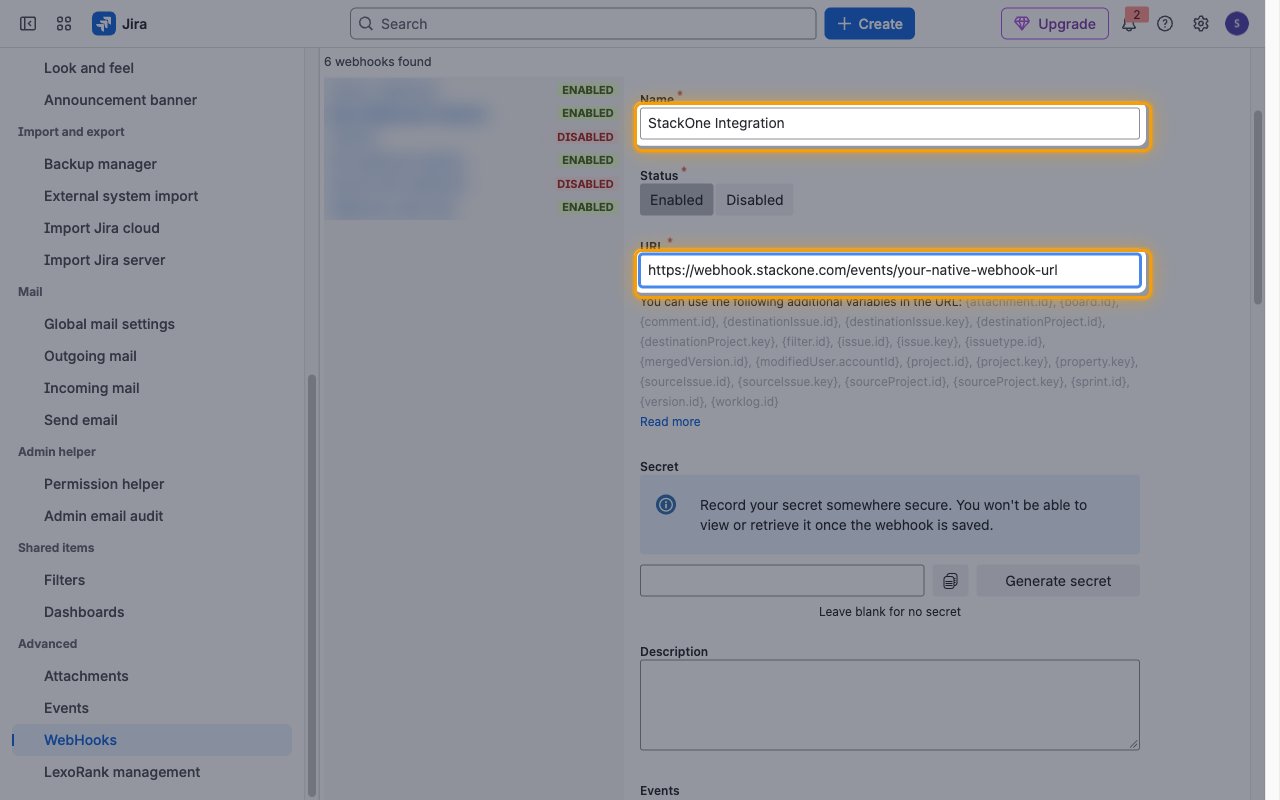
        <p>Fill in the webhook details.</p>

        <ul>
          <li>Enter a <strong>Name</strong>, for example `StackOne Integration`.</li>
          <li>Leave <strong>Status</strong> set to <strong>Enabled</strong>.</li>
          <li>Paste the Native Webhook URL into <strong>URL</strong>.</li>
          <li>Leave <strong>Secret</strong> empty — StackOne identifies the account from the Native Webhook URL.</li>
        </ul>

        <img src="https://mintcdn.com/stackone-60/-m_Wkya09ptn4WD9/connectors/jiraservicemanagement/images/events-enter-name-url.png?fit=max&auto=format&n=-m_Wkya09ptn4WD9&q=85&s=6b2950ef1b82dcbb6e6b12e9c5b909a8" alt="Create webhook form with the Name and URL fields highlighted" width="1280" height="800" data-path="connectors/jiraservicemanagement/images/events-enter-name-url.png" />
      </div>
    </Step>

    <Step title="Enter a JQL filter for your service projects">
      <div data-guide-step data-guide-scopes="" data-guide-display-scopes-list="">
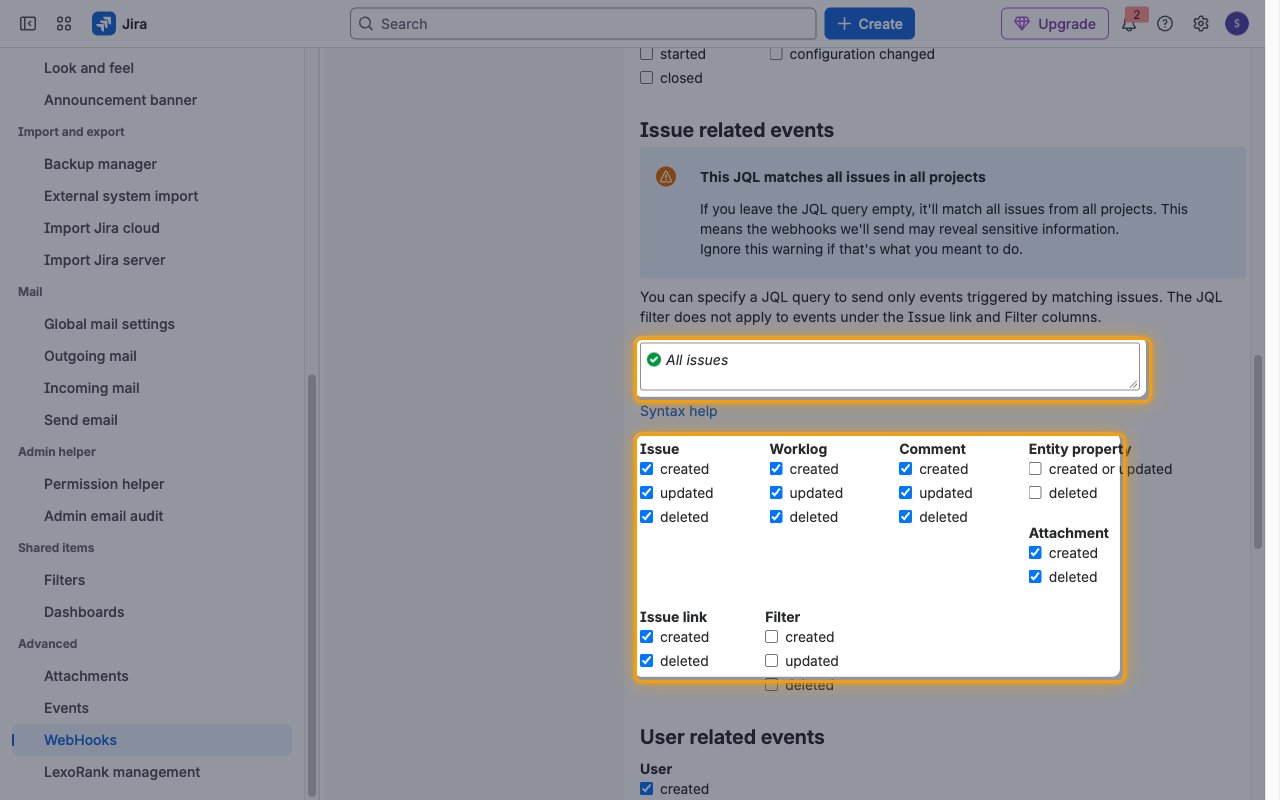
        <p>Under <strong>Issue related events</strong>, enter a JQL query to send only events triggered by matching work items. Without a query, the webhook sends events for <strong>All issues</strong> in every project, including non-service projects.</p>

        <ul>
          <li>Example query: `project = SD` — replace `SD` with your service project key.</li>
          <li>To include several service projects: `project in (SD, ITS)`.</li>
          <li>The JQL filter does not apply to events under the <strong>Issue link</strong> column.</li>
        </ul>

        <img src="https://mintcdn.com/stackone-60/-m_Wkya09ptn4WD9/connectors/jiraservicemanagement/images/events-select-issue-events.png?fit=max&auto=format&n=-m_Wkya09ptn4WD9&q=85&s=db866b3a84717f411a5fc95879d99272" alt="Issue related events section with the JQL field and the Issue, Worklog, Comment, Attachment and Issue link checkboxes highlighted" width="1280" height="800" data-path="connectors/jiraservicemanagement/images/events-select-issue-events.png" />
      </div>
    </Step>

    <Step title="Select issue related events">
      <div data-guide-step data-guide-scopes="" data-guide-display-scopes-list="">
        <p>Tick the checkboxes for the events you enabled in StackOne.</p>

        <ul>
          <li><strong>Issue</strong> — <strong>created</strong>, <strong>updated</strong>, <strong>deleted</strong>.</li>
          <li><strong>Worklog</strong> — <strong>created</strong>, <strong>updated</strong>, <strong>deleted</strong>.</li>
          <li><strong>Comment</strong> — <strong>created</strong>, <strong>updated</strong>, <strong>deleted</strong>.</li>
          <li><strong>Attachment</strong> — <strong>created</strong>, <strong>deleted</strong>.</li>
          <li><strong>Issue link</strong> — <strong>created</strong>, <strong>deleted</strong>.</li>
        </ul>
      </div>
    </Step>

    <Step title="Select user related events">
      <div data-guide-step data-guide-scopes="" data-guide-display-scopes-list="">
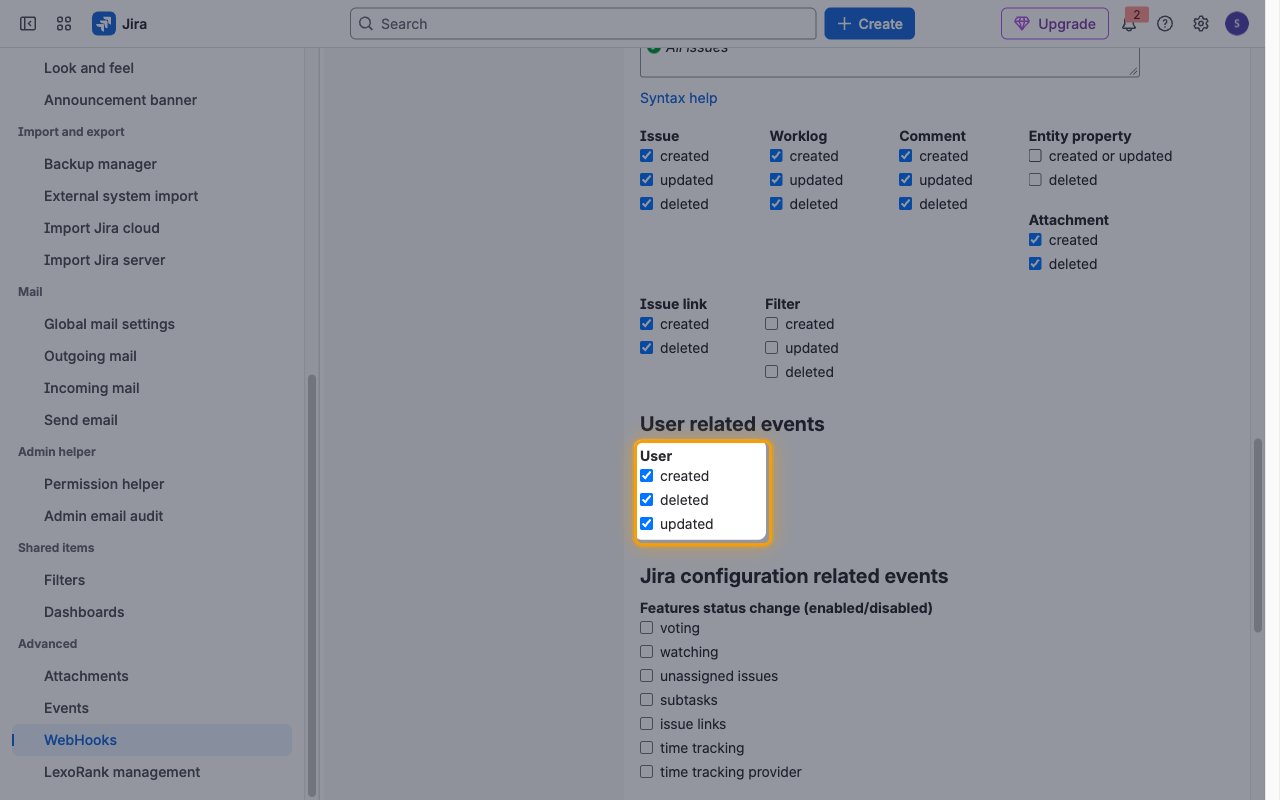
        <p>Under <strong>User related events</strong>, tick <strong>User</strong> <strong>created</strong>, <strong>deleted</strong>, and <strong>updated</strong> if you enabled the user events in StackOne.</p>

        <img src="https://mintcdn.com/stackone-60/-m_Wkya09ptn4WD9/connectors/jiraservicemanagement/images/events-select-user-events.png?fit=max&auto=format&n=-m_Wkya09ptn4WD9&q=85&s=70494dc6b88509d7c5a5affd2f50b97e" alt="User related events section with the User created, deleted and updated checkboxes highlighted" width="1280" height="800" data-path="connectors/jiraservicemanagement/images/events-select-user-events.png" />
      </div>
    </Step>

    <Step title="Save the webhook">
      <div data-guide-step data-guide-scopes="" data-guide-display-scopes-list="">
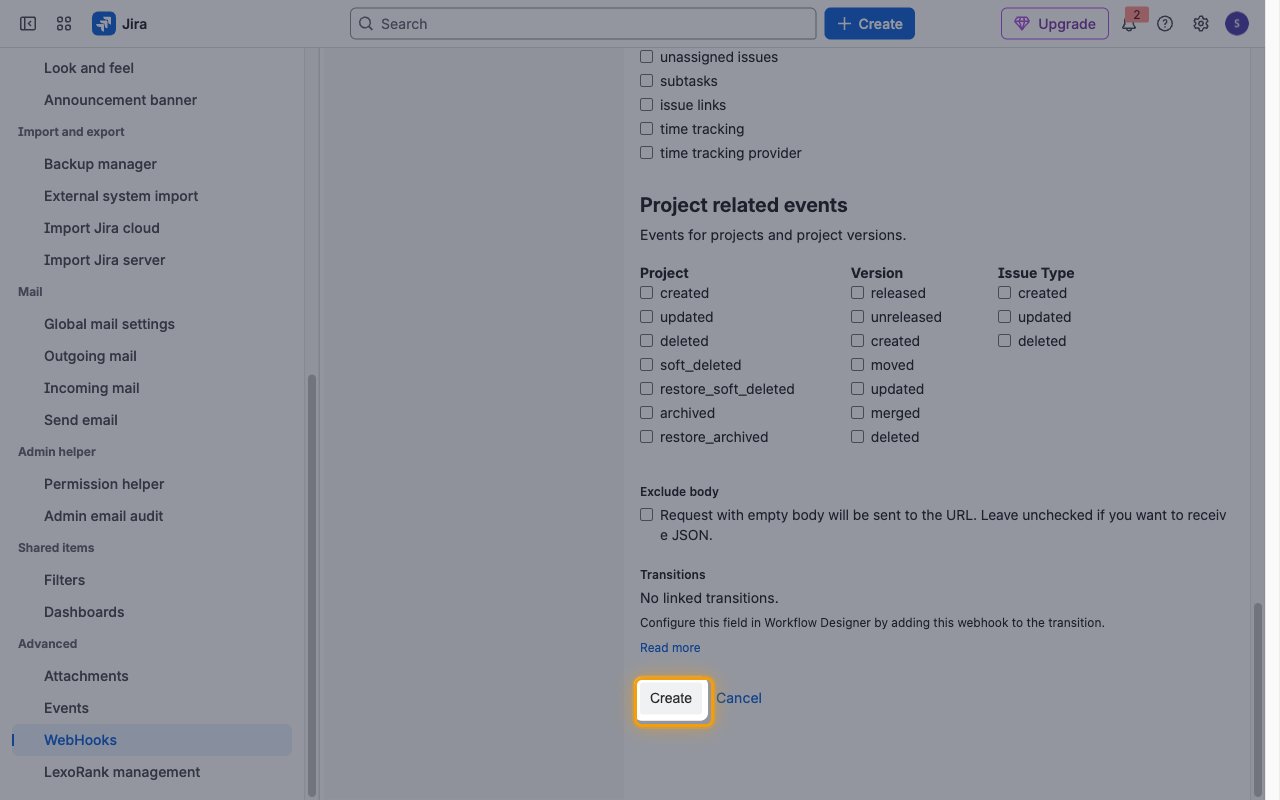
        <p>Leave <strong>Exclude body</strong> unchecked so Jira sends the JSON payload, then click <strong>Create</strong>.</p>

        <img src="https://mintcdn.com/stackone-60/-m_Wkya09ptn4WD9/connectors/jiraservicemanagement/images/events-save-webhook.png?fit=max&auto=format&n=-m_Wkya09ptn4WD9&q=85&s=1ecd706fb8a0a2295ce922227a4bd9b4" alt="Bottom of the Create webhook form with the Create button highlighted" width="1280" height="800" data-path="connectors/jiraservicemanagement/images/events-save-webhook.png" />
      </div>
    </Step>

    <Step title="Confirm the webhook is enabled">
      <div data-guide-step data-guide-scopes="" data-guide-display-scopes-list="">
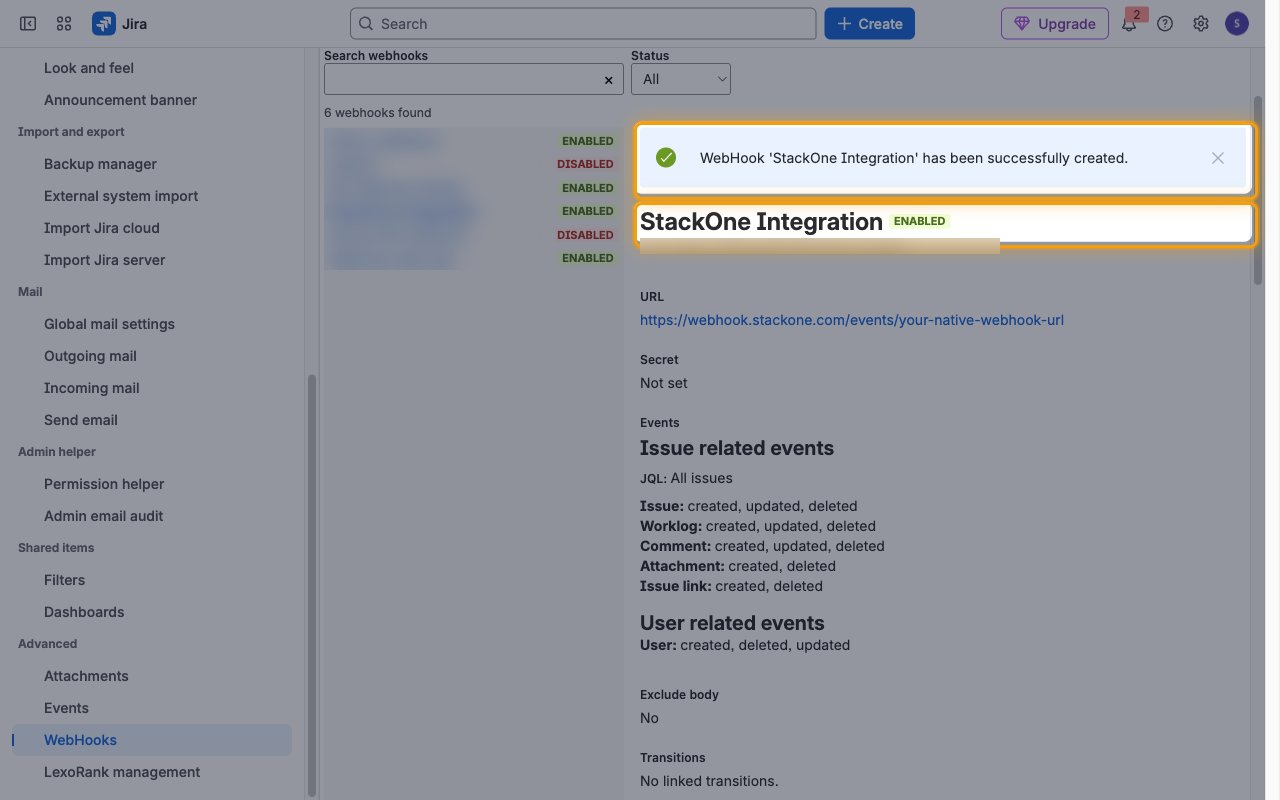
        <p>Jira shows the message <strong>WebHook 'StackOne Integration' has been successfully created.</strong> and the webhook is listed as <strong>ENABLED</strong> with the selected events.</p>

        <img src="https://mintcdn.com/stackone-60/-m_Wkya09ptn4WD9/connectors/jiraservicemanagement/images/events-webhook-created.png?fit=max&auto=format&n=-m_Wkya09ptn4WD9&q=85&s=01c35ca5368766f9fb6c2e42f4f44614" alt="Jira WebHooks page showing the StackOne Integration webhook created and ENABLED" width="1280" height="800" data-path="connectors/jiraservicemanagement/images/events-webhook-created.png" />
      </div>
    </Step>
  </Steps>
</section>

<section data-guide-section data-guide-scopes="">
  <h2>Available webhook events</h2>

  <p>The following Jira Service Management events can be enabled. Only events selected in StackOne are handled, and Jira only sends events ticked on the webhook.</p>

  <Steps>
    <Step title="Request events">
      <div data-guide-step data-guide-scopes="" data-guide-display-scopes-list="">
        <p>Events related to customer requests (Jira work items in service projects).</p>

        <ul>
          <li><strong>Request Created</strong> (`jira:issue_created`) — Fired when a customer request is created from the portal, email, API, or by an agent</li>
          <li><strong>Request Updated</strong> (`jira:issue_updated`) — Fired when a request changes, including status transitions, assignee changes, and field edits</li>
          <li><strong>Request Deleted</strong> (`jira:issue_deleted`) — Fired when a request is deleted</li>
        </ul>
      </div>
    </Step>

    <Step title="Comment events">
      <div data-guide-step data-guide-scopes="" data-guide-display-scopes-list="">
        <p>Events related to public replies and internal notes on requests.</p>

        <ul>
          <li><strong>Comment Created</strong> (`comment_created`) — Fired when a public reply or internal note is added to a request</li>
          <li><strong>Comment Updated</strong> (`comment_updated`) — Fired when a comment on a request is edited</li>
          <li><strong>Comment Deleted</strong> (`comment_deleted`) — Fired when a comment is deleted from a request</li>
        </ul>
      </div>
    </Step>

    <Step title="Attachment events">
      <div data-guide-step data-guide-scopes="" data-guide-display-scopes-list="">
        <p>Events related to files attached to requests.</p>

        <ul>
          <li><strong>Attachment Created</strong> (`attachment_created`) — Fired when a file is attached to a request</li>
          <li><strong>Attachment Deleted</strong> (`attachment_deleted`) — Fired when an attachment is removed from a request</li>
        </ul>
      </div>
    </Step>

    <Step title="Issue link events">
      <div data-guide-step data-guide-scopes="" data-guide-display-scopes-list="">
        <p>Events related to links between work items, such as an incident linked to a problem.</p>

        <ul>
          <li><strong>Issue Link Created</strong> (`issuelink_created`) — Fired when a link is created between two work items</li>
          <li><strong>Issue Link Deleted</strong> (`issuelink_deleted`) — Fired when a link between two work items is removed</li>
        </ul>
      </div>
    </Step>

    <Step title="Worklog events">
      <div data-guide-step data-guide-scopes="" data-guide-display-scopes-list="">
        <p>Events related to time logged against requests.</p>

        <ul>
          <li><strong>Worklog Created</strong> (`worklog_created`) — Fired when an agent logs time on a request</li>
          <li><strong>Worklog Updated</strong> (`worklog_updated`) — Fired when a time log on a request is edited</li>
          <li><strong>Worklog Deleted</strong> (`worklog_deleted`) — Fired when a time log is deleted from a request</li>
        </ul>
      </div>
    </Step>

    <Step title="User events">
      <div data-guide-step data-guide-scopes="" data-guide-display-scopes-list="">
        <p>Events related to users on the Jira site, including agents and portal-only customers.</p>

        <ul>
          <li><strong>User Created</strong> (`user_created`) — Fired when a user or portal customer is created on the site</li>
          <li><strong>User Updated</strong> (`user_updated`) — Fired when a user profile on the site changes</li>
          <li><strong>User Deleted</strong> (`user_deleted`) — Fired when a user is removed from the site</li>
        </ul>
      </div>
    </Step>
  </Steps>
</section>

<section data-guide-section data-guide-scopes="">
  <h2>Delivery format</h2>

  <p>Details of how Jira delivers events to StackOne.</p>

  <Steps>
    <Step title="One event per request">
      <div data-guide-step data-guide-scopes="" data-guide-display-scopes-list="">
        <p>Each webhook request carries a single event. The event name is in the `webhookEvent` field and the event time is in `timestamp` (epoch milliseconds). Portal customers appear with `accountType` set to `customer` in the `user` object.</p>
      </div>
    </Step>

    <Step title="Site-wide scope">
      <div data-guide-step data-guide-scopes="" data-guide-display-scopes-list="">
        <p>User events are site-wide and are not filtered by the JQL query, so they fire for every user on the Jira site.</p>
      </div>
    </Step>
  </Steps>
</section>

## Verify

Your Connector should now be able to receive and process events. Try triggering an event and you should see an Event appear in the Connector logs.


This documentation is built and hosted on [Mintlify](https://mintlify.com), a developer documentation platform.