> ## Documentation Index
> Fetch the complete documentation index at: https://docs.stackone.com/llms.txt
> Use this file to discover all available pages before exploring further.

# Connect IPGeolocation with API Key – StackOne Hub

> Link a IPGeolocation account in the StackOne Hub using API Key. End-user guide to authorize the integration and start using IPGeolocation actions.

<Warning>The <strong>Developer (Free)</strong> plan covers IP geolocation, time zone, astronomy, and user-agent lookups. Threat detection and IP abuse contact lookups require a paid plan.</Warning>

<section data-guide-section data-guide-scopes="">
  <h2>Creating an IPGeolocation.io account</h2>

  <p>IPGeolocation.io issues an API key as soon as you create an account, so there is no application or approval step. Skip this section if you already have an account.</p>

  <Steps>
    <Step title="Create your account">
      <div data-guide-step data-guide-scopes="" data-guide-display-scopes-list="">
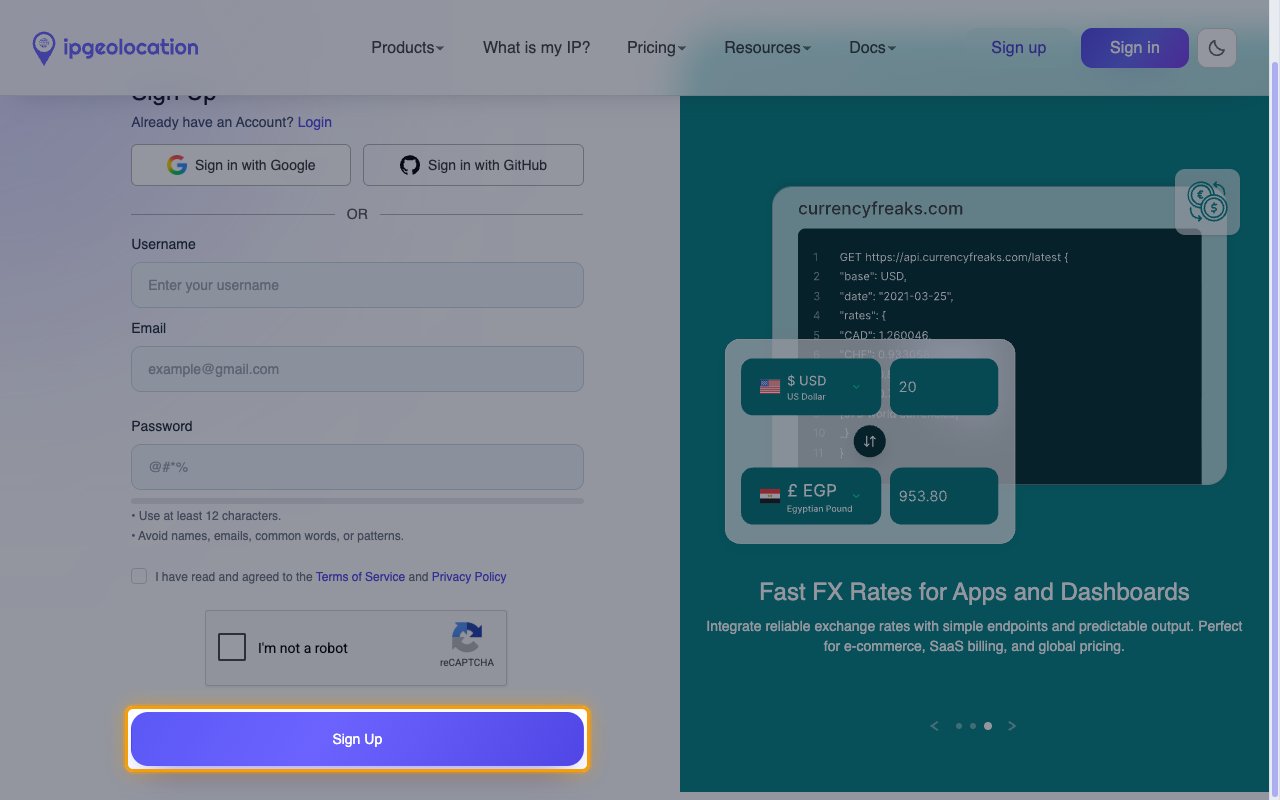
        <p>Go to the <a href="https://app.ipgeolocation.io/signup" target="_blank" rel="noopener noreferrer">IPGeolocation.io sign-up page</a> and complete the form.</p>

        <ul>
          <li>Fill in <strong>Username</strong>, <strong>Email</strong>, and <strong>Password</strong>.</li>
          <li>The password must use at least 12 characters.</li>
          <li>Select the <strong>I have read and agreed to the Terms of Service and Privacy Policy</strong> checkbox.</li>
          <li>Complete the <strong>I'm not a robot</strong> check, then click <strong>Sign Up</strong>.</li>
          <li>You can register with <strong>Sign in with Google</strong> or <strong>Sign in with GitHub</strong> instead of choosing a password.</li>
        </ul>

        <img src="https://mintcdn.com/stackone-60/qrqKFhFWI2z0QOvZ/connectors/ipgeolocation/images/apikey-config-sign-up.png?fit=max&auto=format&n=qrqKFhFWI2z0QOvZ&q=85&s=5f1c758c37b318afbd6d1381fab870e8" alt="The IPGeolocation.io sign-up form with the Sign Up button highlighted" width="1280" height="800" data-path="connectors/ipgeolocation/images/apikey-config-sign-up.png" />
      </div>
    </Step>
  </Steps>
</section>

<section data-guide-section data-guide-scopes="">
  <h2>Find your API key</h2>

  <p>Your API key authenticates every request. It is created together with your account and stays available on the <strong>Dashboard</strong>, so it can be copied again at any time.</p>

  <Steps>
    <Step title="Sign in to IPGeolocation.io">
      <div data-guide-step data-guide-scopes="" data-guide-display-scopes-list="">
        <p>Sign in to your <a href="https://app.ipgeolocation.io/login" target="_blank" rel="noopener noreferrer">IPGeolocation.io account</a>.</p>

        <ul>
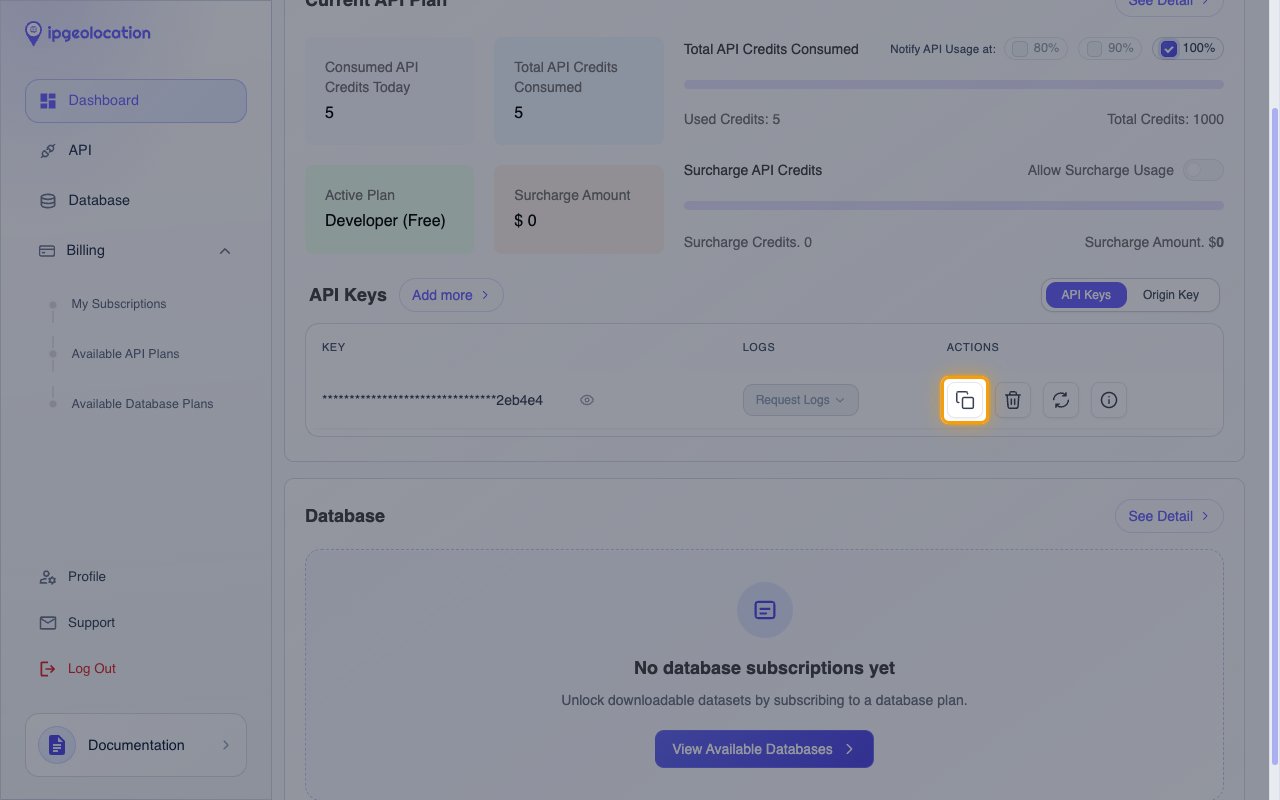
          <li>The <strong>Dashboard</strong> opens by default. If you navigate away, click <strong>Dashboard</strong> in the left sidebar.</li>
          <li>Scroll to the <strong>API Keys</strong> panel, below <strong>Current API Plan</strong>.</li>
        </ul>
      </div>
    </Step>

    <Step title="Copy your API key">
      <div data-guide-step data-guide-scopes="" data-guide-display-scopes-list="">
        <p>In the <strong>API Keys</strong> panel, click <strong>Copy API key</strong> in the <strong>Actions</strong> column.</p>

        <ul>
          <li>The <strong>Key</strong> column shows the key masked, so use <strong>Copy API key</strong> to copy the full value.</li>
          <li>Paste it into the <strong>API Key</strong> field in StackOne Hub.</li>
          <li>The <strong>Developer (Free)</strong> plan includes a single API key. <strong>Add more</strong> requires a paid plan.</li>
          <li>IPGeolocation.io sends the key as a URL query parameter, so treat it as a secret and avoid logging full request URLs. Click <strong>Reset API key</strong> to rotate it if it is ever exposed.</li>
        </ul>

        <img src="https://mintcdn.com/stackone-60/qrqKFhFWI2z0QOvZ/connectors/ipgeolocation/images/apikey-config-dashboard-api-keys.png?fit=max&auto=format&n=qrqKFhFWI2z0QOvZ&q=85&s=4de3140b7f85bf78c0c366b2df3af140" alt="The IPGeolocation.io Dashboard with the Copy API key button in the API Keys panel highlighted" width="1280" height="800" data-path="connectors/ipgeolocation/images/apikey-config-dashboard-api-keys.png" />
      </div>
    </Step>
  </Steps>
</section>

<div data-whitelabel-hide>
  <h2>Linking the Account from the Hub</h2>

  <Steps>
    <Step title="Navigate to the Hub">
      Use one of the three <a href="/connect/managing-connectors/linking-accounts">Linking Account Methods</a> to access the Hub.
    </Step>

    <Step title="Fill out the fields">
      Fill out the following fields using details from your provider:

      <ul>
        <li><strong>API Key</strong></li>
      </ul>
    </Step>

    <Step title="Connect">
      <ul>
        <li>Click <strong>Connect</strong></li>
        <li>If applicable, the provider will redirect you to a sign-in or authorization page. Complete the provider's authorization flow.</li>
        <li>Once authorization is successful, you will see a confirmation popup</li>
      </ul>
    </Step>
  </Steps>

  <p>If the account linking is successful, you will see the newly linked account in your <a href="/gateway/concepts/linked-accounts">Accounts</a> page.</p>
</div>