> ## Documentation Index
> Fetch the complete documentation index at: https://docs.stackone.com/llms.txt
> Use this file to discover all available pages before exploring further.

# Hive Webhook Setup Guide

> Configure Hive to deliver events to StackOne.

## Prerequisites

The connector should already be set up, with a Connector Profile and a Linked Account. See [Getting Started](/connectors/hive#getting-started) on the Hive connector page.

<section data-guide-section data-guide-scopes="">
  <h2>How Hive webhooks are set up</h2>

  <p>StackOne creates and manages the Hive webhooks automatically when the account is connected, and removes them when the account is disconnected. There is nothing to configure in Hive and no URL to paste.</p>

  <ul>
    <li>StackOne creates one Hive webhook per event you enable, because each Hive webhook listens for a single trigger.</li>
    <li>The webhooks are created in the workspace named by the <strong>Workspace ID</strong> field and cover every project in that workspace.</li>
    <li>Only the events you enable in StackOne are registered in Hive and delivered.</li>
  </ul>
</section>

<section data-guide-section data-guide-scopes="">
  <h2>Find your Workspace ID</h2>

  <p>Every Hive webhook belongs to one workspace, so StackOne needs to know which workspace to watch. The ID is on the same <strong>API info</strong> page that shows the <strong>API Key</strong> and <strong>User ID</strong> used to connect Hive.</p>

  <Steps>
    <Step title="Open the workspace you want events from">
      <div data-guide-step data-guide-scopes="" data-guide-display-scopes-list="">
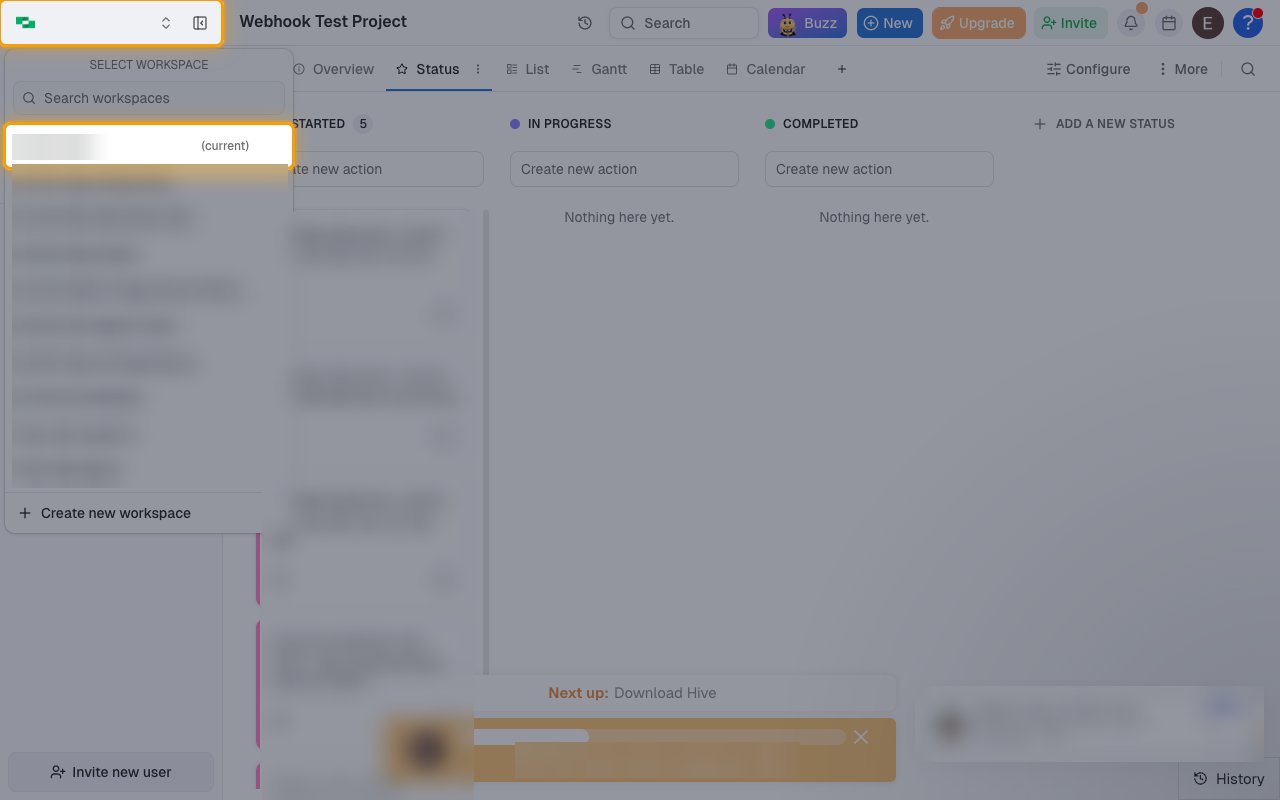
        <p>Sign in to your <a href="https://app.hive.com" target="_blank" rel="noopener noreferrer">Hive account</a>. Click the workspace switcher at the top of the left sidebar and select the workspace under <strong>Select workspace</strong>. The workspace you have open is marked <strong>(current)</strong>.</p>

        <ul>
          <li>The <strong>API info</strong> page shows the ID of the workspace you currently have open, so switch to the right workspace first if you belong to more than one.</li>
        </ul>

        <img src="https://mintcdn.com/stackone-60/jTAs3JkC9oIYVxGN/connectors/hive/images/events-select-workspace.png?fit=max&auto=format&n=jTAs3JkC9oIYVxGN&q=85&s=83b04f087f18686609899898933b3a70" alt="The Hive workspace switcher open with the current workspace highlighted in the Select workspace list" width="1280" height="800" data-path="connectors/hive/images/events-select-workspace.png" />
      </div>
    </Step>

    <Step title="Open your profile settings">
      <div data-guide-step data-guide-scopes="" data-guide-display-scopes-list="">
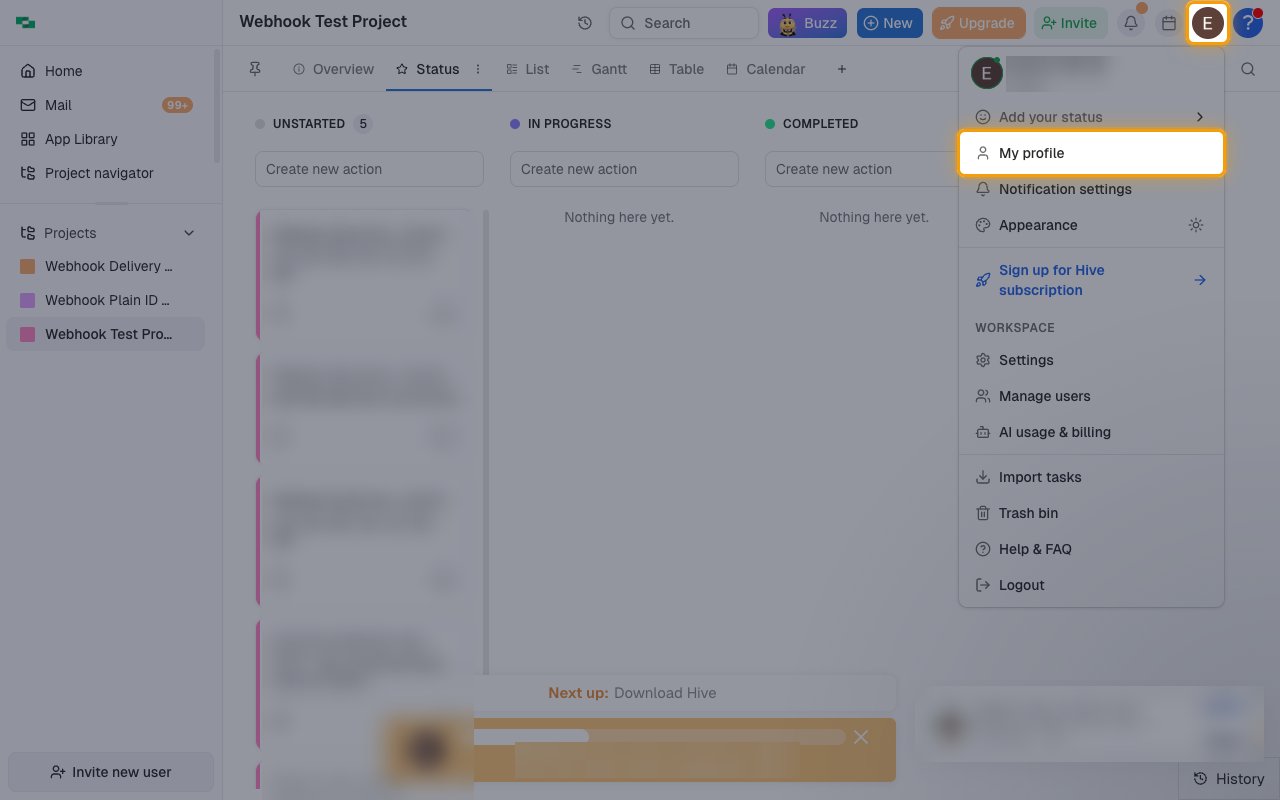
        <p>Click your profile avatar in the top-right corner and select <strong>My profile</strong>.</p>

        <img src="https://mintcdn.com/stackone-60/jTAs3JkC9oIYVxGN/connectors/hive/images/events-my-profile.png?fit=max&auto=format&n=jTAs3JkC9oIYVxGN&q=85&s=c6ad19b9fbeeb675aad68f640e6762da" alt="The Hive user menu opened from the profile avatar with My profile highlighted" width="1280" height="800" data-path="connectors/hive/images/events-my-profile.png" />
      </div>
    </Step>

    <Step title="Open the API info page">
      <div data-guide-step data-guide-scopes="" data-guide-display-scopes-list="">
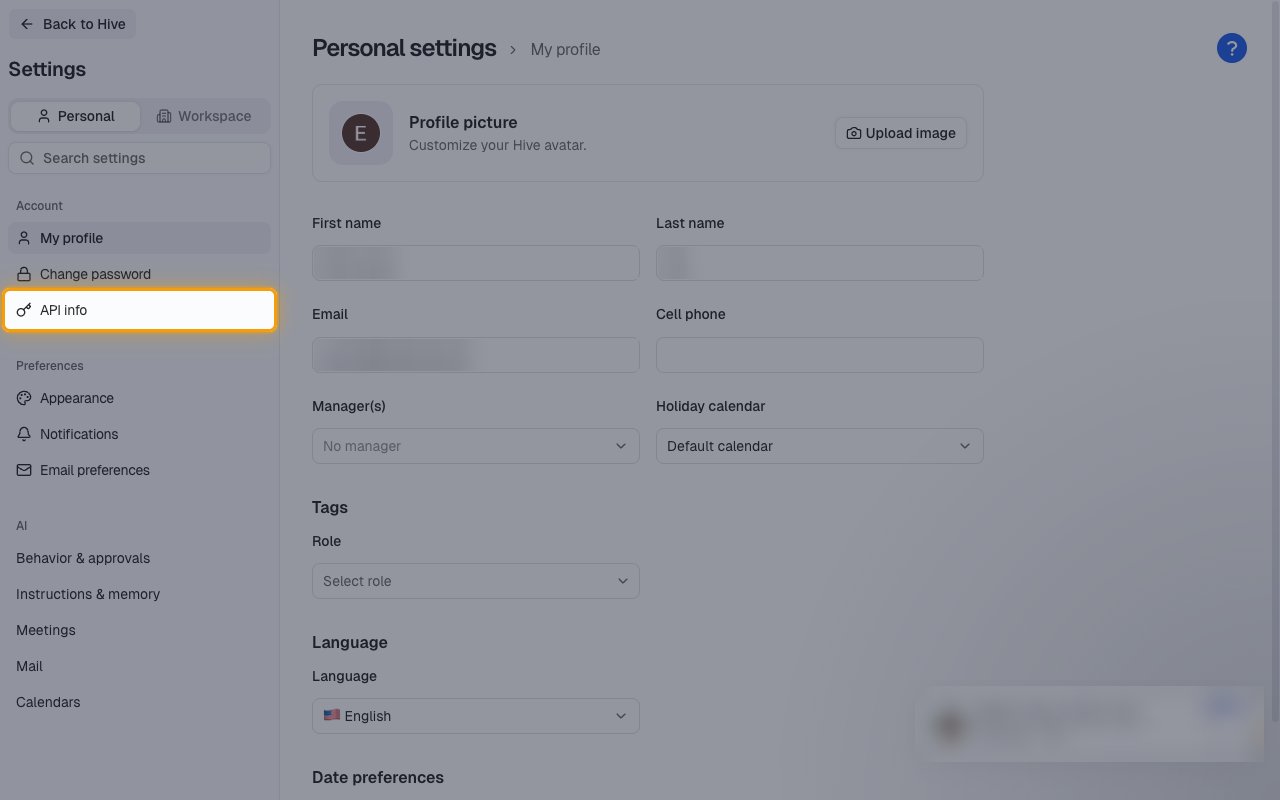
        <p>In the <strong>Settings</strong> sidebar, under <strong>Account</strong>, click <strong>API info</strong>.</p>

        <img src="https://mintcdn.com/stackone-60/jTAs3JkC9oIYVxGN/connectors/hive/images/events-api-info.png?fit=max&auto=format&n=jTAs3JkC9oIYVxGN&q=85&s=1a8fc7271acfc015805014a202659dbd" alt="The Hive Personal settings sidebar with API info highlighted under Account" width="1280" height="800" data-path="connectors/hive/images/events-api-info.png" />
      </div>
    </Step>

    <Step title="Copy the Workspace ID">
      <div data-guide-step data-guide-scopes="" data-guide-display-scopes-list="">
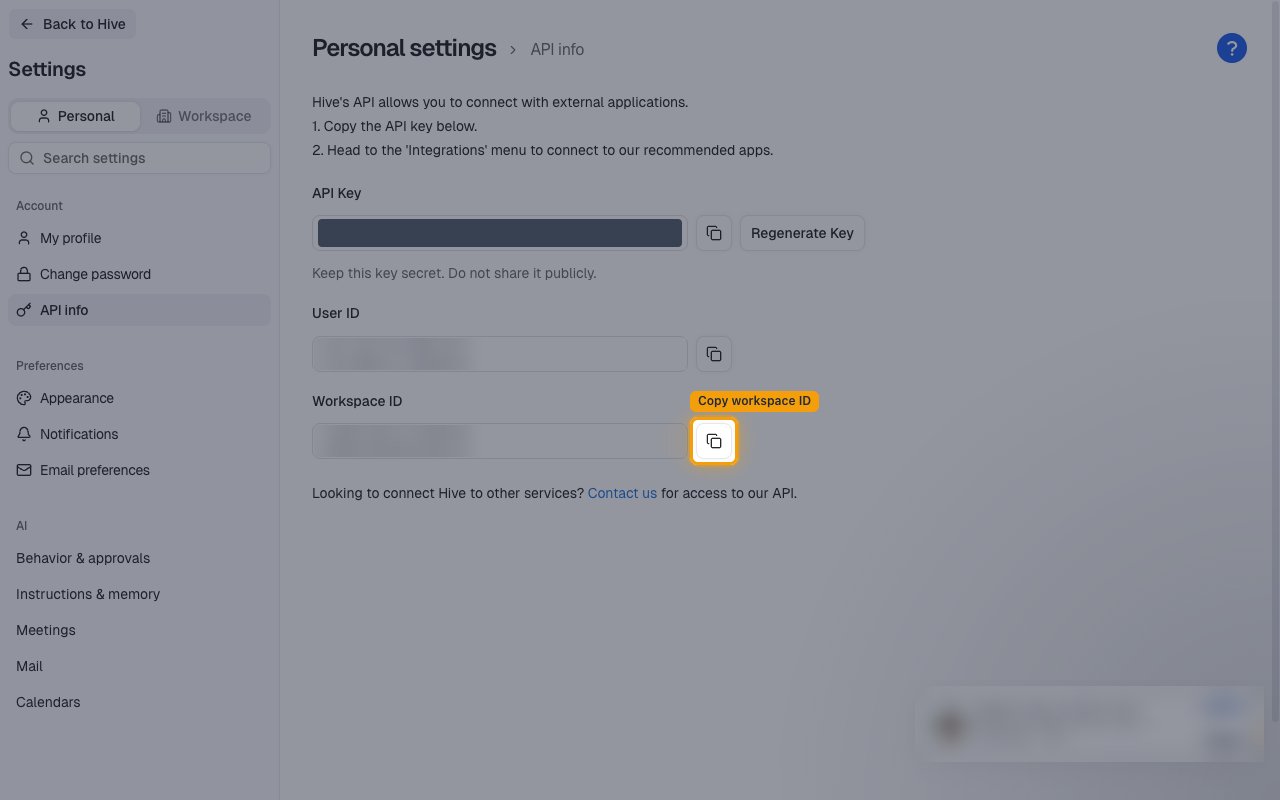
        <p>Click the copy button beside <strong>Workspace ID</strong> and paste the value into the <strong>Workspace ID</strong> field on the Linked Account in StackOne.</p>

        <ul>
          <li>Add the Workspace ID before you enable events, so StackOne can create the webhooks when events are turned on.</li>
          <li>Leave the field empty if you only use Hive actions and do not need webhook events.</li>
        </ul>

        <img src="https://mintcdn.com/stackone-60/jTAs3JkC9oIYVxGN/connectors/hive/images/events-copy-workspace-id.png?fit=max&auto=format&n=jTAs3JkC9oIYVxGN&q=85&s=bd8e2a684391cba2b7cb809503b5ac8b" alt="The Hive API info page with the Copy workspace ID button highlighted and the API key masked" width="1280" height="800" data-path="connectors/hive/images/events-copy-workspace-id.png" />
      </div>
    </Step>
  </Steps>
</section>

<section data-guide-section data-guide-scopes="">
  <h2>Check the webhooks in Hive</h2>

  <p>After you enable events, you can confirm in Hive that StackOne created the webhooks. This is optional.</p>

  <Steps>
    <Step title="Open the webhook settings">
      <div data-guide-step data-guide-scopes="" data-guide-display-scopes-list="">
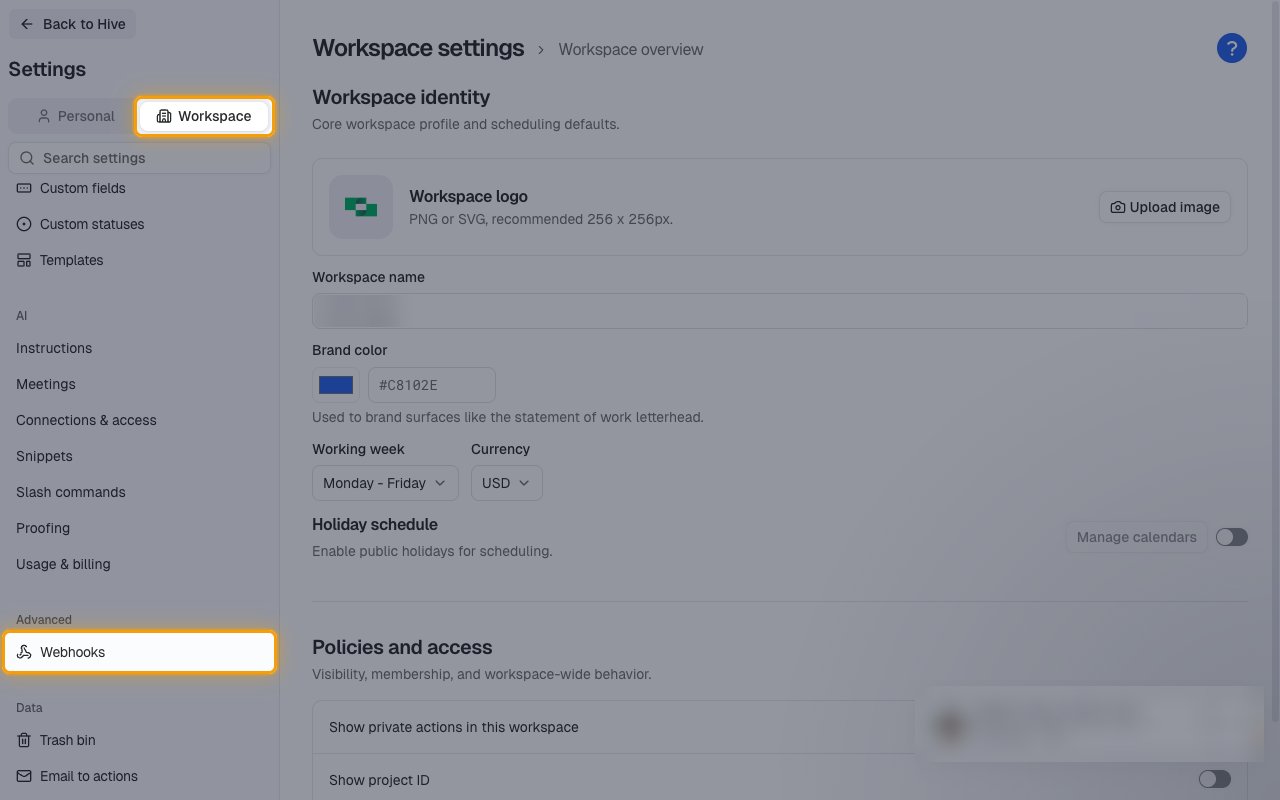
        <p>In the <strong>Settings</strong> sidebar, select the <strong>Workspace</strong> tab and click <strong>Webhooks</strong> under <strong>Advanced</strong>.</p>

        <img src="https://mintcdn.com/stackone-60/jTAs3JkC9oIYVxGN/connectors/hive/images/events-webhooks-settings.png?fit=max&auto=format&n=jTAs3JkC9oIYVxGN&q=85&s=9d676cc6f9f4a5a0dea74c0dfe9476e7" alt="The Hive Workspace settings sidebar with the Workspace tab and Webhooks under Advanced highlighted" width="1280" height="800" data-path="connectors/hive/images/events-webhooks-settings.png" />
      </div>
    </Step>

    <Step title="Confirm the StackOne webhooks">
      <div data-guide-step data-guide-scopes="" data-guide-display-scopes-list="">
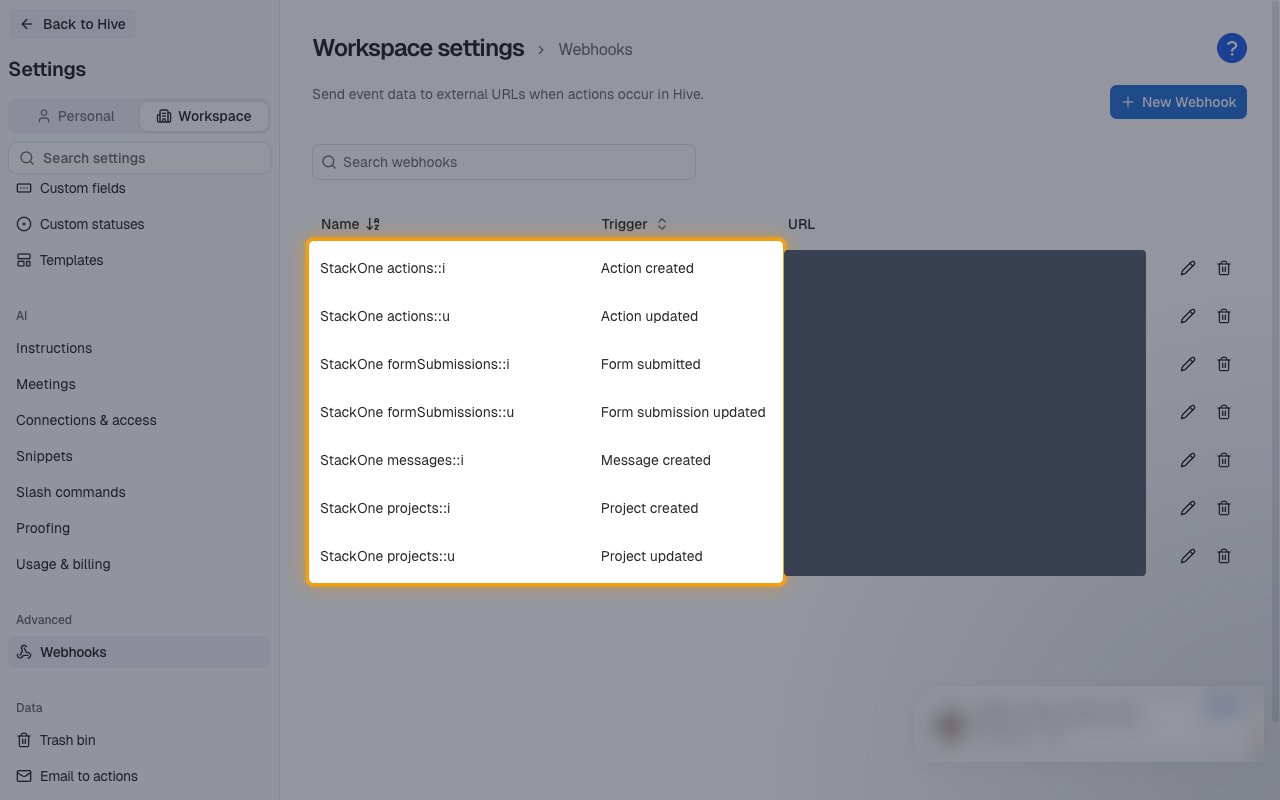
        <p>The <strong>Webhooks</strong> page lists one webhook per event you enabled. Each one is named after its event code, for example `StackOne actions::i` with the trigger <strong>Action created</strong>.</p>

        <ul>
          <li>Do not edit or delete these webhooks. StackOne manages them and removes them when the account is disconnected.</li>
        </ul>

        <img src="https://mintcdn.com/stackone-60/jTAs3JkC9oIYVxGN/connectors/hive/images/events-webhooks-list.png?fit=max&auto=format&n=jTAs3JkC9oIYVxGN&q=85&s=1339f369c514301f53f58641ecff312c" alt="The Hive Webhooks page listing the StackOne webhooks with their triggers highlighted and the URLs masked" width="1280" height="800" data-path="connectors/hive/images/events-webhooks-list.png" />
      </div>
    </Step>
  </Steps>
</section>

<section data-guide-section data-guide-scopes="">
  <h2>Available webhook events</h2>

  <p>The following Hive events can be enabled. Only events selected in StackOne are registered in Hive and delivered — Hive will not send events that are not subscribed.</p>

  <Steps>
    <Step title="Action events">
      <div data-guide-step data-guide-scopes="" data-guide-display-scopes-list="">
        <p>Events on actions (tasks) in the workspace.</p>

        <ul>
          <li><strong>Action created</strong> (`actions::i`) — Fired when an action (task) is created in the workspace</li>
          <li><strong>Action updated</strong> (`actions::u`) — Fired when any field of an action (task) is updated</li>
        </ul>
      </div>
    </Step>

    <Step title="Project events">
      <div data-guide-step data-guide-scopes="" data-guide-display-scopes-list="">
        <p>Events on projects in the workspace.</p>

        <ul>
          <li><strong>Project created</strong> (`projects::i`) — Fired when a project is created in the workspace</li>
          <li><strong>Project updated</strong> (`projects::u`) — Fired when any field of a project is updated</li>
        </ul>
      </div>
    </Step>

    <Step title="Form submission events">
      <div data-guide-step data-guide-scopes="" data-guide-display-scopes-list="">
        <p>Events on form submissions in the workspace.</p>

        <ul>
          <li><strong>Form submitted</strong> (`formSubmissions::i`) — Fired when a form in the workspace is submitted</li>
          <li><strong>Form submission updated</strong> (`formSubmissions::u`) — Fired when a submitted form entry is updated</li>
        </ul>
      </div>
    </Step>

    <Step title="Message events">
      <div data-guide-step data-guide-scopes="" data-guide-display-scopes-list="">
        <p>Events on messages in the workspace. Hive stores comments on actions as messages, so comments fire these events too.</p>

        <ul>
          <li><strong>Message created</strong> (`messages::i`) — Fired when a comment is added to an action or a message is posted in a chat group or channel</li>
        </ul>
      </div>
    </Step>
  </Steps>
</section>

<section data-guide-section data-guide-scopes="">
  <h2>Delivery format</h2>

  <p>Details of how Hive delivers events to StackOne.</p>

  <Steps>
    <Step title="JSON payloads">
      <div data-guide-step data-guide-scopes="" data-guide-display-scopes-list="">
        <p>Hive delivers each event as its own HTTP POST with a JSON body carrying the trigger, the webhook owner, the webhook id, and the full affected record (under a key named after the record type, such as `action`, `project`, `formSubmission` or `message`) in its current state. Deliveries are not batched.</p>
      </div>
    </Step>

    <Step title="No signature">
      <div data-guide-step data-guide-scopes="" data-guide-display-scopes-list="">
        <p>Hive does not sign deliveries and has no verification handshake.</p>
      </div>
    </Step>
  </Steps>
</section>

## Verify

Your Connector should now be able to receive and process events. Try triggering an event and you should see an Event appear in the Connector logs.


This documentation is built and hosted on [Mintlify](https://mintlify.com), a developer documentation platform.