> ## Documentation Index
> Fetch the complete documentation index at: https://docs.stackone.com/llms.txt
> Use this file to discover all available pages before exploring further.

# Connect Heap with App ID – StackOne Hub

> Link a Heap account in the StackOne Hub using App ID. End-user guide to authorize the integration and start using Heap actions.

<section data-guide-section data-guide-scopes="">
  <h2>Sign In to Heap</h2>

  <p>Sign in to your Heap account to locate your App ID, which is required to complete the integration.</p>

  <Steps>
    <Step title="Access Heap">
      <div data-guide-step data-guide-scopes="" data-guide-display-scopes-list="">
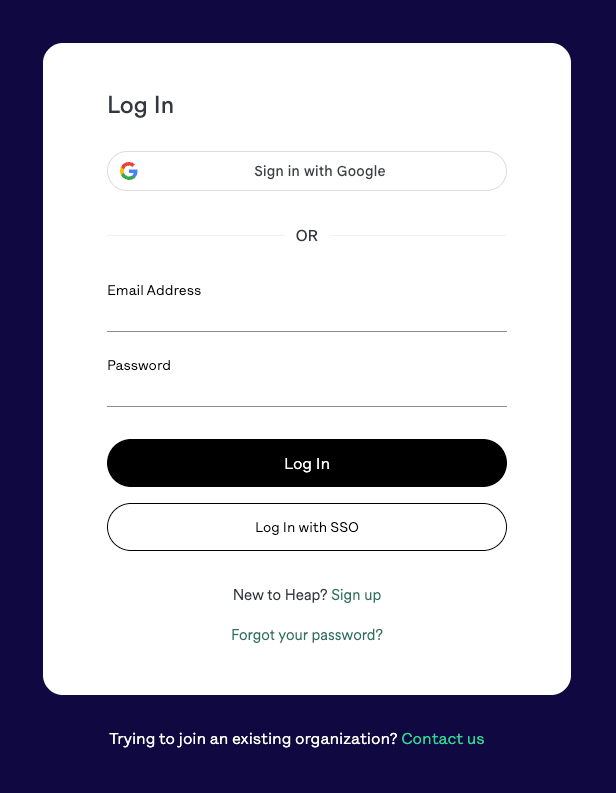
        <p>Navigate to <a href="https://heapanalytics.com/app" target="_blank" rel="noopener noreferrer">Heap</a> and sign in with your credentials.</p>

        <img src="https://mintcdn.com/stackone-60/n4JWg_YTwGWEflTc/connectors/heap/images/heap-login-step-0.png?fit=max&auto=format&n=n4JWg_YTwGWEflTc&q=85&s=6406caaf59d34d6fb6b0900b25969d52" alt="Sign in to Heap" width="616" height="793" data-path="connectors/heap/images/heap-login-step-0.png" />
      </div>
    </Step>
  </Steps>
</section>

<section data-guide-section data-guide-scopes="">
  <h2>Find Your App ID</h2>

  <p>The App ID (also called Environment ID) is required to authenticate all Heap server-side API calls.</p>

  <Steps>
    <Step title="Locate Your App ID">
      <div data-guide-step data-guide-scopes="" data-guide-display-scopes-list="">
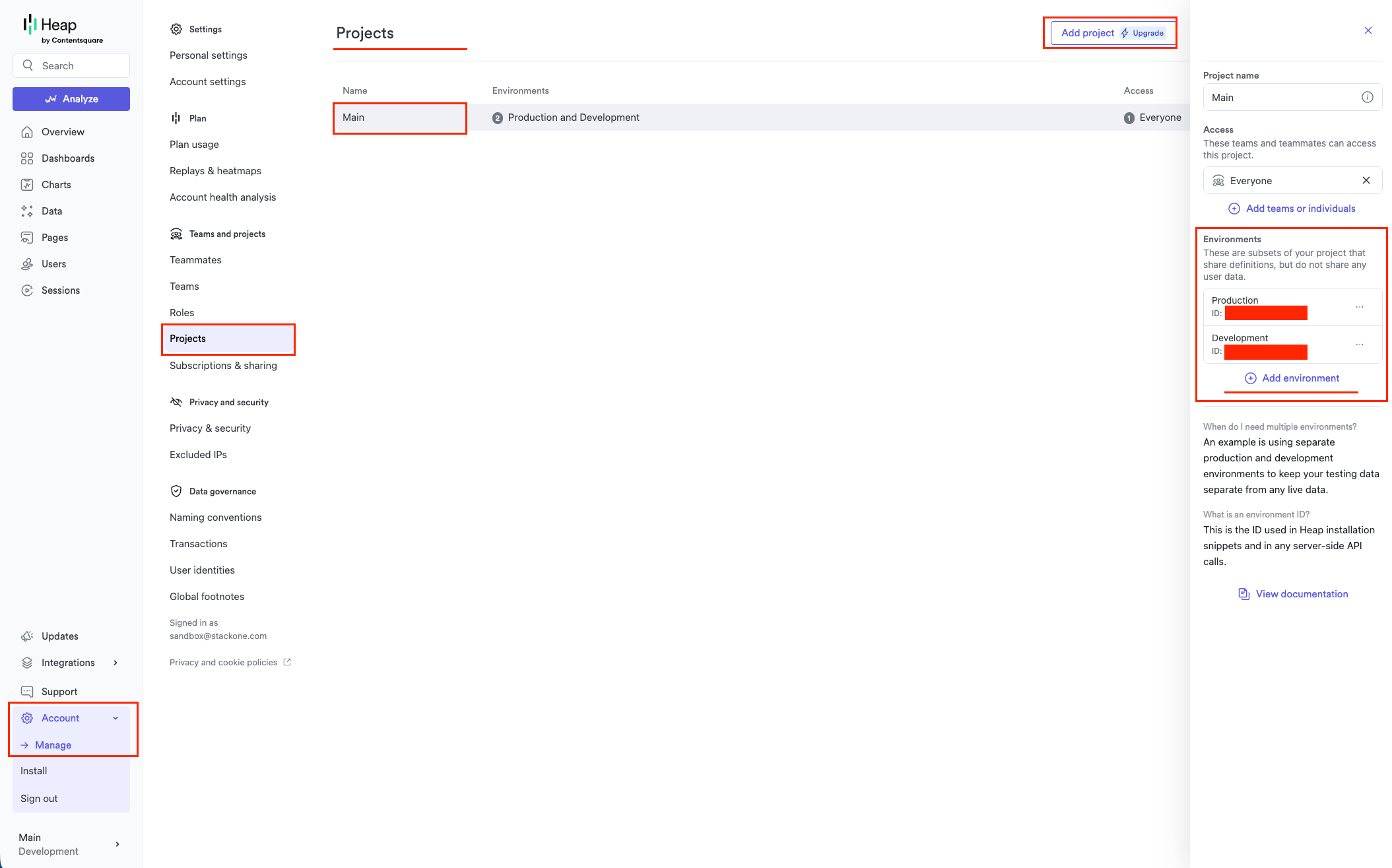
        <p>Navigate to <strong>Account</strong> > <strong>Manage</strong> > <strong>Projects</strong> from the left sidebar.</p>

        <ul>
          <li>Click on the default Main project to view its details</li>
          <li>Optional: You can manage access by clicking <strong>+ Add teams or individuals</strong> to select teams</li>
          <li>Optional: Click <strong>Add environment</strong> to add additional environments (e.g. Development, Staging)</li>
          <li>Each environment has its own unique <strong>App ID</strong>, displayed as <strong>ID</strong> just below the environment name</li>
          <li>Copy the App ID for the environment you wish to connect</li>
          <li>Use the <strong>Development</strong> environment for testing to avoid affecting production data</li>
        </ul>

        <img src="https://mintcdn.com/stackone-60/n4JWg_YTwGWEflTc/connectors/heap/images/heap-account-manage-project-step-2.png?fit=max&auto=format&n=n4JWg_YTwGWEflTc&q=85&s=9b789cc915863155fd3c9ed5322e434e" alt="Locate App ID" width="2109" height="1315" data-path="connectors/heap/images/heap-account-manage-project-step-2.png" />
      </div>
    </Step>
  </Steps>
</section>

<section data-guide-section data-guide-scopes="">
  <h2>Select Your Data Region</h2>

  <p>Choose the region that matches where your Heap data is hosted.</p>

  <Steps>
    <Step title="Identify Your Region">
      <div data-guide-step data-guide-scopes="" data-guide-display-scopes-list="">
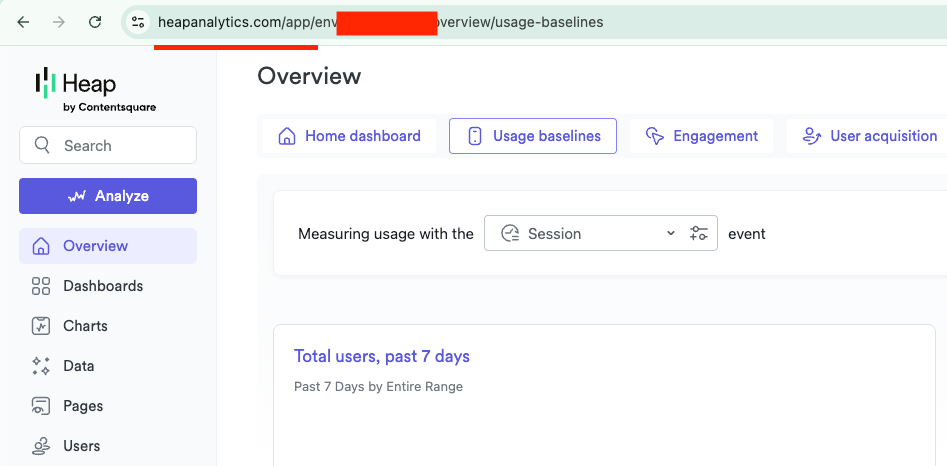
        <p>Check the URL in your browser address bar when signed in to Heap to determine your data region.</p>

        <ul>
          <li><strong>US</strong> (default) — URL contains `heapanalytics.com`. Most accounts use this region</li>
          <li><strong>EU</strong> — URL contains `c.eu.heap-api.com`. Select this if your Heap instance is hosted in the EU data centre</li>
        </ul>

        <img src="https://mintcdn.com/stackone-60/n4JWg_YTwGWEflTc/connectors/heap/images/heap-region-url-step-3.png?fit=max&auto=format&n=n4JWg_YTwGWEflTc&q=85&s=ef4f6fcc009a27a6605f3f5c158a7a1b" alt="Identify Region" width="947" height="466" data-path="connectors/heap/images/heap-region-url-step-3.png" />
      </div>
    </Step>
  </Steps>
</section>

<div data-whitelabel-hide>
  <h2>Linking the Account from the Hub</h2>

  <Steps>
    <Step title="Navigate to the Hub">
      Use one of the three <a href="/guides/accounts-section#linking-accounts">Linking Account Methods</a> to access the Hub.
    </Step>

    <Step title="Fill out the fields">
      Fill out the following fields using details from your provider:

      <ul>
        <li><strong>App ID</strong></li>
        <li><strong>Region</strong></li>
      </ul>
    </Step>

    <Step title="Connect">
      <ul>
        <li>Click <strong>Connect</strong></li>
        <li>If applicable, the provider will redirect you to a sign-in or authorization page. Complete the provider's authorization flow.</li>
        <li>Once authorization is successful, you will see a confirmation popup</li>
      </ul>
    </Step>
  </Steps>

  <p>If the account linking is successful, you will see the newly linked account in your <a href="/guides/accounts-section">Accounts</a> page.</p>
</div>