> ## Documentation Index
> Fetch the complete documentation index at: https://docs.stackone.com/llms.txt
> Use this file to discover all available pages before exploring further.

# Connect Harness FME with Service Account Token – StackOne Hub

> Link a Harness FME account in the StackOne Hub using Service Account Token. End-user guide to authorize the integration and start using Harness FME actions.

<Warning>You need permission to manage service accounts in your Harness account, such as the Account Admin role.</Warning>

<section data-guide-section data-guide-scopes="">
  <h2>Create a service account</h2>

  <p>A service account is a Harness identity that is not tied to a person, so the connection keeps working when people leave. The token's access is exactly the roles you bind to this service account.</p>

  <Steps>
    <Step title="Open Administrative Settings">
      <div data-guide-step data-guide-scopes="" data-guide-display-scopes-list="">
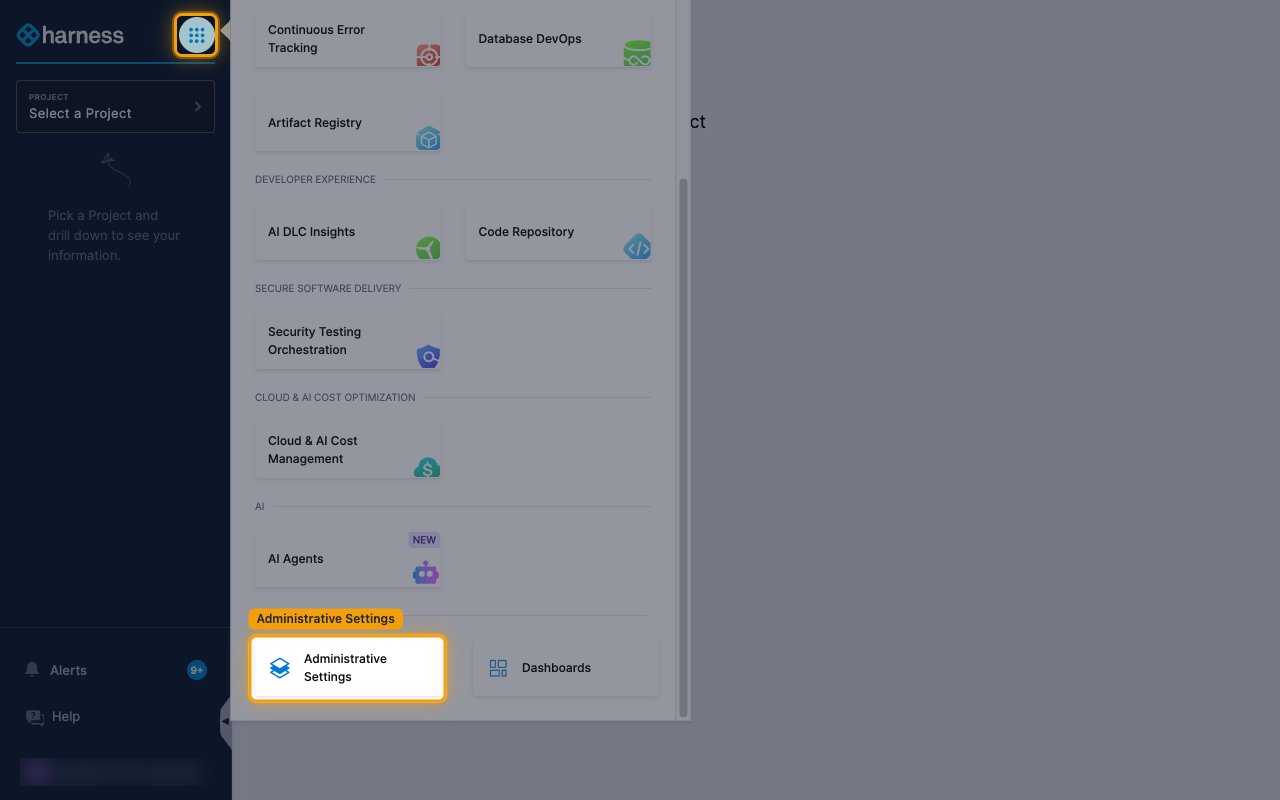
        <p>Sign in to your <a href="https://app.harness.io/auth/#/signin" target="_blank" rel="noopener noreferrer">Harness account</a>, then click the module menu icon next to the Harness logo and select <strong>Administrative Settings</strong>.</p>

        <img src="https://mintcdn.com/stackone-60/1old-I7lvz9BZgUL/connectors/harnessfme/images/harness_sat-config-open-administrative-settings.png?fit=max&auto=format&n=1old-I7lvz9BZgUL&q=85&s=b35a7d1e48847434a4fe6f6135489574" alt="The Harness module menu open, with the menu icon and Administrative Settings highlighted" width="1280" height="800" data-path="connectors/harnessfme/images/harness_sat-config-open-administrative-settings.png" />
      </div>
    </Step>

    <Step title="Open Account Settings">
      <div data-guide-step data-guide-scopes="" data-guide-display-scopes-list="">
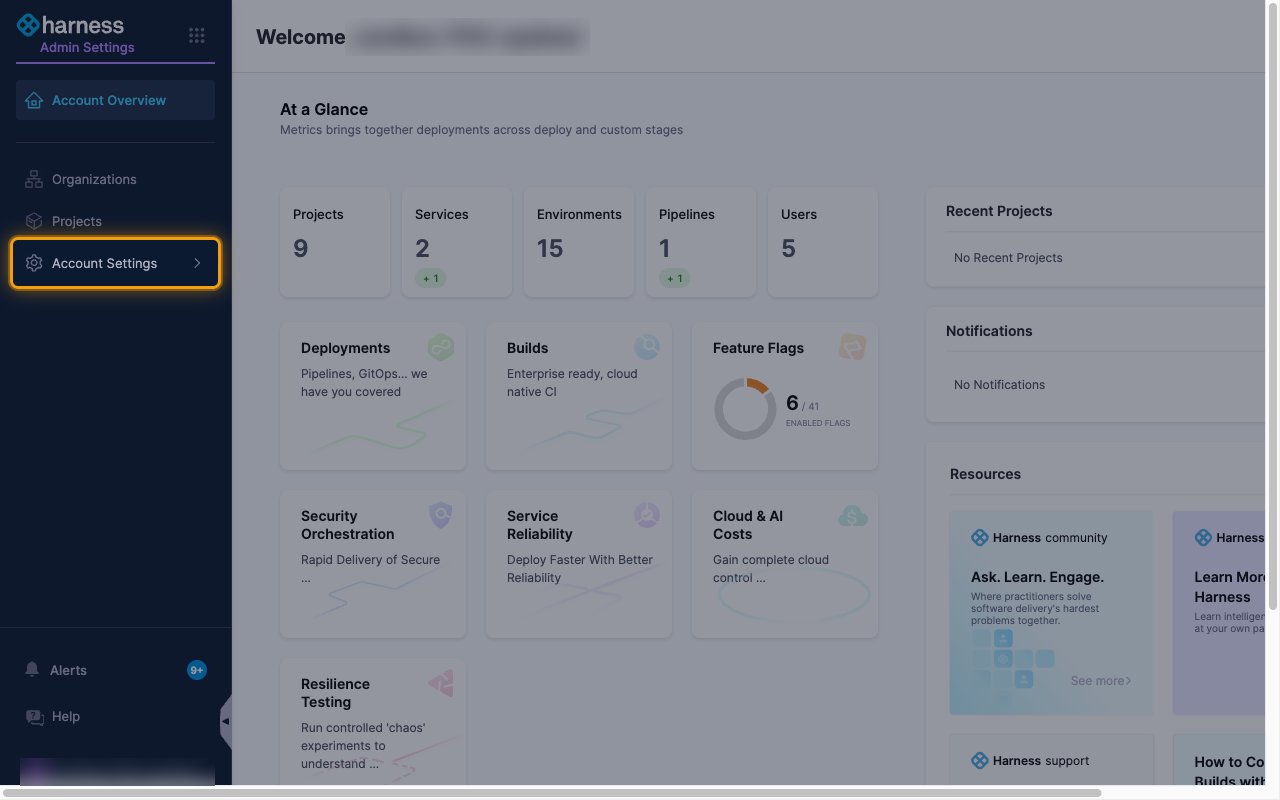
        <p>In the left navigation, click <strong>Account Settings</strong>.</p>

        <img src="https://mintcdn.com/stackone-60/1old-I7lvz9BZgUL/connectors/harnessfme/images/harness_sat-config-open-account-settings.png?fit=max&auto=format&n=1old-I7lvz9BZgUL&q=85&s=2f431540ef232e80724d927a9a8af8a3" alt="The Admin Settings overview with Account Settings highlighted in the left navigation" width="1280" height="800" data-path="connectors/harnessfme/images/harness_sat-config-open-account-settings.png" />
      </div>
    </Step>

    <Step title="Open Service Accounts">
      <div data-guide-step data-guide-scopes="" data-guide-display-scopes-list="">
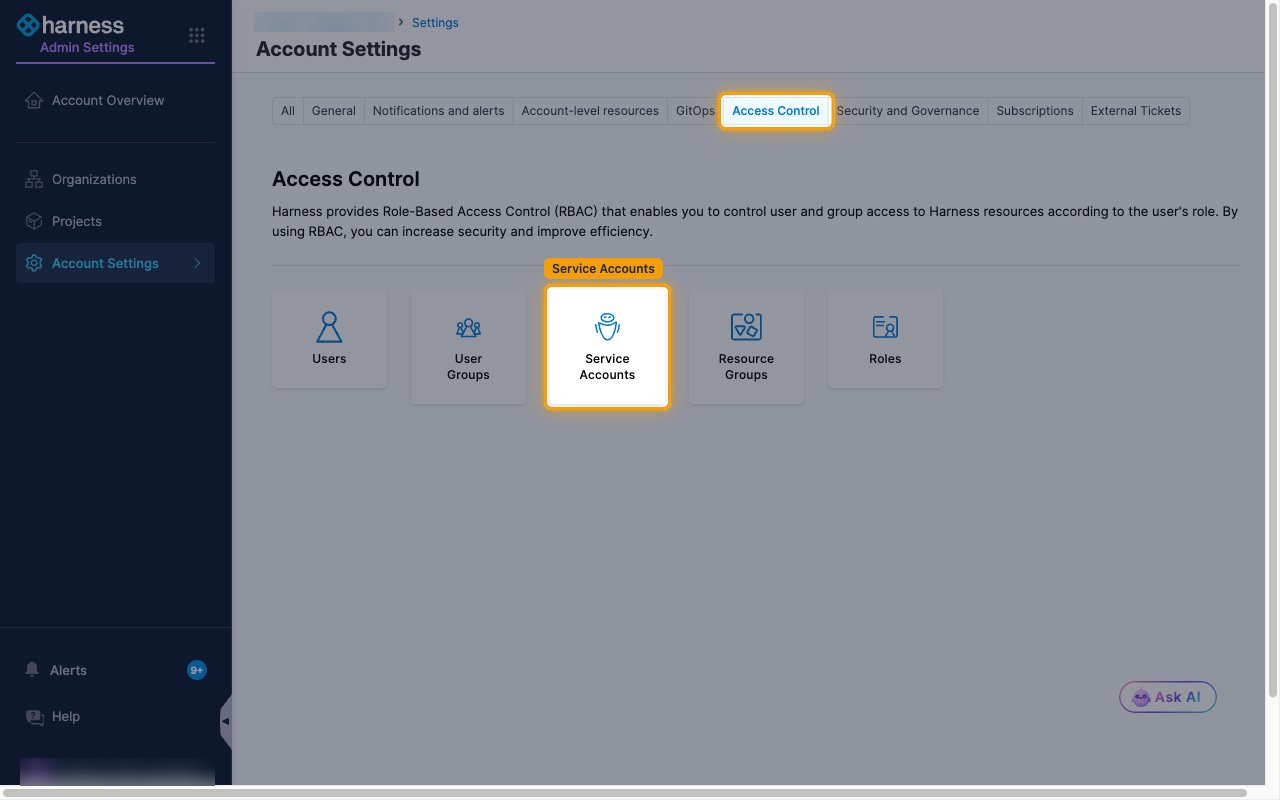
        <p>Select the <strong>Access Control</strong> tab, then click <strong>Service Accounts</strong>.</p>

        <img src="https://mintcdn.com/stackone-60/1old-I7lvz9BZgUL/connectors/harnessfme/images/harness_sat-config-open-service-accounts.png?fit=max&auto=format&n=1old-I7lvz9BZgUL&q=85&s=c4f189bd0817fd5b116126621ff9a0b9" alt="The Account Settings page on the Access Control tab, with Service Accounts highlighted" width="1280" height="800" data-path="connectors/harnessfme/images/harness_sat-config-open-service-accounts.png" />
      </div>
    </Step>

    <Step title="Create the service account">
      <div data-guide-step data-guide-scopes="" data-guide-display-scopes-list="">
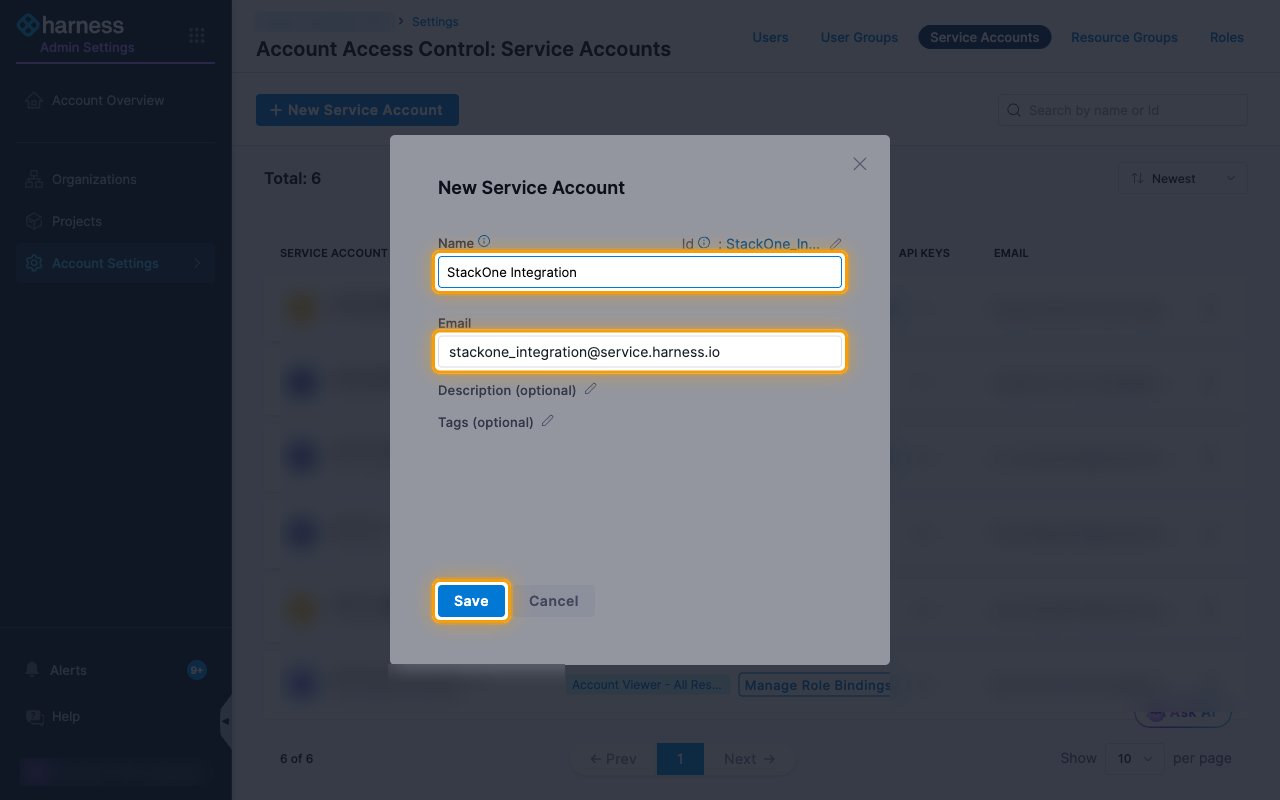
        <p>Click <strong>New Service Account</strong> and fill in the form.</p>

        <ul>
          <li>Name: `StackOne Integration`</li>
          <li>Harness fills in the <strong>Email</strong> from the name. Keep it or change it.</li>
          <li>Click <strong>Save</strong>.</li>
        </ul>

        <img src="https://mintcdn.com/stackone-60/1old-I7lvz9BZgUL/connectors/harnessfme/images/harness_sat-config-new-service-account.png?fit=max&auto=format&n=1old-I7lvz9BZgUL&q=85&s=ffb982102abfcb772f867f995c3e4ad4" alt="The New Service Account dialog with the Name and Email fields and the Save button highlighted" width="1280" height="800" data-path="connectors/harnessfme/images/harness_sat-config-new-service-account.png" />
      </div>
    </Step>
  </Steps>
</section>

<section data-guide-section data-guide-scopes="">
  <h2>Assign roles</h2>

  <p>Bind roles that cover the data you want StackOne to read and manage. Without a role binding, the token cannot call any action.</p>

  <Steps>
    <Step title="Open role bindings">
      <div data-guide-step data-guide-scopes="" data-guide-display-scopes-list="">
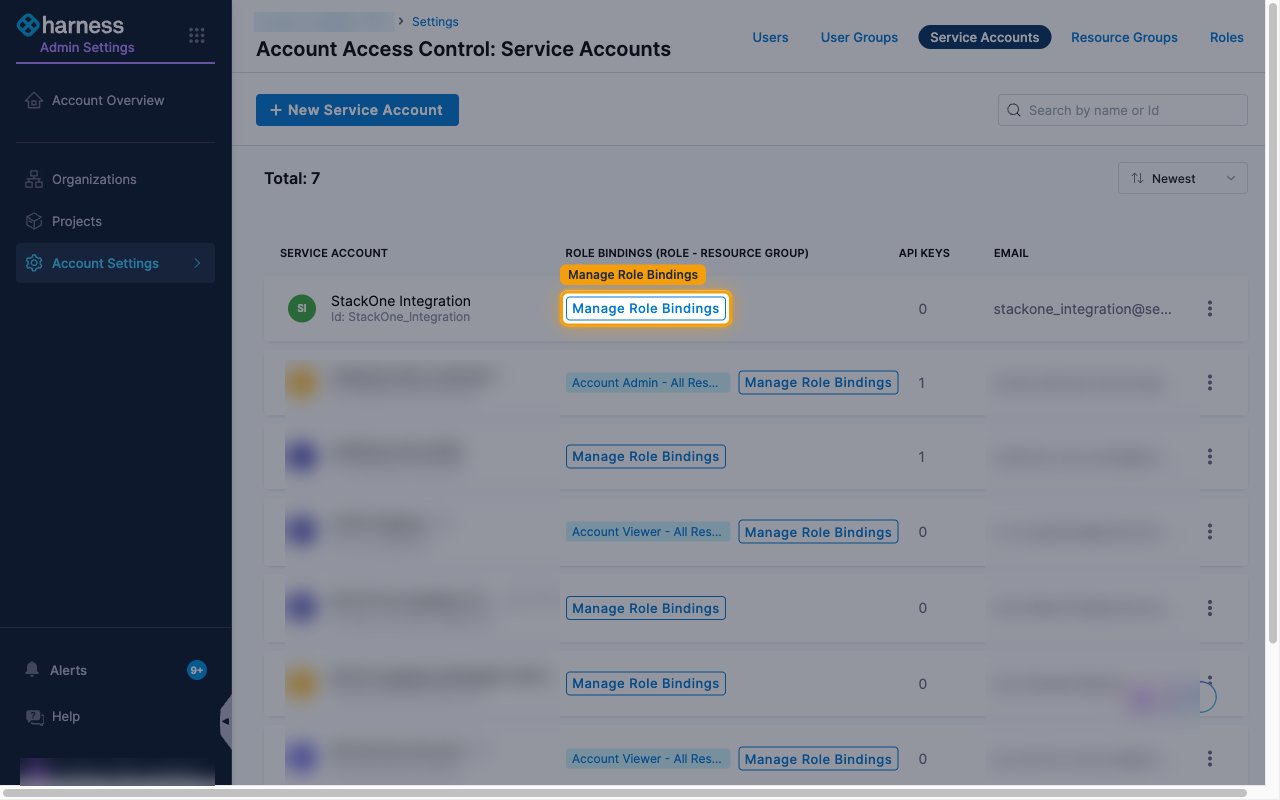
        <p>In the service account list, click <strong>Manage Role Bindings</strong> on the <strong>StackOne Integration</strong> row.</p>

        <img src="https://mintcdn.com/stackone-60/1old-I7lvz9BZgUL/connectors/harnessfme/images/harness_sat-config-manage-role-bindings.png?fit=max&auto=format&n=1old-I7lvz9BZgUL&q=85&s=5b2e0b4e71e91f4535f72d4956b17d1d" alt="The service account list with the Manage Role Bindings button highlighted on the StackOne Integration row" width="1280" height="800" data-path="connectors/harnessfme/images/harness_sat-config-manage-role-bindings.png" />
      </div>
    </Step>

    <Step title="Add a role and apply">
      <div data-guide-step data-guide-scopes="" data-guide-display-scopes-list="">
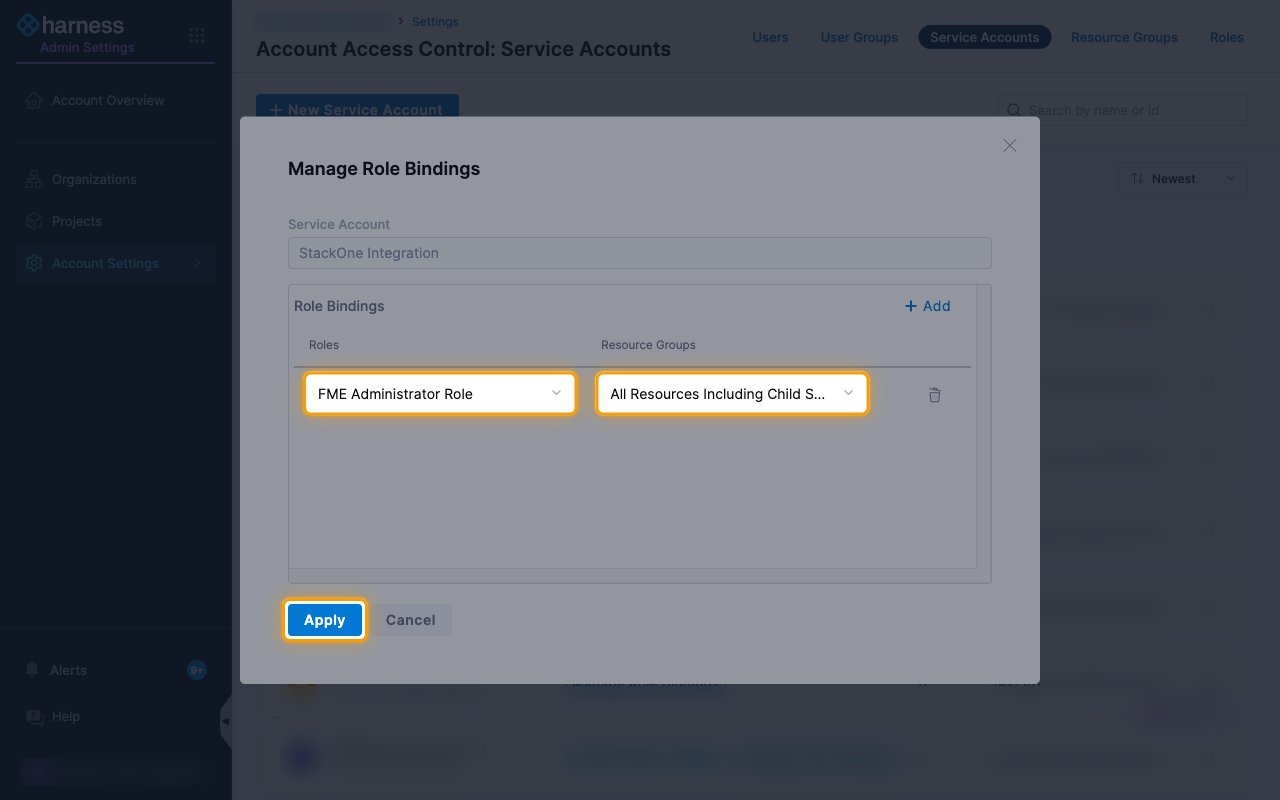
        <p>Click <strong>Add</strong>, then choose a role and a resource group for the new row.</p>

        <ul>
          <li>For Feature Management & Experimentation actions, select <strong>FME Administrator Role</strong>, or <strong>FME Manager Role</strong> for narrower access.</li>
          <li>Add more rows if you also use the Harness user, user group, project, organization and invite actions.</li>
          <li>Keep <strong>All Resources Including Child Scopes</strong> as the resource group unless you want to limit access.</li>
          <li>Click <strong>Apply</strong>.</li>
        </ul>

        <img src="https://mintcdn.com/stackone-60/1old-I7lvz9BZgUL/connectors/harnessfme/images/harness_sat-config-apply-role-binding.png?fit=max&auto=format&n=1old-I7lvz9BZgUL&q=85&s=7edc9a7d86581a774fe7a110c5f02433" alt="The Manage Role Bindings dialog with FME Administrator Role, All Resources Including Child Scopes and the Apply button highlighted" width="1280" height="800" data-path="connectors/harnessfme/images/harness_sat-config-apply-role-binding.png" />
      </div>
    </Step>
  </Steps>
</section>

<section data-guide-section data-guide-scopes="">
  <h2>Generate the service account token</h2>

  <p>Tokens belong to an API key on the service account. Create the key, then generate a token from it.</p>

  <Steps>
    <Step title="Open the service account">
      <div data-guide-step data-guide-scopes="" data-guide-display-scopes-list="">
        <p>Click <strong>StackOne Integration</strong> in the service account list to open it.</p>
      </div>
    </Step>

    <Step title="Create an API key">
      <div data-guide-step data-guide-scopes="" data-guide-display-scopes-list="">
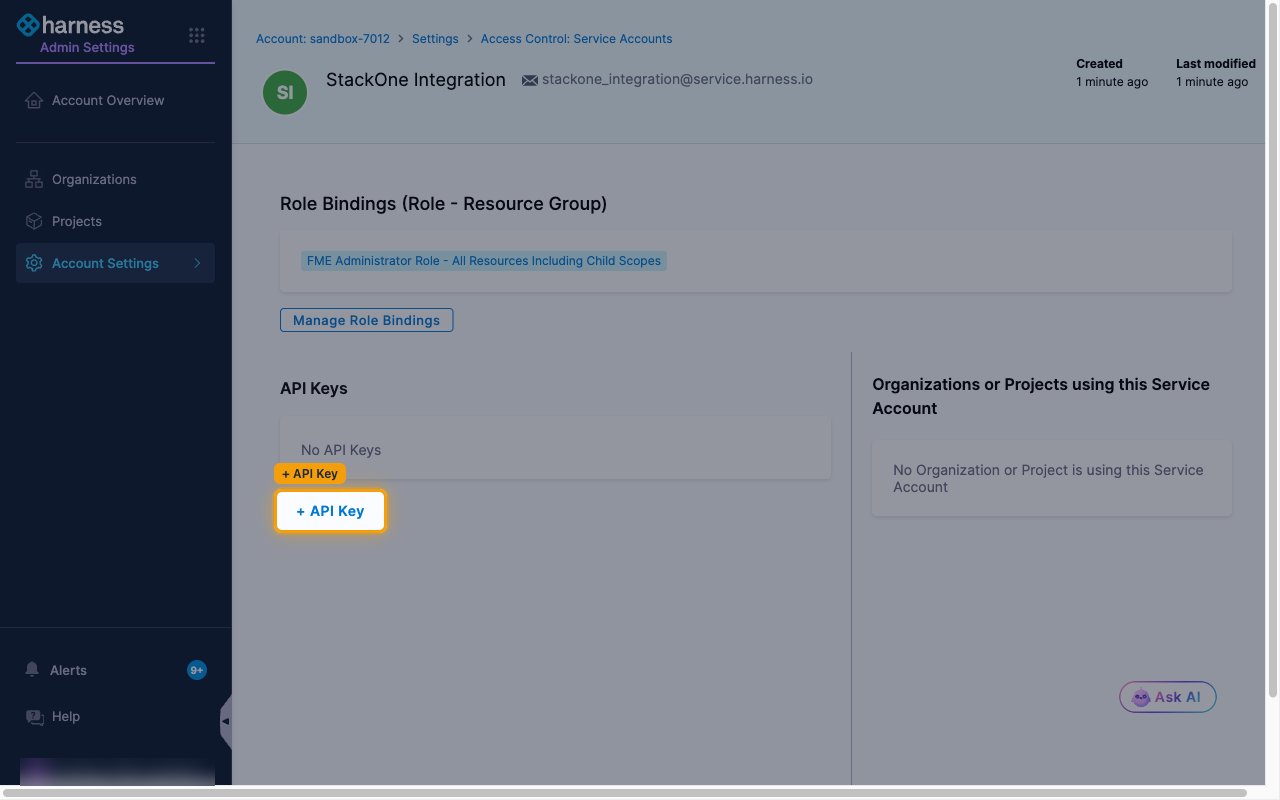
        <p>Under <strong>API Keys</strong>, click <strong>+ API Key</strong>.</p>

        <ul>
          <li>Name: `StackOne Integration`</li>
          <li>Click <strong>Save</strong>.</li>
        </ul>

        <img src="https://mintcdn.com/stackone-60/1old-I7lvz9BZgUL/connectors/harnessfme/images/harness_sat-config-add-api-key.png?fit=max&auto=format&n=1old-I7lvz9BZgUL&q=85&s=7b6c9f5d24278d48c3610ca99682dda1" alt="The service account details page with the + API Key button highlighted" width="1280" height="800" data-path="connectors/harnessfme/images/harness_sat-config-add-api-key.png" />
      </div>
    </Step>

    <Step title="Create a token">
      <div data-guide-step data-guide-scopes="" data-guide-display-scopes-list="">
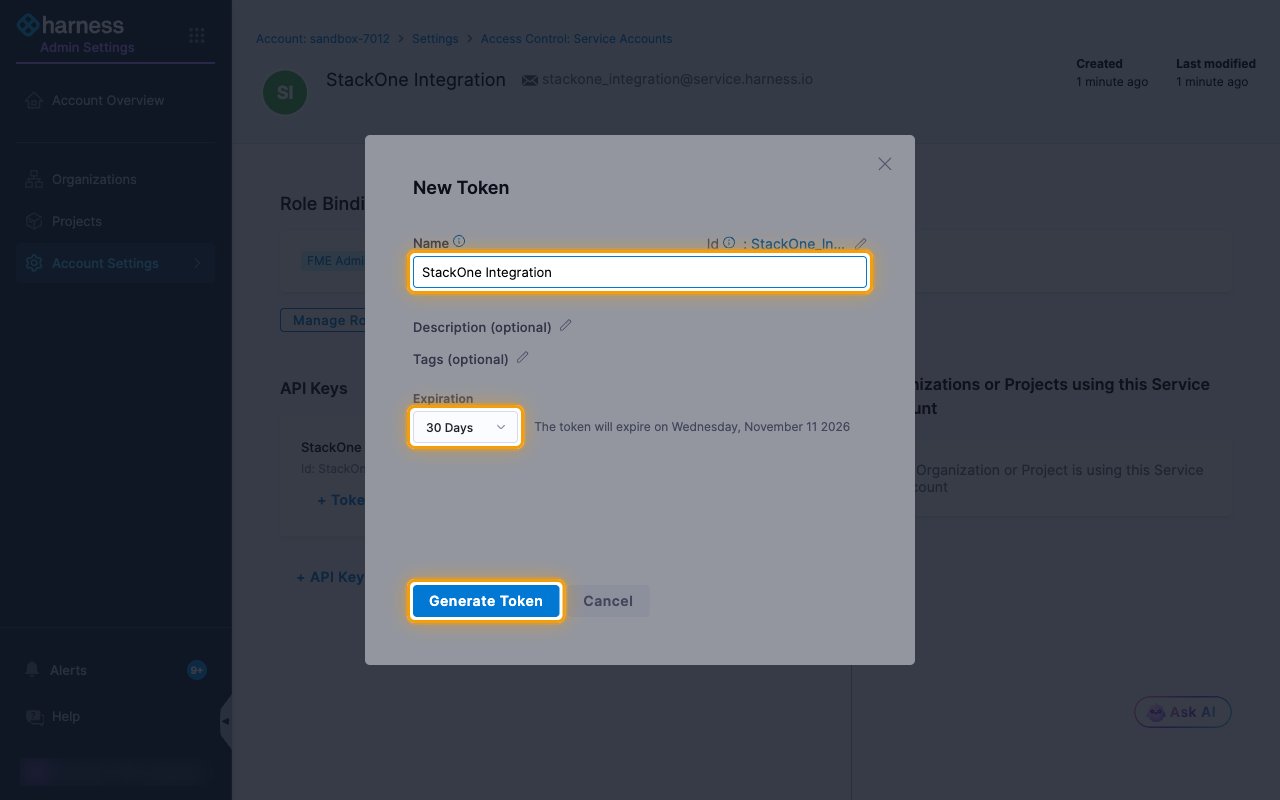
        <p>On the new API key, click <strong>+ Token</strong> and fill in the <strong>New Token</strong> dialog.</p>

        <ul>
          <li>Name: `StackOne Integration`</li>
          <li>Choose an <strong>Expiration</strong>. The connection stops working when the token expires, so pick a period that suits you.</li>
          <li>Click <strong>Generate Token</strong>.</li>
        </ul>

        <img src="https://mintcdn.com/stackone-60/1old-I7lvz9BZgUL/connectors/harnessfme/images/harness_sat-config-generate-token.png?fit=max&auto=format&n=1old-I7lvz9BZgUL&q=85&s=8e8e313275c77eb89f48150f9def10e9" alt="The New Token dialog with the Name field, the Expiration dropdown and the Generate Token button highlighted" width="1280" height="800" data-path="connectors/harnessfme/images/harness_sat-config-generate-token.png" />
      </div>
    </Step>

    <Step title="Copy the token">
      <div data-guide-step data-guide-scopes="" data-guide-display-scopes-list="">
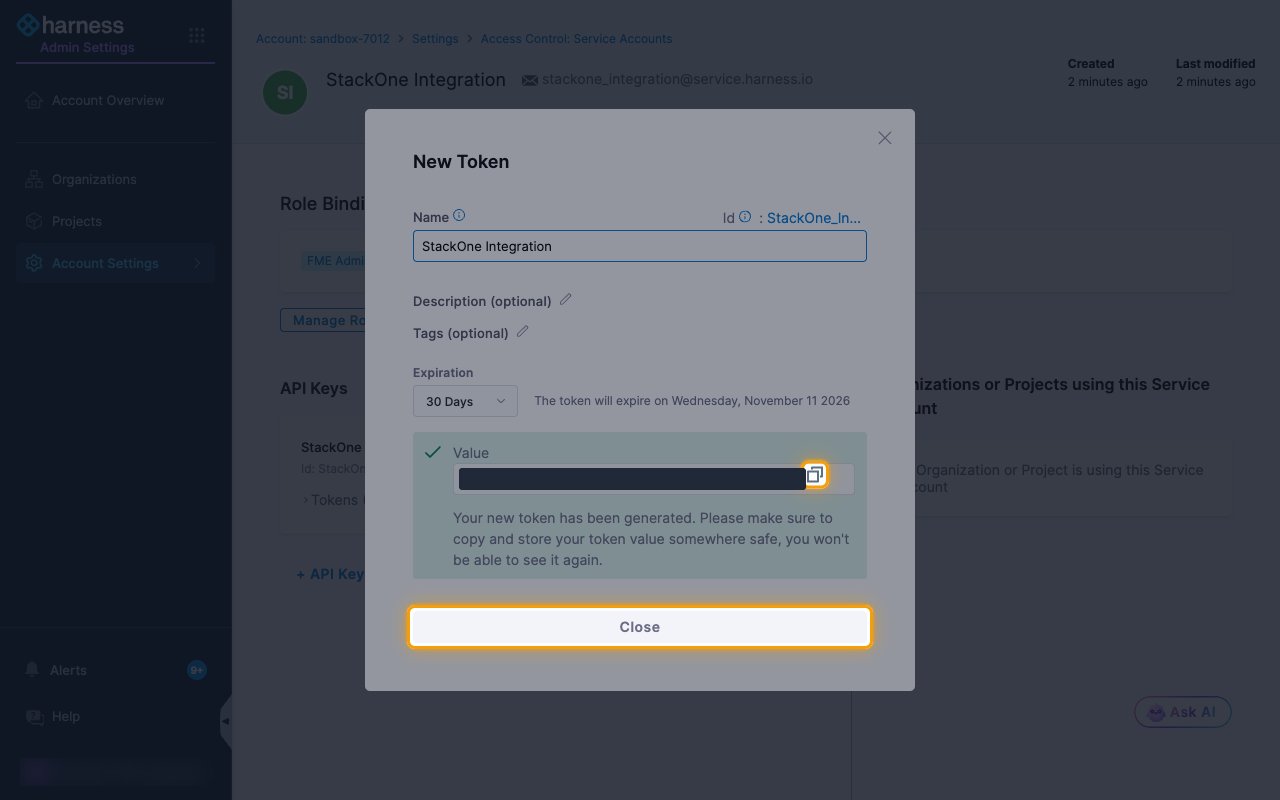
        <p>Click the copy icon next to <strong>Value</strong> to copy the token, then click <strong>Close</strong>.</p>

        <ul>
          <li>The token starts with `sat.`.</li>
          <li>The token value is only displayed once and cannot be retrieved later. Store it securely for use later.</li>
          <li>Paste it into the <strong>Service Account Token</strong> field in StackOne Hub.</li>
        </ul>

        <img src="https://mintcdn.com/stackone-60/1old-I7lvz9BZgUL/connectors/harnessfme/images/harness_sat-config-copy-token.png?fit=max&auto=format&n=1old-I7lvz9BZgUL&q=85&s=6ab57d24b28da7f8c2b2e81da8392fcb" alt="The generated token with its value hidden, and the copy icon and Close button highlighted" width="1280" height="800" data-path="connectors/harnessfme/images/harness_sat-config-copy-token.png" />
      </div>
    </Step>
  </Steps>
</section>

<div data-whitelabel-hide>
  <h2>Linking the Account from the Hub</h2>

  <Steps>
    <Step title="Navigate to the Hub">
      Use one of the three <a href="/connect/managing-connectors/linking-accounts">Linking Account Methods</a> to access the Hub.
    </Step>

    <Step title="Fill out the fields">
      Fill out the following fields using details from your provider:

      <ul>
        <li><strong>Service Account Token</strong></li>
      </ul>
    </Step>

    <Step title="Connect">
      <ul>
        <li>Click <strong>Connect</strong></li>
        <li>If applicable, the provider will redirect you to a sign-in or authorization page. Complete the provider's authorization flow.</li>
        <li>Once authorization is successful, you will see a confirmation popup</li>
      </ul>
    </Step>
  </Steps>

  <p>If the account linking is successful, you will see the newly linked account in your <a href="/gateway/concepts/linked-accounts">Accounts</a> page.</p>
</div>


This documentation is built and hosted on [Mintlify](https://mintlify.com), a developer documentation platform.