> ## Documentation Index
> Fetch the complete documentation index at: https://docs.stackone.com/llms.txt
> Use this file to discover all available pages before exploring further.

# Connect Google Text-to-Speech with OAuth 2.0 – StackOne Hub

> Link a Google Text-to-Speech account in the StackOne Hub using OAuth 2.0. End-user guide to authorize the integration and start using Google Text-to-Speech actions.

<section data-guide-section data-guide-scopes="">
  <h2>Find your GCP Project ID</h2>

  <p>Your Project ID is the permanent, unique identifier of the Google Cloud project StackOne connects to. The long audio synthesis and operations actions use it. Use the Project ID, not the project name or project number.</p>

  <Steps>
    <Step title="Sign in to Google Cloud">
      <div data-guide-step data-guide-scopes="" data-guide-display-scopes-list="">
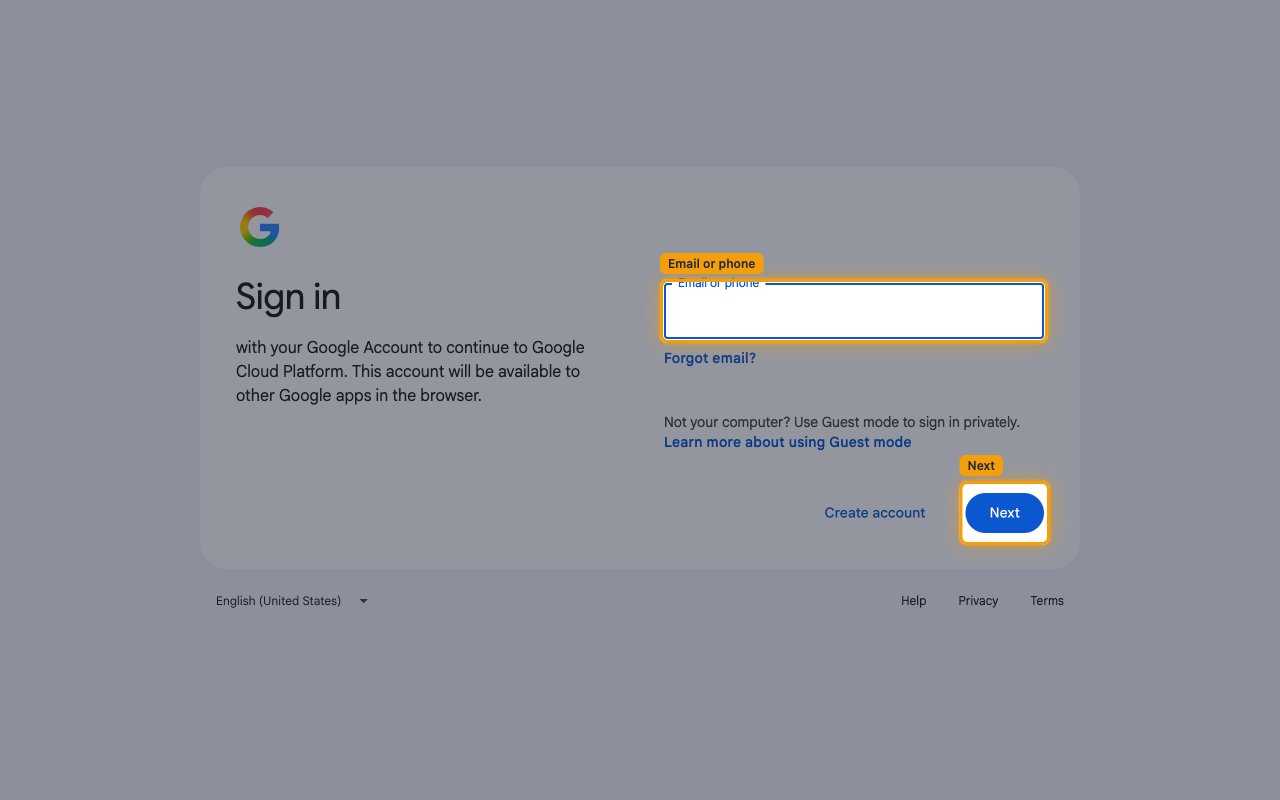
        <p>Sign in to your <a href="https://console.cloud.google.com/" target="_blank" rel="noopener noreferrer">Google Cloud account</a>.</p>

        <img src="https://mintcdn.com/stackone-60/egLCtGzkQpmna7BV/connectors/googletexttospeech/images/oauth2-config-sign-in.png?fit=max&auto=format&n=egLCtGzkQpmna7BV&q=85&s=5329d35707ab7c25336e8632e4f3a181" alt="Google sign-in page with the Email or phone field and the Next button highlighted" width="1280" height="800" data-path="connectors/googletexttospeech/images/oauth2-config-sign-in.png" />
      </div>
    </Step>

    <Step title="Copy the Project ID">
      <div data-guide-step data-guide-scopes="" data-guide-display-scopes-list="">
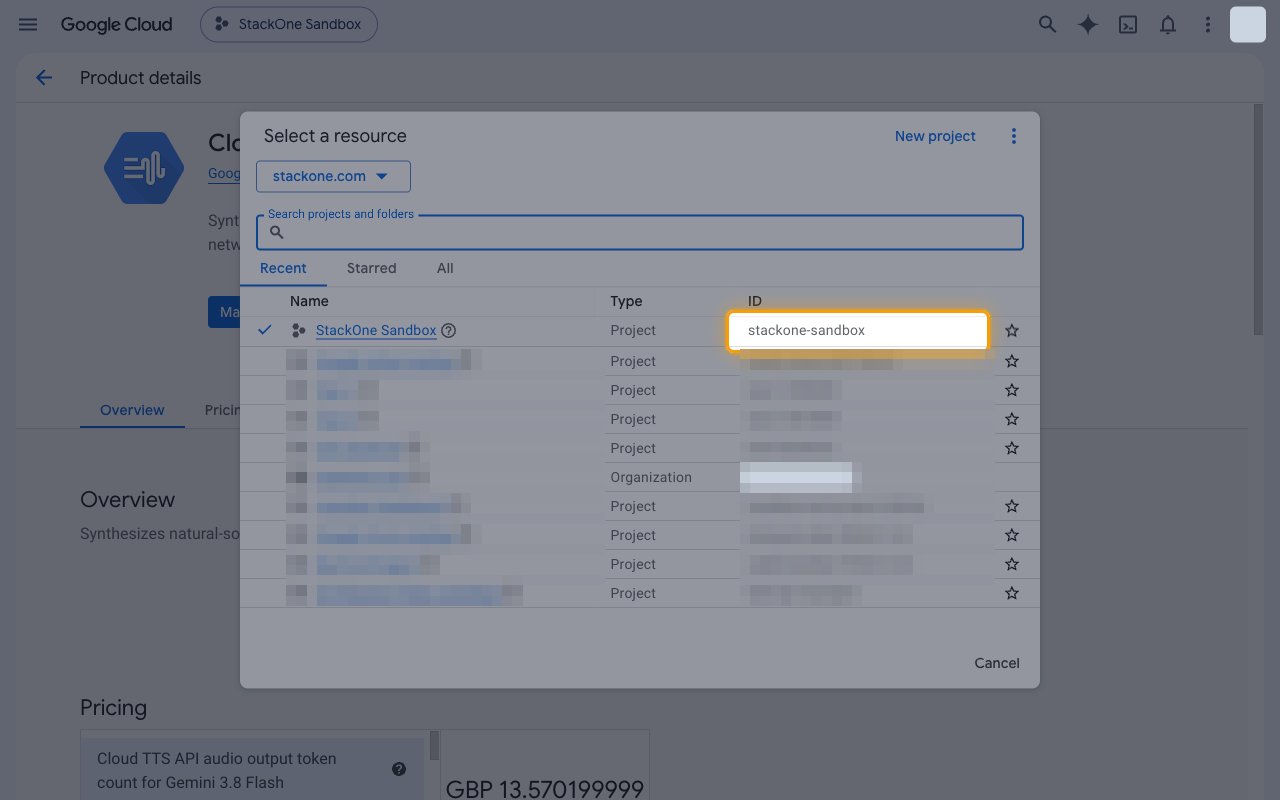
        <p>Click the project picker in the top bar to open <strong>Select a resource</strong>, then copy the value in the <strong>ID</strong> column for the project that has the Cloud Text-to-Speech API enabled.</p>

        <ul>
          <li>Paste it into the <strong>GCP Project ID</strong> field in StackOne Hub.</li>
          <li>Format: 6 to 30 lowercase letters, digits or hyphens, starting with a letter</li>
          <li>Example: `my-gcp-project-123`</li>
        </ul>

        <img src="https://mintcdn.com/stackone-60/egLCtGzkQpmna7BV/connectors/googletexttospeech/images/oauth2-config-project-id.png?fit=max&auto=format&n=egLCtGzkQpmna7BV&q=85&s=56d778fecccfd24639547bfcfc66e8ba" alt="Select a resource dialog with the ID column value of the current project highlighted" width="1280" height="800" data-path="connectors/googletexttospeech/images/oauth2-config-project-id.png" />
      </div>
    </Step>

    <Step title="Copy the ID from the dashboard">
      <div data-guide-step data-guide-scopes="" data-guide-display-scopes-list="">
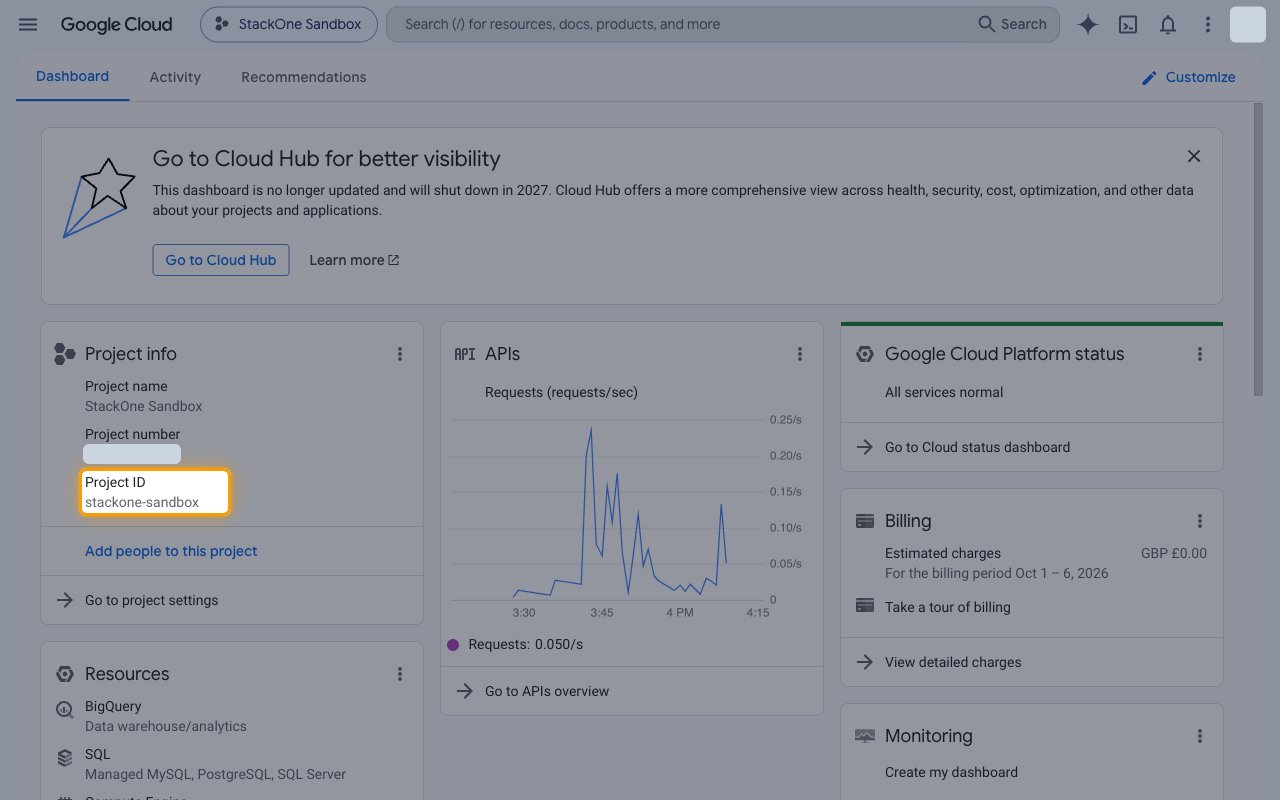
        <p>Alternatively, open the <a href="https://console.cloud.google.com/home/dashboard" target="_blank" rel="noopener noreferrer">Google Cloud dashboard</a> for your project. The <strong>Project info</strong> card shows the <strong>Project ID</strong> below the <strong>Project name</strong> and <strong>Project number</strong>.</p>

        <img src="https://mintcdn.com/stackone-60/egLCtGzkQpmna7BV/connectors/googletexttospeech/images/oauth2-config-dashboard.png?fit=max&auto=format&n=egLCtGzkQpmna7BV&q=85&s=9c4d24668374cf1d83884c9f6802e562" alt="Google Cloud dashboard Project info card with the Project ID highlighted" width="1280" height="800" data-path="connectors/googletexttospeech/images/oauth2-config-dashboard.png" />
      </div>
    </Step>
  </Steps>
</section>

<div data-whitelabel-hide>
  <h2>Linking the Account from the Hub</h2>

  <Steps>
    <Step title="Navigate to the Hub">
      Use one of the three <a href="/connect/managing-connectors/linking-accounts">Linking Account Methods</a> to access the Hub.
    </Step>

    <Step title="Fill out the fields">
      Fill out the following fields using details from your provider:

      <ul>
        <li><strong>GCP Project ID</strong></li>
      </ul>
    </Step>

    <Step title="Connect">
      <ul>
        <li>Click <strong>Connect</strong></li>
        <li>If applicable, the provider will redirect you to a sign-in or authorization page. Complete the provider's authorization flow.</li>
        <li>Once authorization is successful, you will see a confirmation popup</li>
      </ul>
    </Step>
  </Steps>

  <p>If the account linking is successful, you will see the newly linked account in your <a href="/gateway/concepts/linked-accounts">Accounts</a> page.</p>
</div>


This documentation is built and hosted on [Mintlify](https://mintlify.com), a developer documentation platform.