> ## Documentation Index
> Fetch the complete documentation index at: https://docs.stackone.com/llms.txt
> Use this file to discover all available pages before exploring further.

# Connect Google Maps with API Key – StackOne Hub

> Link a Google Maps account in the StackOne Hub using API Key. End-user guide to authorize the integration and start using Google Maps actions.

<section data-guide-section data-guide-scopes="">
  <h2>Create a Google Maps Platform API key</h2>

  <p>Generate an API key in the Google Cloud console and restrict it to only the Google Maps Platform APIs this connector uses.</p>

  <Steps>
    <Step title="Open Keys & Credentials in the Google Cloud console">
      <div data-guide-step data-guide-scopes="" data-guide-display-scopes-list="">
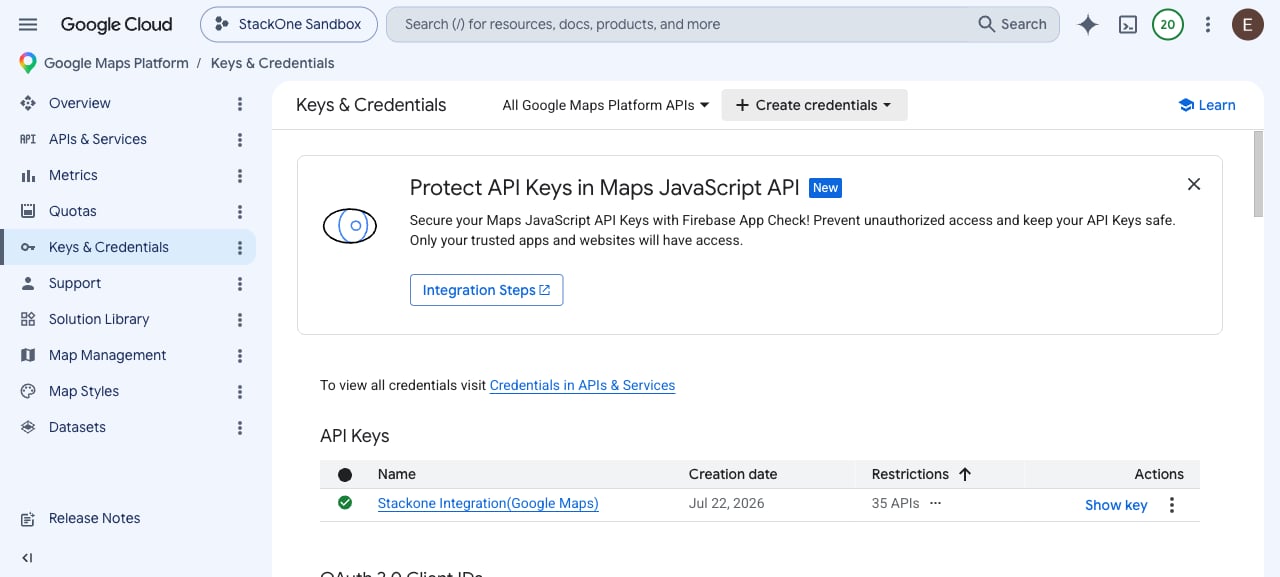
        <p>Sign in to the <a href="https://console.cloud.google.com/google/maps-apis/credentials" target="_blank" rel="noopener noreferrer">Google Cloud console</a>, select the Cloud project you want to use in the top bar, then open <strong>Keys & Credentials</strong> in the left menu under <strong>Google Maps Platform</strong>.</p>

        <img src="https://mintcdn.com/stackone-60/EgoFVORC9_OCwt8Z/connectors/googlemaps/images/custom-config-01-keys-and-credentials.png?fit=max&auto=format&n=EgoFVORC9_OCwt8Z&q=85&s=da1bf17ab26254725be138e995fe9652" alt="Google Maps Platform Keys & Credentials page with the Create credentials button in the toolbar" width="1280" height="577" data-path="connectors/googlemaps/images/custom-config-01-keys-and-credentials.png" />
      </div>
    </Step>

    <Step title="Create the API key">
      <div data-guide-step data-guide-scopes="" data-guide-display-scopes-list="">
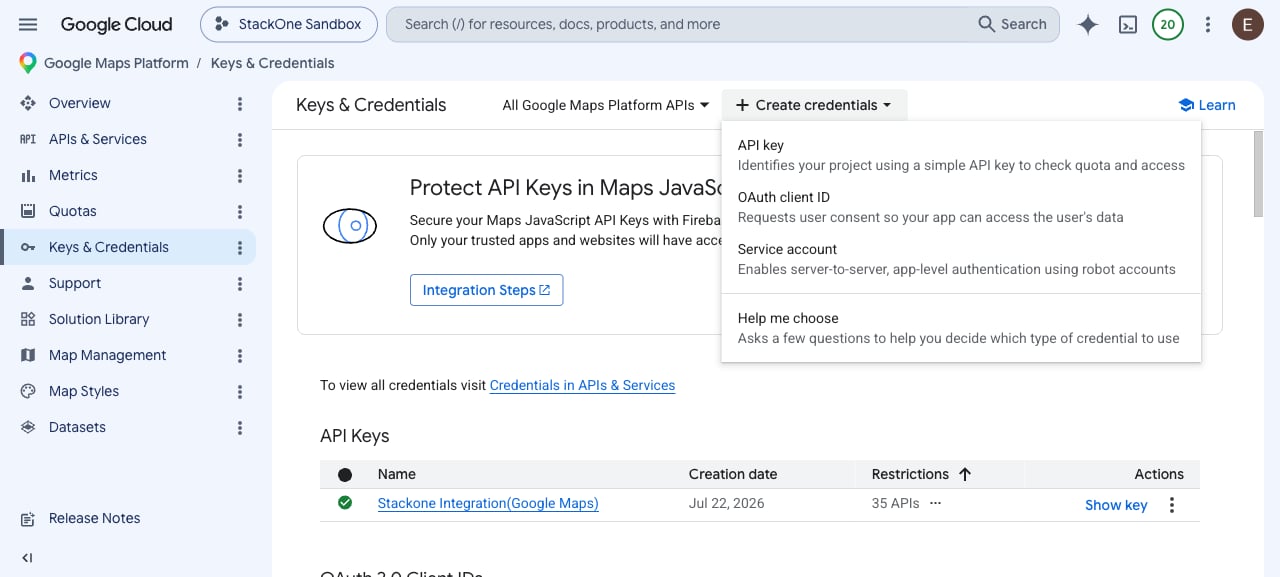
        <p>Click <strong>Create credentials</strong> at the top of the page, then choose <strong>API key</strong> (Identifies your project using a simple API key to check quota and access).</p>

        <img src="https://mintcdn.com/stackone-60/EgoFVORC9_OCwt8Z/connectors/googlemaps/images/custom-config-02-create-credentials-menu.png?fit=max&auto=format&n=EgoFVORC9_OCwt8Z&q=85&s=63a81c3a2346f2b055254706eb3d26e3" alt="Create credentials menu open with the API key option highlighted" width="1280" height="577" data-path="connectors/googlemaps/images/custom-config-02-create-credentials-menu.png" />
      </div>
    </Step>

    <Step title="Name the key and open its API restrictions">
      <div data-guide-step data-guide-scopes="" data-guide-display-scopes-list="">
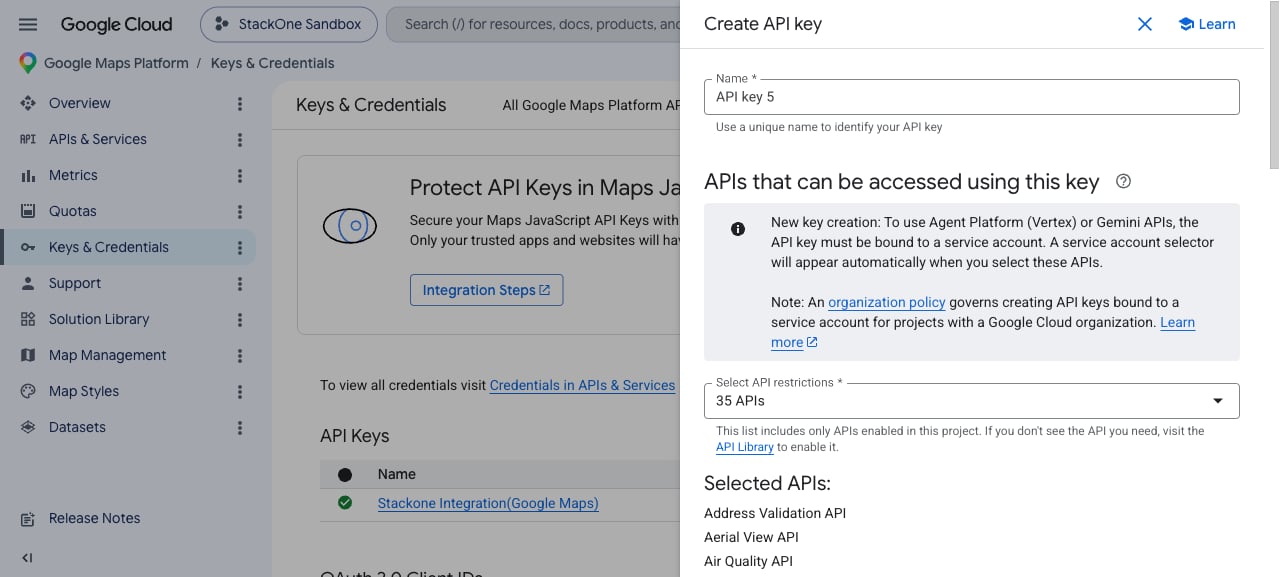
        <p>In the <strong>Create API key</strong> panel, enter a <strong>Name</strong> for the key (for example, StackOne Google Maps), then open the <strong>Select API restrictions</strong> dropdown.</p>

        <img src="https://mintcdn.com/stackone-60/EgoFVORC9_OCwt8Z/connectors/googlemaps/images/custom-config-03-create-api-key-panel.png?fit=max&auto=format&n=EgoFVORC9_OCwt8Z&q=85&s=d3267ded98afa504a63459d6435eab32" alt="Create API key panel showing the Name field and the Select API restrictions dropdown" width="1280" height="577" data-path="connectors/googlemaps/images/custom-config-03-create-api-key-panel.png" />
      </div>
    </Step>

    <Step title="Restrict the key to only the APIs this connector uses">
      <div data-guide-step data-guide-scopes="" data-guide-display-scopes-list="">
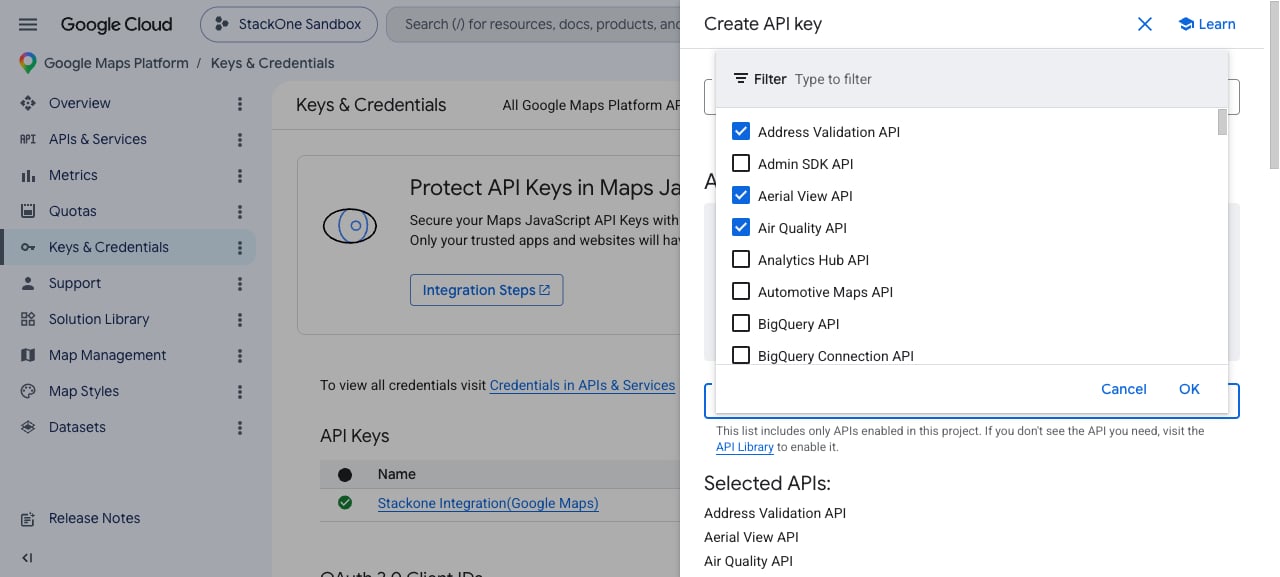
        <p>In the <strong>Select API restrictions</strong> list, check ONLY the APIs listed in the next section and uncheck all others, then click <strong>OK</strong>. Use the <strong>Filter</strong> box to find each API quickly.</p>

        <img src="https://mintcdn.com/stackone-60/EgoFVORC9_OCwt8Z/connectors/googlemaps/images/custom-config-04-select-api-restrictions.png?fit=max&auto=format&n=EgoFVORC9_OCwt8Z&q=85&s=33d658e477813a1db36556740d43a941" alt="Select API restrictions dropdown showing the checkbox list of APIs with a Filter box and OK button" width="1280" height="577" data-path="connectors/googlemaps/images/custom-config-04-select-api-restrictions.png" />
      </div>
    </Step>

    <Step title="Set application restrictions and create the key">
      <div data-guide-step data-guide-scopes="" data-guide-display-scopes-list="">
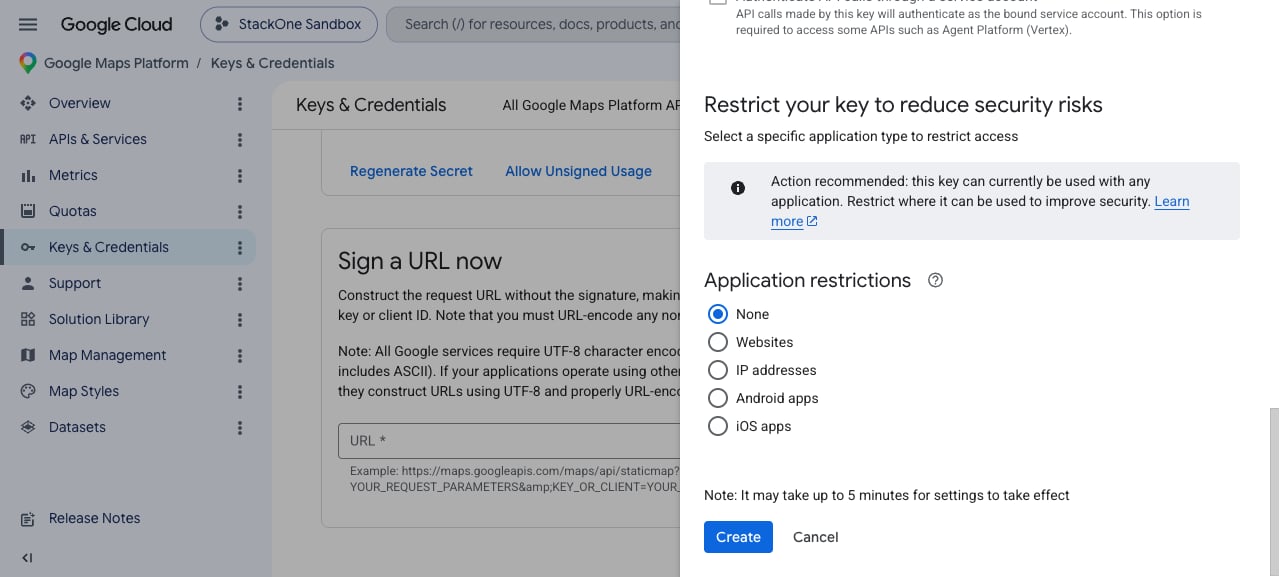
        <p>Under <strong>Application restrictions</strong>, choose <strong>None</strong> for server-side use, or <strong>IP addresses</strong> to lock the key to your server IPs, then click <strong>Create</strong>.</p>

        <img src="https://mintcdn.com/stackone-60/EgoFVORC9_OCwt8Z/connectors/googlemaps/images/custom-config-05-application-restrictions.png?fit=max&auto=format&n=EgoFVORC9_OCwt8Z&q=85&s=de5b550111e5009016b6a0e972e506ac" alt="Application restrictions section with None selected and the Create button" width="1280" height="577" data-path="connectors/googlemaps/images/custom-config-05-application-restrictions.png" />
      </div>
    </Step>

    <Step title="Copy the API key">
      <div data-guide-step data-guide-scopes="" data-guide-display-scopes-list="">
        <p>Copy the generated key from the dialog and paste it into the <strong>API Key</strong> field below. You can retrieve it again later with <strong>Show key</strong> in the API Keys table on the Keys & Credentials page.</p>
      </div>
    </Step>
  </Steps>
</section>

<section data-guide-section data-guide-scopes="">
  <h2>Enable the APIs this connector uses</h2>

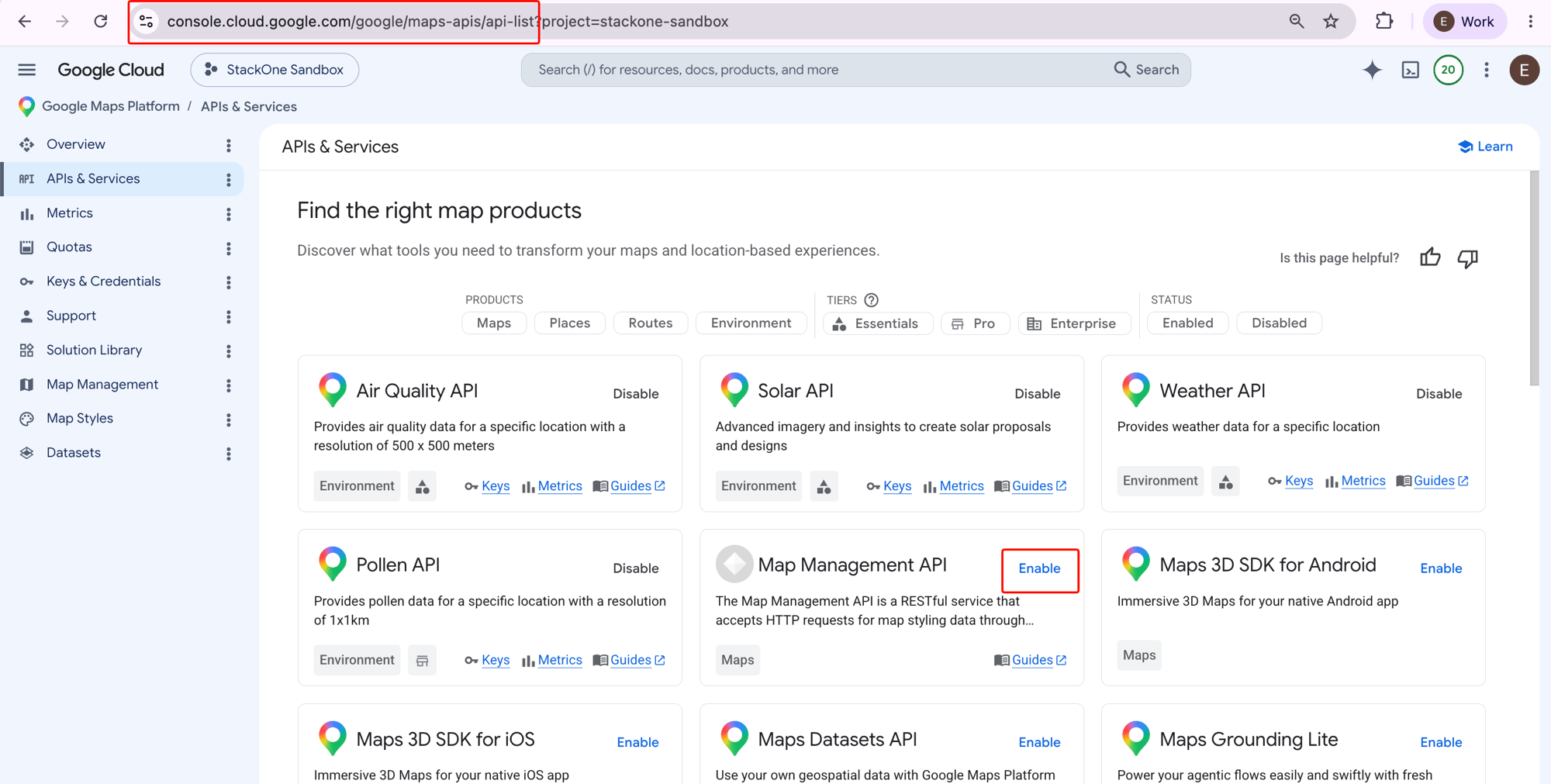
  <p>This connector calls 17 Google Maps Platform APIs. Each must be enabled for your Cloud project before it will respond — a request to a disabled API is rejected with REQUEST\_DENIED / HTTP 403. If you also restricted the key, select the same APIs under Select API restrictions.</p>

  <Steps>
    <Step title="Open APIs & Services and enable each required API">
      <div data-guide-step data-guide-scopes="" data-guide-display-scopes-list="">
        <p>Go to <a href="https://console.cloud.google.com/google/maps-apis/api-list" target="_blank" rel="noopener noreferrer">APIs & Services (API Library)</a> and click <strong>Enable</strong> on each API listed below. A card that shows <strong>Disable</strong> is already enabled — leave it as is. Some environment APIs (Air Quality, Pollen, Solar, Weather, Aerial View) may require additional access or billing approval from Google.</p>

        <ul>
          <li>Address Validation API</li>
          <li>Aerial View API</li>
          <li>Air Quality API</li>
          <li>Elevation API</li>
          <li>Geocoding API</li>
          <li>Geolocation API</li>
          <li>Map Tiles API</li>
          <li>Maps Static API</li>
          <li>Places API (New)</li>
          <li>Places Aggregate API</li>
          <li>Pollen API</li>
          <li>Roads API</li>
          <li>Routes API</li>
          <li>Solar API</li>
          <li>Street View Static API</li>
          <li>Time Zone API</li>
          <li>Weather API</li>
        </ul>

        <img src="https://mintcdn.com/stackone-60/EgoFVORC9_OCwt8Z/connectors/googlemaps/images/custom-config-06-enable-apis.png?fit=max&auto=format&n=EgoFVORC9_OCwt8Z&q=85&s=1fca09d76ca9223f05e834349fbab3b0" alt="Google Maps Platform APIs & Services page listing the map product APIs, each with an Enable or Disable button" width="2000" height="1011" data-path="connectors/googlemaps/images/custom-config-06-enable-apis.png" />
      </div>
    </Step>
  </Steps>
</section>

<div data-whitelabel-hide>
  <h2>Linking the Account from the Hub</h2>

  <Steps>
    <Step title="Navigate to the Hub">
      Use one of the three <a href="/guides/accounts-section#linking-accounts">Linking Account Methods</a> to access the Hub.
    </Step>

    <Step title="Fill out the fields">
      Fill out the following fields using details from your provider:

      <ul>
        <li><strong>API Key</strong></li>
      </ul>
    </Step>

    <Step title="Connect">
      <ul>
        <li>Click <strong>Connect</strong></li>
        <li>If applicable, the provider will redirect you to a sign-in or authorization page. Complete the provider's authorization flow.</li>
        <li>Once authorization is successful, you will see a confirmation popup</li>
      </ul>
    </Step>
  </Steps>

  <p>If the account linking is successful, you will see the newly linked account in your <a href="/guides/accounts-section">Accounts</a> page.</p>
</div>