> ## Documentation Index
> Fetch the complete documentation index at: https://docs.stackone.com/llms.txt
> Use this file to discover all available pages before exploring further.

# Freshdesk Webhook Setup Guide

> Configure Freshdesk to deliver events to StackOne.

## Prerequisites

The connector should already be set up, with a Connector Profile and a Linked Account. See [Getting Started](/connectors/freshdesk#getting-started) on the Freshdesk connector page.

<section data-guide-section data-guide-scopes="">
  <h2>Retrieve StackOne Native Webhook URL</h2>

  <p>The <strong>Native Webhook URL</strong> is shown in the Freshdesk connection form in StackOne Hub, below <strong>Domain</strong> and <strong>API Key</strong>. Freshdesk posts every event to this URL, so copy it before you finish linking the account.</p>

  <ul>
    <li>Open the Freshdesk connection form in StackOne Hub — either while linking a new account, or by reopening an account you have already linked.</li>
    <li>Copy the read-only <strong>Native Webhook URL</strong> value.</li>
    <li>The URL carries a secure key that authenticates every delivery, so treat it like a password — anyone holding it can post events to this connection.</li>
  </ul>
</section>

<section data-guide-section data-guide-scopes="">
  <h2>Configure the Ticket Creation rule</h2>

  <p>Freshdesk delivers webhooks from an automation rule, not from a webhook settings page. Create one rule on ticket creation so StackOne receives an event whenever a ticket is raised.</p>

  <Steps>
    <Step title="Open the Workflows settings">
      <div data-guide-step data-guide-scopes="" data-guide-display-scopes-list="">
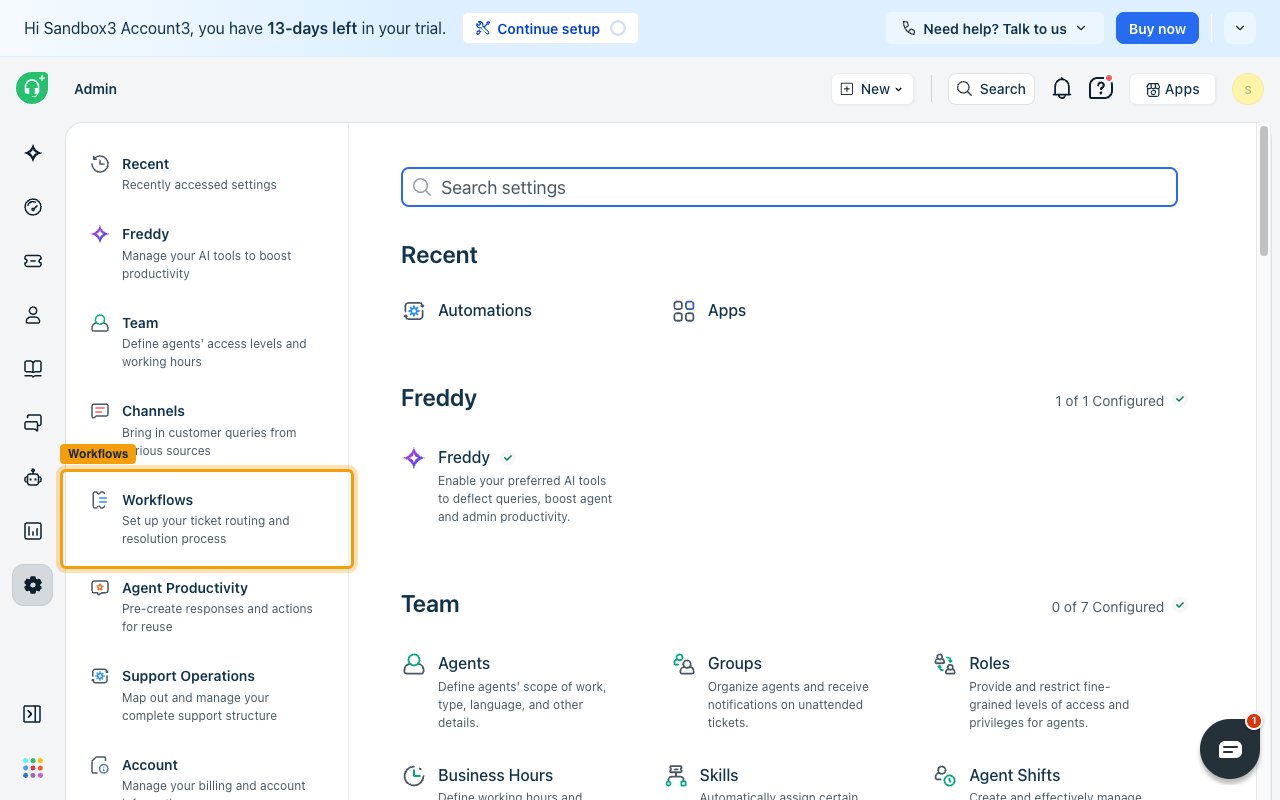
        <p>Sign in to your <a href="https://www.freshworks.com/freshdesk/login/" target="_blank" rel="noopener noreferrer">Freshdesk account</a> as an admin, then open <strong>Admin</strong>.</p>

        <ul>
          <li>Click <strong>Workflows</strong> in the left menu to jump to the ticket routing and resolution settings.</li>
        </ul>

        <img src="https://mintcdn.com/stackone-60/h6cymKHfZRD6mSa8/connectors/freshdesk/images/events-open-workflows.png?fit=max&auto=format&n=h6cymKHfZRD6mSa8&q=85&s=3677568232f7d98ff0263063cf943015" alt="The Freshdesk Admin page with the Workflows entry highlighted in the left menu" width="1280" height="800" data-path="connectors/freshdesk/images/events-open-workflows.png" />
      </div>
    </Step>

    <Step title="Open Automations">
      <div data-guide-step data-guide-scopes="" data-guide-display-scopes-list="">
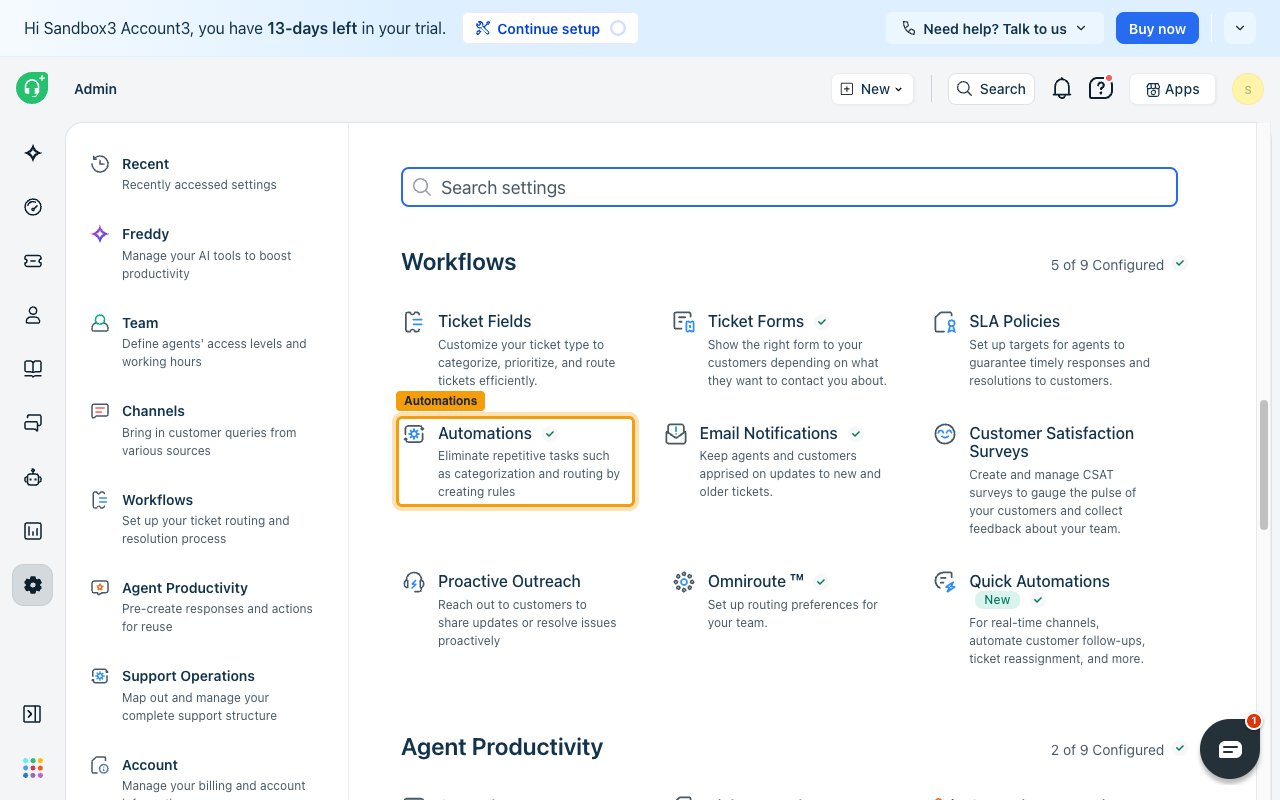
        <p>In the <strong>Workflows</strong> group, click <strong>Automations</strong> — the card described as "Eliminate repetitive tasks such as categorization and routing by creating rules".</p>

        <img src="https://mintcdn.com/stackone-60/h6cymKHfZRD6mSa8/connectors/freshdesk/images/events-open-automations.png?fit=max&auto=format&n=h6cymKHfZRD6mSa8&q=85&s=642b0d671f337f21fe63551a04a89df4" alt="The Workflows group on the Admin page with the Automations card highlighted" width="1280" height="800" data-path="connectors/freshdesk/images/events-open-automations.png" />
      </div>
    </Step>

    <Step title="Create a rule on ticket creation">
      <div data-guide-step data-guide-scopes="" data-guide-display-scopes-list="">
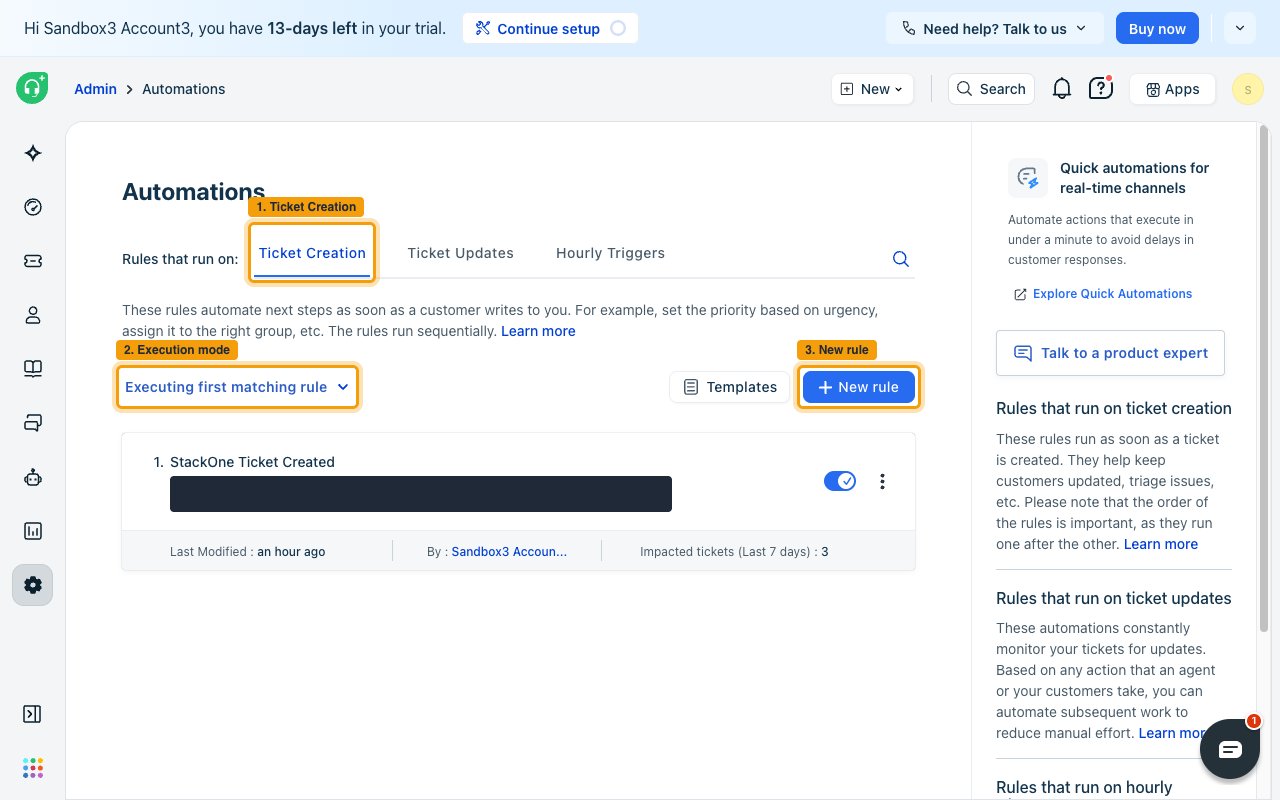
        <p>On the <strong>Automations</strong> page, select the <strong>Ticket Creation</strong> tab and click <strong>New rule</strong>. Give the rule a name such as `StackOne Ticket Created`.</p>

        <ul>
          <li>Note: check the execution mode shown above the rule list. When it reads <strong>Executing first matching rule</strong>, only the first matching rule runs — place this rule first, or an earlier rule will stop it from firing.</li>
        </ul>

        <img src="https://mintcdn.com/stackone-60/h6cymKHfZRD6mSa8/connectors/freshdesk/images/events-new-rule.png?fit=max&auto=format&n=h6cymKHfZRD6mSa8&q=85&s=2ad23631c68fc5f149265463700d6cf8" alt="The Automations page on the Ticket Creation tab with the New rule button highlighted" width="1280" height="800" data-path="connectors/freshdesk/images/events-new-rule.png" />
      </div>
    </Step>

    <Step title="Set the condition">
      <div data-guide-step data-guide-scopes="" data-guide-display-scopes-list="">
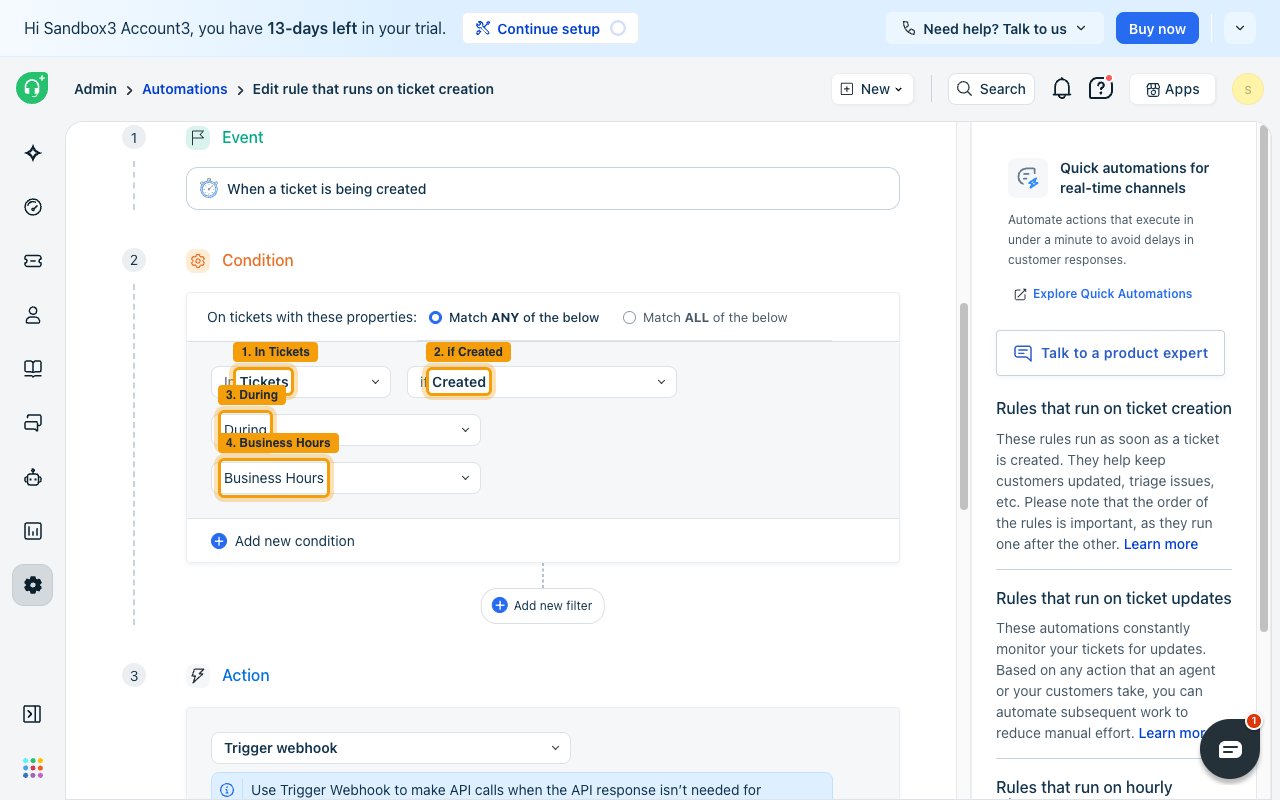
        <p>Under <strong>Condition</strong>, set one row to <strong>In Tickets</strong> > <strong>if Created</strong> > <strong>During</strong> > <strong>Business Hours</strong> and leave <strong>Match ANY of the below</strong> selected. A ticket creation rule cannot be saved without at least one condition.</p>

        <ul>
          <li>Tickets raised outside your business hours do not match this condition, so no event is sent for those. Business hours are set under <strong>Admin</strong> > <strong>Business Hours</strong>.</li>
          <li>To deliver every ticket instead, use a condition every ticket satisfies — for example <strong>Priority</strong> with all four values <strong>Low</strong>, <strong>Medium</strong>, <strong>High</strong>, and <strong>Urgent</strong> selected.</li>
        </ul>

        <img src="https://mintcdn.com/stackone-60/h6cymKHfZRD6mSa8/connectors/freshdesk/images/events-condition.png?fit=max&auto=format&n=h6cymKHfZRD6mSa8&q=85&s=090a3592087995ada274971a526e683b" alt="The Condition block with In Tickets, if Created, During, and Business Hours each highlighted and numbered" width="1280" height="800" data-path="connectors/freshdesk/images/events-condition.png" />
      </div>
    </Step>

    <Step title="Add the Trigger webhook action">
      <div data-guide-step data-guide-scopes="" data-guide-display-scopes-list="">
        <p>Under <strong>Action</strong>, open <strong>Choose action</strong>.</p>

        <img src="https://mintcdn.com/stackone-60/h6cymKHfZRD6mSa8/connectors/freshdesk/images/events-choose-action.png?fit=max&auto=format&n=h6cymKHfZRD6mSa8&q=85&s=58018e6526db86d9f183856a89f08e02" alt="The rule editor with the Choose action selector highlighted in the Action section" width="1280" height="800" data-path="connectors/freshdesk/images/events-choose-action.png" />
      </div>
    </Step>

    <Step title="Select Trigger webhook">
      <div data-guide-step data-guide-scopes="" data-guide-display-scopes-list="">
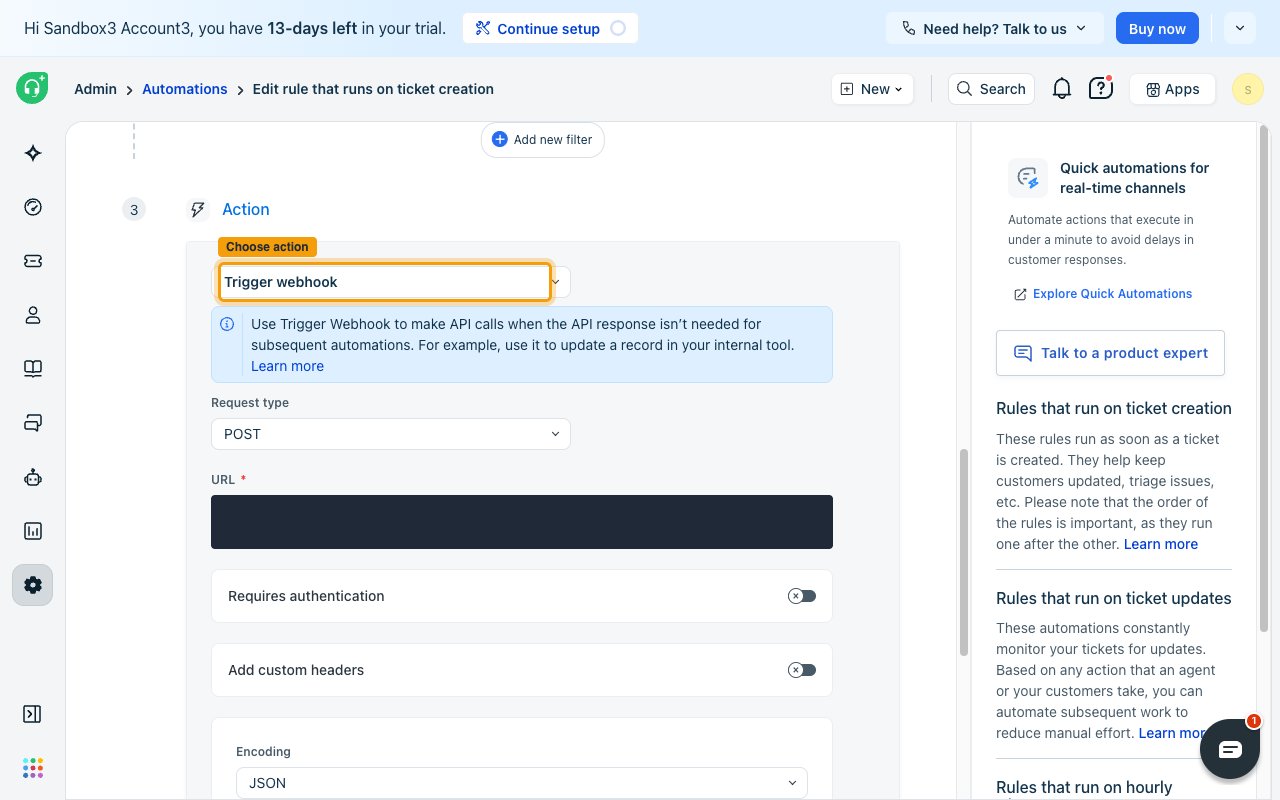
        <p>Select <strong>Trigger webhook</strong> from the action list. Typing `Trigger` filters the list, which holds 22 actions.</p>
      </div>
    </Step>

    <Step title="Paste the Native Webhook URL">
      <div data-guide-step data-guide-scopes="" data-guide-display-scopes-list="">
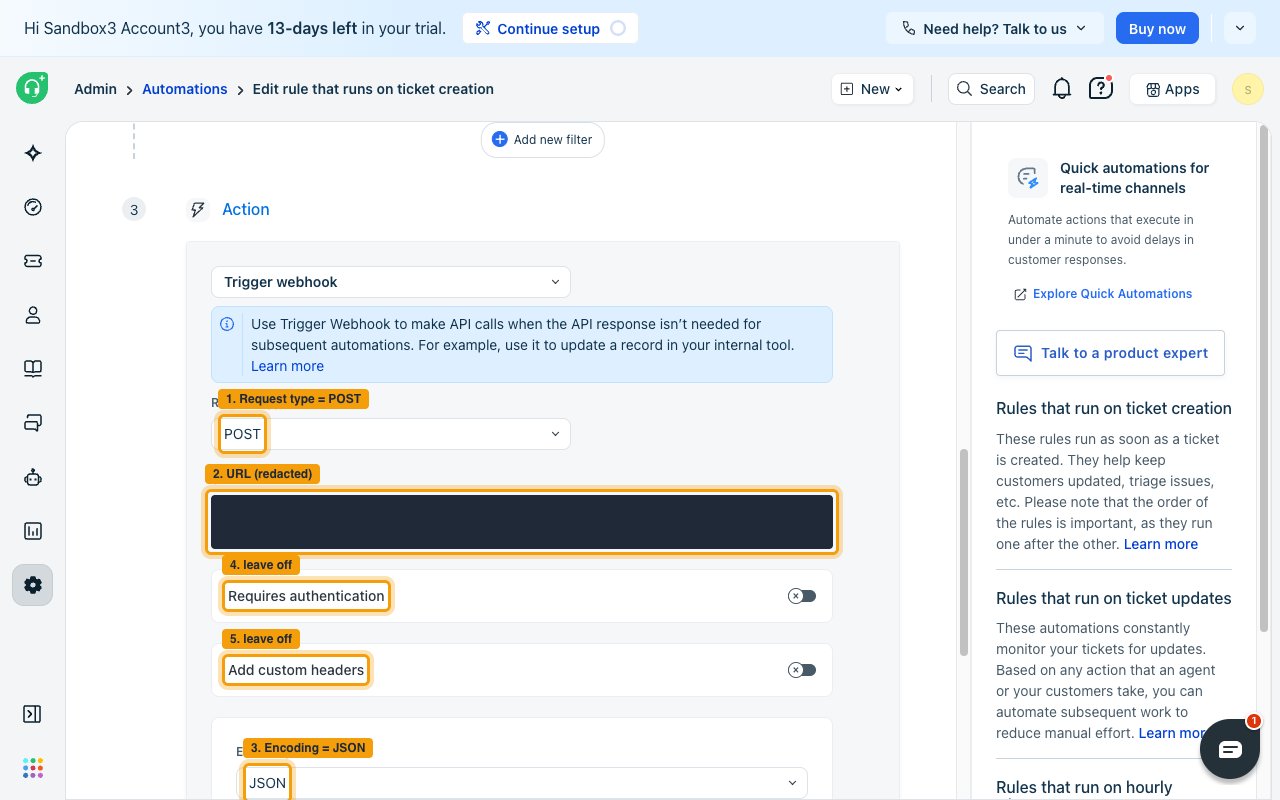
        <p>Paste the <strong>Native Webhook URL</strong> you copied earlier into <strong>URL</strong>, and leave <strong>Encoding</strong> set to `JSON`.</p>

        <ul>
          <li>Leave <strong>Requires authentication</strong> off — the secure key in the URL authenticates the delivery.</li>
          <li>Leave <strong>Add custom headers</strong> off.</li>
        </ul>

        <img src="https://mintcdn.com/stackone-60/h6cymKHfZRD6mSa8/connectors/freshdesk/images/events-webhook-config.png?fit=max&auto=format&n=h6cymKHfZRD6mSa8&q=85&s=4d4ea87eb7bf9a1ed343315ca70e8b25" alt="The webhook action with Request type POST, the URL field, Encoding JSON, and both toggles left off, each highlighted and numbered" width="1280" height="800" data-path="connectors/freshdesk/images/events-webhook-config.png" />
      </div>
    </Step>

    <Step title="Select the ticket properties to send">
      <div data-guide-step data-guide-scopes="" data-guide-display-scopes-list="">
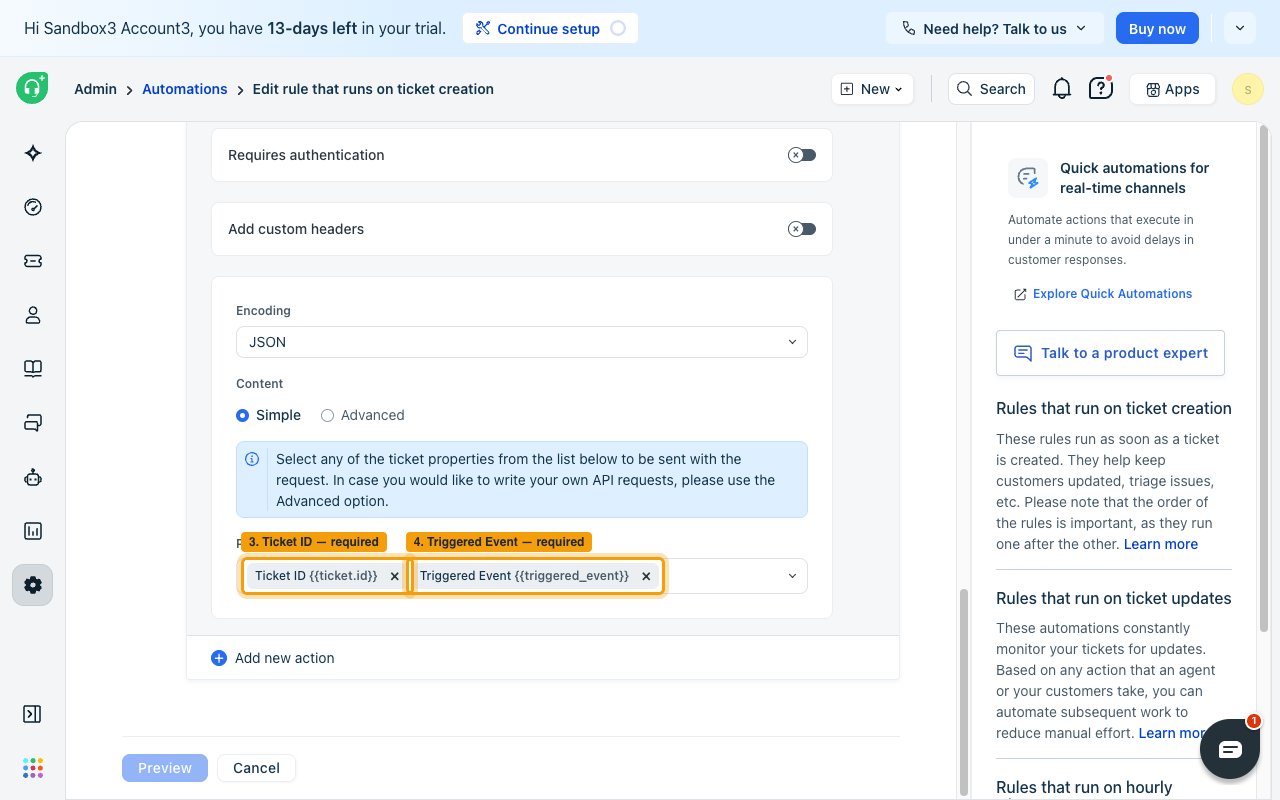
        <p>Leave <strong>Content</strong> set to <strong>Simple</strong>, then open <strong>Placeholders</strong>. <strong>Ticket ID</strong> and <strong>Triggered Event</strong> are required — select both. Every other property in the list is optional; add any you also want on the event.</p>

        <ul>
          <li>Neither required property has a fallback. <strong>Ticket ID</strong> becomes the event's record id, and <strong>Triggered Event</strong> becomes the event type and decides whether the delivery is handled as a created or an updated ticket.</li>
          <li>Without <strong>Triggered Event</strong>, the delivery matches no event handler and is not emitted at all. Without <strong>Ticket ID</strong>, the event is emitted with an empty record id and consumers cannot tell which ticket it refers to.</li>
          <li>Add any other properties you want included in the event payload.</li>
        </ul>

        <img src="https://mintcdn.com/stackone-60/h6cymKHfZRD6mSa8/connectors/freshdesk/images/events-placeholders.png?fit=max&auto=format&n=h6cymKHfZRD6mSa8&q=85&s=2cfdd18fb05ba3c796131d3b3c90d350" alt="The Simple content Placeholders list with Triggered Event highlighted and Ticket ID already selected" width="1280" height="800" data-path="connectors/freshdesk/images/events-placeholders.png" />
      </div>
    </Step>

    <Step title="Save and enable the rule">
      <div data-guide-step data-guide-scopes="" data-guide-display-scopes-list="">
        <p>Click <strong>Preview</strong>, check the summary, then click <strong>Save and enable</strong>.</p>
      </div>
    </Step>
  </Steps>
</section>

<section data-guide-section data-guide-scopes="">
  <h2>Configure the Ticket Updates rule</h2>

  <p>Create a second rule on ticket updates so StackOne receives an event whenever a ticket changes. The webhook action is configured exactly as it was on the creation rule — only the <strong>Event</strong> block differs, because an update rule has to be told which changes to watch.</p>

  <Steps>
    <Step title="Create a rule on ticket updates">
      <div data-guide-step data-guide-scopes="" data-guide-display-scopes-list="">
        <p>On the <strong>Automations</strong> page, select the <strong>Ticket Updates</strong> tab and click <strong>New rule</strong>. Name it something like `StackOne Ticket Updated`.</p>
      </div>
    </Step>

    <Step title="Choose who performs the change">
      <div data-guide-step data-guide-scopes="" data-guide-display-scopes-list="">
        <p>Under <strong>Action performed by</strong>, choose who has to make the change for the rule to fire. This is your decision — it decides which updates reach StackOne.</p>

        <ul>
          <li><strong>Agent</strong> — changes made by an agent in Freshdesk</li>
          <li><strong>AI Agent</strong> — changes made by Freddy AI</li>
          <li><strong>Requester</strong> — changes made by the customer, such as a reply</li>
          <li><strong>Agent or requester</strong> — either of the two above, the widest human coverage</li>
          <li><strong>System</strong> — changes Freshdesk makes automatically, such as an SLA escalation</li>
          <li><strong>Collaborator</strong> — changes made by a collaborator on the ticket</li>
          <li>Only the performers you select here produce events. If you pick <strong>Agent</strong> alone, a customer reply that changes the ticket will not be delivered.</li>
        </ul>
      </div>
    </Step>

    <Step title="Choose which changes fire the webhook">
      <div data-guide-step data-guide-scopes="" data-guide-display-scopes-list="">
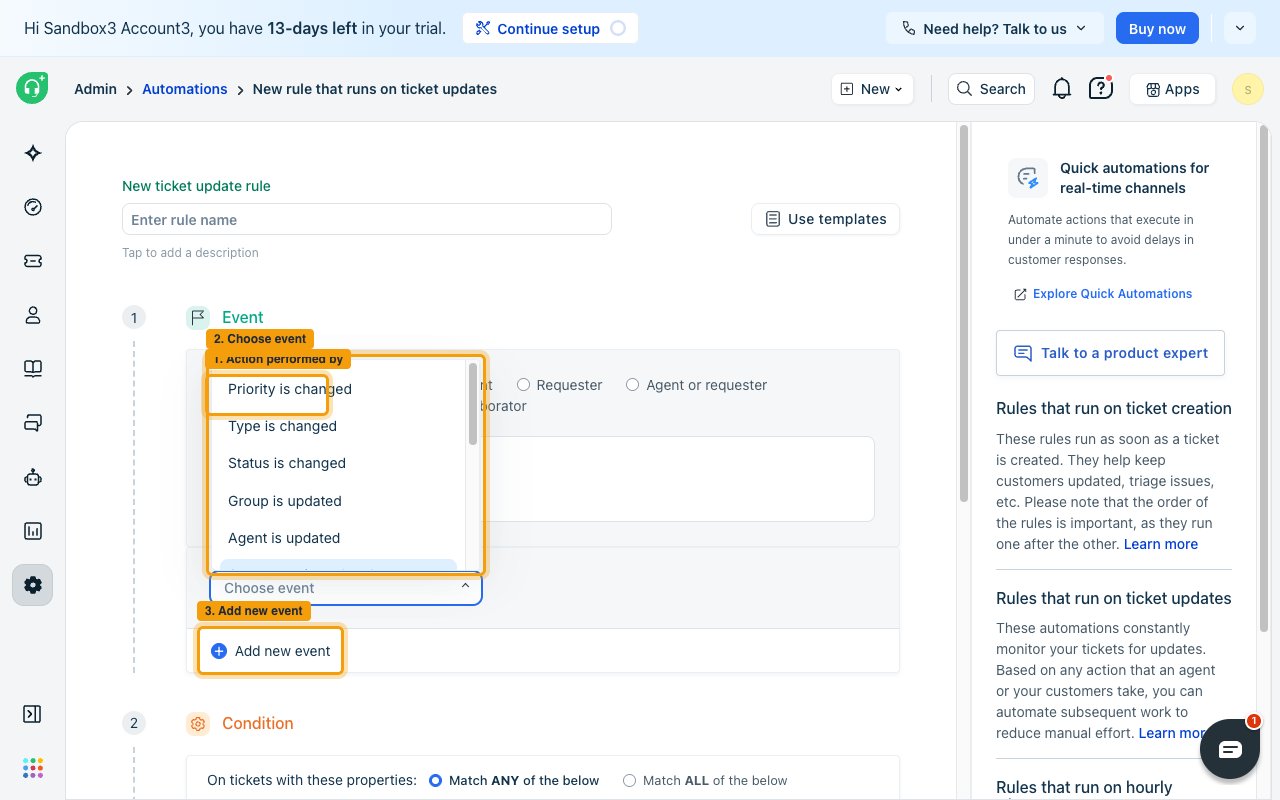
        <p>Under <strong>Event</strong>, open <strong>Choose event</strong> and select a change to watch. Click <strong>Add new event</strong> to watch more than one.</p>

        <ul>
          <li>A ticket update rule fires only on the changes you select here — a rule watching <strong>Priority is changed</strong> does not fire when the status changes.</li>
          <li>Available changes include <strong>Priority is changed</strong>, <strong>Status is changed</strong>, <strong>Type is changed</strong>, <strong>Group is updated</strong>, <strong>Agent is updated</strong>, <strong>Note is added</strong>, <strong>Reply is sent</strong>, and <strong>Due date is changed</strong>.</li>
        </ul>

        <img src="https://mintcdn.com/stackone-60/h6cymKHfZRD6mSa8/connectors/freshdesk/images/events-update-events.png?fit=max&auto=format&n=h6cymKHfZRD6mSa8&q=85&s=fb63ca25b72f7984f811eaf5d01c9dc9" alt="The ticket update rule editor with the Choose event list open and highlighted" width="1280" height="800" data-path="connectors/freshdesk/images/events-update-events.png" />
      </div>
    </Step>

    <Step title="Leave the condition empty">
      <div data-guide-step data-guide-scopes="" data-guide-display-scopes-list="">
        <p>Unlike a ticket creation rule, an update rule saves with an empty <strong>Condition</strong> block — you are not forced to add one. Leave it empty to receive every change you selected above, and add conditions only when you want to narrow which tickets qualify.</p>
      </div>
    </Step>

    <Step title="Add and configure the Trigger webhook action">
      <div data-guide-step data-guide-scopes="" data-guide-display-scopes-list="">
        <p>Configure the action exactly as you did on the Ticket Creation rule, using the same <strong>Native Webhook URL</strong>. Nothing here differs between the two rules.</p>

        <ul>
          <li>Under <strong>Action</strong>, open <strong>Choose action</strong> and select <strong>Trigger webhook</strong>.</li>
          <li>Set <strong>Request type</strong> to `POST`.</li>
          <li>Paste the same <strong>Native Webhook URL</strong> into <strong>URL</strong>.</li>
          <li>Leave <strong>Encoding</strong> set to `JSON`, and leave <strong>Requires authentication</strong> and <strong>Add custom headers</strong> off.</li>
          <li>Leave <strong>Content</strong> on <strong>Simple</strong> and select both <strong>Ticket ID</strong> and <strong>Triggered Event</strong> — the same two required properties, plus any optional ones you want.</li>
        </ul>

        <img src="https://mintcdn.com/stackone-60/h6cymKHfZRD6mSa8/connectors/freshdesk/images/events-webhook-config.png?fit=max&auto=format&n=h6cymKHfZRD6mSa8&q=85&s=4d4ea87eb7bf9a1ed343315ca70e8b25" alt="The webhook action with Request type POST, the URL field, Encoding JSON, and both toggles left off, each highlighted and numbered" width="1280" height="800" data-path="connectors/freshdesk/images/events-webhook-config.png" />
      </div>
    </Step>

    <Step title="Save and enable the rule">
      <div data-guide-step data-guide-scopes="" data-guide-display-scopes-list="">
        <p>Click <strong>Preview</strong>, check the summary, then click <strong>Save and enable</strong>.</p>
      </div>
    </Step>
  </Steps>
</section>

<section data-guide-section data-guide-scopes="">
  <h2>Available webhook events</h2>

  <p>Freshdesk has no predefined list of webhook events. What you receive is decided entirely by the automation rules you build — the rule type sets when it fires, and its conditions narrow which tickets qualify.</p>

  <Steps>
    <Step title="Ticket events">
      <div data-guide-step data-guide-scopes="" data-guide-display-scopes-list="">
        <p>Two kinds of delivery are possible, one per rule type.</p>

        <ul>
          <li><strong>Ticket Created</strong> — sent by a ticket creation rule when a newly raised ticket matches its conditions.</li>
          <li><strong>Ticket Updated</strong> — sent by a ticket updates rule when a ticket change matches the events and conditions it watches.</li>
        </ul>
      </div>
    </Step>

    <Step title="Read the event type on a delivered event">
      <div data-guide-step data-guide-scopes="" data-guide-display-scopes-list="">
        <p>The event type on each delivered event is the <strong>Triggered Event</strong> value exactly as Freshdesk produced it.</p>

        <ul>
          <li>A created ticket delivers the event type `{ticket_action:created}`</li>
          <li>A ticket change delivers a change descriptor naming the changed property with its old and new values, for example `{priority:{from:1,to:3}}` or `{status:{from:2,to:3}}`</li>
          <li>Because an update value carries the values that changed, it differs on every delivery — match on the event's record id or the handler that produced it rather than on the event type.</li>
        </ul>
      </div>
    </Step>
  </Steps>
</section>

<section data-guide-section data-guide-scopes="">
  <h2>Delivery format</h2>

  <p>Details of how Freshdesk delivers events to StackOne.</p>

  <Steps>
    <Step title="One event per request">
      <div data-guide-step data-guide-scopes="" data-guide-display-scopes-list="">
        <p>Freshdesk sends one `POST` per matching ticket, with `content-type: application/json`. Deliveries are not batched. The ticket properties you selected arrive inside a `freshdesk_webhook` object.</p>

        <ul>
          <li>The selected properties are passed through to the event unchanged, so any extra property you tick is available on the event as well.</li>
          <li>Freshdesk sends no signature header and performs no verification handshake — the secure key inside the Native Webhook URL is what authenticates the delivery.</li>
        </ul>
      </div>
    </Step>

    <Step title="Note the fields Freshdesk cannot send">
      <div data-guide-step data-guide-scopes="" data-guide-display-scopes-list="">
        <p>Freshdesk offers no placeholder for a ticket's created or updated timestamp, so neither can appear in the payload. Fetch the ticket by its id if you need those values.</p>
      </div>
    </Step>

    <Step title="Retries and limits">
      <div data-guide-step data-guide-scopes="" data-guide-display-scopes-list="">
        <p>A failed delivery is retried every 30 minutes for up to 48 attempts. Freshdesk allows a maximum of 1000 webhook calls per hour per account, shared across every automation rule.</p>
      </div>
    </Step>

    <Step title="Unsupported rule types">
      <div data-guide-step data-guide-scopes="" data-guide-display-scopes-list="">
        <p>Only ticket creation and ticket updates rules can send a webhook. <strong>Hourly Triggers</strong> rules cannot, so time-based events such as SLA breaches and ticket ageing cannot be delivered.</p>
      </div>
    </Step>
  </Steps>
</section>

## Verify

Your Connector should now be able to receive and process events. Try triggering an event and you should see an Event appear in the Connector logs.