> ## Documentation Index
> Fetch the complete documentation index at: https://docs.stackone.com/llms.txt
> Use this file to discover all available pages before exploring further.

# Employment Hero Webhook Setup Guide

> Configure Employment Hero to deliver events to StackOne.

## Prerequisites

The connector should already be set up, with a Connector Profile and a Linked Account. See [Getting Started](/connectors/employmenthero#getting-started) on the Employment Hero connector page.

<section data-guide-section data-guide-scopes="">
  <h2>Retrieve the Native Webhook URL</h2>

  <p>The <strong>Native Webhook URL</strong> is generated once an account has been linked.</p>

  <ul>
    <li>Open the linked account in StackOne.</li>
    <li>Copy the value from <strong>Native Webhook URL</strong>.</li>
  </ul>
</section>

<section data-guide-section data-guide-scopes="">
  <h2>Add a webhook in Employment Hero</h2>

  <p>Register the Native Webhook URL as a webhook in the Employment Hero Developer Portal and select the events to send.</p>

  <Steps>
    <Step title="Open the Developer Portal">
      <div data-guide-step data-guide-scopes="" data-guide-display-scopes-list="">
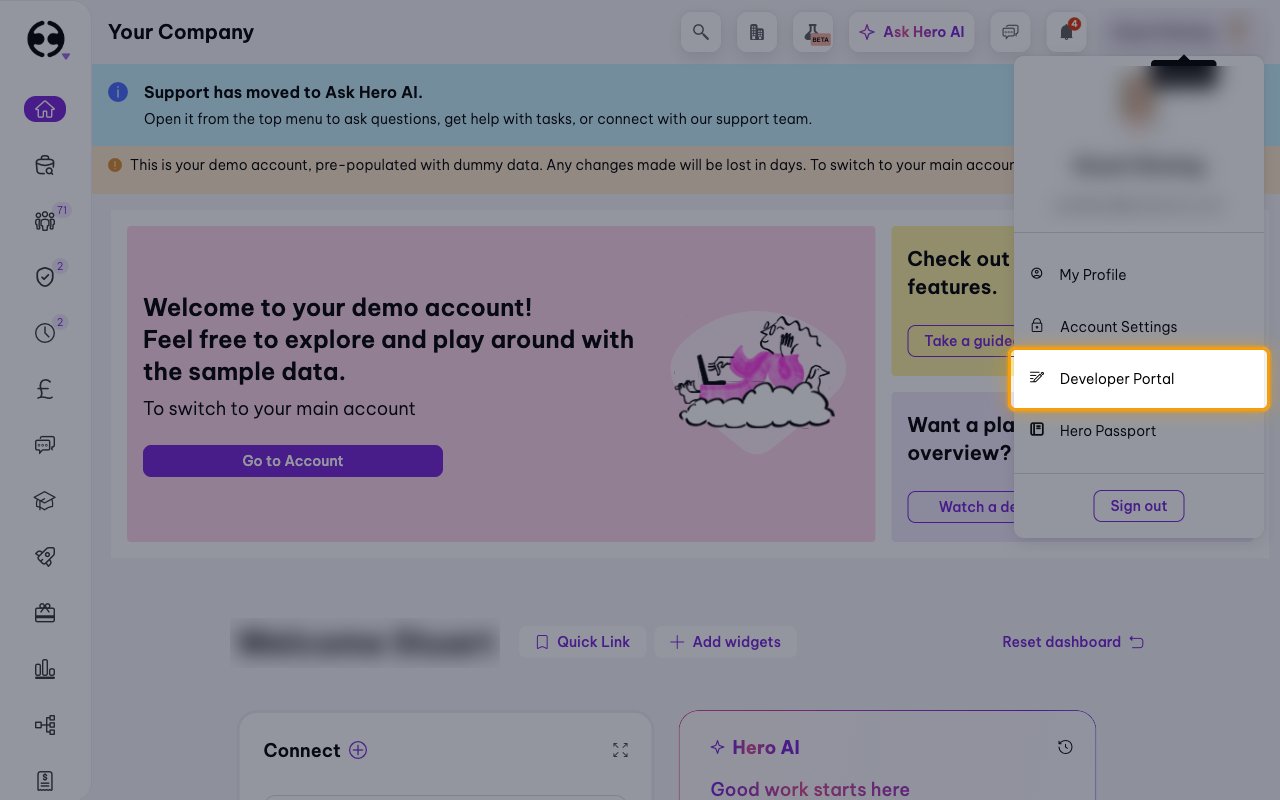
        <p>Sign in to your <a href="https://secure.employmenthero.com/users/sign_in" target="_blank" rel="noopener noreferrer">Employment Hero account</a>, click your profile name in the top right corner and select <strong>Developer Portal</strong>.</p>

        <img src="https://mintcdn.com/stackone-60/yXlVTLcD6Q2JasB6/connectors/employmenthero/images/events-developer-portal.png?fit=max&auto=format&n=yXlVTLcD6Q2JasB6&q=85&s=c5a2cac53a2a62488eb62f8f76ef2f15" alt="The profile menu open with the Developer Portal item highlighted" width="1280" height="800" data-path="connectors/employmenthero/images/events-developer-portal.png" />
      </div>
    </Step>

    <Step title="Open My Webhooks">
      <div data-guide-step data-guide-scopes="" data-guide-display-scopes-list="">
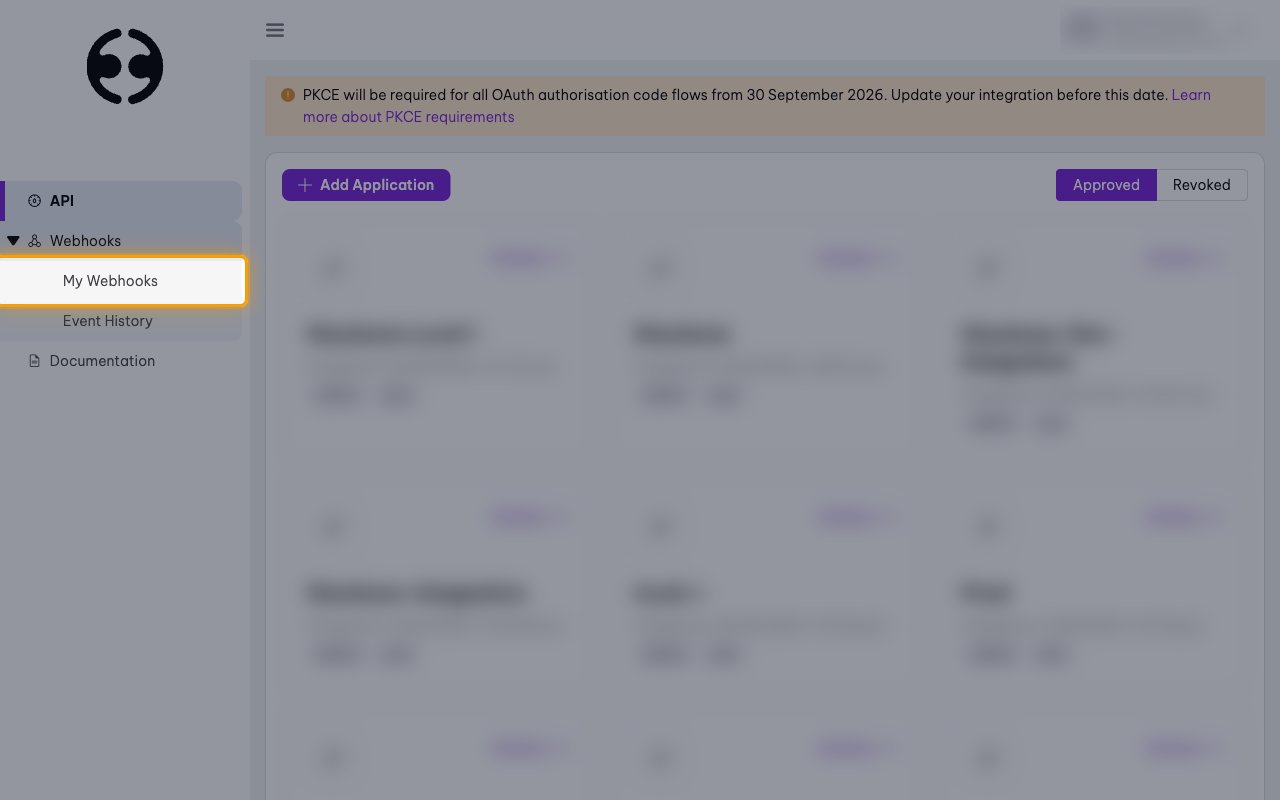
        <p>In the sidebar, expand <strong>Webhooks</strong> and click <strong>My Webhooks</strong>.</p>

        <img src="https://mintcdn.com/stackone-60/yXlVTLcD6Q2JasB6/connectors/employmenthero/images/events-my-webhooks-menu.png?fit=max&auto=format&n=yXlVTLcD6Q2JasB6&q=85&s=b7413a4d76a321910fa9dc1164d2c140" alt="The Developer Portal sidebar with Webhooks expanded and My Webhooks highlighted" width="1280" height="800" data-path="connectors/employmenthero/images/events-my-webhooks-menu.png" />
      </div>
    </Step>

    <Step title="Add a webhook">
      <div data-guide-step data-guide-scopes="" data-guide-display-scopes-list="">
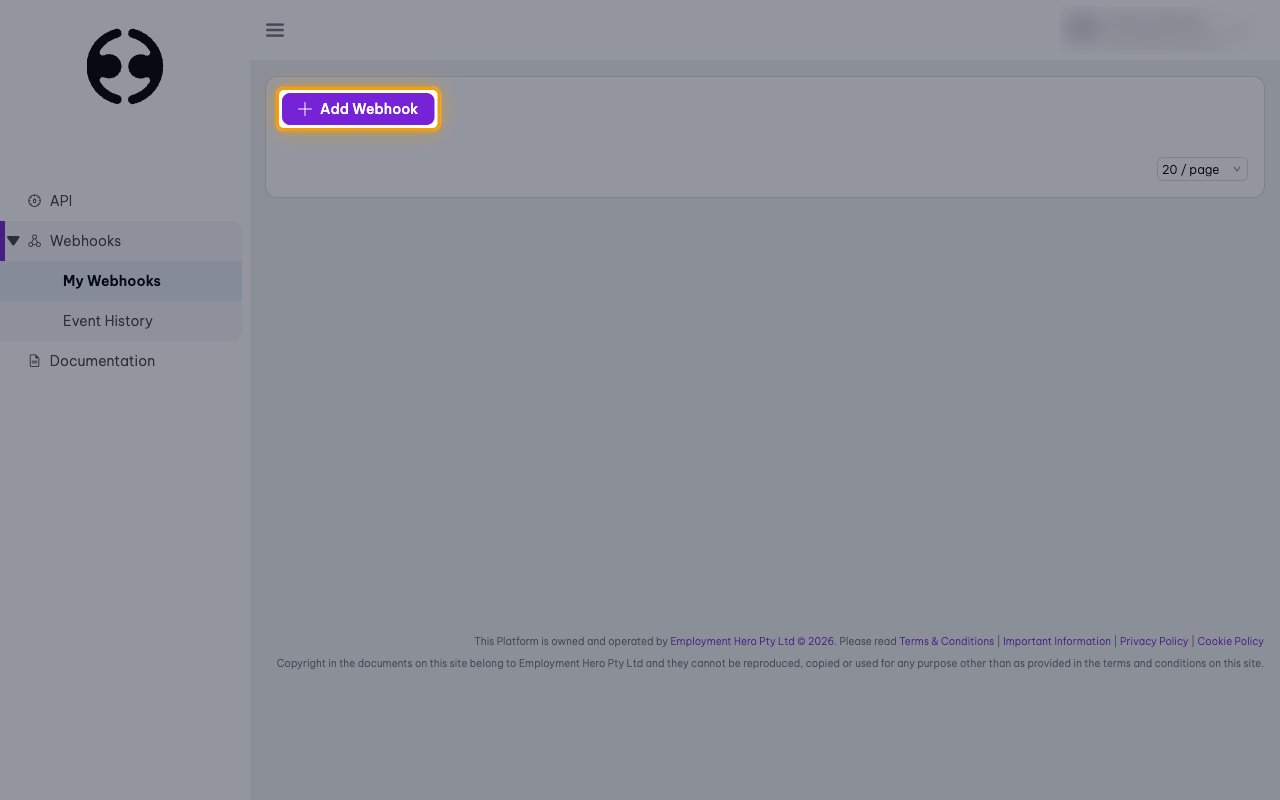
        <p>Click <strong>Add Webhook</strong>.</p>

        <img src="https://mintcdn.com/stackone-60/yXlVTLcD6Q2JasB6/connectors/employmenthero/images/events-add-webhook.png?fit=max&auto=format&n=yXlVTLcD6Q2JasB6&q=85&s=27b7d3597d85bc44c03d4d666b73876a" alt="The My Webhooks page with the Add Webhook button highlighted" width="1280" height="800" data-path="connectors/employmenthero/images/events-add-webhook.png" />
      </div>
    </Step>

    <Step title="Enter the webhook details">
      <div data-guide-step data-guide-scopes="" data-guide-display-scopes-list="">
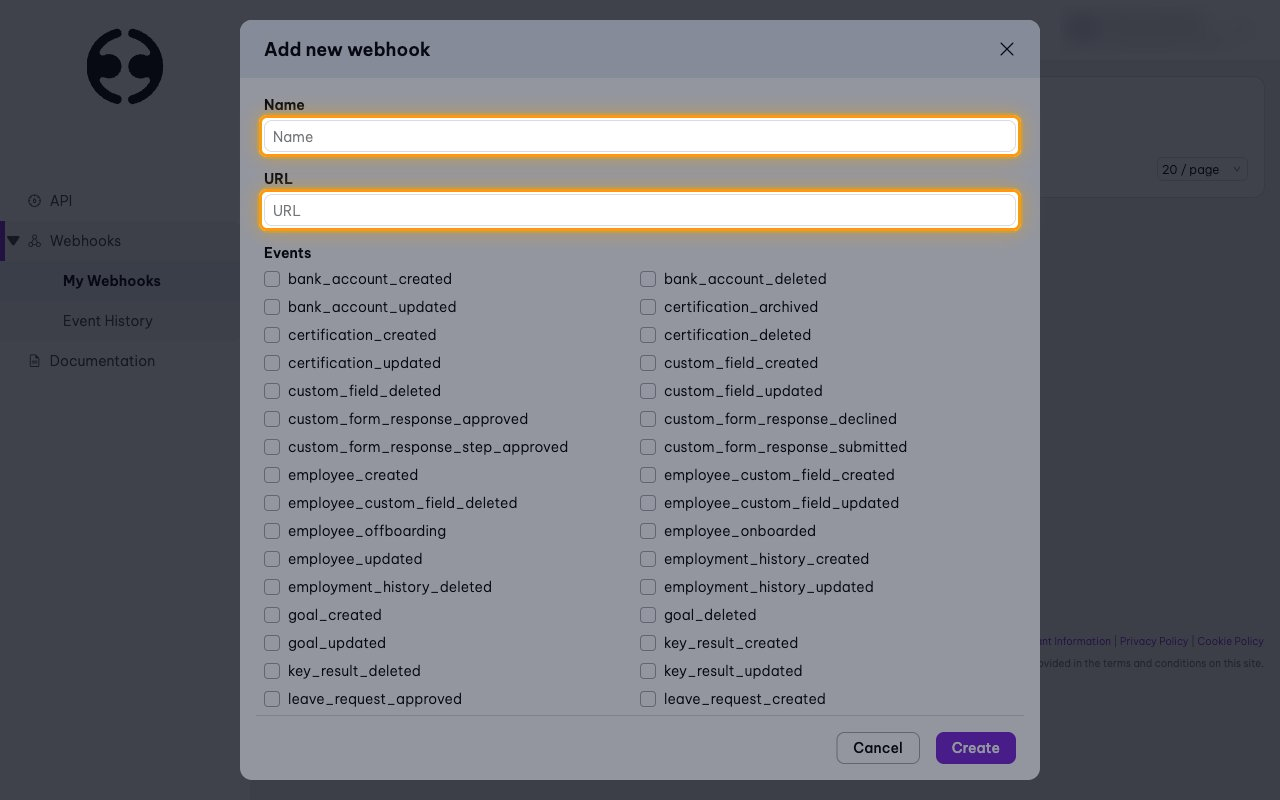
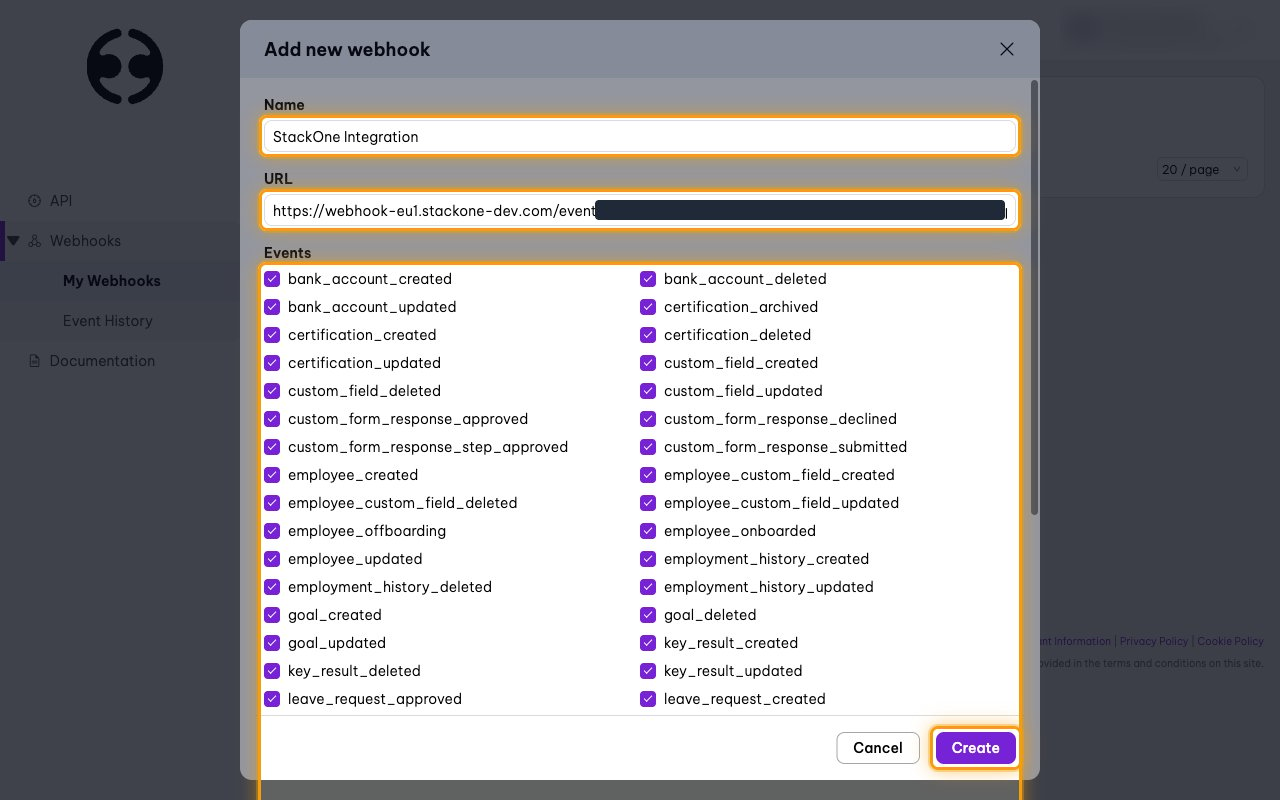
        <p>In the <strong>Add new webhook</strong> dialog, fill in the <strong>Name</strong> and <strong>URL</strong> fields.</p>

        <ul>
          <li><strong>Name</strong>: any name you choose — for example, `StackOne Integration`</li>
          <li><strong>URL</strong>: the Native Webhook URL copied from StackOne</li>
        </ul>

        <img src="https://mintcdn.com/stackone-60/yXlVTLcD6Q2JasB6/connectors/employmenthero/images/events-webhook-details.png?fit=max&auto=format&n=yXlVTLcD6Q2JasB6&q=85&s=199abdb0e9ccc6f70232099ba95271f1" alt="The Add new webhook dialog with the Name and URL fields highlighted" width="1280" height="800" data-path="connectors/employmenthero/images/events-webhook-details.png" />
      </div>
    </Step>

    <Step title="Select events and create the webhook">
      <div data-guide-step data-guide-scopes="" data-guide-display-scopes-list="">
        <p>Under <strong>Events</strong>, tick every event you enabled in StackOne, then click <strong>Create</strong>.</p>

        <ul>
          <li>Employment Hero only sends the events ticked here.</li>
          <li>Changes made later through <strong>Edit</strong> take effect immediately.</li>
        </ul>

        <img src="https://mintcdn.com/stackone-60/yXlVTLcD6Q2JasB6/connectors/employmenthero/images/events-select-events.png?fit=max&auto=format&n=yXlVTLcD6Q2JasB6&q=85&s=354650463e5f8c5ef0abe58350bd43e8" alt="The Add new webhook dialog with all events ticked and the Create button highlighted" width="1280" height="800" data-path="connectors/employmenthero/images/events-select-events.png" />
      </div>
    </Step>

    <Step title="Review the webhook">
      <div data-guide-step data-guide-scopes="" data-guide-display-scopes-list="">
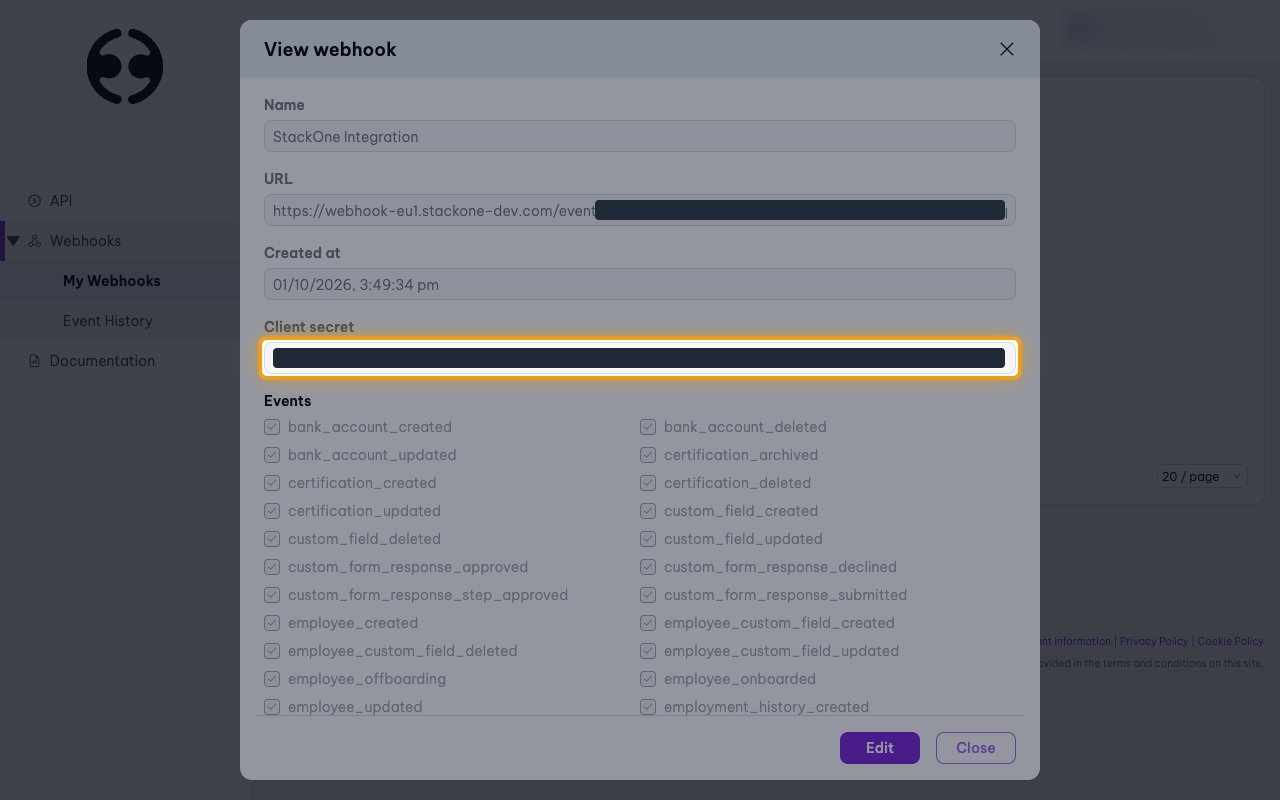
        <p>The <strong>View webhook</strong> dialog opens with the saved settings. The <strong>Client secret</strong> is the key Employment Hero uses to sign each request in the `X-EmploymentHero-Signature` header. StackOne does not need it.</p>

        <ul>
          <li>Click <strong>Close</strong> to return to <strong>My Webhooks</strong>.</li>
        </ul>

        <img src="https://mintcdn.com/stackone-60/yXlVTLcD6Q2JasB6/connectors/employmenthero/images/events-view-webhook.png?fit=max&auto=format&n=yXlVTLcD6Q2JasB6&q=85&s=2e7f09c7bfad10ea655237b171c19fea" alt="The View webhook dialog with the Client secret field highlighted and its value hidden" width="1280" height="800" data-path="connectors/employmenthero/images/events-view-webhook.png" />
      </div>
    </Step>

    <Step title="Confirm the webhook is listed">
      <div data-guide-step data-guide-scopes="" data-guide-display-scopes-list="">
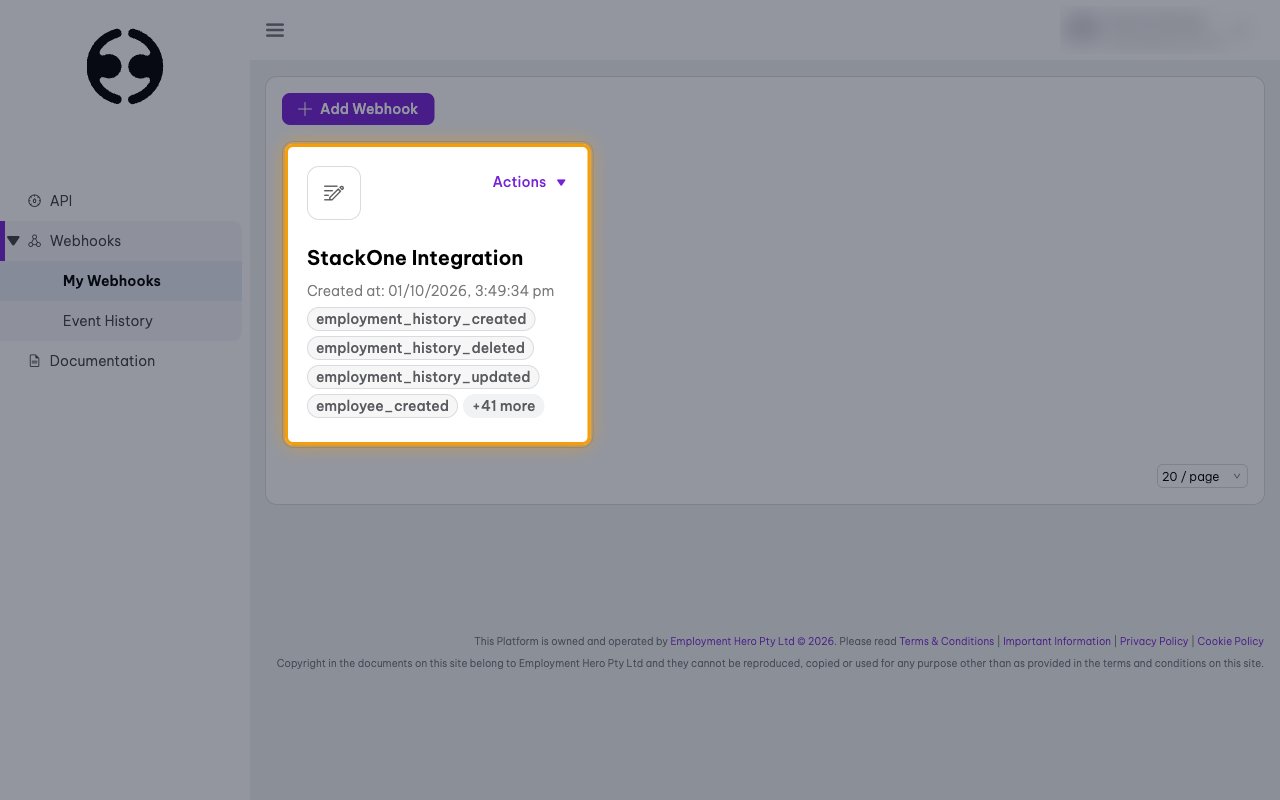
        <p>The webhook appears on <strong>My Webhooks</strong> with its name, creation time and selected events.</p>

        <ul>
          <li>Deliveries can be checked under <strong>Webhooks</strong> > <strong>Event History</strong>.</li>
        </ul>

        <img src="https://mintcdn.com/stackone-60/yXlVTLcD6Q2JasB6/connectors/employmenthero/images/events-webhook-created.png?fit=max&auto=format&n=yXlVTLcD6Q2JasB6&q=85&s=55a43aa076677388334000834429f4e4" alt="The My Webhooks page with the StackOne Integration webhook card highlighted" width="1280" height="800" data-path="connectors/employmenthero/images/events-webhook-created.png" />
      </div>
    </Step>
  </Steps>
</section>

<section data-guide-section data-guide-scopes="">
  <h2>Available webhook events</h2>

  <p>The following Employment Hero events can be enabled. Only events selected in StackOne are processed, and Employment Hero only sends the events ticked on the webhook.</p>

  <Steps>
    <Step title="Employee events">
      <div data-guide-step data-guide-scopes="" data-guide-display-scopes-list="">
        <p>Events related to employee records.</p>

        <ul>
          <li><strong>Employee Created</strong> (`employee_created`) — Fired when a new employee is created</li>
          <li><strong>Employee Onboarded</strong> (`employee_onboarded`) — Fired when an employee completes onboarding</li>
          <li><strong>Employee Updated</strong> (`employee_updated`) — Fired when an employee's details are updated</li>
          <li><strong>Employee Offboarding</strong> (`employee_offboarding`) — Fired when an employee is put into offboarding</li>
        </ul>
      </div>
    </Step>

    <Step title="Bank account events">
      <div data-guide-step data-guide-scopes="" data-guide-display-scopes-list="">
        <p>Events related to employee bank accounts.</p>

        <ul>
          <li><strong>Bank Account Created</strong> (`bank_account_created`) — Fired when a bank account is added to an employee</li>
          <li><strong>Bank Account Updated</strong> (`bank_account_updated`) — Fired when an employee's bank account is updated</li>
          <li><strong>Bank Account Deleted</strong> (`bank_account_deleted`) — Fired when an employee's bank account is deleted</li>
        </ul>
      </div>
    </Step>

    <Step title="Employment history events">
      <div data-guide-step data-guide-scopes="" data-guide-display-scopes-list="">
        <p>Events related to employment history entries.</p>

        <ul>
          <li><strong>Employment History Created</strong> (`employment_history_created`) — Fired when an employment history entry is created</li>
          <li><strong>Employment History Updated</strong> (`employment_history_updated`) — Fired when an employment history entry is updated</li>
          <li><strong>Employment History Deleted</strong> (`employment_history_deleted`) — Fired when an employment history entry is deleted</li>
        </ul>
      </div>
    </Step>

    <Step title="Custom field events">
      <div data-guide-step data-guide-scopes="" data-guide-display-scopes-list="">
        <p>Events related to custom field definitions and the values held against employees.</p>

        <ul>
          <li><strong>Employee Custom Field Created</strong> (`employee_custom_field_created`) — Fired when a custom field value is set on an employee</li>
          <li><strong>Employee Custom Field Updated</strong> (`employee_custom_field_updated`) — Fired when an employee's custom field value changes</li>
          <li><strong>Employee Custom Field Deleted</strong> (`employee_custom_field_deleted`) — Fired when an employee's custom field value is removed</li>
          <li><strong>Custom Field Created</strong> (`custom_field_created`) — Fired when a custom field definition is created</li>
          <li><strong>Custom Field Updated</strong> (`custom_field_updated`) — Fired when a custom field definition is updated</li>
          <li><strong>Custom Field Deleted</strong> (`custom_field_deleted`) — Fired when a custom field definition is deleted</li>
        </ul>
      </div>
    </Step>

    <Step title="Leave request events">
      <div data-guide-step data-guide-scopes="" data-guide-display-scopes-list="">
        <p>Events related to leave requests.</p>

        <ul>
          <li><strong>Leave Request Created</strong> (`leave_request_created`) — Fired when a leave request is submitted</li>
          <li><strong>Leave Request Updated</strong> (`leave_request_updated`) — Fired when a leave request is edited</li>
          <li><strong>Leave Request Approved</strong> (`leave_request_approved`) — Fired when a leave request is approved</li>
          <li><strong>Leave Request Declined</strong> (`leave_request_declined`) — Fired when a leave request is declined</li>
          <li><strong>Leave Request Deleted</strong> (`leave_request_deleted`) — Fired when a leave request is deleted</li>
        </ul>
      </div>
    </Step>

    <Step title="Timesheet entry events">
      <div data-guide-step data-guide-scopes="" data-guide-display-scopes-list="">
        <p>Events related to timesheet entries.</p>

        <ul>
          <li><strong>Timesheet Entry Created</strong> (`timesheet_entry_created`) — Fired when a timesheet entry is created</li>
          <li><strong>Timesheet Entry Updated</strong> (`timesheet_entry_updated`) — Fired when a timesheet entry is updated</li>
          <li><strong>Timesheet Entry Deleted</strong> (`timesheet_entry_deleted`) — Fired when a timesheet entry is deleted</li>
        </ul>
      </div>
    </Step>

    <Step title="Certification events">
      <div data-guide-step data-guide-scopes="" data-guide-display-scopes-list="">
        <p>Events related to certifications and the certifications assigned to employees.</p>

        <ul>
          <li><strong>Certification Created</strong> (`certification_created`) — Fired when a certification is created in the organisation</li>
          <li><strong>Certification Updated</strong> (`certification_updated`) — Fired when a certification is updated</li>
          <li><strong>Certification Deleted</strong> (`certification_deleted`) — Fired when a certification is deleted</li>
          <li><strong>Certification Archived</strong> (`certification_archived`) — Fired when a certification is archived</li>
          <li><strong>Member Certification Created</strong> (`member_certification_created`) — Fired when a certification is assigned to an employee</li>
          <li><strong>Member Certification Updated</strong> (`member_certification_updated`) — Fired when an employee's certification is updated</li>
          <li><strong>Member Certification Approved</strong> (`member_certification_approved`) — Fired when an employee's certification is approved</li>
          <li><strong>Member Certification Declined</strong> (`member_certification_declined`) — Fired when an employee's certification is declined</li>
          <li><strong>Member Certification Expired</strong> (`member_certification_expired`) — Fired when an employee's certification expires</li>
          <li><strong>Member Certification Archived</strong> (`member_certification_archived`) — Fired when an employee's certification is archived</li>
          <li><strong>Member Certification Deleted</strong> (`member_certification_deleted`) — Fired when an employee's certification is deleted</li>
        </ul>
      </div>
    </Step>

    <Step title="Custom form response events">
      <div data-guide-step data-guide-scopes="" data-guide-display-scopes-list="">
        <p>Events related to custom form responses.</p>

        <ul>
          <li><strong>Custom Form Response Submitted</strong> (`custom_form_response_submitted`) — Fired when a custom form response is submitted</li>
          <li><strong>Custom Form Response Approved</strong> (`custom_form_response_approved`) — Fired when a custom form response is fully approved</li>
          <li><strong>Custom Form Response Declined</strong> (`custom_form_response_declined`) — Fired when a custom form response is declined</li>
          <li><strong>Custom Form Response Partially Approved</strong> (`custom_form_response_step_approved`) — Fired when one approval step of a custom form response is approved; the payload carries approver\_id and decliner\_id but no form\_id</li>
        </ul>
      </div>
    </Step>

    <Step title="Goal and key result events">
      <div data-guide-step data-guide-scopes="" data-guide-display-scopes-list="">
        <p>Events related to goals and their key results.</p>

        <ul>
          <li><strong>Goal Created</strong> (`goal_created`) — Fired when a goal is created</li>
          <li><strong>Goal Updated</strong> (`goal_updated`) — Fired when a goal is updated, including archive and unarchive</li>
          <li><strong>Goal Deleted</strong> (`goal_deleted`) — Fired when a goal is deleted</li>
          <li><strong>Key Result Created</strong> (`key_result_created`) — Fired when a key result is added to a goal</li>
          <li><strong>Key Result Updated</strong> (`key_result_updated`) — Fired when a key result is updated, including archive and unarchive</li>
          <li><strong>Key Result Deleted</strong> (`key_result_deleted`) — Fired when a key result is deleted</li>
        </ul>
      </div>
    </Step>
  </Steps>
</section>

<section data-guide-section data-guide-scopes="">
  <h2>Delivery format</h2>

  <p>Details of how Employment Hero delivers events to StackOne.</p>

  <Steps>
    <Step title="One event per request">
      <div data-guide-step data-guide-scopes="" data-guide-display-scopes-list="">
        <p>Each request is a JSON object with `event` (the event code, for example `leave_request_approved`) and `data` (the affected record). StackOne routes each delivery on `event` and uses `data.id` as the record id.</p>
      </div>
    </Step>

    <Step title="Retries">
      <div data-guide-step data-guide-scopes="" data-guide-display-scopes-list="">
        <p>If the URL does not respond with HTTP 200, Employment Hero retries up to 3 times and then marks the event as failed in <strong>Event History</strong>.</p>
      </div>
    </Step>
  </Steps>
</section>

## Verify

Your Connector should now be able to receive and process events. Try triggering an event and you should see an Event appear in the Connector logs.


This documentation is built and hosted on [Mintlify](https://mintlify.com), a developer documentation platform.