> ## Documentation Index
> Fetch the complete documentation index at: https://docs.stackone.com/llms.txt
> Use this file to discover all available pages before exploring further.

# Connect Eka Care with Eka Sign-In (OIDC) – StackOne Hub

> Link a Eka Care account in the StackOne Hub using Eka Sign-In (OIDC). End-user guide to authorize the integration and start using Eka Care actions.

<section data-guide-section data-guide-scopes="">
  <h2>Signing in with Eka</h2>

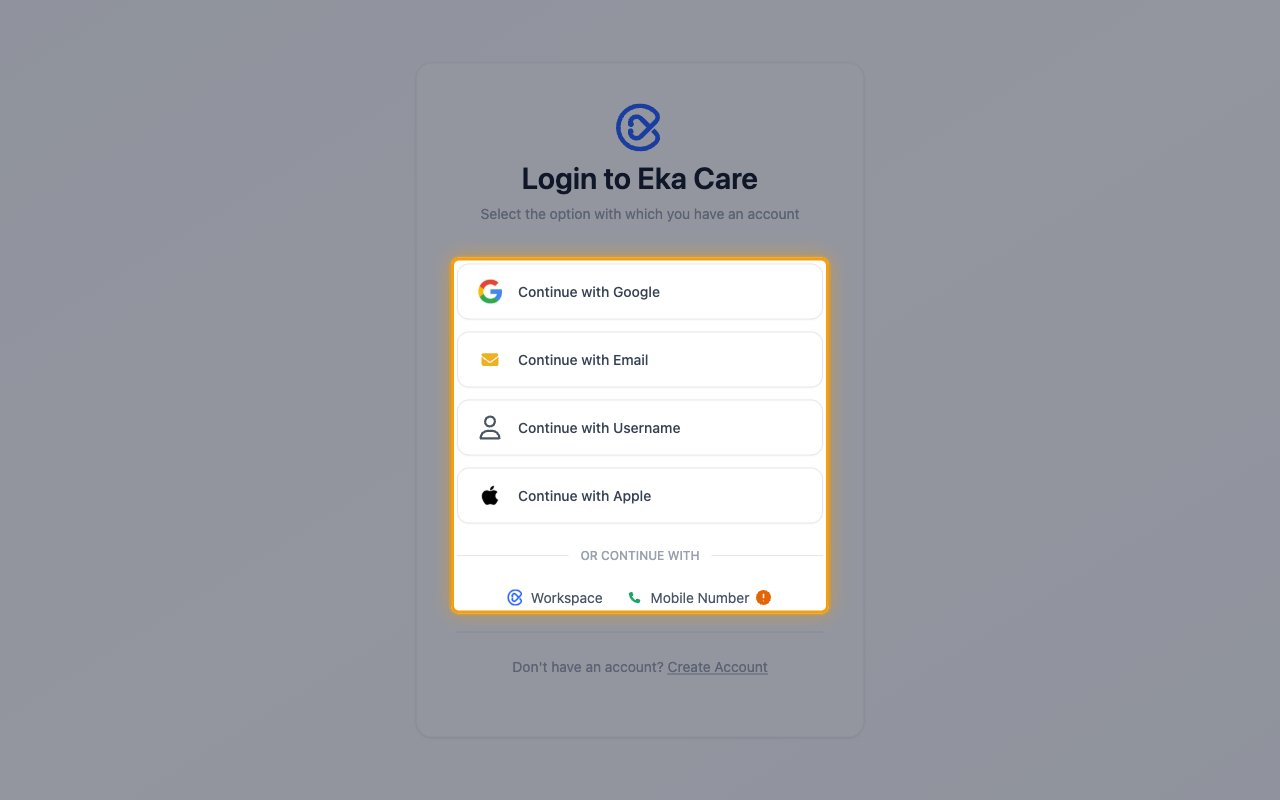
  <p>When you connect, StackOne opens the <strong>Login to Eka Care</strong> page. Sign in with the method you use for your Eka account and approve access.</p>

  <img src="https://mintcdn.com/stackone-60/2aitSsNAQhtZqow7/connectors/ekacare/images/oidc-config-sign-in.png?fit=max&auto=format&n=2aitSsNAQhtZqow7&q=85&s=c6b9eda578775d8a322f33e20d182f86" alt="The Login to Eka Care page with the sign-in options highlighted" width="1280" height="800" data-path="connectors/ekacare/images/oidc-config-sign-in.png" />
</section>

<section data-guide-section data-guide-scopes="">
  <h2>Find your MedAssist agent ID (optional)</h2>

  <p>The <strong>MedAssist Agent ID</strong> identifies your MedAssist agent. Only the MedAssist actions use it; leave it empty otherwise.</p>

  <Steps>
    <Step title="Open your agent">
      <div data-guide-step data-guide-scopes="" data-guide-display-scopes-list="">
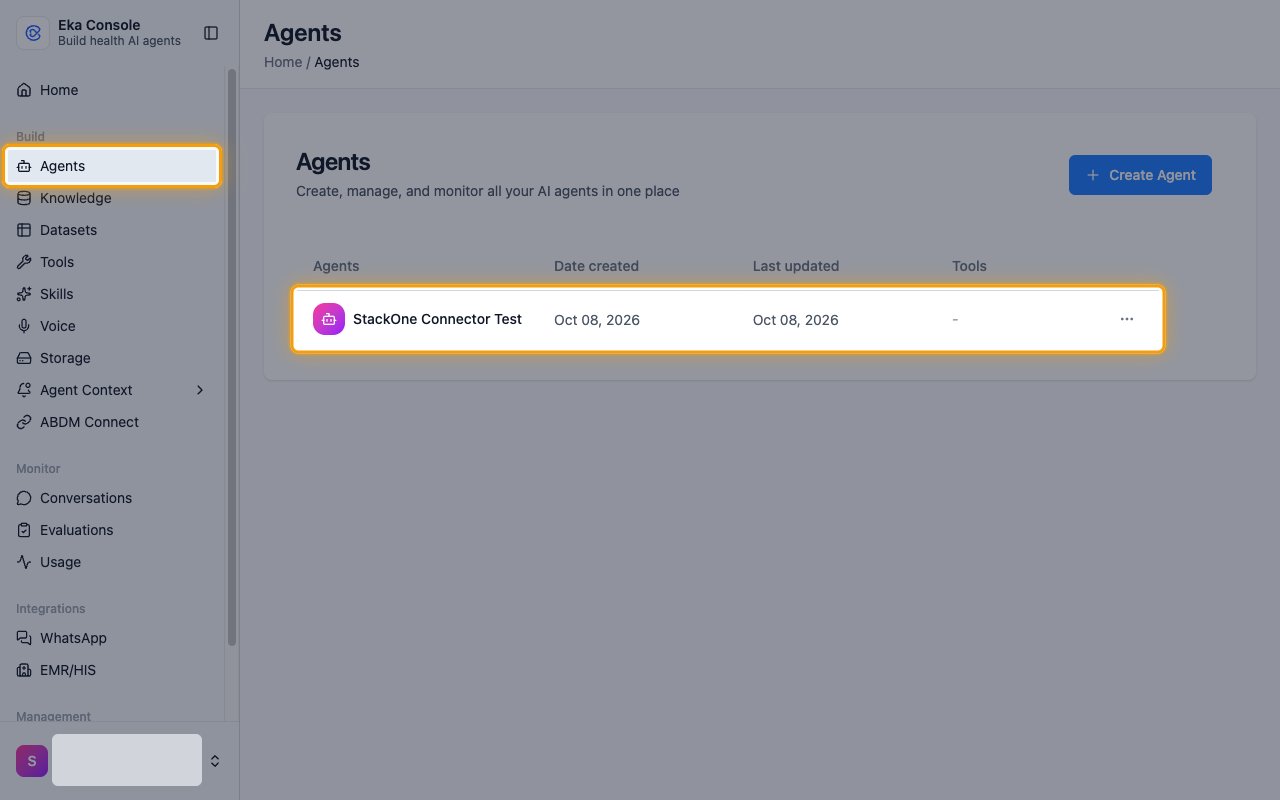
        <p>In the <a href="https://console.eka.care/" target="_blank" rel="noopener noreferrer">Eka Console</a> sidebar, click <strong>Agents</strong>, then click your agent in the list.</p>

        <img src="https://mintcdn.com/stackone-60/2aitSsNAQhtZqow7/connectors/ekacare/images/oidc-config-agents.png?fit=max&auto=format&n=2aitSsNAQhtZqow7&q=85&s=a1071496585913b36a3d2bfc3b5f7aef" alt="The Agents page with the Agents menu item and an agent row highlighted" width="1280" height="800" data-path="connectors/ekacare/images/oidc-config-agents.png" />
      </div>
    </Step>

    <Step title="Copy the agent ID">
      <div data-guide-step data-guide-scopes="" data-guide-display-scopes-list="">
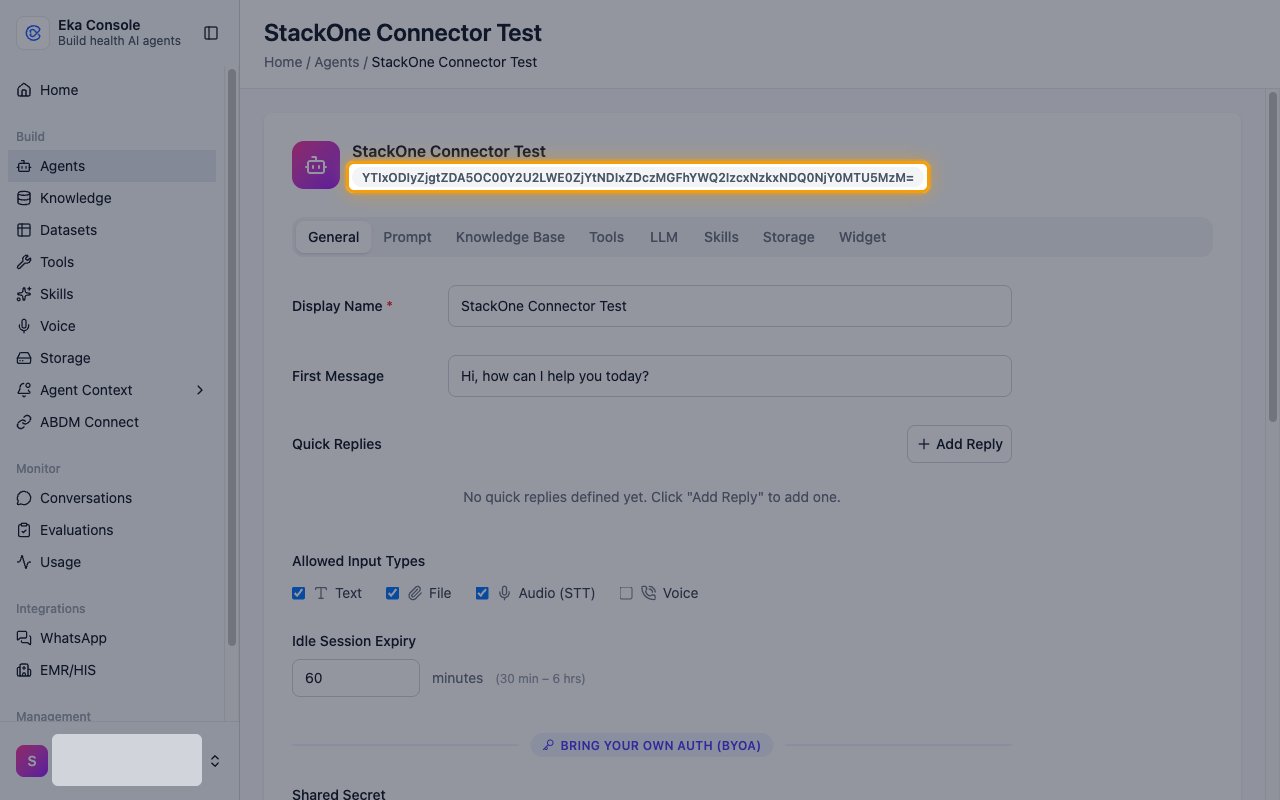
        <p>Copy the ID shown under the agent name and paste it into the <strong>MedAssist Agent ID</strong> field in StackOne Hub.</p>

        <ul>
          <li>Format: a Base64 string that ends in `=`</li>
        </ul>

        <img src="https://mintcdn.com/stackone-60/2aitSsNAQhtZqow7/connectors/ekacare/images/oidc-config-agent-id.png?fit=max&auto=format&n=2aitSsNAQhtZqow7&q=85&s=d3831e9d8626091b33aa28b942f872b8" alt="An agent page with the agent ID under the agent name highlighted" width="1280" height="800" data-path="connectors/ekacare/images/oidc-config-agent-id.png" />
      </div>
    </Step>
  </Steps>
</section>

<div data-whitelabel-hide>
  <h2>Linking the Account from the Hub</h2>

  <Steps>
    <Step title="Navigate to the Hub">
      Use one of the three <a href="/connect/managing-connectors/linking-accounts">Linking Account Methods</a> to access the Hub.
    </Step>

    <Step title="Fill out the fields">
      Fill out the following fields using details from your provider:

      <ul>
        <li><strong>MedAssist Agent ID</strong> (Optional)</li>
      </ul>
    </Step>

    <Step title="Connect">
      <ul>
        <li>Click <strong>Connect</strong></li>
        <li>If applicable, the provider will redirect you to a sign-in or authorization page. Complete the provider's authorization flow.</li>
        <li>Once authorization is successful, you will see a confirmation popup</li>
      </ul>
    </Step>
  </Steps>

  <p>If the account linking is successful, you will see the newly linked account in your <a href="/gateway/concepts/linked-accounts">Accounts</a> page.</p>
</div>

## Next Steps

<Columns cols={2}>
  <Card title="Webhooks setup" href="/connectors/ekacare/guides/webhook-setup">
    <p className="connector-page-auth-description connector-page-card-text">
      Configure receiving Events for Eka Care into StackOne.
    </p>
  </Card>
</Columns>


This documentation is built and hosted on [Mintlify](https://mintlify.com), a developer documentation platform.