> ## Documentation Index
> Fetch the complete documentation index at: https://docs.stackone.com/llms.txt
> Use this file to discover all available pages before exploring further.

# Connect Egnyte with OAuth 2.0 (Internal Application) – StackOne Hub

> Link a Egnyte account in the StackOne Hub using OAuth 2.0 (Internal Application). End-user guide to authorize the integration and start using Egnyte actions.

<Warning>Requires a Domain Admin account and an Internal Application registered on the Egnyte Developer Portal for the customer's Egnyte domain. The Egnyte plan must be an eligible plan — <strong>Trial, Legacy Office, or Team plans</strong> are not supported. Egnyte recommends this flow only for trusted, first-party integrations; use the OAuth 2.0 (Public Application) flow for multi-tenant integrations.</Warning>

<Panel>
  <div className="not-prose guides-scope-selector" data-guides-scope-selector data-guide-actions-json="[{&#x22;id&#x22;:&#x22;egnyte_add_comment&#x22;,&#x22;label&#x22;:&#x22;Add Comment&#x22;,&#x22;scopes&#x22;:[&#x22;Egnyte.filesystem&#x22;]},{&#x22;id&#x22;:&#x22;egnyte_list_comments&#x22;,&#x22;label&#x22;:&#x22;List Comments&#x22;,&#x22;scopes&#x22;:[&#x22;Egnyte.filesystem&#x22;]},{&#x22;id&#x22;:&#x22;egnyte_get_comment&#x22;,&#x22;label&#x22;:&#x22;Get Comment&#x22;,&#x22;scopes&#x22;:[&#x22;Egnyte.filesystem&#x22;]},{&#x22;id&#x22;:&#x22;egnyte_delete_comment&#x22;,&#x22;label&#x22;:&#x22;Delete Comment&#x22;,&#x22;scopes&#x22;:[&#x22;Egnyte.filesystem&#x22;]},{&#x22;id&#x22;:&#x22;egnyte_get_events_cursor_v1&#x22;,&#x22;label&#x22;:&#x22;Get Events Cursor&#x22;,&#x22;scopes&#x22;:[&#x22;Egnyte.filesystem&#x22;]},{&#x22;id&#x22;:&#x22;egnyte_get_events_v2&#x22;,&#x22;label&#x22;:&#x22;List Events (v2)&#x22;,&#x22;scopes&#x22;:[&#x22;Egnyte.filesystem&#x22;]},{&#x22;id&#x22;:&#x22;egnyte_get_fs_v2&#x22;,&#x22;label&#x22;:&#x22;Get File Or Folder Metadata (v2)&#x22;,&#x22;scopes&#x22;:[&#x22;Egnyte.filesystem&#x22;]},{&#x22;id&#x22;:&#x22;egnyte_post_fs_v2&#x22;,&#x22;label&#x22;:&#x22;File Or Folder Operation (v2)&#x22;,&#x22;scopes&#x22;:[&#x22;Egnyte.filesystem&#x22;]},{&#x22;id&#x22;:&#x22;egnyte_delete_fs_v2&#x22;,&#x22;label&#x22;:&#x22;Delete File Or Folder (v2)&#x22;,&#x22;scopes&#x22;:[&#x22;Egnyte.filesystem&#x22;]},{&#x22;id&#x22;:&#x22;egnyte_get_fs_by_id_v1&#x22;,&#x22;label&#x22;:&#x22;Get File Or Folder Metadata By ID&#x22;,&#x22;scopes&#x22;:[&#x22;Egnyte.filesystem&#x22;]},{&#x22;id&#x22;:&#x22;egnyte_post_fs_by_id_v1&#x22;,&#x22;label&#x22;:&#x22;File Or Folder Operation By ID&#x22;,&#x22;scopes&#x22;:[&#x22;Egnyte.filesystem&#x22;]},{&#x22;id&#x22;:&#x22;egnyte_delete_fs_by_id_v1&#x22;,&#x22;label&#x22;:&#x22;Delete File Or Folder By ID&#x22;,&#x22;scopes&#x22;:[&#x22;Egnyte.filesystem&#x22;]},{&#x22;id&#x22;:&#x22;egnyte_get_fs_folder_stats_v1&#x22;,&#x22;label&#x22;:&#x22;Get Folder Statistics By ID&#x22;,&#x22;scopes&#x22;:[&#x22;Egnyte.filesystem&#x22;]},{&#x22;id&#x22;:&#x22;egnyte_get_fs_content_by_path_v1&#x22;,&#x22;label&#x22;:&#x22;Download File Content By Path&#x22;,&#x22;scopes&#x22;:[&#x22;Egnyte.filesystem&#x22;]},{&#x22;id&#x22;:&#x22;egnyte_post_fs_content_by_path_v1&#x22;,&#x22;label&#x22;:&#x22;Upload File Content By Path&#x22;,&#x22;scopes&#x22;:[&#x22;Egnyte.filesystem&#x22;]},{&#x22;id&#x22;:&#x22;egnyte_get_fs_content_by_id_v1&#x22;,&#x22;label&#x22;:&#x22;Download File Content By ID&#x22;,&#x22;scopes&#x22;:[&#x22;Egnyte.filesystem&#x22;]},{&#x22;id&#x22;:&#x22;egnyte_post_fs_content_chunked_by_id_v1&#x22;,&#x22;label&#x22;:&#x22;Chunked Upload By File ID&#x22;,&#x22;scopes&#x22;:[&#x22;Egnyte.filesystem&#x22;]},{&#x22;id&#x22;:&#x22;egnyte_patch_folder_options_v1&#x22;,&#x22;label&#x22;:&#x22;Modify Folder Options&#x22;,&#x22;scopes&#x22;:[&#x22;Egnyte.filesystem&#x22;]},{&#x22;id&#x22;:&#x22;egnyte_get_groups_v2&#x22;,&#x22;label&#x22;:&#x22;List Groups&#x22;,&#x22;scopes&#x22;:[&#x22;Egnyte.group&#x22;]},{&#x22;id&#x22;:&#x22;egnyte_post_groups_v2&#x22;,&#x22;label&#x22;:&#x22;Create Group&#x22;,&#x22;scopes&#x22;:[&#x22;Egnyte.group&#x22;]},{&#x22;id&#x22;:&#x22;egnyte_get_groups_by_id_v2&#x22;,&#x22;label&#x22;:&#x22;Get Group&#x22;,&#x22;scopes&#x22;:[&#x22;Egnyte.group&#x22;]},{&#x22;id&#x22;:&#x22;egnyte_put_groups_by_id_v2&#x22;,&#x22;label&#x22;:&#x22;Replace Group&#x22;,&#x22;scopes&#x22;:[&#x22;Egnyte.group&#x22;]},{&#x22;id&#x22;:&#x22;egnyte_patch_groups_by_id_v2&#x22;,&#x22;label&#x22;:&#x22;Partially Update Group&#x22;,&#x22;scopes&#x22;:[&#x22;Egnyte.group&#x22;]},{&#x22;id&#x22;:&#x22;egnyte_delete_groups_by_id_v2&#x22;,&#x22;label&#x22;:&#x22;Delete Group&#x22;,&#x22;scopes&#x22;:[&#x22;Egnyte.group&#x22;]},{&#x22;id&#x22;:&#x22;egnyte_get_links_v2&#x22;,&#x22;label&#x22;:&#x22;List Links (v2)&#x22;,&#x22;scopes&#x22;:[&#x22;Egnyte.link&#x22;]},{&#x22;id&#x22;:&#x22;egnyte_post_links_v1&#x22;,&#x22;label&#x22;:&#x22;Create Link (v1)&#x22;,&#x22;scopes&#x22;:[&#x22;Egnyte.link&#x22;]},{&#x22;id&#x22;:&#x22;egnyte_get_links_by_id_v1&#x22;,&#x22;label&#x22;:&#x22;Get Link (v1)&#x22;,&#x22;scopes&#x22;:[&#x22;Egnyte.link&#x22;]},{&#x22;id&#x22;:&#x22;egnyte_delete_links_by_id_v1&#x22;,&#x22;label&#x22;:&#x22;Delete Link (v1)&#x22;,&#x22;scopes&#x22;:[&#x22;Egnyte.link&#x22;]},{&#x22;id&#x22;:&#x22;egnyte_get_effective_permissions_for_user&#x22;,&#x22;label&#x22;:&#x22;Get Effective Permissions For User&#x22;,&#x22;scopes&#x22;:[&#x22;Egnyte.permission&#x22;]},{&#x22;id&#x22;:&#x22;egnyte_search_v2_post&#x22;,&#x22;label&#x22;:&#x22;Search Files And Folders (v2)&#x22;,&#x22;scopes&#x22;:[&#x22;Egnyte.filesystem&#x22;]},{&#x22;id&#x22;:&#x22;egnyte_get_userinfo&#x22;,&#x22;label&#x22;:&#x22;Get User Info&#x22;,&#x22;scopes&#x22;:[&#x22;Egnyte.filesystem&#x22;]},{&#x22;id&#x22;:&#x22;egnyte_trash_action&#x22;,&#x22;label&#x22;:&#x22;Restore Or Purge Trash Items&#x22;,&#x22;scopes&#x22;:[&#x22;Egnyte.filesystem&#x22;]},{&#x22;id&#x22;:&#x22;egnyte_list_trash_v2&#x22;,&#x22;label&#x22;:&#x22;List Trash Contents (v2)&#x22;,&#x22;scopes&#x22;:[&#x22;Egnyte.filesystem&#x22;]},{&#x22;id&#x22;:&#x22;egnyte_list_users&#x22;,&#x22;label&#x22;:&#x22;List Users&#x22;,&#x22;scopes&#x22;:[&#x22;Egnyte.user&#x22;]},{&#x22;id&#x22;:&#x22;egnyte_create_user&#x22;,&#x22;label&#x22;:&#x22;Create User&#x22;,&#x22;scopes&#x22;:[&#x22;Egnyte.user&#x22;]},{&#x22;id&#x22;:&#x22;egnyte_get_user&#x22;,&#x22;label&#x22;:&#x22;Get User&#x22;,&#x22;scopes&#x22;:[&#x22;Egnyte.user&#x22;]},{&#x22;id&#x22;:&#x22;egnyte_update_user&#x22;,&#x22;label&#x22;:&#x22;Update User&#x22;,&#x22;scopes&#x22;:[&#x22;Egnyte.user&#x22;]},{&#x22;id&#x22;:&#x22;egnyte_delete_user&#x22;,&#x22;label&#x22;:&#x22;Delete User&#x22;,&#x22;scopes&#x22;:[&#x22;Egnyte.user&#x22;]}]" style={{ borderRadius: '8px', padding: '16px', marginBottom: '24px' }}>
    <div className="guides-scope-selector__title" style={{ fontSize: '16px', fontWeight: '600', marginBottom: '12px' }}>Select Actions to adjust the guide</div>
    <div className="guides-scope-selector__muted" style={{ fontSize: '13px', marginBottom: '12px' }}>Some actions may require additional configuration in the provider to be accessible. Choose the actions you need and the guide will be updated.</div>

    <div style={{ display: 'flex', gap: '8px', marginBottom: '12px', flexWrap: 'wrap' }}>
      <input type="text" placeholder="Search actions..." className="guides-scope-selector__input" data-guide-action-search style={{ padding: '8px 12px', borderRadius: '6px', fontSize: '13px', flex: 1, minWidth: '160px' }} />

      <button type="button" className="guides-scope-selector__quick-btn" data-guide-select-all style={{ padding: '6px 10px', borderRadius: '6px', fontSize: '12px', cursor: 'pointer' }}>Select all</button>
      <button type="button" className="guides-scope-selector__quick-btn" data-guide-clear style={{ padding: '6px 10px', borderRadius: '6px', fontSize: '12px', cursor: 'pointer' }}>Clear</button>
    </div>

    <div className="guides-scope-selector__list" style={{ maxHeight: '240px', overflowY: 'auto', borderRadius: '6px', marginBottom: '12px' }}>
      <div className="guides-scope-selector__list-header" style={{ display: 'flex', alignItems: 'center', gap: '10px', padding: '8px 12px', fontSize: '12px', fontWeight: '600', position: 'sticky', top: 0, zIndex: 1 }}>
        <div style={{ width: '16px', flexShrink: 0 }} />

        <div style={{ flex: 1, textAlign: 'left' }}>Action</div>
        <div style={{ minWidth: '120px', marginLeft: 'auto', textAlign: 'right' }}>Scope(s)</div>
      </div>

      <div className="guides-scope-selector__muted" data-guide-loading style={{ padding: '16px', textAlign: 'center', fontSize: '13px' }}>Loading actions...</div>
      <div className="guides-scope-selector__muted" data-guide-no-results hidden style={{ padding: '16px', textAlign: 'center', fontSize: '13px' }}>No actions match your search.</div>
    </div>

    <div className="guides-scope-selector__url-section" style={{ marginTop: '12px', paddingTop: '12px' }}>
      <div className="guides-scope-selector__muted" style={{ fontSize: '12px', fontWeight: '500', marginBottom: '6px' }}>Dynamic Guide URL</div>

      <div style={{ display: 'flex', alignItems: 'center', gap: '8px', flexWrap: 'wrap' }}>
        <input type="text" readOnly className="guides-scope-selector__input" data-guide-url style={{ flex: 1, minWidth: '200px', padding: '8px 10px', borderRadius: '6px', fontSize: '12px', fontFamily: 'monospace' }} />

        <button type="button" className="guides-scope-selector__copy-btn" data-guide-copy-url style={{ width: '120px', padding: '8px 14px', borderRadius: '6px', fontSize: '13px', fontWeight: '500', cursor: 'pointer', whiteSpace: 'nowrap', marginLeft: 'auto' }}>Copy URL</button>
      </div>

      <div style={{ marginTop: '12px' }}>
        <div className="guides-scope-selector__muted" style={{ fontSize: '12px', fontWeight: '500', marginBottom: '6px' }}>Scopes Selected</div>

        <div style={{ display: 'flex', alignItems: 'stretch', gap: '8px', flexWrap: 'wrap' }}>
          <pre className="guides-scope-selector__input" role="textbox" aria-readonly="true" tabIndex={0} data-guide-scopes-output style={{ flex: 1, minWidth: '200px', minHeight: '88px', maxHeight: '120px', overflowY: 'auto', margin: 0, padding: '8px 10px', borderRadius: '6px', fontSize: '12px', fontFamily: 'monospace', whiteSpace: 'pre-wrap' }} />

          <div className="guides-scope-selector__muted" style={{ display: 'flex', flexDirection: 'column', gap: '8px', fontSize: '12px', fontWeight: '500', flexShrink: 0, alignItems: 'flex-start' }}>
            <div style={{ whiteSpace: 'nowrap' }}>Separator</div>

            <select className="guides-scope-selector__input" data-guide-scope-delimiter style={{ width: '100%', padding: '6px 10px', borderRadius: '6px', fontSize: '12px' }}>
              <option value="space">Space</option>
              <option value="comma">Comma</option>
              <option value="semicolon">Semicolon</option>
              <option value="pipe">Pipe</option>
              <option value="newline">Newline</option>
            </select>

            <button type="button" className="guides-scope-selector__copy-btn" data-guide-copy-scopes style={{ width: '120px', padding: '8px 14px', borderRadius: '6px', fontSize: '13px', fontWeight: '500', cursor: 'pointer', whiteSpace: 'nowrap' }}>Copy scopes</button>
          </div>
        </div>
      </div>
    </div>
  </div>
</Panel>

<section data-guide-section data-guide-scopes="">
  <h2>Register an Internal Application on the Egnyte Developer Portal</h2>

  <p>To connect Egnyte with StackOne using the Resource Owner Password Credentials grant, you need to create an <strong>Internal Application</strong> on the Egnyte Developer Portal. This will generate the <strong>API Key</strong> and <strong>API Secret</strong> required for integration, which map to `client_id` and `client_secret` in the token request.</p>

  <Steps>
    <Step title="Sign in to the Egnyte Developer Portal">
      <div data-guide-step data-guide-scopes="" data-guide-display-scopes-list="">
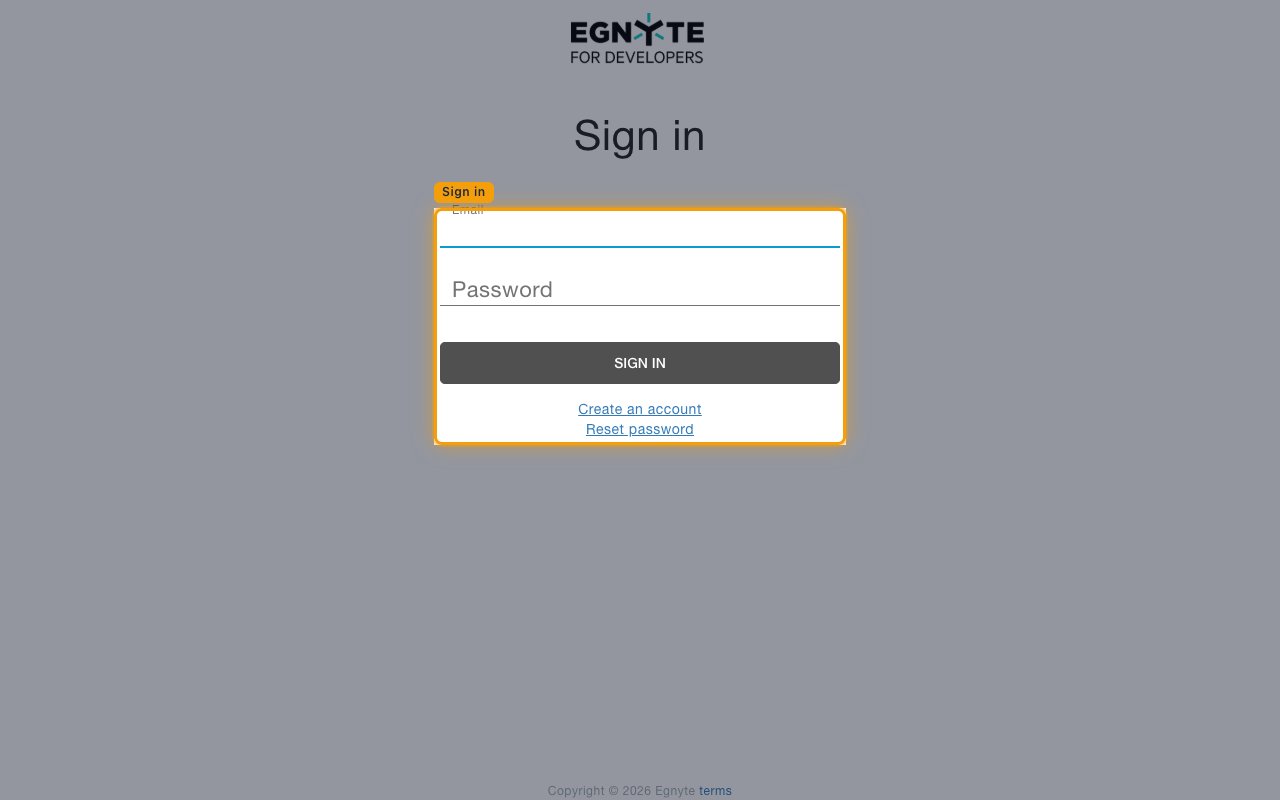
        <p>Open your browser and navigate to the <a href="https://developers.egnyte.com" target="_blank" rel="noopener noreferrer">Egnyte Developer Portal</a>. Click <strong>Sign In</strong> in the top-right corner, then enter your <strong>Email</strong> and <strong>Password</strong> and click <strong>SIGN IN</strong>. Use an account tied to an active Egnyte Domain Admin — API keys requested by a non-admin will be declined.</p>

        <img src="https://mintcdn.com/stackone-60/z1f68Vshj_J7cwjE/connectors/egnyte/images/oauth2-setup-sign-in.png?fit=max&auto=format&n=z1f68Vshj_J7cwjE&q=85&s=55b3e3236529693c4d42a9cd30d4c66e" alt="Egnyte Developer Portal sign-in form with Email and Password fields" width="1280" height="800" data-path="connectors/egnyte/images/oauth2-setup-sign-in.png" />
      </div>
    </Step>

    <Step title="Open the Apps page">
      <div data-guide-step data-guide-scopes="" data-guide-display-scopes-list="">
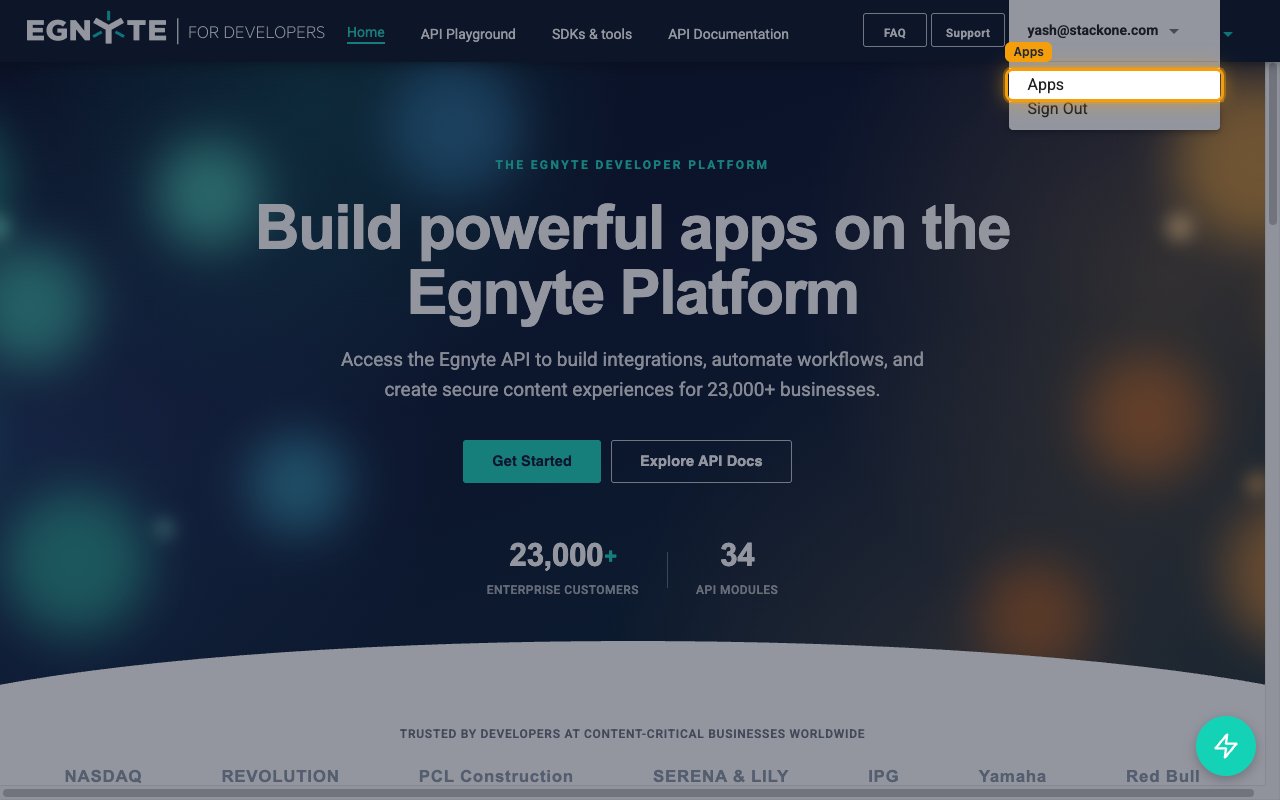
        <p>Click your account email in the top-right corner to open the account dropdown, then click <strong>Apps</strong>. You land on the <strong>My Apps</strong> page.</p>

        <img src="https://mintcdn.com/stackone-60/z1f68Vshj_J7cwjE/connectors/egnyte/images/oauth2-setup-open-apps.png?fit=max&auto=format&n=z1f68Vshj_J7cwjE&q=85&s=66fb6214a01b84d03cc1248b9474a089" alt="Account dropdown showing the Apps menu item on the Egnyte Developer Portal" width="1280" height="800" data-path="connectors/egnyte/images/oauth2-setup-open-apps.png" />
      </div>
    </Step>

    <Step title="Create a new App">
      <div data-guide-step data-guide-scopes="" data-guide-display-scopes-list="">
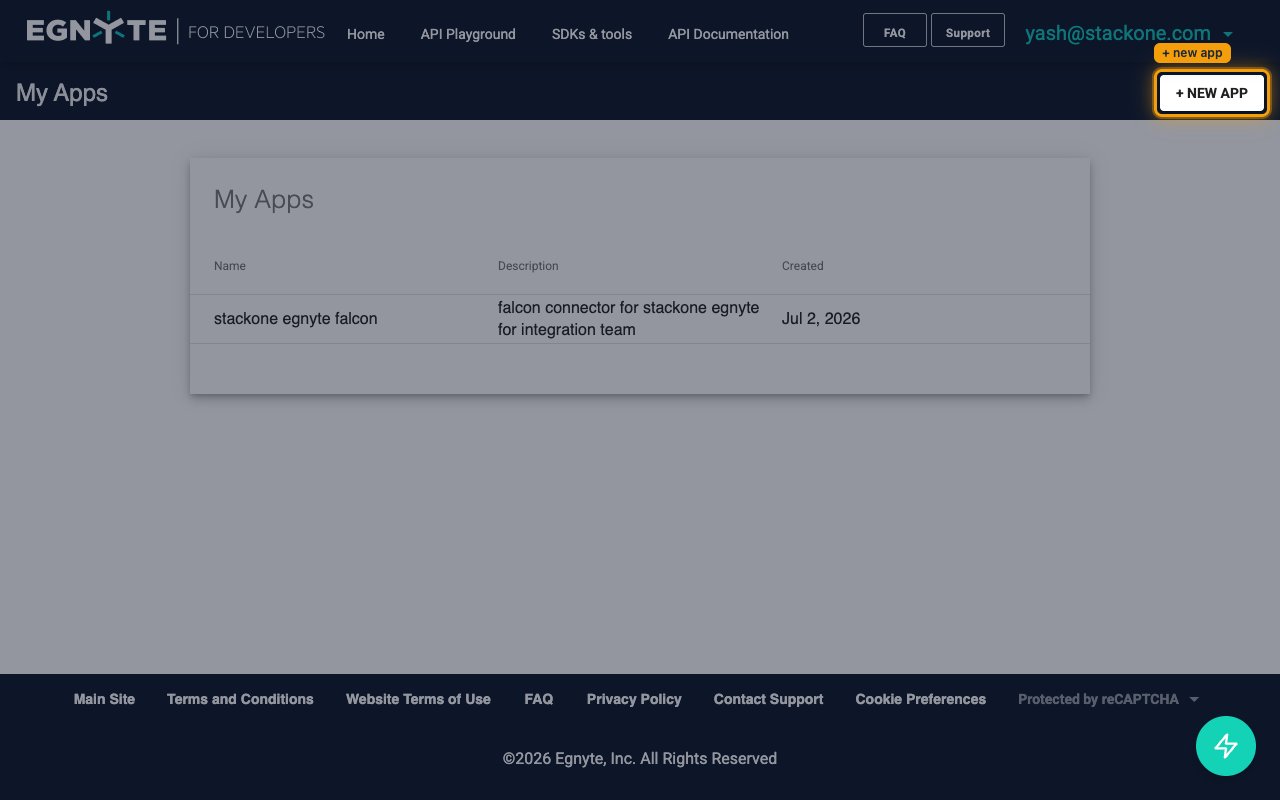
        <p>On the <strong>My Apps</strong> page, click <strong>+ NEW APP</strong> in the top-right corner to open the <strong>New App</strong> form.</p>

        <img src="https://mintcdn.com/stackone-60/z1f68Vshj_J7cwjE/connectors/egnyte/images/oauth2-setup-my-apps.png?fit=max&auto=format&n=z1f68Vshj_J7cwjE&q=85&s=1226ed7d47814ade23fbaca37dc49783" alt="My Apps page with the + NEW APP button in the top-right" width="1280" height="800" data-path="connectors/egnyte/images/oauth2-setup-my-apps.png" />
      </div>
    </Step>

    <Step title="Fill in the app details">
      <div data-guide-step data-guide-scopes="" data-guide-display-scopes-list="">
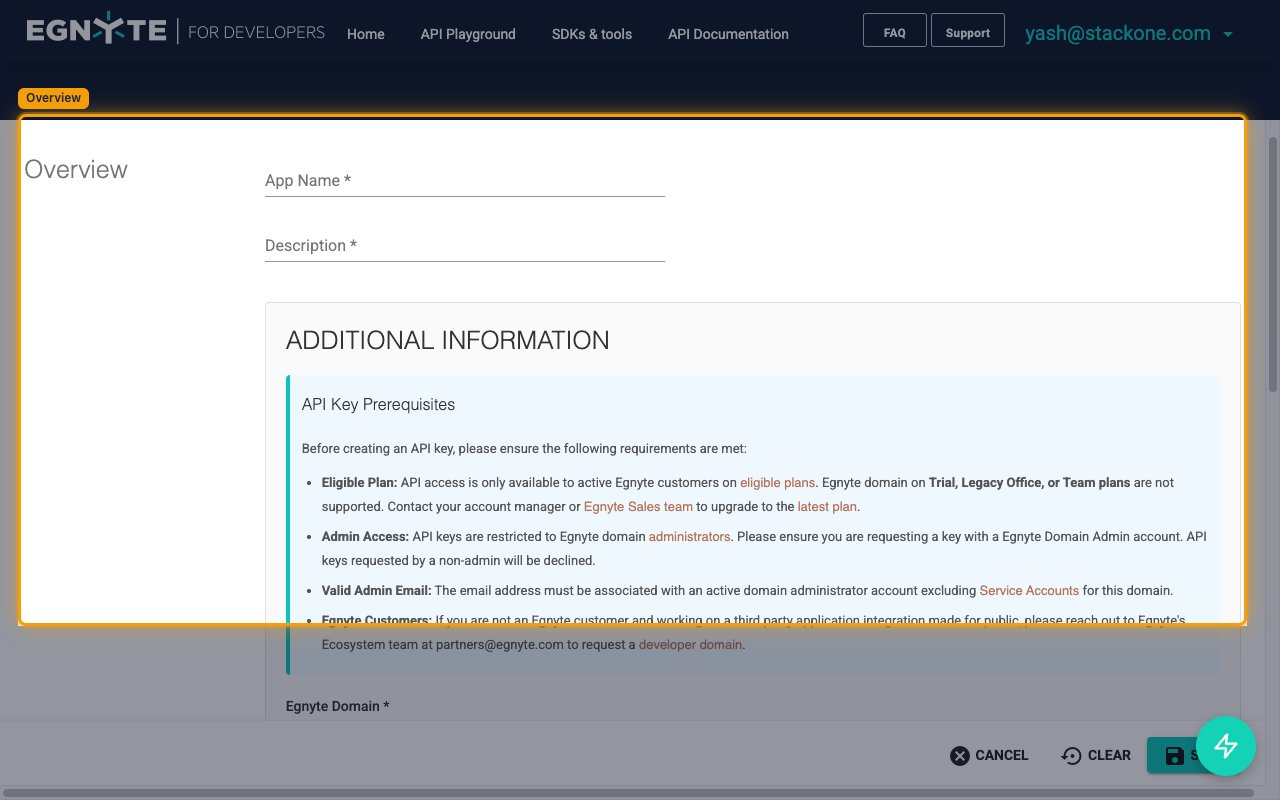
        <p>Complete the <strong>Overview</strong> section of the <strong>New App</strong> form. The <strong>Registered OAuth<br />Redirect URI</strong> field is not required for Internal Applications — leave it blank — and<br /><strong>Current User Base</strong> and <strong>Platform</strong> can stay at their defaults.</p>

        <ul>
          <li><strong>App Name</strong> — a display name for the app (for example, `Internal Integration`).</li>
          <li><strong>Description</strong> — a short description of the integration.</li>
          <li><strong>Egnyte Domain</strong> — the customer's Egnyte subdomain, without the `.egnyte.com` suffix. For example, from `https://acme.egnyte.com` enter `acme`. Trial domains are not eligible for API keys.</li>
          <li><strong>App Icon URL</strong> (optional) — URL to an image file (PNG, max 100px by 100px).</li>
          <li><strong>Type</strong> — choose <strong>Internal Application</strong>. Egnyte reserves this type for apps "built by Egnyte customers for use within their own organization" and enables the Resource Owner Password Credentials grant on the issued key. The Redirect URI is only used by <strong>Publicly Available Application</strong> — leave it blank here.</li>
        </ul>

        <img src="https://mintcdn.com/stackone-60/z1f68Vshj_J7cwjE/connectors/egnyte/images/oauth2-setup-new-app-form.png?fit=max&auto=format&n=z1f68Vshj_J7cwjE&q=85&s=ef6666bb6db0d5361aefbaced7f943a1" alt="Egnyte New App form showing App Name, Description and Additional Information fields" width="1280" height="800" data-path="connectors/egnyte/images/oauth2-setup-new-app-form.png" />
      </div>
    </Step>

    <Step title="Request access to the APIs">
      <div data-guide-step data-guide-scopes="Egnyte.filesystem,Egnyte.permission,Egnyte.link,Egnyte.user,Egnyte.group" data-guide-display-scopes-list="Egnyte.filesystem,Egnyte.permission,Egnyte.link,Egnyte.user,Egnyte.group">
        <div className="connector-guide-actions-badge" data-guide-actions-badge data-guide-actions-badge-scopes="Egnyte.filesystem,Egnyte.permission,Egnyte.link,Egnyte.user,Egnyte.group" style={{ display: 'block', width: 'fit-content', maxWidth: '100%', padding: '2px 8px', borderRadius: '8px', fontSize: '12px', marginBottom: '8px', marginTop: '-10px', whiteSpace: 'nowrap', overflowX: 'auto', overflowY: 'hidden', msOverflowStyle: 'none', scrollbarWidth: 'none' }}>
          <span>Enables actions: </span><span data-guide-actions-badge-labels>Add Comment, Chunked Upload By File ID, Create Group, Create Link (v1), Create User, Delete Comment, Delete File Or Folder (v2), Delete File Or Folder By ID, Delete Group, Delete Link (v1), Delete User, Download File Content By ID, Download File Content By Path, File Or Folder Operation (v2), File Or Folder Operation By ID, Get Comment, Get Effective Permissions For User, Get Events Cursor, Get File Or Folder Metadata (v2), Get File Or Folder Metadata By ID, Get Folder Statistics By ID, Get Group, Get Link (v1), Get User, Get User Info, List Comments, List Events (v2), List Groups, List Links (v2), List Trash Contents (v2), List Users, Modify Folder Options, Partially Update Group, Replace Group, Restore Or Purge Trash Items, Search Files And Folders (v2), Update User, Upload File Content By Path</span>
        </div>

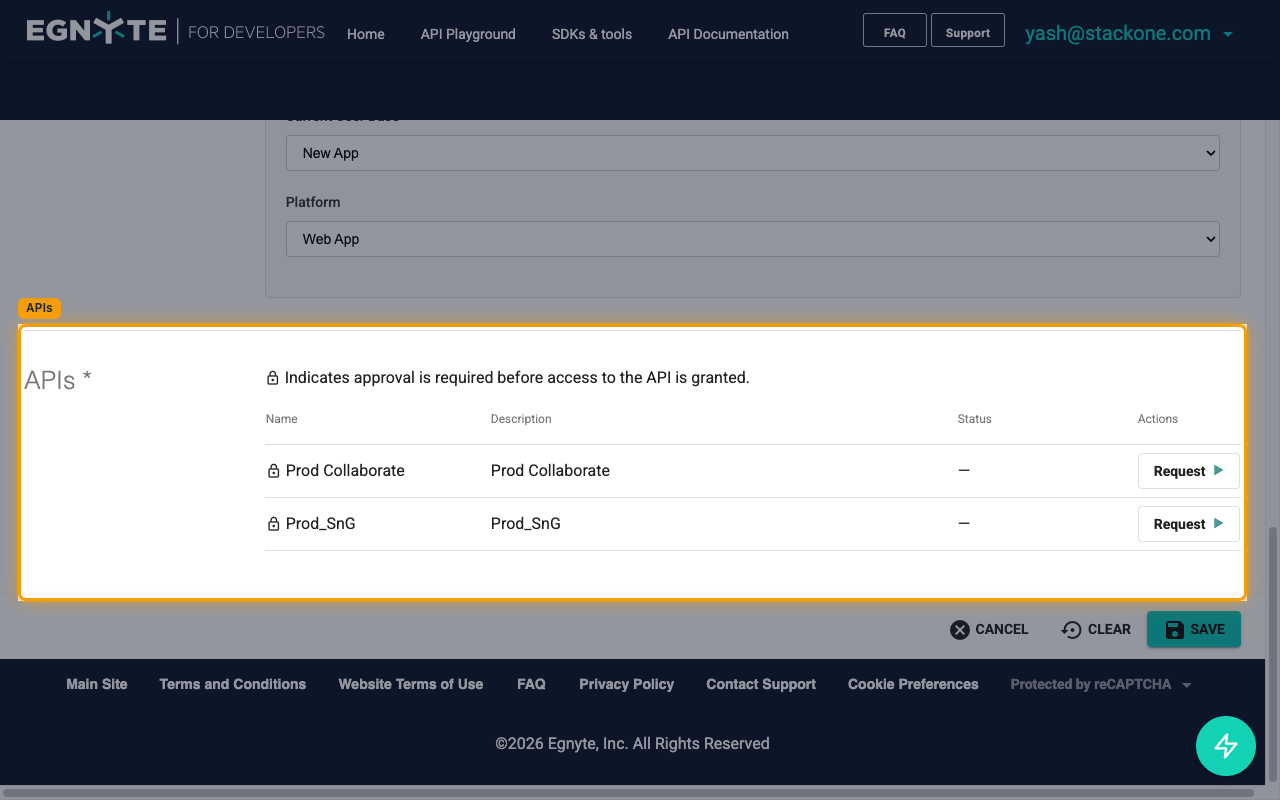
        <p>Scroll to the <strong>APIs</strong> section and click <strong>Request</strong> on the row for <strong>Prod Collaborate</strong> — this API grouping covers filesystem, comments, links, permissions, users, groups, search, trash, and events. Also request <strong>Prod\_SnG</strong> if the integration needs Secure & Govern APIs. Enable the scopes required for your use case:</p>

        <img src="https://mintcdn.com/stackone-60/z1f68Vshj_J7cwjE/connectors/egnyte/images/oauth2-setup-request-apis.png?fit=max&auto=format&n=z1f68Vshj_J7cwjE&q=85&s=46791dfc5a49f3122458d3d508b982fe" alt="APIs section on the New App form showing Prod Collaborate with the Request button" width="1280" height="800" data-path="connectors/egnyte/images/oauth2-setup-request-apis.png" />

        <div style={{ marginTop: '8px' }} data-guide-display-scopes>
          <div className="connector-guide-scopes-container">
            <ul className="not-prose" style={{ listStyleType: "'- '", paddingLeft: '1em', margin: 0 }}>
              <li style={{ overflowWrap: 'anywhere', wordBreak: 'break-word' }} data-guide-display-scope="Egnyte.filesystem">
                <button type="button" className="connector-guide-scope-copy" aria-label="Copy Egnyte.filesystem" title="Copy scope" data-copy="Egnyte.filesystem">
                  <span className="connector-guide-scope-copy__label">Egnyte.filesystem</span>
                  <span className="connector-guide-scope-copy__icon" aria-hidden="true">⧉</span>
                </button>
              </li>

              <li style={{ overflowWrap: 'anywhere', wordBreak: 'break-word' }} data-guide-display-scope="Egnyte.permission">
                <button type="button" className="connector-guide-scope-copy" aria-label="Copy Egnyte.permission" title="Copy scope" data-copy="Egnyte.permission">
                  <span className="connector-guide-scope-copy__label">Egnyte.permission</span>
                  <span className="connector-guide-scope-copy__icon" aria-hidden="true">⧉</span>
                </button>
              </li>

              <li style={{ overflowWrap: 'anywhere', wordBreak: 'break-word' }} data-guide-display-scope="Egnyte.link">
                <button type="button" className="connector-guide-scope-copy" aria-label="Copy Egnyte.link" title="Copy scope" data-copy="Egnyte.link">
                  <span className="connector-guide-scope-copy__label">Egnyte.link</span>
                  <span className="connector-guide-scope-copy__icon" aria-hidden="true">⧉</span>
                </button>
              </li>

              <li style={{ overflowWrap: 'anywhere', wordBreak: 'break-word' }} data-guide-display-scope="Egnyte.user">
                <button type="button" className="connector-guide-scope-copy" aria-label="Copy Egnyte.user" title="Copy scope" data-copy="Egnyte.user">
                  <span className="connector-guide-scope-copy__label">Egnyte.user</span>
                  <span className="connector-guide-scope-copy__icon" aria-hidden="true">⧉</span>
                </button>
              </li>

              <li style={{ overflowWrap: 'anywhere', wordBreak: 'break-word' }} data-guide-display-scope="Egnyte.group">
                <button type="button" className="connector-guide-scope-copy" aria-label="Copy Egnyte.group" title="Copy scope" data-copy="Egnyte.group">
                  <span className="connector-guide-scope-copy__label">Egnyte.group</span>
                  <span className="connector-guide-scope-copy__icon" aria-hidden="true">⧉</span>
                </button>
              </li>
            </ul>
          </div>
        </div>
      </div>
    </Step>

    <Step title="Save the app">
      <div data-guide-step data-guide-scopes="" data-guide-display-scopes-list="">
        <p>Click <strong>SAVE</strong> at the bottom-right of the form. For Internal Applications Egnyte issues the API Key and API Secret immediately with <strong>Status: Approved</strong> — no external review queue applies to internal keys on eligible plans.</p>
      </div>
    </Step>

    <Step title="Copy the API Key and API Secret">
      <div data-guide-step data-guide-scopes="" data-guide-display-scopes-list="">
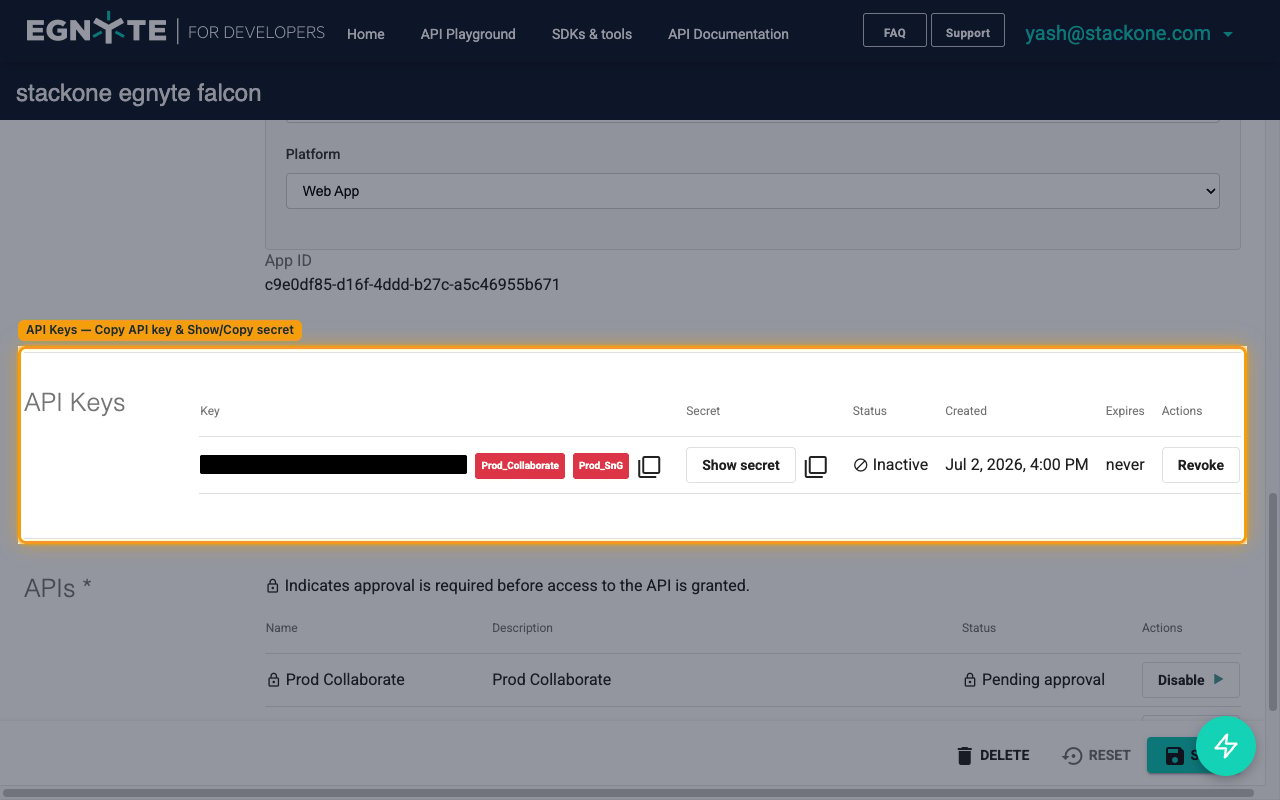
        <p>Open the app from <strong>My Apps</strong> and scroll to the <strong>API Keys</strong> section on the app profile.</p>

        <ul>
          <li>In the <strong>Key</strong> column, click the copy icon (<strong>Copy API key</strong>) to copy the API Key. This value maps to `client_id` in the token request.</li>
          <li>In the <strong>Secret</strong> column, click <strong>Show secret</strong> to reveal the API Secret, then click the copy icon (<strong>Copy secret</strong>) to copy it. This value maps to `client_secret` in the token request. All Egnyte keys issued after January 2015 require a secret.</li>
          <li>Paste the <strong>API Key</strong> into the <strong>API Key</strong> field on the StackOne Linked Account.</li>
          <li>Paste the <strong>API Secret</strong> into the <strong>API Secret</strong> field on the StackOne Linked Account.</li>
        </ul>

        <img src="https://mintcdn.com/stackone-60/z1f68Vshj_J7cwjE/connectors/egnyte/images/oauth2-setup-api-keys.png?fit=max&auto=format&n=z1f68Vshj_J7cwjE&q=85&s=2ecb2117e093f4469b7aa8a421c8d9a5" alt="App profile API Keys section with Copy API key and Show secret controls" width="1280" height="800" data-path="connectors/egnyte/images/oauth2-setup-api-keys.png" />
      </div>
    </Step>
  </Steps>
</section>

<section data-guide-section data-guide-scopes="">
  <h2>Find the Egnyte Domain</h2>

  <p>Every Egnyte account is scoped to a unique subdomain of `egnyte.com`. StackOne needs that subdomain to build the token URL (`https://{domain}.egnyte.com/puboauth/token`) and every subsequent API endpoint.</p>

  <Steps>
    <Step title="Sign in to the Egnyte account">
      <div data-guide-step data-guide-scopes="" data-guide-display-scopes-list="">
        <p>Open your browser and go to the customer's Egnyte sign-in URL — the address they normally use to reach Egnyte, in the form `https://acme.egnyte.com` (replace `acme` with the customer's subdomain).</p>
      </div>
    </Step>

    <Step title="Locate the Egnyte subdomain">
      <div data-guide-step data-guide-scopes="" data-guide-display-scopes-list="">
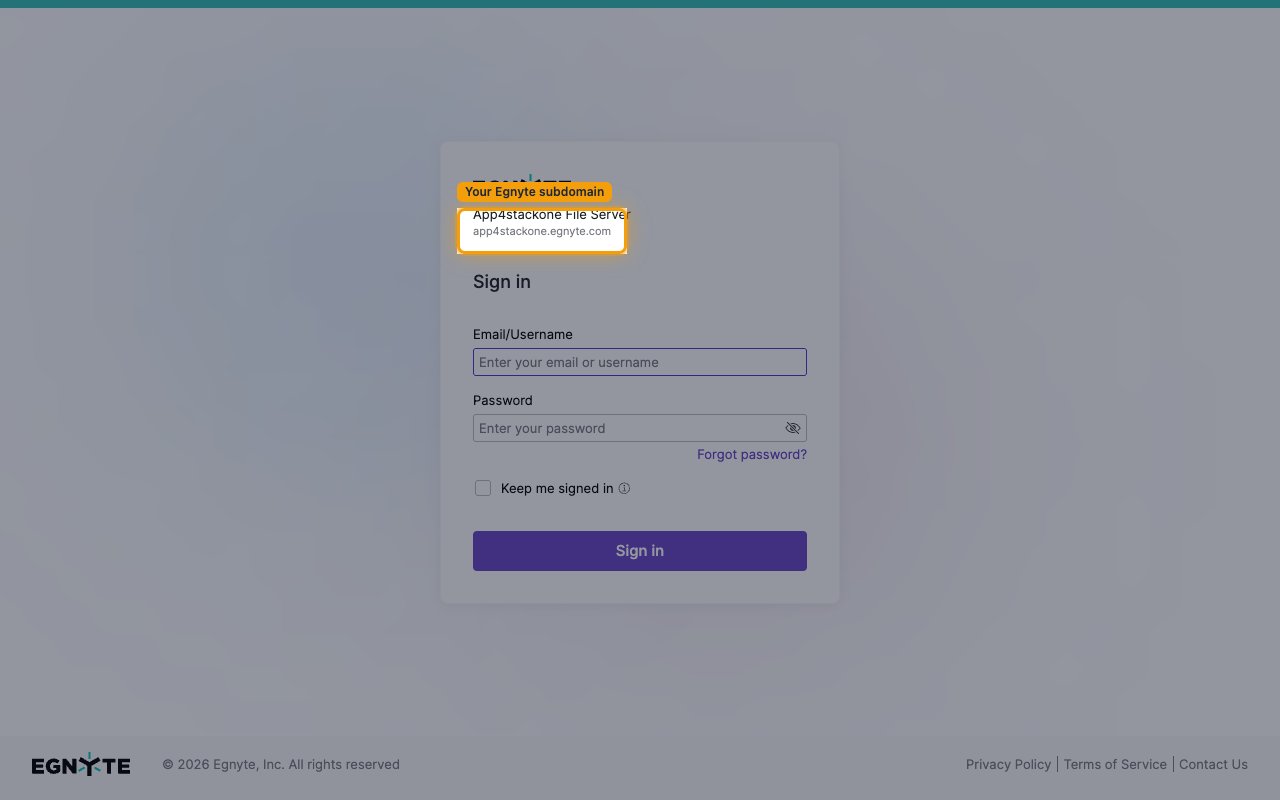
        <p>On the Egnyte <strong>Sign in</strong> page (and in the browser address bar) you will see the workspace URL. The part before `.egnyte.com` is the Egnyte Domain. For example, if the sign-in page shows `app4stackone.egnyte.com`, the Egnyte Domain is `app4stackone`.</p>

        <ul>
          <li>Enter only the subdomain part — omit any scheme prefix, the `.egnyte.com` suffix, and any trailing path.</li>
          <li>The domain contains only letters, numbers, and hyphens — no spaces or special characters.</li>
          <li>Trial domains are not eligible for the Egnyte Public API.</li>
        </ul>

        <img src="https://mintcdn.com/stackone-60/z1f68Vshj_J7cwjE/connectors/egnyte/images/oauth2-config-find-domain.png?fit=max&auto=format&n=z1f68Vshj_J7cwjE&q=85&s=fa8a843ea63043f1bf50e338bbb9e459" alt="Egnyte tenant sign-in page showing the workspace name and the tenant subdomain" width="1280" height="800" data-path="connectors/egnyte/images/oauth2-config-find-domain.png" />
      </div>
    </Step>

    <Step title="Enter the domain on the StackOne Linked Account">
      <div data-guide-step data-guide-scopes="" data-guide-display-scopes-list="">
        <p>Paste the subdomain into the <strong>Egnyte Domain</strong> field on the StackOne Linked Account.</p>
      </div>
    </Step>
  </Steps>
</section>

<section data-guide-section data-guide-scopes="">
  <h2>Prepare Domain Admin credentials for the password grant</h2>

  <p>The Resource Owner Password Credentials grant exchanges a Domain Admin's username and password for a token pair. Prefer a dedicated integration user account so token revocation doesn't disrupt individual admins, and rotate the credentials if they are ever exposed.</p>

  <Steps>
    <Step title="Confirm the account is a Domain Admin">
      <div data-guide-step data-guide-scopes="" data-guide-display-scopes-list="">
        <p>Only Domain Admins on the customer's Egnyte tenant can be exchanged for tokens with the required API scopes. Record the account's Egnyte login <strong>Username</strong> (not email address) and <strong>Password</strong>.</p>
      </div>
    </Step>

    <Step title="Enter the credentials on the StackOne Linked Account">
      <div data-guide-step data-guide-scopes="" data-guide-display-scopes-list="">
        <p>Paste the Domain Admin username into the <strong>Egnyte Username</strong> field and the password into the <strong>Egnyte Password</strong> field. These values are sent as `username` and `password` in the `grant_type=password` request to `/puboauth/token`. If Egnyte returns a `403 INVALID_USERNAME_OR_PASSWORD` error, retest with a password that has no special characters — Egnyte docs flag form-encoding edge cases here.</p>
      </div>
    </Step>
  </Steps>
</section>

<div data-whitelabel-hide>
  <h2>Linking the Account from the Hub</h2>

  <Steps>
    <Step title="Navigate to the Hub">
      Use one of the three <a href="/guides/accounts-section#linking-accounts">Linking Account Methods</a> to access the Hub.
    </Step>

    <Step title="Fill out the fields">
      Fill out the following fields using details from your provider:

      <ul>
        <li><strong>Egnyte Domain</strong></li>
        <li><strong>API Key</strong></li>
        <li><strong>API Secret</strong></li>
        <li><strong>Egnyte Username</strong></li>
        <li><strong>Egnyte Password</strong></li>
        <li><strong>OAuth Scopes</strong> (Optional)</li>
      </ul>
    </Step>

    <Step title="Connect">
      <ul>
        <li>Click <strong>Connect</strong></li>
        <li>If applicable, the provider will redirect you to a sign-in or authorization page. Complete the provider's authorization flow.</li>
        <li>Once authorization is successful, you will see a confirmation popup</li>
      </ul>
    </Step>
  </Steps>

  <p>If the account linking is successful, you will see the newly linked account in your <a href="/guides/accounts-section">Accounts</a> page.</p>
</div>