> ## Documentation Index
> Fetch the complete documentation index at: https://docs.stackone.com/llms.txt
> Use this file to discover all available pages before exploring further.

# Egnyte OAuth 2.0 (Public Application) connector profile – StackOne setup guide

> Set up the OAuth 2.0 (Public Application) connector profile for Egnyte in StackOne. One-time admin setup required before your users can link Egnyte accounts via Hub.

<Warning>You need an Egnyte developer account tied to an active Egnyte Domain Admin. The Egnyte plan must be an eligible plan — <strong>Trial, Legacy Office, or Team plans</strong> are not supported. API keys requested by a non-admin will be declined.</Warning>
<Panel>
  <div className="not-prose guides-scope-selector" data-guides-scope-selector data-guide-actions-json="[{&#x22;id&#x22;:&#x22;egnyte_add_comment&#x22;,&#x22;label&#x22;:&#x22;Add Comment&#x22;,&#x22;scopes&#x22;:[&#x22;Egnyte.filesystem&#x22;]},{&#x22;id&#x22;:&#x22;egnyte_list_comments&#x22;,&#x22;label&#x22;:&#x22;List Comments&#x22;,&#x22;scopes&#x22;:[&#x22;Egnyte.filesystem&#x22;]},{&#x22;id&#x22;:&#x22;egnyte_get_comment&#x22;,&#x22;label&#x22;:&#x22;Get Comment&#x22;,&#x22;scopes&#x22;:[&#x22;Egnyte.filesystem&#x22;]},{&#x22;id&#x22;:&#x22;egnyte_delete_comment&#x22;,&#x22;label&#x22;:&#x22;Delete Comment&#x22;,&#x22;scopes&#x22;:[&#x22;Egnyte.filesystem&#x22;]},{&#x22;id&#x22;:&#x22;egnyte_get_events_cursor_v1&#x22;,&#x22;label&#x22;:&#x22;Get Events Cursor&#x22;,&#x22;scopes&#x22;:[&#x22;Egnyte.filesystem&#x22;]},{&#x22;id&#x22;:&#x22;egnyte_get_events_v2&#x22;,&#x22;label&#x22;:&#x22;List Events (v2)&#x22;,&#x22;scopes&#x22;:[&#x22;Egnyte.filesystem&#x22;]},{&#x22;id&#x22;:&#x22;egnyte_get_fs_v2&#x22;,&#x22;label&#x22;:&#x22;Get File Or Folder Metadata (v2)&#x22;,&#x22;scopes&#x22;:[&#x22;Egnyte.filesystem&#x22;]},{&#x22;id&#x22;:&#x22;egnyte_post_fs_v2&#x22;,&#x22;label&#x22;:&#x22;File Or Folder Operation (v2)&#x22;,&#x22;scopes&#x22;:[&#x22;Egnyte.filesystem&#x22;]},{&#x22;id&#x22;:&#x22;egnyte_delete_fs_v2&#x22;,&#x22;label&#x22;:&#x22;Delete File Or Folder (v2)&#x22;,&#x22;scopes&#x22;:[&#x22;Egnyte.filesystem&#x22;]},{&#x22;id&#x22;:&#x22;egnyte_get_fs_by_id_v1&#x22;,&#x22;label&#x22;:&#x22;Get File Or Folder Metadata By ID&#x22;,&#x22;scopes&#x22;:[&#x22;Egnyte.filesystem&#x22;]},{&#x22;id&#x22;:&#x22;egnyte_post_fs_by_id_v1&#x22;,&#x22;label&#x22;:&#x22;File Or Folder Operation By ID&#x22;,&#x22;scopes&#x22;:[&#x22;Egnyte.filesystem&#x22;]},{&#x22;id&#x22;:&#x22;egnyte_delete_fs_by_id_v1&#x22;,&#x22;label&#x22;:&#x22;Delete File Or Folder By ID&#x22;,&#x22;scopes&#x22;:[&#x22;Egnyte.filesystem&#x22;]},{&#x22;id&#x22;:&#x22;egnyte_get_fs_folder_stats_v1&#x22;,&#x22;label&#x22;:&#x22;Get Folder Statistics By ID&#x22;,&#x22;scopes&#x22;:[&#x22;Egnyte.filesystem&#x22;]},{&#x22;id&#x22;:&#x22;egnyte_get_fs_content_by_path_v1&#x22;,&#x22;label&#x22;:&#x22;Download File Content By Path&#x22;,&#x22;scopes&#x22;:[&#x22;Egnyte.filesystem&#x22;]},{&#x22;id&#x22;:&#x22;egnyte_post_fs_content_by_path_v1&#x22;,&#x22;label&#x22;:&#x22;Upload File Content By Path&#x22;,&#x22;scopes&#x22;:[&#x22;Egnyte.filesystem&#x22;]},{&#x22;id&#x22;:&#x22;egnyte_get_fs_content_by_id_v1&#x22;,&#x22;label&#x22;:&#x22;Download File Content By ID&#x22;,&#x22;scopes&#x22;:[&#x22;Egnyte.filesystem&#x22;]},{&#x22;id&#x22;:&#x22;egnyte_post_fs_content_chunked_by_id_v1&#x22;,&#x22;label&#x22;:&#x22;Chunked Upload By File ID&#x22;,&#x22;scopes&#x22;:[&#x22;Egnyte.filesystem&#x22;]},{&#x22;id&#x22;:&#x22;egnyte_patch_folder_options_v1&#x22;,&#x22;label&#x22;:&#x22;Modify Folder Options&#x22;,&#x22;scopes&#x22;:[&#x22;Egnyte.filesystem&#x22;]},{&#x22;id&#x22;:&#x22;egnyte_get_groups_v2&#x22;,&#x22;label&#x22;:&#x22;List Groups&#x22;,&#x22;scopes&#x22;:[&#x22;Egnyte.group&#x22;]},{&#x22;id&#x22;:&#x22;egnyte_post_groups_v2&#x22;,&#x22;label&#x22;:&#x22;Create Group&#x22;,&#x22;scopes&#x22;:[&#x22;Egnyte.group&#x22;]},{&#x22;id&#x22;:&#x22;egnyte_get_groups_by_id_v2&#x22;,&#x22;label&#x22;:&#x22;Get Group&#x22;,&#x22;scopes&#x22;:[&#x22;Egnyte.group&#x22;]},{&#x22;id&#x22;:&#x22;egnyte_put_groups_by_id_v2&#x22;,&#x22;label&#x22;:&#x22;Replace Group&#x22;,&#x22;scopes&#x22;:[&#x22;Egnyte.group&#x22;]},{&#x22;id&#x22;:&#x22;egnyte_patch_groups_by_id_v2&#x22;,&#x22;label&#x22;:&#x22;Partially Update Group&#x22;,&#x22;scopes&#x22;:[&#x22;Egnyte.group&#x22;]},{&#x22;id&#x22;:&#x22;egnyte_delete_groups_by_id_v2&#x22;,&#x22;label&#x22;:&#x22;Delete Group&#x22;,&#x22;scopes&#x22;:[&#x22;Egnyte.group&#x22;]},{&#x22;id&#x22;:&#x22;egnyte_get_links_v2&#x22;,&#x22;label&#x22;:&#x22;List Links (v2)&#x22;,&#x22;scopes&#x22;:[&#x22;Egnyte.link&#x22;]},{&#x22;id&#x22;:&#x22;egnyte_post_links_v1&#x22;,&#x22;label&#x22;:&#x22;Create Link (v1)&#x22;,&#x22;scopes&#x22;:[&#x22;Egnyte.link&#x22;]},{&#x22;id&#x22;:&#x22;egnyte_get_links_by_id_v1&#x22;,&#x22;label&#x22;:&#x22;Get Link (v1)&#x22;,&#x22;scopes&#x22;:[&#x22;Egnyte.link&#x22;]},{&#x22;id&#x22;:&#x22;egnyte_delete_links_by_id_v1&#x22;,&#x22;label&#x22;:&#x22;Delete Link (v1)&#x22;,&#x22;scopes&#x22;:[&#x22;Egnyte.link&#x22;]},{&#x22;id&#x22;:&#x22;egnyte_get_effective_permissions_for_user&#x22;,&#x22;label&#x22;:&#x22;Get Effective Permissions For User&#x22;,&#x22;scopes&#x22;:[&#x22;Egnyte.permission&#x22;]},{&#x22;id&#x22;:&#x22;egnyte_search_v2_post&#x22;,&#x22;label&#x22;:&#x22;Search Files And Folders (v2)&#x22;,&#x22;scopes&#x22;:[&#x22;Egnyte.filesystem&#x22;]},{&#x22;id&#x22;:&#x22;egnyte_get_userinfo&#x22;,&#x22;label&#x22;:&#x22;Get User Info&#x22;,&#x22;scopes&#x22;:[&#x22;Egnyte.filesystem&#x22;]},{&#x22;id&#x22;:&#x22;egnyte_trash_action&#x22;,&#x22;label&#x22;:&#x22;Restore Or Purge Trash Items&#x22;,&#x22;scopes&#x22;:[&#x22;Egnyte.filesystem&#x22;]},{&#x22;id&#x22;:&#x22;egnyte_list_trash_v2&#x22;,&#x22;label&#x22;:&#x22;List Trash Contents (v2)&#x22;,&#x22;scopes&#x22;:[&#x22;Egnyte.filesystem&#x22;]},{&#x22;id&#x22;:&#x22;egnyte_list_users&#x22;,&#x22;label&#x22;:&#x22;List Users&#x22;,&#x22;scopes&#x22;:[&#x22;Egnyte.user&#x22;]},{&#x22;id&#x22;:&#x22;egnyte_create_user&#x22;,&#x22;label&#x22;:&#x22;Create User&#x22;,&#x22;scopes&#x22;:[&#x22;Egnyte.user&#x22;]},{&#x22;id&#x22;:&#x22;egnyte_get_user&#x22;,&#x22;label&#x22;:&#x22;Get User&#x22;,&#x22;scopes&#x22;:[&#x22;Egnyte.user&#x22;]},{&#x22;id&#x22;:&#x22;egnyte_update_user&#x22;,&#x22;label&#x22;:&#x22;Update User&#x22;,&#x22;scopes&#x22;:[&#x22;Egnyte.user&#x22;]},{&#x22;id&#x22;:&#x22;egnyte_delete_user&#x22;,&#x22;label&#x22;:&#x22;Delete User&#x22;,&#x22;scopes&#x22;:[&#x22;Egnyte.user&#x22;]}]" style={{ borderRadius: '8px', padding: '16px', marginBottom: '24px' }}>
    <div className="guides-scope-selector__title" style={{ fontSize: '16px', fontWeight: '600', marginBottom: '12px' }}>Select Actions to adjust the guide</div>
    <div className="guides-scope-selector__muted" style={{ fontSize: '13px', marginBottom: '12px' }}>Some actions may require additional configuration in the provider to be accessible. Choose the actions you need and the guide will be updated.</div>

    <div style={{ display: 'flex', gap: '8px', marginBottom: '12px', flexWrap: 'wrap' }}>
      <input type="text" placeholder="Search actions..." className="guides-scope-selector__input" data-guide-action-search style={{ padding: '8px 12px', borderRadius: '6px', fontSize: '13px', flex: 1, minWidth: '160px' }} />

      <button type="button" className="guides-scope-selector__quick-btn" data-guide-select-all style={{ padding: '6px 10px', borderRadius: '6px', fontSize: '12px', cursor: 'pointer' }}>Select all</button>
      <button type="button" className="guides-scope-selector__quick-btn" data-guide-clear style={{ padding: '6px 10px', borderRadius: '6px', fontSize: '12px', cursor: 'pointer' }}>Clear</button>
    </div>

    <div className="guides-scope-selector__list" style={{ maxHeight: '240px', overflowY: 'auto', borderRadius: '6px', marginBottom: '12px' }}>
      <div className="guides-scope-selector__list-header" style={{ display: 'flex', alignItems: 'center', gap: '10px', padding: '8px 12px', fontSize: '12px', fontWeight: '600', position: 'sticky', top: 0, zIndex: 1 }}>
        <div style={{ width: '16px', flexShrink: 0 }} />

        <div style={{ flex: 1, textAlign: 'left' }}>Action</div>
        <div style={{ minWidth: '120px', marginLeft: 'auto', textAlign: 'right' }}>Scope(s)</div>
      </div>

      <div className="guides-scope-selector__muted" data-guide-loading style={{ padding: '16px', textAlign: 'center', fontSize: '13px' }}>Loading actions...</div>
      <div className="guides-scope-selector__muted" data-guide-no-results hidden style={{ padding: '16px', textAlign: 'center', fontSize: '13px' }}>No actions match your search.</div>
    </div>

    <div className="guides-scope-selector__url-section" style={{ marginTop: '12px', paddingTop: '12px' }}>
      <div className="guides-scope-selector__muted" style={{ fontSize: '12px', fontWeight: '500', marginBottom: '6px' }}>Dynamic Guide URL</div>

      <div style={{ display: 'flex', alignItems: 'center', gap: '8px', flexWrap: 'wrap' }}>
        <input type="text" readOnly className="guides-scope-selector__input" data-guide-url style={{ flex: 1, minWidth: '200px', padding: '8px 10px', borderRadius: '6px', fontSize: '12px', fontFamily: 'monospace' }} />

        <button type="button" className="guides-scope-selector__copy-btn" data-guide-copy-url style={{ width: '120px', padding: '8px 14px', borderRadius: '6px', fontSize: '13px', fontWeight: '500', cursor: 'pointer', whiteSpace: 'nowrap', marginLeft: 'auto' }}>Copy URL</button>
      </div>

      <div style={{ marginTop: '12px' }}>
        <div className="guides-scope-selector__muted" style={{ fontSize: '12px', fontWeight: '500', marginBottom: '6px' }}>Scopes Selected</div>

        <div style={{ display: 'flex', alignItems: 'stretch', gap: '8px', flexWrap: 'wrap' }}>
          <pre className="guides-scope-selector__input" role="textbox" aria-readonly="true" tabIndex={0} data-guide-scopes-output style={{ flex: 1, minWidth: '200px', minHeight: '88px', maxHeight: '120px', overflowY: 'auto', margin: 0, padding: '8px 10px', borderRadius: '6px', fontSize: '12px', fontFamily: 'monospace', whiteSpace: 'pre-wrap' }} />

          <div className="guides-scope-selector__muted" style={{ display: 'flex', flexDirection: 'column', gap: '8px', fontSize: '12px', fontWeight: '500', flexShrink: 0, alignItems: 'flex-start' }}>
            <div style={{ whiteSpace: 'nowrap' }}>Separator</div>

            <select className="guides-scope-selector__input" data-guide-scope-delimiter style={{ width: '100%', padding: '6px 10px', borderRadius: '6px', fontSize: '12px' }}>
              <option value="space">Space</option>
              <option value="comma">Comma</option>
              <option value="semicolon">Semicolon</option>
              <option value="pipe">Pipe</option>
              <option value="newline">Newline</option>
            </select>

            <button type="button" className="guides-scope-selector__copy-btn" data-guide-copy-scopes style={{ width: '120px', padding: '8px 14px', borderRadius: '6px', fontSize: '13px', fontWeight: '500', cursor: 'pointer', whiteSpace: 'nowrap' }}>Copy scopes</button>
          </div>
        </div>
      </div>
    </div>
  </div>
</Panel>

<section data-guide-section data-guide-scopes="">
  <h2>Register a new App on the Egnyte Developer Portal</h2>

  <p>To connect Egnyte with StackOne you need to create an App with OAuth 2.0 authentication in the Egnyte Developer Portal. This will generate the <strong>API Key</strong> and <strong>API Secret</strong> required for integration, which map to `client_id` and `client_secret` in OAuth requests.</p>

  <Steps>
    <Step title="Sign in to the Egnyte Developer Portal">
      <div data-guide-step data-guide-scopes="" data-guide-display-scopes-list="">
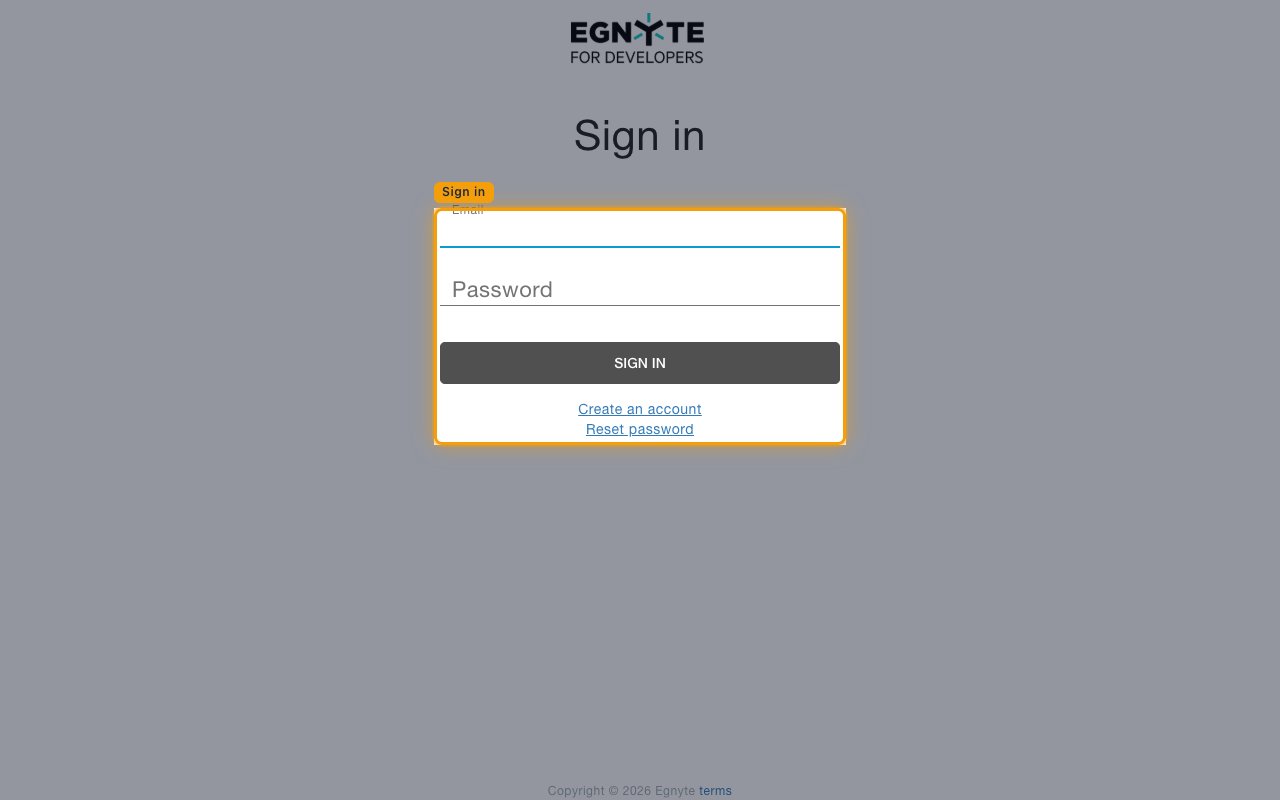
        <p>Open your browser and navigate to the <a href="https://developers.egnyte.com" target="_blank" rel="noopener noreferrer">Egnyte Developer Portal</a>. Click <strong>Sign In</strong> in the top-right corner, then enter your <strong>Email</strong> and <strong>Password</strong> and click <strong>SIGN IN</strong>. Use an account tied to an active Egnyte Domain Admin.</p>

        <img src="https://mintcdn.com/stackone-60/z1f68Vshj_J7cwjE/connectors/egnyte/images/oauth2-setup-sign-in.png?fit=max&auto=format&n=z1f68Vshj_J7cwjE&q=85&s=55b3e3236529693c4d42a9cd30d4c66e" alt="Egnyte Developer Portal sign-in form with Email and Password fields" width="1280" height="800" data-path="connectors/egnyte/images/oauth2-setup-sign-in.png" />
      </div>
    </Step>

    <Step title="Open the Apps page">
      <div data-guide-step data-guide-scopes="" data-guide-display-scopes-list="">
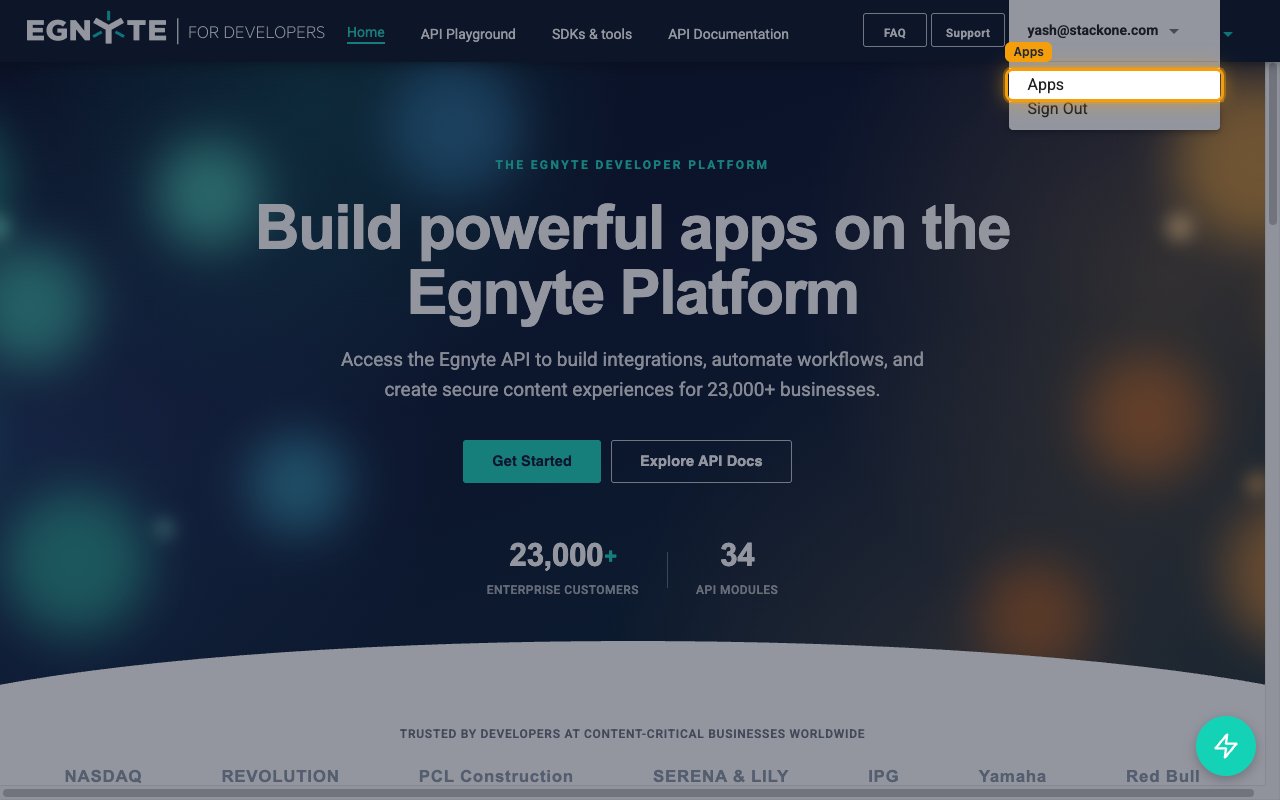
        <p>Click your account email in the top-right corner to open the account dropdown, then click <strong>Apps</strong>. You land on the <strong>My Apps</strong> page.</p>

        <img src="https://mintcdn.com/stackone-60/z1f68Vshj_J7cwjE/connectors/egnyte/images/oauth2-setup-open-apps.png?fit=max&auto=format&n=z1f68Vshj_J7cwjE&q=85&s=66fb6214a01b84d03cc1248b9474a089" alt="Account dropdown showing the Apps menu item on the Egnyte Developer Portal" width="1280" height="800" data-path="connectors/egnyte/images/oauth2-setup-open-apps.png" />
      </div>
    </Step>

    <Step title="Create a new App">
      <div data-guide-step data-guide-scopes="" data-guide-display-scopes-list="">
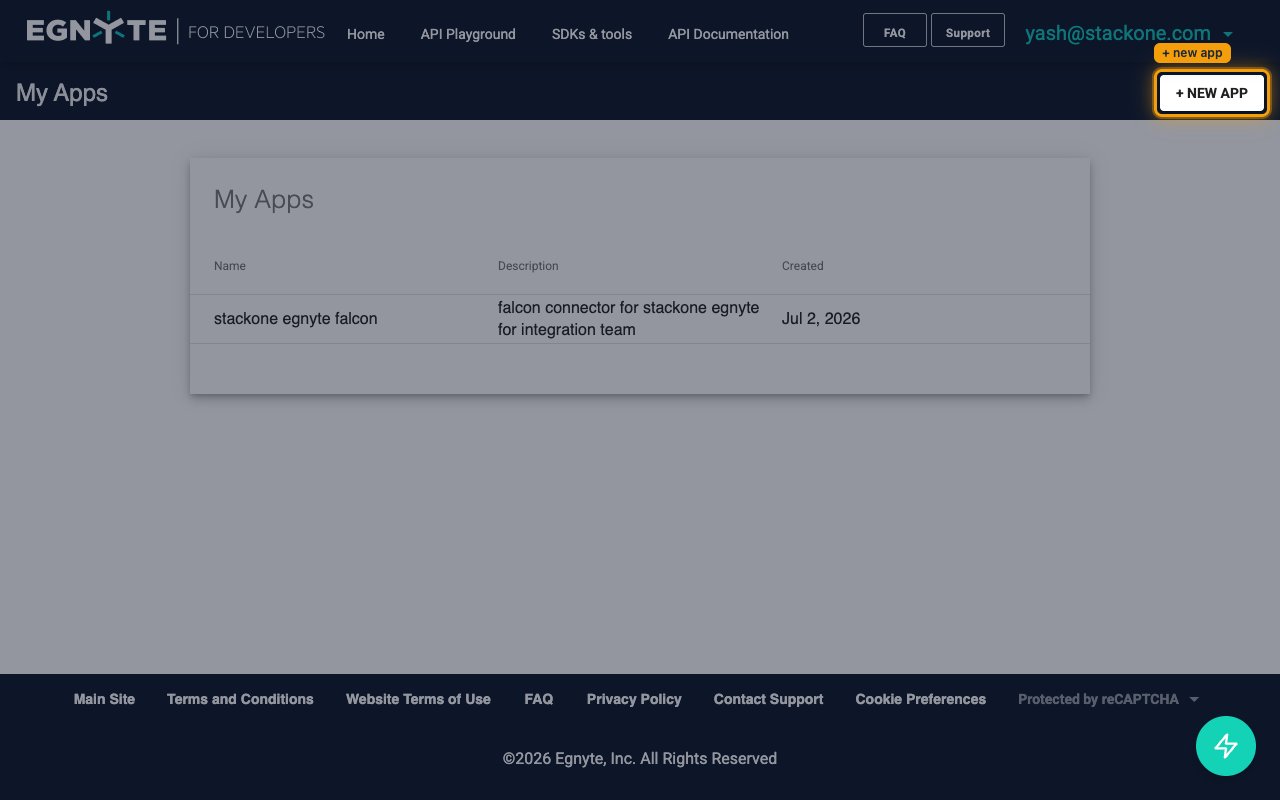
        <p>On the <strong>My Apps</strong> page, click <strong>+ NEW APP</strong> in the top-right corner to open the <strong>New App</strong> form.</p>

        <img src="https://mintcdn.com/stackone-60/z1f68Vshj_J7cwjE/connectors/egnyte/images/oauth2-setup-my-apps.png?fit=max&auto=format&n=z1f68Vshj_J7cwjE&q=85&s=1226ed7d47814ade23fbaca37dc49783" alt="My Apps page with the + NEW APP button in the top-right" width="1280" height="800" data-path="connectors/egnyte/images/oauth2-setup-my-apps.png" />
      </div>
    </Step>

    <Step title="Fill in the app details">
      <div data-guide-step data-guide-scopes="" data-guide-display-scopes-list="">
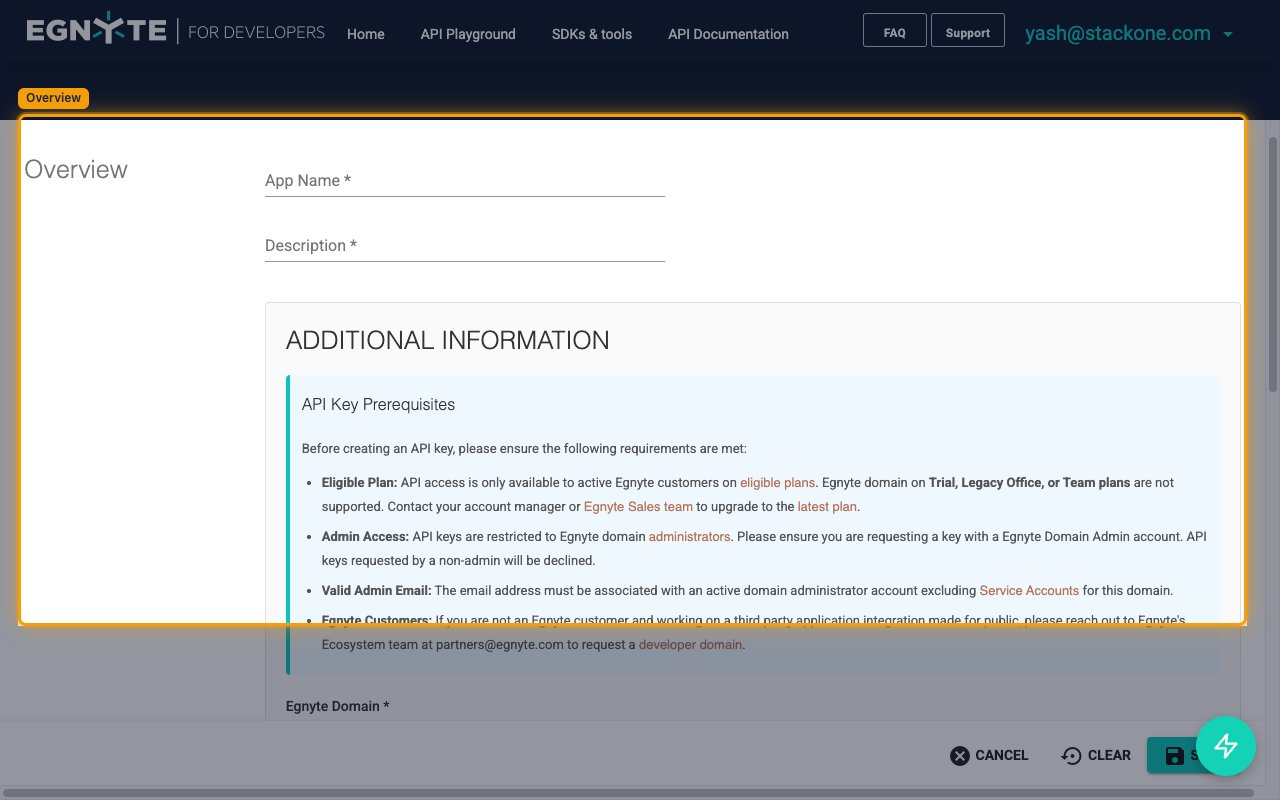
        <p>Complete the <strong>Overview</strong> section of the <strong>New App</strong> form.</p>

        <ul>
          <li><strong>App Name</strong> — a display name for the app (for example, `StackOne Integration`).</li>
          <li><strong>Description</strong> — a short description of the integration.</li>
          <li><strong>Egnyte Domain</strong> — the customer's Egnyte subdomain, without the `.egnyte.com` suffix. For example, from `https://acme.egnyte.com` enter `acme`. Trial domains are not eligible for API keys.</li>
          <li><strong>App Icon URL</strong> (optional) — URL to an image file (PNG, max 100px by 100px).</li>
          <li><strong>Type</strong> — choose <strong>Publicly Available Application</strong>.</li>
          <li>Leave <strong>Current User Base</strong> and <strong>Platform</strong> at their defaults, or set them to values that match your integration.</li>
        </ul>

        <img src="https://mintcdn.com/stackone-60/z1f68Vshj_J7cwjE/connectors/egnyte/images/oauth2-setup-new-app-form.png?fit=max&auto=format&n=z1f68Vshj_J7cwjE&q=85&s=ef6666bb6db0d5361aefbaced7f943a1" alt="Egnyte New App form showing App Name, Description and Additional Information fields" width="1280" height="800" data-path="connectors/egnyte/images/oauth2-setup-new-app-form.png" />
      </div>
    </Step>

    <Step title="Set the OAuth Redirect URI">
      <div data-guide-step data-guide-scopes="" data-guide-display-scopes-list="">
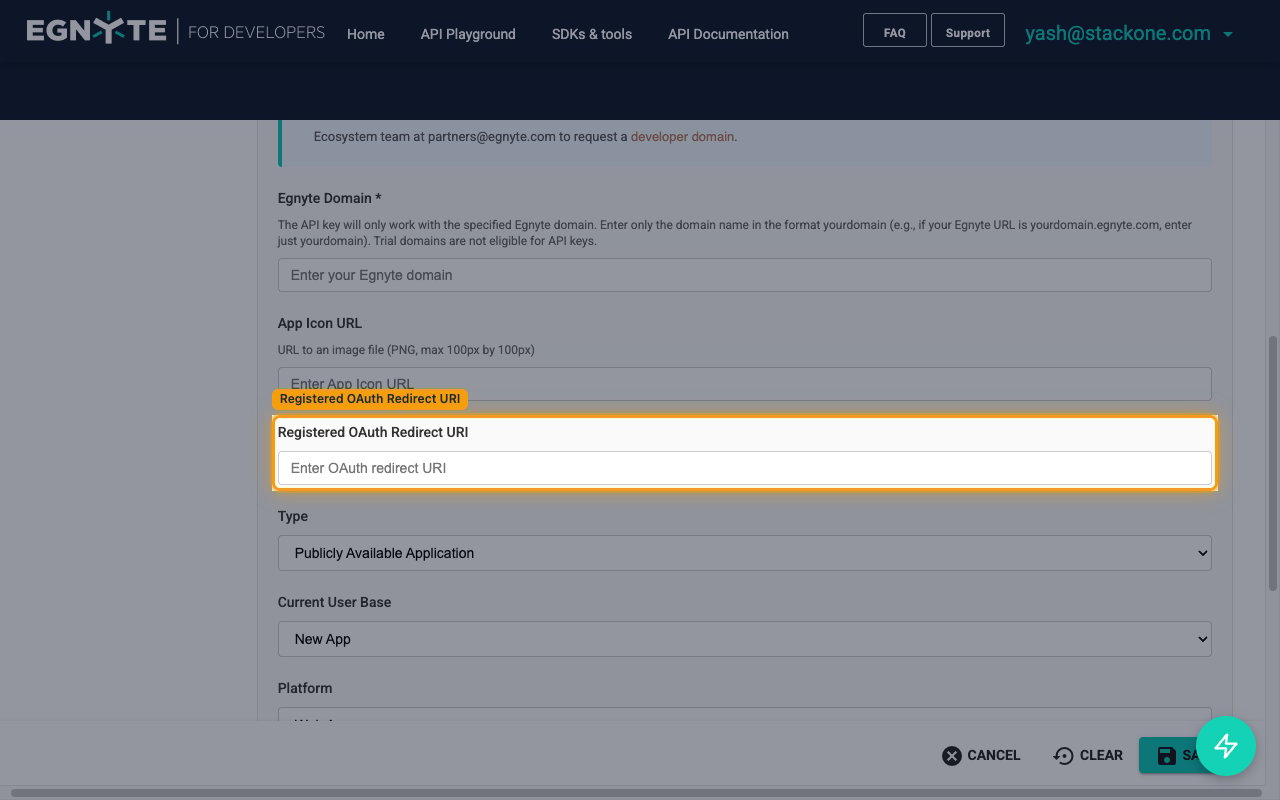
        <p>In the <strong>Registered OAuth Redirect URI</strong> field, enter the StackOne callback so Egnyte can redirect users back to StackOne after authentication.</p>

        <ul>
          <li>Paste `https://api.stackone.com/connect/oauth2/egnyte/callback` into <strong>Registered OAuth Redirect URI</strong>.</li>
        </ul>

        <img src="https://mintcdn.com/stackone-60/z1f68Vshj_J7cwjE/connectors/egnyte/images/oauth2-setup-redirect-uri.png?fit=max&auto=format&n=z1f68Vshj_J7cwjE&q=85&s=8e972a7fc41a641a9fb0c8f58ca73477" alt="Registered OAuth Redirect URI field on the New App form" width="1280" height="800" data-path="connectors/egnyte/images/oauth2-setup-redirect-uri.png" />
      </div>
    </Step>

    <Step title="Request access to the APIs">
      <div data-guide-step data-guide-scopes="Egnyte.filesystem,Egnyte.permission,Egnyte.link,Egnyte.user,Egnyte.group" data-guide-display-scopes-list="Egnyte.filesystem,Egnyte.permission,Egnyte.link,Egnyte.user,Egnyte.group">
        <div className="connector-guide-actions-badge" data-guide-actions-badge data-guide-actions-badge-scopes="Egnyte.filesystem,Egnyte.permission,Egnyte.link,Egnyte.user,Egnyte.group" style={{ display: 'block', width: 'fit-content', maxWidth: '100%', padding: '2px 8px', borderRadius: '8px', fontSize: '12px', marginBottom: '8px', marginTop: '-10px', whiteSpace: 'nowrap', overflowX: 'auto', overflowY: 'hidden', msOverflowStyle: 'none', scrollbarWidth: 'none' }}>
          <span>Enables actions: </span><span data-guide-actions-badge-labels>Add Comment, Chunked Upload By File ID, Create Group, Create Link (v1), Create User, Delete Comment, Delete File Or Folder (v2), Delete File Or Folder By ID, Delete Group, Delete Link (v1), Delete User, Download File Content By ID, Download File Content By Path, File Or Folder Operation (v2), File Or Folder Operation By ID, Get Comment, Get Effective Permissions For User, Get Events Cursor, Get File Or Folder Metadata (v2), Get File Or Folder Metadata By ID, Get Folder Statistics By ID, Get Group, Get Link (v1), Get User, Get User Info, List Comments, List Events (v2), List Groups, List Links (v2), List Trash Contents (v2), List Users, Modify Folder Options, Partially Update Group, Replace Group, Restore Or Purge Trash Items, Search Files And Folders (v2), Update User, Upload File Content By Path</span>
        </div>

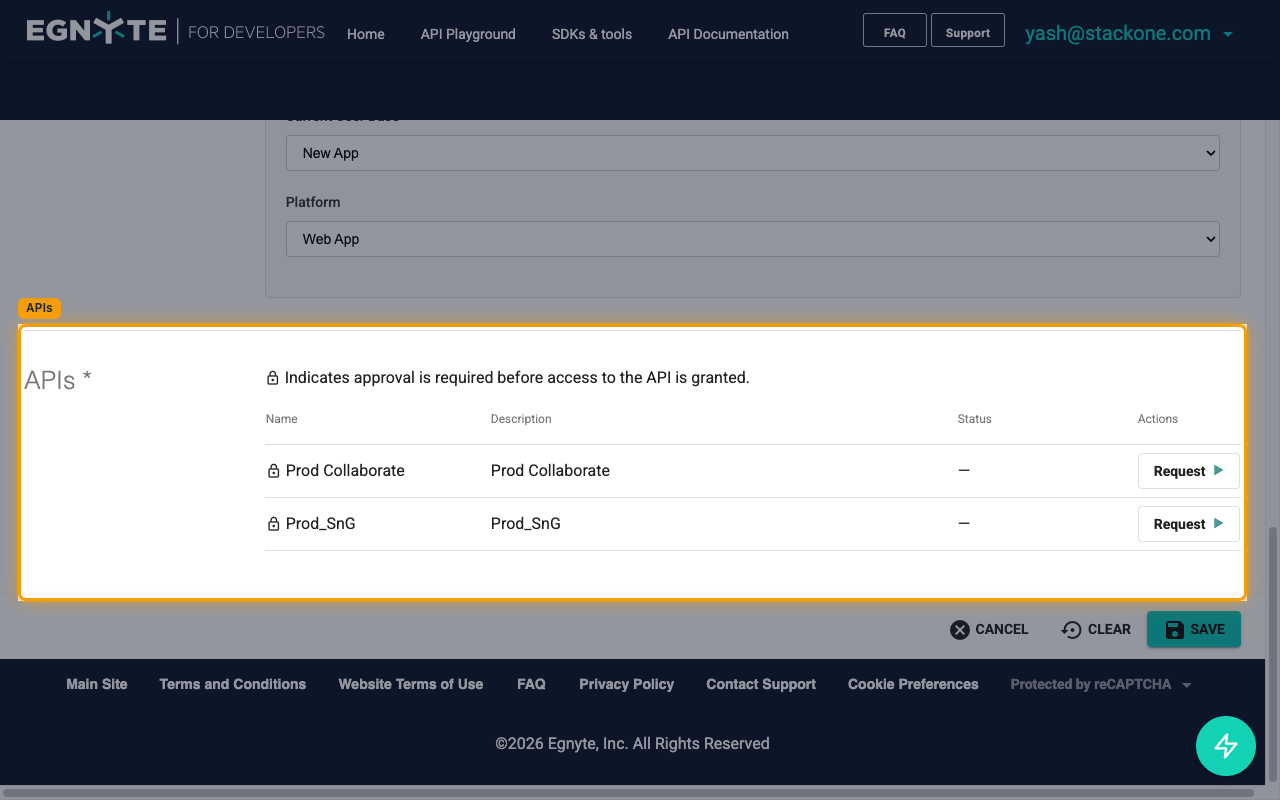
        <p>Scroll to the <strong>APIs</strong> section. A locked padlock indicates approval is required before access to the API is granted. Click <strong>Request</strong> on the row for <strong>Prod Collaborate</strong> — this API grouping covers filesystem, comments, links, permissions, users, groups, search, trash, and events. Enable the scopes required for your use case:</p>

        <img src="https://mintcdn.com/stackone-60/z1f68Vshj_J7cwjE/connectors/egnyte/images/oauth2-setup-request-apis.png?fit=max&auto=format&n=z1f68Vshj_J7cwjE&q=85&s=46791dfc5a49f3122458d3d508b982fe" alt="APIs section on the New App form showing Prod Collaborate with the Request button" width="1280" height="800" data-path="connectors/egnyte/images/oauth2-setup-request-apis.png" />

        <div style={{ marginTop: '8px' }} data-guide-display-scopes>
          <div className="connector-guide-scopes-container">
            <ul className="not-prose" style={{ listStyleType: "'- '", paddingLeft: '1em', margin: 0 }}>
              <li style={{ overflowWrap: 'anywhere', wordBreak: 'break-word' }} data-guide-display-scope="Egnyte.filesystem">
                <button type="button" className="connector-guide-scope-copy" aria-label="Copy Egnyte.filesystem" title="Copy scope" data-copy="Egnyte.filesystem">
                  <span className="connector-guide-scope-copy__label">Egnyte.filesystem</span>
                  <span className="connector-guide-scope-copy__icon" aria-hidden="true">⧉</span>
                </button>
              </li>

              <li style={{ overflowWrap: 'anywhere', wordBreak: 'break-word' }} data-guide-display-scope="Egnyte.permission">
                <button type="button" className="connector-guide-scope-copy" aria-label="Copy Egnyte.permission" title="Copy scope" data-copy="Egnyte.permission">
                  <span className="connector-guide-scope-copy__label">Egnyte.permission</span>
                  <span className="connector-guide-scope-copy__icon" aria-hidden="true">⧉</span>
                </button>
              </li>

              <li style={{ overflowWrap: 'anywhere', wordBreak: 'break-word' }} data-guide-display-scope="Egnyte.link">
                <button type="button" className="connector-guide-scope-copy" aria-label="Copy Egnyte.link" title="Copy scope" data-copy="Egnyte.link">
                  <span className="connector-guide-scope-copy__label">Egnyte.link</span>
                  <span className="connector-guide-scope-copy__icon" aria-hidden="true">⧉</span>
                </button>
              </li>

              <li style={{ overflowWrap: 'anywhere', wordBreak: 'break-word' }} data-guide-display-scope="Egnyte.user">
                <button type="button" className="connector-guide-scope-copy" aria-label="Copy Egnyte.user" title="Copy scope" data-copy="Egnyte.user">
                  <span className="connector-guide-scope-copy__label">Egnyte.user</span>
                  <span className="connector-guide-scope-copy__icon" aria-hidden="true">⧉</span>
                </button>
              </li>

              <li style={{ overflowWrap: 'anywhere', wordBreak: 'break-word' }} data-guide-display-scope="Egnyte.group">
                <button type="button" className="connector-guide-scope-copy" aria-label="Copy Egnyte.group" title="Copy scope" data-copy="Egnyte.group">
                  <span className="connector-guide-scope-copy__label">Egnyte.group</span>
                  <span className="connector-guide-scope-copy__icon" aria-hidden="true">⧉</span>
                </button>
              </li>
            </ul>
          </div>
        </div>
      </div>
    </Step>

    <Step title="Save the app">
      <div data-guide-step data-guide-scopes="" data-guide-display-scopes-list="">
        <p>Click <strong>SAVE</strong> at the bottom-right of the form. The app is submitted and its API key is issued in <strong>Inactive</strong> status. Egnyte reviews the request; once the requested APIs move from <strong>Pending approval</strong> to approved, the key status flips to <strong>Active</strong> and you can use it.</p>
      </div>
    </Step>

    <Step title="Copy the API Key and API Secret">
      <div data-guide-step data-guide-scopes="" data-guide-display-scopes-list="">
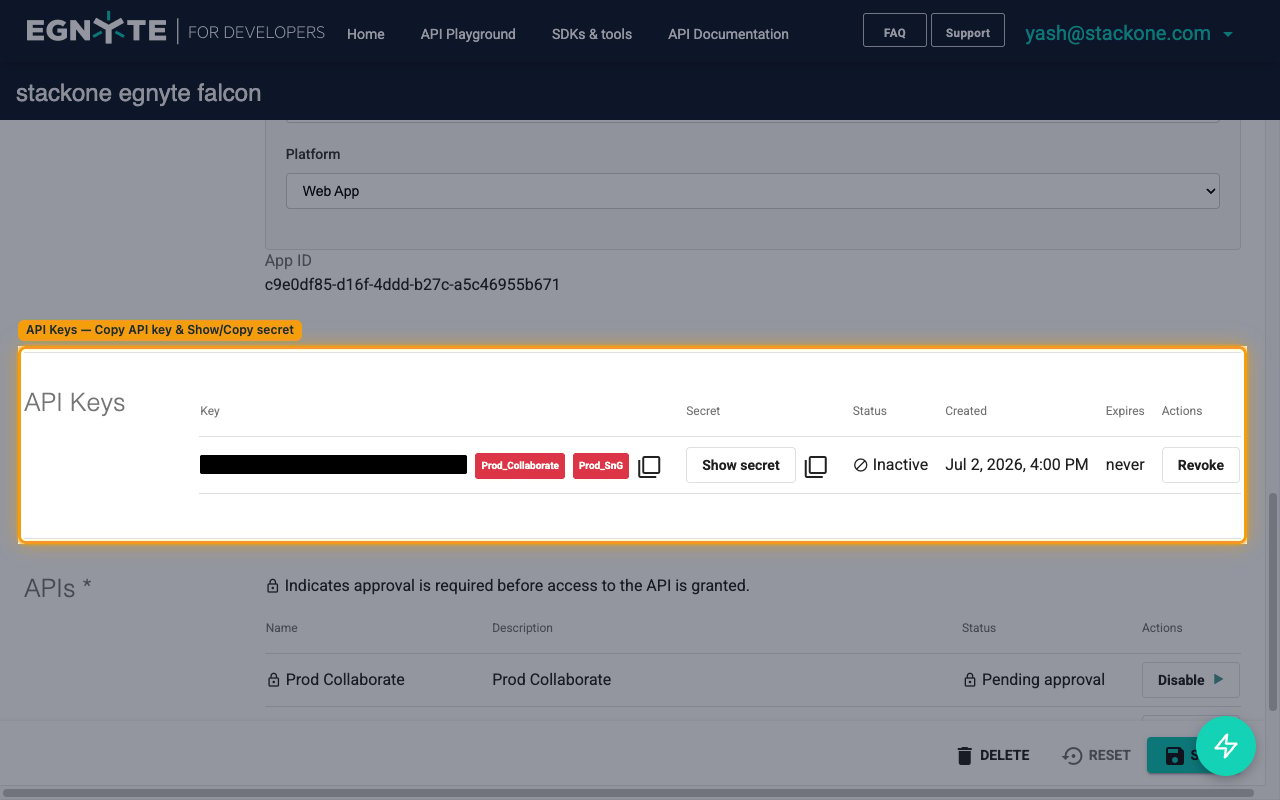
        <p>Once approved, open the app from <strong>My Apps</strong> and scroll to the <strong>API Keys</strong> section on the app profile.</p>

        <ul>
          <li>In the <strong>Key</strong> column, click the copy icon (<strong>Copy API key</strong>) to copy the API Key. This value maps to `client_id` in OAuth requests.</li>
          <li>In the <strong>Secret</strong> column, click <strong>Show secret</strong> to reveal the API Secret, then click the copy icon (<strong>Copy secret</strong>) to copy it. This value maps to `client_secret` in OAuth requests.</li>
          <li>The <strong>API Secret</strong> is masked by default; click <strong>Show secret</strong> to reveal it whenever you need to view or re-copy it. Treat it as a password and store it securely.</li>
          <li>Paste the <strong>API Key</strong> into the <strong>API Key</strong> field in the StackOne Connector profile.</li>
          <li>Paste the <strong>API Secret</strong> into the <strong>API Secret</strong> field in the StackOne Connector profile.</li>
          <li>Leave <strong>OAuth Scopes</strong> in the StackOne Connector profile blank to use the connector defaults (`Egnyte.filesystem Egnyte.permission Egnyte.link Egnyte.user Egnyte.group`), or enter a space-separated subset if you want to restrict access.</li>
        </ul>

        <img src="https://mintcdn.com/stackone-60/z1f68Vshj_J7cwjE/connectors/egnyte/images/oauth2-setup-api-keys.png?fit=max&auto=format&n=z1f68Vshj_J7cwjE&q=85&s=2ecb2117e093f4469b7aa8a421c8d9a5" alt="App profile API Keys section with Copy API key and Show secret controls" width="1280" height="800" data-path="connectors/egnyte/images/oauth2-setup-api-keys.png" />
      </div>
    </Step>
  </Steps>
</section>

## Creating the StackOne Connector Profile

To create the Connector Profile in StackOne for <strong>Egnyte</strong>:

<Steps>
  <Step title="Navigate to Connector Profiles">
    Login to StackOne and navigate to [Connector Profiles](https://app.stackone.com/connector_profiles)
  </Step>

  <Step title="Create New Connector Profile">
    <ul>
      <li>Click <strong>+ Connector Profile</strong></li>
      <li>Search for and select <strong>Egnyte</strong></li>
      <li>Select <strong>Type</strong> as <strong>OAuth 2.0 (Public Application)</strong></li>

      <li>
        Fill out the fields using details retrieved from your provider:

        <ul style={{ marginLeft: '20px' }}>
          <li><strong>API Key</strong></li>
          <li><strong>API Secret</strong></li>
          <li><strong>OAuth Scopes</strong> (Optional)</li>
        </ul>
      </li>

      <li>(Optional) Select <strong>Actions</strong> to be enabled for this Connector Profile</li>
      <li>Click <strong>Create profile</strong></li>
    </ul>
  </Step>
</Steps>

Congratulations! The new Connector Profile will now show up in your project ready to be used. You can now continue to <a href="/guides/accounts-section#linking-accounts">Link Accounts</a> for <strong>Egnyte</strong>.