> ## Documentation Index
> Fetch the complete documentation index at: https://docs.stackone.com/llms.txt
> Use this file to discover all available pages before exploring further.

# Connect Dayforce with Basic Authentication – StackOne Hub

> Link a Dayforce account in the StackOne Hub using Basic Authentication. End-user guide to authorize the integration and start using Dayforce actions.

<Warning>Production setup requires System Administrator access to your Dayforce tenant to create a Web Services role and user. To test the integration without a live tenant, you can use shared sample credentials instead — see the last (Optional: Get Sample credentials for testing) step.</Warning>

<section data-guide-section data-guide-scopes="">
  <h2>Sign in to Dayforce</h2>

  <p>The connector needs four values — <strong>Host</strong>, <strong>Client Namespace</strong>, <strong>Username</strong>, and <strong>Password</strong>. Your <strong>Username</strong> and <strong>Password</strong> come from a dedicated Web Services user you create; <strong>Host</strong> and <strong>Client Namespace</strong> identify your tenant. All steps below are performed by a System Administrator using your existing Dayforce sign-in, provided by your organization — not the Web Services account you create below.</p>

  <Steps>
    <Step title="Open the Dayforce login page">
      <div data-guide-step data-guide-scopes="" data-guide-display-scopes-list="">
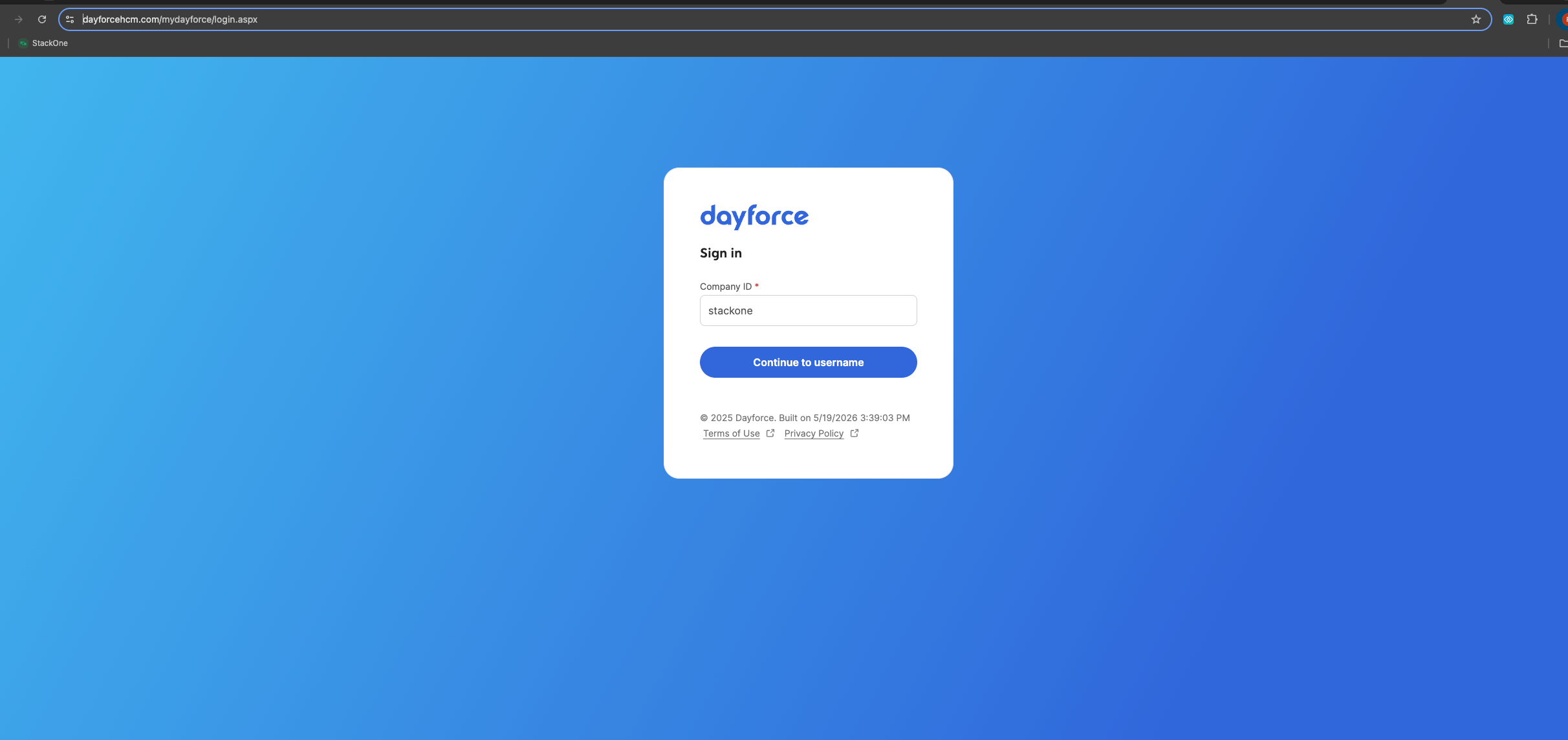
        <p>Go to <a href="https://www.dayforcehcm.com/mydayforce/login.aspx" target="_blank" rel="noopener noreferrer">[https://www.dayforcehcm.com/mydayforce/login.aspx](https://www.dayforcehcm.com/mydayforce/login.aspx)</a>.</p>

        <img src="https://mintcdn.com/stackone-60/W1J7Gt8yrPa9cNRK/connectors/dayforce/images/custom-config-sign-in.png?fit=max&auto=format&n=W1J7Gt8yrPa9cNRK&q=85&s=97cf35d6bcbe5f5f9bcf8378c6e36e72" alt="Dayforce sign-in page at mydayforce/login.aspx" width="2424" height="1144" data-path="connectors/dayforce/images/custom-config-sign-in.png" />
      </div>
    </Step>

    <Step title="Enter your Company ID">
      <div data-guide-step data-guide-scopes="" data-guide-display-scopes-list="">
        <p>Enter your <strong>Company ID</strong>, then click <strong>Continue to username</strong>.</p>

        <ul>
          <li>Your Company ID is your Dayforce tenant identifier — the same value as the <strong>Client Namespace</strong> you collect later (found in <strong>Company</strong> > <strong>Settings</strong> > <strong>General</strong>).</li>
          <li>It is assigned when your organization is provisioned; if you do not know it, your organization's Dayforce administrator can provide it.</li>
        </ul>
      </div>
    </Step>

    <Step title="Enter your username and password">
      <div data-guide-step data-guide-scopes="" data-guide-display-scopes-list="">
        <p>Enter your Dayforce username and password to sign in.</p>

        <ul>
          <li>These are your own existing Dayforce account credentials, not the Web Services account you create below.</li>
          <li>If you do not have a Dayforce login or System Administrator access, request it from your organization's Dayforce administrator.</li>
        </ul>
      </div>
    </Step>
  </Steps>
</section>

<section data-guide-section data-guide-scopes="">
  <h2>Get your Username and Password</h2>

  <p>Your <strong>Username</strong> and <strong>Password</strong> are a dedicated Web Services user account. Create a role scoped to the actions you use, then create the user and assign that role. Enable only what is required — granting more access than necessary is a security risk; never reuse an employee or admin account.</p>

  <Steps>
    <Step title="Name the role">
      <div data-guide-step data-guide-scopes="" data-guide-display-scopes-list="">
        <p>Go to <strong>System Admin</strong> > <strong>Roles</strong> and create a new role. On the <strong>General</strong> tab, give it a unique <strong>Name</strong> and <strong>Reference Code</strong> (avoid spaces and special characters), and attach your Web Services <strong>Password Policy</strong>.</p>

        <ul>
          <li>Do not rename the role once it is used by the integration — this can break the connection.</li>
        </ul>
      </div>
    </Step>

    <Step title="Enable features">
      <div data-guide-step data-guide-scopes="" data-guide-display-scopes-list="">
        <p>On the <strong>Features</strong> tab, expand <strong>HCM Anywhere</strong> > <strong>Web Services</strong> and enable only the sub-features this connector's actions need.</p>

        <ul>
          <li><strong>read/get</strong> (Read Data) — required for all read actions.</li>
          <li><strong>post/insert</strong> and <strong>patch/update</strong> — required to create and update: employees, addresses, contacts, emergency contacts, employment statuses, work assignments, departments, org units, positions, jobs, punches, time off, and schedules.</li>
          <li><strong>delete</strong> — required only for deleting punches.</li>
        </ul>
      </div>
    </Step>

    <Step title="Grant data authorizations">
      <div data-guide-step data-guide-scopes="" data-guide-display-scopes-list="">
        <p>On the <strong>Authorizations</strong> tab, select only the authorizations the integration needs. Each entity offers four rights — always include <strong>Can Read</strong> alongside any write right.</p>

        <ul>
          <li><strong>Can Read</strong> — read the entities below.</li>
          <li><strong>Can Create</strong> / <strong>Can Update</strong> / <strong>Can Delete</strong> — add for the entities you write to.</li>
          <li>Entities: Employee Contact Information (Business + Personal), Employee Key Information, Employee Personal Information, Employee Financial / Pay Information, Employee Status Information, Employee Work Assignment (Primary + Secondary), Employee Properties (custom fields), and User Information.</li>
        </ul>
      </div>
    </Step>

    <Step title="Set Web Services field-level access">
      <div data-guide-step data-guide-scopes="" data-guide-display-scopes-list="">
        <p>On the <strong>Web Services Field-Level Access</strong> tab, configure which fields are returned for read calls. Expand <strong>RESTful Services</strong> > <strong>Human Resources</strong> > <strong>Employee</strong>. Enable only the fields the integration needs — enabling every field is a security risk. To select a group, click the entity <strong>name</strong> (not its checkbox), then <strong>Select All</strong>.</p>

        <ul>
          <li>Enable <strong>XRefCode</strong> (required to return the employee identifier).</li>
          <li>Select the field groups this connector uses: Employee managers, Employment Statuses, EmployeeWorkAssignment, EmployeeCompensation, Contacts, Addresses, EmergencyContacts, Locations, and OrgUnitInfos — including their <strong>EffectiveStart</strong> and <strong>EffectiveEnd</strong> fields.</li>
          <li>Enable <strong>Configuration</strong> > <strong>Location</strong> (used by Departments, OrgUnits, Positions, and Jobs).</li>
          <li>Enable <strong>Workforce Management</strong> > <strong>EmployeeTimeAwayFromWork</strong> (Time Off), <strong>EmployeePunches</strong>, and <strong>EmployeeSchedules</strong>.</li>
          <li>Enable <strong>EmployeePropertyValue</strong> (custom fields).</li>
        </ul>
      </div>
    </Step>

    <Step title="Create the user and assign the role">
      <div data-guide-step data-guide-scopes="" data-guide-display-scopes-list="">
        <p>Go to <strong>System Admin</strong> > <strong>User</strong> and create a new account. On the <strong>Properties</strong> tab, create and enable the account, then attach the role you built.</p>

        <ul>
          <li><strong>User Name</strong>: a unique name (avoid spaces and special characters) — enter the same value in the connector <strong>Username</strong> field.</li>
          <li>Ensure the account is active/enabled.</li>
          <li>Set a <strong>Password</strong> that conforms to the role's password policy, then enter it in the connector <strong>Password</strong> field and store it securely.</li>
          <li>Assign the Web Services <strong>role</strong> and make it the user's default role — Dayforce evaluates features, authorizations, and field-level access against the default role.</li>
        </ul>
      </div>
    </Step>

    <Step title="Grant location access">
      <div data-guide-step data-guide-scopes="" data-guide-display-scopes-list="">
        <p>On the user's <strong>Location Access</strong> tab, give access to only the locations (employee population) the integration needs. Avoid granting whole-organization access when a subset is enough.</p>

        <ul>
          <li>Add the location(s) covering the employees the integration must access, and check <strong>Primary</strong>.</li>
          <li>Set a <strong>Start Date</strong> (Dayforce recommends `1/1/1950`).</li>
        </ul>
      </div>
    </Step>
  </Steps>
</section>

<section data-guide-section data-guide-scopes="">
  <h2>Get your Host and Client Namespace</h2>

  <p>These two values identify your Dayforce tenant. A Dayforce API URL is built as `<scheme>://<host>/<service>/<namespace>/<version>/<resource>` — for example `https://test.dayforcehcm.com/Api/CompanyName/V1/Employees`.</p>

  <Steps>
    <Step title="Find your Client Namespace">
      <div data-guide-step data-guide-scopes="" data-guide-display-scopes-list="">
        <p>The Client Namespace (your CompanyId) identifies your Dayforce tenant.</p>

        <ul>
          <li>Go to <strong>Company</strong> > <strong>Settings</strong> > <strong>General</strong> and copy the <strong>Client Namespace</strong> value.</li>
          <li>It also appears in your API URL — example: in `https://usconfig261.dayforcehcm.com/Api/acmecorp/V1/...` the namespace is `acmecorp`.</li>
        </ul>
      </div>
    </Step>

    <Step title="Find your Host">
      <div data-guide-step data-guide-scopes="" data-guide-display-scopes-list="">
        <p>Your host is the subdomain only — the connector appends `.dayforcehcm.com` automatically, so do not include it. Because Dayforce assigns each tenant to a specific data center, confirm the exact host rather than guessing.</p>

        <ul>
          <li>Open `https://www.dayforcehcm.com/Api/{clientNamespace}/V1/ClientMetadata` in a browser (replace `{clientNamespace}` with your namespace). The returned `ServiceUri` contains your tenant's real base URL.</li>
          <li>Take the subdomain before `.dayforcehcm.com` from that `ServiceUri`.</li>
          <li>Example: if your `ServiceUri` is `https://ustest261-services.dayforcehcm.com/...`, your host is `ustest261-services`.</li>
        </ul>
      </div>
    </Step>
  </Steps>
</section>

<section data-guide-section data-guide-scopes="">
  <h2>Optional: Get Sample credentials for testing</h2>

  <p>To try the connector without a live tenant, use the shared Sample credentials from the Dayforce Developer Portal instead of your own tenant. Only the <strong>Sample</strong> environment provides shared credentials — every other environment requires the Web Services user above.</p>

  <Steps>
    <Step title="Open Edit Your Profile">
      <div data-guide-step data-guide-scopes="" data-guide-display-scopes-list="">
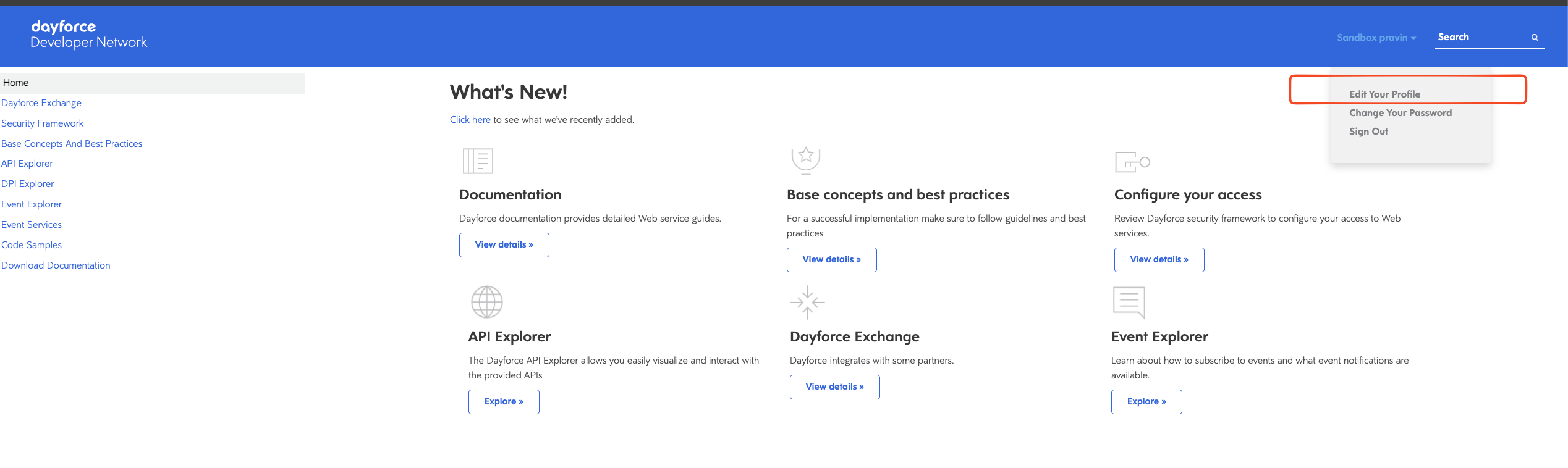
        <p>Sign in to the <a href="https://developers.dayforce.com" target="_blank" rel="noopener noreferrer">Dayforce Developer Network</a>, then select your account name in the top-right corner and choose <strong>Edit Your Profile</strong>.</p>

        <img src="https://mintcdn.com/stackone-60/W1J7Gt8yrPa9cNRK/connectors/dayforce/images/custom-config-home-page.png?fit=max&auto=format&n=W1J7Gt8yrPa9cNRK&q=85&s=0ca875a0a0a723e61e37c8a49fd2fa23" alt="Developer Network Home page with the account menu open showing Edit Your Profile" width="2537" height="758" data-path="connectors/dayforce/images/custom-config-home-page.png" />
      </div>
    </Step>

    <Step title="Set the environment to Sample">
      <div data-guide-step data-guide-scopes="" data-guide-display-scopes-list="">
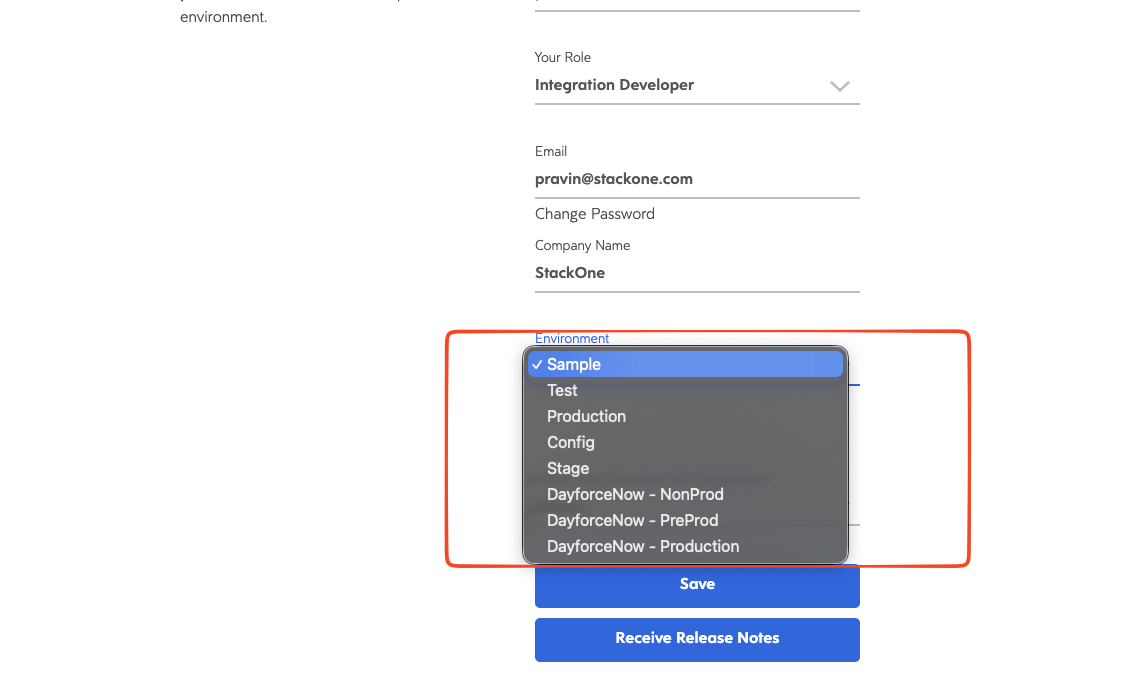
        <p>On the <strong>Edit Your Profile</strong> page, ensure the environment is set to Sample.</p>

        <ul>
          <li>If the <strong>Environment</strong> is already set to <strong>Sample</strong>, no changes are needed — skip to the next step.</li>
          <li>Otherwise, open the <strong>Environment</strong> dropdown, choose <strong>Sample</strong>, and click <strong>Save</strong>.</li>
        </ul>

        <img src="https://mintcdn.com/stackone-60/W1J7Gt8yrPa9cNRK/connectors/dayforce/images/custom-config-developer-portal-environment.png?fit=max&auto=format&n=W1J7Gt8yrPa9cNRK&q=85&s=ba4cf0fa09ac69f991a3bc1e416826f8" alt="Developer Portal Environment dropdown with Sample selected" width="1124" height="682" data-path="connectors/dayforce/images/custom-config-developer-portal-environment.png" />
      </div>
    </Step>

    <Step title="Open the GET Employees request page">
      <div data-guide-step data-guide-scopes="" data-guide-display-scopes-list="">
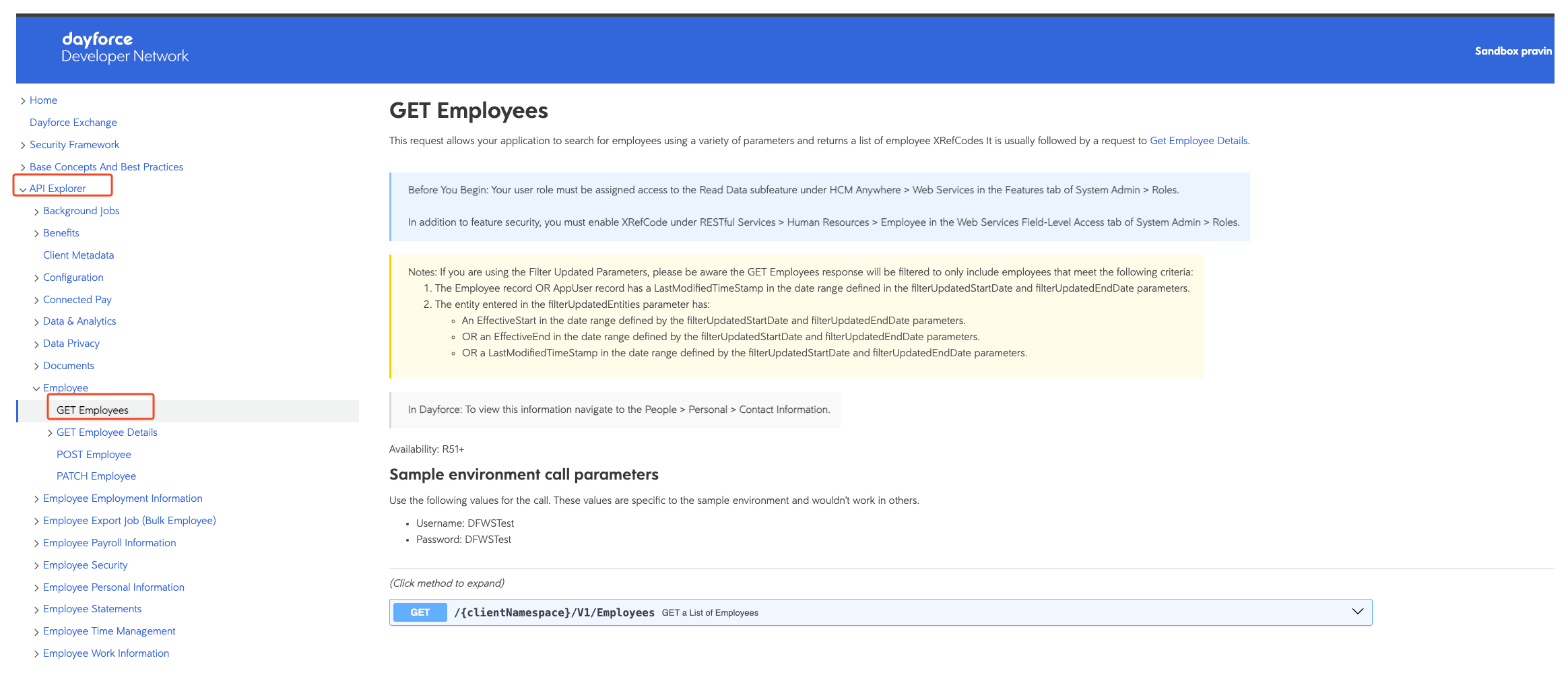
        <p>In the left-hand navigation, expand <strong>API Explorer</strong> > <strong>Employee</strong> and open <strong>GET Employees</strong>.</p>

        <img src="https://mintcdn.com/stackone-60/W1J7Gt8yrPa9cNRK/connectors/dayforce/images/custom-config-side-navigation.png?fit=max&auto=format&n=W1J7Gt8yrPa9cNRK&q=85&s=c07df47f1ae56ff2dec2702fc061dc9a" alt="API Explorer side navigation expanded to API Explorer > Employee > GET Employees" data-og-width="2328" width="2328" data-og-height="1008" height="1008" data-path="connectors/dayforce/images/custom-config-side-navigation.png" data-optimize="true" data-opv="3" srcset="https://mintcdn.com/stackone-60/W1J7Gt8yrPa9cNRK/connectors/dayforce/images/custom-config-side-navigation.png?w=280&fit=max&auto=format&n=W1J7Gt8yrPa9cNRK&q=85&s=f7e7e46a7b416f507b164e6723b83fdd 280w, https://mintcdn.com/stackone-60/W1J7Gt8yrPa9cNRK/connectors/dayforce/images/custom-config-side-navigation.png?w=560&fit=max&auto=format&n=W1J7Gt8yrPa9cNRK&q=85&s=e39cab5e8e94a89657a7edcfbefaa04c 560w, https://mintcdn.com/stackone-60/W1J7Gt8yrPa9cNRK/connectors/dayforce/images/custom-config-side-navigation.png?w=840&fit=max&auto=format&n=W1J7Gt8yrPa9cNRK&q=85&s=92c61029af30ce5b838705a84b3d8483 840w, https://mintcdn.com/stackone-60/W1J7Gt8yrPa9cNRK/connectors/dayforce/images/custom-config-side-navigation.png?w=1100&fit=max&auto=format&n=W1J7Gt8yrPa9cNRK&q=85&s=9f1347ffeac179a16e59f01471e7bae4 1100w, https://mintcdn.com/stackone-60/W1J7Gt8yrPa9cNRK/connectors/dayforce/images/custom-config-side-navigation.png?w=1650&fit=max&auto=format&n=W1J7Gt8yrPa9cNRK&q=85&s=69e7a189e1b57663d9e3039ac6e09ca9 1650w, https://mintcdn.com/stackone-60/W1J7Gt8yrPa9cNRK/connectors/dayforce/images/custom-config-side-navigation.png?w=2500&fit=max&auto=format&n=W1J7Gt8yrPa9cNRK&q=85&s=f409457202f8eed33e4c01a7759c2138 2500w" />
      </div>
    </Step>

    <Step title="Copy the sample Username and Password">
      <div data-guide-step data-guide-scopes="" data-guide-display-scopes-list="">
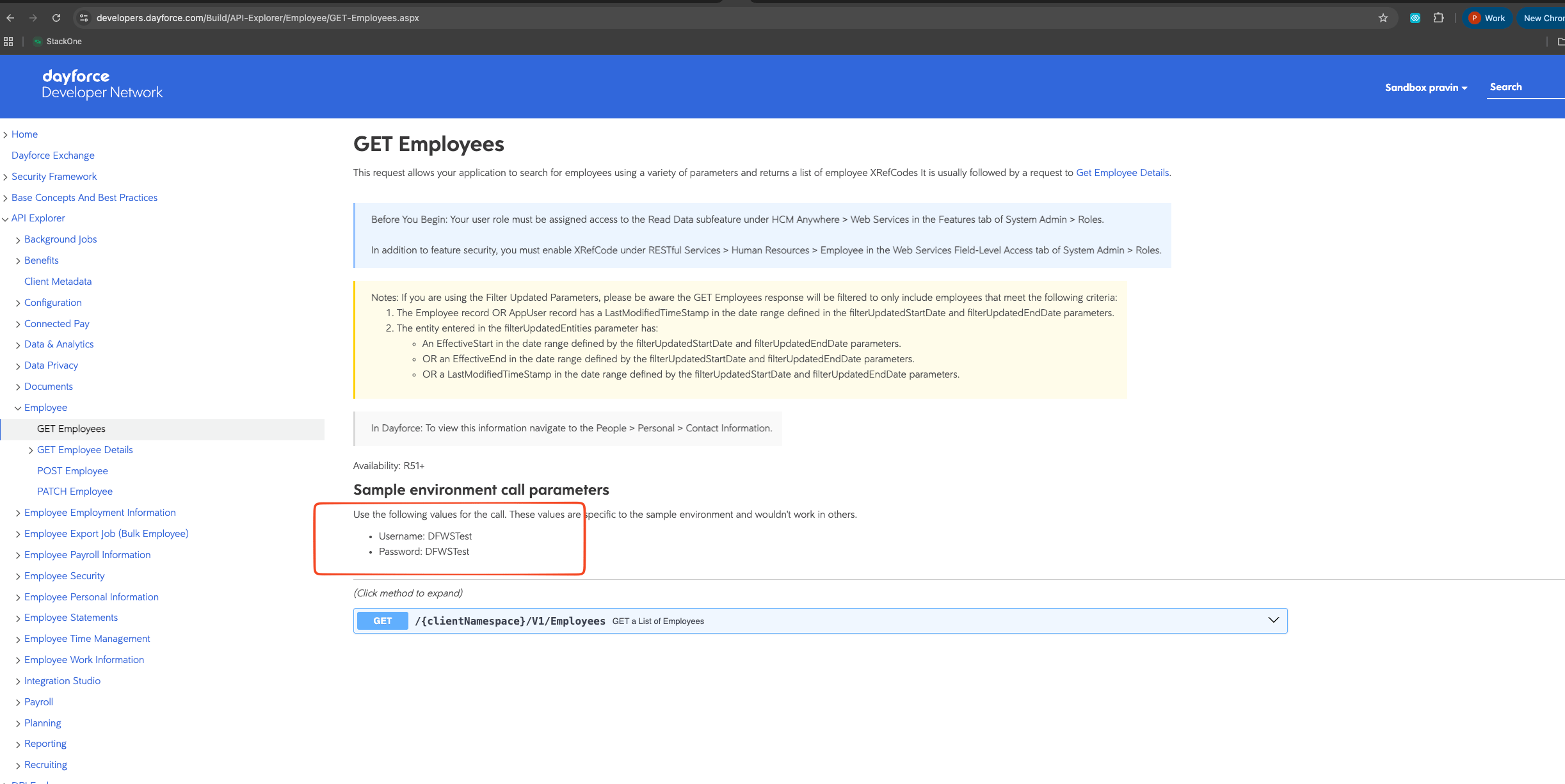
        <p>On the <strong>GET Employees</strong> page, find the <strong>Sample environment call parameters</strong> box, which lists the shared Web Services credentials. These are both your connector <strong>Username</strong> and <strong>Password</strong> and the credentials you enter in the next steps.</p>

        <ul>
          <li>Copy the <strong>Username</strong> and <strong>Password</strong> listed in the box (they work only in the Sample environment).</li>
          <li>You will enter these in StackOne Hub's <strong>Username</strong> and <strong>Password</strong> fields when linking your Dayforce account.</li>
        </ul>

        <img src="https://mintcdn.com/stackone-60/W1J7Gt8yrPa9cNRK/connectors/dayforce/images/custom-config-sample-credentials.png?fit=max&auto=format&n=W1J7Gt8yrPa9cNRK&q=85&s=2d68237ab05fe892a4059d2033d622f5" alt="API Explorer showing the sample Web Services username and password" width="2445" height="1225" data-path="connectors/dayforce/images/custom-config-sample-credentials.png" />
      </div>
    </Step>

    <Step title="Click Try it out">
      <div data-guide-step data-guide-scopes="" data-guide-display-scopes-list="">
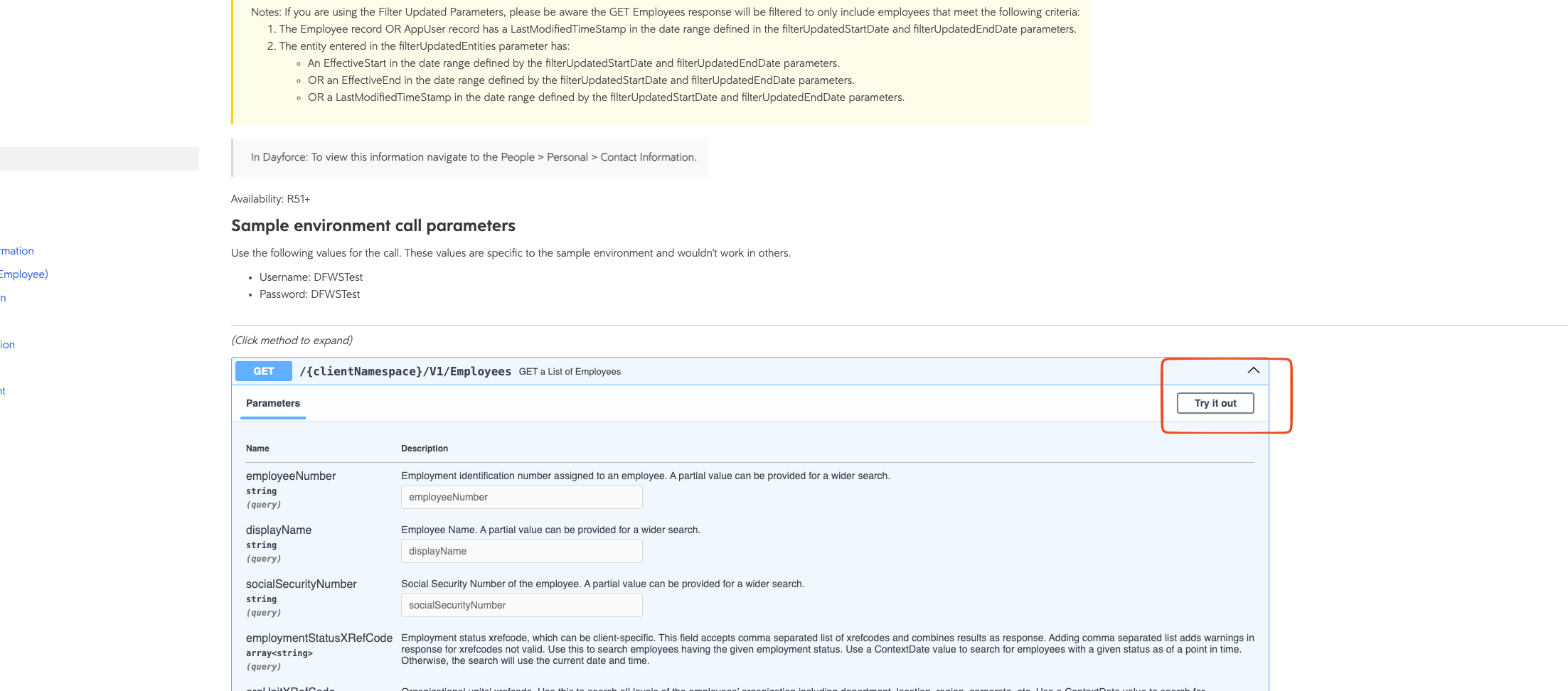
        <p>Expand the <strong>GET</strong> method, then click <strong>Try it out</strong> to enable the request form.</p>

        <img src="https://mintcdn.com/stackone-60/W1J7Gt8yrPa9cNRK/connectors/dayforce/images/custom-config-try-request.png?fit=max&auto=format&n=W1J7Gt8yrPa9cNRK&q=85&s=71c2a2d893b5d031362028cc919c2bd5" alt="GET Employees request with the Try it out button highlighted" width="2205" height="972" data-path="connectors/dayforce/images/custom-config-try-request.png" />
      </div>
    </Step>

    <Step title="Execute the request">
      <div data-guide-step data-guide-scopes="" data-guide-display-scopes-list="">
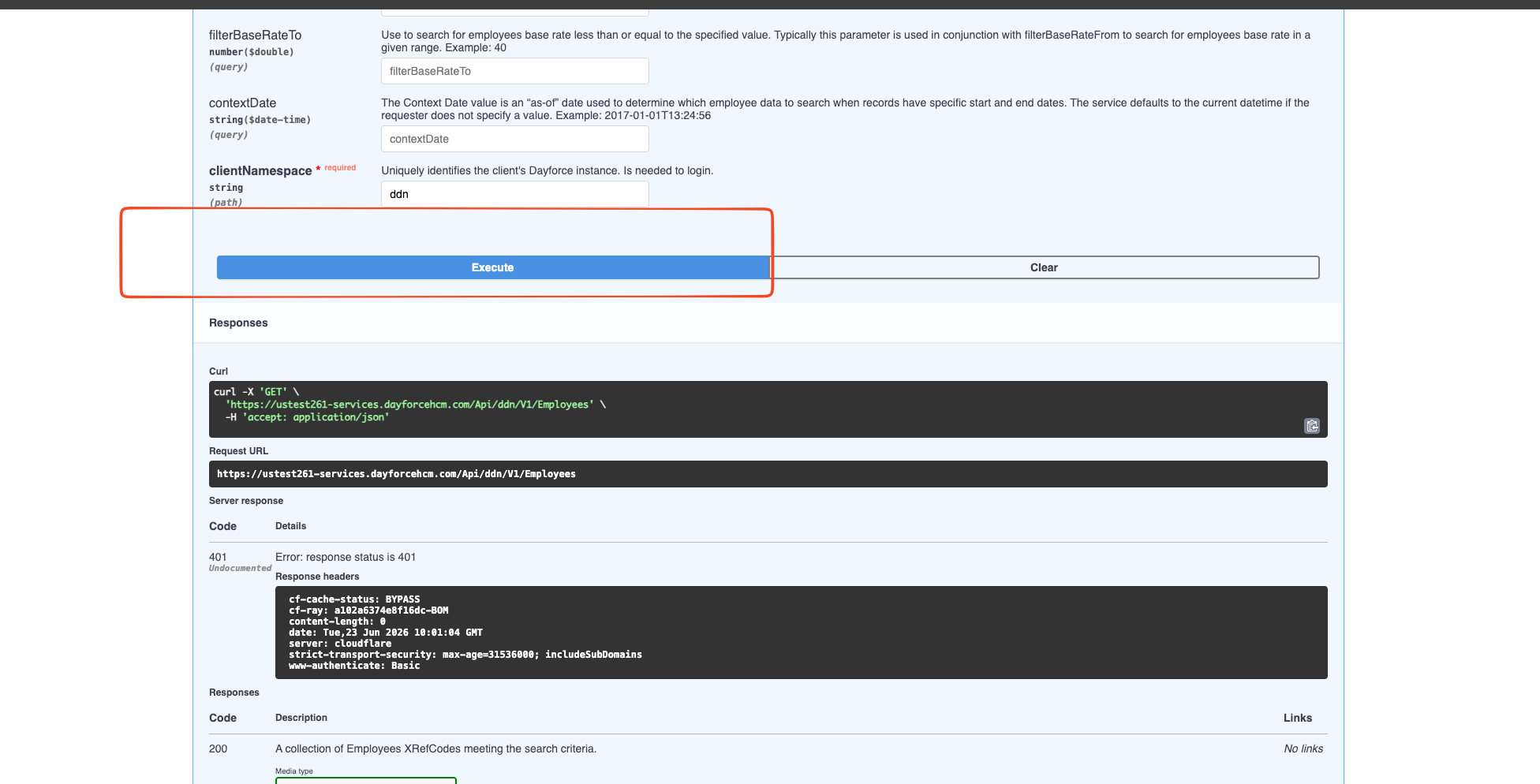
        <p>Click <strong>Execute</strong> to send the request.</p>

        <img src="https://mintcdn.com/stackone-60/W1J7Gt8yrPa9cNRK/connectors/dayforce/images/custom-config-execute-request.png?fit=max&auto=format&n=W1J7Gt8yrPa9cNRK&q=85&s=0dca2b36aaad17021cccd6e68c712407" alt="GET Employees request with the Execute button and Responses" width="1952" height="994" data-path="connectors/dayforce/images/custom-config-execute-request.png" />
      </div>
    </Step>

    <Step title="Sign in when prompted">
      <div data-guide-step data-guide-scopes="" data-guide-display-scopes-list="">
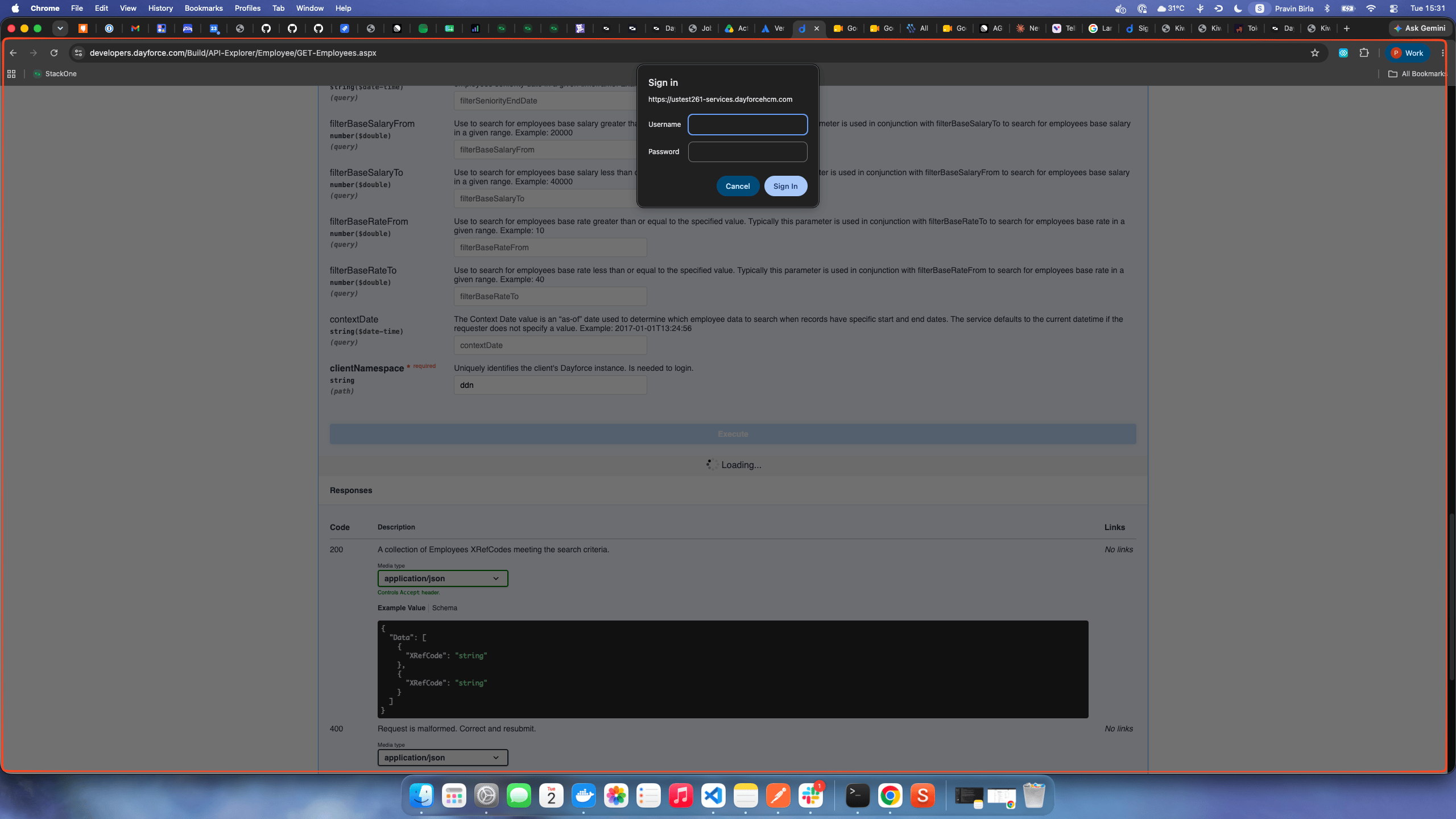
        <p>The first time you execute a request — if you are not already authenticated — your browser shows a <strong>Sign in</strong> popup. Enter the sample <strong>Username</strong> and <strong>Password</strong> from the call parameters box and click <strong>Sign in</strong>.</p>

        <img src="https://mintcdn.com/stackone-60/W1J7Gt8yrPa9cNRK/connectors/dayforce/images/custom-config-username-pwd-popup.png?fit=max&auto=format&n=W1J7Gt8yrPa9cNRK&q=85&s=26ae34671282541be6ff3d127ee5879e" alt="Browser Basic authentication popup asking for the Dayforce username and password" width="2560" height="1440" data-path="connectors/dayforce/images/custom-config-username-pwd-popup.png" />
      </div>
    </Step>

    <Step title="Find the Host and Client Namespace">
      <div data-guide-step data-guide-scopes="" data-guide-display-scopes-list="">
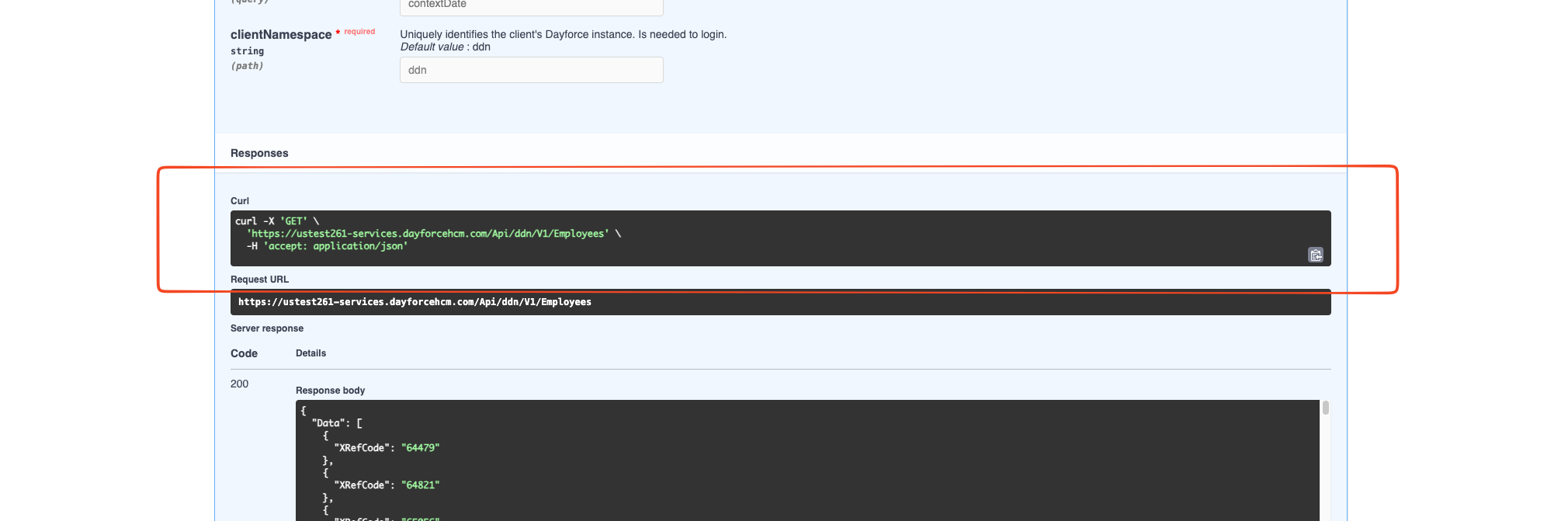
        <p>After the request runs, read the Sample <strong>Host</strong> and <strong>Client Namespace</strong> from the <strong>Request URL</strong> under Responses (they are also shown on the Developer Network <a href="https://developers.dayforce.com/Build/Home.aspx" target="_blank" rel="noopener noreferrer"><strong>Home</strong> page</a>). Dayforce API URLs follow the format `https://host/Api/<clientNamespace>/V1/...`, so both values can be read directly from the Request URL.</p>

        <ul>
          <li><strong>Host</strong>: the subdomain before `.dayforcehcm.com` in the URL (e.g. `ustest261-services`). The subdomain rotates, so read it from the URL rather than hardcoding it.</li>
          <li><strong>Client Namespace</strong>: the path segment after `/Api/` (`ddn` for Sample).</li>
          <li>You will enter these in StackOne Hub's <strong>Host</strong> and <strong>Client Namespace</strong> fields when linking your Dayforce account.</li>
        </ul>

        <img src="https://mintcdn.com/stackone-60/W1J7Gt8yrPa9cNRK/connectors/dayforce/images/custom-config-sample-api-request.png?fit=max&auto=format&n=W1J7Gt8yrPa9cNRK&q=85&s=69ff4e00c0cebb92074864200a2b2d01" alt="API Explorer request URL showing the sample host and ddn client namespace" width="2020" height="671" data-path="connectors/dayforce/images/custom-config-sample-api-request.png" />
      </div>
    </Step>
  </Steps>
</section>

## Linking the Account from the Hub

<Steps>
  <Step title="Navigate to the Hub">
    Use one of the three <a href="/guides/accounts-section#linking-accounts">Linking Account Methods</a> to access the Hub.
  </Step>

  <Step title="Fill out the fields">
    Fill out the following fields using details from your provider:

    <ul>
      <li><strong>Client Namespace</strong></li>
      <li><strong>Host</strong></li>
      <li><strong>Username</strong></li>
      <li><strong>Password</strong></li>
    </ul>
  </Step>

  <Step title="Connect">
    <ul>
      <li>Click <strong>Connect</strong></li>
      <li>If applicable, the provider will redirect you to a sign-in or authorization page. Complete the provider's authorization flow.</li>
      <li>Once authorization is successful, you will see a confirmation popup</li>
    </ul>
  </Step>
</Steps>

If the account linking is successful, you will see the newly linked account in your <a href="/guides/accounts-section">Accounts</a> page.