> ## Documentation Index
> Fetch the complete documentation index at: https://docs.stackone.com/llms.txt
> Use this file to discover all available pages before exploring further.

# Databricks Workspace Webhook Setup Guide

> Configure Databricks Workspace to deliver events to StackOne.

## Prerequisites

The connector should already be set up, with a Connector Profile and a Linked Account. See [Getting Started](/connectors/databricksworkspace#getting-started) on the Databricks Workspace connector page.

<section data-guide-section data-guide-scopes="">
  <h2>How Databricks webhooks work</h2>

  <p>StackOne creates and manages the webhook automatically when events are enabled on this connection. It creates a notification destination named <strong>StackOne</strong> in your workspace and deletes it when events are disabled or the account is disconnected. A destination is a channel, not a subscription. Databricks only sends a notification to it from jobs (or tasks) whose notifications include the <strong>StackOne</strong> destination, so you attach it to each job you want events from.</p>
</section>

<section data-guide-section data-guide-scopes="">
  <h2>Make the service principal a workspace admin</h2>

  <p>Creating a notification destination requires workspace admin rights. Add the service principal whose Client ID this connection uses to the workspace <strong>admins</strong> group, signed in to your Databricks workspace as a workspace admin.</p>

  <Steps>
    <Step title="Open the groups settings">
      <div data-guide-step data-guide-scopes="" data-guide-display-scopes-list="">
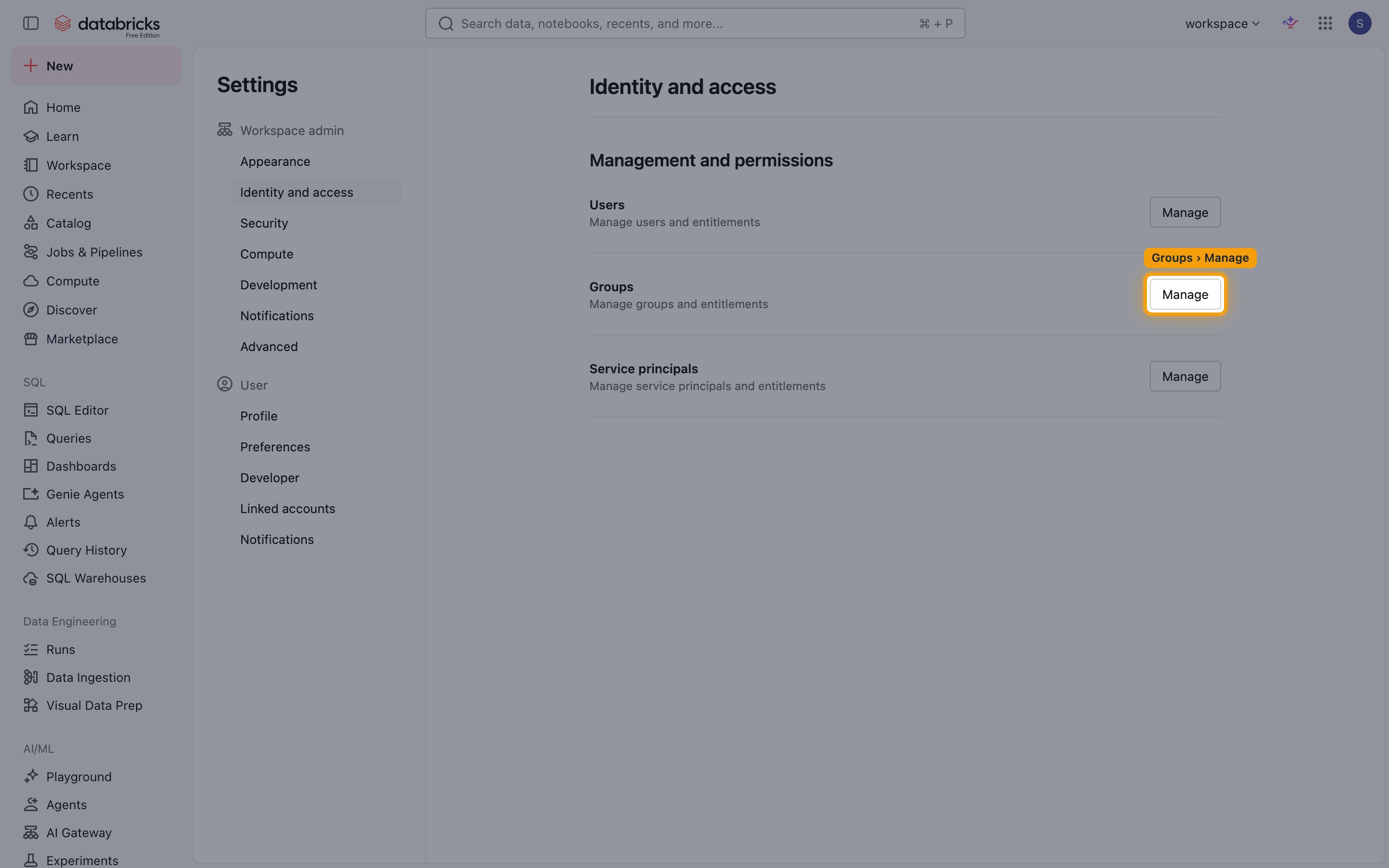
        <p>Navigate to <strong>Settings</strong> > <strong>Identity and access</strong>, then click <strong>Manage</strong> next to <strong>Groups</strong>.</p>

        <img src="https://mintcdn.com/stackone-60/Yx9FjiVntAxlAJG7/connectors/databricksworkspace/images/events-identity-and-access.png?fit=max&auto=format&n=Yx9FjiVntAxlAJG7&q=85&s=77b0b7c113f670d722bdfc058c8c47e5" alt="Identity and access settings with the Manage button for Groups highlighted" width="2880" height="1800" data-path="connectors/databricksworkspace/images/events-identity-and-access.png" />
      </div>
    </Step>

    <Step title="Open the admins group">
      <div data-guide-step data-guide-scopes="" data-guide-display-scopes-list="">
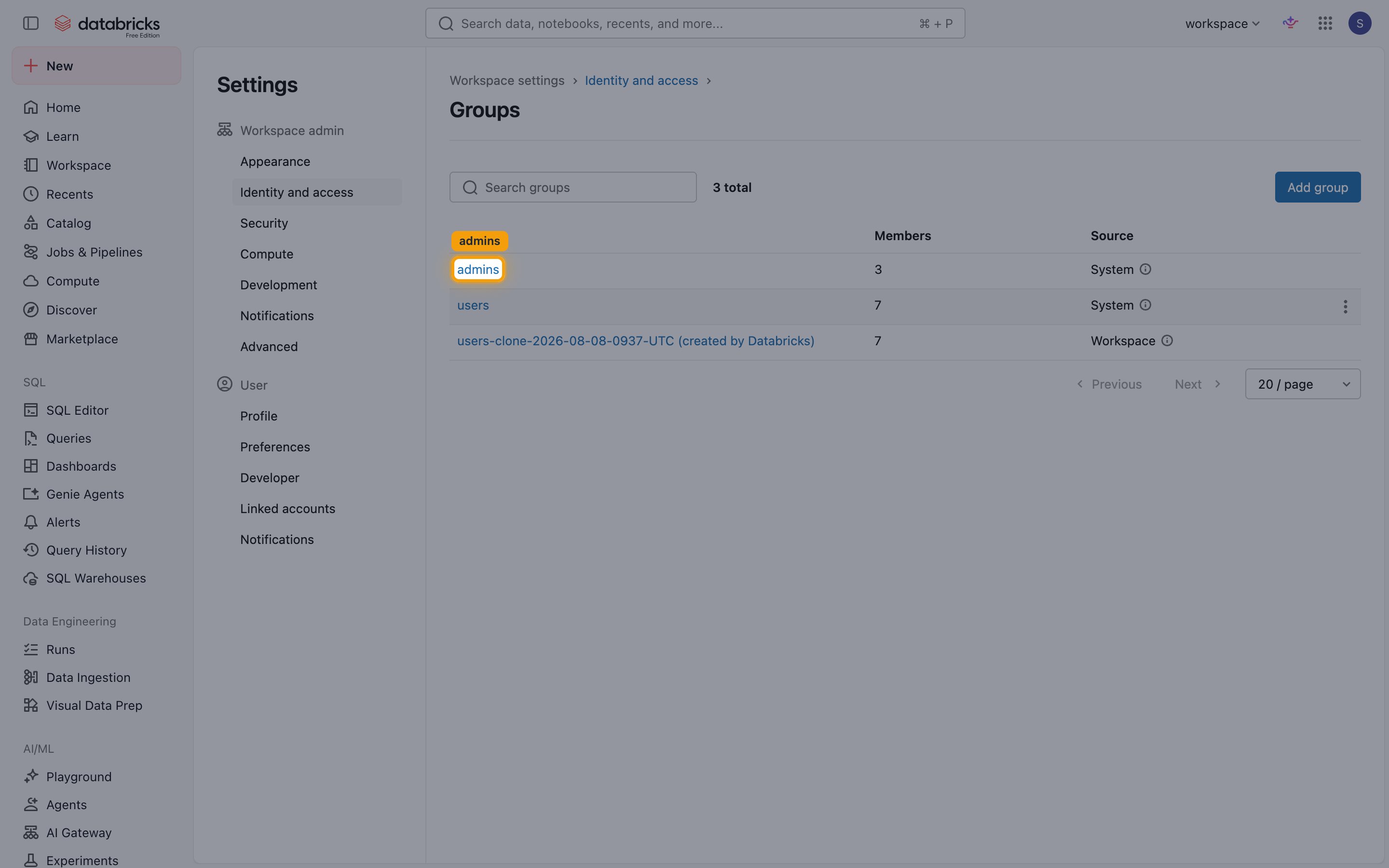
        <p>In the <strong>Groups</strong> list, click <strong>admins</strong>.</p>

        <img src="https://mintcdn.com/stackone-60/Yx9FjiVntAxlAJG7/connectors/databricksworkspace/images/events-groups.png?fit=max&auto=format&n=Yx9FjiVntAxlAJG7&q=85&s=281d190ed34b186b4e3d73c8a47edf45" alt="Groups list with the admins group highlighted" width="2880" height="1800" data-path="connectors/databricksworkspace/images/events-groups.png" />
      </div>
    </Step>

    <Step title="Add a member">
      <div data-guide-step data-guide-scopes="" data-guide-display-scopes-list="">
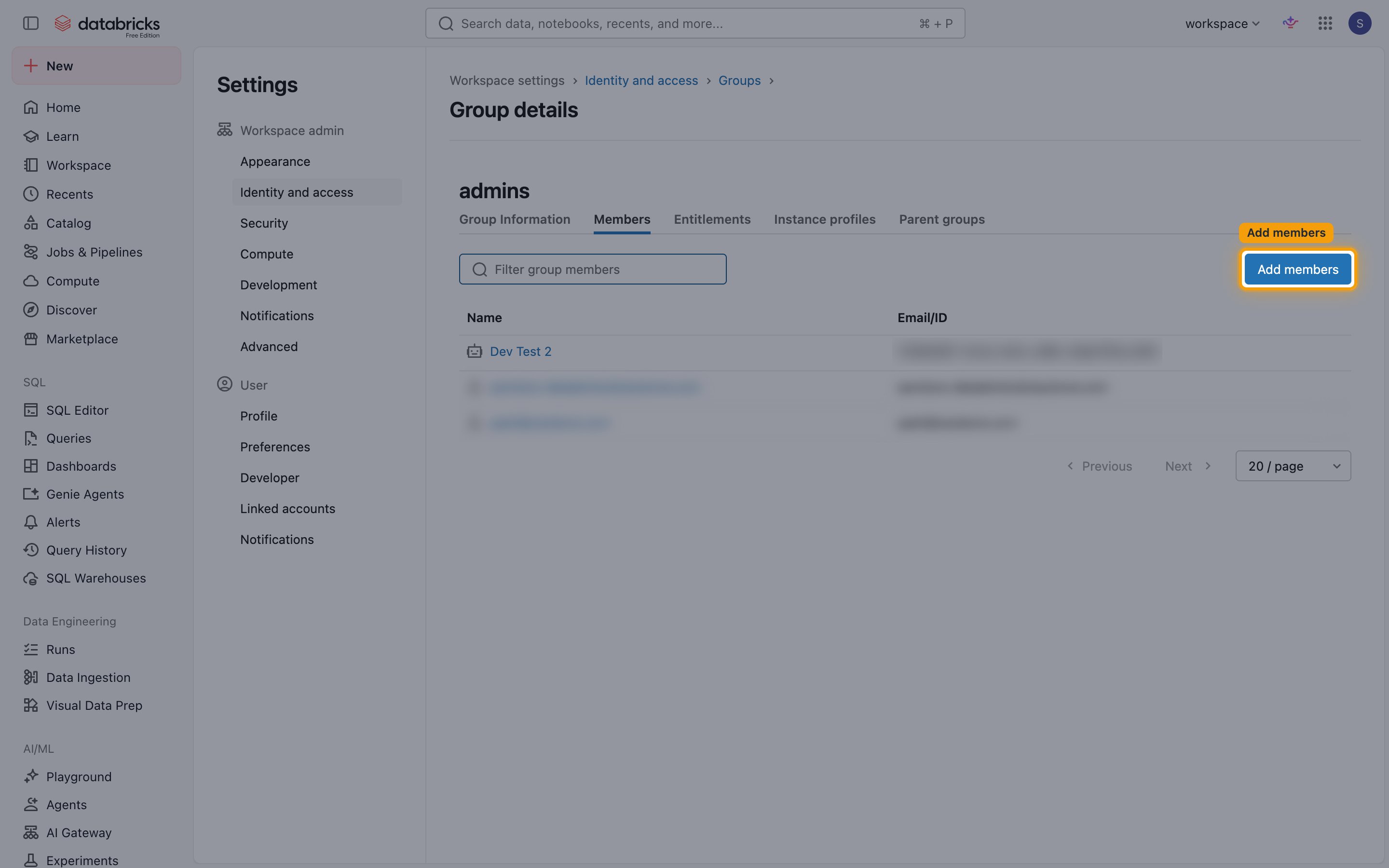
        <p>On the <strong>Members</strong> tab, click <strong>Add members</strong>.</p>

        <img src="https://mintcdn.com/stackone-60/Yx9FjiVntAxlAJG7/connectors/databricksworkspace/images/events-admins-add-members.png?fit=max&auto=format&n=Yx9FjiVntAxlAJG7&q=85&s=a374ad77ef8faed1867109f74d58ba88" alt="The admins group Members tab with the Add members button highlighted" width="2880" height="1800" data-path="connectors/databricksworkspace/images/events-admins-add-members.png" />
      </div>
    </Step>

    <Step title="Select the service principal">
      <div data-guide-step data-guide-scopes="" data-guide-display-scopes-list="">
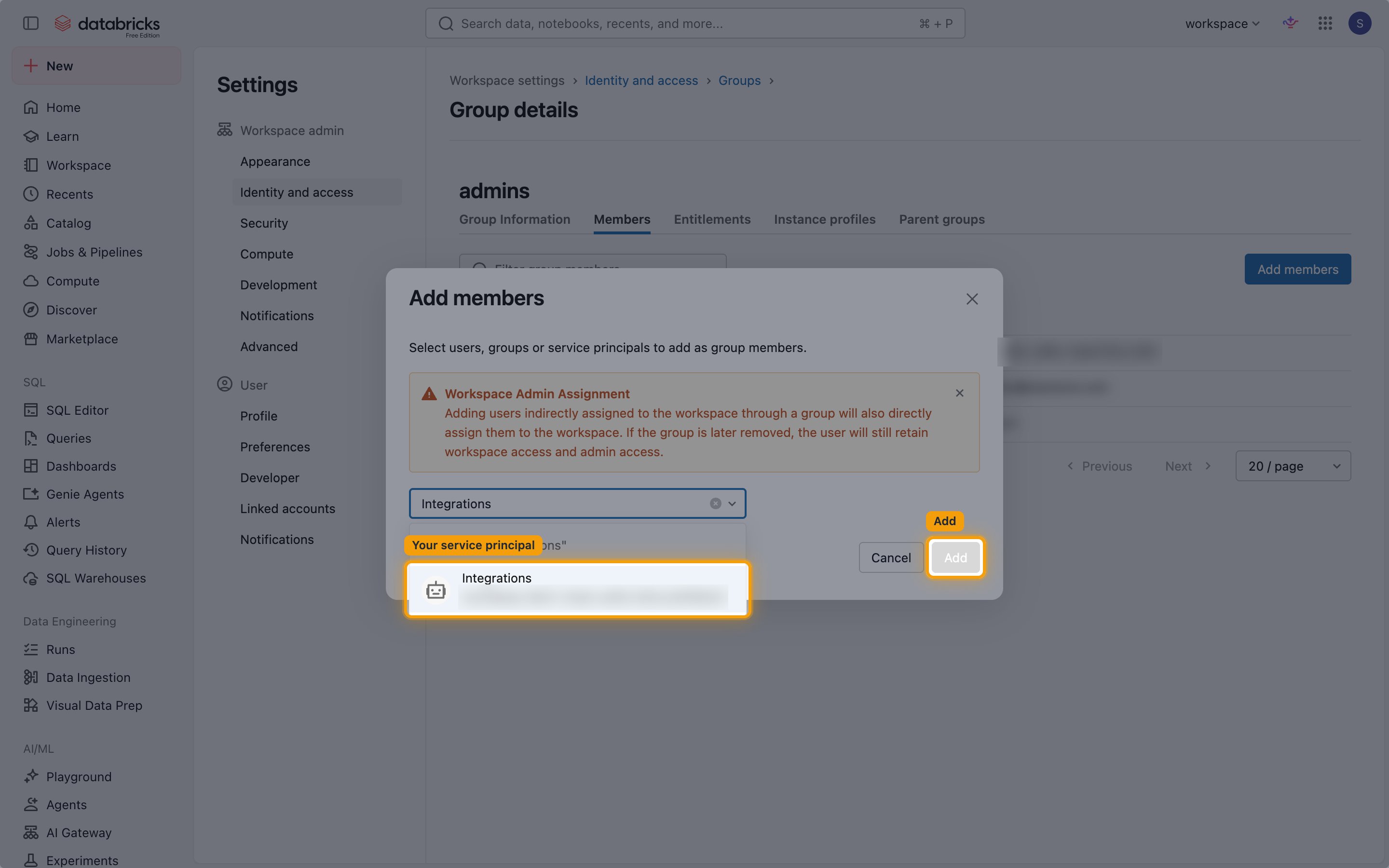
        <p>Search for the service principal by name or Application ID, select it, and click <strong>Add</strong>.</p>

        <ul>
          <li>The Application ID is the Client ID entered on this connection.</li>
        </ul>

        <img src="https://mintcdn.com/stackone-60/Yx9FjiVntAxlAJG7/connectors/databricksworkspace/images/events-admins-select-service-principal.png?fit=max&auto=format&n=Yx9FjiVntAxlAJG7&q=85&s=f4978bbf293f54c5480ceeaa213b3211" alt="Add members dialog with a service principal selected and the Add button highlighted" width="2880" height="1800" data-path="connectors/databricksworkspace/images/events-admins-select-service-principal.png" />
      </div>
    </Step>
  </Steps>
</section>

<section data-guide-section data-guide-scopes="">
  <h2>Confirm the StackOne destination</h2>

  <p>After events are enabled on this connection, the <strong>StackOne</strong> destination appears in the workspace notification destinations.</p>

  <Steps>
    <Step title="Open the notification destinations">
      <div data-guide-step data-guide-scopes="" data-guide-display-scopes-list="">
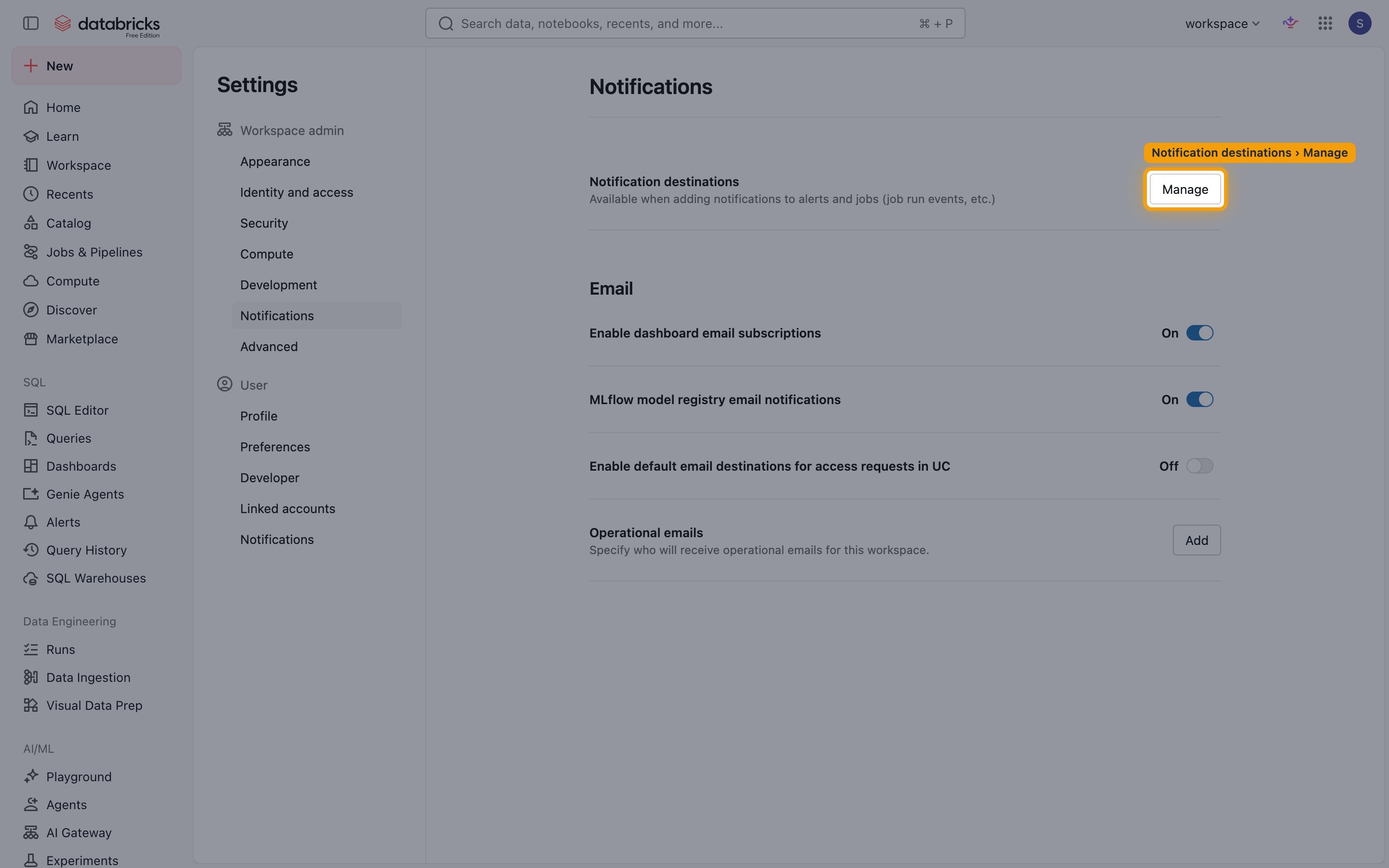
        <p>Navigate to <strong>Settings</strong> > <strong>Notifications</strong>, then click <strong>Manage</strong> next to <strong>Notification destinations</strong>.</p>

        <img src="https://mintcdn.com/stackone-60/Yx9FjiVntAxlAJG7/connectors/databricksworkspace/images/events-notification-settings.png?fit=max&auto=format&n=Yx9FjiVntAxlAJG7&q=85&s=27426c495870bb00ed63697339212be9" alt="Notifications settings with the Manage button for Notification destinations highlighted" width="2880" height="1800" data-path="connectors/databricksworkspace/images/events-notification-settings.png" />
      </div>
    </Step>

    <Step title="Check the StackOne destination">
      <div data-guide-step data-guide-scopes="" data-guide-display-scopes-list="">
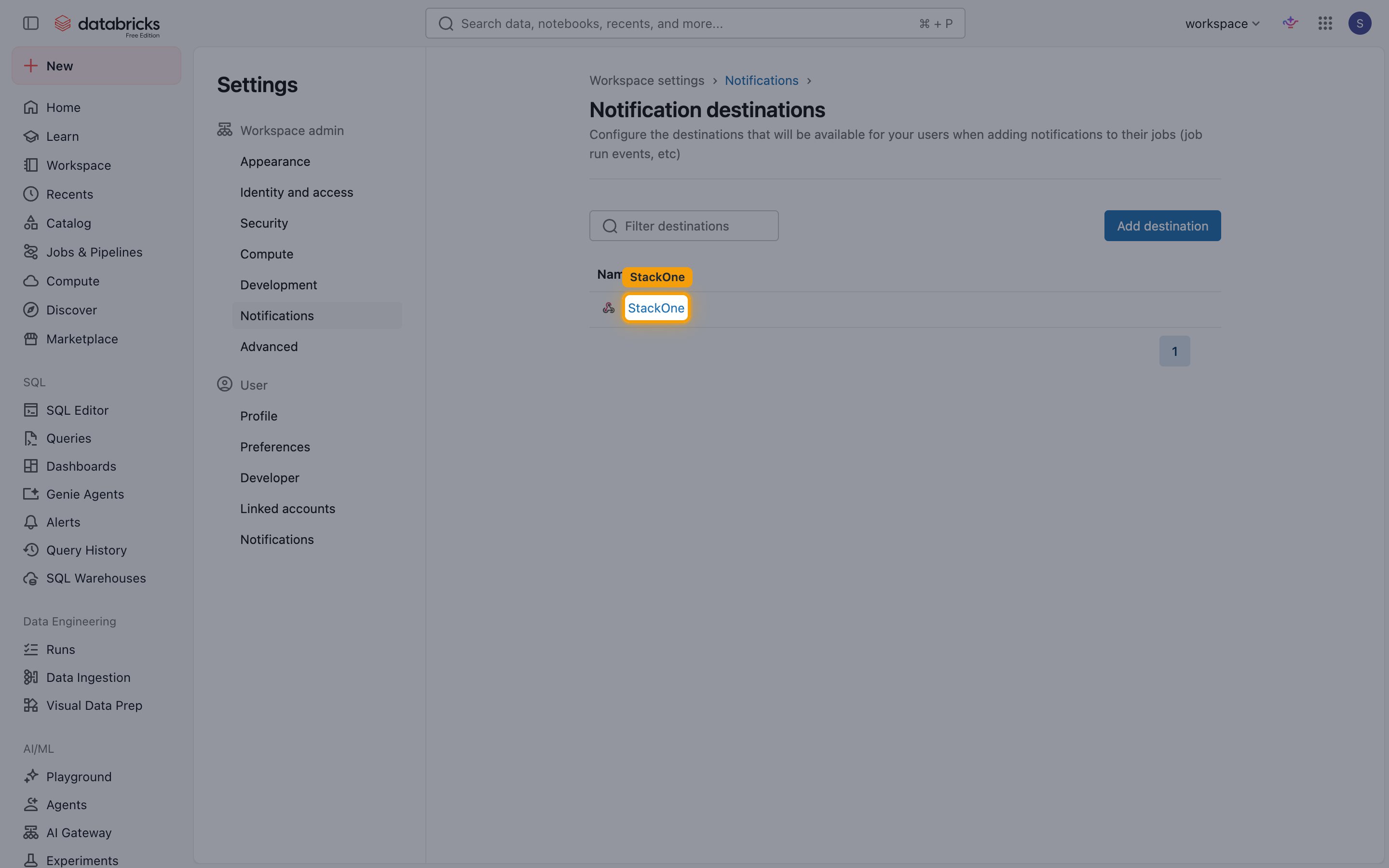
        <p>Confirm that a destination named <strong>StackOne</strong> is listed. Don't edit or delete it, as StackOne manages it.</p>

        <img src="https://mintcdn.com/stackone-60/Yx9FjiVntAxlAJG7/connectors/databricksworkspace/images/events-notification-destinations.png?fit=max&auto=format&n=Yx9FjiVntAxlAJG7&q=85&s=f489763e420a82e4e31c056d415a8195" alt="Notification destinations list showing the StackOne destination" width="2880" height="1800" data-path="connectors/databricksworkspace/images/events-notification-destinations.png" />
      </div>
    </Step>
  </Steps>
</section>

<section data-guide-section data-guide-scopes="">
  <h2>Send job notifications to StackOne</h2>

  <p>Repeat these steps for every job you want events from. Notifications can also be added to individual tasks in the job's task settings; task-level events identify the task run.</p>

  <Steps>
    <Step title="Open the job notifications">
      <div data-guide-step data-guide-scopes="" data-guide-display-scopes-list="">
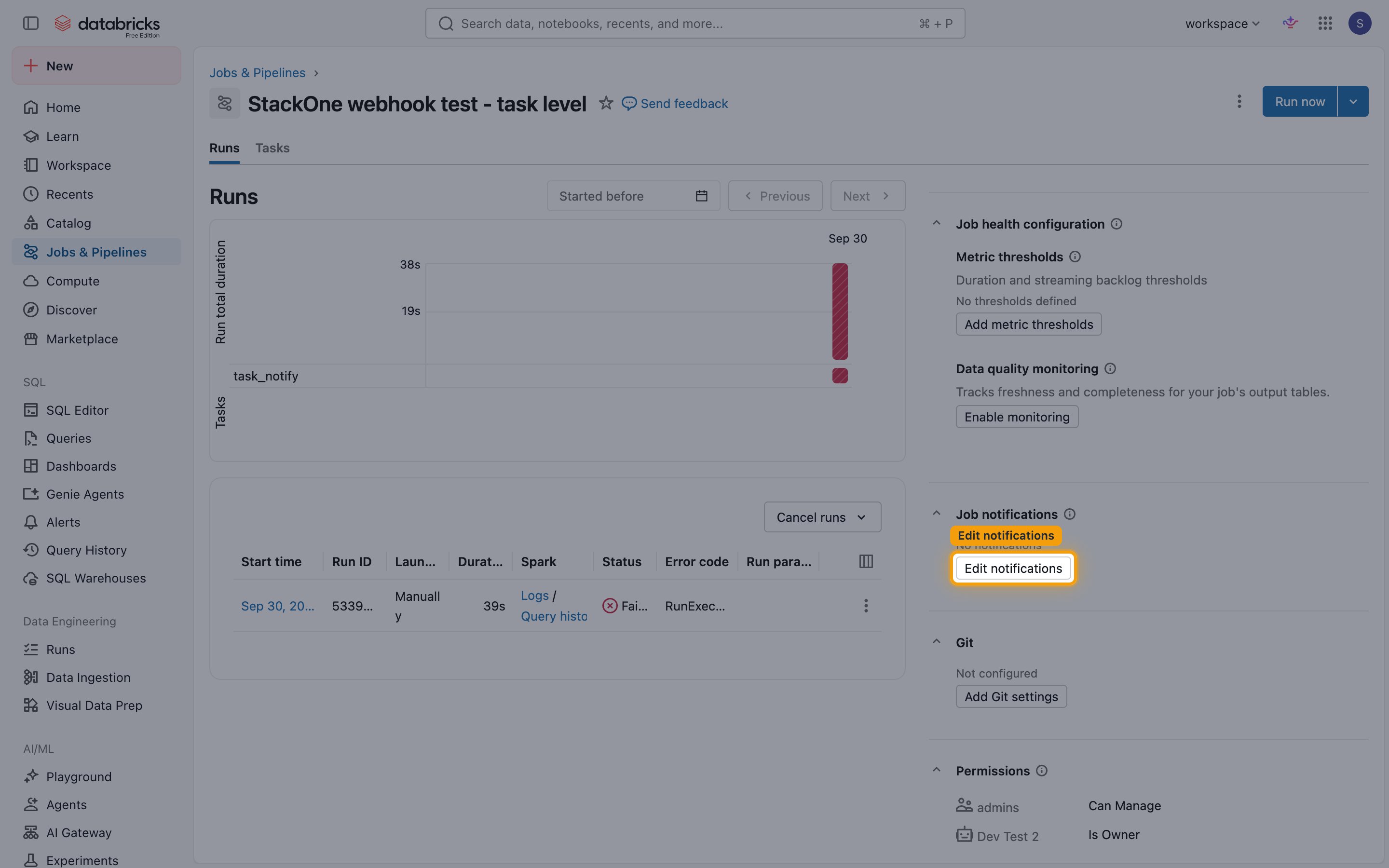
        <p>In <strong>Jobs & Pipelines</strong>, open the job. In the <strong>Job notifications</strong> panel, click <strong>Edit notifications</strong>.</p>

        <img src="https://mintcdn.com/stackone-60/Yx9FjiVntAxlAJG7/connectors/databricksworkspace/images/events-job-edit-notifications.png?fit=max&auto=format&n=Yx9FjiVntAxlAJG7&q=85&s=76c15b334e40f1a19ba9b17138ad1bda" alt="Job page with the Edit notifications button highlighted in the Job notifications panel" width="2880" height="1800" data-path="connectors/databricksworkspace/images/events-job-edit-notifications.png" />
      </div>
    </Step>

    <Step title="Add a notification">
      <div data-guide-step data-guide-scopes="" data-guide-display-scopes-list="">
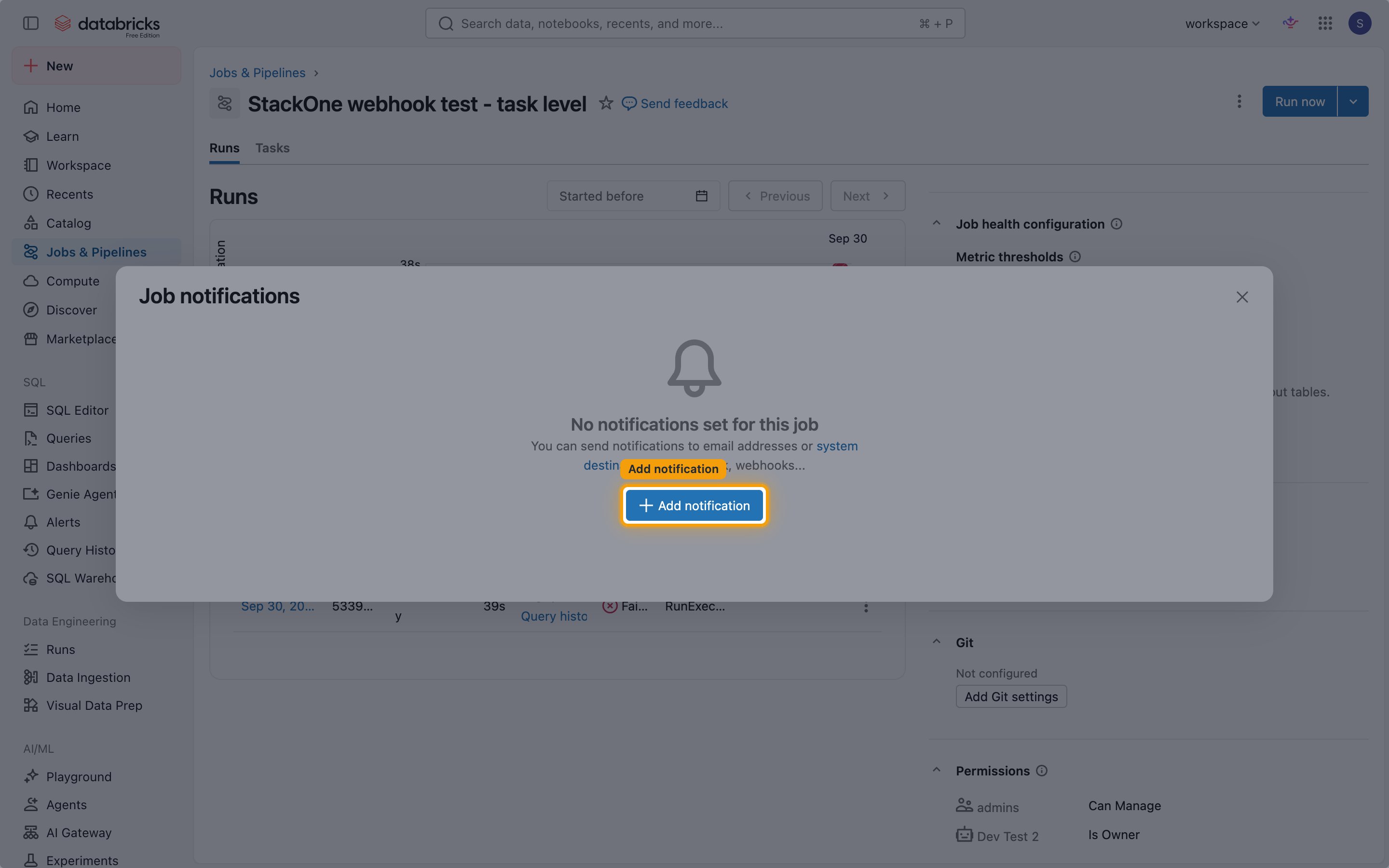
        <p>In the <strong>Job notifications</strong> dialog, click <strong>Add notification</strong>.</p>

        <img src="https://mintcdn.com/stackone-60/Yx9FjiVntAxlAJG7/connectors/databricksworkspace/images/events-job-add-notification.png?fit=max&auto=format&n=Yx9FjiVntAxlAJG7&q=85&s=461e2ceae425a96824225f23a2d692f8" alt="Job notifications dialog with the Add notification button highlighted" width="2880" height="1800" data-path="connectors/databricksworkspace/images/events-job-add-notification.png" />
      </div>
    </Step>

    <Step title="Select the StackOne destination">
      <div data-guide-step data-guide-scopes="" data-guide-display-scopes-list="">
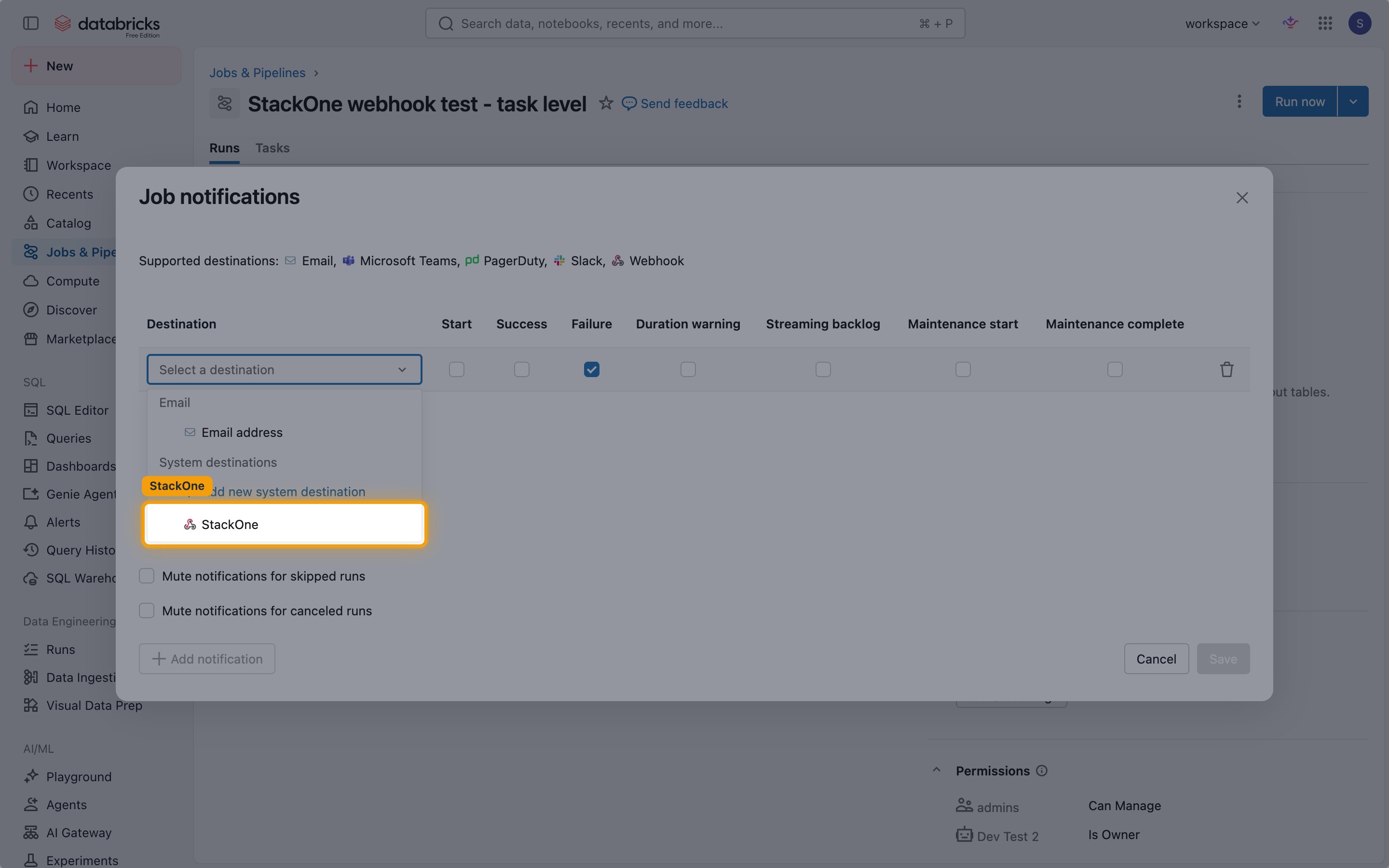
        <p>Open <strong>Select a destination</strong> and, under <strong>System destinations</strong>, select <strong>StackOne</strong>.</p>

        <img src="https://mintcdn.com/stackone-60/Yx9FjiVntAxlAJG7/connectors/databricksworkspace/images/events-job-select-destination.png?fit=max&auto=format&n=Yx9FjiVntAxlAJG7&q=85&s=3622f5a09f2e089f98ba1b3dbd14618c" alt="Destination dropdown with the StackOne system destination highlighted" width="2880" height="1800" data-path="connectors/databricksworkspace/images/events-job-select-destination.png" />
      </div>
    </Step>

    <Step title="Choose the events and save">
      <div data-guide-step data-guide-scopes="" data-guide-display-scopes-list="">
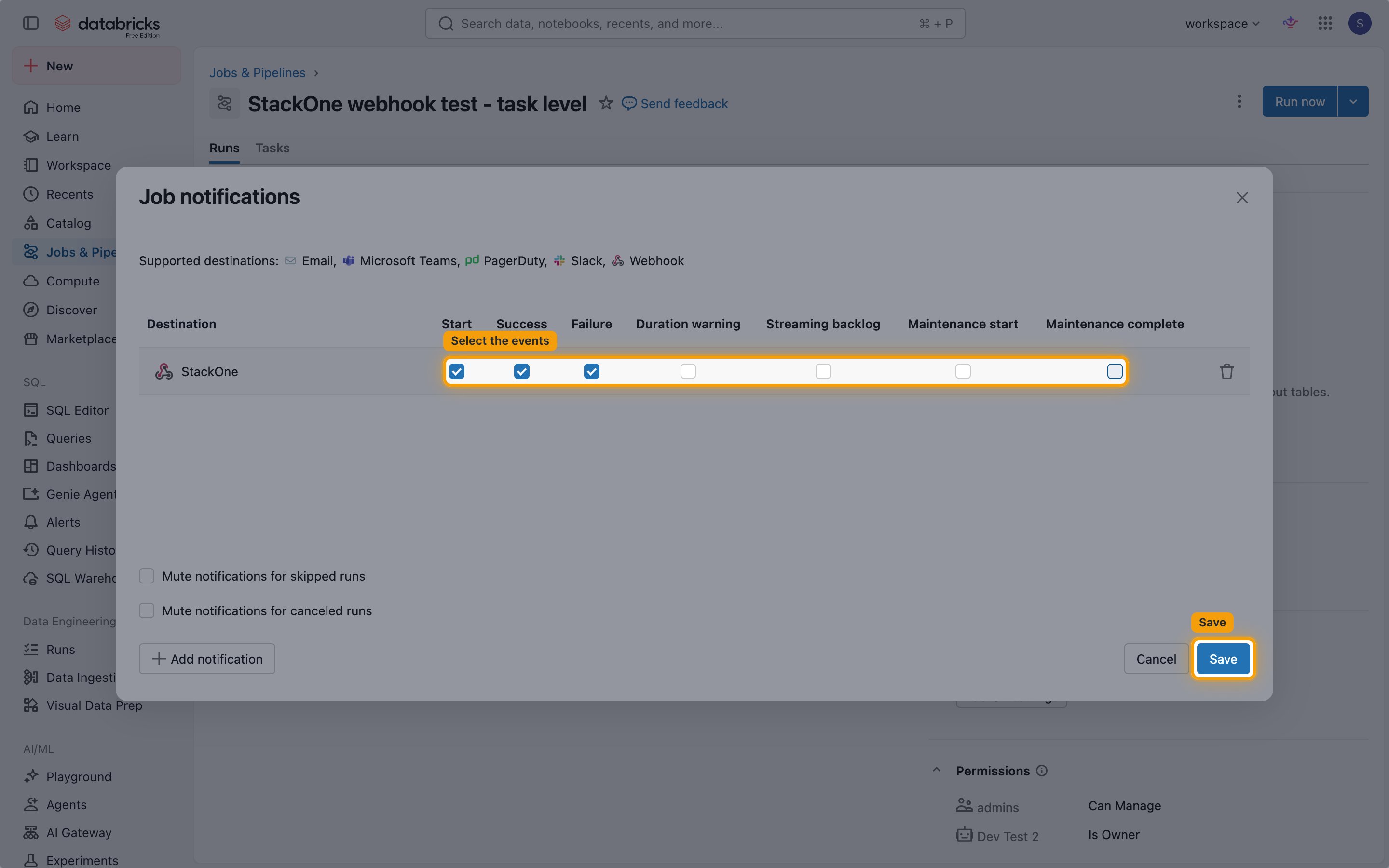
        <p>Tick the events to send to StackOne, then click <strong>Save</strong>.</p>

        <ul>
          <li><strong>Failure</strong> is ticked by default.</li>
          <li><strong>Duration warning</strong> and <strong>Streaming backlog</strong> can only be ticked once the job has a matching metric threshold (see the next section).</li>
          <li><strong>Maintenance start</strong> and <strong>Maintenance complete</strong> apply to continuous jobs.</li>
        </ul>

        <img src="https://mintcdn.com/stackone-60/Yx9FjiVntAxlAJG7/connectors/databricksworkspace/images/events-job-select-events.png?fit=max&auto=format&n=Yx9FjiVntAxlAJG7&q=85&s=8e00a8a981ab0779c2060396e6b2a76a" alt="StackOne notification row with Start, Success, and Failure ticked and the Save button highlighted" width="2880" height="1800" data-path="connectors/databricksworkspace/images/events-job-select-events.png" />
      </div>
    </Step>
  </Steps>
</section>

<section data-guide-section data-guide-scopes="">
  <h2>Set metric thresholds for warning events</h2>

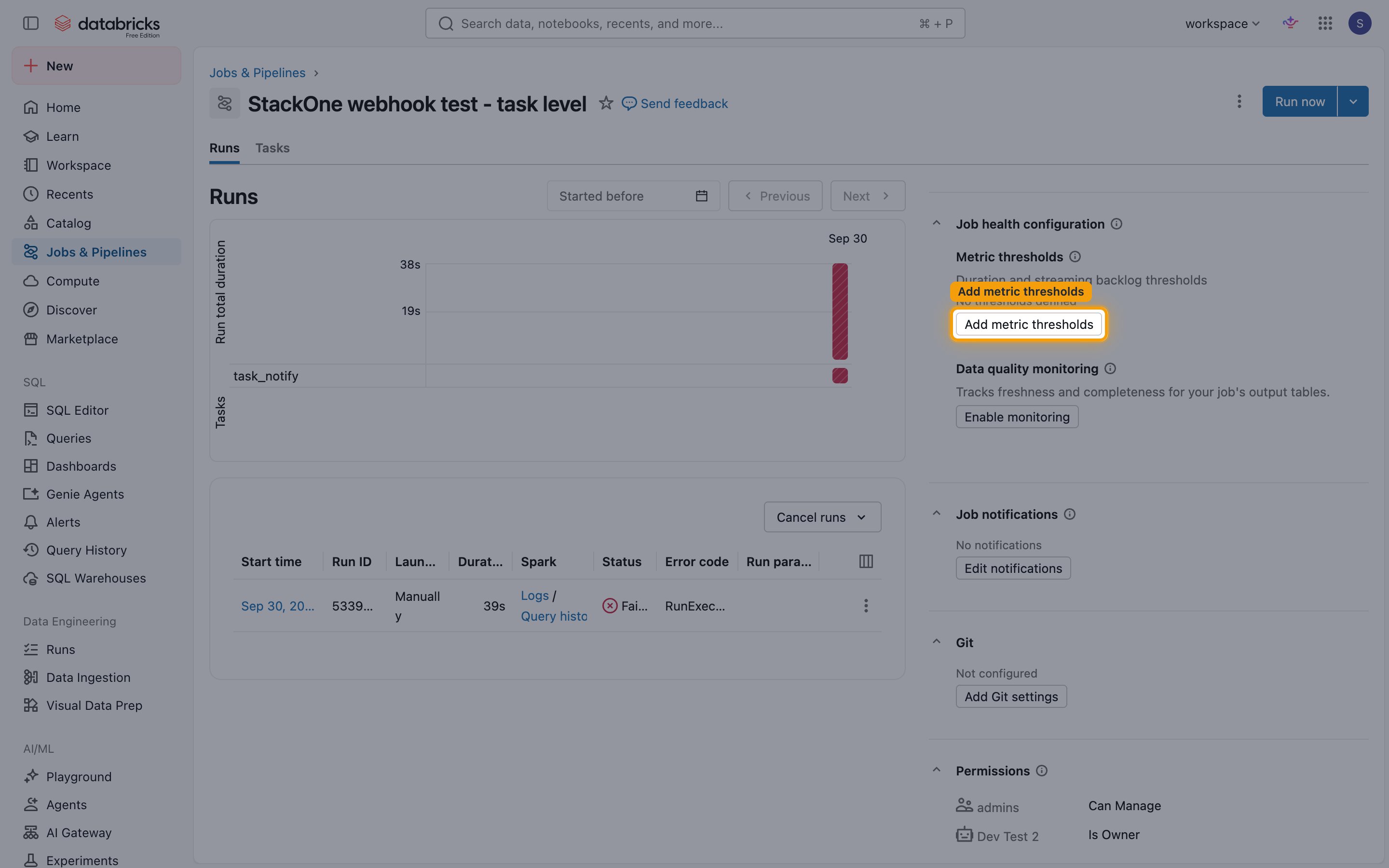
  <p>Duration warning and Streaming backlog notifications fire only when the job has a matching metric threshold.</p>

  <Steps>
    <Step title="Add a metric threshold">
      <div data-guide-step data-guide-scopes="" data-guide-display-scopes-list="">
        <p>On the job page, under <strong>Job health configuration</strong>, click <strong>Add metric thresholds</strong>. Choose <strong>Run duration</strong> for duration warnings, or a <strong>Streaming backlog (bytes)</strong>, <strong>Streaming backlog (duration)</strong>, <strong>Streaming backlog (files)</strong>, or <strong>Streaming backlog (records)</strong> metric for streaming jobs, then set the threshold.</p>

        <img src="https://mintcdn.com/stackone-60/Yx9FjiVntAxlAJG7/connectors/databricksworkspace/images/events-job-metric-thresholds.png?fit=max&auto=format&n=Yx9FjiVntAxlAJG7&q=85&s=3333fa487d3dbe75f6c6fccd755517dc" alt="Job health configuration with the Add metric thresholds button highlighted" width="2880" height="1800" data-path="connectors/databricksworkspace/images/events-job-metric-thresholds.png" />
      </div>
    </Step>
  </Steps>
</section>

<section data-guide-section data-guide-scopes="">
  <h2>Available webhook events</h2>

  <p>The following Databricks events can be enabled. Only events selected in StackOne are delivered, and only for jobs or tasks whose notifications include the <strong>StackOne</strong> destination.</p>

  <Steps>
    <Step title="Job run events">
      <div data-guide-step data-guide-scopes="" data-guide-display-scopes-list="">
        <p>Events fired as a job or task run progresses.</p>

        <ul>
          <li><strong>Job Start</strong> (`jobs.on_start`) — Fired when a job run or task run starts.</li>
          <li><strong>Job Success</strong> (`jobs.on_success`) — Fired when a run completes successfully, including runs that succeeded with failures.</li>
          <li><strong>Job Failure</strong> (`jobs.on_failure`) — Fired when a run fails.</li>
          <li><strong>Job Duration Warning</strong> (`jobs.on_duration_warning_threshold_exceeded`) — Fired when a run exceeds the job's run duration threshold.</li>
        </ul>
      </div>
    </Step>

    <Step title="Other job events">
      <div data-guide-step data-guide-scopes="" data-guide-display-scopes-list="">
        <p>A catch-all for job notifications without a dedicated event.</p>

        <ul>
          <li><strong>Other Job Notification</strong> (`jobs.*`) — Fired for any other job notification, such as streaming backlog or continuous-job maintenance. The event type is passed through exactly as Databricks sends it.</li>
        </ul>
      </div>
    </Step>
  </Steps>
</section>

<section data-guide-section data-guide-scopes="">
  <h2>Delivery format</h2>

  <p>Details of how Databricks delivers job notifications to StackOne.</p>

  <ul>
    <li>Databricks sends no event ID or timestamp, so StackOne uses the run ID as the event ID.</li>
    <li>Task-level notifications are sent once per task attempt. A retried task, including a serverless automatic retry, produces new events with a new task run ID.</li>
    <li>Job-level notifications are not sent for retried tasks.</li>
  </ul>
</section>

## Verify

Your Connector should now be able to receive and process events. Try triggering an event and you should see an Event appear in the Connector logs.


This documentation is built and hosted on [Mintlify](https://mintlify.com), a developer documentation platform.