> ## Documentation Index
> Fetch the complete documentation index at: https://docs.stackone.com/llms.txt
> Use this file to discover all available pages before exploring further.

# Connect Dashlane with API Key – StackOne Hub

> Link a Dashlane account in the StackOne Hub using API Key. End-user guide to authorize the integration and start using Dashlane actions.

<Warning>Public API keys can only be created by a team administrator in the Dashlane Admin Console, on a Dashlane business plan. The console opens through the Dashlane browser extension, so the extension must be installed first.</Warning>

<section data-guide-section data-guide-scopes="">
  <h2>Open the Public API keys page</h2>

  <p>Dashlane manages public API keys in the Admin Console, under <strong>Developer Access</strong>.</p>

  <Steps>
    <Step title="Sign in to Dashlane">
      <div data-guide-step data-guide-scopes="" data-guide-display-scopes-list="">
        <p>Sign in to the <a href="https://console.dashlane.com" target="_blank" rel="noopener noreferrer">Dashlane Admin Console</a> as a team administrator.</p>

        <ul>
          <li>The Admin Console opens through the Dashlane browser extension, so install the extension before signing in.</li>
        </ul>
      </div>
    </Step>

    <Step title="Open Integrations">
      <div data-guide-step data-guide-scopes="" data-guide-display-scopes-list="">
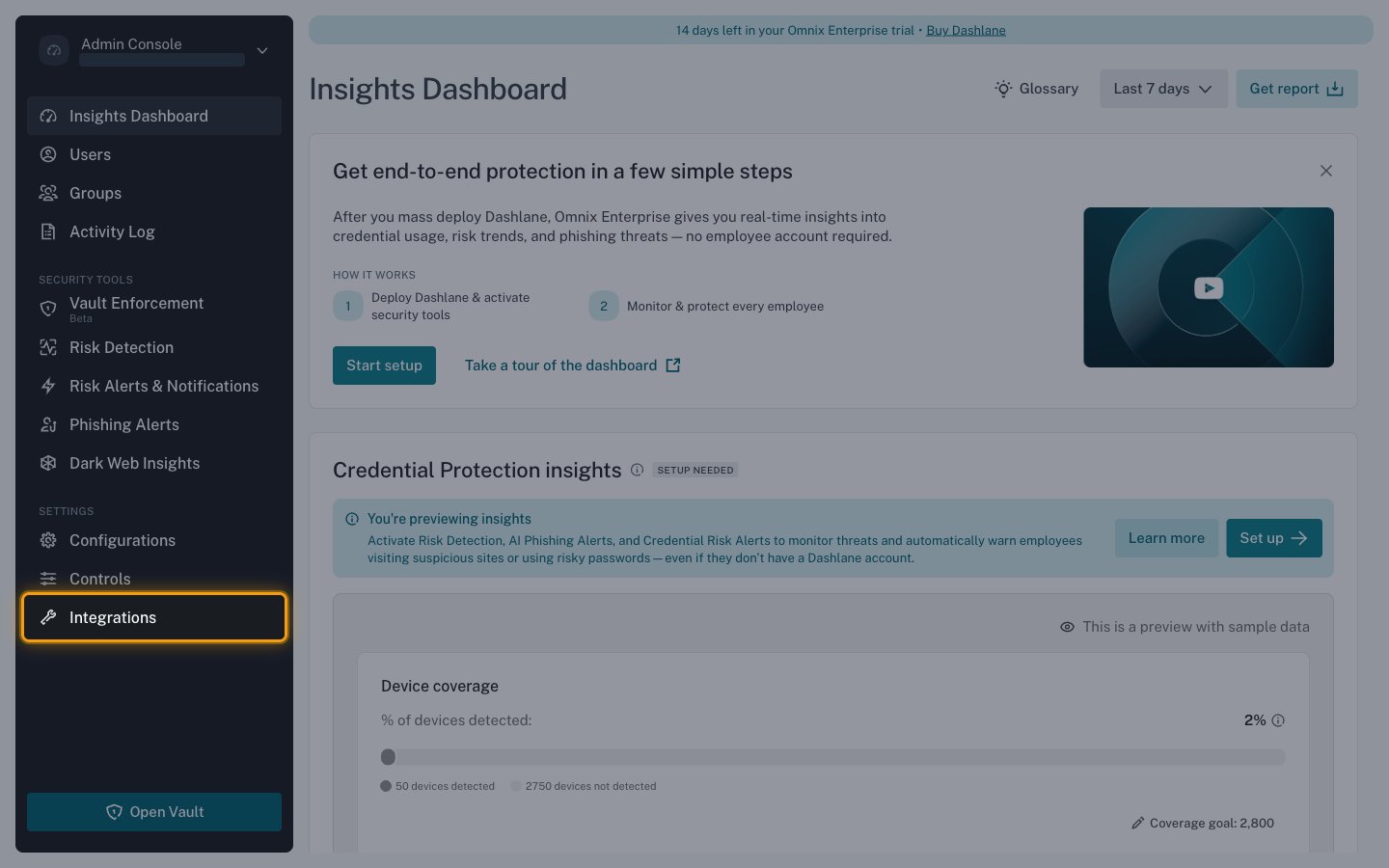
        <p>In the left navigation, under <strong>Settings</strong>, select <strong>Integrations</strong>.</p>

        <img src="https://mintcdn.com/stackone-60/SErzLoItNJ6A5Jwv/connectors/dashlane/images/custom-config-integrations.png?fit=max&auto=format&n=SErzLoItNJ6A5Jwv&q=85&s=8d649c56503d910ddfd66f8d86341b4c" alt="The Dashlane Admin Console navigation with Integrations highlighted under Settings" width="1440" height="900" data-path="connectors/dashlane/images/custom-config-integrations.png" />
      </div>
    </Step>

    <Step title="Open Public API keys">
      <div data-guide-step data-guide-scopes="" data-guide-display-scopes-list="">
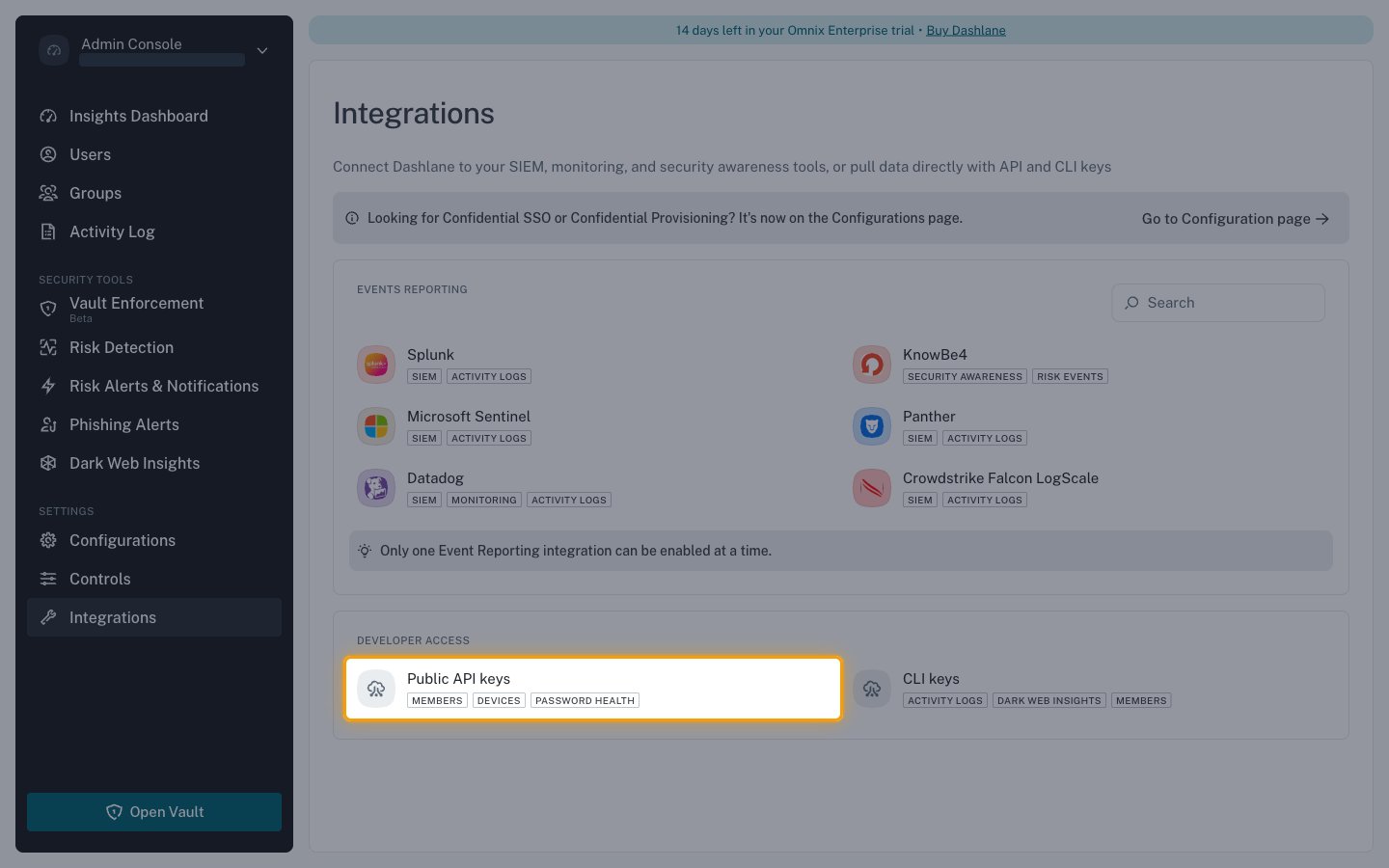
        <p>Scroll to <strong>Developer Access</strong> and select <strong>Public API keys</strong>.</p>

        <ul>
          <li>The <strong>Public API keys</strong> card lists the data these keys read — <strong>Members</strong>, <strong>Devices</strong>, and <strong>Password Health</strong>.</li>
          <li><strong>CLI keys</strong> on the same page are a separate credential type and are not used by this connection.</li>
        </ul>

        <img src="https://mintcdn.com/stackone-60/SErzLoItNJ6A5Jwv/connectors/dashlane/images/custom-config-developer-access.png?fit=max&auto=format&n=SErzLoItNJ6A5Jwv&q=85&s=c41f09e438d87388685b89cf80249b65" alt="The Integrations page with the Public API keys card highlighted under Developer Access" width="1440" height="900" data-path="connectors/dashlane/images/custom-config-developer-access.png" />
      </div>
    </Step>
  </Steps>
</section>

<section data-guide-section data-guide-scopes="">
  <h2>Generate an API key</h2>

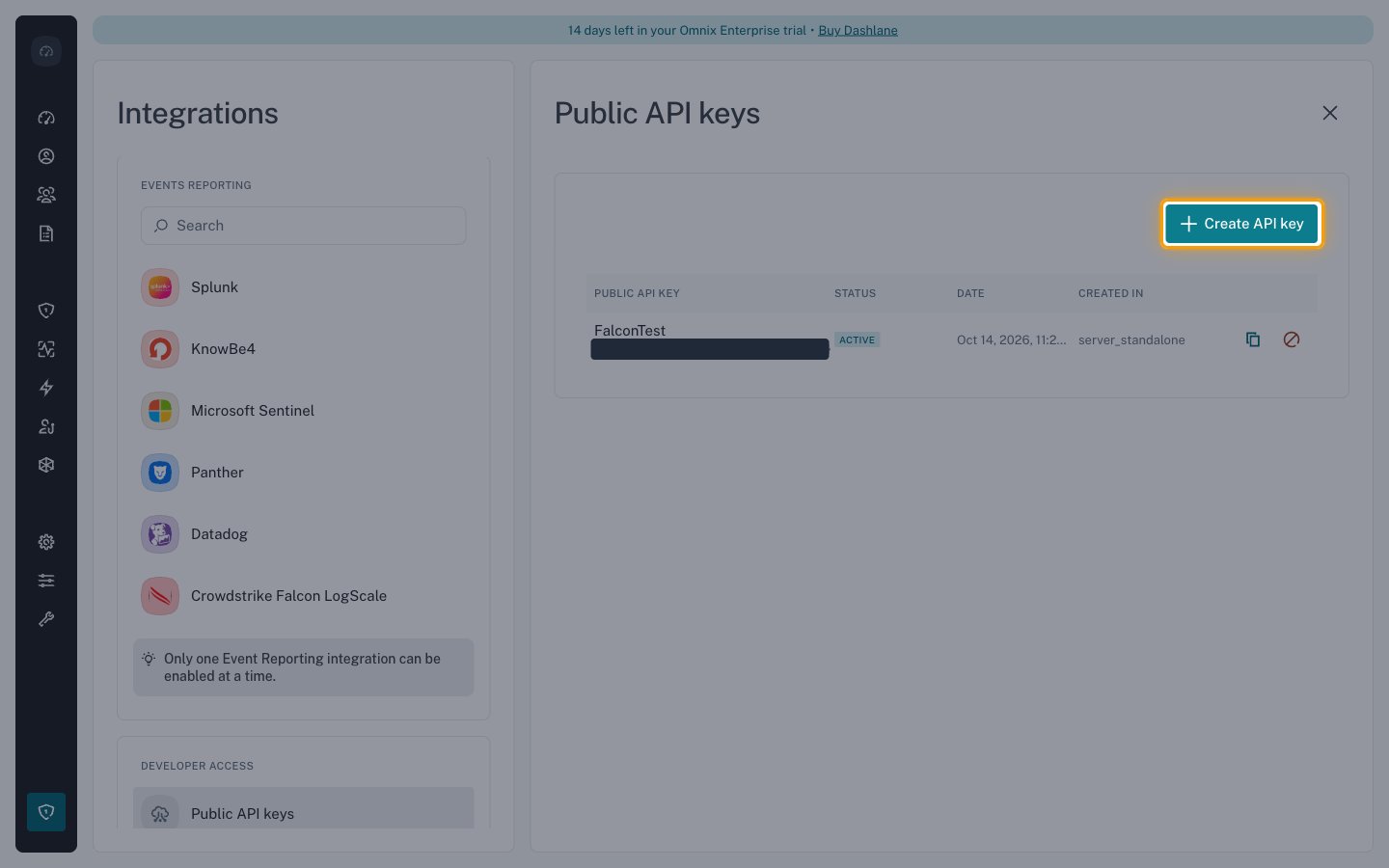
  <p>Keys are generated from the <strong>Public API keys</strong> panel, which also lists the keys that already<br />exist.</p>

  <Steps>
    <Step title="Create a key">
      <div data-guide-step data-guide-scopes="" data-guide-display-scopes-list="">
        <p>Select <strong>Create API key</strong>.</p>

        <img src="https://mintcdn.com/stackone-60/SErzLoItNJ6A5Jwv/connectors/dashlane/images/custom-config-create-api-key.png?fit=max&auto=format&n=SErzLoItNJ6A5Jwv&q=85&s=f5ee80a6a7f718101174084016850797" alt="The Public API keys panel with the Create API key button highlighted" width="1440" height="900" data-path="connectors/dashlane/images/custom-config-create-api-key.png" />
      </div>
    </Step>

    <Step title="Name and generate the key">
      <div data-guide-step data-guide-scopes="" data-guide-display-scopes-list="">
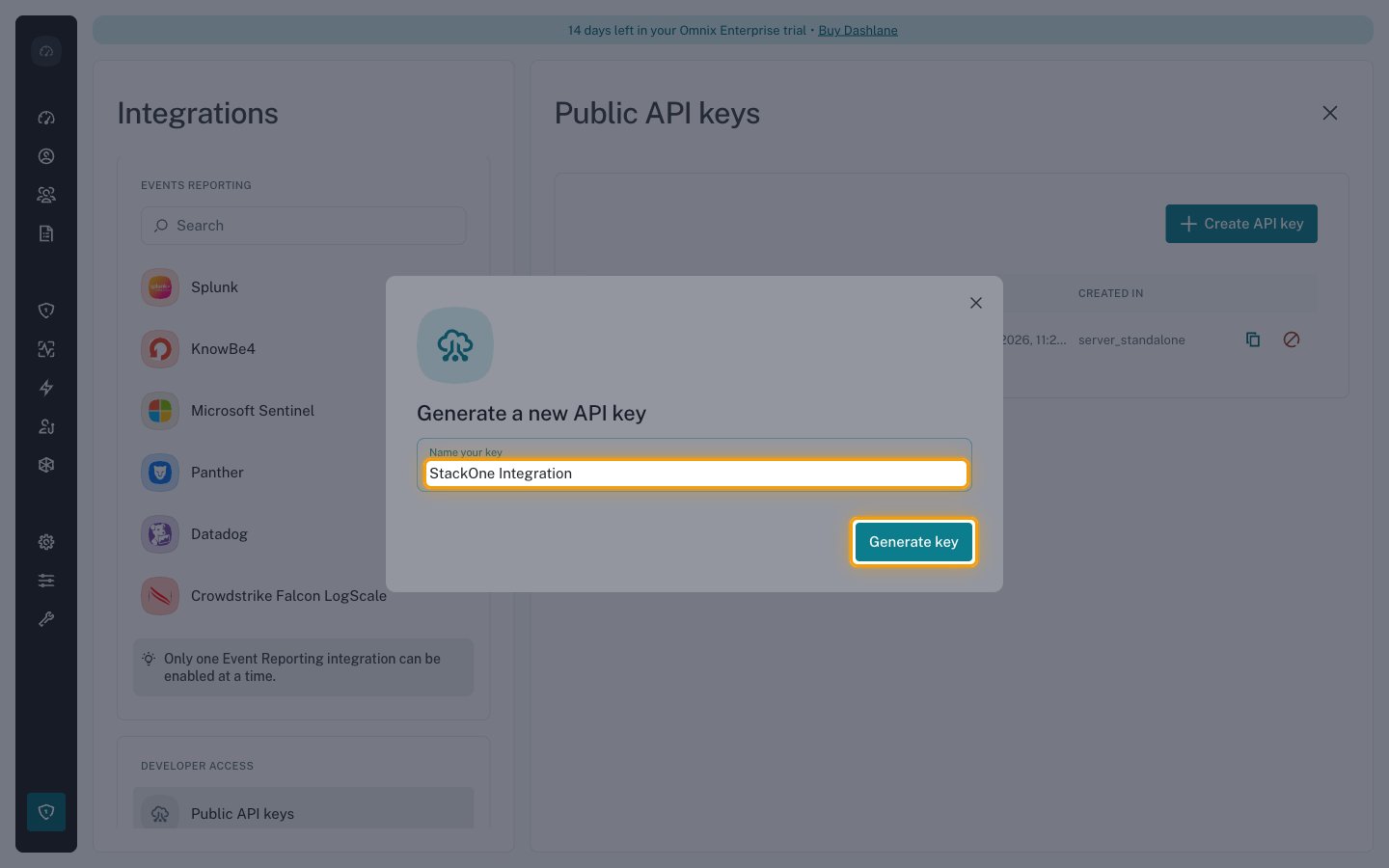
        <p>In the <strong>Generate a new API key</strong> dialog, fill in <strong>Name your key</strong>, then select <strong>Generate key</strong>.</p>

        <ul>
          <li>Name your key: `StackOne Integration`</li>
        </ul>

        <img src="https://mintcdn.com/stackone-60/SErzLoItNJ6A5Jwv/connectors/dashlane/images/custom-config-generate-key.png?fit=max&auto=format&n=SErzLoItNJ6A5Jwv&q=85&s=2d38360f6da040a350d8b09ab9dec99e" alt="The Generate a new API key dialog with the Name your key field filled in and Generate key highlighted" width="1440" height="900" data-path="connectors/dashlane/images/custom-config-generate-key.png" />
      </div>
    </Step>

    <Step title="Copy the bearer token">
      <div data-guide-step data-guide-scopes="" data-guide-display-scopes-list="">
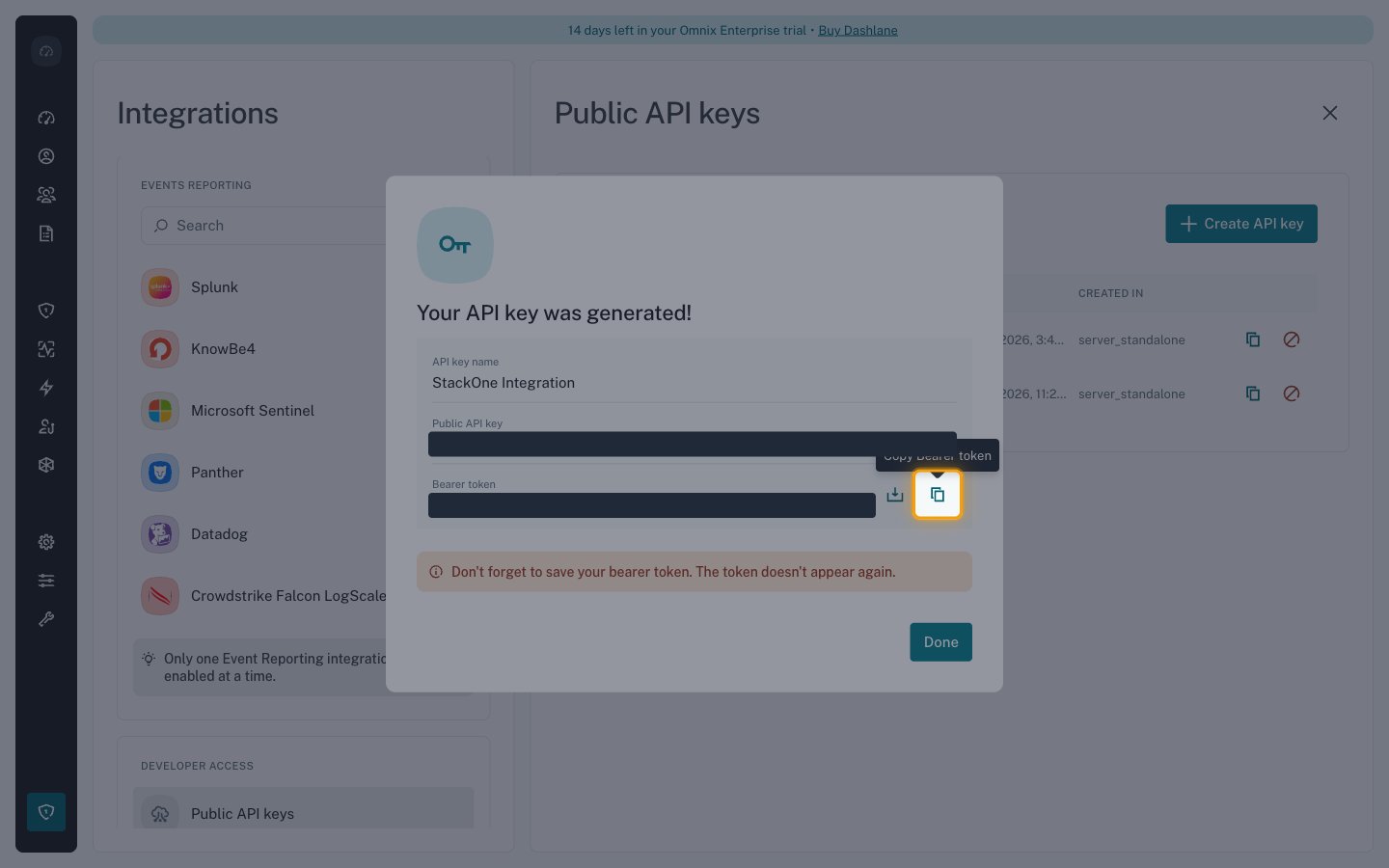
        <p><strong>Your API key was generated!</strong> shows the key. Select <strong>Copy Bearer token</strong> next to the<br /><strong>Bearer token</strong> field and paste the value into the <strong>API Key</strong> field in StackOne Hub,<br />then select <strong>Done</strong>.</p>

        <ul>
          <li>The bearer token is shown only once and cannot be retrieved later, so store it in a secret manager before closing the dialog.</li>
          <li>Format: `DLP_{teamUuid}_{accessKey}_{secretKey}`</li>
          <li>Paste the token exactly as copied, with no leading or trailing spaces.</li>
          <li>Use <strong>Download Bearer token</strong> instead if you prefer to save the token to a file.</li>
        </ul>

        <img src="https://mintcdn.com/stackone-60/SErzLoItNJ6A5Jwv/connectors/dashlane/images/custom-config-copy-bearer-token.png?fit=max&auto=format&n=SErzLoItNJ6A5Jwv&q=85&s=2dc9471d4b023cafa39c792856b5d518" alt="The generated key dialog with the Copy Bearer token button highlighted and the key values hidden" width="1440" height="900" data-path="connectors/dashlane/images/custom-config-copy-bearer-token.png" />
      </div>
    </Step>
  </Steps>
</section>

<div data-whitelabel-hide>
  <h2>Linking the Account from the Hub</h2>

  <Steps>
    <Step title="Navigate to the Hub">
      Use one of the three <a href="/connect/managing-connectors/linking-accounts">Linking Account Methods</a> to access the Hub.
    </Step>

    <Step title="Fill out the fields">
      Fill out the following fields using details from your provider:

      <ul>
        <li><strong>API Key</strong></li>
      </ul>
    </Step>

    <Step title="Connect">
      <ul>
        <li>Click <strong>Connect</strong></li>
        <li>If applicable, the provider will redirect you to a sign-in or authorization page. Complete the provider's authorization flow.</li>
        <li>Once authorization is successful, you will see a confirmation popup</li>
      </ul>
    </Step>
  </Steps>

  <p>If the account linking is successful, you will see the newly linked account in your <a href="/gateway/concepts/linked-accounts">Accounts</a> page.</p>
</div>


This documentation is built and hosted on [Mintlify](https://mintlify.com), a developer documentation platform.