> ## Documentation Index
> Fetch the complete documentation index at: https://docs.stackone.com/llms.txt
> Use this file to discover all available pages before exploring further.

# Connect Coursera with OAuth 2.0 (Client Credentials) – StackOne Hub

> Link a Coursera account in the StackOne Hub using OAuth 2.0 (Client Credentials). End-user guide to authorize the integration and start using Coursera actions.

<Warning>Ensure you have Admin privileges for your Coursera account.</Warning>

<section data-guide-section data-guide-scopes="">
  <h2>Getting Your Coursera API Credentials</h2>

  <p>To connect Coursera with StackOne, you'll need to register an app and obtain your API credentials from the Coursera Developer Portal.</p>

  <Steps>
    <Step title="Sign in to the Coursera Developer Portal">
      <div data-guide-step data-guide-scopes="" data-guide-display-scopes-list="">
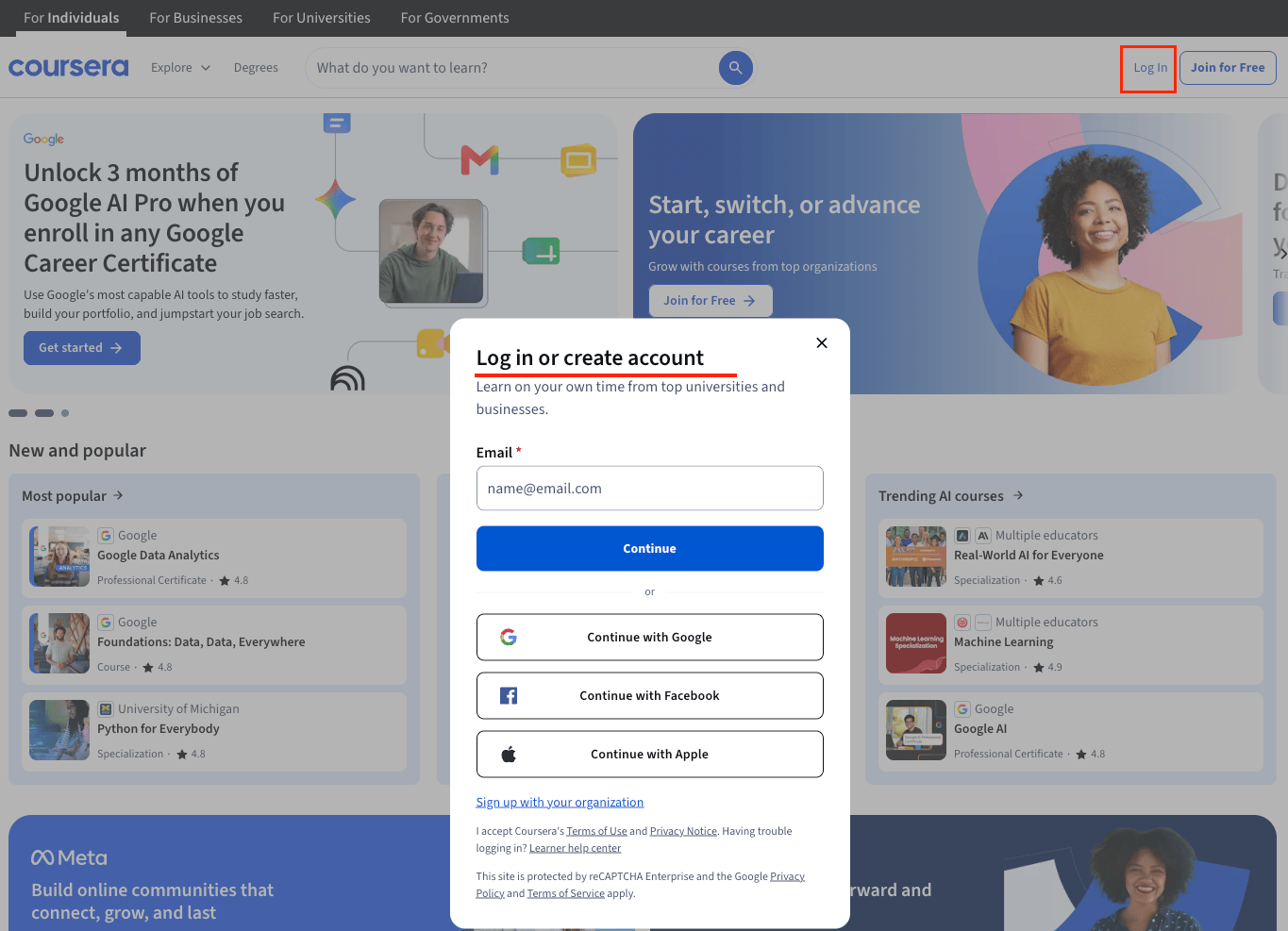
        <p>Navigate to the <a href="https://dev.coursera.com" target="_blank" rel="noopener noreferrer">Coursera Developer Portal</a> and sign in using your Coursera account.</p>

        <ul>
          <li>Click the <strong>Sign In</strong> button in the upper-right corner of the Developer Portal</li>
          <li>You will be redirected to <a href="https://www.coursera.org" target="_blank" rel="noopener noreferrer">[www.coursera.org](http://www.coursera.org)</a> for authentication — click <strong>Login With SAML</strong> to sign in</li>
          <li>Accept the terms and conditions if prompted</li>
          <li>Once authenticated, you will be returned to the Developer Portal. If the top-right still shows 'Sign In', click it again to complete the login</li>
        </ul>

        <img src="https://mintcdn.com/stackone-60/jsL_dX8vwRUcAlgF/connectors/coursera/images/coursera-login.png?fit=max&auto=format&n=jsL_dX8vwRUcAlgF&q=85&s=c0b2269f21a8cc149f330a1db58548f2" alt="Coursera Developer Portal Sign In" width="1365" height="987" data-path="connectors/coursera/images/coursera-login.png" />
      </div>
    </Step>

    <Step title="Navigate to the Apps Section">
      <div data-guide-step data-guide-scopes="" data-guide-display-scopes-list="">
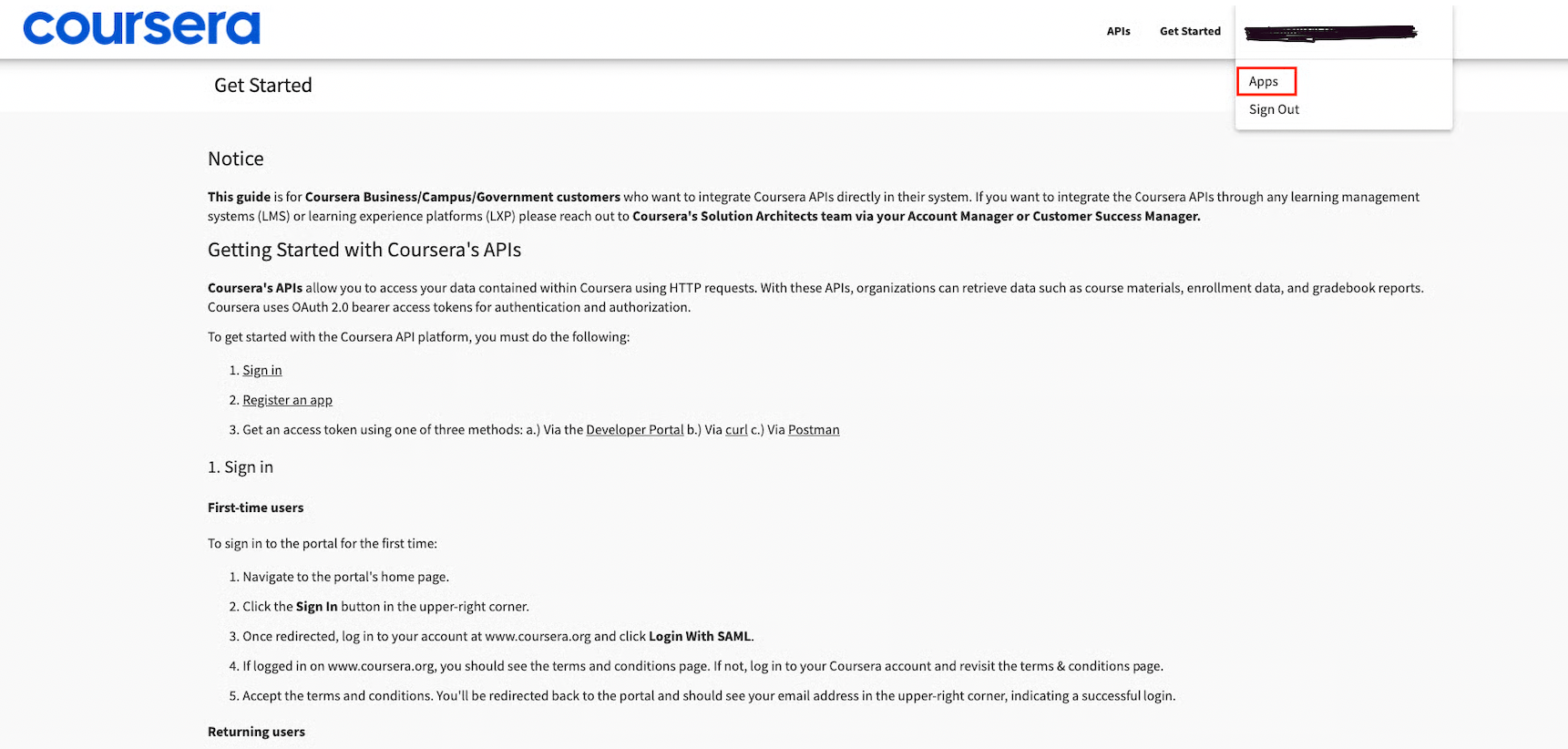
        <p>Access the Apps section in the Coursera Developer Portal to create a new app.</p>

        <ul>
          <li>Click your email address in the upper-right corner and choose <strong>Apps</strong> from the dropdown</li>
          <li>This will take you to the <strong>Apps</strong> page, where you can manage your registered apps</li>
        </ul>

        <img src="https://mintcdn.com/stackone-60/jsL_dX8vwRUcAlgF/connectors/coursera/images/navigate-to-apps-step0.png?fit=max&auto=format&n=jsL_dX8vwRUcAlgF&q=85&s=d4439ebdde17b4a6f5150495998a1b47" alt="Coursera Developer Portal Apps Section" width="1721" height="822" data-path="connectors/coursera/images/navigate-to-apps-step0.png" />
      </div>
    </Step>

    <Step title="Register an App">
      <div data-guide-step data-guide-scopes="" data-guide-display-scopes-list="">
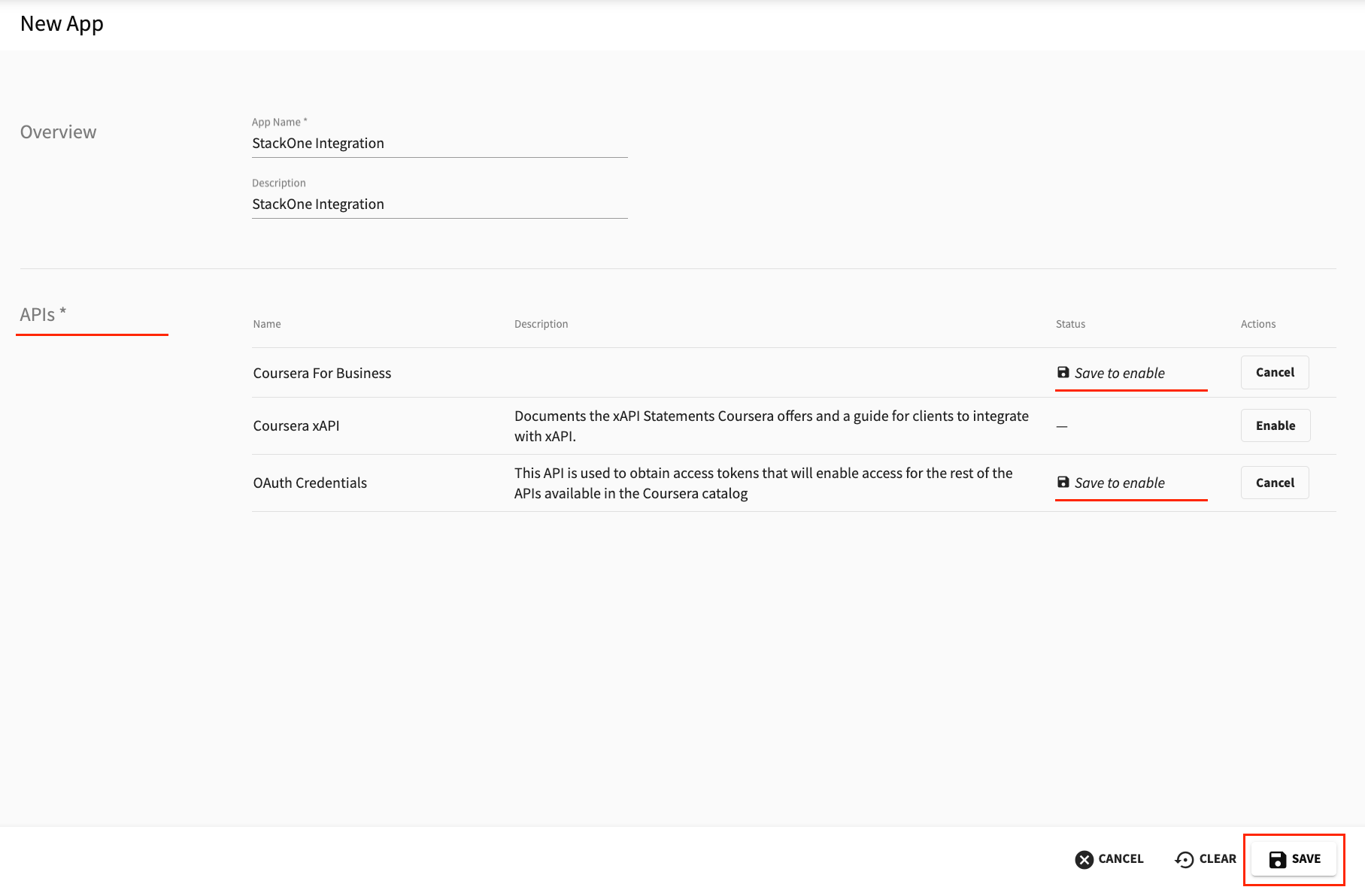
        <p>Create a new app to obtain your API credentials.</p>

        <ul>
          <li>Click <strong>+ NEW APP</strong> in the top-right corner of the <strong>Apps</strong> page</li>
          <li>Add a name and description for the new app, for example 'StackOne Integration'</li>
          <li>In the <strong>APIs</strong> section, enable <strong>OAuth Credentials</strong> and <strong>Coursera For Business</strong> by clicking <strong>Enable</strong> next to each</li>
          <li>Click the <strong>SAVE</strong> button to create the app</li>
          <li>Note: Use your organization's admin account to register apps to avoid access issues</li>
        </ul>

        <img src="https://mintcdn.com/stackone-60/jsL_dX8vwRUcAlgF/connectors/coursera/images/coursera-register-app.png?fit=max&auto=format&n=jsL_dX8vwRUcAlgF&q=85&s=92fb9c2cb0af16e32b2f421695ef6a0b" alt="Registering a New App in Coursera Developer Portal" width="1815" height="1192" data-path="connectors/coursera/images/coursera-register-app.png" />
      </div>
    </Step>

    <Step title="Copy Your API Credentials">
      <div data-guide-step data-guide-scopes="" data-guide-display-scopes-list="">
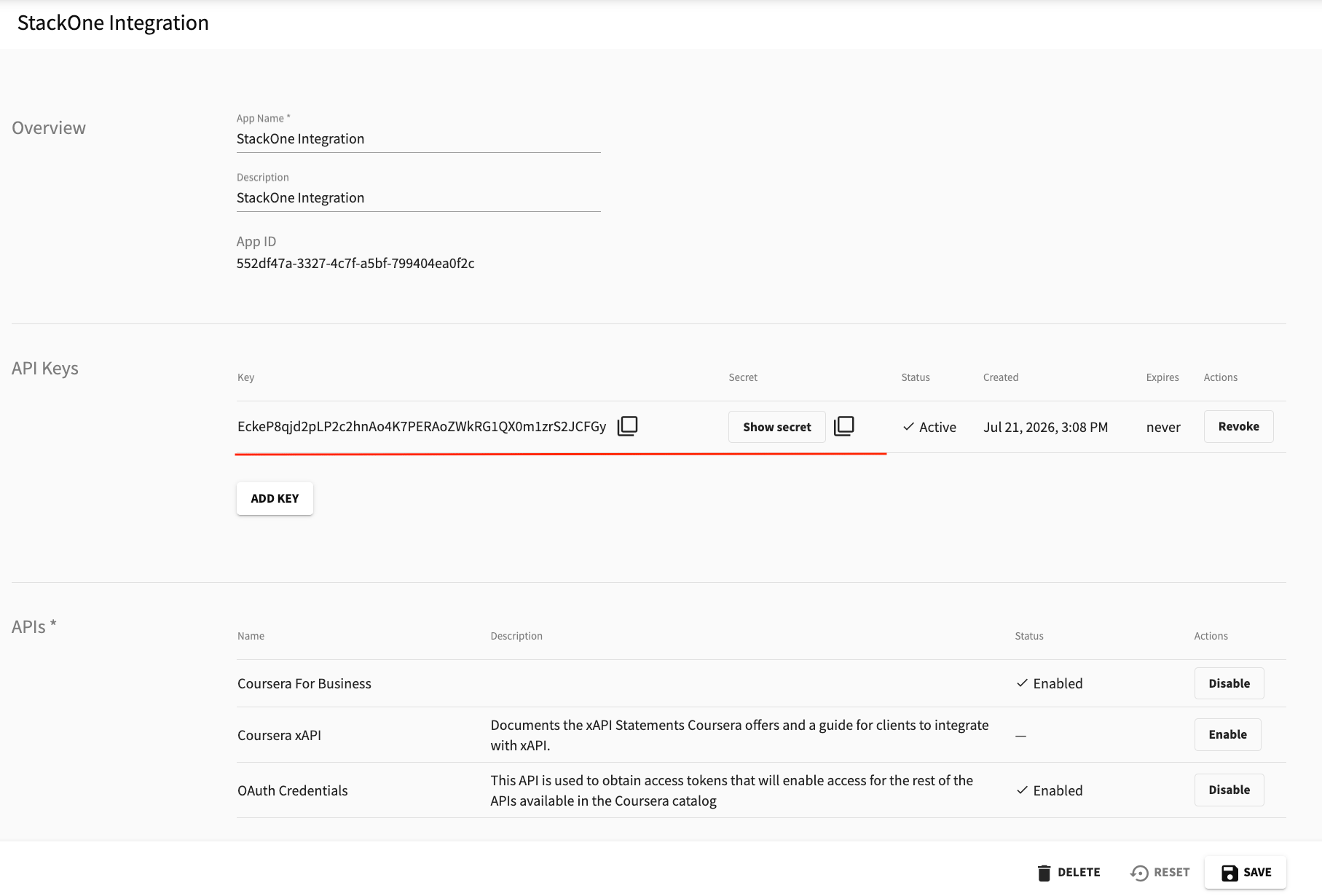
        <p>Retrieve your API Key and Client Secret from the app you created.</p>

        <ul>
          <li>In the <strong>API Keys</strong> section, click <strong>Show secret</strong> to reveal your credentials</li>
          <li>Copy the <strong>API Key</strong> (this is your Client ID)</li>
          <li>Copy the <strong>Client Secret</strong></li>
          <li>Store both values securely for later use</li>
        </ul>

        <img src="https://mintcdn.com/stackone-60/jsL_dX8vwRUcAlgF/connectors/coursera/images/coursera-copy-credentials.png?fit=max&auto=format&n=jsL_dX8vwRUcAlgF&q=85&s=dd54338d8ae142a74c73b03dd2d0ae5d" alt="Copying API Credentials in Coursera Developer Portal" width="1815" height="1230" data-path="connectors/coursera/images/coursera-copy-credentials.png" />
      </div>
    </Step>
  </Steps>
</section>

<section data-guide-section data-guide-scopes="">
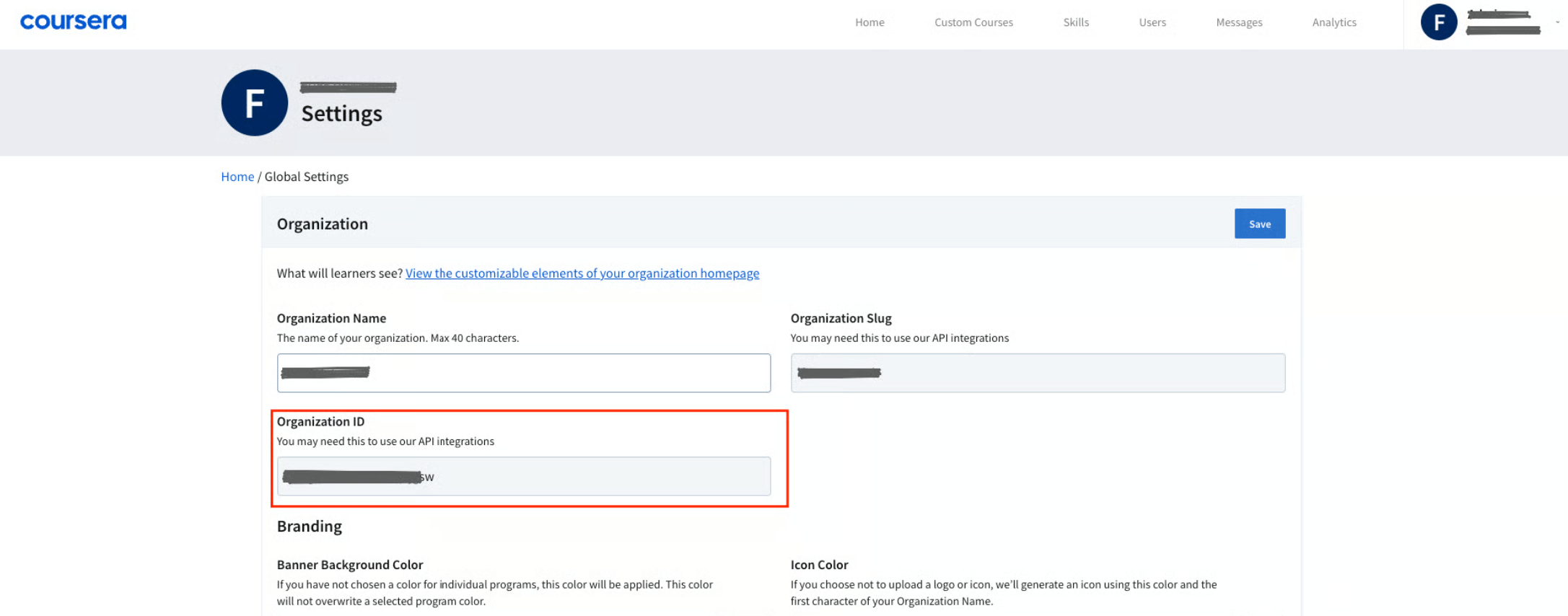
  <h2>Finding Your Organization ID</h2>

  <p>Locate your Organization ID in the Coursera Admin settings.</p>

  <Steps>
    <Step title="Navigate to Admin Settings">
      <div data-guide-step data-guide-scopes="" data-guide-display-scopes-list="">
        <p>Access your organization settings in the Coursera admin console.</p>

        <ul>
          <li>Click your email address in the upper-right corner and choose <strong>Admin</strong> from the dropdown</li>
          <li>You will be taken to the Coursera admin console. In the left sidebar, click <strong>Settings</strong></li>
          <li>Copy the <strong>Organization ID</strong> value</li>
          <li>Store it securely for later use</li>
        </ul>

        <img src="https://mintcdn.com/stackone-60/jsL_dX8vwRUcAlgF/connectors/coursera/images/coursera-organization-id.png?fit=max&auto=format&n=jsL_dX8vwRUcAlgF&q=85&s=11cfc89dc34f32ebf54052fe80ddcd49" alt="Finding Organization ID in Coursera Admin Settings" width="2173" height="854" data-path="connectors/coursera/images/coursera-organization-id.png" />
      </div>
    </Step>
  </Steps>
</section>

<div data-whitelabel-hide>
  <h2>Linking the Account from the Hub</h2>

  <Steps>
    <Step title="Navigate to the Hub">
      Use one of the three <a href="/guides/accounts-section#linking-accounts">Linking Account Methods</a> to access the Hub.
    </Step>

    <Step title="Fill out the fields">
      Fill out the following fields using details from your provider:

      <ul>
        <li><strong>API Key</strong></li>
        <li><strong>Client Secret</strong></li>
        <li><strong>Organization ID</strong></li>
      </ul>
    </Step>

    <Step title="Connect">
      <ul>
        <li>Click <strong>Connect</strong></li>
        <li>If applicable, the provider will redirect you to a sign-in or authorization page. Complete the provider's authorization flow.</li>
        <li>Once authorization is successful, you will see a confirmation popup</li>
      </ul>
    </Step>
  </Steps>

  <p>If the account linking is successful, you will see the newly linked account in your <a href="/guides/accounts-section">Accounts</a> page.</p>
</div>