> ## Documentation Index
> Fetch the complete documentation index at: https://docs.stackone.com/llms.txt
> Use this file to discover all available pages before exploring further.

# Clear Books OAuth 2.0 connector profile – StackOne setup guide

> Set up the OAuth 2.0 connector profile for Clear Books in StackOne. One-time admin setup required before your users can link Clear Books accounts via Hub.

<Panel>
  <div className="not-prose guides-scope-selector" data-guides-scope-selector data-guide-actions-json="[{&#x22;id&#x22;:&#x22;clearbooks_list_account_codes&#x22;,&#x22;label&#x22;:&#x22;List Account Codes&#x22;,&#x22;scopes&#x22;:[&#x22;accounting.account_codes:read&#x22;]},{&#x22;id&#x22;:&#x22;clearbooks_create_account_code&#x22;,&#x22;label&#x22;:&#x22;Create Account Code&#x22;,&#x22;scopes&#x22;:[&#x22;accounting.account_codes:write&#x22;]},{&#x22;id&#x22;:&#x22;clearbooks_get_account_code&#x22;,&#x22;label&#x22;:&#x22;Get Account Code&#x22;,&#x22;scopes&#x22;:[&#x22;accounting.account_codes:read&#x22;]},{&#x22;id&#x22;:&#x22;clearbooks_update_account_code&#x22;,&#x22;label&#x22;:&#x22;Update Account Code&#x22;,&#x22;scopes&#x22;:[&#x22;accounting.account_codes:write&#x22;]},{&#x22;id&#x22;:&#x22;clearbooks_delete_account_code&#x22;,&#x22;label&#x22;:&#x22;Delete Account Code&#x22;,&#x22;scopes&#x22;:[&#x22;accounting.account_codes:write&#x22;]},{&#x22;id&#x22;:&#x22;clearbooks_list_allocations&#x22;,&#x22;label&#x22;:&#x22;List Allocations&#x22;,&#x22;scopes&#x22;:[&#x22;accounting.allocations:read&#x22;]},{&#x22;id&#x22;:&#x22;clearbooks_create_allocation&#x22;,&#x22;label&#x22;:&#x22;Create Allocation&#x22;,&#x22;scopes&#x22;:[&#x22;accounting.allocations:write&#x22;]},{&#x22;id&#x22;:&#x22;clearbooks_get_allocation&#x22;,&#x22;label&#x22;:&#x22;Get Allocation&#x22;,&#x22;scopes&#x22;:[&#x22;accounting.allocations:read&#x22;]},{&#x22;id&#x22;:&#x22;clearbooks_delete_allocation&#x22;,&#x22;label&#x22;:&#x22;Delete Allocation&#x22;,&#x22;scopes&#x22;:[&#x22;accounting.allocations:write&#x22;]},{&#x22;id&#x22;:&#x22;clearbooks_list_bank_accounts&#x22;,&#x22;label&#x22;:&#x22;List Bank Accounts&#x22;,&#x22;scopes&#x22;:[&#x22;accounting.bank_accounts:read&#x22;]},{&#x22;id&#x22;:&#x22;clearbooks_create_bank_account&#x22;,&#x22;label&#x22;:&#x22;Create Bank Account&#x22;,&#x22;scopes&#x22;:[&#x22;accounting.bank_accounts:write&#x22;]},{&#x22;id&#x22;:&#x22;clearbooks_get_bank_account&#x22;,&#x22;label&#x22;:&#x22;Get Bank Account&#x22;,&#x22;scopes&#x22;:[&#x22;accounting.bank_accounts:read&#x22;]},{&#x22;id&#x22;:&#x22;clearbooks_update_bank_account&#x22;,&#x22;label&#x22;:&#x22;Update Bank Account&#x22;,&#x22;scopes&#x22;:[&#x22;accounting.bank_accounts:write&#x22;]},{&#x22;id&#x22;:&#x22;clearbooks_delete_bank_account&#x22;,&#x22;label&#x22;:&#x22;Delete Bank Account&#x22;,&#x22;scopes&#x22;:[&#x22;accounting.bank_accounts:write&#x22;]},{&#x22;id&#x22;:&#x22;clearbooks_list_businesses&#x22;,&#x22;label&#x22;:&#x22;List Businesses&#x22;,&#x22;scopes&#x22;:[&#x22;businesses:read&#x22;]},{&#x22;id&#x22;:&#x22;clearbooks_get_business&#x22;,&#x22;label&#x22;:&#x22;Get Business&#x22;,&#x22;scopes&#x22;:[&#x22;businesses:read&#x22;]},{&#x22;id&#x22;:&#x22;clearbooks_update_business&#x22;,&#x22;label&#x22;:&#x22;Update Business&#x22;,&#x22;scopes&#x22;:[&#x22;businesses:write&#x22;]},{&#x22;id&#x22;:&#x22;clearbooks_list_customers&#x22;,&#x22;label&#x22;:&#x22;List Customers&#x22;,&#x22;scopes&#x22;:[&#x22;accounting.customers:read&#x22;]},{&#x22;id&#x22;:&#x22;clearbooks_create_customer&#x22;,&#x22;label&#x22;:&#x22;Create Customer&#x22;,&#x22;scopes&#x22;:[&#x22;accounting.customers:write&#x22;]},{&#x22;id&#x22;:&#x22;clearbooks_get_customer&#x22;,&#x22;label&#x22;:&#x22;Get Customer&#x22;,&#x22;scopes&#x22;:[&#x22;accounting.customers:read&#x22;]},{&#x22;id&#x22;:&#x22;clearbooks_update_customer&#x22;,&#x22;label&#x22;:&#x22;Update Customer&#x22;,&#x22;scopes&#x22;:[&#x22;accounting.customers:write&#x22;]},{&#x22;id&#x22;:&#x22;clearbooks_delete_customer&#x22;,&#x22;label&#x22;:&#x22;Delete Customer&#x22;,&#x22;scopes&#x22;:[&#x22;accounting.customers:write&#x22;]},{&#x22;id&#x22;:&#x22;clearbooks_list_payments&#x22;,&#x22;label&#x22;:&#x22;List Payments&#x22;,&#x22;scopes&#x22;:[&#x22;accounting.payments:read&#x22;]},{&#x22;id&#x22;:&#x22;clearbooks_create_payment&#x22;,&#x22;label&#x22;:&#x22;Create Payment&#x22;,&#x22;scopes&#x22;:[&#x22;accounting.payments:write&#x22;]},{&#x22;id&#x22;:&#x22;clearbooks_get_payment&#x22;,&#x22;label&#x22;:&#x22;Get Payment&#x22;,&#x22;scopes&#x22;:[&#x22;accounting.payments:read&#x22;]},{&#x22;id&#x22;:&#x22;clearbooks_update_payment&#x22;,&#x22;label&#x22;:&#x22;Update Payment&#x22;,&#x22;scopes&#x22;:[&#x22;accounting.payments:write&#x22;]},{&#x22;id&#x22;:&#x22;clearbooks_delete_payment&#x22;,&#x22;label&#x22;:&#x22;Delete Payment&#x22;,&#x22;scopes&#x22;:[&#x22;accounting.payments:write&#x22;]},{&#x22;id&#x22;:&#x22;clearbooks_list_purchases_by_type&#x22;,&#x22;label&#x22;:&#x22;List Purchase Documents&#x22;,&#x22;scopes&#x22;:[&#x22;accounting.purchases:read&#x22;]},{&#x22;id&#x22;:&#x22;clearbooks_create_purchase&#x22;,&#x22;label&#x22;:&#x22;Create Purchase Document&#x22;,&#x22;scopes&#x22;:[&#x22;accounting.purchases:write&#x22;]},{&#x22;id&#x22;:&#x22;clearbooks_get_purchase_document&#x22;,&#x22;label&#x22;:&#x22;Get Purchase Document&#x22;,&#x22;scopes&#x22;:[&#x22;accounting.purchases:read&#x22;]},{&#x22;id&#x22;:&#x22;clearbooks_update_purchase_document&#x22;,&#x22;label&#x22;:&#x22;Update Purchase Document&#x22;,&#x22;scopes&#x22;:[&#x22;accounting.purchases:write&#x22;]},{&#x22;id&#x22;:&#x22;clearbooks_delete_purchase_document&#x22;,&#x22;label&#x22;:&#x22;Delete Purchase Document&#x22;,&#x22;scopes&#x22;:[&#x22;accounting.purchases:write&#x22;]},{&#x22;id&#x22;:&#x22;clearbooks_list_sales_by_type&#x22;,&#x22;label&#x22;:&#x22;List Sales Documents&#x22;,&#x22;scopes&#x22;:[&#x22;accounting.sales:read&#x22;]},{&#x22;id&#x22;:&#x22;clearbooks_create_sales&#x22;,&#x22;label&#x22;:&#x22;Create Sales Document&#x22;,&#x22;scopes&#x22;:[&#x22;accounting.sales:write&#x22;]},{&#x22;id&#x22;:&#x22;clearbooks_get_sales_document&#x22;,&#x22;label&#x22;:&#x22;Get Sales Document&#x22;,&#x22;scopes&#x22;:[&#x22;accounting.sales:read&#x22;]},{&#x22;id&#x22;:&#x22;clearbooks_update_sales_document&#x22;,&#x22;label&#x22;:&#x22;Update Sales Document&#x22;,&#x22;scopes&#x22;:[&#x22;accounting.sales:write&#x22;]},{&#x22;id&#x22;:&#x22;clearbooks_delete_sales_document&#x22;,&#x22;label&#x22;:&#x22;Delete Sales Document&#x22;,&#x22;scopes&#x22;:[&#x22;accounting.sales:write&#x22;]},{&#x22;id&#x22;:&#x22;clearbooks_list_suppliers&#x22;,&#x22;label&#x22;:&#x22;List Suppliers&#x22;,&#x22;scopes&#x22;:[&#x22;accounting.suppliers:read&#x22;]},{&#x22;id&#x22;:&#x22;clearbooks_create_supplier&#x22;,&#x22;label&#x22;:&#x22;Create Supplier&#x22;,&#x22;scopes&#x22;:[&#x22;accounting.suppliers:write&#x22;]},{&#x22;id&#x22;:&#x22;clearbooks_get_supplier&#x22;,&#x22;label&#x22;:&#x22;Get Supplier&#x22;,&#x22;scopes&#x22;:[&#x22;accounting.suppliers:read&#x22;]},{&#x22;id&#x22;:&#x22;clearbooks_update_supplier&#x22;,&#x22;label&#x22;:&#x22;Update Supplier&#x22;,&#x22;scopes&#x22;:[&#x22;accounting.suppliers:write&#x22;]},{&#x22;id&#x22;:&#x22;clearbooks_delete_supplier&#x22;,&#x22;label&#x22;:&#x22;Delete Supplier&#x22;,&#x22;scopes&#x22;:[&#x22;accounting.suppliers:write&#x22;]},{&#x22;id&#x22;:&#x22;clearbooks_list_vat_treatments&#x22;,&#x22;label&#x22;:&#x22;List VAT Treatments&#x22;,&#x22;scopes&#x22;:[&#x22;accounting.vat:read&#x22;]},{&#x22;id&#x22;:&#x22;clearbooks_list_vat_rates&#x22;,&#x22;label&#x22;:&#x22;List VAT Rates&#x22;,&#x22;scopes&#x22;:[&#x22;accounting.vat:read&#x22;]}]">
    <div className="guides-scope-selector__title">Select Actions to adjust the guide</div>
    <div className="guides-scope-selector__muted guides-scope-selector__subtitle">Some actions may require additional configuration in the provider to be accessible. Choose the actions you need and the guide will be updated.</div>

    <div className="guides-scope-selector__toolbar">
      <input type="text" placeholder="Search actions..." className="guides-scope-selector__input guides-scope-selector__search" data-guide-action-search />

      <button type="button" className="guides-scope-selector__quick-btn" data-guide-select-all>Select all</button>
      <button type="button" className="guides-scope-selector__quick-btn" data-guide-clear>Clear</button>
    </div>

    <div className="guides-scope-selector__list">
      <div className="guides-scope-selector__list-header">
        <div className="guides-scope-selector__list-header-spacer" />

        <div className="guides-scope-selector__list-header-action">Action</div>
        <div className="guides-scope-selector__list-header-scopes">Scope(s)</div>
      </div>

      <div className="guides-scope-selector__muted guides-scope-selector__status" data-guide-loading>Loading actions...</div>
      <div className="guides-scope-selector__muted guides-scope-selector__status" data-guide-no-results hidden>No actions match your search.</div>
    </div>

    <div className="guides-scope-selector__url-section">
      <div className="guides-scope-selector__muted guides-scope-selector__label">Dynamic Guide URL</div>

      <div className="guides-scope-selector__url-row">
        <input type="text" readOnly className="guides-scope-selector__input guides-scope-selector__url-input" data-guide-url />

        <button type="button" className="guides-scope-selector__copy-btn guides-scope-selector__copy-btn--end" data-guide-copy-url>Copy URL</button>
      </div>

      <div className="guides-scope-selector__scopes-section">
        <div className="guides-scope-selector__muted guides-scope-selector__label">Scopes Selected</div>

        <div className="guides-scope-selector__scopes-row">
          <pre className="guides-scope-selector__input guides-scope-selector__scopes-output" role="textbox" aria-readonly="true" tabIndex={0} data-guide-scopes-output />

          <div className="guides-scope-selector__muted guides-scope-selector__side-controls">
            <div className="guides-scope-selector__side-label">Separator</div>

            <select className="guides-scope-selector__input guides-scope-selector__delimiter" data-guide-scope-delimiter>
              <option value="space">Space</option>
              <option value="comma">Comma</option>
              <option value="semicolon">Semicolon</option>
              <option value="pipe">Pipe</option>
              <option value="newline">Newline</option>
            </select>

            <button type="button" className="guides-scope-selector__copy-btn" data-guide-copy-scopes>Copy scopes</button>
          </div>
        </div>
      </div>
    </div>
  </div>
</Panel>

<section data-guide-section data-guide-scopes="">
  <h2>Create an OAuth application</h2>

  <p>Clear Books uses OAuth 2.0. You create a confidential OAuth application in the Clear Books developer portal to obtain a Client ID and Client Secret, then paste them into the StackOne Connector profile.</p>

  <Steps>
    <Step title="Sign in to Clear Books">
      <div data-guide-step data-guide-scopes="" data-guide-display-scopes-list="">
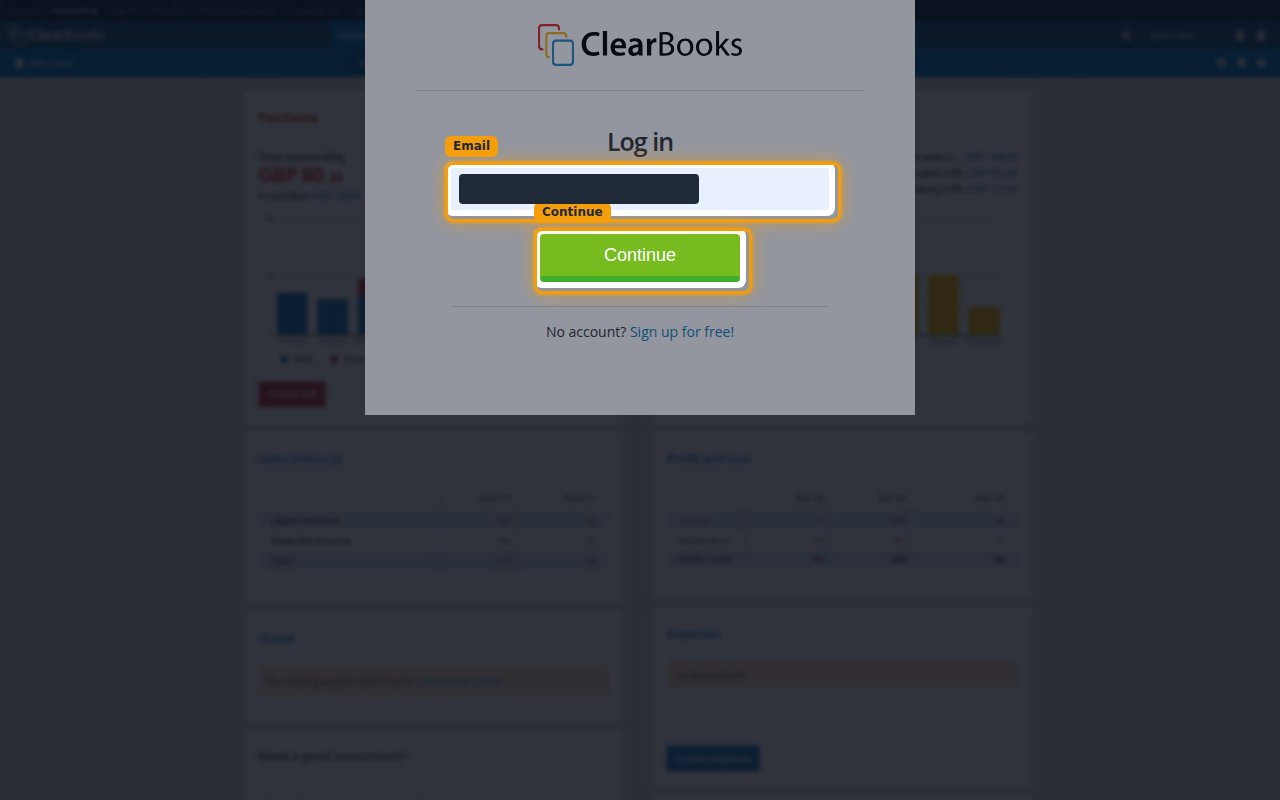
        <p>Sign in to your <a href="https://secure.clearbooks.co.uk/account/action/login/" target="_blank" rel="noopener noreferrer">Clear Books account</a>.</p>

        <ul>
          <li>Enter your <strong>Email</strong> and click <strong>Continue</strong>, then enter your password.</li>
          <li>The developer portal is only available to the account owner or a user with access to the business.</li>
        </ul>

        <img src="https://mintcdn.com/stackone-60/uhJsW0OQWQU0x5JX/connectors/clearbooks/images/oauth2-setup-sign-in.png?fit=max&auto=format&n=uhJsW0OQWQU0x5JX&q=85&s=499401f91647ab630b3064831243aa80" alt="The Clear Books Log in screen with the Email field and Continue button" width="1280" height="800" data-path="connectors/clearbooks/images/oauth2-setup-sign-in.png" />
      </div>
    </Step>

    <Step title="Enable multi-factor authentication">
      <div data-guide-step data-guide-scopes="" data-guide-display-scopes-list="">
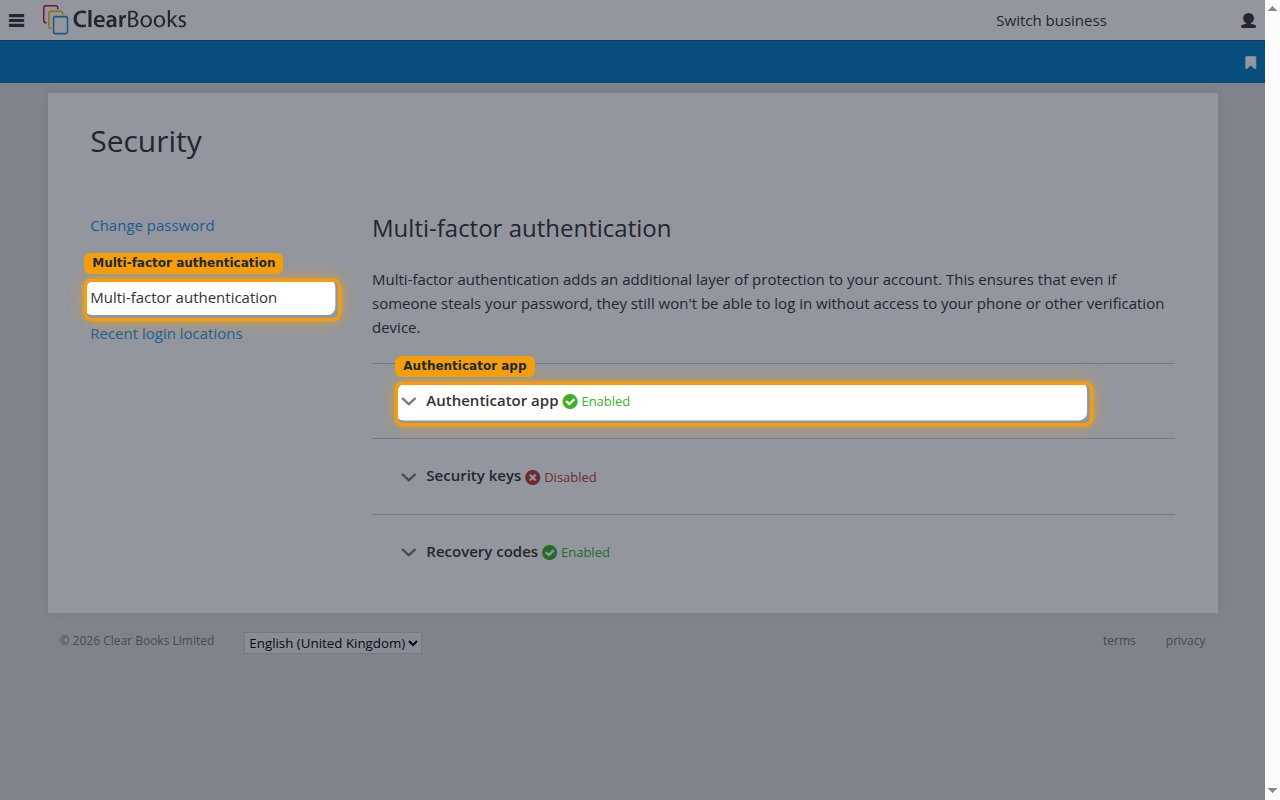
        <p>Clear Books requires multi-factor authentication before you can open the developer portal. Open your account <strong>Security</strong> settings, select <strong>Multi-factor authentication</strong>, and make sure <strong>Authenticator app</strong> is enabled.</p>

        <ul>
          <li>If it is not already enabled, expand <strong>Authenticator app</strong>, scan the QR code with an authenticator app, and enter the generated code to turn it on.</li>
          <li>Without multi-factor authentication, Clear Books blocks access to the developer portal.</li>
        </ul>

        <img src="https://mintcdn.com/stackone-60/uhJsW0OQWQU0x5JX/connectors/clearbooks/images/oauth2-setup-enable-mfa.png?fit=max&auto=format&n=uhJsW0OQWQU0x5JX&q=85&s=48cb7c50a921481afb06634d408d3a4c" alt="The Security page with Multi-factor authentication selected and Authenticator app enabled" width="1280" height="800" data-path="connectors/clearbooks/images/oauth2-setup-enable-mfa.png" />
      </div>
    </Step>

    <Step title="Create a new app">
      <div data-guide-step data-guide-scopes="" data-guide-display-scopes-list="">
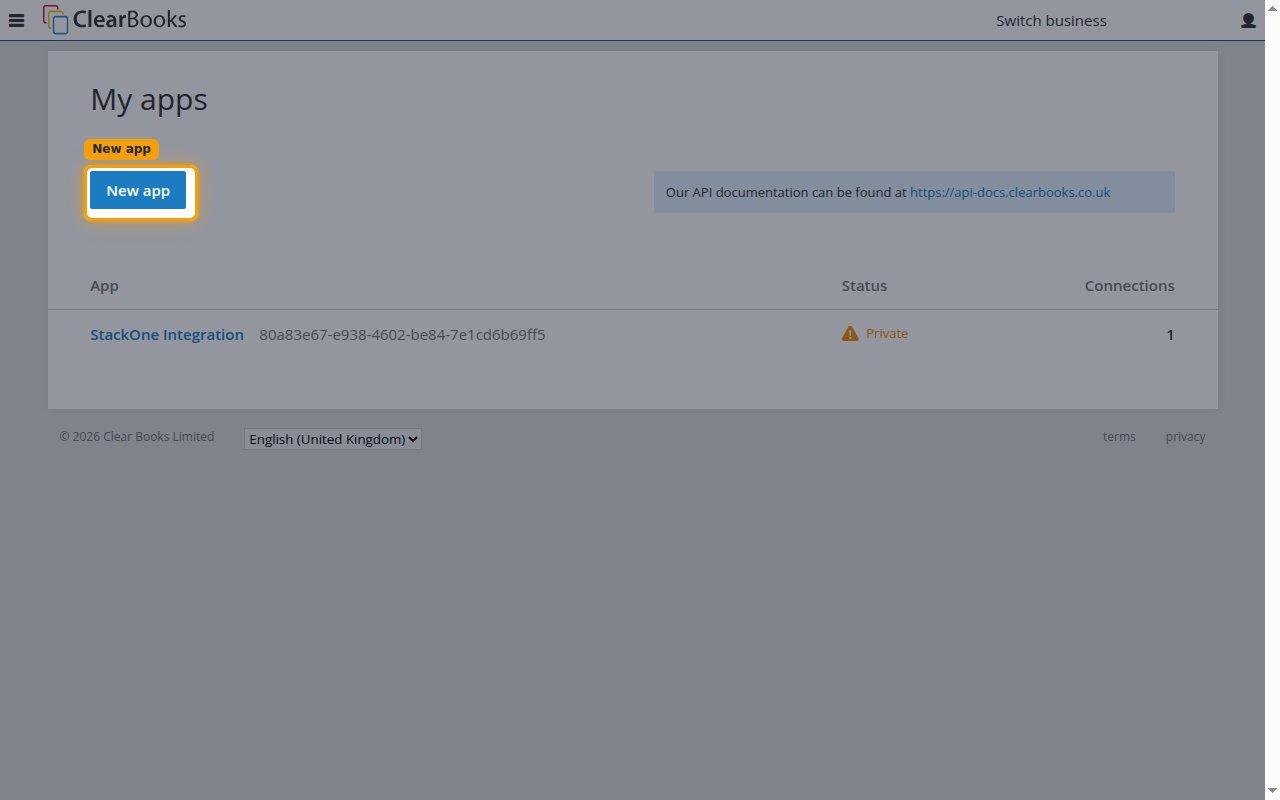
        <p>Open the <a href="https://secure.clearbooks.co.uk/developer-portal/apps/list" target="_blank" rel="noopener noreferrer">Clear Books developer portal</a> and, on the <strong>My apps</strong> page, click <strong>New app</strong>.</p>

        <img src="https://mintcdn.com/stackone-60/uhJsW0OQWQU0x5JX/connectors/clearbooks/images/oauth2-setup-create-app.png?fit=max&auto=format&n=uhJsW0OQWQU0x5JX&q=85&s=3c73daff22f08e40ad062b5d9ebbfdd9" alt="The My apps page in the developer portal with the New app button highlighted" width="1280" height="800" data-path="connectors/clearbooks/images/oauth2-setup-create-app.png" />
      </div>
    </Step>

    <Step title="Enter the app details">
      <div data-guide-step data-guide-scopes="" data-guide-display-scopes-list="">
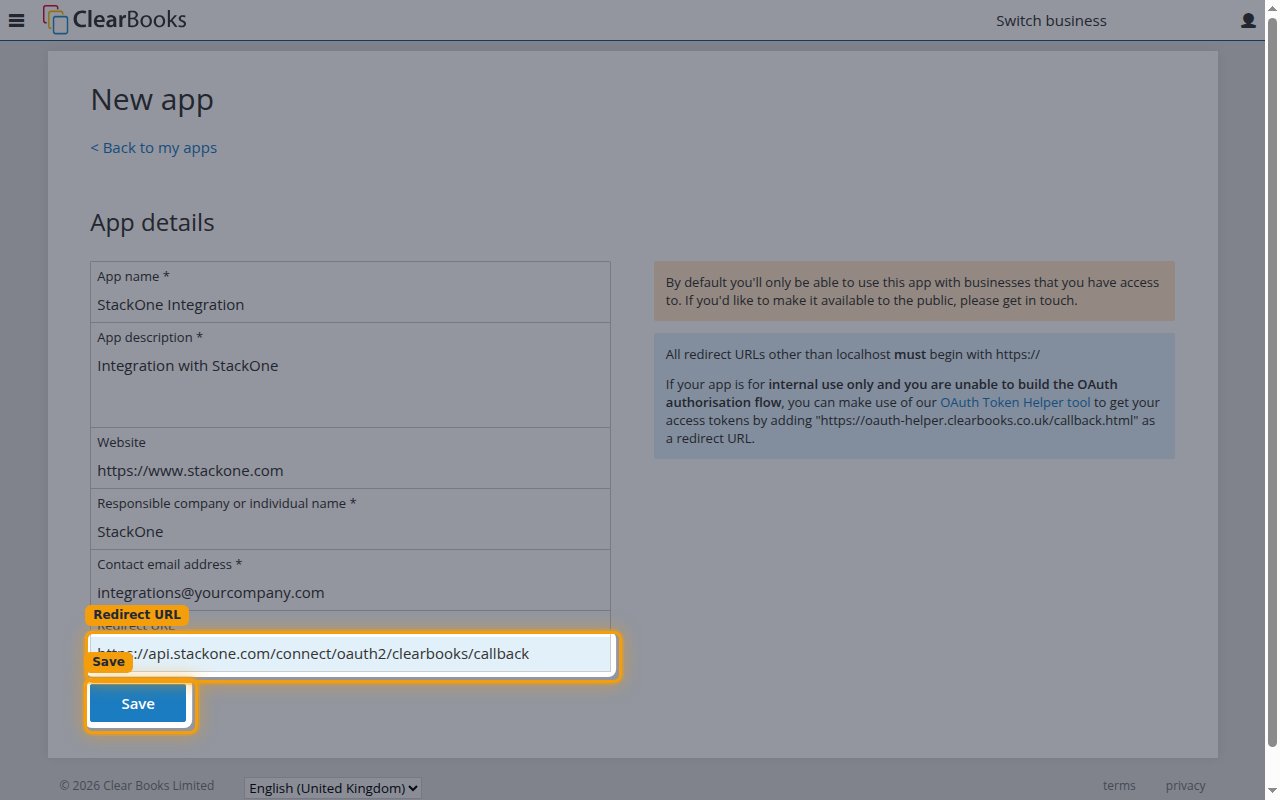
        <p>Complete the <strong>App details</strong> form, set the <strong>Redirect URL</strong>, and click <strong>Save</strong>.</p>

        <ul>
          <li><strong>App name</strong> — a name for the application, such as `StackOne Integration`.</li>
          <li><strong>App description</strong> — a short description of the integration.</li>
          <li><strong>Responsible company or individual name</strong> and <strong>Contact email address</strong> — your company name and a contact email.</li>
          <li>Set the <strong>Redirect URL</strong> to: `https://api.stackone.com/connect/oauth2/clearbooks/callback`</li>
          <li>Only confidential clients using the authorization code grant are supported.</li>
        </ul>

        <img src="https://mintcdn.com/stackone-60/uhJsW0OQWQU0x5JX/connectors/clearbooks/images/oauth2-setup-app-details.png?fit=max&auto=format&n=uhJsW0OQWQU0x5JX&q=85&s=35b941f59800019f598b675ed0e8eb8d" alt="The New app form with the Redirect URL field and Save button highlighted" width="1280" height="800" data-path="connectors/clearbooks/images/oauth2-setup-app-details.png" />
      </div>
    </Step>

    <Step title="Copy your Client ID and Client Secret">
      <div data-guide-step data-guide-scopes="" data-guide-display-scopes-list="">
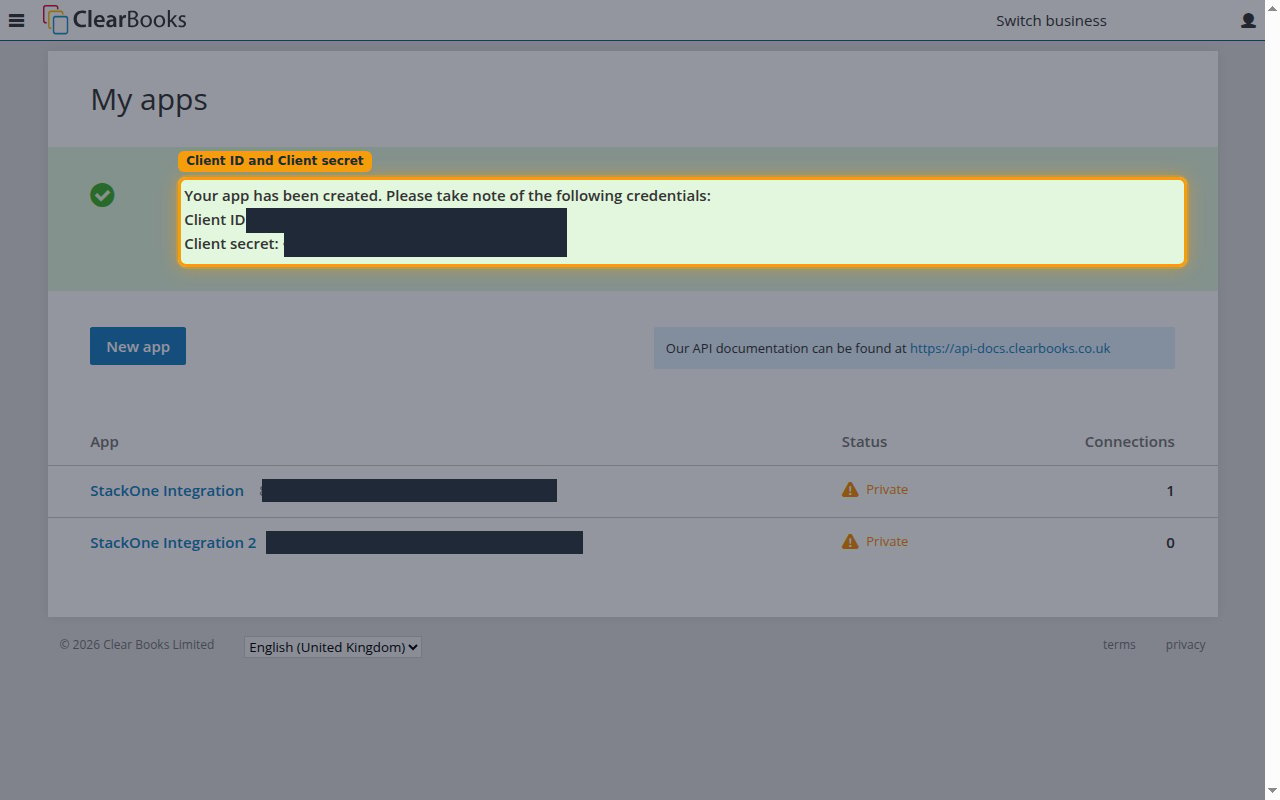
        <p>After you save, Clear Books displays your <strong>Client ID</strong> and <strong>Client secret</strong>. Copy both and paste them into the <strong>Client ID</strong> and <strong>Client Secret</strong> fields in the StackOne Connector profile.</p>

        <ul>
          <li>The <strong>Client secret</strong> is only displayed once and cannot be retrieved later, so store it securely for use later.</li>
          <li>You can find the <strong>Client ID</strong> again later on the app's <strong>Manage app</strong> page.</li>
        </ul>

        <img src="https://mintcdn.com/stackone-60/uhJsW0OQWQU0x5JX/connectors/clearbooks/images/oauth2-setup-copy-credentials.png?fit=max&auto=format&n=uhJsW0OQWQU0x5JX&q=85&s=abb885a6ab2c6a99329831962957e27f" alt="The developer portal banner shown after saving, with the Client ID and Client secret masked" width="1280" height="800" data-path="connectors/clearbooks/images/oauth2-setup-copy-credentials.png" />
      </div>
    </Step>

    <Step title="Regenerate the client secret">
      <div data-guide-step data-guide-scopes="" data-guide-display-scopes-list="">
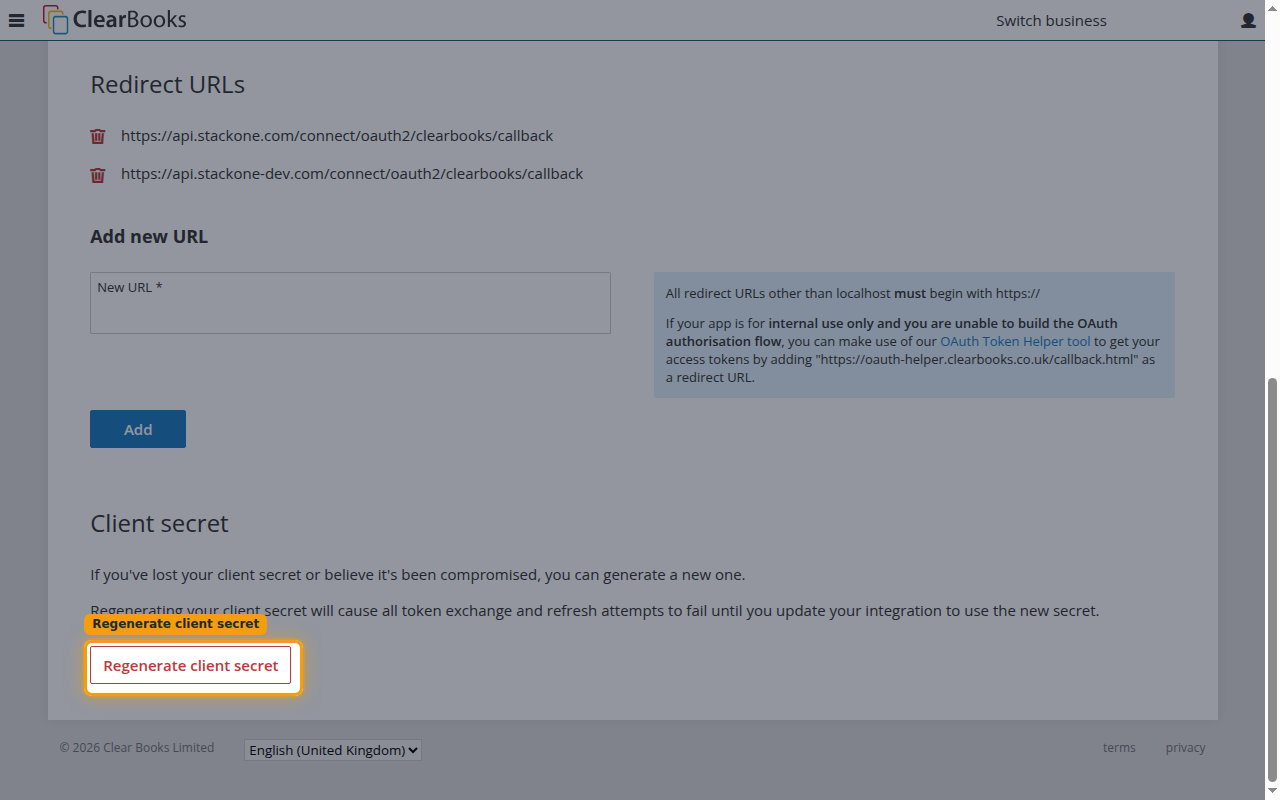
        <p>If you lose the Client Secret, open the app's <strong>Manage app</strong> page and click <strong>Regenerate client secret</strong> to generate a new one.</p>

        <ul>
          <li>Regenerating the secret causes all token exchange and refresh attempts to fail until you update the connection with the new secret.</li>
        </ul>

        <img src="https://mintcdn.com/stackone-60/uhJsW0OQWQU0x5JX/connectors/clearbooks/images/oauth2-setup-regenerate-secret.png?fit=max&auto=format&n=uhJsW0OQWQU0x5JX&q=85&s=5a3b41317b413eaa2158fccf480e2808" alt="The Client secret section of the Manage app page with Regenerate client secret highlighted" width="1280" height="800" data-path="connectors/clearbooks/images/oauth2-setup-regenerate-secret.png" />
      </div>
    </Step>
  </Steps>
</section>

<section data-guide-section data-guide-scopes="">
  <h2>Permissions</h2>

  <p>When you connect, StackOne requests the Clear Books permissions its actions need. You can narrow this set using the optional <strong>Scopes</strong> field in the StackOne Connector profile; leave it blank to request the full set below.</p>

  <Steps>
    <Step title="Grant the required permissions">
      <div data-guide-step data-guide-scopes="accounting.account_codes:read,accounting.account_codes:write,accounting.allocations:read,accounting.allocations:write,accounting.bank_accounts:read,accounting.bank_accounts:write,accounting.customers:read,accounting.customers:write,accounting.payments:read,accounting.payments:write,accounting.purchases:read,accounting.purchases:write,accounting.sales:read,accounting.sales:write,accounting.suppliers:read,accounting.suppliers:write,accounting.vat:read,businesses:read,businesses:write" data-guide-display-scopes-list="accounting.account_codes:read,accounting.account_codes:write,accounting.allocations:read,accounting.allocations:write,accounting.bank_accounts:read,accounting.bank_accounts:write,accounting.customers:read,accounting.customers:write,accounting.payments:read,accounting.payments:write,accounting.purchases:read,accounting.purchases:write,accounting.sales:read,accounting.sales:write,accounting.suppliers:read,accounting.suppliers:write,accounting.vat:read,businesses:read,businesses:write">
        <div className="connector-guide-actions-badge" data-guide-actions-badge data-guide-actions-badge-scopes="accounting.account_codes:read,accounting.account_codes:write,accounting.allocations:read,accounting.allocations:write,accounting.bank_accounts:read,accounting.bank_accounts:write,accounting.customers:read,accounting.customers:write,accounting.payments:read,accounting.payments:write,accounting.purchases:read,accounting.purchases:write,accounting.sales:read,accounting.sales:write,accounting.suppliers:read,accounting.suppliers:write,accounting.vat:read,businesses:read,businesses:write">
          <span>Enables actions: </span><span data-guide-actions-badge-labels>Create Account Code, Create Allocation, Create Bank Account, Create Customer, Create Payment, Create Purchase Document, Create Sales Document, Create Supplier, Delete Account Code, Delete Allocation, Delete Bank Account, Delete Customer, Delete Payment, Delete Purchase Document, Delete Sales Document, Delete Supplier, Get Account Code, Get Allocation, Get Bank Account, Get Business, Get Customer, Get Payment, Get Purchase Document, Get Sales Document, Get Supplier, List Account Codes, List Allocations, List Bank Accounts, List Businesses, List Customers, List Payments, List Purchase Documents, List Sales Documents, List Suppliers, List VAT Rates, List VAT Treatments, Update Account Code, Update Bank Account, Update Business, Update Customer, Update Payment, Update Purchase Document, Update Sales Document, Update Supplier</span>
        </div>

        <p>Authorize the following permissions so the connector can read and write account codes, allocations, bank accounts, businesses, customers, payments, purchase documents, sales documents, suppliers, and VAT reference data.</p>

        <div className="connector-guide-display-scopes" data-guide-display-scopes>
          <div className="connector-guide-scopes-container connector-guide-scopes-container--scrollable">
            <ul className="not-prose connector-guide-scopes-list">
              <li data-guide-display-scope="accounting.account_codes:read">
                <button type="button" className="connector-guide-scope-copy" aria-label="Copy accounting.account_codes:read" title="Copy scope" data-copy="accounting.account_codes:read">
                  <span className="connector-guide-scope-copy__label">accounting.account\_codes:read</span>
                  <span className="connector-guide-scope-copy__icon" aria-hidden="true">⧉</span>
                </button>
              </li>

              <li data-guide-display-scope="accounting.account_codes:write">
                <button type="button" className="connector-guide-scope-copy" aria-label="Copy accounting.account_codes:write" title="Copy scope" data-copy="accounting.account_codes:write">
                  <span className="connector-guide-scope-copy__label">accounting.account\_codes:write</span>
                  <span className="connector-guide-scope-copy__icon" aria-hidden="true">⧉</span>
                </button>
              </li>

              <li data-guide-display-scope="accounting.allocations:read">
                <button type="button" className="connector-guide-scope-copy" aria-label="Copy accounting.allocations:read" title="Copy scope" data-copy="accounting.allocations:read">
                  <span className="connector-guide-scope-copy__label">accounting.allocations:read</span>
                  <span className="connector-guide-scope-copy__icon" aria-hidden="true">⧉</span>
                </button>
              </li>

              <li data-guide-display-scope="accounting.allocations:write">
                <button type="button" className="connector-guide-scope-copy" aria-label="Copy accounting.allocations:write" title="Copy scope" data-copy="accounting.allocations:write">
                  <span className="connector-guide-scope-copy__label">accounting.allocations:write</span>
                  <span className="connector-guide-scope-copy__icon" aria-hidden="true">⧉</span>
                </button>
              </li>

              <li data-guide-display-scope="accounting.bank_accounts:read">
                <button type="button" className="connector-guide-scope-copy" aria-label="Copy accounting.bank_accounts:read" title="Copy scope" data-copy="accounting.bank_accounts:read">
                  <span className="connector-guide-scope-copy__label">accounting.bank\_accounts:read</span>
                  <span className="connector-guide-scope-copy__icon" aria-hidden="true">⧉</span>
                </button>
              </li>

              <li data-guide-display-scope="accounting.bank_accounts:write">
                <button type="button" className="connector-guide-scope-copy" aria-label="Copy accounting.bank_accounts:write" title="Copy scope" data-copy="accounting.bank_accounts:write">
                  <span className="connector-guide-scope-copy__label">accounting.bank\_accounts:write</span>
                  <span className="connector-guide-scope-copy__icon" aria-hidden="true">⧉</span>
                </button>
              </li>

              <li data-guide-display-scope="accounting.customers:read">
                <button type="button" className="connector-guide-scope-copy" aria-label="Copy accounting.customers:read" title="Copy scope" data-copy="accounting.customers:read">
                  <span className="connector-guide-scope-copy__label">accounting.customers:read</span>
                  <span className="connector-guide-scope-copy__icon" aria-hidden="true">⧉</span>
                </button>
              </li>

              <li data-guide-display-scope="accounting.customers:write">
                <button type="button" className="connector-guide-scope-copy" aria-label="Copy accounting.customers:write" title="Copy scope" data-copy="accounting.customers:write">
                  <span className="connector-guide-scope-copy__label">accounting.customers:write</span>
                  <span className="connector-guide-scope-copy__icon" aria-hidden="true">⧉</span>
                </button>
              </li>

              <li data-guide-display-scope="accounting.payments:read">
                <button type="button" className="connector-guide-scope-copy" aria-label="Copy accounting.payments:read" title="Copy scope" data-copy="accounting.payments:read">
                  <span className="connector-guide-scope-copy__label">accounting.payments:read</span>
                  <span className="connector-guide-scope-copy__icon" aria-hidden="true">⧉</span>
                </button>
              </li>

              <li data-guide-display-scope="accounting.payments:write">
                <button type="button" className="connector-guide-scope-copy" aria-label="Copy accounting.payments:write" title="Copy scope" data-copy="accounting.payments:write">
                  <span className="connector-guide-scope-copy__label">accounting.payments:write</span>
                  <span className="connector-guide-scope-copy__icon" aria-hidden="true">⧉</span>
                </button>
              </li>

              <li data-guide-display-scope="accounting.purchases:read">
                <button type="button" className="connector-guide-scope-copy" aria-label="Copy accounting.purchases:read" title="Copy scope" data-copy="accounting.purchases:read">
                  <span className="connector-guide-scope-copy__label">accounting.purchases:read</span>
                  <span className="connector-guide-scope-copy__icon" aria-hidden="true">⧉</span>
                </button>
              </li>

              <li data-guide-display-scope="accounting.purchases:write">
                <button type="button" className="connector-guide-scope-copy" aria-label="Copy accounting.purchases:write" title="Copy scope" data-copy="accounting.purchases:write">
                  <span className="connector-guide-scope-copy__label">accounting.purchases:write</span>
                  <span className="connector-guide-scope-copy__icon" aria-hidden="true">⧉</span>
                </button>
              </li>

              <li data-guide-display-scope="accounting.sales:read">
                <button type="button" className="connector-guide-scope-copy" aria-label="Copy accounting.sales:read" title="Copy scope" data-copy="accounting.sales:read">
                  <span className="connector-guide-scope-copy__label">accounting.sales:read</span>
                  <span className="connector-guide-scope-copy__icon" aria-hidden="true">⧉</span>
                </button>
              </li>

              <li data-guide-display-scope="accounting.sales:write">
                <button type="button" className="connector-guide-scope-copy" aria-label="Copy accounting.sales:write" title="Copy scope" data-copy="accounting.sales:write">
                  <span className="connector-guide-scope-copy__label">accounting.sales:write</span>
                  <span className="connector-guide-scope-copy__icon" aria-hidden="true">⧉</span>
                </button>
              </li>

              <li data-guide-display-scope="accounting.suppliers:read">
                <button type="button" className="connector-guide-scope-copy" aria-label="Copy accounting.suppliers:read" title="Copy scope" data-copy="accounting.suppliers:read">
                  <span className="connector-guide-scope-copy__label">accounting.suppliers:read</span>
                  <span className="connector-guide-scope-copy__icon" aria-hidden="true">⧉</span>
                </button>
              </li>

              <li data-guide-display-scope="accounting.suppliers:write">
                <button type="button" className="connector-guide-scope-copy" aria-label="Copy accounting.suppliers:write" title="Copy scope" data-copy="accounting.suppliers:write">
                  <span className="connector-guide-scope-copy__label">accounting.suppliers:write</span>
                  <span className="connector-guide-scope-copy__icon" aria-hidden="true">⧉</span>
                </button>
              </li>

              <li data-guide-display-scope="accounting.vat:read">
                <button type="button" className="connector-guide-scope-copy" aria-label="Copy accounting.vat:read" title="Copy scope" data-copy="accounting.vat:read">
                  <span className="connector-guide-scope-copy__label">accounting.vat:read</span>
                  <span className="connector-guide-scope-copy__icon" aria-hidden="true">⧉</span>
                </button>
              </li>

              <li data-guide-display-scope="businesses:read">
                <button type="button" className="connector-guide-scope-copy" aria-label="Copy businesses:read" title="Copy scope" data-copy="businesses:read">
                  <span className="connector-guide-scope-copy__label">businesses:read</span>
                  <span className="connector-guide-scope-copy__icon" aria-hidden="true">⧉</span>
                </button>
              </li>

              <li data-guide-display-scope="businesses:write">
                <button type="button" className="connector-guide-scope-copy" aria-label="Copy businesses:write" title="Copy scope" data-copy="businesses:write">
                  <span className="connector-guide-scope-copy__label">businesses:write</span>
                  <span className="connector-guide-scope-copy__icon" aria-hidden="true">⧉</span>
                </button>
              </li>
            </ul>
          </div>
        </div>
      </div>
    </Step>
  </Steps>
</section>

## Creating the StackOne Connector Profile

To create the Connector Profile in StackOne for <strong>Clear Books</strong>:

<Steps>
  <Step title="Open the connector">
    Log in to StackOne, open [Connectors](https://app.stackone.com/connectors), and select <strong>Clear Books</strong>.
  </Step>

  <Step title="Choose actions and events">
    <ul>
      <li>Click <strong>Add Profile</strong>.</li>
      <li>If the connector offers more than one authentication method, set the <strong>Auth Method</strong> filter to <strong>OAuth 2.0</strong>.</li>
      <li>Select the actions, and any events, to enable for this Connector Profile.</li>
      <li>Click <strong>Continue</strong>.</li>
    </ul>
  </Step>

  <Step title="Set up authentication">
    <ul>
      <li>Select <strong>Authentication Type</strong> as <strong>OAuth 2.0</strong>.</li>

      <li>
        Fill out the fields using details retrieved from your provider:

        <ul className="connector-guide-field-list">
          <li><strong>Client ID</strong></li>
          <li><strong>Client Secret</strong></li>
          <li><strong>Scopes</strong> (Optional)</li>
        </ul>
      </li>

      <li>Click <strong>Create Profile</strong>.</li>
    </ul>
  </Step>
</Steps>

Congratulations! The new Connector Profile now shows up on the connector page. If you created it as a project member rather than an admin, it starts disabled until a project admin enables it. You can now continue to <a href="/connect/managing-connectors/linking-accounts">Link Accounts</a> for <strong>Clear Books</strong>.


This documentation is built and hosted on [Mintlify](https://mintlify.com), a developer documentation platform.