> ## Documentation Index
> Fetch the complete documentation index at: https://docs.stackone.com/llms.txt
> Use this file to discover all available pages before exploring further.

# CircleCI Webhook Setup Guide

> Configure CircleCI to deliver events to StackOne.

## Prerequisites

The connector should already be set up, with a Connector Profile and a Linked Account. See [Getting Started](/connectors/circleci#getting-started) on the CircleCI connector page.

<section data-guide-section data-guide-scopes="">
  <h2>Find your Project ID in CircleCI</h2>

  <p>CircleCI scopes every webhook to one project, so StackOne needs that project's ID before it can create the subscription. It takes four clicks to find.</p>

  <Steps>
    <Step title="Open your organization">
      <div data-guide-step data-guide-scopes="" data-guide-display-scopes-list="">
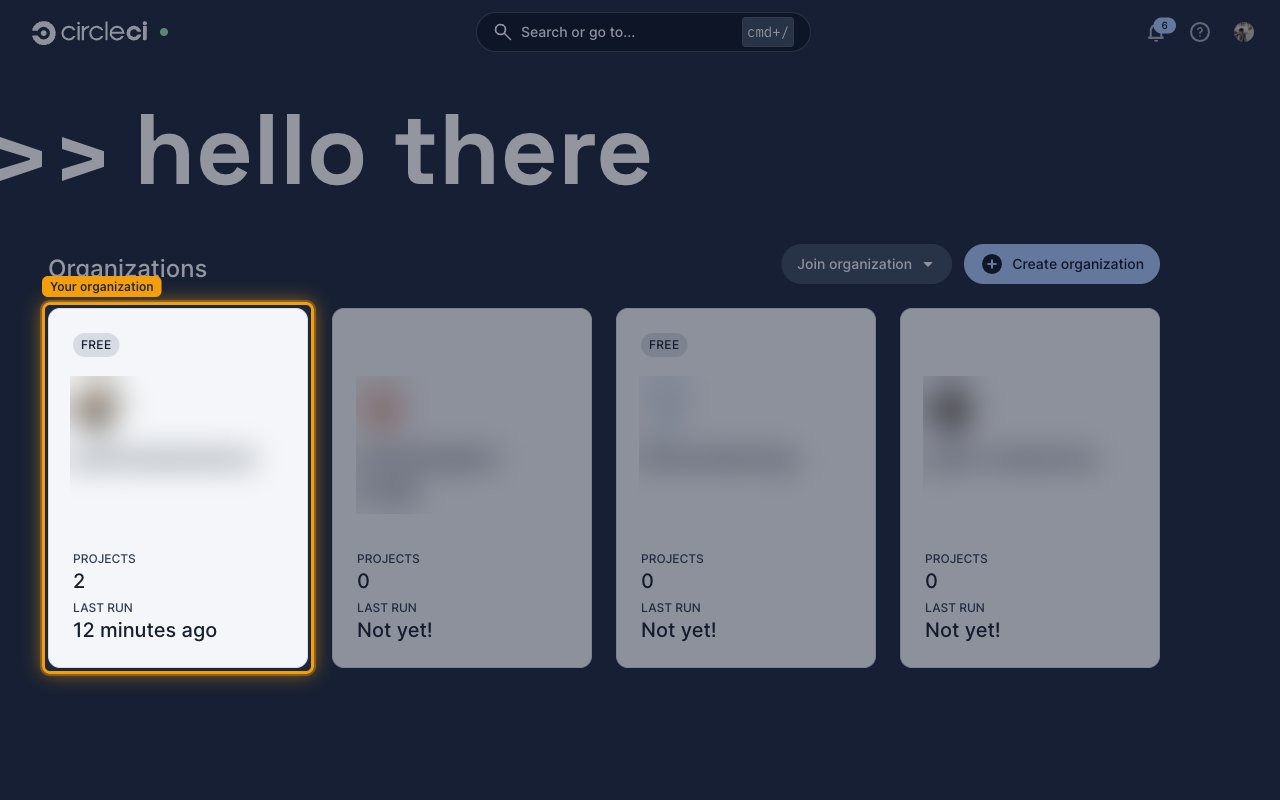
        <p>Sign in to <a href="https://app.circleci.com" target="_blank" rel="noopener noreferrer">CircleCI</a> and select your organization on the <strong>Organizations</strong> page.</p>

        <img src="https://mintcdn.com/stackone-60/03bB1klfBCOVqNCb/connectors/circleci/images/events-open-organization.png?fit=max&auto=format&n=03bB1klfBCOVqNCb&q=85&s=f9e9aededffeef2799b4b3e3e0ca7c0f" alt="The CircleCI home page listing organizations" width="1280" height="800" data-path="connectors/circleci/images/events-open-organization.png" />
      </div>
    </Step>

    <Step title="Open the project actions menu">
      <div data-guide-step data-guide-scopes="" data-guide-display-scopes-list="">
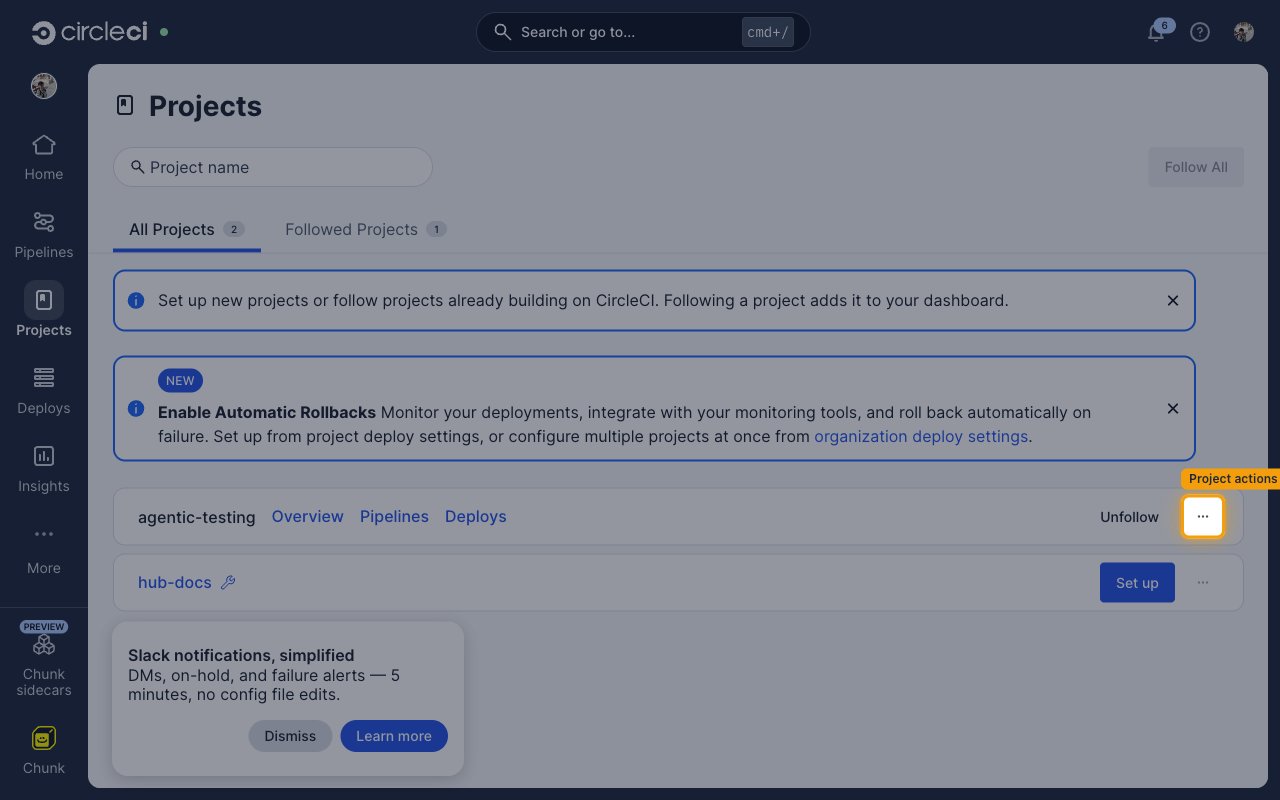
        <p>Open <strong>Projects</strong> in the left sidebar, find the project in the list, and select the actions button at the end of its row.</p>

        <img src="https://mintcdn.com/stackone-60/03bB1klfBCOVqNCb/connectors/circleci/images/events-project-actions.png?fit=max&auto=format&n=03bB1klfBCOVqNCb&q=85&s=793b635d8932c0dbe18d9fe6f0731b61" alt="The projects list with the project actions button for a project" width="1280" height="800" data-path="connectors/circleci/images/events-project-actions.png" />
      </div>
    </Step>

    <Step title="Select Project Settings">
      <div data-guide-step data-guide-scopes="" data-guide-display-scopes-list="">
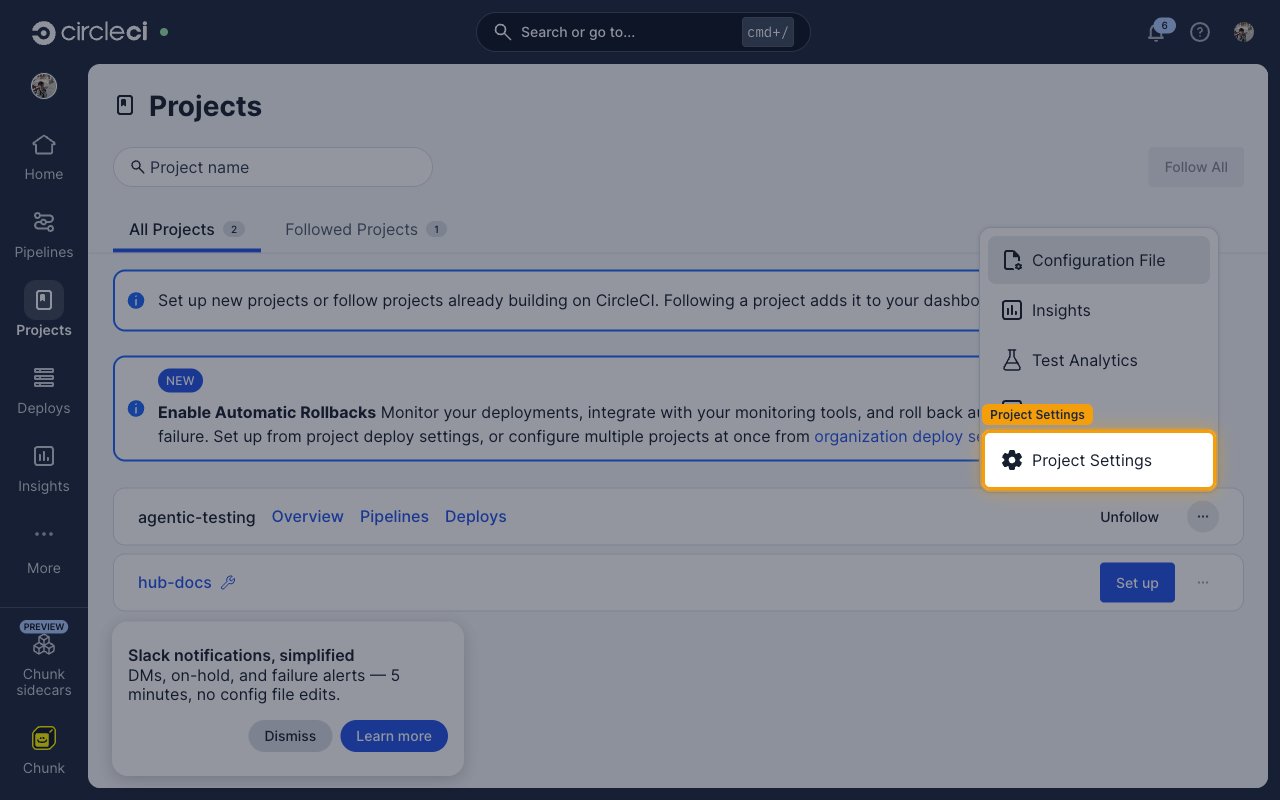
        <p>Choose <strong>Project Settings</strong> from the menu.</p>

        <img src="https://mintcdn.com/stackone-60/03bB1klfBCOVqNCb/connectors/circleci/images/events-project-settings.png?fit=max&auto=format&n=03bB1klfBCOVqNCb&q=85&s=a55a143e089992b2413aaf1422eecbcb" alt="The project actions menu with Project Settings" width="1280" height="800" data-path="connectors/circleci/images/events-project-settings.png" />
      </div>
    </Step>

    <Step title="Copy the Project ID">
      <div data-guide-step data-guide-scopes="" data-guide-display-scopes-list="">
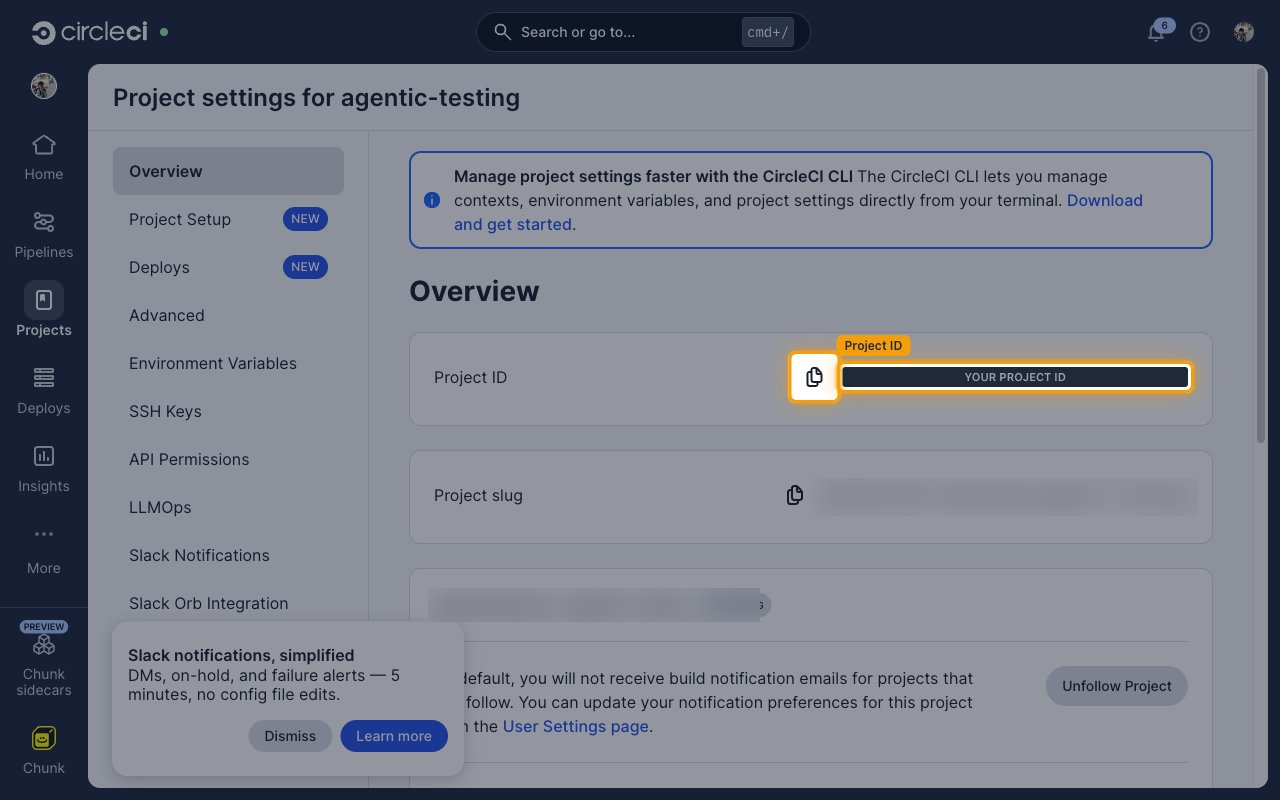
        <p>The <strong>Overview</strong> tab opens by default. Select the copy icon beside <strong>Project ID</strong>, then paste the value into <strong>Project ID</strong> on the StackOne connection.</p>

        <ul>
          <li>The value is a UUID — 32 hexadecimal characters in five dash-separated groups.</li>
          <li><strong>Project slug</strong> is shown directly below it. That is a different value, and it is not what StackOne needs here.</li>
        </ul>

        <img src="https://mintcdn.com/stackone-60/03bB1klfBCOVqNCb/connectors/circleci/images/events-project-id.png?fit=max&auto=format&n=03bB1klfBCOVqNCb&q=85&s=a44a3470ee9722b29e567b5ac266acc6" alt="The Overview tab showing the Project ID field and its copy icon" width="1280" height="800" data-path="connectors/circleci/images/events-project-id.png" />
      </div>
    </Step>
  </Steps>
</section>

<section data-guide-section data-guide-scopes="">
  <h2>Set a webhook signing secret</h2>

  <p>The signing secret is not something you look up in CircleCI — you choose it. CircleCI stores whatever you provide and uses it to sign every webhook it sends, so your receiver can confirm the request really came from CircleCI.</p>

  <Steps>
    <Step title="Choose a value and enter it on the connection">
      <div data-guide-step data-guide-scopes="" data-guide-display-scopes-list="">
        <p>Generate a long random string and enter it as <strong>Webhook Signing Secret</strong> on the StackOne connection. Any strong random value works — there is no format CircleCI requires.</p>

        <ul>
          <li>Keep a copy if you intend to verify signatures yourself. CircleCI never shows the secret again once it is stored.</li>
          <li>CircleCI signs each delivery with it and sends the result in the `circleci-signature` header.</li>
          <li>Treat it like a password — anyone holding it can forge requests that look genuine.</li>
        </ul>
      </div>
    </Step>
  </Steps>
</section>

<section data-guide-section data-guide-scopes="">
  <h2>Let StackOne create the webhook</h2>

  <p>Once the Project ID and signing secret are set, no further configuration is needed in CircleCI. StackOne creates the webhook when the account is connected and deletes it when the connection is removed.</p>

  <Steps>
    <Step title="Check the webhook was created">
      <div data-guide-step data-guide-scopes="" data-guide-display-scopes-list="">
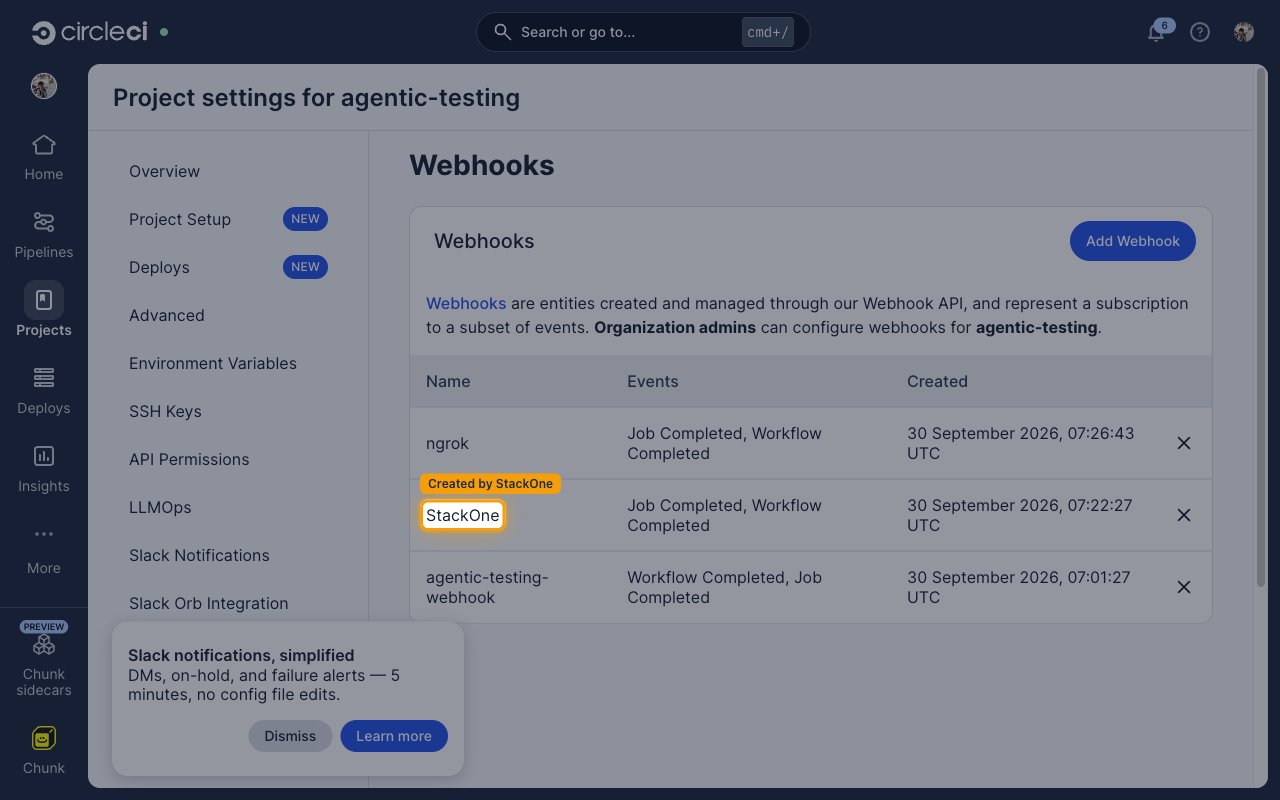
        <p>Open <strong>Project Settings</strong> > <strong>Webhooks</strong>. A webhook named <strong>StackOne</strong> appears in the list, subscribed to <strong>Job Completed</strong> and <strong>Workflow Completed</strong>. Leave it alone — StackOne manages its whole lifecycle, and deleting it by hand stops events reaching StackOne.</p>

        <ul>
          <li>The address StackOne registered is shown read-only as <strong>Native Webhook URL</strong> on the linked account, which is useful when checking a delivery or raising a support request.</li>
        </ul>

        <img src="https://mintcdn.com/stackone-60/03bB1klfBCOVqNCb/connectors/circleci/images/events-webhook-created.png?fit=max&auto=format&n=03bB1klfBCOVqNCb&q=85&s=2f25c3d28327d20ab6b8e4c3a6df68e2" alt="The Webhooks tab listing the StackOne webhook with its subscribed events" width="1280" height="800" data-path="connectors/circleci/images/events-webhook-created.png" />
      </div>
    </Step>
  </Steps>
</section>

<section data-guide-section data-guide-scopes="">
  <h2>Available webhook events</h2>

  <p>The following CircleCI events are delivered. Only events selected in StackOne are included in the subscription — CircleCI sends nothing for events that are not subscribed.</p>

  <Steps>
    <Step title="Enable pipeline execution events">
      <div data-guide-step data-guide-scopes="" data-guide-display-scopes-list="">
        <p>Both events fire on completion, not when work starts.</p>

        <ul>
          <li><strong>Workflow Completed</strong> (`workflow-completed`) — Fired when a workflow finishes. Carries the workflow outcome along with the pipeline, project and organization it belongs to.</li>
          <li><strong>Job Completed</strong> (`job-completed`) — Fired when an individual job finishes. Carries the job outcome along with its workflow, pipeline, project and organization.</li>
        </ul>
      </div>
    </Step>
  </Steps>
</section>

## Verify

Your Connector should now be able to receive and process events. Try triggering an event and you should see an Event appear in the Connector logs.


This documentation is built and hosted on [Mintlify](https://mintlify.com), a developer documentation platform.