> ## Documentation Index
> Fetch the complete documentation index at: https://docs.stackone.com/llms.txt
> Use this file to discover all available pages before exploring further.

# Campaign Monitor Webhook Setup Guide

> Configure Campaign Monitor to deliver events to StackOne.

## Prerequisites

The connector should already be set up, with a Connector Profile and a Linked Account. See [Getting Started](/connectors/campaignmonitor#getting-started) on the Campaign Monitor connector page.

<section data-guide-section data-guide-scopes="">
  <h2>Automatic webhook setup</h2>

  <p>StackOne creates and manages the Campaign Monitor webhooks automatically when the account is connected, and removes them when the account is disconnected. Campaign Monitor webhooks belong to a single subscriber list, so StackOne registers one webhook on each list in the <strong>Webhook List IDs</strong> field. The only thing to do by hand is choosing those lists.</p>

  <Steps>
    <Step title="Sign in to Campaign Monitor">
      <div data-guide-step data-guide-scopes="" data-guide-display-scopes-list="">
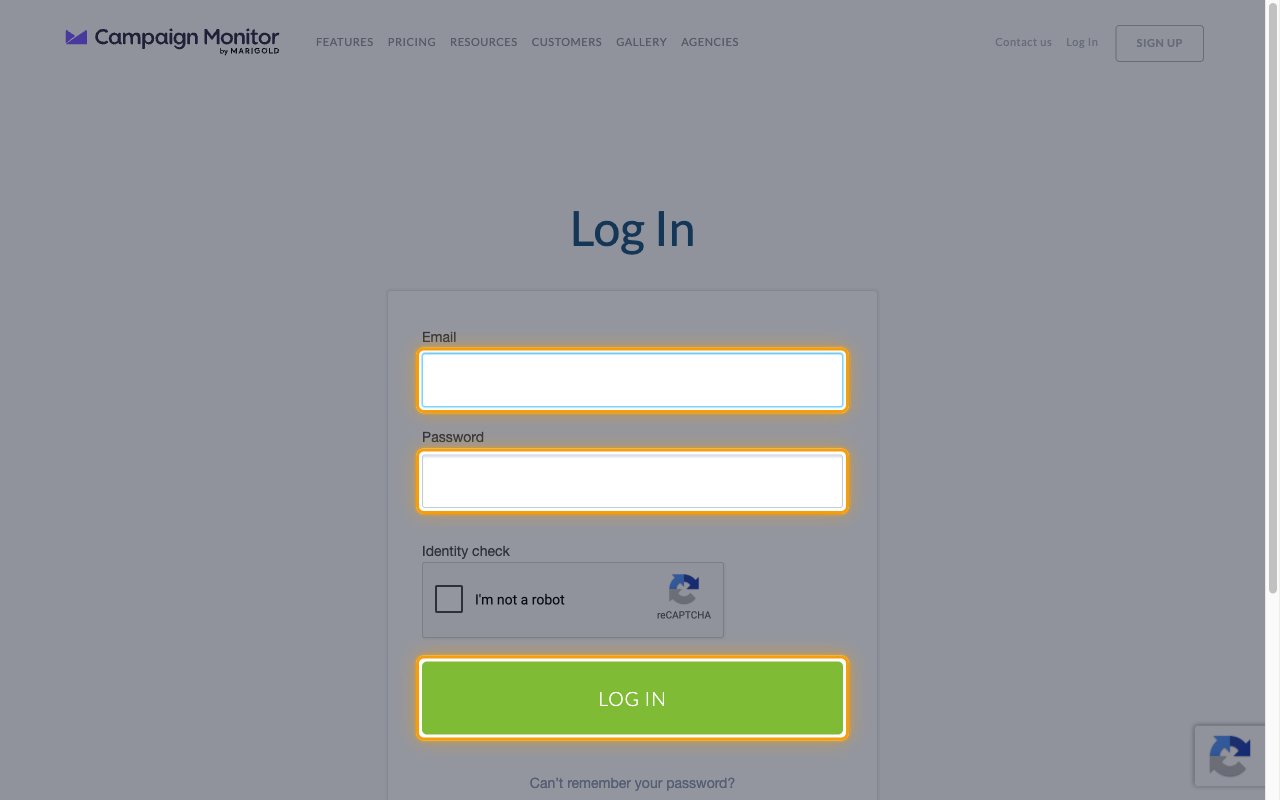
        <p>Sign in to your <a href="https://login.createsend.com/l" target="_blank" rel="noopener noreferrer">Campaign Monitor account</a> with your <strong>Email</strong> and <strong>Password</strong>, then click <strong>LOG IN</strong>.</p>

        <img src="https://mintcdn.com/stackone-60/03bB1klfBCOVqNCb/connectors/campaignmonitor/images/events-sign-in.png?fit=max&auto=format&n=03bB1klfBCOVqNCb&q=85&s=e0c3c807c986ec025076a462229e202c" alt="The Campaign Monitor Log In page with the Email field, Password field, and LOG IN button highlighted" width="1280" height="800" data-path="connectors/campaignmonitor/images/events-sign-in.png" />
      </div>
    </Step>

    <Step title="Open Lists & subscribers">
      <div data-guide-step data-guide-scopes="" data-guide-display-scopes-list="">
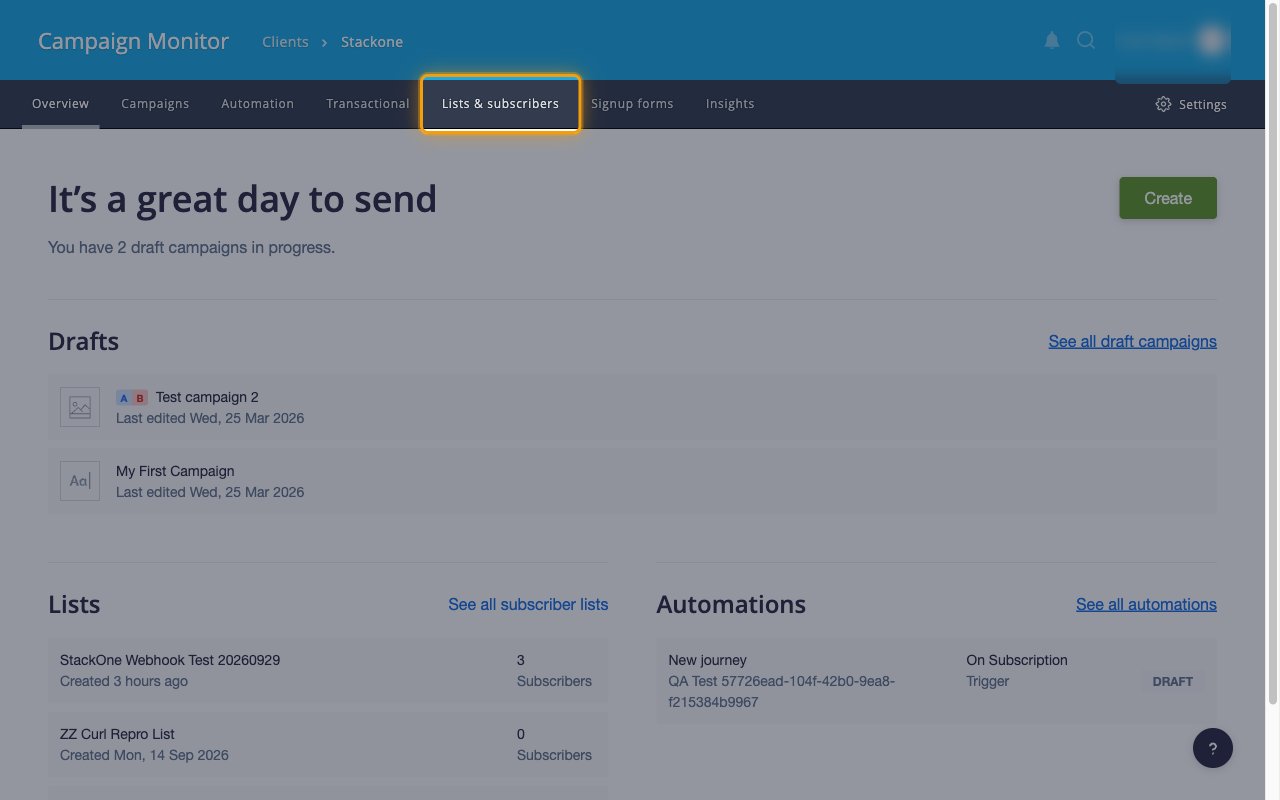
        <p>Click <strong>Lists & subscribers</strong> in the top navigation.</p>

        <img src="https://mintcdn.com/stackone-60/03bB1klfBCOVqNCb/connectors/campaignmonitor/images/events-lists-and-subscribers.png?fit=max&auto=format&n=03bB1klfBCOVqNCb&q=85&s=578454cab8b6ffb936cbeaa299f14b3f" alt="The Campaign Monitor client overview with Lists & subscribers highlighted in the top navigation" width="1280" height="800" data-path="connectors/campaignmonitor/images/events-lists-and-subscribers.png" />
      </div>
    </Step>

    <Step title="Open the list">
      <div data-guide-step data-guide-scopes="" data-guide-display-scopes-list="">
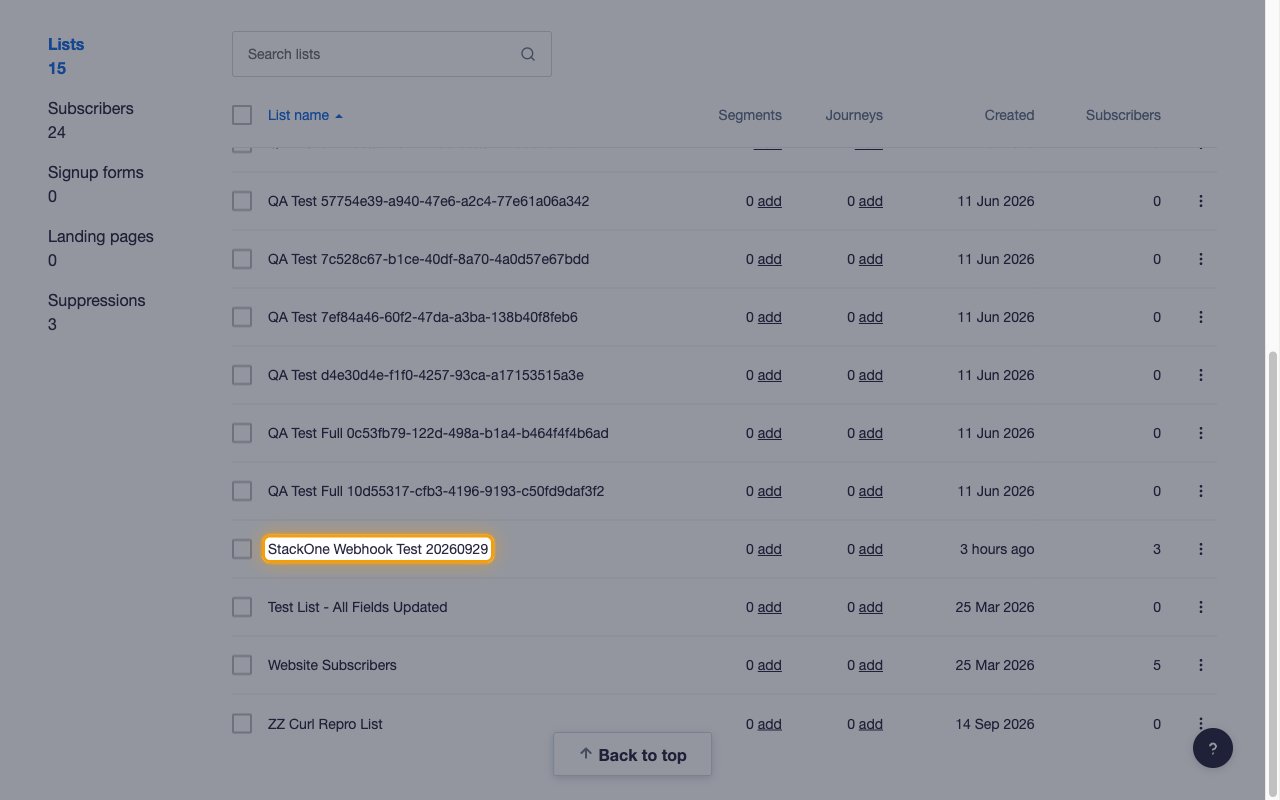
        <p>On the <strong>Lists and subscribers</strong> page, click the name of a list you want webhook events from.</p>

        <img src="https://mintcdn.com/stackone-60/03bB1klfBCOVqNCb/connectors/campaignmonitor/images/events-open-list.png?fit=max&auto=format&n=03bB1klfBCOVqNCb&q=85&s=754cc117605375f5d7e298651f55b3d7" alt="The Lists and subscribers table with one list name highlighted" width="1280" height="800" data-path="connectors/campaignmonitor/images/events-open-list.png" />
      </div>
    </Step>

    <Step title="Open the list settings">
      <div data-guide-step data-guide-scopes="" data-guide-display-scopes-list="">
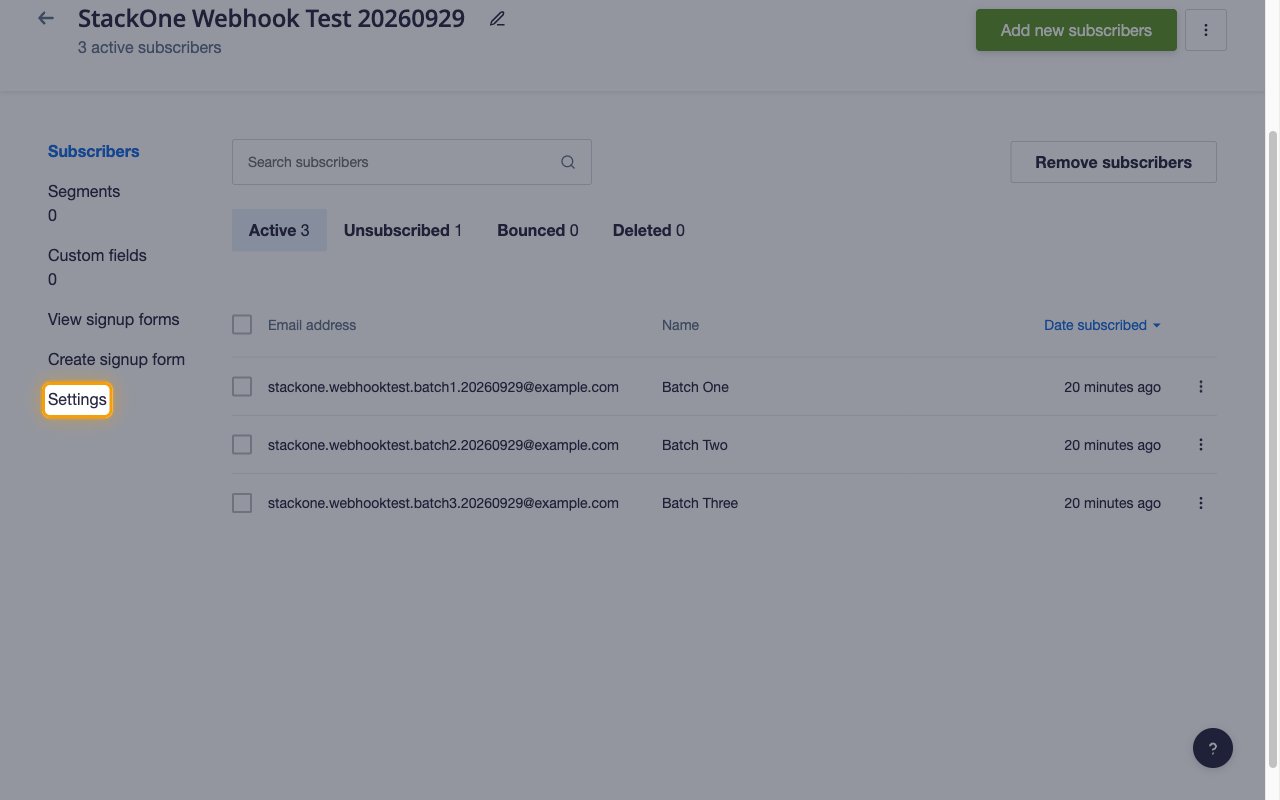
        <p>Click <strong>Settings</strong> in the list's left menu.</p>

        <img src="https://mintcdn.com/stackone-60/03bB1klfBCOVqNCb/connectors/campaignmonitor/images/events-list-settings.png?fit=max&auto=format&n=03bB1klfBCOVqNCb&q=85&s=b01490d90b360d0e51dd99888a458012" alt="A subscriber list page with Settings highlighted in the left menu" width="1280" height="800" data-path="connectors/campaignmonitor/images/events-list-settings.png" />
      </div>
    </Step>

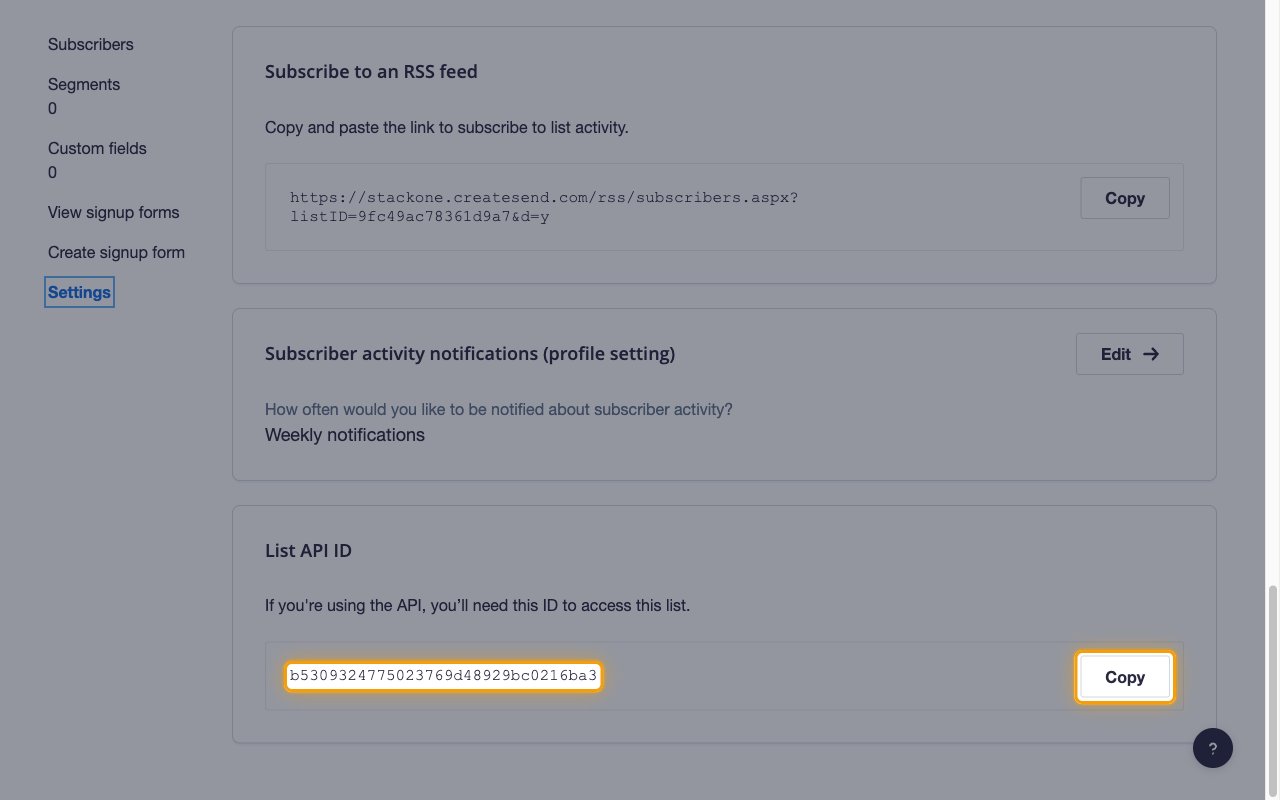
    <Step title="Copy the List API ID">
      <div data-guide-step data-guide-scopes="" data-guide-display-scopes-list="">
        <p>Scroll to <strong>Notifications and API</strong>. Under <strong>List API ID</strong>, click <strong>Copy</strong> beside the ID.<br /><br />You can also get list IDs from the connector's actions. Run `list_clients` for the client IDs, then `list_client_lists` with a client ID.</p>

        <ul>
          <li>Repeat the last three steps for every list you want events from.</li>
        </ul>

        <img src="https://mintcdn.com/stackone-60/03bB1klfBCOVqNCb/connectors/campaignmonitor/images/events-list-api-id.png?fit=max&auto=format&n=03bB1klfBCOVqNCb&q=85&s=16dc386354d48f7d52bea7d449fa0ece" alt="The list Settings page with the List API ID value and its Copy button highlighted" width="1280" height="800" data-path="connectors/campaignmonitor/images/events-list-api-id.png" />
      </div>
    </Step>

    <Step title="Add the list IDs to the linked account">
      <div data-guide-step data-guide-scopes="" data-guide-display-scopes-list="">
        <p>When you link the account in StackOne Hub, paste the list IDs into <strong>Webhook List IDs</strong>, separated by commas.<br /><br />Webhooks don't appear on a list's Settings page in Campaign Monitor. To check the webhook StackOne registered, run the `list_webhooks` action with the list ID. Leftover webhooks can be removed with `delete_webhook`.</p>

        <ul>
          <li>Lists that are not in this field send no events.</li>
          <li>Each registered webhook is paired with its list when it is created. Disconnect the account before you change the list IDs, then reconnect it, so every webhook is removed from the list it was created on.</li>
        </ul>
      </div>
    </Step>

    <Step title="Select event subscriptions">
      <div data-guide-step data-guide-scopes="" data-guide-display-scopes-list="">
        <p>In the StackOne dashboard, open the Campaign Monitor connector profile and enable the webhook events you want delivered. See <strong>Available webhook events</strong> below for the full list.</p>

        <ul>
          <li>StackOne subscribes each list's webhook to the enabled events only, so Campaign Monitor does not send events that are not selected.</li>
        </ul>
      </div>
    </Step>
  </Steps>
</section>

<section data-guide-section data-guide-scopes="">
  <h2>Available webhook events</h2>

  <p>The following Campaign Monitor list events can be enabled. Only events selected in StackOne are included in the subscription — Campaign Monitor will not deliver events that are not subscribed.</p>

  <Steps>
    <Step title="Subscriber events">
      <div data-guide-step data-guide-scopes="" data-guide-display-scopes-list="">
        <p>Events related to subscribers on a list. Each event carries the subscriber's `EmailAddress`, which StackOne uses as the event ID, and the `ListID` of the list it happened on.</p>

        <ul>
          <li><strong>List Subscribe</strong> (`Subscribe`) — Fired when a subscriber is added to a list, whether entered manually, imported from a file, added through a subscribe form or the API, moved from inactive back to active, or confirmed through the verification link on a confirmed opt-in list</li>
          <li><strong>Subscriber Update</strong> (`Update`) — Fired when a subscriber's details change, whether edited in Campaign Monitor, re-imported, updated through the preference center, or re-added or updated through the API</li>
          <li><strong>Subscriber Deactivate</strong> (`Deactivate`) — Fired when a subscriber becomes inactive, after clicking an unsubscribe link, unsubscribing through the preference center, reporting spam, hard bouncing, or being unsubscribed through the API</li>
        </ul>
      </div>
    </Step>
  </Steps>
</section>

<section data-guide-section data-guide-scopes="">
  <h2>Delivery format</h2>

  <p>Details of how Campaign Monitor delivers events to StackOne, from the <a href="https://www.campaignmonitor.com/api/v3-3/webhooks/" target="_blank" rel="noopener noreferrer">Campaign Monitor webhooks documentation</a>.</p>

  <Steps>
    <Step title="Batched payloads">
      <div data-guide-step data-guide-scopes="" data-guide-display-scopes-list="">
        <p>Each request is a JSON object with an `Events` array and the `ListID` of the list. Campaign Monitor batches events into one request wherever possible, up to 1,000 events. StackOne routes each event in the batch to its matching event handler on its own.</p>
      </div>
    </Step>

    <Step title="Failed deliveries">
      <div data-guide-step data-guide-scopes="" data-guide-display-scopes-list="">
        <p>Campaign Monitor deactivates a webhook automatically when requests to it keep failing for more than a week.</p>
      </div>
    </Step>
  </Steps>
</section>

## Verify

Your Connector should now be able to receive and process events. Try triggering an event and you should see an Event appear in the Connector logs.


This documentation is built and hosted on [Mintlify](https://mintlify.com), a developer documentation platform.