> ## Documentation Index
> Fetch the complete documentation index at: https://docs.stackone.com/llms.txt
> Use this file to discover all available pages before exploring further.

# Bronto Webhook Setup Guide

> Configure Bronto to deliver events to StackOne.

## Prerequisites

The connector should already be set up, with a Connector Profile and a Linked Account. See [Getting Started](/connectors/bronto#getting-started) on the Bronto connector page.

<section data-guide-section data-guide-scopes="">
  <h2>How Bronto delivers events</h2>

  <p>Bronto emits an event when one of your <strong>Monitors</strong> changes state (alert, warning, or recovery). On connection, StackOne automatically registers a webhook integration named <strong>StackOne Events</strong> in your Bronto organisation, pointing at your account's receiver URL — there is no URL to copy and no verification step to complete. A webhook only fires for the monitors that use it as a notification, so the one remaining step is to add <strong>StackOne Events</strong> to your monitors.</p>
</section>

<section data-guide-section data-guide-scopes="">
  <h2>Attach StackOne Events to a monitor</h2>

  <p>Add the StackOne Events webhook as a notification on any monitor you want to forward to StackOne.</p>

  <Steps>
    <Step title="Open a monitor and add a Webhook notification">
      <div data-guide-step data-guide-scopes="" data-guide-display-scopes-list="">
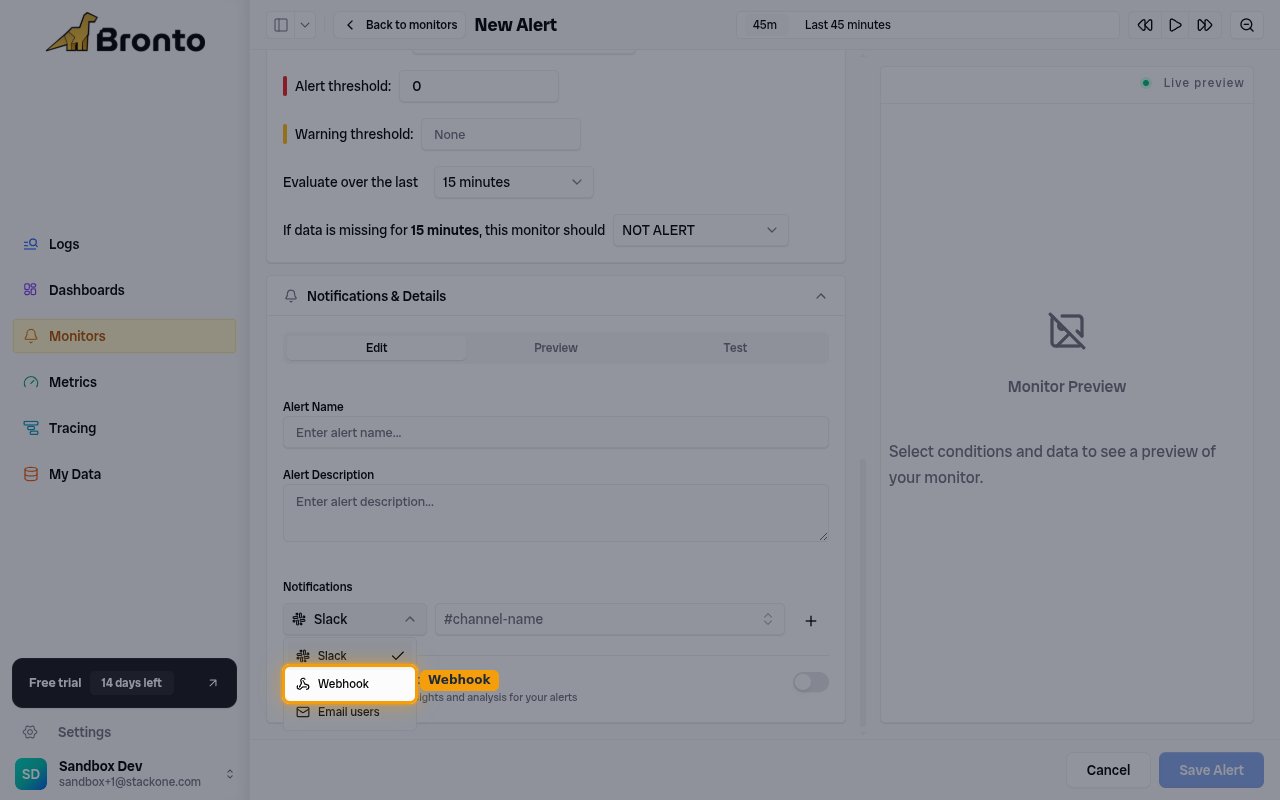
        <p>In the Bronto sidebar open <strong>Monitors</strong>, then open an existing monitor or click <strong>New Monitor</strong>. In the <strong>Notifications & Details</strong> section, under <strong>Notifications</strong>, open the channel-type dropdown and choose <strong>Webhook</strong>.</p>

        <img src="https://mintcdn.com/stackone-60/n3U5VIRoQw_MSD1j/connectors/bronto/images/events-notification-webhook.png?fit=max&auto=format&n=n3U5VIRoQw_MSD1j&q=85&s=8ccb0491ba9ad2aa272c78a38cbbaf7e" alt="Bronto monitor alert form with the Notifications channel-type dropdown open and Webhook selected" width="1280" height="800" data-path="connectors/bronto/images/events-notification-webhook.png" />
      </div>
    </Step>

    <Step title="Select the StackOne Events webhook">
      <div data-guide-step data-guide-scopes="" data-guide-display-scopes-list="">
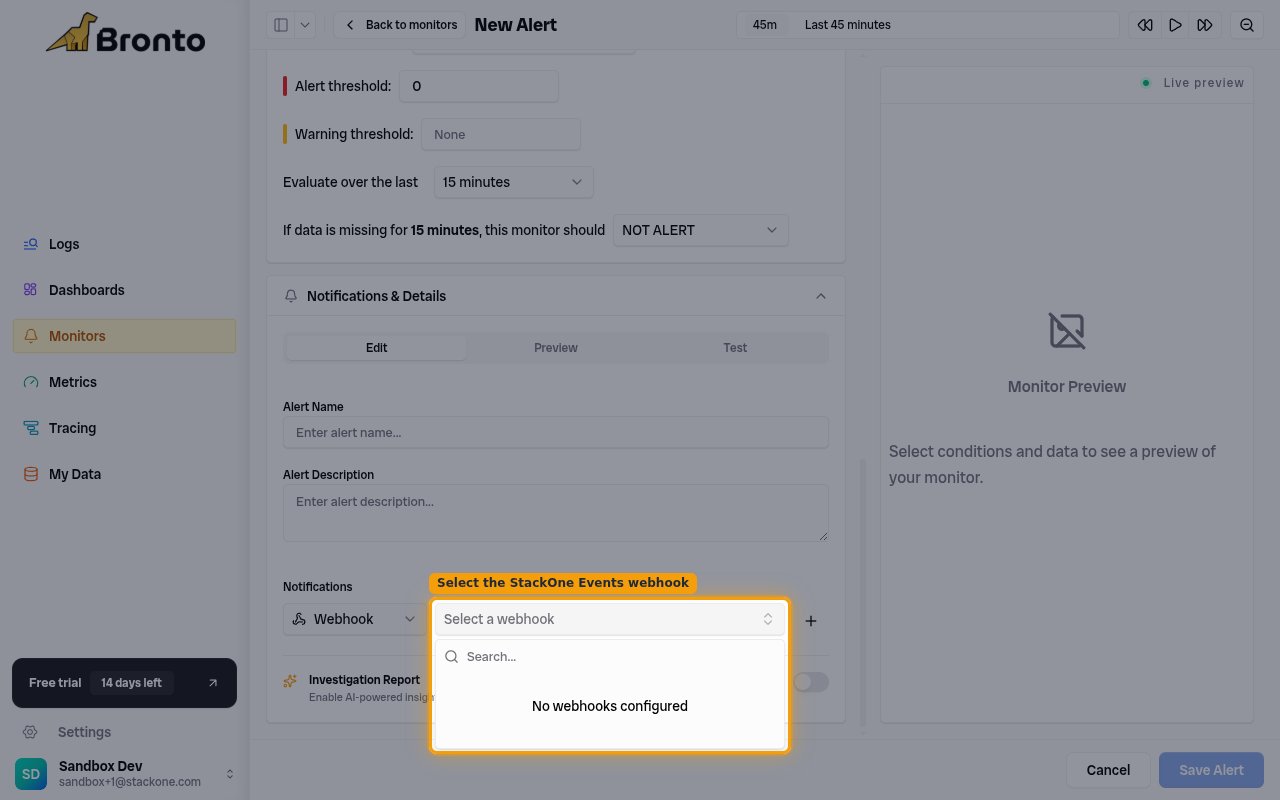
        <p>In the <strong>Select a webhook</strong> dropdown next to it, choose <strong>StackOne Events</strong>, click <strong>Add notification</strong>, then <strong>Save Alert</strong>.</p>

        <ul>
          <li>If the list shows <strong>No webhooks configured</strong>, the account is not connected yet — connect Bronto in StackOne first so the <strong>StackOne Events</strong> integration is created, then reopen this dropdown.</li>
        </ul>

        <img src="https://mintcdn.com/stackone-60/n3U5VIRoQw_MSD1j/connectors/bronto/images/events-select-webhook.png?fit=max&auto=format&n=n3U5VIRoQw_MSD1j&q=85&s=07ea6a37bf8c0da014f593b33e29c1ab" alt="Bronto monitor Notifications with the Webhook type selected and the Select a webhook dropdown open" width="1280" height="800" data-path="connectors/bronto/images/events-select-webhook.png" />
      </div>
    </Step>
  </Steps>
</section>

<section data-guide-section data-guide-scopes="">
  <h2>Available webhook events</h2>

  <p>Only monitor state changes are delivered. StackOne routes each delivery to the matching handler by the payload's status field — you do not select individual event types in Bronto; every monitor that uses the StackOne Events webhook delivers all of the following.</p>

  <Steps>
    <Step title="Monitor state-change events">
      <div data-guide-step data-guide-scopes="" data-guide-display-scopes-list="">
        <p>Events emitted as a monitor transitions between states.</p>

        <ul>
          <li><strong>Monitor Alert Triggered</strong> (`monitor.alert`) — Fired when a monitor's evaluated value crosses its alert threshold.</li>
          <li><strong>Monitor Warning Triggered</strong> (`monitor.warn`) — Fired when a monitor's value crosses its warning threshold but not the alert threshold.</li>
          <li><strong>Monitor Recovered</strong> (`monitor.ok`) — Fired when a monitor returns to the OK state after having been in alert or warning.</li>
          <li><strong>Monitor Event</strong> (`monitor.event`) — Catch-all for any monitor state that is not alert, warning, or recovery.</li>
        </ul>
      </div>
    </Step>
  </Steps>
</section>

<section data-guide-section data-guide-scopes="">
  <h2>Delivery format</h2>

  <p>How Bronto delivers each event to StackOne.</p>

  <Steps>
    <Step title="One JSON object per state change">
      <div data-guide-step data-guide-scopes="" data-guide-display-scopes-list="">
        <p>Each delivery is a single HTTP <strong>POST</strong> with a JSON body describing one monitor state change — including `alert_id`, `monitor_id`, `monitor_name`, `status`, `previous_status`, `current_value`, `threshold`, the evaluated `query`, and the time window. Bronto performs no URL-verification handshake; the per-account receiver token secures the endpoint. `eventId` is taken from `alert_id` and the payload is passed through as the event data.</p>
      </div>
    </Step>
  </Steps>
</section>

## Verify

Your Connector should now be able to receive and process events. Try triggering an event and you should see an Event appear in the Connector logs.