> ## Documentation Index
> Fetch the complete documentation index at: https://docs.stackone.com/llms.txt
> Use this file to discover all available pages before exploring further.

# Braintree Webhook Setup Guide

> Configure Braintree to deliver events to StackOne.

## Prerequisites

The connector should already be set up, with a Connector Profile and a Linked Account. See [Getting Started](/connectors/braintree#getting-started) on the Braintree connector page.

<section data-guide-section data-guide-scopes="">
  <h2>Copy your Native Webhook URL</h2>

  <p>The <strong>Native Webhook URL</strong> is generated once a Braintree account has been linked. Braintree sends every notification to this URL.</p>

  <ul>
    <li>Open the linked account in StackOne.</li>
    <li>Copy the value from <strong>Native Webhook URL</strong>.</li>
    <li>Treat this URL as a secret. Anyone holding it can post notifications to your account.</li>
  </ul>
</section>

<section data-guide-section data-guide-scopes="">
  <h2>Creating the webhook in Braintree</h2>

  <p>Braintree webhooks are created in the Control Panel. One webhook covers every notification you select.</p>

  <Steps>
    <Step title="Open the settings menu">
      <div data-guide-step data-guide-scopes="" data-guide-display-scopes-list="">
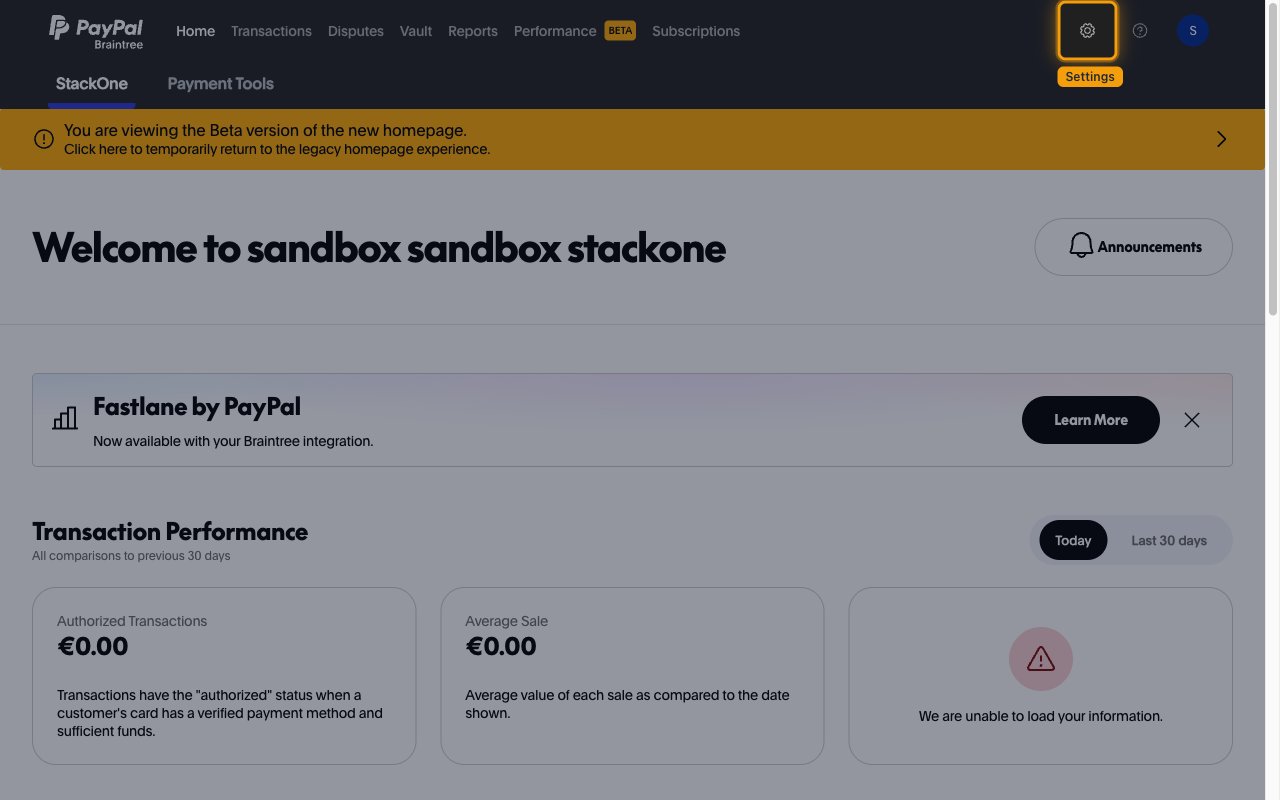
        <p>Sign in to the Braintree Control Panel for your environment (<a href="https://www.braintreegateway.com" target="_blank" rel="noopener noreferrer">Braintree production Control Panel</a> or <a href="https://sandbox.braintreegateway.com/login" target="_blank" rel="noopener noreferrer">Braintree sandbox Control Panel</a>), then click the settings gear icon in the top-right corner.</p>

        <img src="https://mintcdn.com/stackone-60/AD_gztZa3smqlhBE/connectors/braintree/images/events-settings-menu.png?fit=max&auto=format&n=AD_gztZa3smqlhBE&q=85&s=37e94ba013c4c52083896ed506eee3c8" alt="Braintree Control Panel home page with the settings gear icon in the top-right corner highlighted." width="1280" height="800" data-path="connectors/braintree/images/events-settings-menu.png" />
      </div>
    </Step>

    <Step title="Open the API settings">
      <div data-guide-step data-guide-scopes="" data-guide-display-scopes-list="">
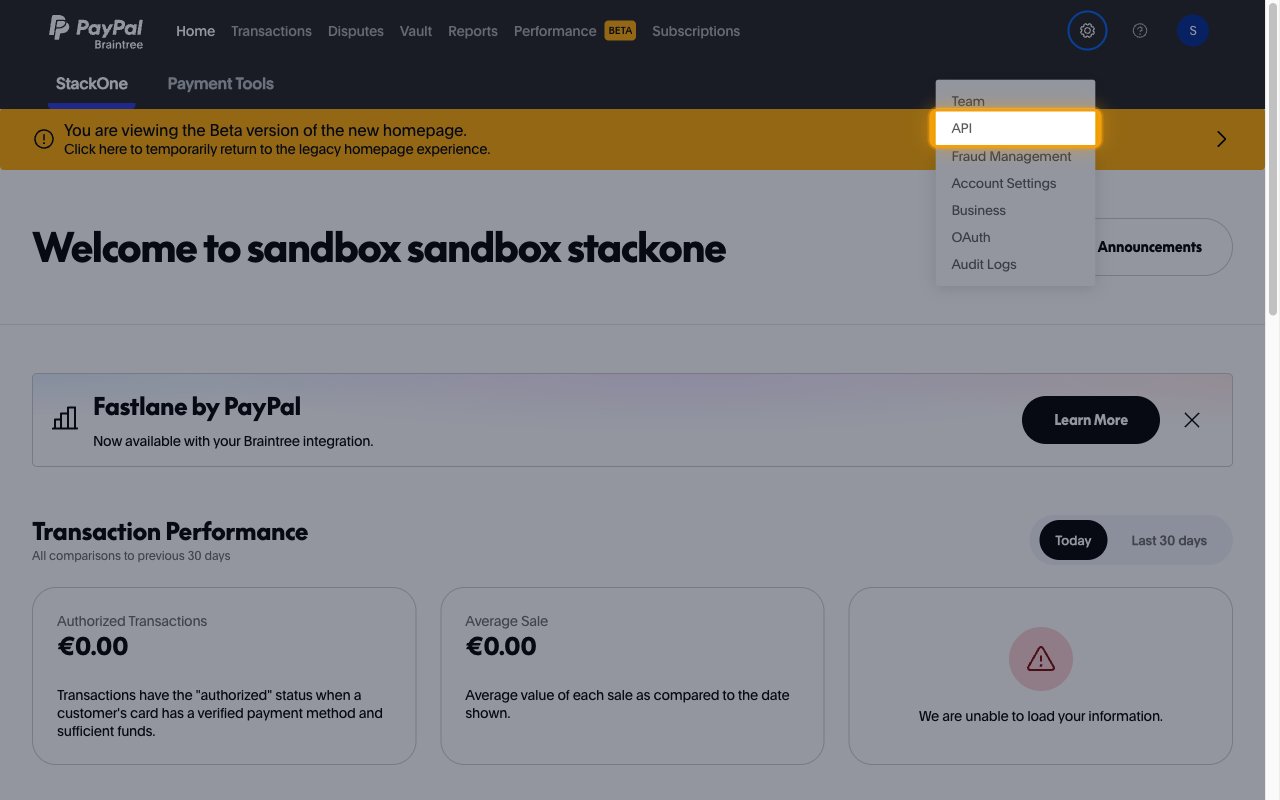
        <p>In the settings menu, select <strong>API</strong>.</p>

        <img src="https://mintcdn.com/stackone-60/AD_gztZa3smqlhBE/connectors/braintree/images/events-api-menu.png?fit=max&auto=format&n=AD_gztZa3smqlhBE&q=85&s=c9bfce5616e34a3902ae86e830f60c49" alt="Open Braintree settings menu with the API entry highlighted." width="1280" height="800" data-path="connectors/braintree/images/events-api-menu.png" />
      </div>
    </Step>

    <Step title="Open the Webhooks tab">
      <div data-guide-step data-guide-scopes="" data-guide-display-scopes-list="">
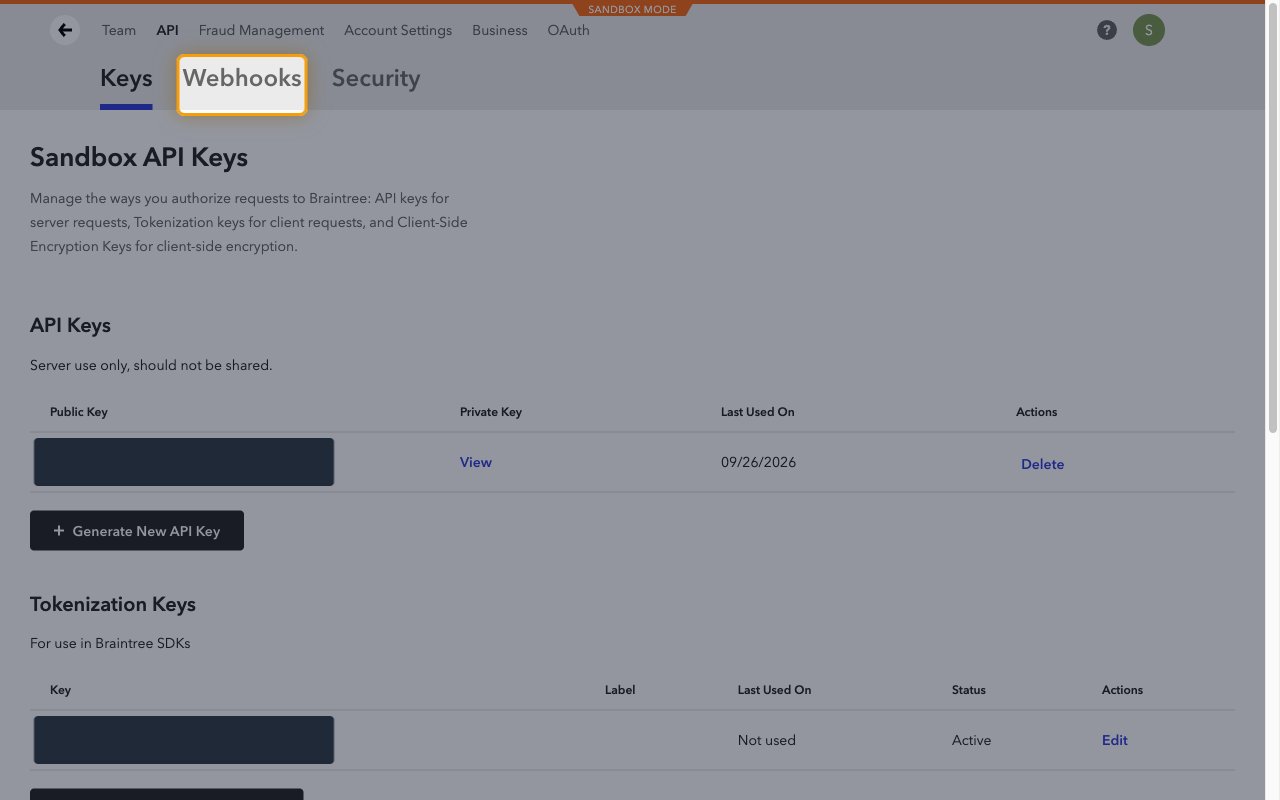
        <p>On the API page, click the <strong>Webhooks</strong> tab next to <strong>Keys</strong>.</p>

        <img src="https://mintcdn.com/stackone-60/AD_gztZa3smqlhBE/connectors/braintree/images/events-webhooks-tab.png?fit=max&auto=format&n=AD_gztZa3smqlhBE&q=85&s=a795c71ffc538a42e51129444a037ef4" alt="Braintree API page with the Webhooks tab highlighted and the API key values redacted." width="1280" height="800" data-path="connectors/braintree/images/events-webhooks-tab.png" />
      </div>
    </Step>

    <Step title="Create a new webhook">
      <div data-guide-step data-guide-scopes="" data-guide-display-scopes-list="">
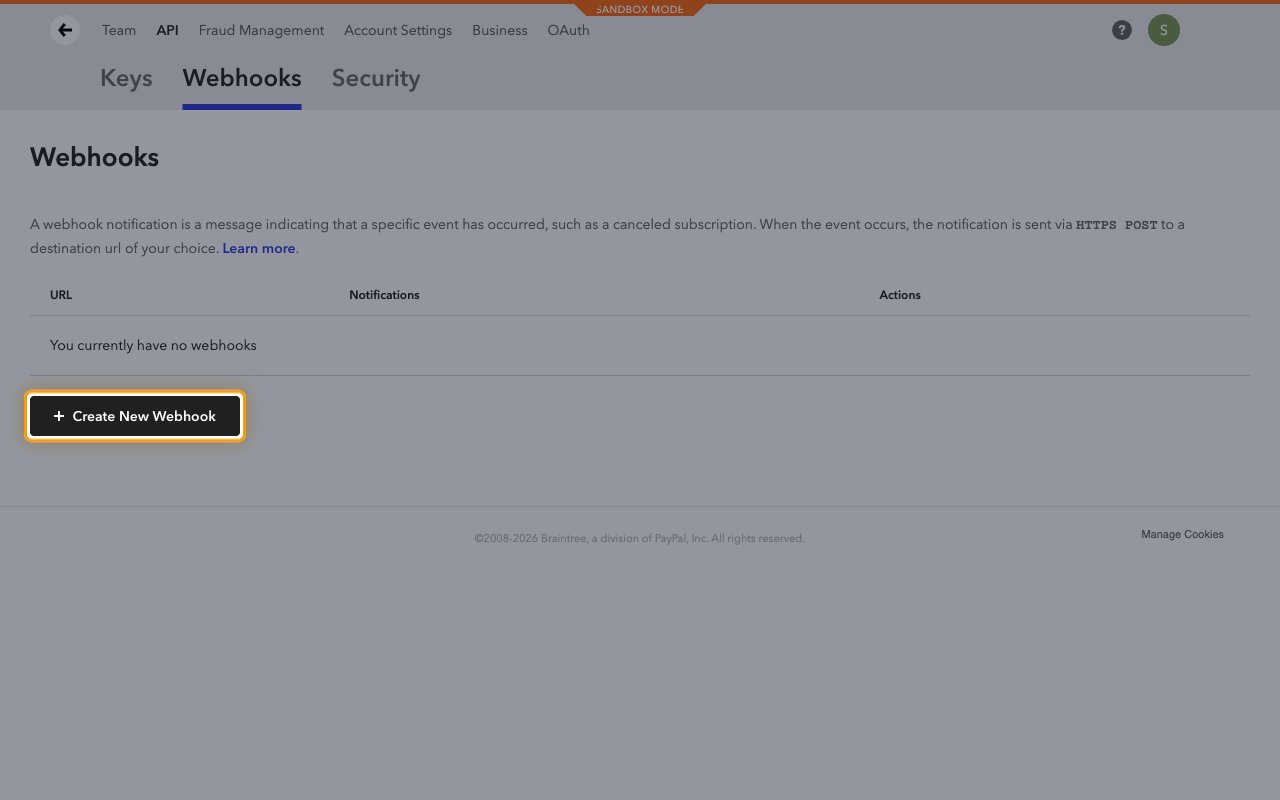
        <p>Click <strong>+ Create New Webhook</strong>.</p>

        <img src="https://mintcdn.com/stackone-60/AD_gztZa3smqlhBE/connectors/braintree/images/events-create-new-webhook.png?fit=max&auto=format&n=AD_gztZa3smqlhBE&q=85&s=702234e0c7dc2080c7af89ac43bfc16a" alt="Braintree Webhooks page with no webhooks yet and the Create New Webhook button highlighted." width="1280" height="800" data-path="connectors/braintree/images/events-create-new-webhook.png" />
      </div>
    </Step>

    <Step title="Paste the Native Webhook URL">
      <div data-guide-step data-guide-scopes="" data-guide-display-scopes-list="">
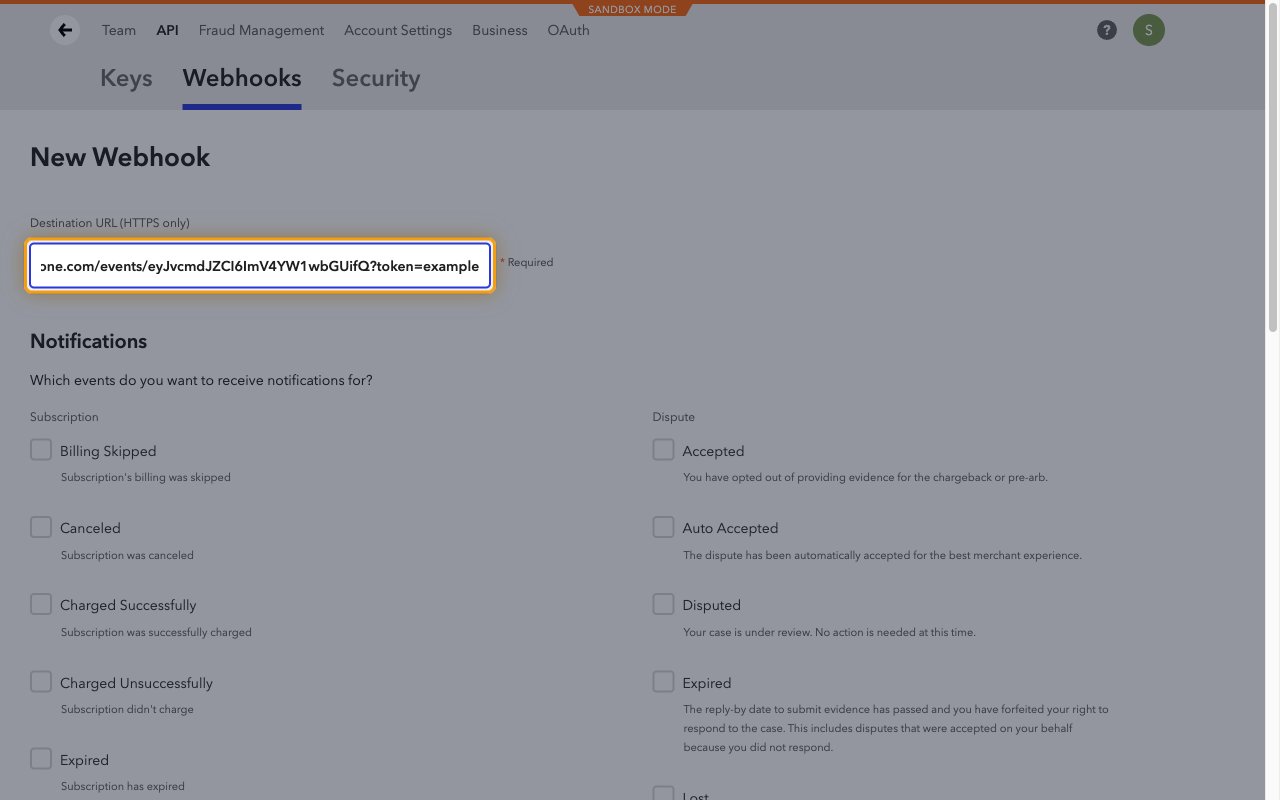
        <p>Paste the <strong>Native Webhook URL</strong> into <strong>Destination URL (HTTPS only)</strong>.</p>

        <img src="https://mintcdn.com/stackone-60/AD_gztZa3smqlhBE/connectors/braintree/images/events-destination-url.png?fit=max&auto=format&n=AD_gztZa3smqlhBE&q=85&s=1521f30a5862469c2c87db38960576cd" alt="Braintree New Webhook form with the Destination URL (HTTPS only) field highlighted." width="1280" height="800" data-path="connectors/braintree/images/events-destination-url.png" />
      </div>
    </Step>

    <Step title="Select the notifications">
      <div data-guide-step data-guide-scopes="" data-guide-display-scopes-list="">
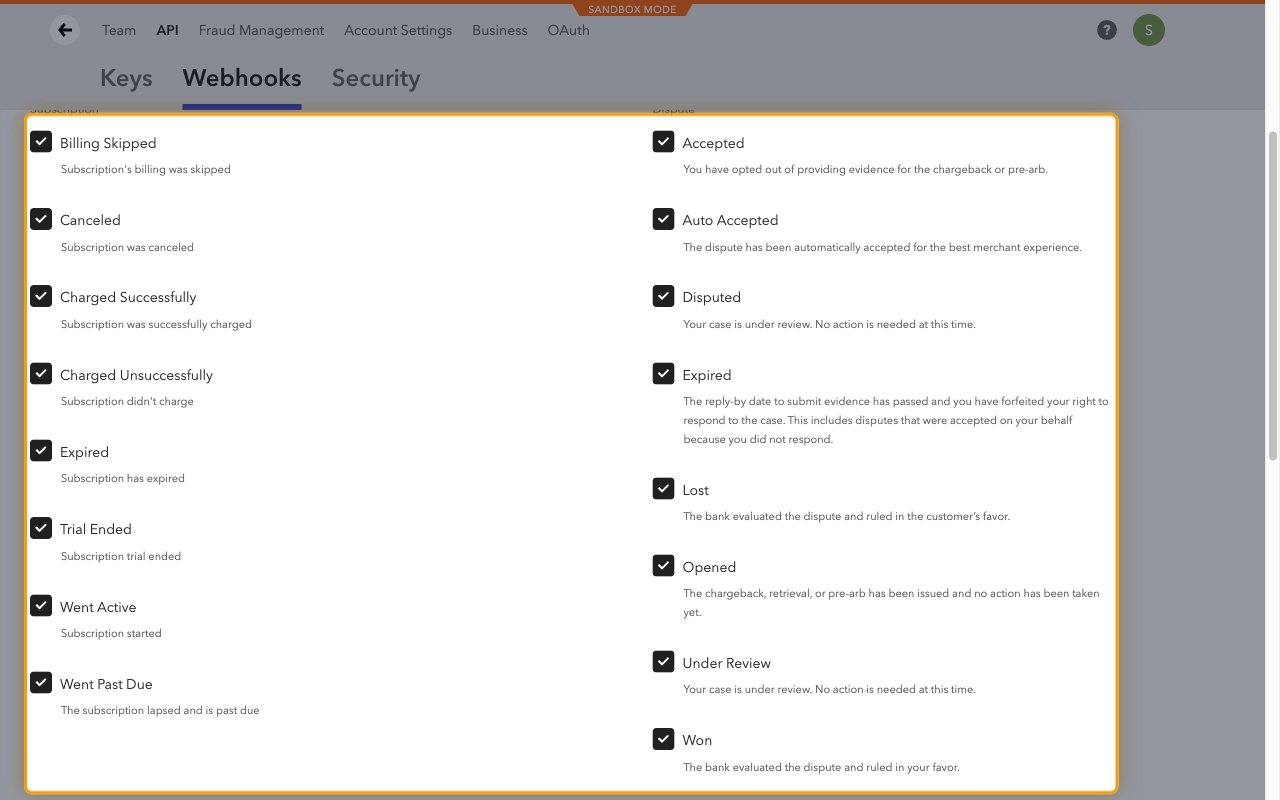
        <p>Under <strong>Notifications</strong>, tick every event you want StackOne to receive. The list is grouped into <strong>Subscription</strong>, <strong>Dispute</strong>, <strong>Disputed Transaction</strong>, <strong>Disbursement</strong>, <strong>Payment Method</strong> and <strong>Refund</strong>.</p>

        <ul>
          <li>Braintree only sends the notifications ticked here, so tick every event you plan to enable in StackOne.</li>
          <li>Some groups appear only when the related feature is enabled on your gateway.</li>
        </ul>

        <img src="https://mintcdn.com/stackone-60/AD_gztZa3smqlhBE/connectors/braintree/images/events-notifications.png?fit=max&auto=format&n=AD_gztZa3smqlhBE&q=85&s=c18cbe7dd70afc8b443f2db89510d11d" alt="Braintree Notifications checklist with the Subscription and Dispute notifications ticked and highlighted." width="1280" height="800" data-path="connectors/braintree/images/events-notifications.png" />
      </div>
    </Step>

    <Step title="Save the webhook">
      <div data-guide-step data-guide-scopes="" data-guide-display-scopes-list="">
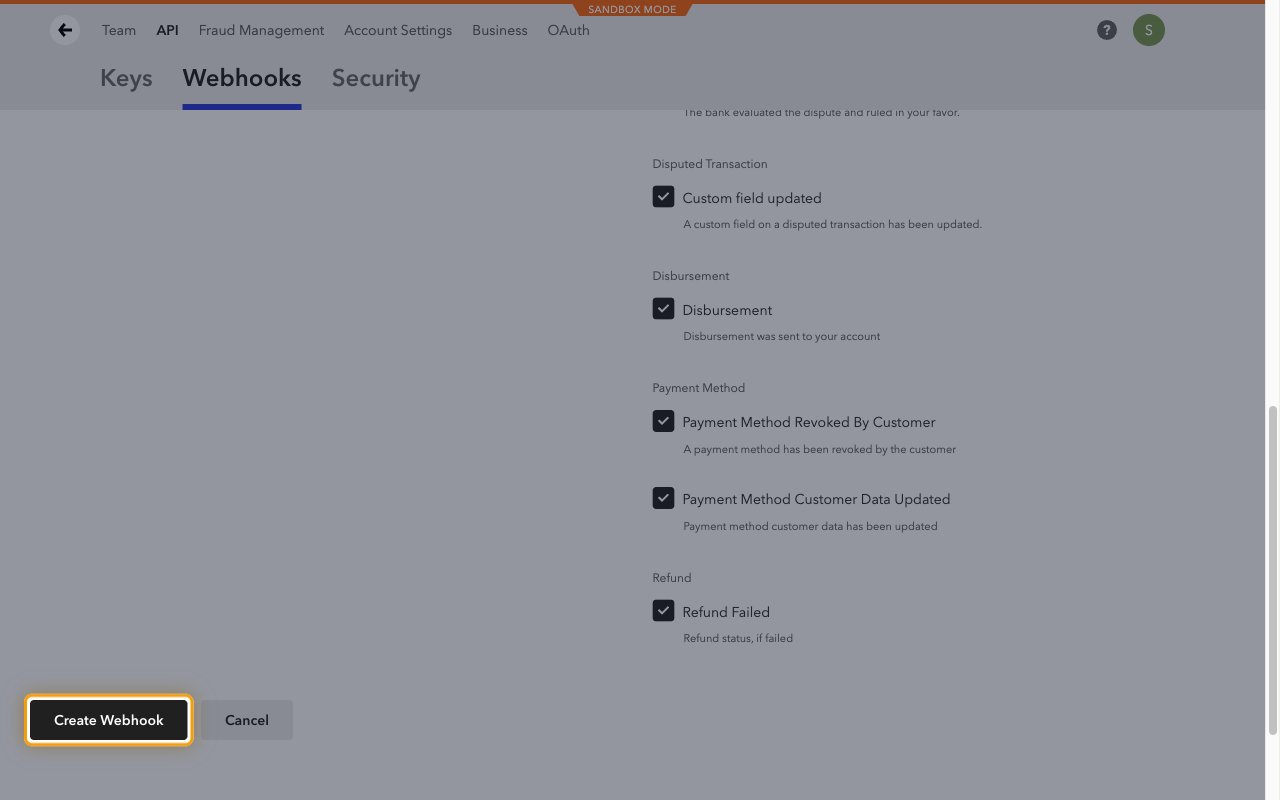
        <p>Scroll to the bottom of the form and click <strong>Create Webhook</strong>.</p>

        <img src="https://mintcdn.com/stackone-60/AD_gztZa3smqlhBE/connectors/braintree/images/events-create-webhook.png?fit=max&auto=format&n=AD_gztZa3smqlhBE&q=85&s=1d4e667ea7824c5b4d90b3d83d09a2cb" alt="Bottom of the Braintree New Webhook form with the Create Webhook button highlighted." width="1280" height="800" data-path="connectors/braintree/images/events-create-webhook.png" />
      </div>
    </Step>

    <Step title="Check the destination URL">
      <div data-guide-step data-guide-scopes="" data-guide-display-scopes-list="">
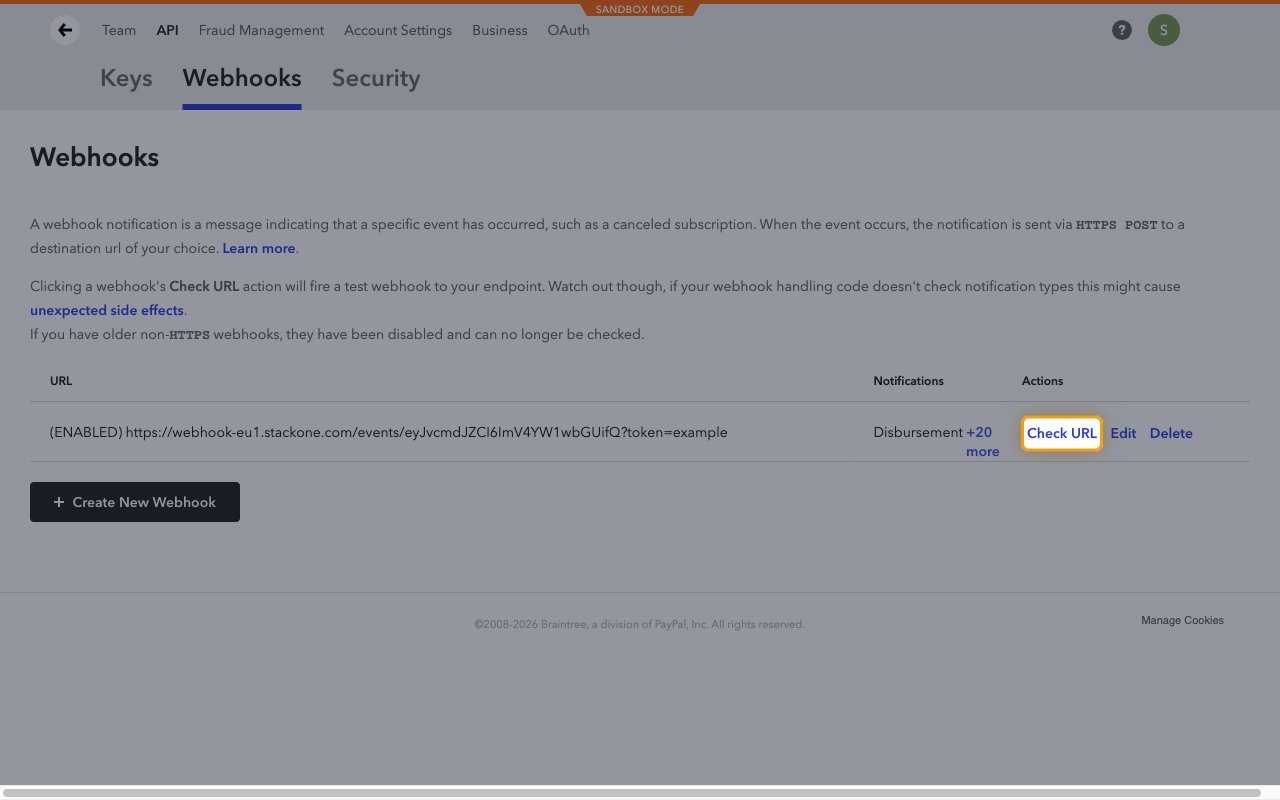
        <p>The webhook is listed as <strong>(ENABLED)</strong>. Click <strong>Check URL</strong> to send a test notification.</p>

        <ul>
          <li>StackOne acknowledges the test notification without creating an event.</li>
          <li>Use <strong>Edit</strong> later to change the selected notifications.</li>
        </ul>

        <img src="https://mintcdn.com/stackone-60/AD_gztZa3smqlhBE/connectors/braintree/images/events-check-url.png?fit=max&auto=format&n=AD_gztZa3smqlhBE&q=85&s=83fc6a0af250ce1fe1a8463a52366aeb" alt="Braintree Webhooks list showing the enabled webhook with the Check URL action highlighted." width="1280" height="800" data-path="connectors/braintree/images/events-check-url.png" />
      </div>
    </Step>
  </Steps>
</section>

<section data-guide-section data-guide-scopes="">
  <h2>Available webhook events</h2>

  <p>The following Braintree events can be enabled. Only events selected in StackOne and ticked on the Braintree webhook are delivered.</p>

  <Steps>
    <Step title="Subscription events">
      <div data-guide-step data-guide-scopes="" data-guide-display-scopes-list="">
        <p>Events related to recurring billing subscriptions. Braintree lists these under <strong>Subscription</strong>.</p>

        <ul>
          <li><strong>Subscription Billing Skipped</strong> (`subscription_billing_skipped`) — Fired when a subscription billing cycle is skipped</li>
          <li><strong>Subscription Canceled</strong> (`subscription_canceled`) — Fired when a subscription is canceled</li>
          <li><strong>Subscription Charged Successfully</strong> (`subscription_charged_successfully`) — Fired when a recurring charge succeeds</li>
          <li><strong>Subscription Charged Unsuccessfully</strong> (`subscription_charged_unsuccessfully`) — Fired when a recurring charge fails</li>
          <li><strong>Subscription Expired</strong> (`subscription_expired`) — Fired when a subscription reaches the end of its billing cycles</li>
          <li><strong>Subscription Trial Ended</strong> (`subscription_trial_ended`) — Fired when a subscription's trial period ends</li>
          <li><strong>Subscription Went Active</strong> (`subscription_went_active`) — Fired when a subscription becomes Active, on its first authorized charge or on recovery from Past Due</li>
          <li><strong>Subscription Went Past Due</strong> (`subscription_went_past_due`) — Fired when a subscription moves to Past Due after a failed charge</li>
        </ul>
      </div>
    </Step>

    <Step title="Dispute events">
      <div data-guide-step data-guide-scopes="" data-guide-display-scopes-list="">
        <p>Events related to chargebacks, retrievals and pre-arbitrations. Braintree lists these under <strong>Dispute</strong> and <strong>Disputed Transaction</strong>.</p>

        <ul>
          <li><strong>Dispute Opened</strong> (`dispute_opened`) — Fired when a new dispute is opened</li>
          <li><strong>Dispute Under Review</strong> (`dispute_under_review`) — Fired when a dispute moves to under review</li>
          <li><strong>Dispute Accepted</strong> (`dispute_accepted`) — Fired when you accept a dispute instead of providing evidence</li>
          <li><strong>Dispute Auto Accepted</strong> (`dispute_auto_accepted`) — Fired when Braintree accepts a dispute automatically</li>
          <li><strong>Dispute Disputed</strong> (`dispute_disputed`) — Fired when you finalize evidence and contest a dispute</li>
          <li><strong>Dispute Expired</strong> (`dispute_expired`) — Fired when the reply-by date passes without a response</li>
          <li><strong>Dispute Won</strong> (`dispute_won`) — Fired when the bank rules in your favor</li>
          <li><strong>Dispute Lost</strong> (`dispute_lost`) — Fired when the bank rules in the customer's favor</li>
          <li><strong>Disputed Transaction Custom Fields Updated</strong> (`disputed_transaction_custom_fields_updated`) — Fired when a custom field on a disputed transaction is updated</li>
        </ul>
      </div>
    </Step>

    <Step title="Transaction, refund and disbursement events">
      <div data-guide-step data-guide-scopes="" data-guide-display-scopes-list="">
        <p>Events related to settlement and payouts. Braintree lists these under <strong>Disbursement</strong> and <strong>Refund</strong>; the transaction events appear only when the related feature (such as ACH, Fraud Protection Advanced or transaction retries) is enabled on your gateway.</p>

        <ul>
          <li><strong>Transaction Disbursed</strong> (`transaction_disbursed`) — Fired when a transaction is disbursed to your bank account</li>
          <li><strong>Transaction Settled</strong> (`transaction_settled`) — Fired when a transaction settles, for ACH, US bank account and some local payment methods</li>
          <li><strong>Transaction Settlement Declined</strong> (`transaction_settlement_declined`) — Fired when settlement of an ACH or US bank account transaction is declined</li>
          <li><strong>Transaction Reviewed</strong> (`transaction_reviewed`) — Fired when a Fraud Protection Advanced decision on a transaction is reviewed</li>
          <li><strong>Transaction Retried</strong> (`transaction_retried`) — Fired when Braintree retries a declined transaction</li>
          <li><strong>Refund Failed</strong> (`refund_failed`) — Fired when a refund fails</li>
          <li><strong>Disbursement</strong> (`disbursement`) — Fired when a disbursement of settled funds is sent to your account</li>
        </ul>
      </div>
    </Step>

    <Step title="Payment method events">
      <div data-guide-step data-guide-scopes="" data-guide-display-scopes-list="">
        <p>Events related to vaulted payment methods. Braintree lists these under <strong>Payment Method</strong>; Local Payment, Account Updater and Grant API events appear only when those features are enabled on your gateway.</p>

        <ul>
          <li><strong>Payment Method Revoked By Customer</strong> (`payment_method_revoked_by_customer`) — Fired when a customer revokes a vaulted payment method, such as a PayPal billing agreement or Venmo account</li>
          <li><strong>Payment Method Customer Data Updated</strong> (`payment_method_customer_data_updated`) — Fired when customer data behind a vaulted payment method changes</li>
          <li><strong>Local Payment Completed</strong> (`local_payment_completed`) — Fired when a buyer completes a local payment method flow</li>
          <li><strong>Local Payment Expired</strong> (`local_payment_expired`) — Fired when a local payment expires before it is funded</li>
          <li><strong>Local Payment Funded</strong> (`local_payment_funded`) — Fired when a local payment is funded</li>
          <li><strong>Local Payment Reversed</strong> (`local_payment_reversed`) — Fired when a local payment is reversed</li>
          <li><strong>Account Updater Daily Report</strong> (`account_updater_daily_report`) — Fired when the daily Account Updater report of updated vaulted cards is ready</li>
          <li><strong>Granted Payment Instrument Update</strong> (`granted_payment_instrument_update`) — Fired when a payment instrument shared through the Grant API is updated</li>
          <li><strong>Granted Payment Method Revoked</strong> (`granted_payment_method_revoked`) — Fired when a payment method shared through the Grant API is revoked</li>
          <li><strong>Grantor Updated Granted Payment Method</strong> (`grantor_updated_granted_payment_method`) — Fired when the grantor updates a payment method shared through the Grant API</li>
          <li><strong>Recipient Updated Granted Payment Method</strong> (`recipient_updated_granted_payment_method`) — Fired when the recipient updates a payment method shared through the Grant API</li>
        </ul>
      </div>
    </Step>
  </Steps>
</section>

<section data-guide-section data-guide-scopes="">
  <h2>Delivery format</h2>

  <p>Details of how Braintree delivers notifications to StackOne.</p>

  <Steps>
    <Step title="Encoded notifications">
      <div data-guide-step data-guide-scopes="" data-guide-display-scopes-list="">
        <p>Each request carries one notification as a form-encoded `bt_signature` and `bt_payload`, where `bt_payload` is base64-encoded XML. StackOne decodes it and routes it to the matching event. The event data holds the `kind`, `timestamp`, the decoded `notification_xml` and the original `bt_signature` and `bt_payload`.</p>

        <ul>
          <li>StackOne does not verify the Braintree signature. To confirm a notification is authentic, pass `bt_signature` and `bt_payload` to the Braintree SDK webhook parse method.</li>
          <li>Braintree retries a notification that is not acknowledged. A retried notification keeps the same event ID.</li>
        </ul>
      </div>
    </Step>
  </Steps>
</section>

## Verify

Your Connector should now be able to receive and process events. Try triggering an event and you should see an Event appear in the Connector logs.