> ## Documentation Index
> Fetch the complete documentation index at: https://docs.stackone.com/llms.txt
> Use this file to discover all available pages before exploring further.

# BALLDONTLIE Webhook Setup Guide

> Configure BALLDONTLIE to deliver events to StackOne.

## Prerequisites

The connector should already be set up, with a Connector Profile and a Linked Account. See [Getting Started](/connectors/balldontlie#getting-started) on the BALLDONTLIE connector page.

<section data-guide-section data-guide-scopes="">
  <h2>Create the webhook endpoint</h2>

  <p>BALLDONTLIE delivers events to a webhook endpoint you register in its dashboard. Create one endpoint pointed at your StackOne Native Webhook URL and subscribe it to the NBA events you want.</p>

  <Steps>
    <Step title="Retrieve your StackOne Native Webhook URL">
      <div data-guide-step data-guide-scopes="" data-guide-display-scopes-list="">
        <p>The <strong>Native Webhook URL</strong> is generated once an account has been linked. You will paste it into BALLDONTLIE in a later step.</p>

        <ul>
          <li>Open the linked account in StackOne.</li>
          <li>Copy the value from <strong>Native Webhook URL</strong>.</li>
        </ul>
      </div>
    </Step>

    <Step title="Sign in to BALLDONTLIE">
      <div data-guide-step data-guide-scopes="" data-guide-display-scopes-list="">
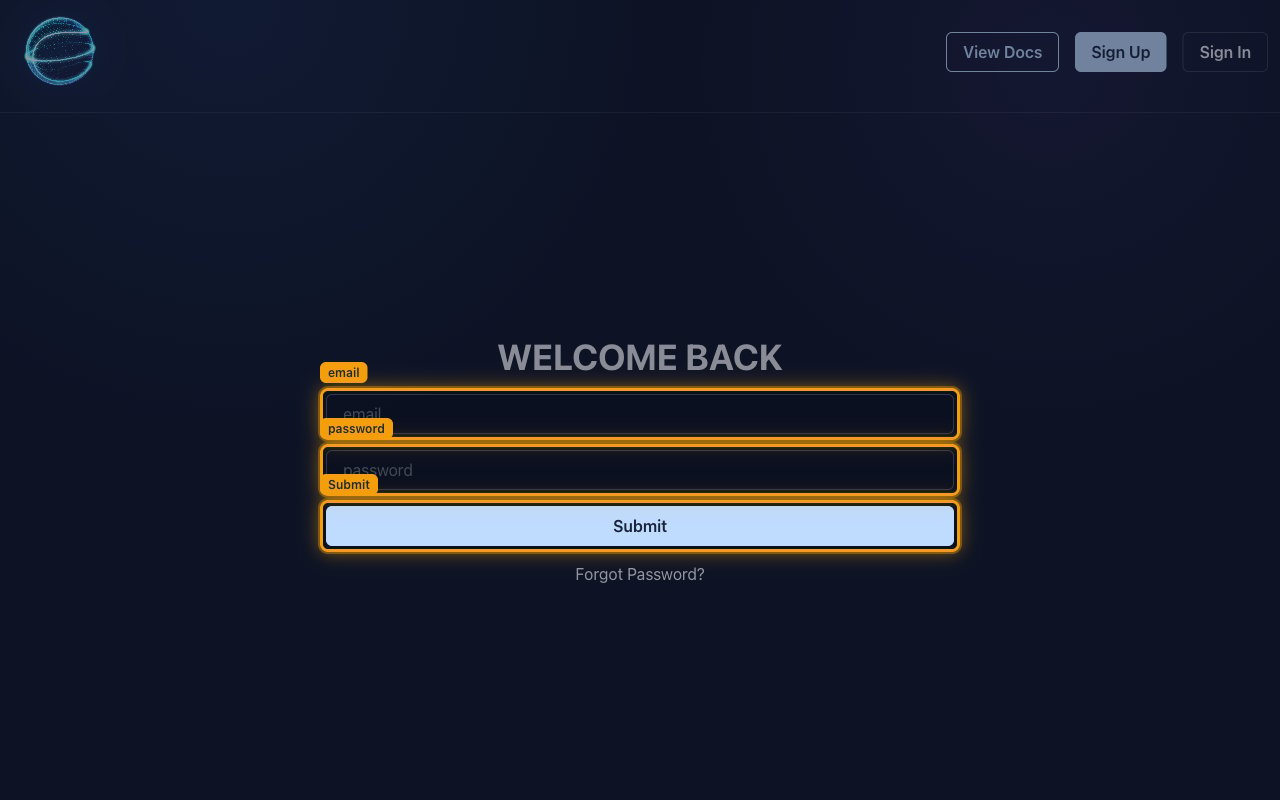
        <p>Open the <a href="https://app.balldontlie.io" target="_blank" rel="noopener noreferrer">BALLDONTLIE dashboard</a> and sign in with the account whose API key you connected to StackOne. Enter your <strong>email</strong> and <strong>password</strong> on the <strong>WELCOME BACK</strong> screen, then click <strong>Submit</strong>.</p>

        <img src="https://mintcdn.com/stackone-60/E8Ws5YBMn_xZ9Ydj/connectors/balldontlie/images/events-sign-in.png?fit=max&auto=format&n=E8Ws5YBMn_xZ9Ydj&q=85&s=0a5b1c16dbd838ff5810aa86dee6de93" alt="The BALLDONTLIE WELCOME BACK screen with the email and password fields and the Submit button highlighted." width="1280" height="800" data-path="connectors/balldontlie/images/events-sign-in.png" />
      </div>
    </Step>

    <Step title="Open the Webhooks page">
      <div data-guide-step data-guide-scopes="" data-guide-display-scopes-list="">
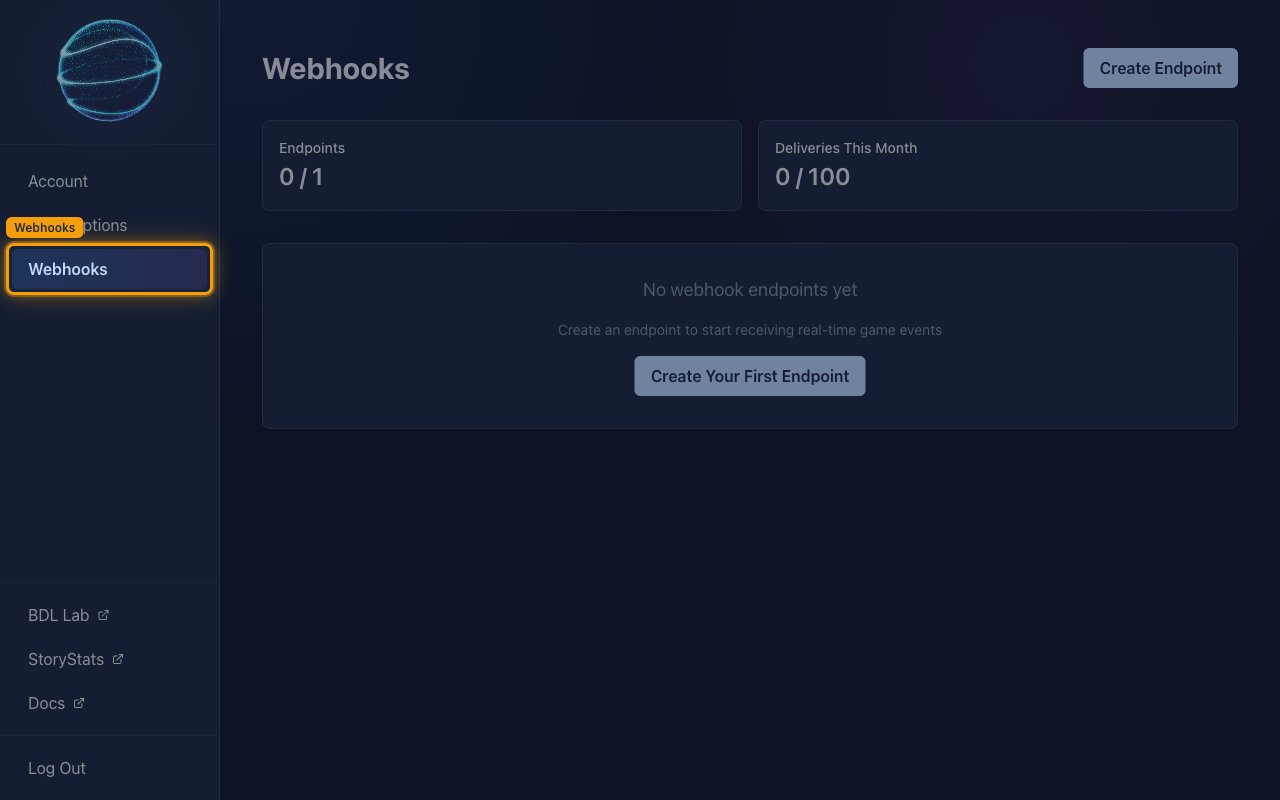
        <p>Click <strong>Webhooks</strong> in the sidebar. The page shows your <strong>Endpoints</strong> and <strong>Deliveries This Month</strong> counts against your plan's allowances.</p>

        <ul>
          <li>A Free plan allows <strong>0 / 1</strong> endpoints and <strong>0 / 100</strong> deliveries a month.</li>
        </ul>

        <img src="https://mintcdn.com/stackone-60/E8Ws5YBMn_xZ9Ydj/connectors/balldontlie/images/events-open-webhooks.png?fit=max&auto=format&n=E8Ws5YBMn_xZ9Ydj&q=85&s=1906e3c99e7ac3d3c9b7afdbc67b7c19" alt="The BALLDONTLIE Webhooks page with the Webhooks sidebar entry highlighted." width="1280" height="800" data-path="connectors/balldontlie/images/events-open-webhooks.png" />
      </div>
    </Step>

    <Step title="Start creating an endpoint">
      <div data-guide-step data-guide-scopes="" data-guide-display-scopes-list="">
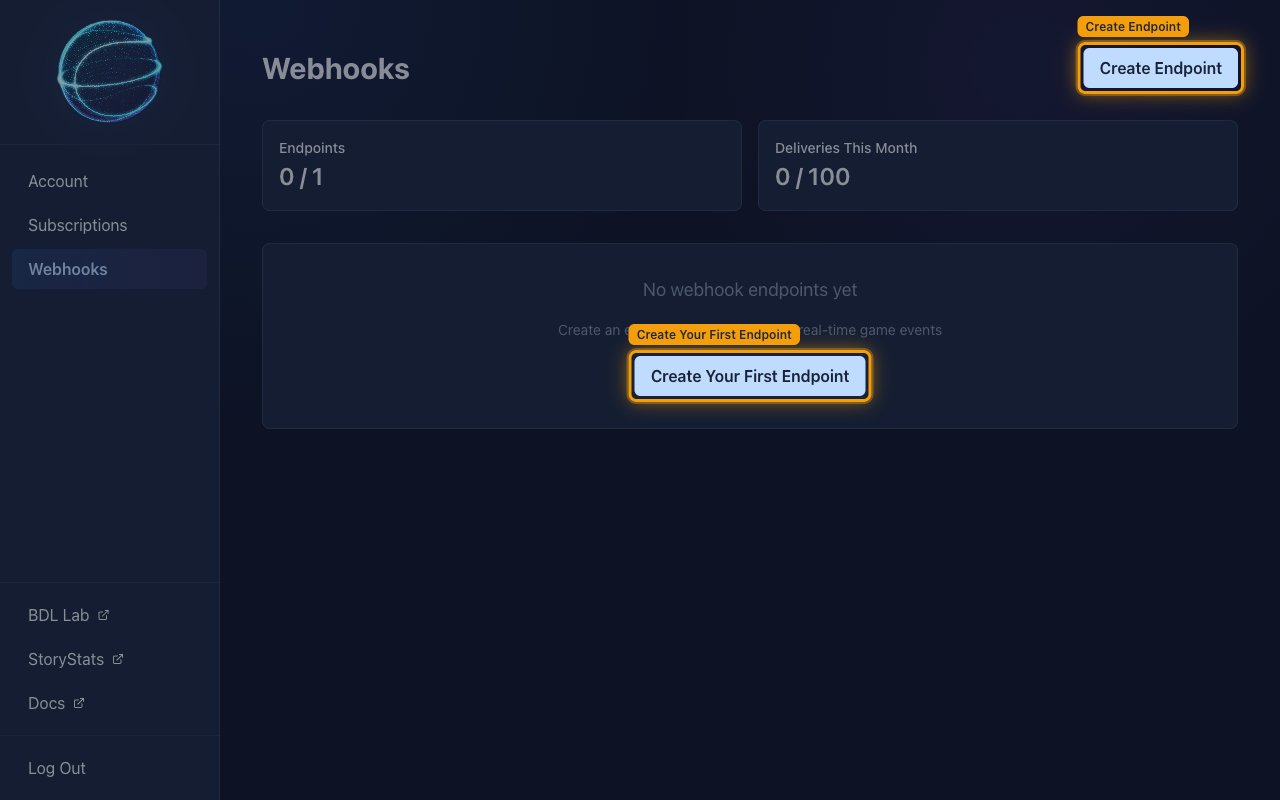
        <p>Click <strong>Create Endpoint</strong> in the top right. On an account with no endpoints yet you can also click <strong>Create Your First Endpoint</strong> in the middle of the page — both open the same dialog.</p>

        <img src="https://mintcdn.com/stackone-60/E8Ws5YBMn_xZ9Ydj/connectors/balldontlie/images/events-create-endpoint-button.png?fit=max&auto=format&n=E8Ws5YBMn_xZ9Ydj&q=85&s=63cbf7fd4781c60599934004b1d26e32" alt="The Webhooks page with the Create Endpoint and Create Your First Endpoint buttons highlighted." width="1280" height="800" data-path="connectors/balldontlie/images/events-create-endpoint-button.png" />
      </div>
    </Step>

    <Step title="Enter the webhook URL">
      <div data-guide-step data-guide-scopes="" data-guide-display-scopes-list="">
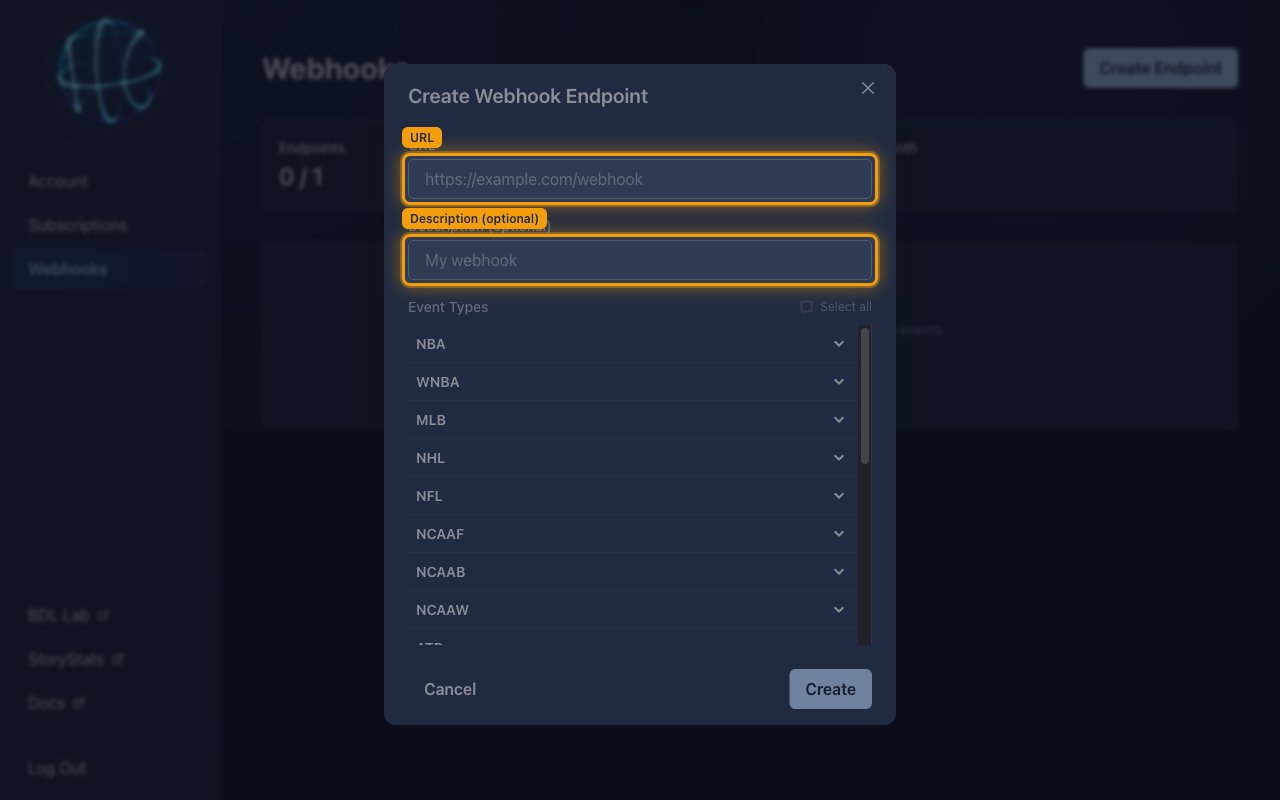
        <p>In the <strong>Create Webhook Endpoint</strong> dialog, paste the <strong>Native Webhook URL</strong> you copied into <strong>URL</strong>. In <strong>Description (optional)</strong>, type a name you will recognise later, for example `StackOne`.</p>

        <img src="https://mintcdn.com/stackone-60/E8Ws5YBMn_xZ9Ydj/connectors/balldontlie/images/events-endpoint-url.png?fit=max&auto=format&n=E8Ws5YBMn_xZ9Ydj&q=85&s=b9db8652acba4a6e9576e2e329d35e3f" alt="The Create Webhook Endpoint dialog with the URL and Description (optional) fields highlighted." width="1280" height="800" data-path="connectors/balldontlie/images/events-endpoint-url.png" />
      </div>
    </Step>

    <Step title="Select the event types">
      <div data-guide-step data-guide-scopes="" data-guide-display-scopes-list="">
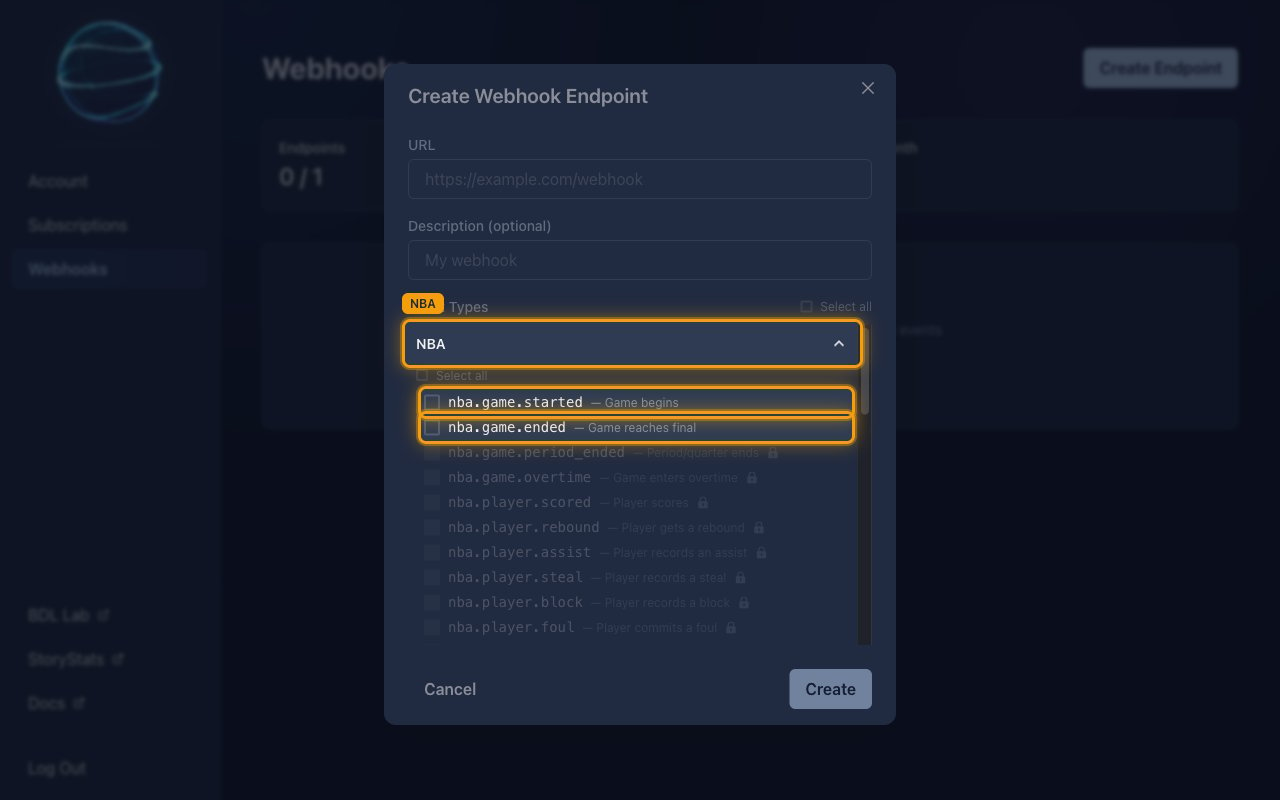
        <p>Under <strong>Event Types</strong>, click <strong>NBA</strong> to expand the list, then tick the events you want delivered. Event types your plan cannot receive are greyed out with a padlock.</p>

        <ul>
          <li>On a Free plan only <strong>nba.game.started</strong> and <strong>nba.game.ended</strong> can be selected.</li>
          <li><strong>Select all</strong> ticks every event type your plan allows.</li>
          <li>BALLDONTLIE delivers only the events you tick here.</li>
        </ul>

        <img src="https://mintcdn.com/stackone-60/E8Ws5YBMn_xZ9Ydj/connectors/balldontlie/images/events-select-event-types.png?fit=max&auto=format&n=E8Ws5YBMn_xZ9Ydj&q=85&s=7cfb76cc53357a20532b3cedd493e57e" alt="The Event Types list expanded for NBA, with nba.game.started and nba.game.ended highlighted and the remaining events greyed out behind padlocks." width="1280" height="800" data-path="connectors/balldontlie/images/events-select-event-types.png" />
      </div>
    </Step>

    <Step title="Create the endpoint">
      <div data-guide-step data-guide-scopes="" data-guide-display-scopes-list="">
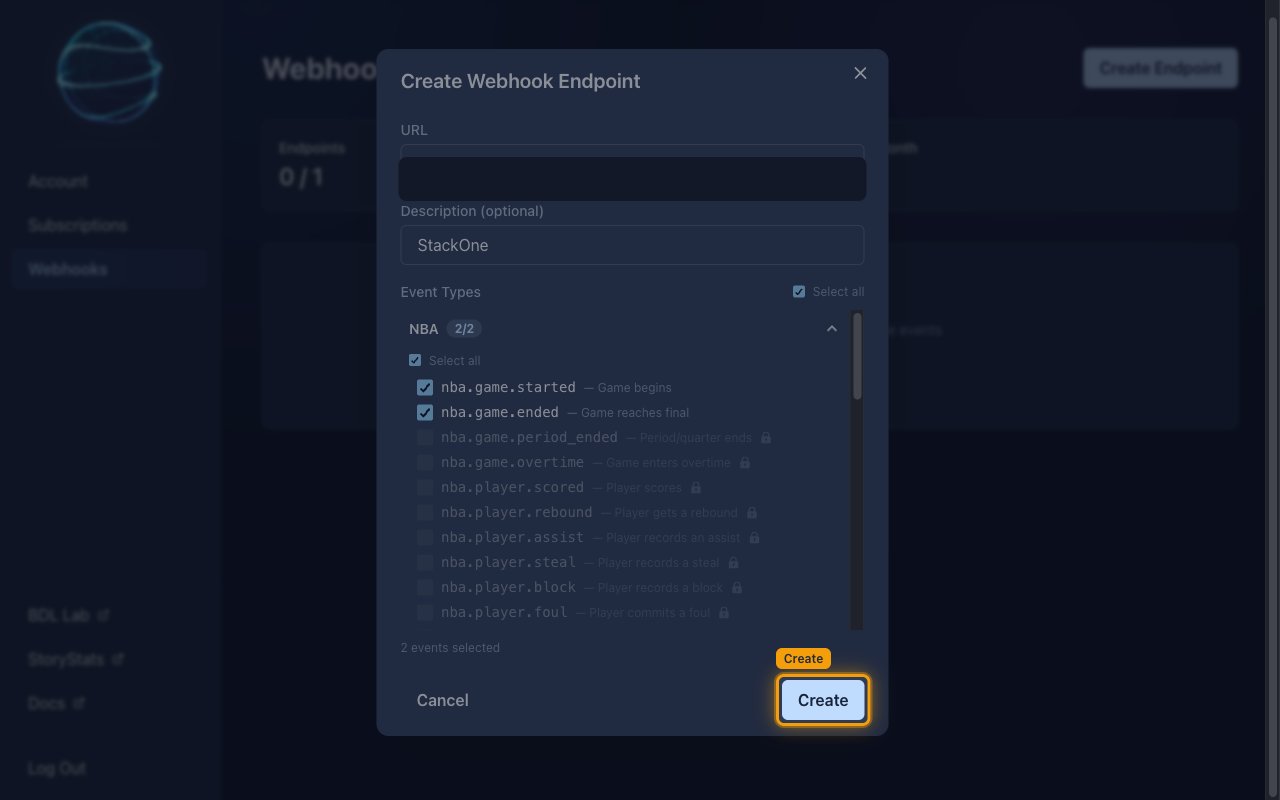
        <p>Check the count beside <strong>Event Types</strong> matches what you selected, then click <strong>Create</strong>.</p>

        <img src="https://mintcdn.com/stackone-60/E8Ws5YBMn_xZ9Ydj/connectors/balldontlie/images/events-create-endpoint-form.png?fit=max&auto=format&n=E8Ws5YBMn_xZ9Ydj&q=85&s=f370cfda2d2e539b249a987937bb0af5" alt="The completed Create Webhook Endpoint dialog reading 2 events selected, with the Create button highlighted and the URL value masked." width="1280" height="800" data-path="connectors/balldontlie/images/events-create-endpoint-form.png" />
      </div>
    </Step>

    <Step title="Copy the signing secret">
      <div data-guide-step data-guide-scopes="" data-guide-display-scopes-list="">
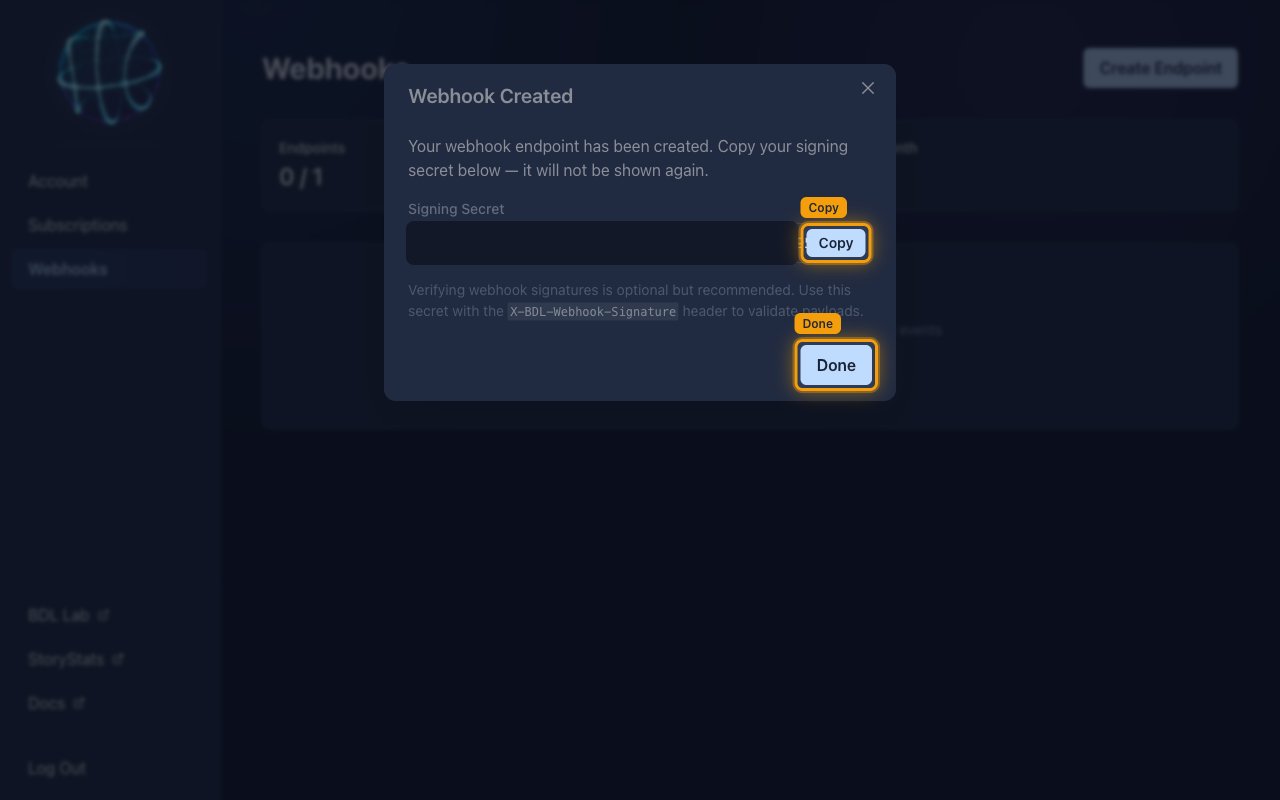
        <p>The <strong>Webhook Created</strong> dialog shows the <strong>Signing Secret</strong> once. Click <strong>Copy</strong> to store it somewhere safe, then click <strong>Done</strong>.</p>

        <ul>
          <li>The <strong>Signing Secret</strong> is only displayed once and cannot be retrieved later. If you lose it, use <strong>Rotate Secret</strong> on the endpoint to issue a new one.</li>
          <li>StackOne does not need this secret. It authenticates each delivery using the token already in the <strong>Native Webhook URL</strong>, and BALLDONTLIE states that verifying webhook signatures is optional but recommended.</li>
        </ul>

        <img src="https://mintcdn.com/stackone-60/E8Ws5YBMn_xZ9Ydj/connectors/balldontlie/images/events-signing-secret.png?fit=max&auto=format&n=E8Ws5YBMn_xZ9Ydj&q=85&s=34696fde71cabd7e7f5ee8284888a1bf" alt="The Webhook Created dialog with the Copy and Done buttons highlighted and the signing secret value masked." width="1280" height="800" data-path="connectors/balldontlie/images/events-signing-secret.png" />
      </div>
    </Step>
  </Steps>
</section>

<section data-guide-section data-guide-scopes="">
  <h2>Confirm the endpoint is receiving events</h2>

  <p>Check the endpoint is active and that BALLDONTLIE can reach StackOne before relying on live events.</p>

  <Steps>
    <Step title="Check the endpoint appears as Active">
      <div data-guide-step data-guide-scopes="" data-guide-display-scopes-list="">
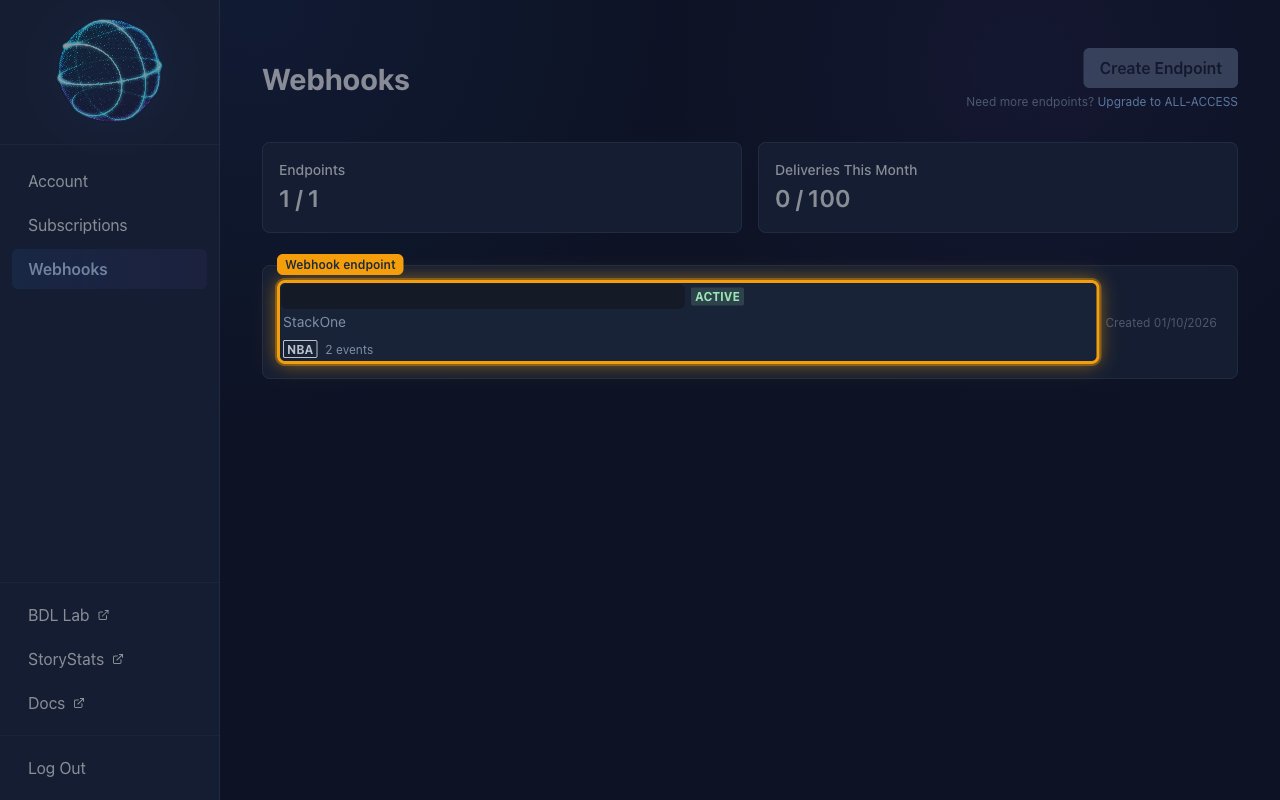
        <p>The endpoint is now listed on the <strong>Webhooks</strong> page with an <strong>Active</strong> badge, its description, and the number of events it is subscribed to. The <strong>Endpoints</strong> count rises to <strong>1 / 1</strong> on a Free plan, and <strong>Create Endpoint</strong> is disabled with a <strong>Upgrade to ALL-ACCESS</strong> link beside it.</p>

        <img src="https://mintcdn.com/stackone-60/E8Ws5YBMn_xZ9Ydj/connectors/balldontlie/images/events-endpoint-list.png?fit=max&auto=format&n=E8Ws5YBMn_xZ9Ydj&q=85&s=90b04ff77c1da156acd1d01dede51d83" alt="The Webhooks page listing the new Active endpoint, with the endpoint row highlighted and its URL masked." width="1280" height="800" data-path="connectors/balldontlie/images/events-endpoint-list.png" />
      </div>
    </Step>

    <Step title="Review the endpoint configuration">
      <div data-guide-step data-guide-scopes="" data-guide-display-scopes-list="">
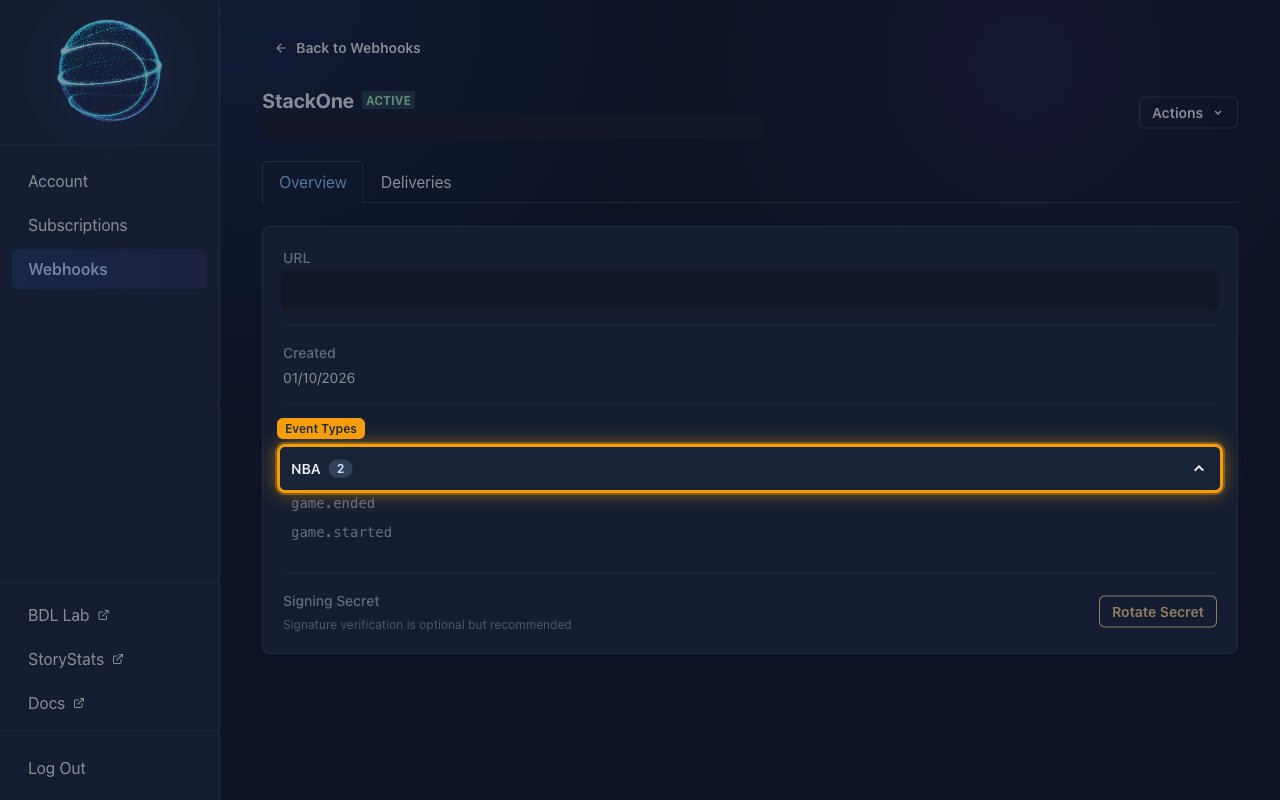
        <p>Click the endpoint to open it. The <strong>Overview</strong> tab shows its <strong>URL</strong>, when it was <strong>Created</strong>, its <strong>Event Types</strong>, and the <strong>Signing Secret</strong> section with <strong>Rotate Secret</strong>. Expand the sport under <strong>Event Types</strong> to confirm which events are subscribed.</p>

        <img src="https://mintcdn.com/stackone-60/E8Ws5YBMn_xZ9Ydj/connectors/balldontlie/images/events-endpoint-overview.png?fit=max&auto=format&n=E8Ws5YBMn_xZ9Ydj&q=85&s=890e4f8b3549a3ba24e46de9488fc516" alt="The endpoint Overview tab with Event Types expanded to show game.ended and game.started, and the URL masked." width="1280" height="800" data-path="connectors/balldontlie/images/events-endpoint-overview.png" />
      </div>
    </Step>

    <Step title="Verify delivery with a test event">
      <div data-guide-step data-guide-scopes="" data-guide-display-scopes-list="">
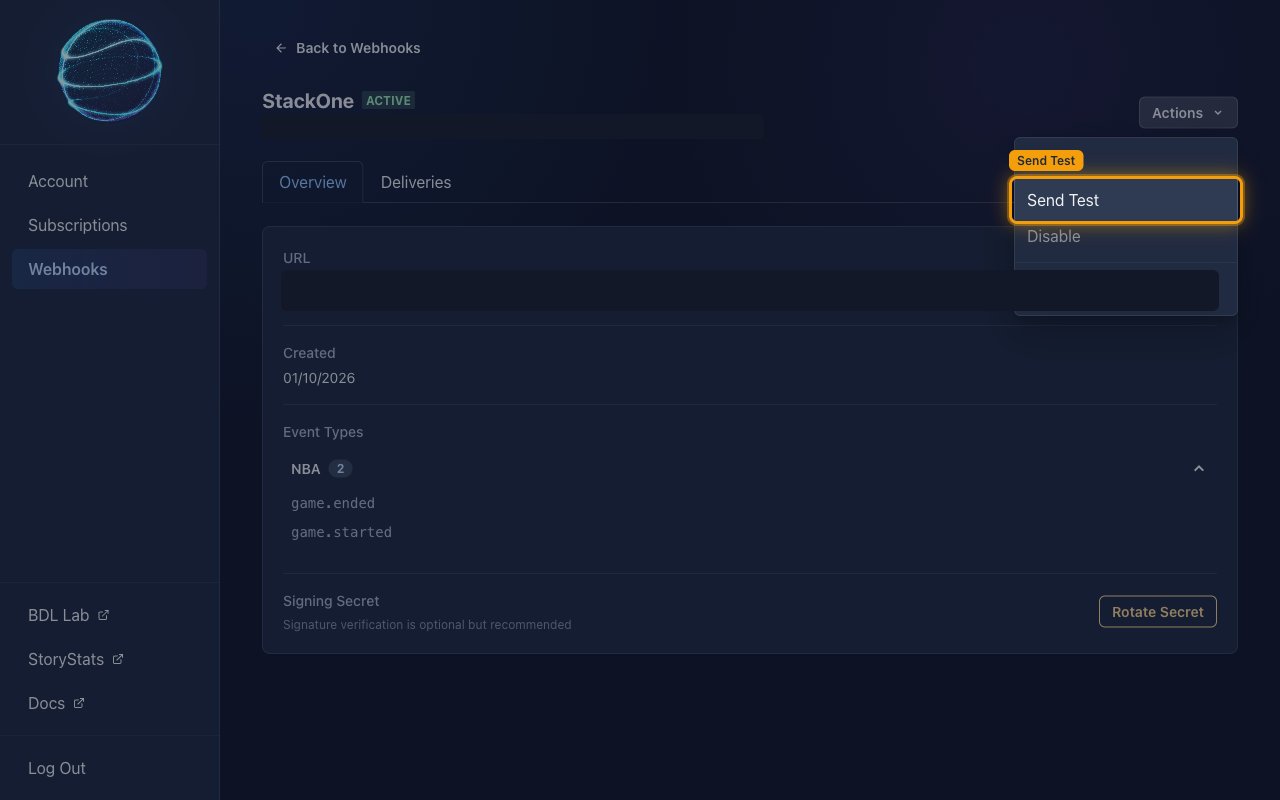
        <p>Click <strong>Actions</strong> in the top right and choose <strong>Send Test</strong> to confirm StackOne accepts deliveries. The same menu holds <strong>Edit</strong>, <strong>Disable</strong> and <strong>Delete</strong>.</p>

        <ul>
          <li>The test payload is not an NBA event — it carries a type of `test`. StackOne acknowledges it so the check succeeds, but it produces no sandbox or game record.</li>
        </ul>

        <img src="https://mintcdn.com/stackone-60/E8Ws5YBMn_xZ9Ydj/connectors/balldontlie/images/events-send-test.png?fit=max&auto=format&n=E8Ws5YBMn_xZ9Ydj&q=85&s=b017417e425b0f4d59037a2c2f8f889d" alt="The endpoint page with the Actions menu open and Send Test highlighted." width="1280" height="800" data-path="connectors/balldontlie/images/events-send-test.png" />
      </div>
    </Step>

    <Step title="Check the delivery history">
      <div data-guide-step data-guide-scopes="" data-guide-display-scopes-list="">
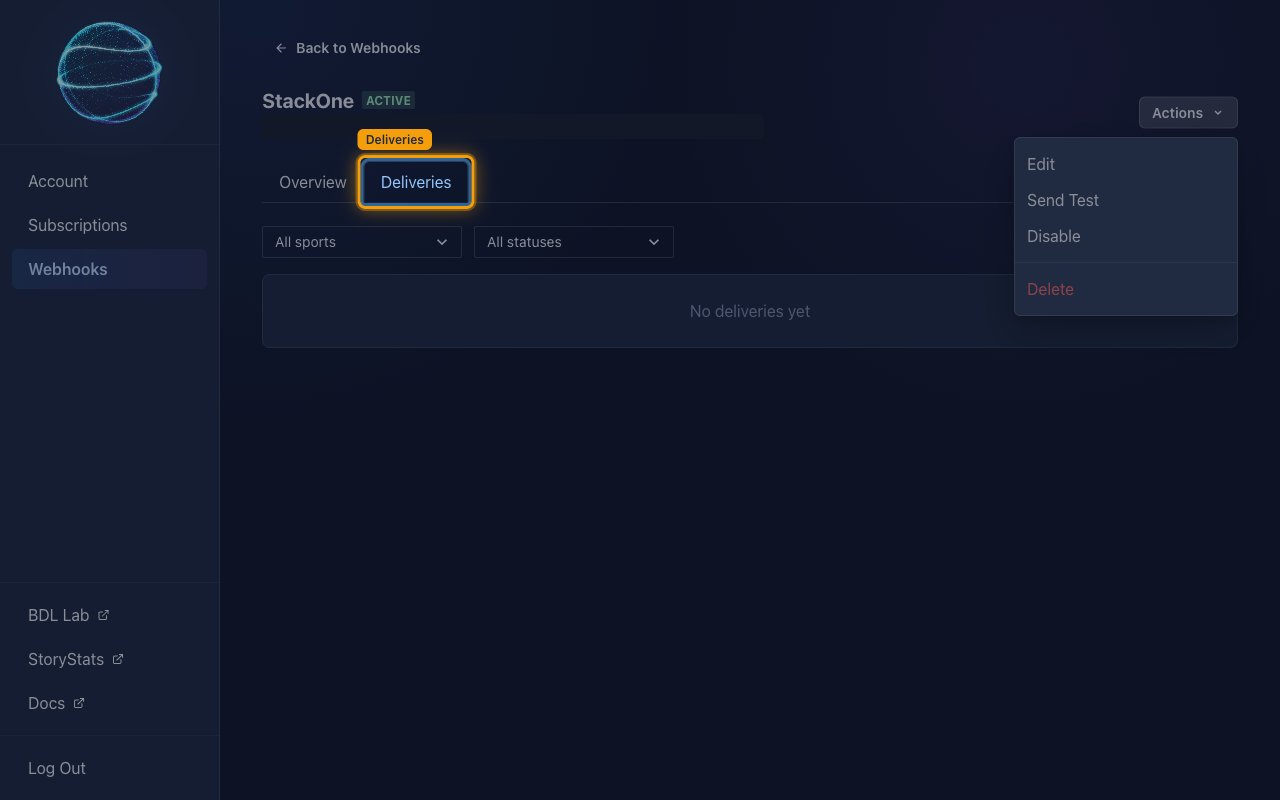
        <p>Open the <strong>Deliveries</strong> tab to see each attempt, filtered by <strong>All sports</strong> and <strong>All statuses</strong>. Use it to tell a delivery problem from a mapping one when events are not arriving.</p>

        <ul>
          <li>A delivery is retried after 30 seconds, 2 minutes, 10 minutes and 30 minutes. A Free plan makes 3 attempts in total and ALL-ACCESS makes 5.</li>
          <li>An endpoint is disabled automatically after 2 consecutive deliveries that use up every attempt. Re-enable it from the <strong>Actions</strong> menu.</li>
          <li>Delivery history is kept for 3 days on a Free plan and 30 days on ALL-ACCESS.</li>
        </ul>

        <img src="https://mintcdn.com/stackone-60/E8Ws5YBMn_xZ9Ydj/connectors/balldontlie/images/events-deliveries.png?fit=max&auto=format&n=E8Ws5YBMn_xZ9Ydj&q=85&s=fee7bd68686adac2a3838fc7f33d7da0" alt="The endpoint Deliveries tab with the All sports and All statuses filters and the Deliveries tab highlighted." width="1280" height="800" data-path="connectors/balldontlie/images/events-deliveries.png" />
      </div>
    </Step>
  </Steps>
</section>

<section data-guide-section data-guide-scopes="">
  <h2>Available webhook events</h2>

  <p>The following NBA events can be enabled. Only events ticked in BALLDONTLIE are delivered — nothing is sent for event types that are not subscribed. <strong>nba.game.started</strong> and <strong>nba.game.ended</strong> are available on every plan; the rest require ALL-ACCESS.</p>

  <Steps>
    <Step title="Enable game events">
      <div data-guide-step data-guide-scopes="" data-guide-display-scopes-list="">
        <p>Events covering the state of a game. Each reports the game.</p>

        <ul>
          <li><strong>Game Started</strong> (`nba.game.started`) — Fired when a game begins. Available on a Free plan.</li>
          <li><strong>Game Ended</strong> (`nba.game.ended`) — Fired when a game reaches final. Available on a Free plan.</li>
          <li><strong>Game Period Ended</strong> (`nba.game.period_ended`) — Fired when a period or quarter ends. Requires ALL-ACCESS.</li>
          <li><strong>Game Overtime</strong> (`nba.game.overtime`) — Fired when a game enters overtime. Requires ALL-ACCESS.</li>
        </ul>
      </div>
    </Step>

    <Step title="Enable player events">
      <div data-guide-step data-guide-scopes="" data-guide-display-scopes-list="">
        <p>Events covering individual plays. Each reports the player, along with the game and the play itself. All require ALL-ACCESS.</p>

        <ul>
          <li><strong>Player Scored</strong> (`nba.player.scored`) — Fired when a player scores.</li>
          <li><strong>Player Rebound</strong> (`nba.player.rebound`) — Fired when a player gets a rebound.</li>
          <li><strong>Player Assist</strong> (`nba.player.assist`) — Fired when a player records an assist.</li>
          <li><strong>Player Steal</strong> (`nba.player.steal`) — Fired when a player records a steal.</li>
          <li><strong>Player Block</strong> (`nba.player.block`) — Fired when a player records a block.</li>
          <li><strong>Player Foul</strong> (`nba.player.foul`) — Fired when a player commits a foul.</li>
          <li><strong>Player Turnover</strong> (`nba.player.turnover`) — Fired when a player commits a turnover.</li>
        </ul>
      </div>
    </Step>

    <Step title="Enable injury events">
      <div data-guide-step data-guide-scopes="" data-guide-display-scopes-list="">
        <p>Events covering the injury report. Each reports the player, because the injury itself carries no identifier. All require ALL-ACCESS.</p>

        <ul>
          <li><strong>Injury Created</strong> (`nba.injury.created`) — Fired when a player is added to the injury report.</li>
          <li><strong>Injury Updated</strong> (`nba.injury.updated`) — Fired when a player's injury details change.</li>
          <li><strong>Injury Cleared</strong> (`nba.injury.cleared`) — Fired when a player is removed from the injury report.</li>
        </ul>
      </div>
    </Step>
  </Steps>
</section>

## Verify

Your Connector should now be able to receive and process events. Try triggering an event and you should see an Event appear in the Connector logs.


This documentation is built and hosted on [Mintlify](https://mintlify.com), a developer documentation platform.