> ## Documentation Index
> Fetch the complete documentation index at: https://docs.stackone.com/llms.txt
> Use this file to discover all available pages before exploring further.

# Connect BALLDONTLIE with API Key – StackOne Hub

> Link a BALLDONTLIE account in the StackOne Hub using API Key. End-user guide to authorize the integration and start using BALLDONTLIE actions.

<Warning>The NBA tier on your BALLDONTLIE account decides which endpoints your API key can reach. On the <strong>FREE</strong> tier the key only reaches <strong>Basic endpoints</strong> — requests to endpoints above your tier return 401 until you upgrade to <strong>ALL-STAR</strong> or <strong>GOAT</strong>.</Warning>

<section data-guide-section data-guide-scopes="">
  <h2>Create your BALLDONTLIE account</h2>

  <p>BALLDONTLIE issues an API key automatically as soon as you create an account — there is no app to register and nothing to generate. If you already have an account, skip straight to signing in.</p>

  <Steps>
    <Step title="Create a BALLDONTLIE account">
      <div data-guide-step data-guide-scopes="" data-guide-display-scopes-list="">
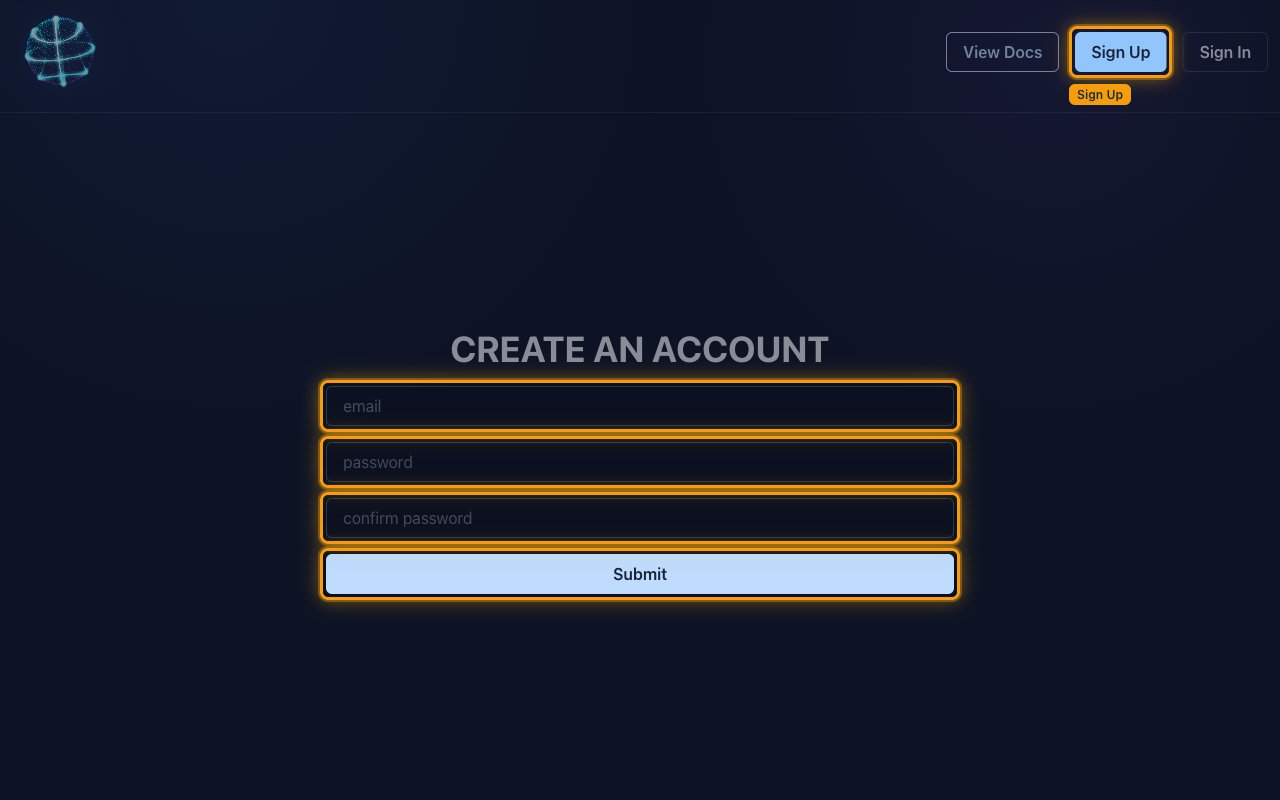
        <p>Open the <a href="https://app.balldontlie.io/signup" target="_blank" rel="noopener noreferrer">BALLDONTLIE account sign-up page</a>, or click <strong>Sign Up</strong> in the top-right corner. On the <strong>CREATE AN ACCOUNT</strong> screen, fill in <strong>email</strong>, <strong>password</strong> and <strong>confirm password</strong>, then click <strong>Submit</strong>.</p>

        <ul>
          <li>A free account requires no payment details.</li>
        </ul>

        <img src="https://mintcdn.com/stackone-60/s4U-zc8FMJ7VKMJF/connectors/balldontlie/images/custom-config-create-account.png?fit=max&auto=format&n=s4U-zc8FMJ7VKMJF&q=85&s=bc67e0346aef08a6bcc51ff40a775884" alt="The BALLDONTLIE CREATE AN ACCOUNT screen with the email, password and confirm password fields and the Submit button highlighted." width="1280" height="800" data-path="connectors/balldontlie/images/custom-config-create-account.png" />
      </div>
    </Step>

    <Step title="Sign in to your account">
      <div data-guide-step data-guide-scopes="" data-guide-display-scopes-list="">
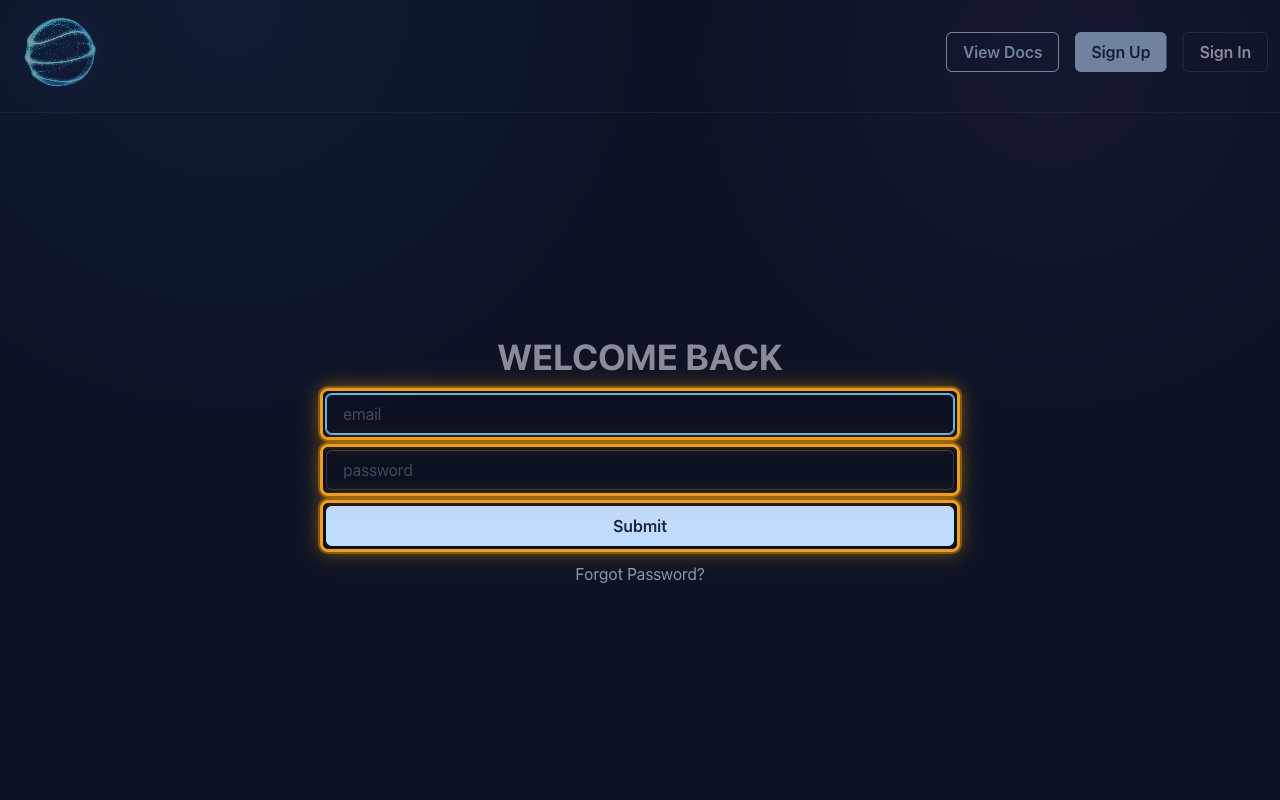
        <p>Go to the <a href="https://app.balldontlie.io/" target="_blank" rel="noopener noreferrer">BALLDONTLIE account portal</a> and sign in. On the <strong>WELCOME BACK</strong> screen, enter your <strong>email</strong> and <strong>password</strong>, then click <strong>Submit</strong>.</p>

        <img src="https://mintcdn.com/stackone-60/s4U-zc8FMJ7VKMJF/connectors/balldontlie/images/custom-config-sign-in.png?fit=max&auto=format&n=s4U-zc8FMJ7VKMJF&q=85&s=bf134c0cc242fbdd0a374ce97c7937ab" alt="The BALLDONTLIE WELCOME BACK sign-in screen with the email and password fields and the Submit button highlighted." width="1280" height="800" data-path="connectors/balldontlie/images/custom-config-sign-in.png" />
      </div>
    </Step>
  </Steps>
</section>

<section data-guide-section data-guide-scopes="">
  <h2>Copy your API key</h2>

  <p>Your key lives on the <strong>Account</strong> page of the portal and is the only value StackOne needs.</p>

  <Steps>
    <Step title="Open the Account page">
      <div data-guide-step data-guide-scopes="" data-guide-display-scopes-list="">
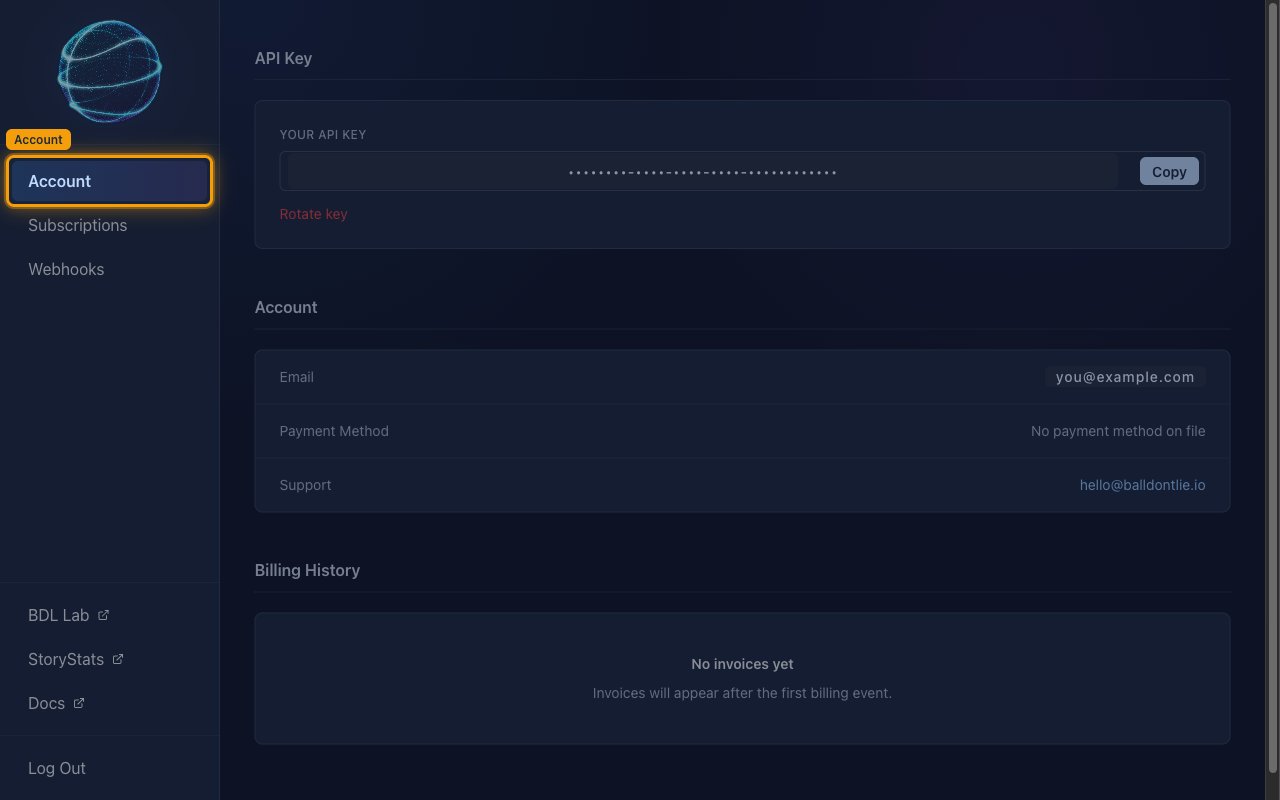
        <p>In the left sidebar, click <strong>Account</strong>. The <a href="https://app.balldontlie.io/account" target="_blank" rel="noopener noreferrer">Account page</a> opens with an <strong>API Key</strong> card at the top, above the <strong>Account</strong> and <strong>Billing History</strong> cards.</p>

        <img src="https://mintcdn.com/stackone-60/s4U-zc8FMJ7VKMJF/connectors/balldontlie/images/custom-config-account-page.png?fit=max&auto=format&n=s4U-zc8FMJ7VKMJF&q=85&s=0c7b8edbb4b698d8f13faccd8ba7178a" alt="The BALLDONTLIE Account page with the Account item highlighted in the left sidebar and the API Key card shown at the top." width="1280" height="800" data-path="connectors/balldontlie/images/custom-config-account-page.png" />
      </div>
    </Step>

    <Step title="Copy the API key">
      <div data-guide-step data-guide-scopes="" data-guide-display-scopes-list="">
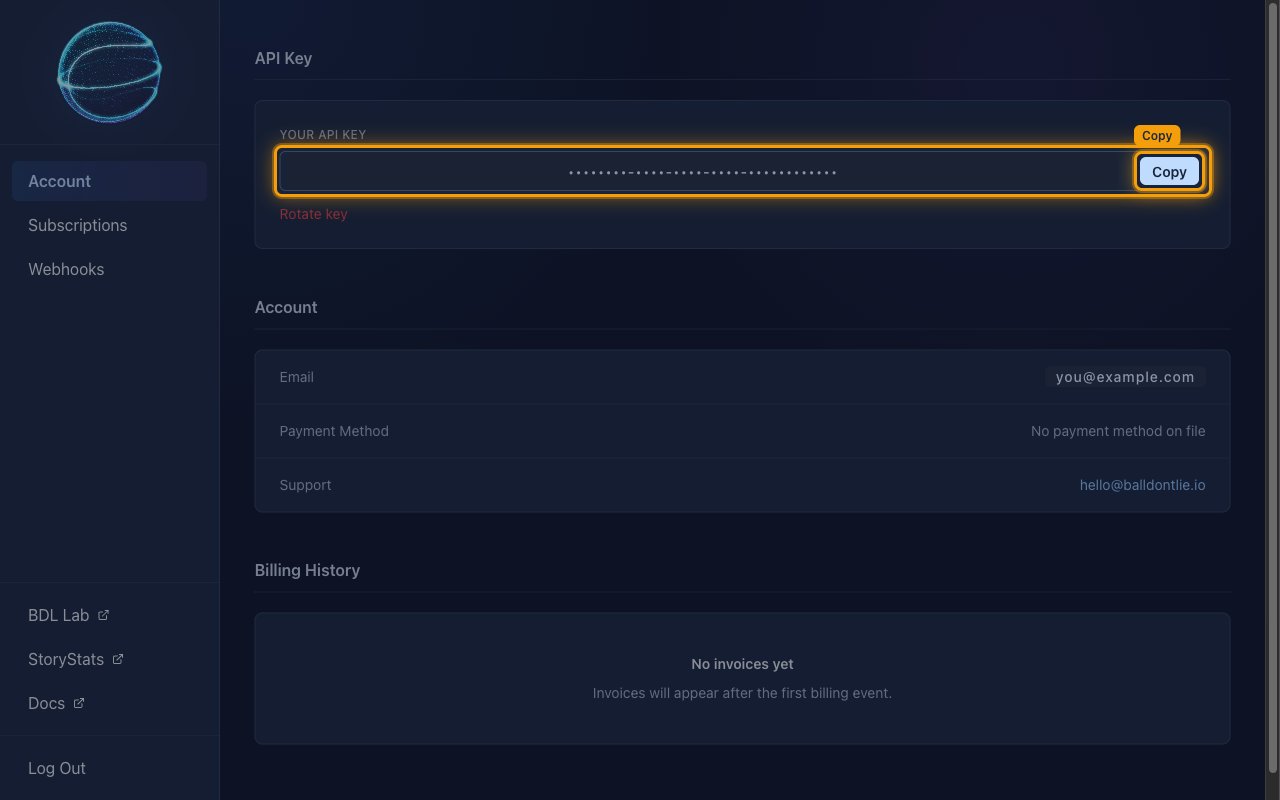
        <p>In the <strong>API Key</strong> card, your key is shown in the <strong>YOUR API KEY</strong> box. Click <strong>Copy</strong> at the right-hand end of the box to copy it to your clipboard.</p>

        <ul>
          <li><strong>API Key</strong> — the value in the <strong>YOUR API KEY</strong> box. Paste it into the <strong>API Key</strong> field in StackOne Hub.</li>
          <li>Format: `12345678-abcd-1234-abcd-1234567890ab` (a UUID)</li>
          <li>The key is not displayed once — it stays visible on the <strong>Account</strong> page, so you can come back and copy it again at any time.</li>
          <li><strong>Rotate key</strong> issues a replacement key and invalidates the current one. Only use it if the key has leaked, and update the value in StackOne Hub afterwards.</li>
        </ul>

        <img src="https://mintcdn.com/stackone-60/s4U-zc8FMJ7VKMJF/connectors/balldontlie/images/custom-config-copy-api-key.png?fit=max&auto=format&n=s4U-zc8FMJ7VKMJF&q=85&s=a259b55d6595a4b9f06f89394940e141" alt="The API Key card on the BALLDONTLIE Account page with the YOUR API KEY box and the Copy button highlighted, the key value masked." width="1280" height="800" data-path="connectors/balldontlie/images/custom-config-copy-api-key.png" />
      </div>
    </Step>
  </Steps>
</section>

<section data-guide-section data-guide-scopes="">
  <h2>Choose the NBA tier you need</h2>

  <p>Tiers are bought per sport, so an NBA subscription does not carry over to the other BALLDONTLIE APIs. The same key keeps working after an upgrade — no change is needed in StackOne Hub.</p>

  <Steps>
    <Step title="Open the Subscriptions page">
      <div data-guide-step data-guide-scopes="" data-guide-display-scopes-list="">
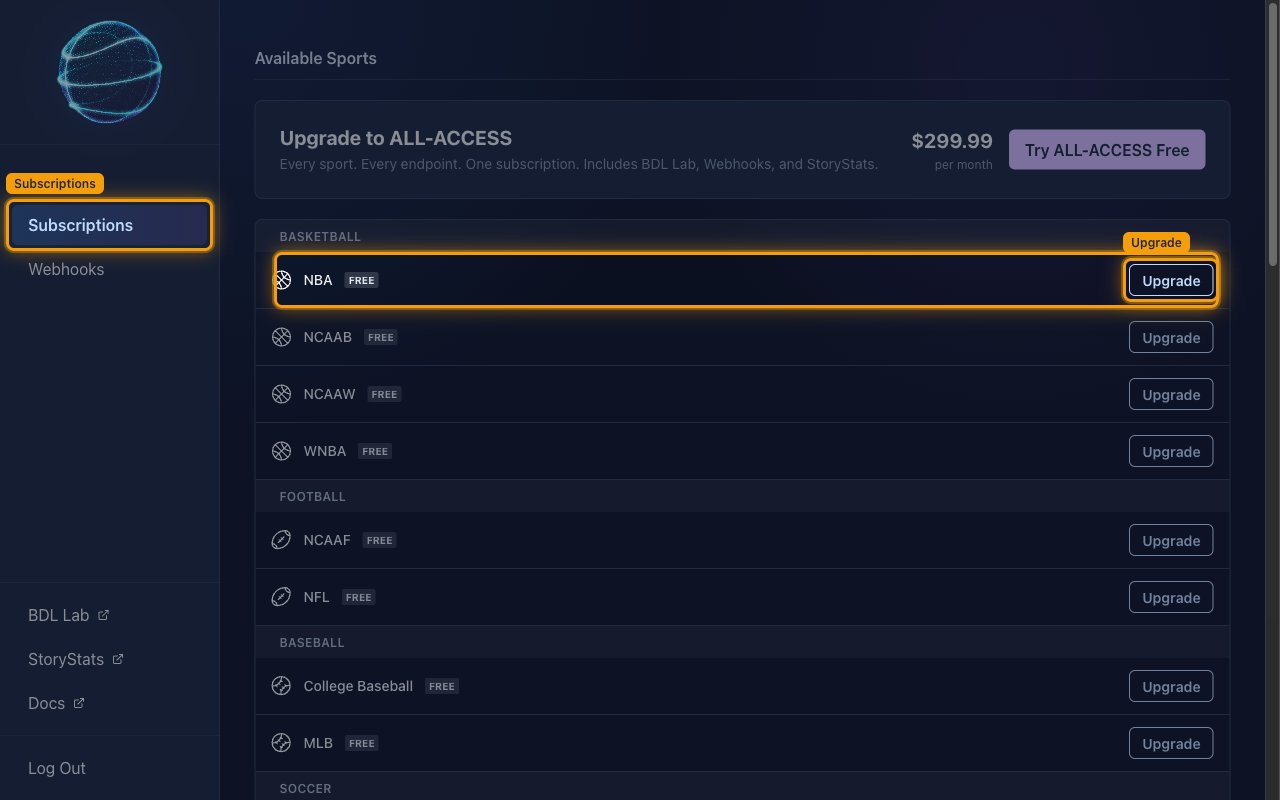
        <p>In the left sidebar, click <strong>Subscriptions</strong>. On the <a href="https://app.balldontlie.io/subscriptions" target="_blank" rel="noopener noreferrer">Subscriptions page</a>, the <strong>Available Sports</strong> table lists every sport with its current tier. Find <strong>NBA</strong> under <strong>BASKETBALL</strong> and click <strong>Upgrade</strong> on that row.</p>

        <ul>
          <li><strong>Upgrade to ALL-ACCESS</strong> at the top of the page covers every sport and endpoint at <strong>\$299.99</strong> <strong>per month</strong>, and includes BDL Lab, Webhooks, and StoryStats.</li>
        </ul>

        <img src="https://mintcdn.com/stackone-60/s4U-zc8FMJ7VKMJF/connectors/balldontlie/images/custom-config-subscriptions.png?fit=max&auto=format&n=s4U-zc8FMJ7VKMJF&q=85&s=641ede4d8b9e1991c2784e8a925a2a90" alt="The BALLDONTLIE Subscriptions page showing the Available Sports table, with Subscriptions highlighted in the sidebar and the NBA row and its Upgrade button highlighted." width="1280" height="800" data-path="connectors/balldontlie/images/custom-config-subscriptions.png" />
      </div>
    </Step>

    <Step title="Review the NBA tiers">
      <div data-guide-step data-guide-scopes="" data-guide-display-scopes-list="">
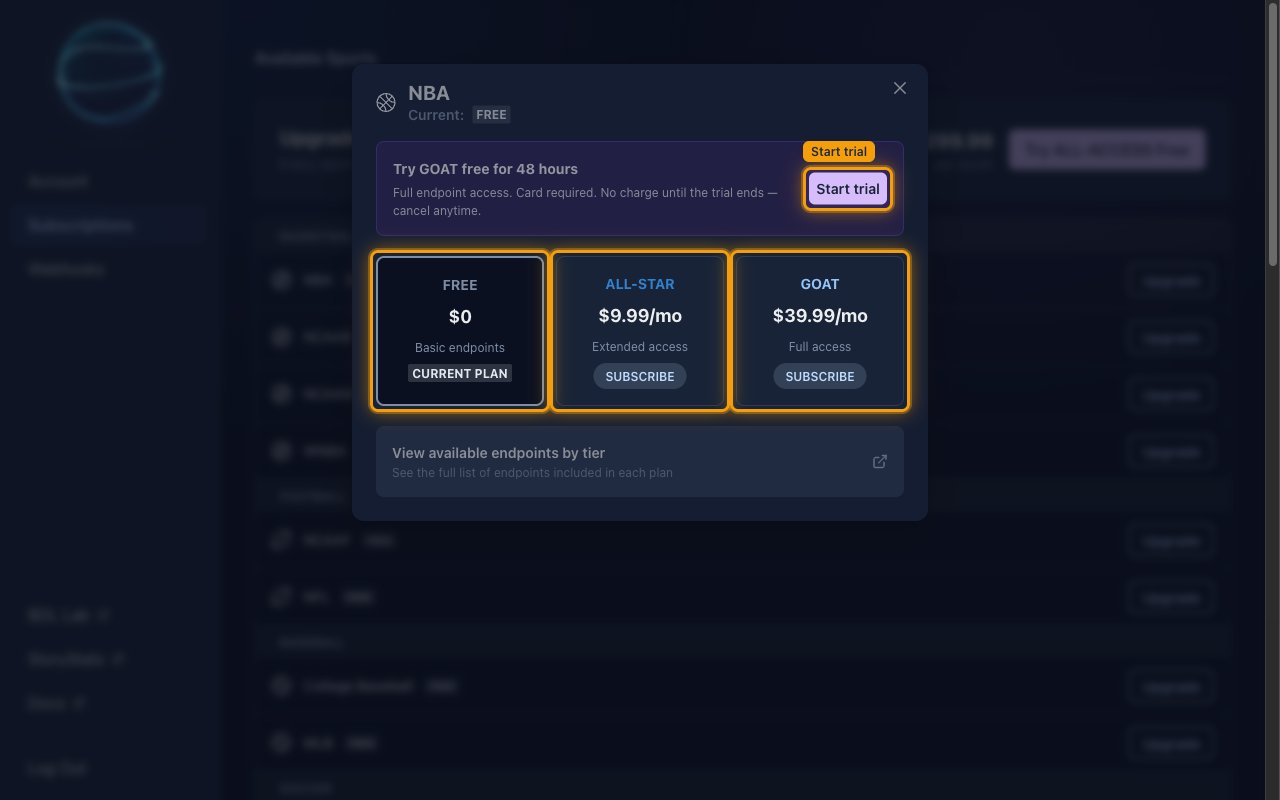
        <p>The <strong>NBA</strong> dialog shows your <strong>Current:</strong> tier and the three plans you can move to. Pick the tier that covers the endpoints you need, then click <strong>SUBSCRIBE</strong> on that card.</p>

        <ul>
          <li><strong>FREE</strong> — <strong>$0</strong>, <strong>Basic endpoints</strong>.</li>   <li><strong>ALL-STAR</strong> — <strong>$9.99/mo</strong>, <strong>Extended access</strong>.</li>
          <li><strong>GOAT</strong> — <strong>\$39.99/mo</strong>, <strong>Full access</strong>.</li>
          <li><strong>Try GOAT free for 48 hours</strong> — click <strong>Start trial</strong> for full endpoint access. Card required. No charge until the trial ends — cancel anytime.</li>
          <li><strong>View available endpoints by tier</strong> opens the <a href="https://nba.balldontlie.io/#account-tiers" target="_blank" rel="noopener noreferrer">NBA API account tiers reference</a> — the full list of endpoints included in each plan.</li>
        </ul>

        <img src="https://mintcdn.com/stackone-60/s4U-zc8FMJ7VKMJF/connectors/balldontlie/images/custom-config-nba-tiers.png?fit=max&auto=format&n=s4U-zc8FMJ7VKMJF&q=85&s=30f9d8154deb8e6d6e0aaf6f11169843" alt="The NBA upgrade dialog showing the FREE, ALL-STAR and GOAT tier cards and the Try GOAT free for 48 hours banner with the Start trial button." width="1280" height="800" data-path="connectors/balldontlie/images/custom-config-nba-tiers.png" />
      </div>
    </Step>
  </Steps>
</section>

<div data-whitelabel-hide>
  <h2>Linking the Account from the Hub</h2>

  <Steps>
    <Step title="Navigate to the Hub">
      Use one of the three <a href="/connect/managing-connectors/linking-accounts">Linking Account Methods</a> to access the Hub.
    </Step>

    <Step title="Fill out the fields">
      Fill out the following fields using details from your provider:

      <ul>
        <li><strong>API Key</strong></li>
      </ul>
    </Step>

    <Step title="Connect">
      <ul>
        <li>Click <strong>Connect</strong></li>
        <li>If applicable, the provider will redirect you to a sign-in or authorization page. Complete the provider's authorization flow.</li>
        <li>Once authorization is successful, you will see a confirmation popup</li>
      </ul>
    </Step>
  </Steps>

  <p>If the account linking is successful, you will see the newly linked account in your <a href="/gateway/concepts/linked-accounts">Accounts</a> page.</p>
</div>