> ## Documentation Index
> Fetch the complete documentation index at: https://docs.stackone.com/llms.txt
> Use this file to discover all available pages before exploring further.

# AD Manager Webhook Setup Guide

> Configure AD Manager to deliver events to StackOne.

## Prerequisites

The connector should already be set up, with a Connector Profile and a Linked Account. See [Getting Started](/connectors/admanager#getting-started) on the AD Manager connector page.

<section data-guide-section data-guide-scopes="">
  <h2>Retrieve the Native Webhook URL</h2>

  <p>The <strong>Native Webhook URL</strong> is generated once an account has been linked.</p>

  <ul>
    <li>Open the linked account in StackOne.</li>
    <li>Copy the value from <strong>Native Webhook URL</strong>.</li>
    <li>The URL ends with a per-connection `?token=` that identifies your account, so treat it like a secret and paste it in full.</li>
  </ul>
</section>

<section data-guide-section data-guide-scopes="">
  <h2>Creating the webhook template</h2>

  <p>A webhook template defines the request ADManager Plus sends to StackOne.</p>

  <Steps>
    <Step title="Open Orchestration Template">
      <div data-guide-step data-guide-scopes="" data-guide-display-scopes-list="">
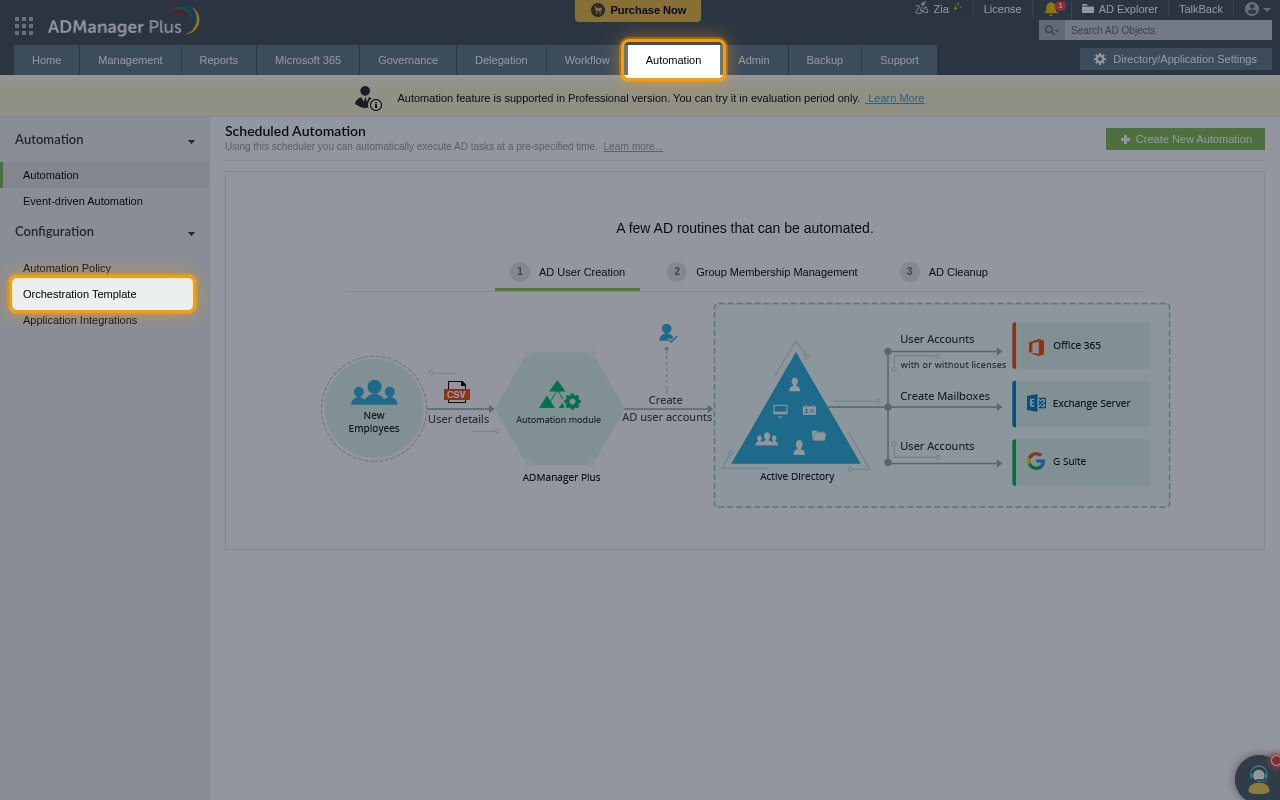
        <p>Sign in to the ADManager Plus web console as an admin, open the <strong>Automation</strong> tab and, under <strong>Configuration</strong>, click <strong>Orchestration Template</strong>.</p>

        <img src="https://mintcdn.com/stackone-60/hLRfDk2Cq1W-3g4N/connectors/admanager/images/events-orchestration-template-menu.png?fit=max&auto=format&n=hLRfDk2Cq1W-3g4N&q=85&s=b4df194046ff125247f725104d94ec67" alt="The Automation tab with Orchestration Template highlighted in the Configuration menu" width="1280" height="800" data-path="connectors/admanager/images/events-orchestration-template-menu.png" />
      </div>
    </Step>

    <Step title="Open Configure Webhook">
      <div data-guide-step data-guide-scopes="" data-guide-display-scopes-list="">
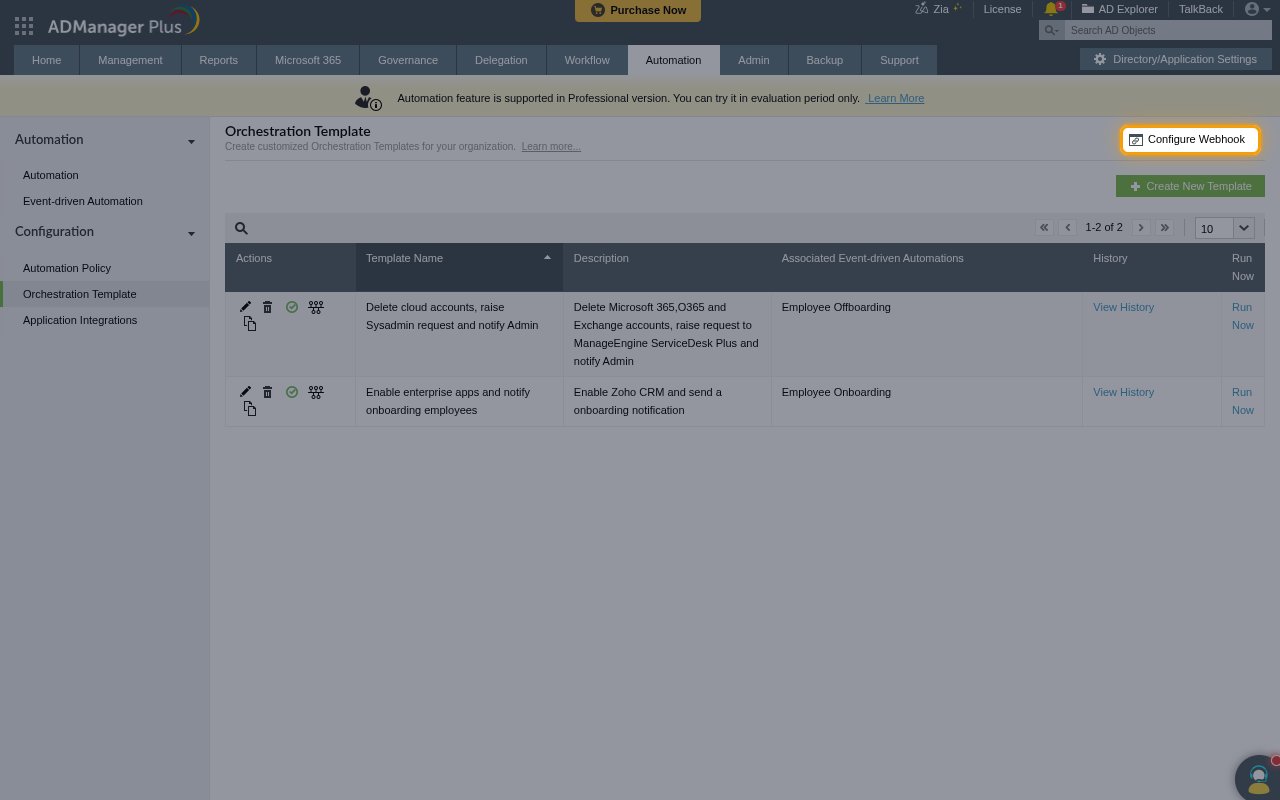
        <p>On the <strong>Orchestration Template</strong> page, click <strong>Configure Webhook</strong>.</p>

        <img src="https://mintcdn.com/stackone-60/hLRfDk2Cq1W-3g4N/connectors/admanager/images/events-configure-webhook.png?fit=max&auto=format&n=hLRfDk2Cq1W-3g4N&q=85&s=8d1aaf78251423c8a8057f21ff2e87e8" alt="The Orchestration Template page with the Configure Webhook link highlighted" width="1280" height="800" data-path="connectors/admanager/images/events-configure-webhook.png" />
      </div>
    </Step>

    <Step title="Create a new webhook template">
      <div data-guide-step data-guide-scopes="" data-guide-display-scopes-list="">
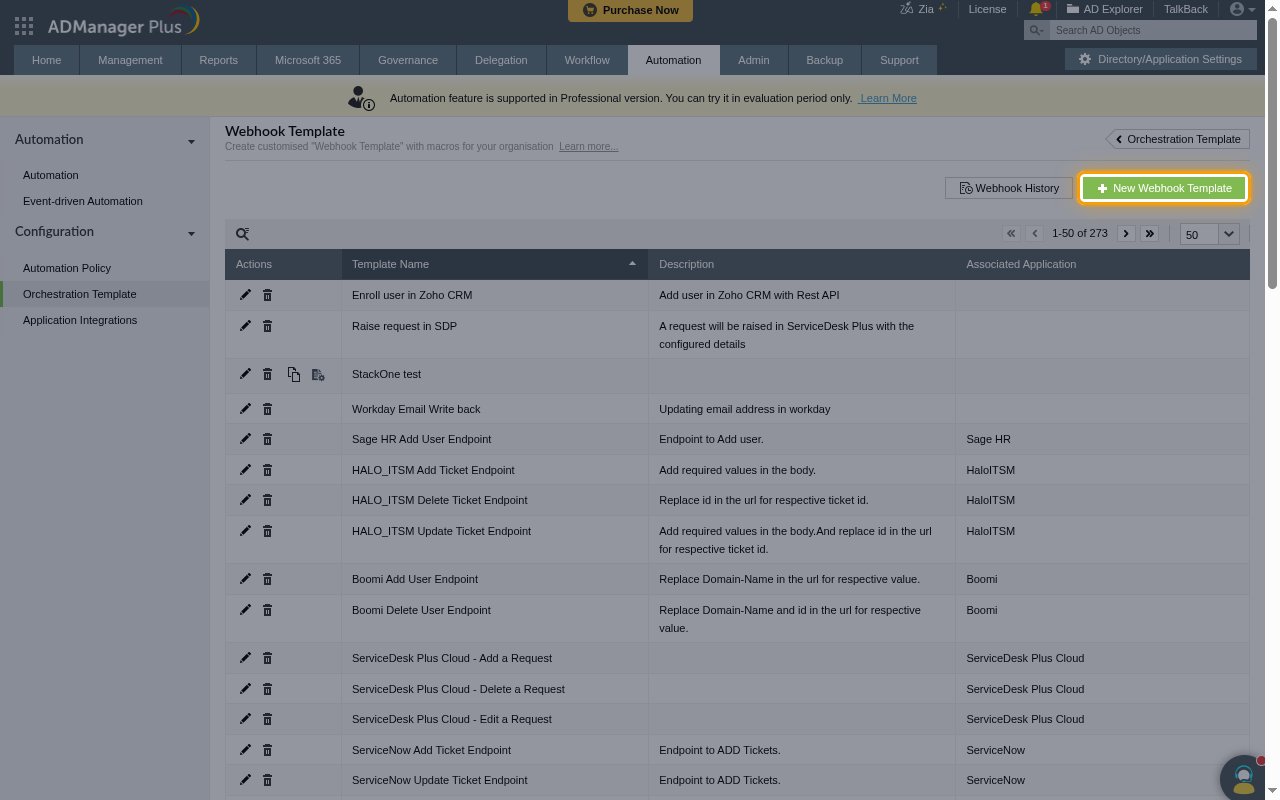
        <p>On the <strong>Webhook Template</strong> page, click <strong>New Webhook Template</strong>.</p>

        <img src="https://mintcdn.com/stackone-60/hLRfDk2Cq1W-3g4N/connectors/admanager/images/events-new-webhook-template.png?fit=max&auto=format&n=hLRfDk2Cq1W-3g4N&q=85&s=cf966c509f1b914731cdb271d68e770a" alt="The Webhook Template page with the New Webhook Template button highlighted" width="1280" height="800" data-path="connectors/admanager/images/events-new-webhook-template.png" />
      </div>
    </Step>

    <Step title="Set the name, URL and header">
      <div data-guide-step data-guide-scopes="" data-guide-display-scopes-list="">
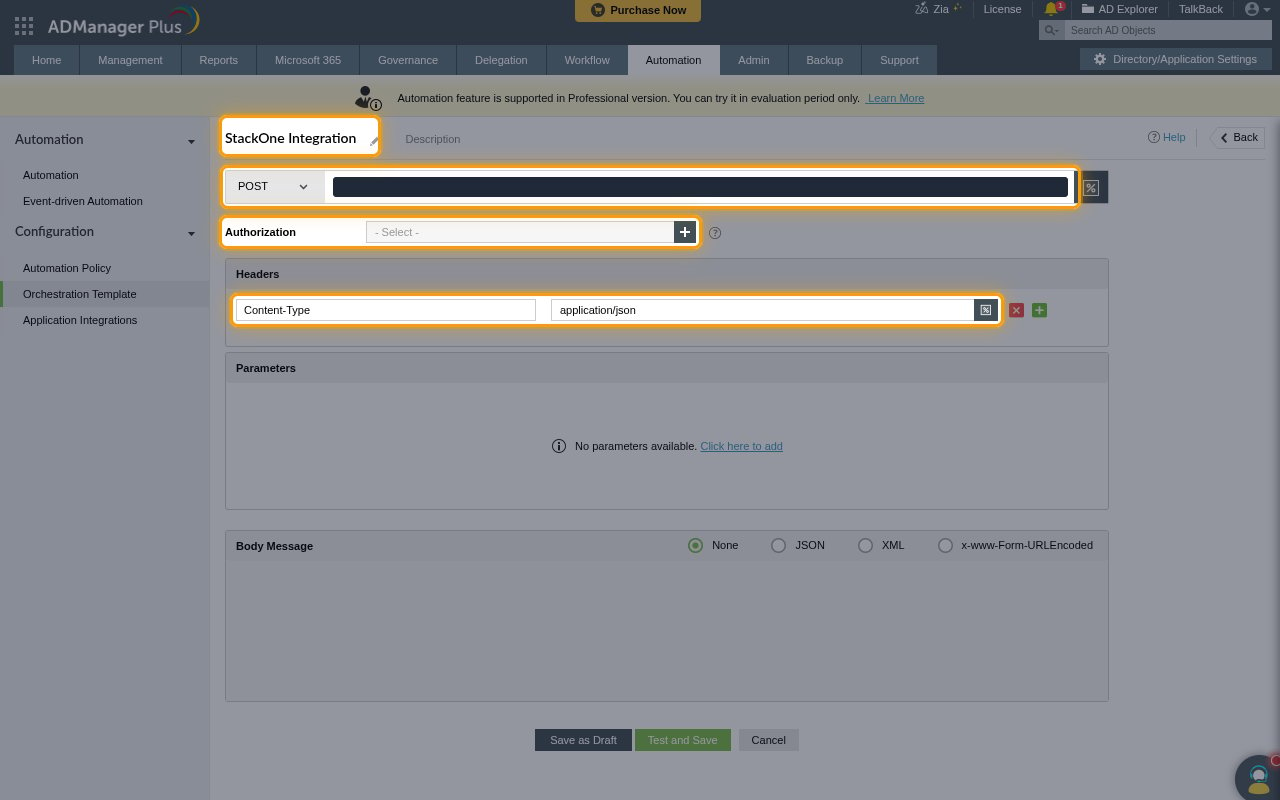
        <p>Fill in the request details.</p>

        <ul>
          <li>Click <strong>Untitled Webhook Template</strong> and enter a name, for example `StackOne Integration`.</li>
          <li>Keep the method set to <strong>POST</strong> and paste the <strong>Native Webhook URL</strong> into <strong>Enter a URL</strong>.</li>
          <li>Leave <strong>Authorization</strong> set to <strong>- Select -</strong>. The token in the URL authenticates the request.</li>
          <li>Under <strong>Headers</strong>, click <strong>Click here to add</strong>, then enter `Content-Type` as the <strong>Header name</strong> and `application/json` as the <strong>Header value</strong>.</li>
        </ul>

        <img src="https://mintcdn.com/stackone-60/hLRfDk2Cq1W-3g4N/connectors/admanager/images/events-webhook-request-details.png?fit=max&auto=format&n=hLRfDk2Cq1W-3g4N&q=85&s=a5435fc880388931bf6d801dffef63b5" alt="The webhook template form with the name, POST method, URL field, Authorization and Content-Type header highlighted, and the URL hidden" width="1280" height="800" data-path="connectors/admanager/images/events-webhook-request-details.png" />
      </div>
    </Step>

    <Step title="Add the JSON body">
      <div data-guide-step data-guide-scopes="" data-guide-display-scopes-list="">
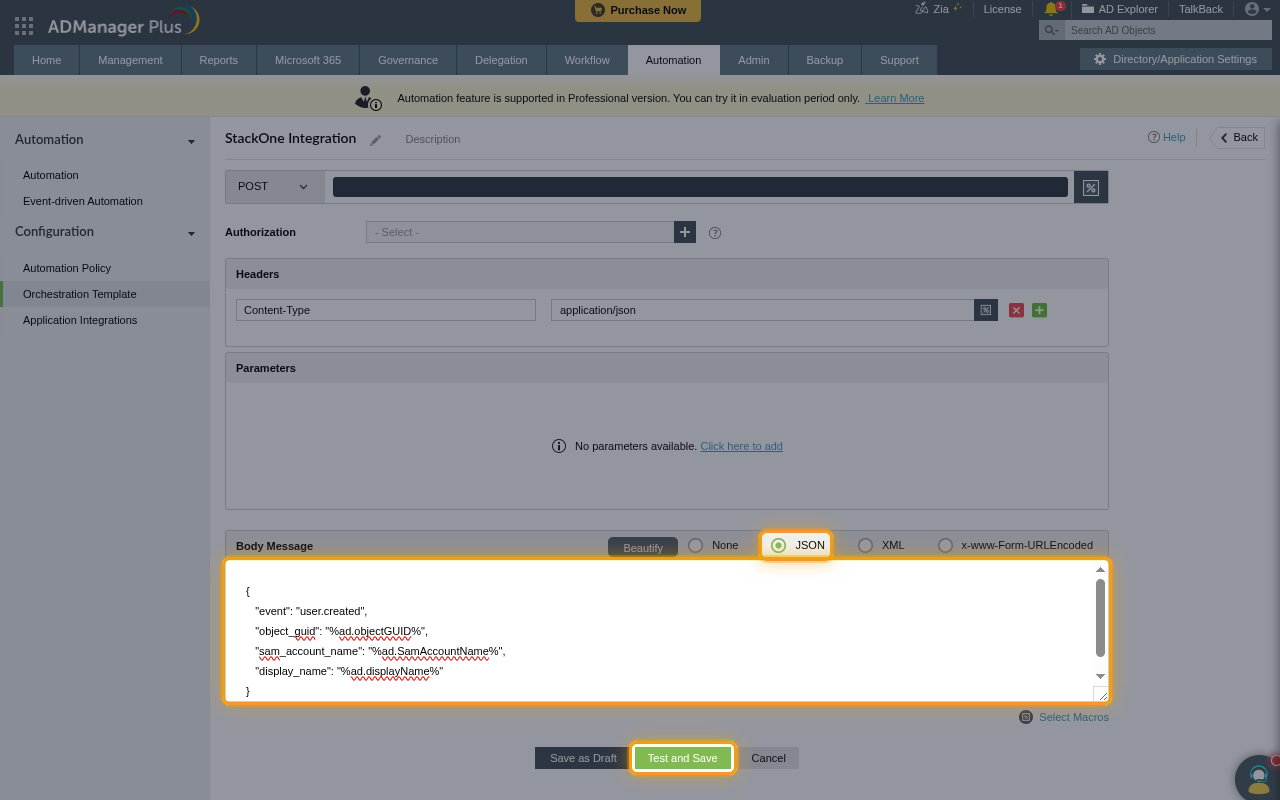
        <p>Under <strong>Body Message</strong>, select <strong>JSON</strong> and enter the event body. <strong>Body Message</strong> defaults to <strong>None</strong>, which sends an empty body, so StackOne receives an event with no data. Type `%` in the body to pick macros, and include an `object_guid` so the event carries the AD object id, for example:</p>

        ```json theme={null}
        {
          "event": "user.created",
          "object_guid": "%ad.objectGUID%",
          "sam_account_name": "%ad.SamAccountName%",
          "display_name": "%ad.displayName%"
        }
        ```

        <ul>
          <li>Click <strong>Test and Save</strong>.</li>
        </ul>

        <img src="https://mintcdn.com/stackone-60/hLRfDk2Cq1W-3g4N/connectors/admanager/images/events-webhook-json-body.png?fit=max&auto=format&n=hLRfDk2Cq1W-3g4N&q=85&s=9016dca882837790c785499f592eff38" alt="The Body Message section with JSON selected, the JSON body and the Test and Save button highlighted" width="1280" height="800" data-path="connectors/admanager/images/events-webhook-json-body.png" />
      </div>
    </Step>
  </Steps>
</section>

<section data-guide-section data-guide-scopes="">
  <h2>Testing and saving the webhook</h2>

  <p><strong>Test and Save</strong> sends a real request to StackOne using the attributes of an object you pick.</p>

  <Steps>
    <Step title="Pick a test object">
      <div data-guide-step data-guide-scopes="" data-guide-display-scopes-list="">
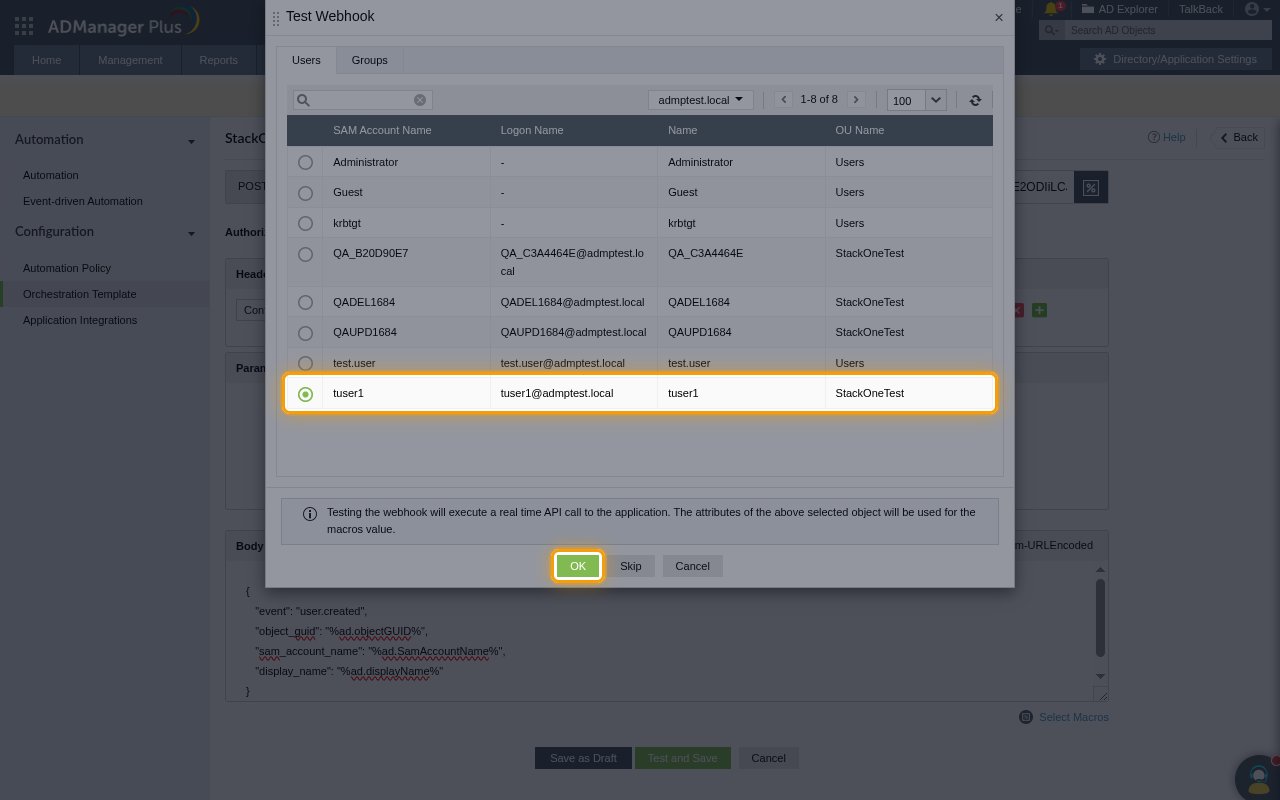
        <p>In <strong>Test Webhook</strong>, select a user on the <strong>Users</strong> tab and click <strong>OK</strong>, then click <strong>Yes</strong> to confirm the API call.</p>

        <img src="https://mintcdn.com/stackone-60/hLRfDk2Cq1W-3g4N/connectors/admanager/images/events-test-webhook.png?fit=max&auto=format&n=hLRfDk2Cq1W-3g4N&q=85&s=4a32473428754bef5838d6098ff1b840" alt="The Test Webhook dialog with a user selected and the OK button highlighted" width="1280" height="800" data-path="connectors/admanager/images/events-test-webhook.png" />
      </div>
    </Step>

    <Step title="Check the result and save">
      <div data-guide-step data-guide-scopes="" data-guide-display-scopes-list="">
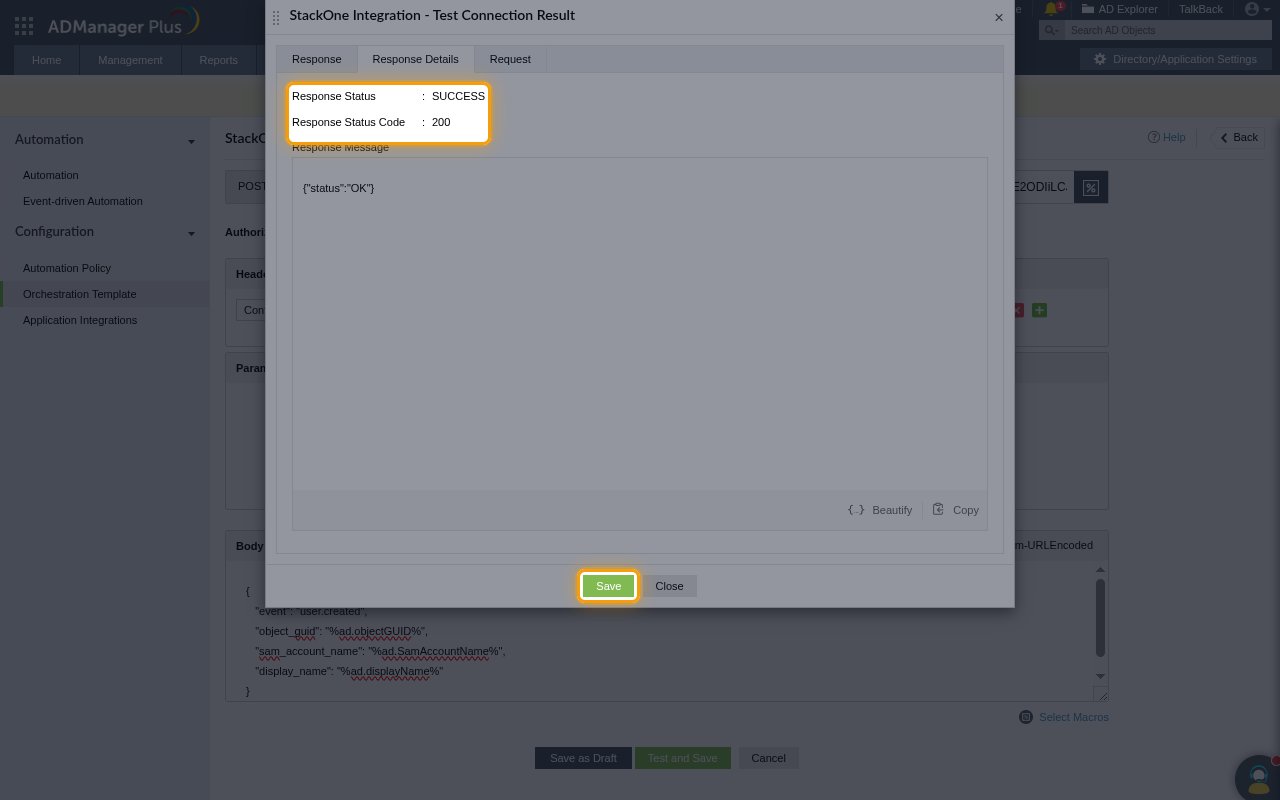
        <p>In the test result, open <strong>Response Details</strong> and confirm <strong>Response Status</strong> is <strong>SUCCESS</strong> and <strong>Response Status Code</strong> is <strong>200</strong>, then click <strong>Save</strong>.</p>

        <img src="https://mintcdn.com/stackone-60/hLRfDk2Cq1W-3g4N/connectors/admanager/images/events-test-result.png?fit=max&auto=format&n=hLRfDk2Cq1W-3g4N&q=85&s=47ef1695828b33fb7637b437fa6ff254" alt="The Test Connection Result with Response Status SUCCESS and Response Status Code 200 highlighted, and the Save button highlighted" width="1280" height="800" data-path="connectors/admanager/images/events-test-result.png" />
      </div>
    </Step>
  </Steps>
</section>

<section data-guide-section data-guide-scopes="">
  <h2>Triggering the webhook from AD events</h2>

  <p>An event-driven automation runs the webhook whenever the chosen AD action happens in ADManager Plus.</p>

  <Steps>
    <Step title="Create an event-driven automation">
      <div data-guide-step data-guide-scopes="" data-guide-display-scopes-list="">
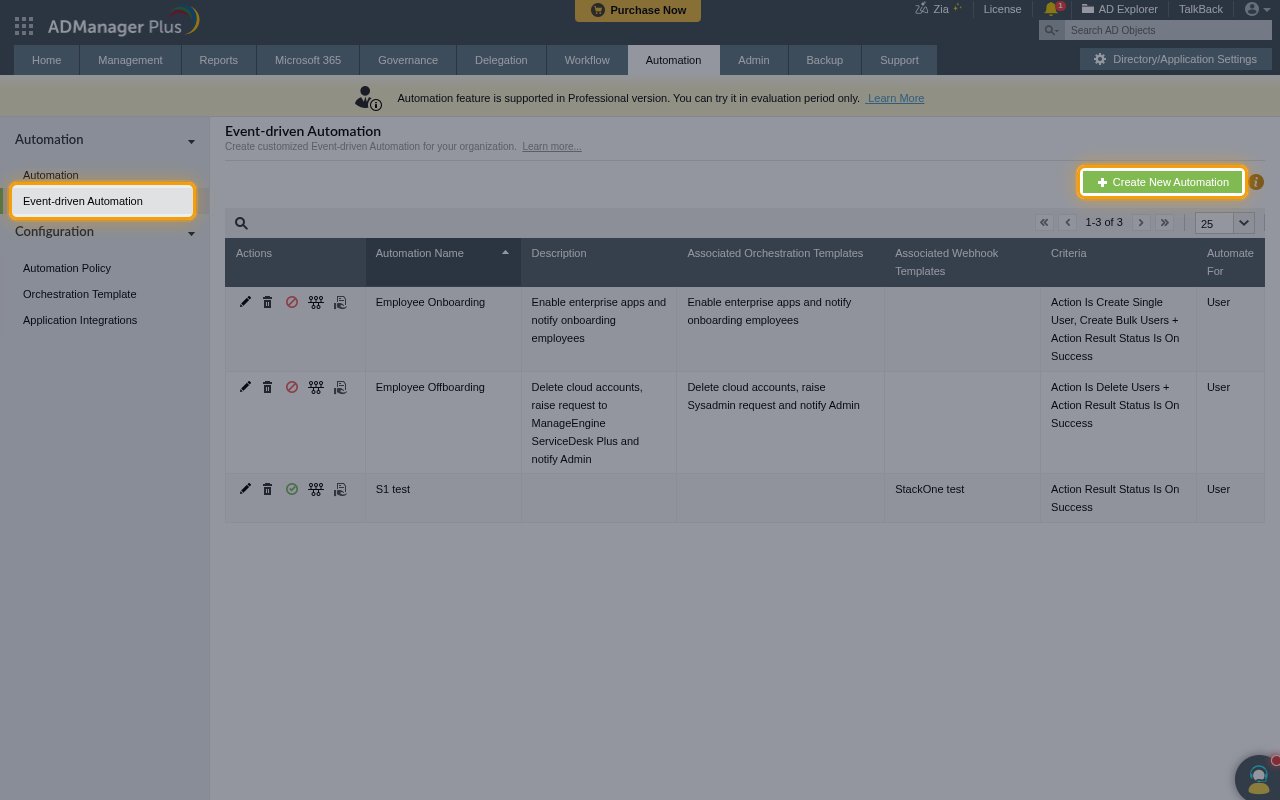
        <p>Under <strong>Automation</strong>, click <strong>Event-driven Automation</strong>, then click <strong>Create New Automation</strong>.</p>

        <img src="https://mintcdn.com/stackone-60/hLRfDk2Cq1W-3g4N/connectors/admanager/images/events-create-automation.png?fit=max&auto=format&n=hLRfDk2Cq1W-3g4N&q=85&s=7a560a8539a7da3ef788d97c736afb40" alt="The Event-driven Automation page with the menu item and the Create New Automation button highlighted" width="1280" height="800" data-path="connectors/admanager/images/events-create-automation.png" />
      </div>
    </Step>

    <Step title="Select the webhook template">
      <div data-guide-step data-guide-scopes="" data-guide-display-scopes-list="">
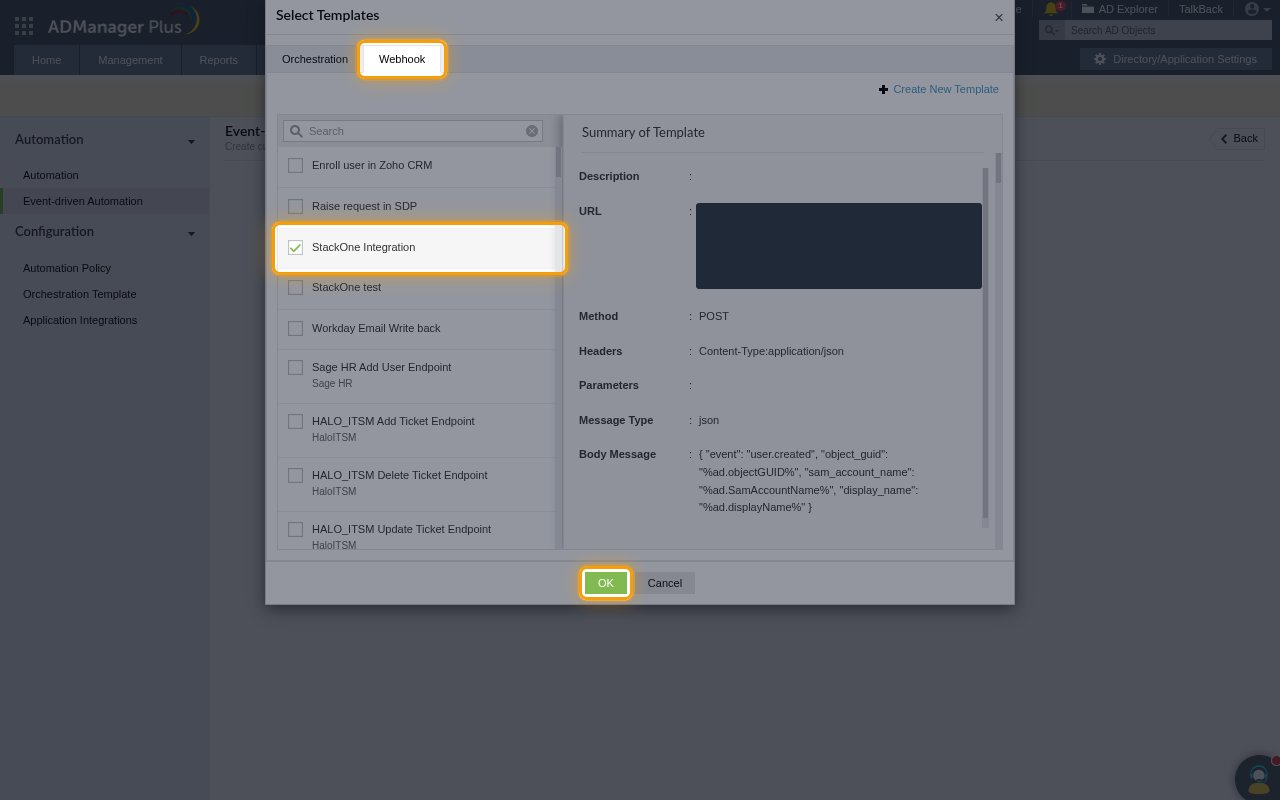
        <p>Click the <strong>+</strong> next to <strong>Templates</strong>, open the <strong>Webhook</strong> tab in <strong>Select Templates</strong>, tick your webhook template and click <strong>OK</strong>.</p>

        <img src="https://mintcdn.com/stackone-60/hLRfDk2Cq1W-3g4N/connectors/admanager/images/events-select-webhook.png?fit=max&auto=format&n=hLRfDk2Cq1W-3g4N&q=85&s=0080fa755924725b7814058985f61790" alt="The Select Templates dialog with the Webhook tab, the webhook template and the OK button highlighted" width="1280" height="800" data-path="connectors/admanager/images/events-select-webhook.png" />
      </div>
    </Step>

    <Step title="Configure and save the automation">
      <div data-guide-step data-guide-scopes="" data-guide-display-scopes-list="">
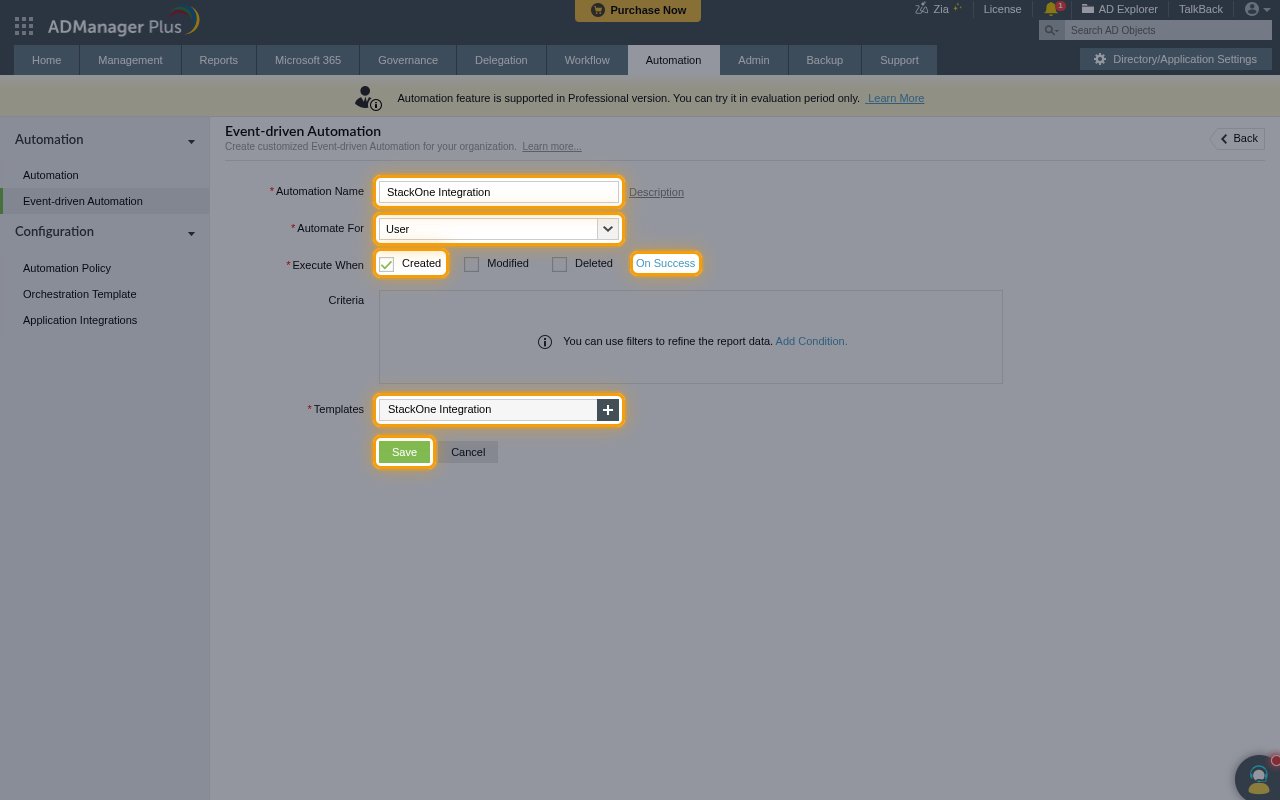
        <p>Complete the automation and click <strong>Save</strong>.</p>

        <ul>
          <li><strong>Automation Name</strong>: a name, for example `StackOne Integration`</li>
          <li><strong>Automate For</strong>: <strong>User</strong> or <strong>Group</strong></li>
          <li><strong>Execute When</strong>: tick <strong>Created</strong>, <strong>Modified</strong> and/or <strong>Deleted</strong>, and use <strong>On Success</strong> to choose which outcomes fire it</li>
          <li>Optionally add <strong>Criteria</strong> to limit which objects trigger the webhook.</li>
          <li>Use one automation per action, with a matching `event` value in its webhook body, if consumers need to tell creates, updates and deletes apart.</li>
        </ul>

        <img src="https://mintcdn.com/stackone-60/hLRfDk2Cq1W-3g4N/connectors/admanager/images/events-automation-form.png?fit=max&auto=format&n=hLRfDk2Cq1W-3g4N&q=85&s=37b17f02736211d9ef7b5372fbbe8995" alt="The event-driven automation form with Automation Name, Automate For, Execute When, On Success, Templates and Save highlighted" width="1280" height="800" data-path="connectors/admanager/images/events-automation-form.png" />
      </div>
    </Step>
  </Steps>
</section>

<section data-guide-section data-guide-scopes="">
  <h2>Available webhook events</h2>

  <p>StackOne receives every delivery from your ADManager Plus webhook templates as a single event type.</p>

  <Steps>
    <Step title="AD Manager events">
      <div data-guide-step data-guide-scopes="" data-guide-display-scopes-list="">
        <p>Events sent by ADManager Plus outbound webhooks.</p>

        <ul>
          <li><strong>AD Manager Event</strong> (`admanager.event`) — Fired when an ADManager Plus webhook template posts to the Native Webhook URL. The event data is the JSON body you configured, and its `object_guid` becomes the event's record id</li>
        </ul>
      </div>
    </Step>
  </Steps>
</section>

<section data-guide-section data-guide-scopes="">
  <h2>Delivery format</h2>

  <p>Details of how ADManager Plus delivers events to StackOne.</p>

  <Steps>
    <Step title="One event per request">
      <div data-guide-step data-guide-scopes="" data-guide-display-scopes-list="">
        <p>Each webhook execution sends one POST request with the body defined in the template, so StackOne receives one event per request. ADManager Plus does not sign webhook requests; the token in the Native Webhook URL identifies the account.</p>
      </div>
    </Step>
  </Steps>
</section>

## Verify

Your Connector should now be able to receive and process events. Try triggering an event and you should see an Event appear in the Connector logs.


This documentation is built and hosted on [Mintlify](https://mintlify.com), a developer documentation platform.