> ## Documentation Index
> Fetch the complete documentation index at: https://docs.stackone.com/llms.txt
> Use this file to discover all available pages before exploring further.
# Connector Profiles
> Use Connector Profiles so each group of users connects to a provider the way they need.
 A **Connector Profile** holds the configuration for one [connector](/gateway/concepts/connectors) in a [project](/gateway/concepts/organizations-and-projects). It decides how your users connect to a provider and what your agents can do with the accounts they link. Use more than one profile when [Linked Accounts](/gateway/concepts/linked-accounts) need different setups:
| Reason | Example |
| - | - |
| Two authentication methods for the same connector | An API Key profile for users without OAuth, and an OAuth profile for everyone else |
| Different action and event scopes | A read-only profile for most users, and one that also allows write actions for users who need them |
| A staging profile for a new connector version | Pin one profile to `2.x.x` and test it before moving production profiles off `1.x.x` |
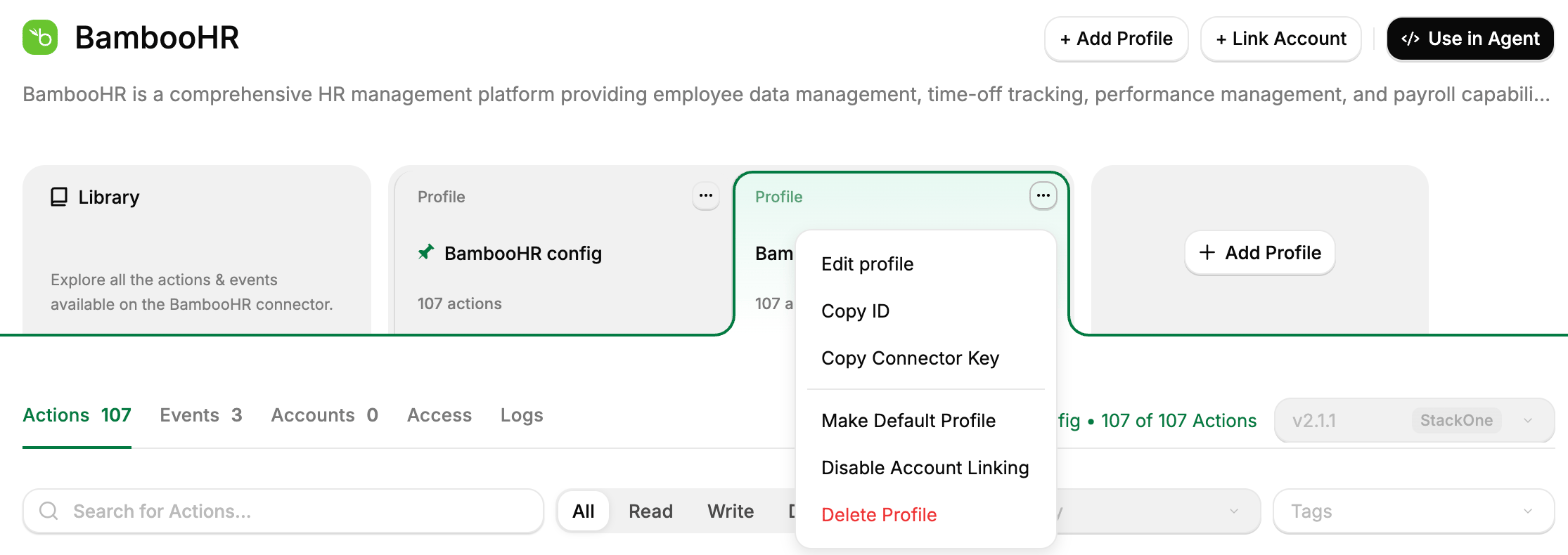
In the StackOne dashboard, open [Connectors](https://app.stackone.com/connectors) and select the connector. Its profiles are the cards along the top of the page. Select a profile's card to see:
* **Actions**: the actions its Linked Accounts can use.
* **Events**: the events its Linked Accounts can send.
* **Accounts**: the Linked Accounts currently connected through it.
* **Access**: who can use the profile. See [Connector Profile Access](/secure/identity-and-access/roles-and-groups/connector-profile-access).
* **Logs**: activity for each of its Linked Accounts.
A **Connector Profile** holds the configuration for one [connector](/gateway/concepts/connectors) in a [project](/gateway/concepts/organizations-and-projects). It decides how your users connect to a provider and what your agents can do with the accounts they link. Use more than one profile when [Linked Accounts](/gateway/concepts/linked-accounts) need different setups:
| Reason | Example |
| - | - |
| Two authentication methods for the same connector | An API Key profile for users without OAuth, and an OAuth profile for everyone else |
| Different action and event scopes | A read-only profile for most users, and one that also allows write actions for users who need them |
| A staging profile for a new connector version | Pin one profile to `2.x.x` and test it before moving production profiles off `1.x.x` |
In the StackOne dashboard, open [Connectors](https://app.stackone.com/connectors) and select the connector. Its profiles are the cards along the top of the page. Select a profile's card to see:
* **Actions**: the actions its Linked Accounts can use.
* **Events**: the events its Linked Accounts can send.
* **Accounts**: the Linked Accounts currently connected through it.
* **Access**: who can use the profile. See [Connector Profile Access](/secure/identity-and-access/roles-and-groups/connector-profile-access).
* **Logs**: activity for each of its Linked Accounts.
 ## Create a Connector Profile
To add a profile to a connector, select **Add Profile** on the connector's page, then follow [Setup Connector Profile](/gateway/quickstart#setup-connector-profile) in the Quickstart.
The profile can be shared with everyone in the project or restricted to chosen members and groups. See [Connector Profile Access](/secure/identity-and-access/roles-and-groups/connector-profile-access).
A profile a **Project Member** creates with **Add Profile** starts with account linking disabled, so no one can link an account through it yet. A **Project Admin** or **Organization Admin** enables it with **Enable Account Linking** from the profile's menu. See [Project Roles](/secure/identity-and-access/roles-and-groups/project-roles).
## Default Connector Profiles
The default profile is what your users get when they link an account without being sent to a specific profile. It decides how they sign in to the provider and what your agents can do with the account. Each connector has one default.
Only **Project Admins** and **Organization Admins** can change the default profile.
## Change a profile
### Edit its settings
To change a profile's settings, select **Edit profile** from its menu. You can change its:
* Profile name.
* Credentials, such as a Client ID and Client Secret or an API key.
* Environment, on connectors that have one.
* Update strategy, which controls the connector versions it moves to. See [Connector Versioning](/connector-building/connector-versioning).
A profile's authentication type can't be changed once it exists. To use another type, create another profile for the same connector.
To change which actions and events a profile allows, see [Scoping Connectors](/secure/scoping-connectors).
Changes to a profile's actions, events, and update strategy apply to every Linked Account already on it from the next request, without reconnecting. If you change a profile's OAuth client ID or secret, existing Linked Accounts may need to reconnect.
[AI platforms](/connect/ai-platforms/overview) connected through StackOne's MCP server pick up added or removed actions the next time they load the tool list, which may mean starting a new conversation. Until then, calling a removed action returns an error instead of running it.
### Disable account linking
Disabling account linking prevents new accounts from connecting through a profile, for example when retiring it or moving users to another profile.
To disable account linking, select **Disable Account Linking** from the profile's menu.
Linked Accounts already on the profile keep working and can still be re-linked. To stop an existing Linked Account from working, [suspend it](/connect/managing-connectors/linking-accounts#suspend-a-linked-account).
## Delete a profile
To delete a profile, select **Delete Profile** from its menu. A profile can only be deleted when:
* It has no Linked Accounts.
* If it's the default, it's the connector's only profile. Only **Project Admins** and **Organization Admins** can delete the default.
## Related pages
View, re-authenticate, and remove the accounts your agents act on.
Connect a remote MCP server and use its tools as actions.
Your brand on the consent screen and dedicated rate limits.
Choose which actions and events a profile exposes.
Pin a profile to a connector version so its behavior stays fixed.
Build or customize a connector when a pre-built one doesn't fit.
This documentation is built and hosted on [Mintlify](https://mintlify.com), a developer documentation platform.
## Create a Connector Profile
To add a profile to a connector, select **Add Profile** on the connector's page, then follow [Setup Connector Profile](/gateway/quickstart#setup-connector-profile) in the Quickstart.
The profile can be shared with everyone in the project or restricted to chosen members and groups. See [Connector Profile Access](/secure/identity-and-access/roles-and-groups/connector-profile-access).
A profile a **Project Member** creates with **Add Profile** starts with account linking disabled, so no one can link an account through it yet. A **Project Admin** or **Organization Admin** enables it with **Enable Account Linking** from the profile's menu. See [Project Roles](/secure/identity-and-access/roles-and-groups/project-roles).
## Default Connector Profiles
The default profile is what your users get when they link an account without being sent to a specific profile. It decides how they sign in to the provider and what your agents can do with the account. Each connector has one default.
Only **Project Admins** and **Organization Admins** can change the default profile.
## Change a profile
### Edit its settings
To change a profile's settings, select **Edit profile** from its menu. You can change its:
* Profile name.
* Credentials, such as a Client ID and Client Secret or an API key.
* Environment, on connectors that have one.
* Update strategy, which controls the connector versions it moves to. See [Connector Versioning](/connector-building/connector-versioning).
A profile's authentication type can't be changed once it exists. To use another type, create another profile for the same connector.
To change which actions and events a profile allows, see [Scoping Connectors](/secure/scoping-connectors).
Changes to a profile's actions, events, and update strategy apply to every Linked Account already on it from the next request, without reconnecting. If you change a profile's OAuth client ID or secret, existing Linked Accounts may need to reconnect.
[AI platforms](/connect/ai-platforms/overview) connected through StackOne's MCP server pick up added or removed actions the next time they load the tool list, which may mean starting a new conversation. Until then, calling a removed action returns an error instead of running it.
### Disable account linking
Disabling account linking prevents new accounts from connecting through a profile, for example when retiring it or moving users to another profile.
To disable account linking, select **Disable Account Linking** from the profile's menu.
Linked Accounts already on the profile keep working and can still be re-linked. To stop an existing Linked Account from working, [suspend it](/connect/managing-connectors/linking-accounts#suspend-a-linked-account).
## Delete a profile
To delete a profile, select **Delete Profile** from its menu. A profile can only be deleted when:
* It has no Linked Accounts.
* If it's the default, it's the connector's only profile. Only **Project Admins** and **Organization Admins** can delete the default.
## Related pages
View, re-authenticate, and remove the accounts your agents act on.
Connect a remote MCP server and use its tools as actions.
Your brand on the consent screen and dedicated rate limits.
Choose which actions and events a profile exposes.
Pin a profile to a connector version so its behavior stays fixed.
Build or customize a connector when a pre-built one doesn't fit.
This documentation is built and hosted on [Mintlify](https://mintlify.com), a developer documentation platform.