> ## Documentation Index
> Fetch the complete documentation index at: https://docs.stackone.com/llms.txt
> Use this file to discover all available pages before exploring further.
# AI Platforms
> Connect chat apps, coding agents and automation platforms to StackOne over MCP with one URL, and let each user choose the accounts and actions it can reach.
## What to hand out
The same URL for everyone in your organization:
```
https://mcp.stackone.com/mcp
```
It carries no access on its own, so it is safe to put in an internal wiki or a helpdesk article. Access is decided per person when they sign in and approve it, which is covered in [Who can grant access](#who-can-grant-access). Provider logins never leave StackOne, so even an approved platform only ever sees tools.
Adding the URL to a client opens the sign-in flow. Exactly when varies: most clients prompt as soon as the server is added, a few wait until the first time someone asks for a tool. [Client setup (OAuth)](#client-setup-oauth) has the per-client steps.
## What the user sees
Authorization happens in the StackOne dashboard, against the user's own login. A user only ever sees the organizations, projects, and [linked accounts](/gateway/concepts/linked-accounts) they already have access to.
Sign in, pick a [project](/gateway/concepts/organizations-and-projects), select the linked accounts the client should reach, then **Authorize**. The granted accounts and actions become the client's tool list.
Selecting an account grants every [action](/gateway/concepts/actions) enabled on its [connector profile](/gateway/concepts/connector-profiles). Expanding an account narrows the grant to individual actions.
The same screen carries the **Load tools when needed** toggle, which puts the connection into [Advanced Tool Search](/optimize/advanced-tool-search). It is on by default.
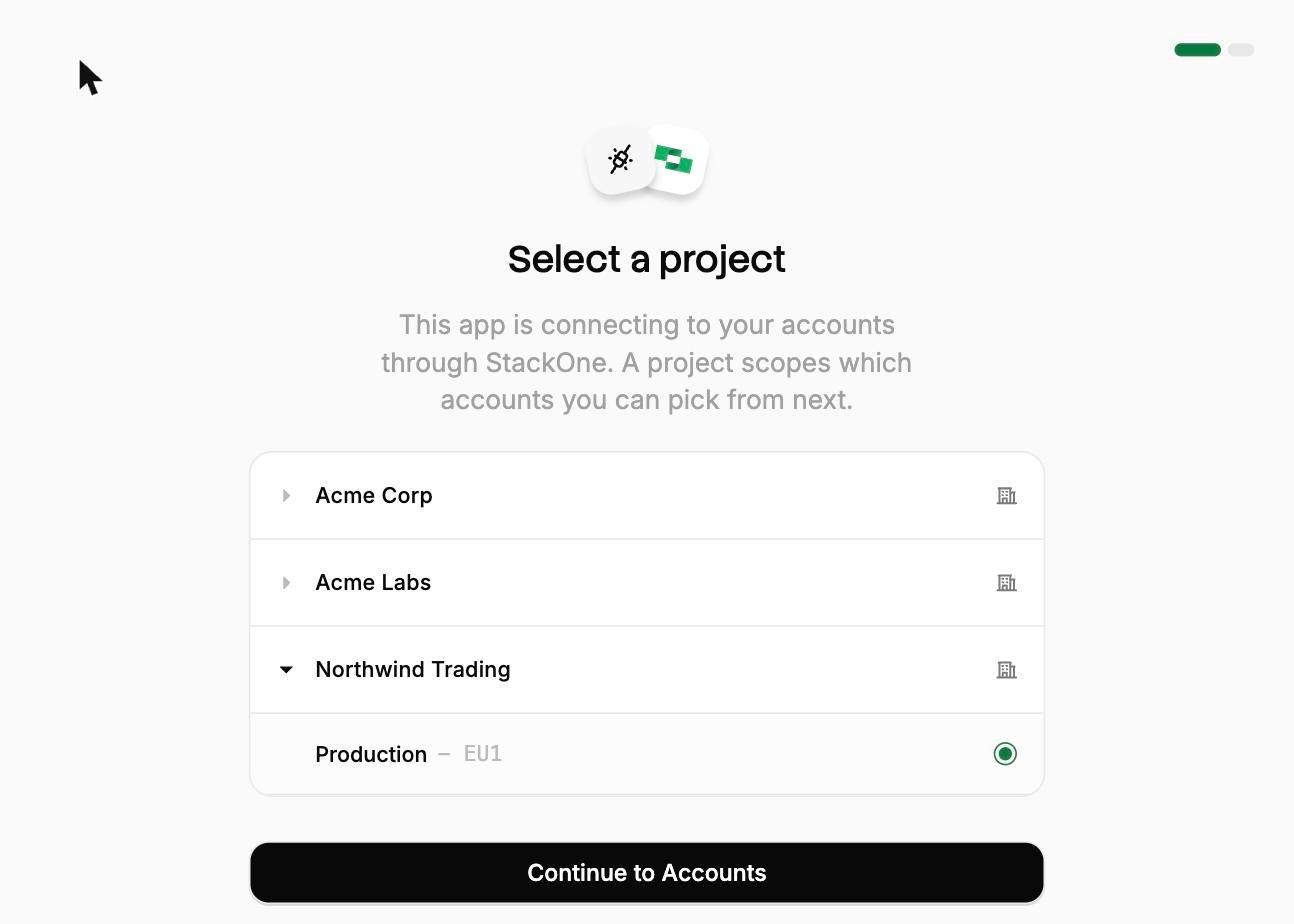
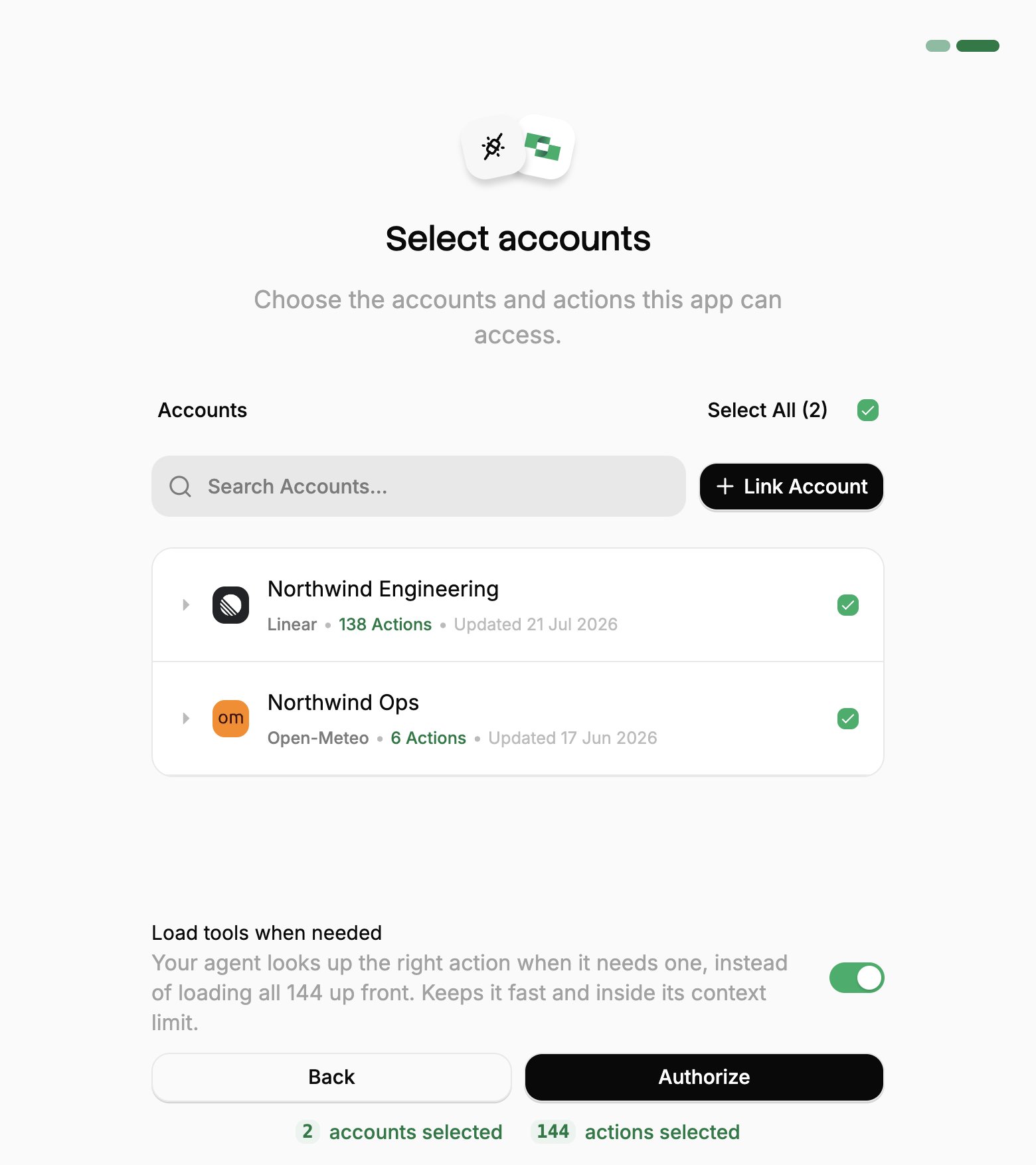
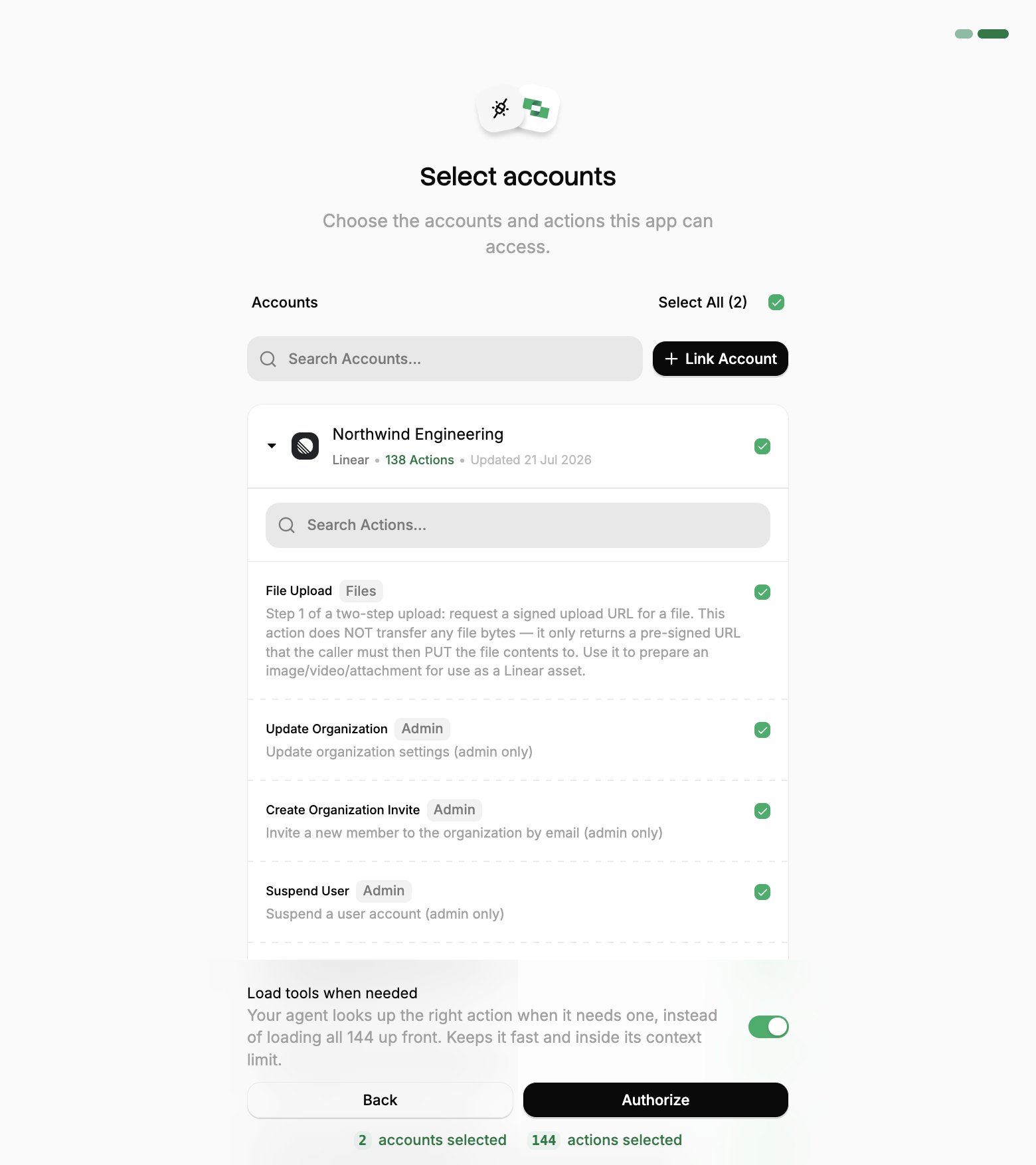 Each client guide under [Client setup (OAuth)](#client-setup-oauth) walks through every screen.
## Who can grant access
Users typically hold the project-level [**Member** role](/secure/team-management#project-members), which is what the flow is built around. A project Member sees the accounts they linked themselves, plus any they have been added to. That is what makes one URL safe to publish across an organization.
Access can also be granted on a single linked account, which is how a shared account (a service mailbox, a company CRM login) reaches someone who is otherwise only a Member. Each person added to an account gets one of two levels:
| On a linked account | Can |
| ------------------- | -------------------------------------------------------------------------- |
| **Admin** | Run actions, edit, delete, re-authenticate, and manage who else has access |
| **Member** | Run actions only |
## Choosing a connection method
There are two ways to connect a client:
| | [OAuth](#client-setup-oauth) | [Session token](#client-setup-session-token) |
| ----------------- | ----------------------------------------- | --------------------------------------------------------------- |
| Best for | A person using a client interactively | Unattended use, such as a shared server or a scheduled workflow |
| Who gets access | The person who signed in and approved | Anyone holding the URL |
| Accounts covered | Several, chosen at approval time | One, fixed when generated |
| Ends when | The grant is revoked under Connected Apps | The token expires or is regenerated |
| Safe to circulate | Yes | No, treat it as a password |
## Client setup (OAuth)
OAuth is the recommended way to connect. Each person authorizes with their own StackOne login, and their grant can be revoked at any time.
### Popular clients
Here are step-by-step guides for some of the most popular clients:
Here are guides for other clients:
| Client | Setup | Their docs |
| ---------------------- | ----------------------------------------------------------- | ------------------------------------------------------------------------------------------------------------- |
| Azure AI Foundry | URL only | [MCP tool](https://learn.microsoft.com/en-us/azure/ai-foundry/agents/how-to/tools/model-context-protocol) |
| Postman | Detects OAuth on its own and offers an **Authorize** button | [MCP requests](https://learning.postman.com/docs/postman-ai-agent-builder/mcp-requests/overview/) |
| Dust | URL only | [MCP in Dust](https://docs.dust.tt/docs/mcp) |
| Amazon Quick | URL only | [MCP in Amazon Quick](https://docs.aws.amazon.com/quicksuite/latest/userguide/mcp.html) |
| LangChain | Through the MCP adapters package | [langchain-mcp-adapters](https://github.com/langchain-ai/langchain-mcp-adapters) |
| Gemini data connectors | URL only | [Gemini Enterprise](https://docs.cloud.google.com/gemini/enterprise/docs/overview) |
| Glean | URL only | [Connect remote MCP servers](https://docs.glean.com/administration/tools/connect-remote-mcp-servers-to-glean) |
### Clients requiring Client ID and Secret
Most clients register themselves with StackOne automatically, which is why the URL is usually the whole configuration. A few sign in from a fixed, hosted callback address instead and cannot self-register. Those need a client created in the dashboard first, and you paste its credentials into the client.
Go to **Project Settings → MCP OAuth Clients → Create**. Give it a descriptive name and one **redirect URI** per line. This is the callback address the client returns to after sign-in, which the client's own documentation states.
The **Common integrations** picker fills the redirect URI in for the clients we have confirmed:
| Preset | Redirect URI |
| --------------------- | ------------------------------------------------------------- |
| Gemini Enterprise | `https://vertexaisearch.cloud.google.com/oauth-redirect` |
| Microsoft 365 Copilot | `https://teams.microsoft.com/api/platform/v1.0/oAuthRedirect` |
| Claude | `https://claude.ai/api/mcp/auth_callback` |
| Cursor | `https://www.cursor.com/agents/mcp/oauth/callback` |
Redirect URIs must be `https` or a loopback address.
**Generate** returns the client ID and secret. The secret is shown only once, so store it before you close the panel. If it is lost, create a new client rather than trying to recover it.
Paste the credentials into the client along with the endpoints shown beside them:
| Field | Value |
| ---------------------- | -------------------------------------------------------- |
| MCP server URL | `https://mcp.stackone.com/mcp` |
| Authorization endpoint | `https://idp-api.stackone.com/api/auth/oauth2/authorize` |
| Token endpoint | `https://idp-api.stackone.com/api/auth/oauth2/token` |
| Scopes | `mcp offline_access` |
Then run the flow. The consent screen is the same one every other client shows, and [Who can grant access](#who-can-grant-access) applies unchanged.
Clients that currently need this:
| Client | Their docs |
| ------------------------ | ------------------------------------------------------------------------------------------------------------------------------------------------------------------------------------------------------------------- |
| Gemini Enterprise | [Assistant actions](https://docs.cloud.google.com/gemini/enterprise/docs/assistant-actions) |
| Microsoft Copilot Studio | [MCP actions](https://learn.microsoft.com/en-us/microsoft-copilot-studio/agent-extend-action-mcp), [authenticating it](https://learn.microsoft.com/en-us/microsoft-365/copilot/extensibility/plugin-authentication) |
| Google ADK | [MCP tools](https://google.github.io/adk-docs/tools/mcp-tools/) |
Access tokens last one hour and are renewed automatically using the `offline_access` refresh token. The grant itself lasts 90 days, after which the user runs the flow again. Revoking under **Connected Apps** ends it immediately.
### Client not listed?
Any MCP client that speaks the Streamable HTTP transport and supports OAuth can connect. Point it at `https://mcp.stackone.com/mcp` and let it run the flow. If a client cannot open a browser for someone to approve the prompt, use a [session token](#client-setup-session-token) instead.
### Reviewing and revoking access
Every authorization is a grant against the user who approved it, not against a project API key. Users manage their own grants under **Connected Apps** in the dashboard, where revoking one immediately stops that client's tool calls.
Revoking access does not unlink the account or change the connector profile. The account keeps working for every other client.
## Client setup (session token)
Session token URLs cover the cases OAuth cannot: a shared server, a scheduled job, or anywhere nobody is present to approve a prompt.
The trade-off is that the access is built into the URL itself, so one leaked link exposes the account it was minted for.
```
https://api.stackone.com/mcp?token={session_token}
```
Generate one from **Connectors**, open a connector, then **Use in Agent**. Pick a linked account, set the expiry (one year by default), and copy the URL.
Everything above is for clients your users run themselves, each signing in with their own StackOne login. To call the MCP server from your own product instead, with your API key and an account ID per end-user, see [MCP](/embed/call-actions/mcp) in the Embed tab.
## Optimize and secure
With your agent connected, use StackOne's platform features to optimize performance and secure every call.
Reduce context and save tokens.
Search synced records for a fraction of the tokens.
Block prompt injections before they reach your agent.
Each client guide under [Client setup (OAuth)](#client-setup-oauth) walks through every screen.
## Who can grant access
Users typically hold the project-level [**Member** role](/secure/team-management#project-members), which is what the flow is built around. A project Member sees the accounts they linked themselves, plus any they have been added to. That is what makes one URL safe to publish across an organization.
Access can also be granted on a single linked account, which is how a shared account (a service mailbox, a company CRM login) reaches someone who is otherwise only a Member. Each person added to an account gets one of two levels:
| On a linked account | Can |
| ------------------- | -------------------------------------------------------------------------- |
| **Admin** | Run actions, edit, delete, re-authenticate, and manage who else has access |
| **Member** | Run actions only |
## Choosing a connection method
There are two ways to connect a client:
| | [OAuth](#client-setup-oauth) | [Session token](#client-setup-session-token) |
| ----------------- | ----------------------------------------- | --------------------------------------------------------------- |
| Best for | A person using a client interactively | Unattended use, such as a shared server or a scheduled workflow |
| Who gets access | The person who signed in and approved | Anyone holding the URL |
| Accounts covered | Several, chosen at approval time | One, fixed when generated |
| Ends when | The grant is revoked under Connected Apps | The token expires or is regenerated |
| Safe to circulate | Yes | No, treat it as a password |
## Client setup (OAuth)
OAuth is the recommended way to connect. Each person authorizes with their own StackOne login, and their grant can be revoked at any time.
### Popular clients
Here are step-by-step guides for some of the most popular clients:
Here are guides for other clients:
| Client | Setup | Their docs |
| ---------------------- | ----------------------------------------------------------- | ------------------------------------------------------------------------------------------------------------- |
| Azure AI Foundry | URL only | [MCP tool](https://learn.microsoft.com/en-us/azure/ai-foundry/agents/how-to/tools/model-context-protocol) |
| Postman | Detects OAuth on its own and offers an **Authorize** button | [MCP requests](https://learning.postman.com/docs/postman-ai-agent-builder/mcp-requests/overview/) |
| Dust | URL only | [MCP in Dust](https://docs.dust.tt/docs/mcp) |
| Amazon Quick | URL only | [MCP in Amazon Quick](https://docs.aws.amazon.com/quicksuite/latest/userguide/mcp.html) |
| LangChain | Through the MCP adapters package | [langchain-mcp-adapters](https://github.com/langchain-ai/langchain-mcp-adapters) |
| Gemini data connectors | URL only | [Gemini Enterprise](https://docs.cloud.google.com/gemini/enterprise/docs/overview) |
| Glean | URL only | [Connect remote MCP servers](https://docs.glean.com/administration/tools/connect-remote-mcp-servers-to-glean) |
### Clients requiring Client ID and Secret
Most clients register themselves with StackOne automatically, which is why the URL is usually the whole configuration. A few sign in from a fixed, hosted callback address instead and cannot self-register. Those need a client created in the dashboard first, and you paste its credentials into the client.
Go to **Project Settings → MCP OAuth Clients → Create**. Give it a descriptive name and one **redirect URI** per line. This is the callback address the client returns to after sign-in, which the client's own documentation states.
The **Common integrations** picker fills the redirect URI in for the clients we have confirmed:
| Preset | Redirect URI |
| --------------------- | ------------------------------------------------------------- |
| Gemini Enterprise | `https://vertexaisearch.cloud.google.com/oauth-redirect` |
| Microsoft 365 Copilot | `https://teams.microsoft.com/api/platform/v1.0/oAuthRedirect` |
| Claude | `https://claude.ai/api/mcp/auth_callback` |
| Cursor | `https://www.cursor.com/agents/mcp/oauth/callback` |
Redirect URIs must be `https` or a loopback address.
**Generate** returns the client ID and secret. The secret is shown only once, so store it before you close the panel. If it is lost, create a new client rather than trying to recover it.
Paste the credentials into the client along with the endpoints shown beside them:
| Field | Value |
| ---------------------- | -------------------------------------------------------- |
| MCP server URL | `https://mcp.stackone.com/mcp` |
| Authorization endpoint | `https://idp-api.stackone.com/api/auth/oauth2/authorize` |
| Token endpoint | `https://idp-api.stackone.com/api/auth/oauth2/token` |
| Scopes | `mcp offline_access` |
Then run the flow. The consent screen is the same one every other client shows, and [Who can grant access](#who-can-grant-access) applies unchanged.
Clients that currently need this:
| Client | Their docs |
| ------------------------ | ------------------------------------------------------------------------------------------------------------------------------------------------------------------------------------------------------------------- |
| Gemini Enterprise | [Assistant actions](https://docs.cloud.google.com/gemini/enterprise/docs/assistant-actions) |
| Microsoft Copilot Studio | [MCP actions](https://learn.microsoft.com/en-us/microsoft-copilot-studio/agent-extend-action-mcp), [authenticating it](https://learn.microsoft.com/en-us/microsoft-365/copilot/extensibility/plugin-authentication) |
| Google ADK | [MCP tools](https://google.github.io/adk-docs/tools/mcp-tools/) |
Access tokens last one hour and are renewed automatically using the `offline_access` refresh token. The grant itself lasts 90 days, after which the user runs the flow again. Revoking under **Connected Apps** ends it immediately.
### Client not listed?
Any MCP client that speaks the Streamable HTTP transport and supports OAuth can connect. Point it at `https://mcp.stackone.com/mcp` and let it run the flow. If a client cannot open a browser for someone to approve the prompt, use a [session token](#client-setup-session-token) instead.
### Reviewing and revoking access
Every authorization is a grant against the user who approved it, not against a project API key. Users manage their own grants under **Connected Apps** in the dashboard, where revoking one immediately stops that client's tool calls.
Revoking access does not unlink the account or change the connector profile. The account keeps working for every other client.
## Client setup (session token)
Session token URLs cover the cases OAuth cannot: a shared server, a scheduled job, or anywhere nobody is present to approve a prompt.
The trade-off is that the access is built into the URL itself, so one leaked link exposes the account it was minted for.
```
https://api.stackone.com/mcp?token={session_token}
```
Generate one from **Connectors**, open a connector, then **Use in Agent**. Pick a linked account, set the expiry (one year by default), and copy the URL.
Everything above is for clients your users run themselves, each signing in with their own StackOne login. To call the MCP server from your own product instead, with your API key and an account ID per end-user, see [MCP](/embed/call-actions/mcp) in the Embed tab.
## Optimize and secure
With your agent connected, use StackOne's platform features to optimize performance and secure every call.
Reduce context and save tokens.
Search synced records for a fraction of the tokens.
Block prompt injections before they reach your agent.