> ## Documentation Index
> Fetch the complete documentation index at: https://docs.stackone.com/llms.txt
> Use this file to discover all available pages before exploring further.
# n8n Automation
> Use StackOne MCP in n8n workflows with the MCP Client Tool node.
## Overview
[n8n](https://n8n.io/) provides MCP support through its MCP Client Tool node for workflow automation.
## Prerequisites
* A StackOne [project](/gateway/concepts/organizations-and-projects) you are a member of.
* A [connector profile](/gateway/concepts/connector-profiles) in the project for each provider the client should reach, with the actions you want exposed enabled.
* (Optional) A [linked account](/gateway/concepts/linked-accounts) for each provider. Accounts can also be linked during the consent flow.
## Setup
1. Create a new workflow
2. Click **+** to add a node and search for "MCP Agent"
3. Under tools, click **+** and search for **MCP Client Tool**
4. Set **URL** to `https://mcp.stackone.com/mcp`
5. Set the transport to **HTTP Streamable**. StackOne does not serve SSE, so an SSE endpoint will not connect
Set **Authentication** to **OAuth2** and complete the flow in the browser. n8n stores the result as a reusable credential.
Sign in, pick the project and the [linked accounts](/gateway/concepts/linked-accounts) the connector should reach, then **Authorize**.
1. **Sign in to StackOne.** If you are already signed in to the dashboard you skip straight to the next step.
2. **Select a project.** Select the project you would like to associate the connection with.
3. **Select accounts and actions.** Existing linked accounts are shown. New accounts can be linked by clicking **+ Link Account**. You can either select the whole account (all actions will be granted) or refine by toggling individual actions.
4. **(Optional) Load tools when needed.** On by default, and the toggle that puts the connection into [Advanced Tool Search](/optimize/advanced-tool-search). Leave it on for large action sets. Turn it off to hand the agent every selected action up front.
5. **Authorize.** Completes the connection; you can return to your client.
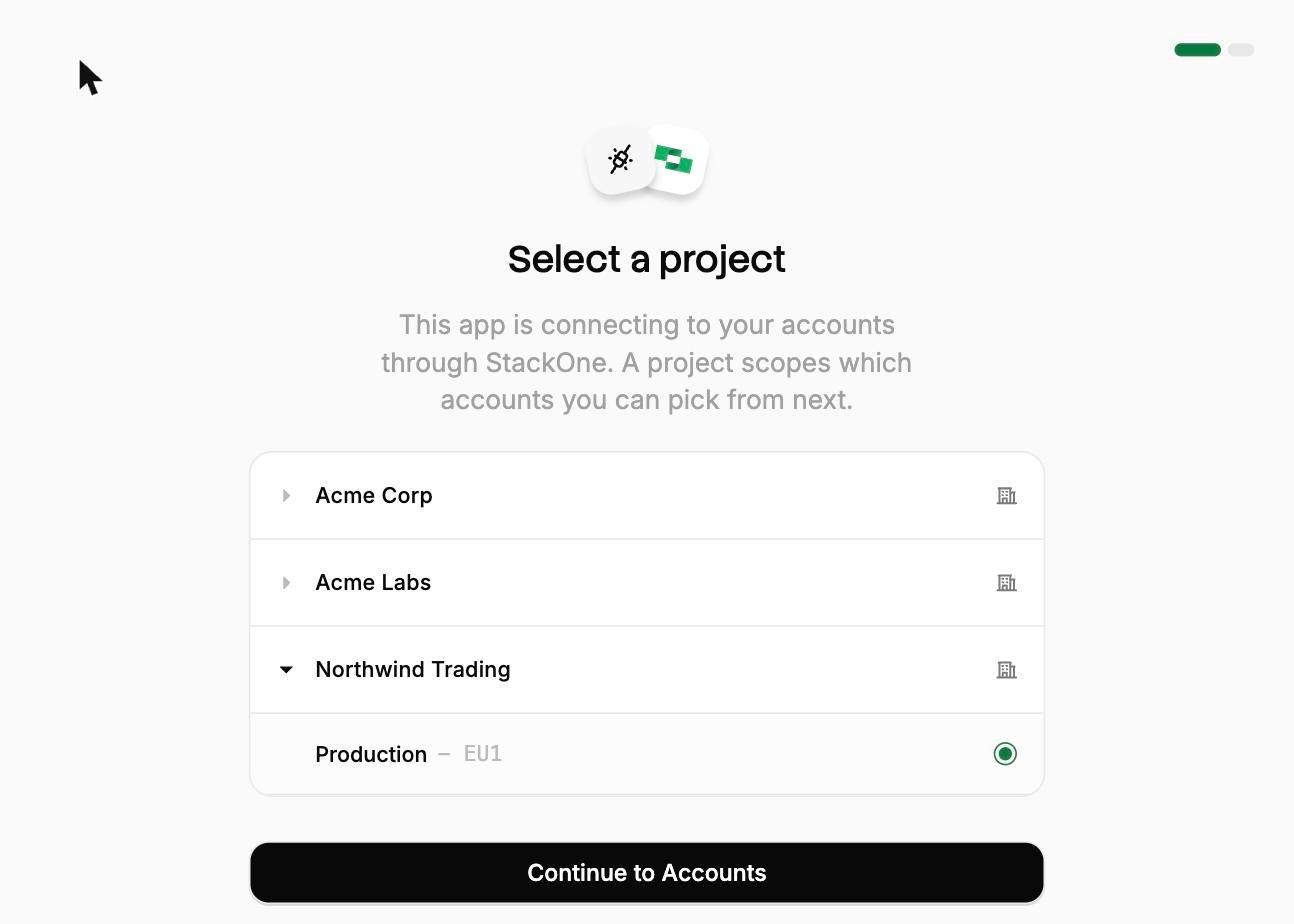
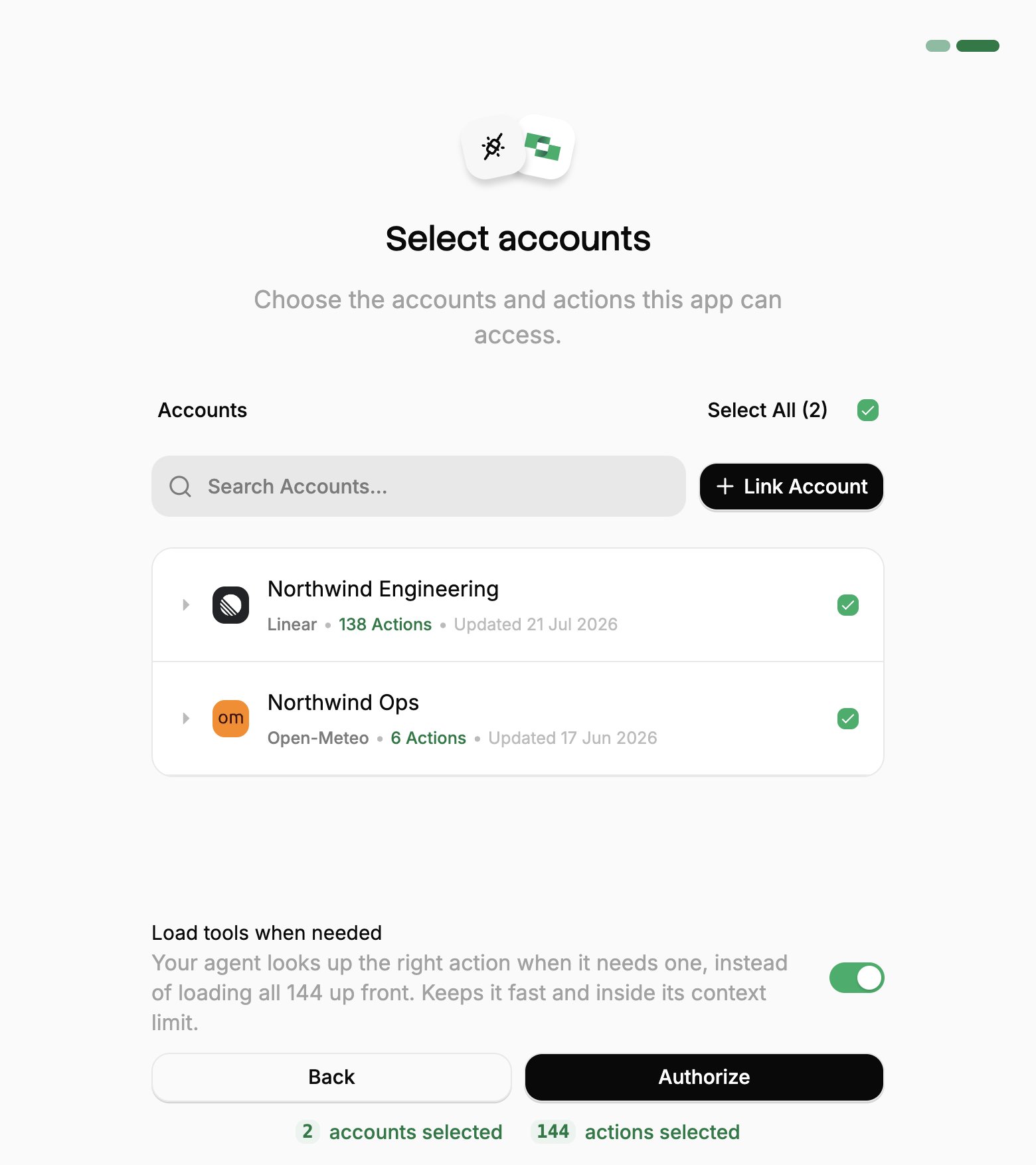
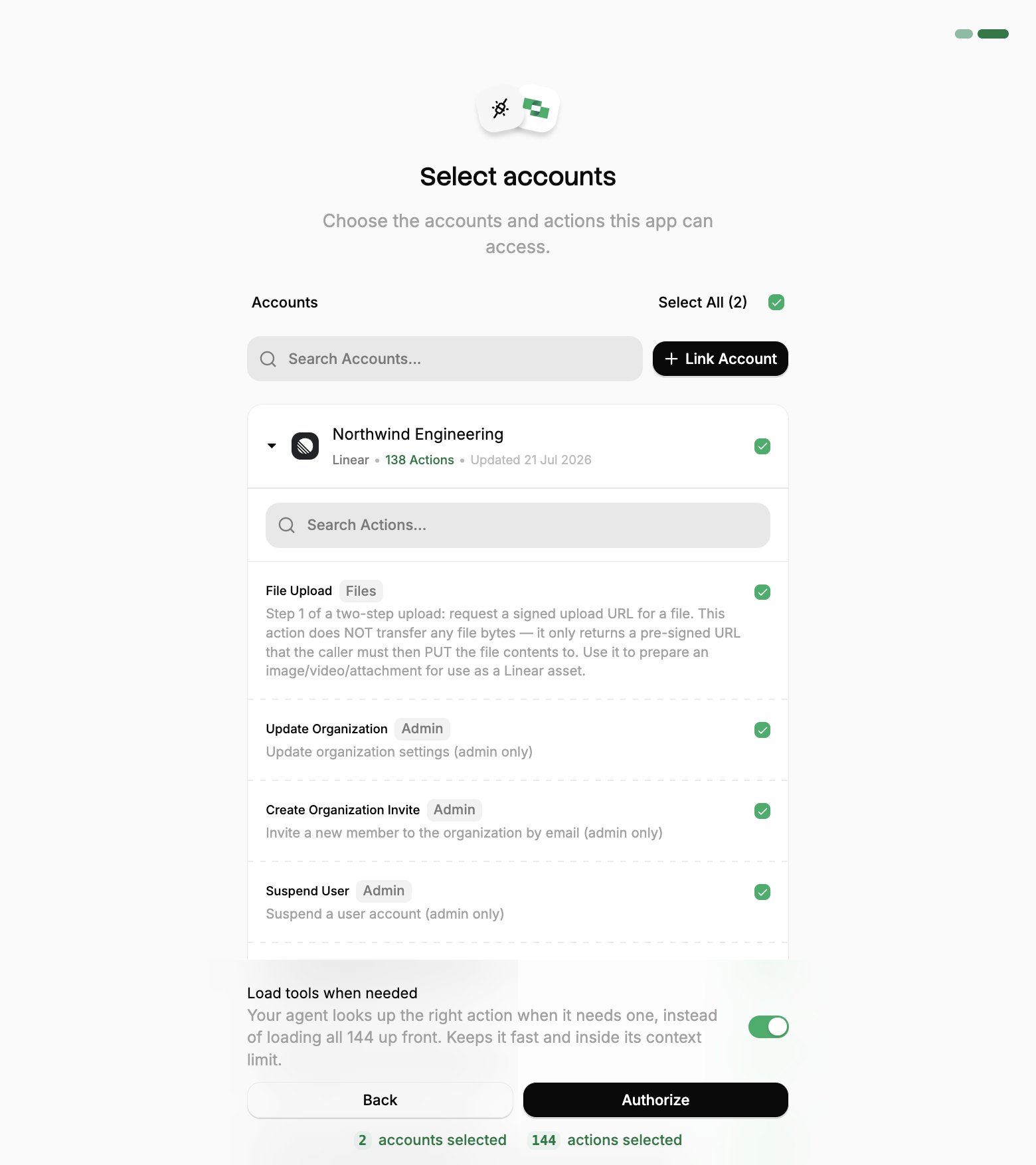 If you see a sentence where the **Load tools when needed** toggle should be, an admin has already settled it for the whole project. See [project settings](/optimize/advanced-tool-search#setting-it-for-a-whole-project).
If your n8n version doesn't offer OAuth2 on this node, use a session token URL instead, see below.
Click **Execute Step** to verify the connection and see available tools, then pick what the workflow needs from **Tools to include**.
An OAuth grant belongs to the person who approved it, and n8n workflows usually run unattended long after that. A session token URL is often the better fit for a scheduled workflow, since it carries its own credential and doesn't depend on one person's grant.
A session token URL carries its own credential, so it covers the cases OAuth can't: a shared server, a scheduled job, or anywhere nobody is present to approve a consent screen.
Generate one from **Connectors**, open a connector, then **Use in Agent**. Pick a linked account, set the expiry (one year by default), and copy the URL:
```
https://api.stackone.com/mcp?token={session_token}
```
One URL covers one linked account, and anyone holding it has that access until it expires, so treat it like a password. See [Choosing a connection method](/connect/ai-platforms/overview#choosing-a-connection-method) for the comparison with OAuth.
There is no consent screen to set [Advanced Tool Search](/optimize/advanced-tool-search) on, so add the `tool-mode` query parameter instead:
```
https://api.stackone.com/mcp?token={session_token}&tool-mode=search_execute
```
In the MCP Client Tool node, paste the token URL and set **Authentication** to **None**. One node then covers one linked account.
To authenticate with your API key and account ID directly:
1. Set the URL to `https://api.stackone.com/mcp?x-account-id=`
2. Set **Authentication** to **Header Auth** (create new credentials if needed):
* Header name: `Authorization`
* Value: `Basic `, base64-encoding your API key followed by a colon (`your_api_key:`)
See [Authentication & Security](/embed/call-actions/mcp#calling-actions) for details on obtaining your API key and account ID.
## Building workflows
Once configured, use the MCP Client Tool node to execute StackOne actions on the accounts you granted.
For detailed setup instructions, see n8n's [MCP Client Tool documentation](https://docs.n8n.io/integrations/builtin/cluster-nodes/sub-nodes/n8n-nodes-langchain.toolmcp/).
## Optimize and secure
With your agent connected, use StackOne's platform features to optimize performance and secure every call.
Reduce context and save tokens.
Search synced records for a fraction of the tokens.
Block prompt injections before they reach your agent.
If you see a sentence where the **Load tools when needed** toggle should be, an admin has already settled it for the whole project. See [project settings](/optimize/advanced-tool-search#setting-it-for-a-whole-project).
If your n8n version doesn't offer OAuth2 on this node, use a session token URL instead, see below.
Click **Execute Step** to verify the connection and see available tools, then pick what the workflow needs from **Tools to include**.
An OAuth grant belongs to the person who approved it, and n8n workflows usually run unattended long after that. A session token URL is often the better fit for a scheduled workflow, since it carries its own credential and doesn't depend on one person's grant.
A session token URL carries its own credential, so it covers the cases OAuth can't: a shared server, a scheduled job, or anywhere nobody is present to approve a consent screen.
Generate one from **Connectors**, open a connector, then **Use in Agent**. Pick a linked account, set the expiry (one year by default), and copy the URL:
```
https://api.stackone.com/mcp?token={session_token}
```
One URL covers one linked account, and anyone holding it has that access until it expires, so treat it like a password. See [Choosing a connection method](/connect/ai-platforms/overview#choosing-a-connection-method) for the comparison with OAuth.
There is no consent screen to set [Advanced Tool Search](/optimize/advanced-tool-search) on, so add the `tool-mode` query parameter instead:
```
https://api.stackone.com/mcp?token={session_token}&tool-mode=search_execute
```
In the MCP Client Tool node, paste the token URL and set **Authentication** to **None**. One node then covers one linked account.
To authenticate with your API key and account ID directly:
1. Set the URL to `https://api.stackone.com/mcp?x-account-id=`
2. Set **Authentication** to **Header Auth** (create new credentials if needed):
* Header name: `Authorization`
* Value: `Basic `, base64-encoding your API key followed by a colon (`your_api_key:`)
See [Authentication & Security](/embed/call-actions/mcp#calling-actions) for details on obtaining your API key and account ID.
## Building workflows
Once configured, use the MCP Client Tool node to execute StackOne actions on the accounts you granted.
For detailed setup instructions, see n8n's [MCP Client Tool documentation](https://docs.n8n.io/integrations/builtin/cluster-nodes/sub-nodes/n8n-nodes-langchain.toolmcp/).
## Optimize and secure
With your agent connected, use StackOne's platform features to optimize performance and secure every call.
Reduce context and save tokens.
Search synced records for a fraction of the tokens.
Block prompt injections before they reach your agent.